
If you're a Samsung user, you've probably come across Smart View. But what exactly is Smart View, and how does it work? In this guide, we'll explain "what is Smart View mirror screen", how to use it on your Samsung device, and what to do if it doesn't meet your needs. We'll also introduce a great alternative app for screen mirroring that works across different brands, no cables or compatibility limits required.
What Is Smart View on Samsung Phone
Smart View, often called Samsung Smart View, is a built-in screen mirroring feature found on many Samsung smartphones and tablets. It allows you to wirelessly project your device's display onto a larger screen in real time, such as a Samsung Smart TV.
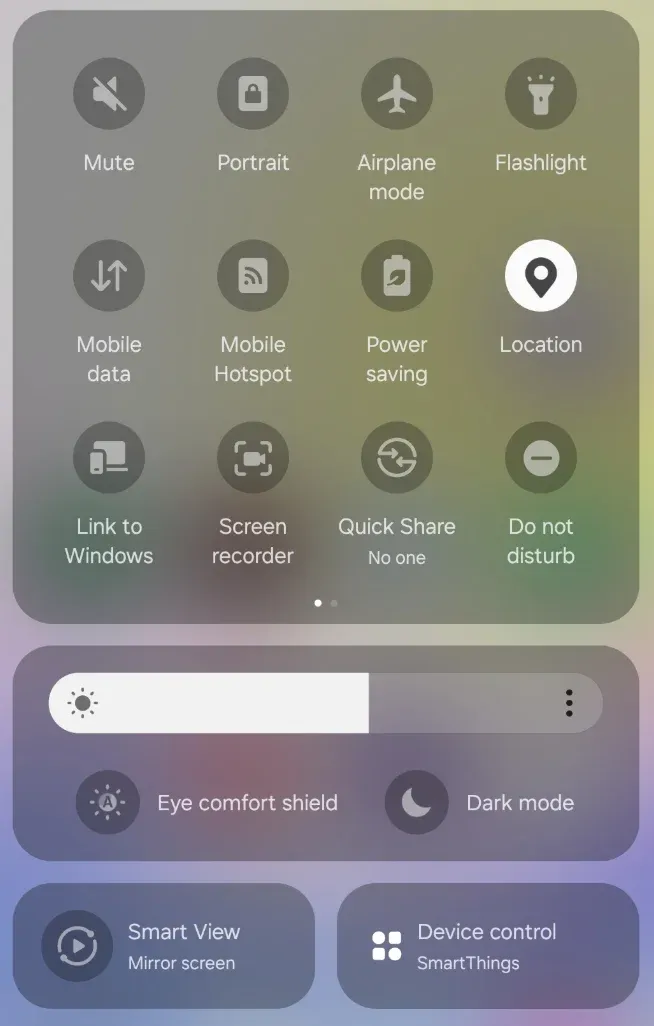
Originally, Smart View Samsung started as a standalone Smart View app that users could install on phones or PCs to connect to Samsung TVS. However, recent Samsung devices now have the feature integrated directly into the quick settings pane, making it easier to access without extra downloads.
How Smart View Works on Samsung Phone
Technically, Smart View screen mirroring uses the Miracast protocol, which is a wireless display standard that transmits both video and audio over Wi-Fi Direct. This means your phone connects directly to your TV without needing a router or internet connection.
Advantages of Samsung Smart View:
- Built into Samsung devices.
- Simple and quick to connect.
- High-quality video and audio mirroring
Disadvantages of Samsung Smart View:
- Limited to Samsung TVs or Miracast-compatible displays.
- Occasional lag during fast motion.
- Not available on all Android or TV brands.
In short, Smart View is Samsung's proprietary implementation of wireless screen mirroring. It makes it straightforward to screen mirror Samsung tablet and phone, but it works best within its own ecosystem.
How to Use Smart View on Samsung Phone
Getting started with Smart View screen mirroring only takes a few steps. Here's exactly how to use Smart View on your Samsung device.
Step 1. Turn on your TV and ensure it's on the same Wi-Fi network as your phone.
Step 2. Swipe down on your Samsung phone to open the Quick Settings panel.
Step 3. Tap Smart View. On older models, it may appear as Screen Mirroring.
Step 4. Choose your TV from the list of detected devices.
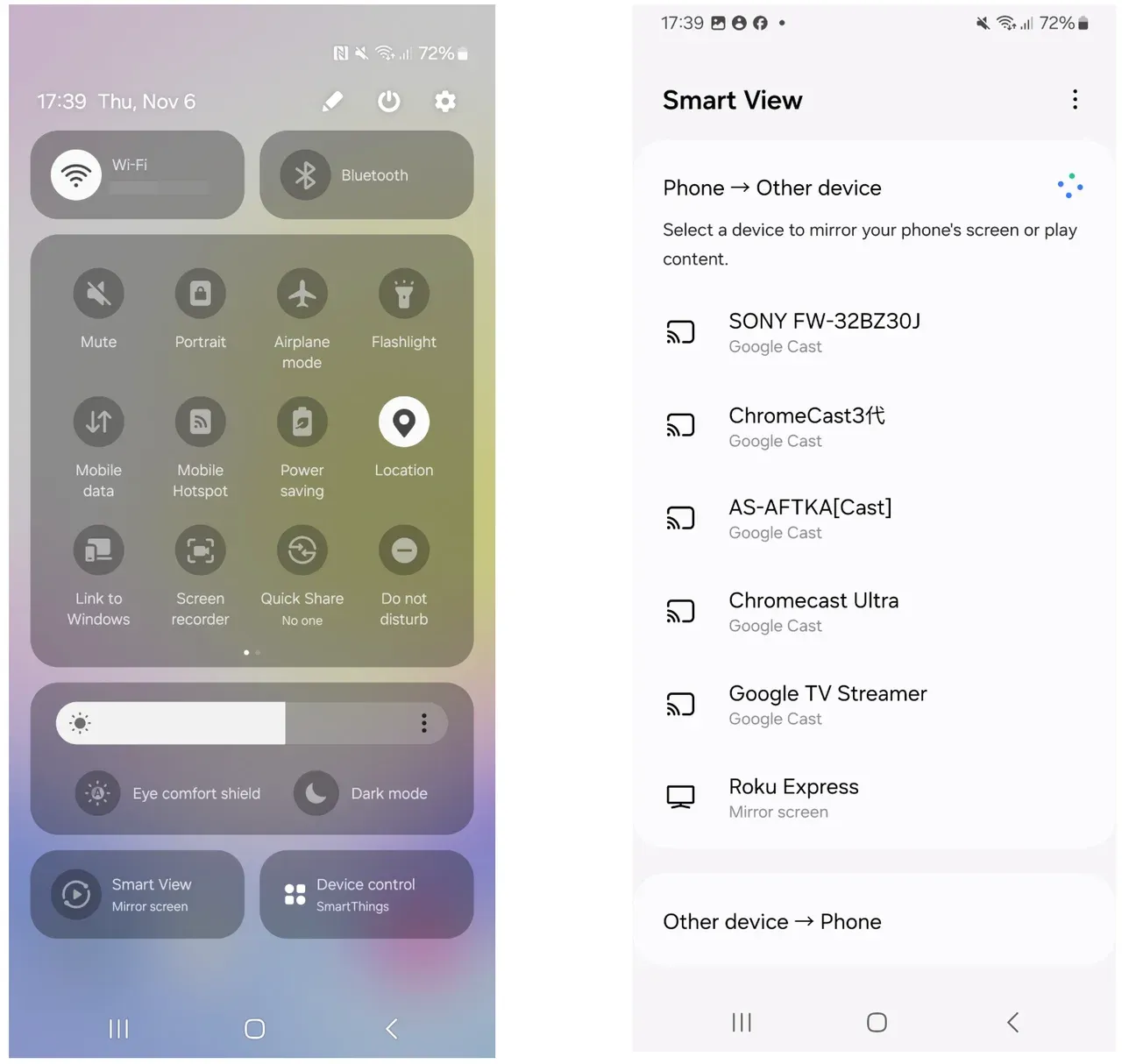
Step 5. Allow the connection on your TV if prompted.
Step 6. To disconnect, tap the Smart View icon again and choose Disconnect.
You've now successfully mirrored your Samsung phone using Smart View Samsung.
How to Fix Smart View Not Working
Sometimes, Smart View does not work, such as the TV not showing up or the TV screen keeping black. Why does this happen? The common reasons are:
- Your phone and TV are on different Wi-Fi networks
- The TV doesn't support Miracast
- Outdated software on your phone or TV
- Permissions or network settings are blocking the connection
Don't worry; these are common issues with easy fixes.
Step 1. Reconnect your devices to the same Wi-Fi network.
Step 2. Restart both your phone and TV, then try Samsung Smart View again.
Step 3. Update the software on your phone and TV to clear compatibility issues.
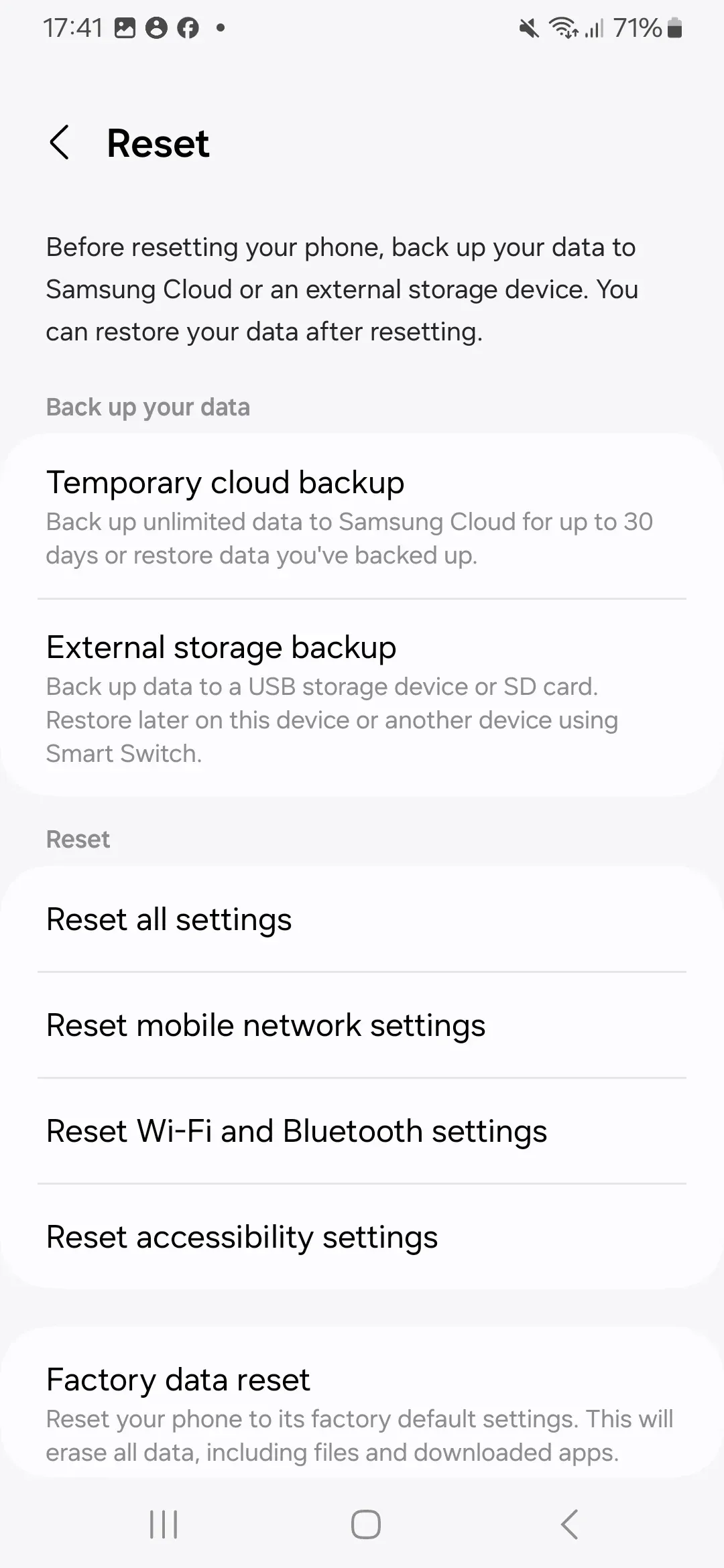
Step 4. On your phone, go to Settings > General Management > Reset > Reset mobile network settings. Then reconnect to your Wi-Fi and try Smart View again.
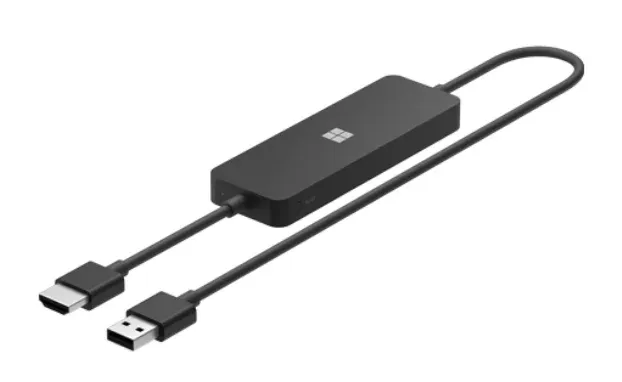
Step 5. Connect a Miracast adapter (like Microsoft Wireless Display Adapter) to your HDMI port if your TV doesn't support Miracast. The external device allows Smart View to detect and connect.
Try Smart View Alternative: PigeonCast
While Smart View works best within Samsung's ecosystem, it doesn't always play nicely with other devices. PigeonCast solves that problem completely.

PigeonCast is a free screen mirroring app that supports Google Cast, AirPlay, DLNA, and its own proprietary protocol, giving you more flexibility than the Samsung Smart View app.
You can mirror from Android, iPhone, Windows, or Mac to almost any TV brand, like LG, Sony, Roku, Hisense, and more. No lag, no compatibility limits.
Check the differences between Samsung Smart View and PigeonCast:
| Feature / Aspect | Samsung Smart View | PigeonCast |
|---|---|---|
| Supported Protocol | Miracast (Samsung only) | Google Cast, AirPlay, DLNA, custom protocol |
| Device Compatibility | Samsung phones & TVs | Android, iPhone, Windows, Mac, all major TVs |
| Wi-Fi Requirement | Same Wi-Fi or Wi-Fi Direct | Works with Wi-Fi |
| Ease of Use | Built-in on Samsung devices | Simple app interface |
| Performance | Good but limited | Low latency, smooth playback (4K streaming) |
| Ecosystem | Samsung-only | Universal |
| Price | Free | Free |
So if Smart View doesn't work or you use multiple device brands, PigeonCast gives you a smoother, cross-platform experience.

PigeonCast Screen Mirroring

Official Download



How to use PigeonCast for cross-platform screen mirroring:
Step 1. Ensure your devices are on the same Wi-Fi network.
Step 2. Launch PigeonCast on both devices, and on the sender device, choose the target device from the list.
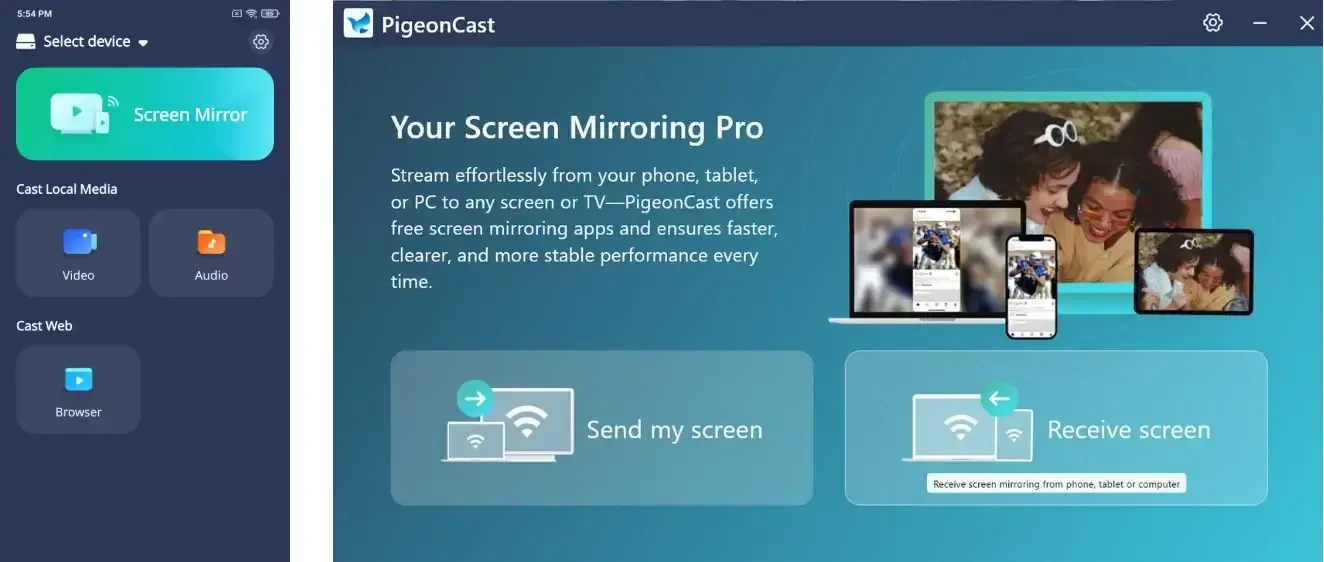
Step 3. Start mirroring.
Conclusion
To recap, Smart View mirror screen is Samsung's built-in feature for wireless display mirroring. It is simple, free, and effective, though mainly designed for use within the Samsung ecosystem.
If Smart View stops working, start by checking your Wi-Fi connection, updating the software, or resetting your network settings. For users who want a more flexible solution. PigeonCast is an excellent alternative that is powerful, free, and compatible with almost every platform.
With the right setup, you can easily mirror any screen to any TV without cables or complications.
What Is Smart View Mirror Screen FAQs
What's the difference between screen mirroring and Smart View?
Smart View is Samsung's version of screen mirroring that uses the Miracast protocol. General screen mirroring can also include Google Cast or AirPlay on other devices.
Is Smart View private?
Yes. Smart View only shares your screen with the TV you connect to. However, it is best to use it on secure, private networks.
What does SmartView do?
Smart View mirrors your Samsung phone or tablet screen and audio to a compatible TV or monitor wirelessly.
Is Smart View free to use?
Yes. Smart View is a free feature available on Samsung devices.
Is Smart View safe?
Smart View is safe when used on trusted networks. Always ensure your connection is private to prevent unwanted access.
How to get rid of Smart View?
You can remove Smart View from the Quick Settings panel or disable it under system settings if you do not use it.
What devices work with Smart View?
Most Samsung Galaxy phones, tablets, and Samsung Smart TVs support Smart View, as well as any display compatible with Miracast.
Mia Clarke is a technology editor specializing in screen mirroring and casting solutions across multiple platforms. Mia provides clear, practical guides and in-depth insights to help users seamlessly connect their devices. Passionate about enhancing digital experiences, Mia is dedicated to keeping readers updated on the latest trends and tools in cross-platform screen sharing. Whether you’re looking to mirror your smartphone, laptop, or smart TV, Mia’s content delivers reliable, user-friendly advice to simplify your tech setup.