
If you want to mirror Samsung tablet screen for Netflix nights, Zoom classes, design reviews, or family photos, you do not need extra tech skills. Most Samsung tablets already support Smart View and Miracast. The real challenge is picking the right method and knowing what to do when it fails.
This guide shows you how to mirror Samsung tablet screen to a TV, Windows PC, or HDMI display. You will also fix common issues like Samsung tablet mirroring not working, missing audio, lag, and connection drops.
Quick Answer
To mirror a Samsung tablet screen quickly:
-
Connect your Samsung tablet and the target display (PC or TV) to the same Wi-Fi network.
-
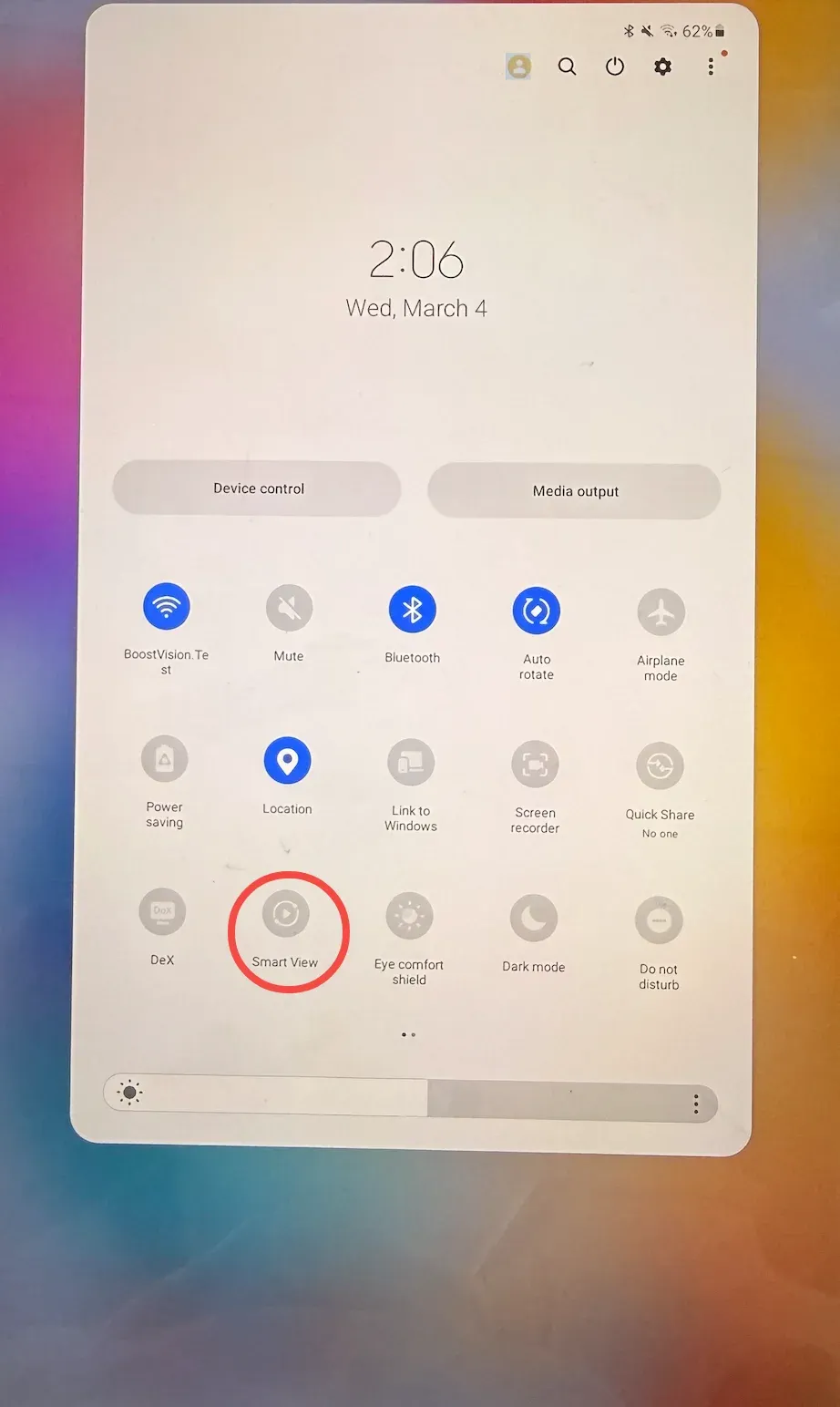
Swipe down on your tablet to open Quick Settings.
-
Tap Samsung tablet Smart View.
-
Select your TV or PC from the device list.
-
Accept the pairing prompt on the target screen.
If this fails, restart both devices, reconnect Wi-Fi, and retry Smart View.
Before You Start: 60-Second Checklist
Do this once before deeper troubleshooting. It solves more issues than you might expect.
-
Make sure both devices use the same WiFi name.
-
Update your Samsung tablet software.
-
Update your TV firmware or Windows system.
-
Turn off VPN temporarily.
-
Keep devices within strong WiFi range.
-
Enable screen projection or wireless display mode on the TV or PC.
-
Keep battery above 20 percent.
These checks solve a large share of "Samsung tablet mirroring not working" cases before deep troubleshooting.
Method 1: Mirror Samsung Tablet Screen to TV
Most Samsung Smart TVs and many LG, Sony, and TCL models support Miracast or Smart View, making Samsung tablet screen mirroring easy.
How to mirror Samsung tablet to TV:
-
Turn on your smart TV and enable screen mirroring mode in the Settings menu.
-
On your tablet, swipe down and tap Smart View.
-
Select your TV from the list.
-
Accept the connection request on the TV.
That is it. Your screen should appear within seconds.
Method 2: Mirror Samsung Tablet Screen to PC
If you want Samsung tablet screen mirroring to PC, Windows 10 and Windows 11 support wireless display natively.
On your Windows PC:
-
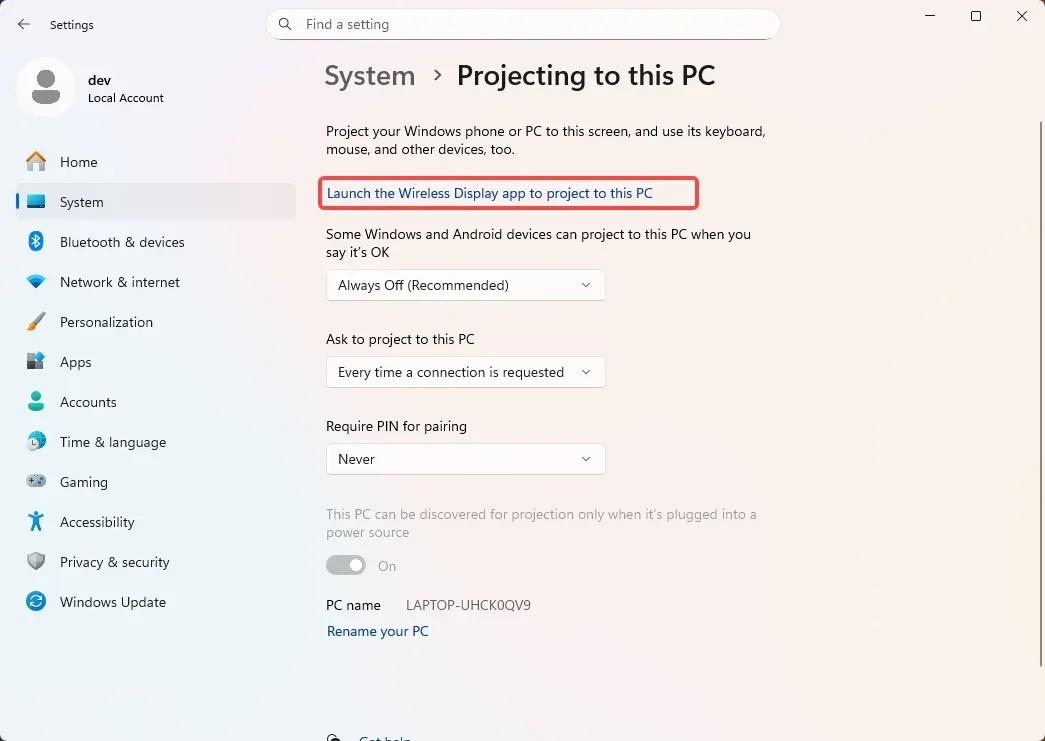
Go to Settings > System > Projecting to this PC > Add the Wireless Display optional feature > Optional features.
-
Type wireless display and install it.
Once Windows Wireless Display is installed, you can mirror Samsung tablet to laptop:
-
On your Samsung device, open Quick Settings.
-
Tap Smart View.
-
Select your PC name.
-
Confirm the connection on the computer.
Your tablet screen will now show on your laptop.
Method 3: Mirror Samsung Tablet Screen with PigeonCast
If Smart View drops the connection halfway through a presentation, or your TV simply does not show up, a dedicated tool like PigeonCast, a free screen mirroring tool, gives you more control and fewer surprises.
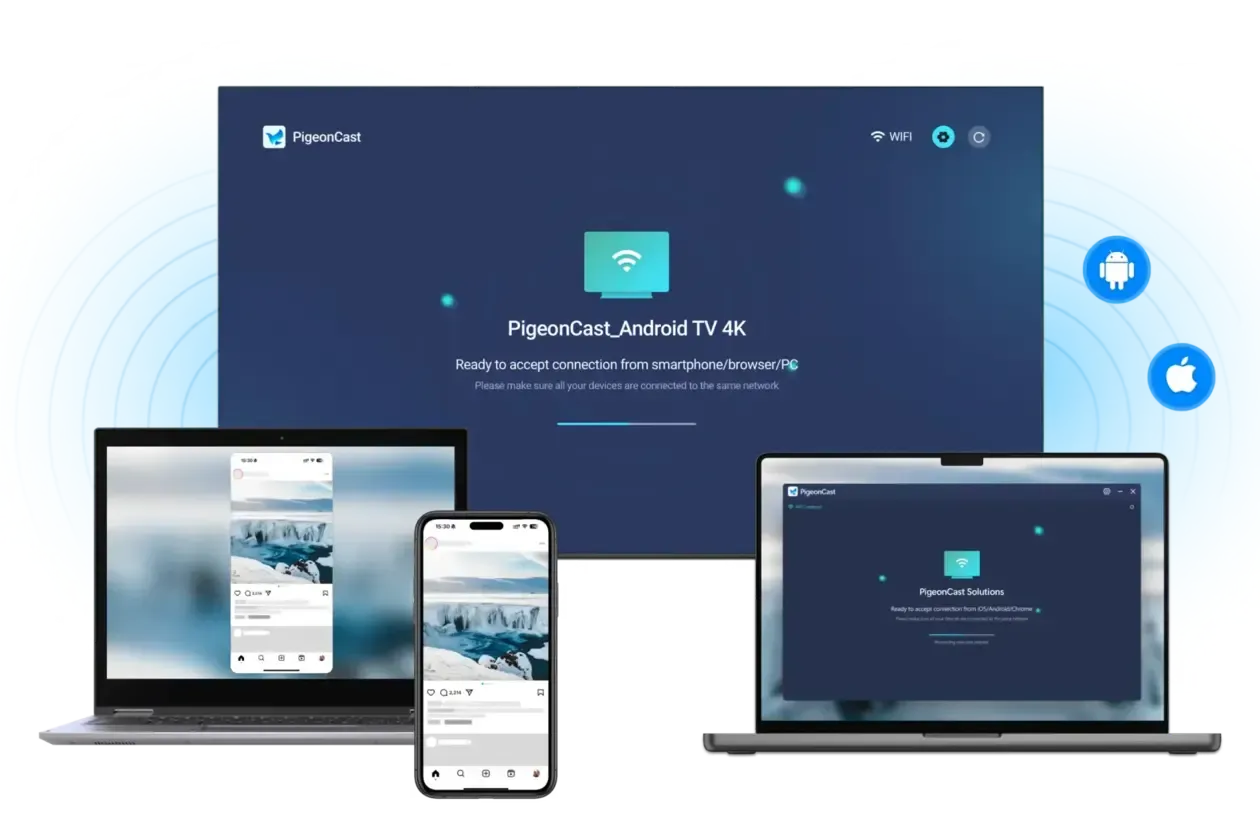
Unlike basic Miracast connections, PigeonCast is designed for stronger stability and cleaner image quality. It is especially useful when you need Samsung tablet screen mirroring to TV during meetings, training sessions, or live demos where interruptions are not an option.


Overall Rating:



How to use PigeonCast for Samsung tablet screen mirroring:
-
On your device, go to the app store like Google Play or Microsoft Store, search for PigeonCast, and install the app.
-
Make sure both devices are connected to the same WiFi network.
-
Launch PigeonCast on your target device (on your computer, turn on receiver mode so it can accept incoming connections).
-
On your Samsung tablet, open PigeonCast and select your PC or TV from the available device list.
-
Confirm the connection and start screen mirroring.
Within a few seconds, your tablet display should appear on the larger screen. You can also tap other functions to cast Samsung tablet to TV.
This method works particularly well if you regularly mirror Samsung tablet to laptop for slides, design previews, or app demonstrations and want a smoother, more reliable connection than standard wireless casting.
Method 4: Mirror Samsung Tablet Screen with HDMI
You can screen mirror without Wi-Fi if you have an HDMI cable. The wired connection offers a lag-free streaming experience.
You will need:
-
USB-C to HDMI adapter
-
HDMI cable
-
TV or monitor with HDMI port
How to connect Samsung tablet to TV with HDMI cable:
-
Connect USB-C adapter to your tablet.
-
Plug HDMI cable into adapter and TV.
-
Switch TV input to HDMI.
-
Your tablet screen should appear instantly.
If you are asking how to mirror Samsung tablet screen without WiFi, this is the answer.
Quick Comparison: Which Method Should You Use?
| Method | Best For | Internet Needed | Stability | Lag Level |
|---|---|---|---|---|
| Smart View to TV | Movies, home use | Yes | Medium | Low to medium |
| Smart View to PC | Work, classes | Yes | Medium | Low |
| PigeonCast | Movies, home use, presentations | Yes | High | Low |
| HDMI | Gaming, offline use | No | Very high | Almost none |
For casual streaming, Smart View is fine. For business, I lean toward PigeonCast or HDMI.
Fix Samsung Tablet Screen Mirroring Issues
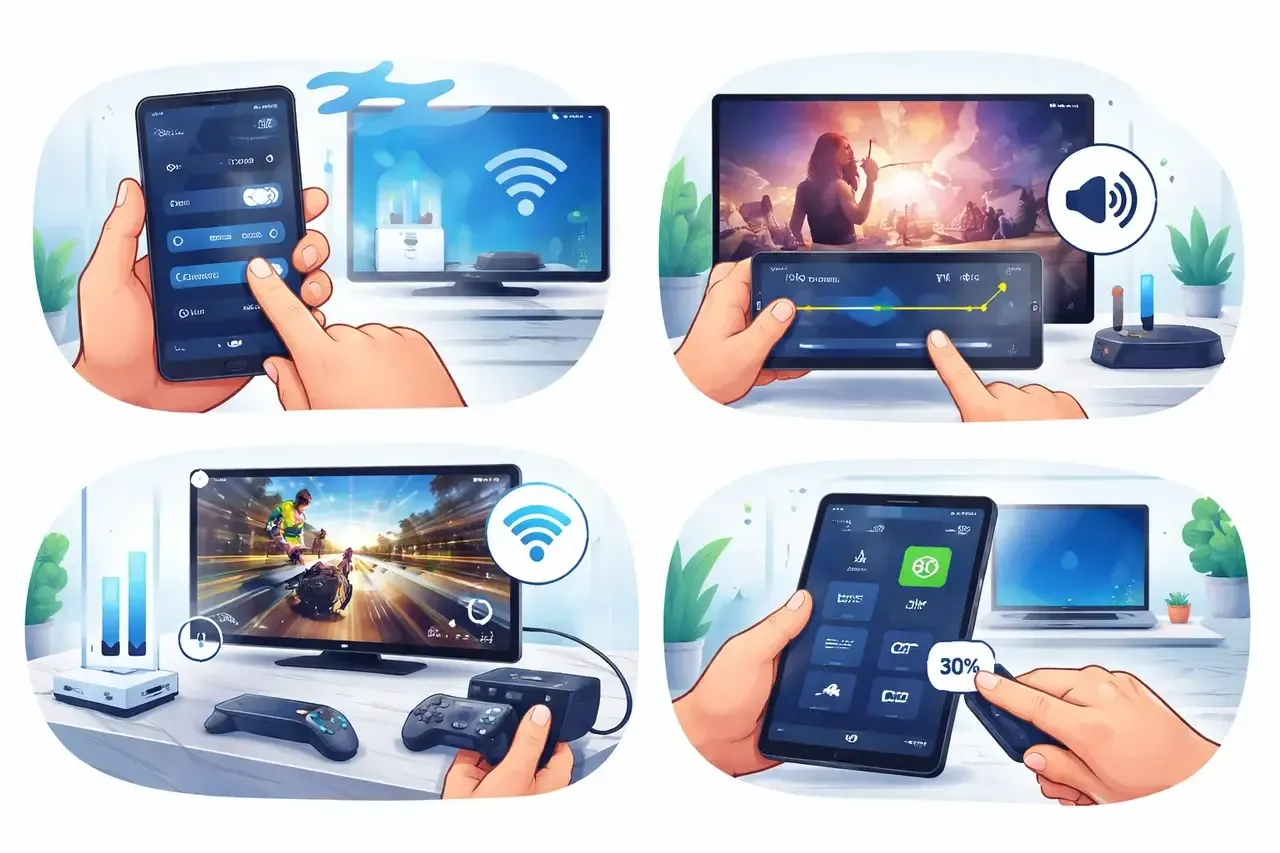
If your Samsung tablet screen mirroring is not working, such as device not found, no sound while mirroring, etc., use the fixes below.
Fix 1: Device Not Found
-
Confirm the same Wi-Fi network.
-
Restart the router.
-
Toggle airplane mode on and off.
-
Enable screen mirroring mode on TV.
-
Update firmware.
Still not showing? Disable VPN and firewall temporarily.
Fix 2: No Sound on TV
If video plays but audio is missing:
-
Increase TV volume.
-
Open the tablet volume panel.
-
Set audio output to TV instead of tablet.
-
Restart the connection.
Some older TVs do not auto-switch audio channels. Reconnecting usually fixes this.
Fix 3: Lag or Delay
Lag usually comes from weak Wi-Fi.
-
Move closer to the router.
-
Disconnect unused devices.
-
Switch to 5GHz Wi-Fi band.
-
Lower screen resolution if available.
-
Use HDMI for real-time performance.
Streaming 4K video over crowded Wi-Fi will always struggle.
Fix 4: Random Disconnects
-
Disable battery saver mode.
-
Keep the screen unlocked.
-
Prevent the tablet from sleeping.
-
Update Smart View.
-
Restart both devices.
Battery optimization often silently cuts background connections.
Conclusion
If you just want a quick movie night, Smart View Samsung tablet features are enough. For serious presentations or long sessions, I recommend either HDMI for absolute stability or PigeonCast for wireless reliability.
Most people assume screen mirroring is complicated. It is not. The key is matching the method to your situation and fixing small network mistakes early.
Once set up correctly, Samsung tablet screen mirroring to TV or PC becomes a smooth, everyday tool.
Mirror Samsung Tablet Screen FAQs
Where is screen mirroring in my Samsung settings?
Swipe down from the top of the screen and tap Smart View in Quick Settings. That is the built-in screen mirroring feature.
Can I mirror Samsung tablet screen without Wi-Fi?
Yes. Use a USB-C to HDMI adapter. This method does not require internet or wireless connection.
Why is Smart View not showing my TV?
Your TV may not support Miracast, may be on a different network, or screen mirroring mode is disabled. Restart both devices and reconnect Wi-Fi.
Can I mirror Samsung tablet screen to Windows 11?
Yes. Enable wireless display in Windows settings, then connect via Smart View Samsung tablet feature.
Why does my mirrored video have no audio?
Check TV volume and confirm audio output is set to the TV. Reconnecting usually restores sound.
Is there a best way to mirror Samsung tablet screen for presentations?
For professional presentations, HDMI gives maximum stability. If you prefer wireless flexibility, a stable receiver like PigeonCast offers better consistency than standard Smart View alone.
Mia Clarke is a technology editor specializing in screen mirroring and casting solutions across multiple platforms. Mia provides clear, practical guides and in-depth insights to help users seamlessly connect their devices. Passionate about enhancing digital experiences, Mia is dedicated to keeping readers updated on the latest trends and tools in cross-platform screen sharing. Whether you’re looking to mirror your smartphone, laptop, or smart TV, Mia’s content delivers reliable, user-friendly advice to simplify your tech setup.