
Watching content on a phone is convenient, but it doesn't compare to the experience of a big screen. If you own a FireStick or Fire TV, you can turn your living room into a mini home theater by casting directly from your Android device. Whether you want to stream YouTube, mirror your screen, or share photos, there are several ways to connect your phone and FireStick seamlessly. This guide will show you exactly how to cast to FireStick from Android step by step, no matter what brand of phone you use.
How to Cast FireStick from Android
Amazon Fire TV Stick relies on Miracast for screen mirroring. Most Android phones already support Miracast through features like Cast, Screen Cast, or Wireless Display, so you usually don't need any extra apps. If your device doesn't support Miracast, like Google Pixel, you can still mirror using third-party apps such as PigeonCast.
Furthermore, to make your Amazon FireStick visible to Android devices, you'll need to enable its mirroring feature:
Step 1. Press the Home button on your FireStick remote.
Step 2. Go to Settings > Display & Sounds > Enable Display Mirroring.
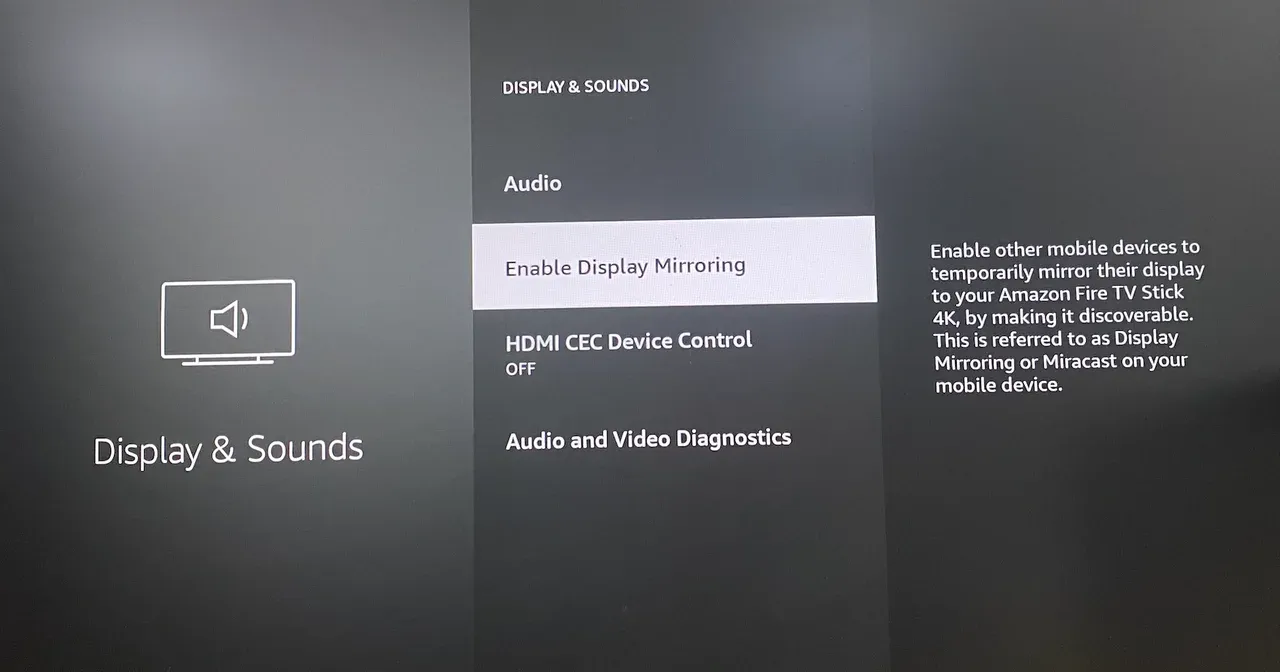
Step 3. Once enabled, your Fire TV will show up in the list of available devices on your phone.
Now, let's look at how to cast from Android to FireStick across different phone brands.
Cast from Normal Android Phones
Most Android phones (from brands like OnePlus, Xiaomi, Motorola, and others) support Miracast by default. The built-in Cast option works by wirelessly sending your phone's screen data to the Fire TV Stick, as long as both are connected to the same Wi-Fi network. This makes it ideal for everyday streaming and presentations.
Here's how to cast from Android to Fire TV Stick:
Step 1. On your Android, open Settings > Connected devices > Cast.
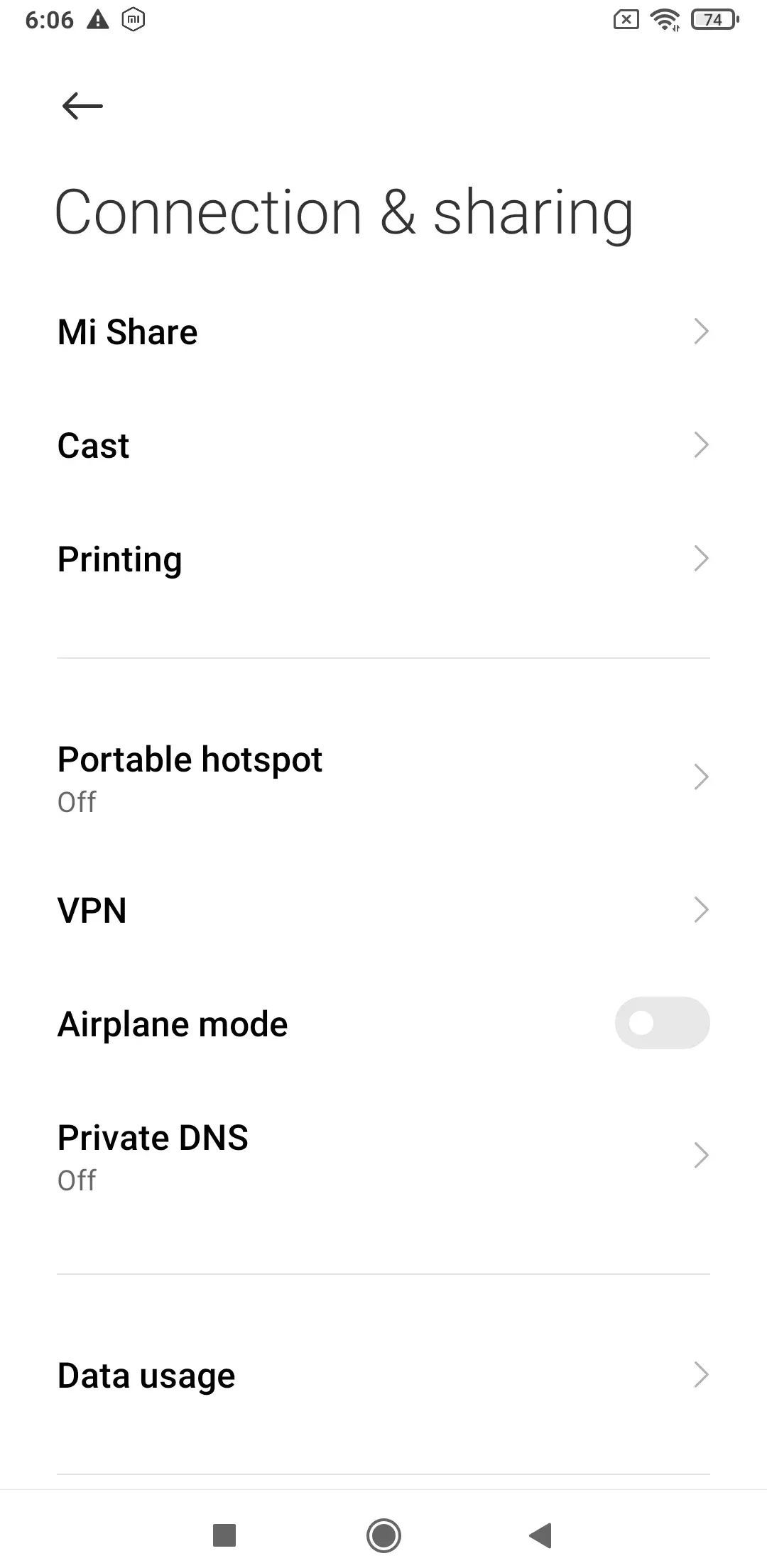
Step 2. Select your Fire TV from the list to cast Android to Fire TV.
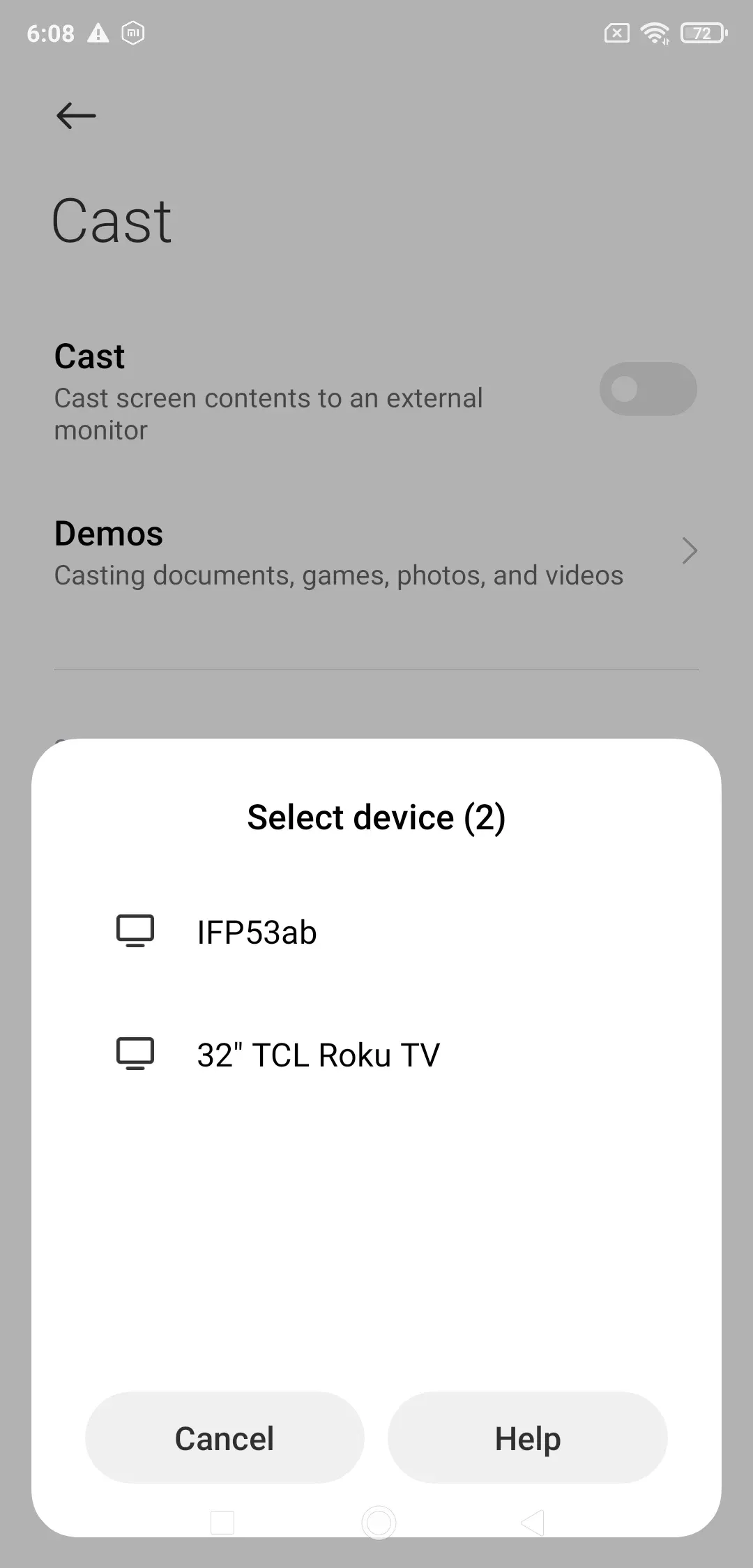
Step 3. Confirm the connection, and your screen will be mirrored.
Cast from Samsung Phones
Samsung phones use Smart View, which is based on Miracast as well. It is designed for Galaxy devices and ensures a stable connection with Fire TV. This option is available on most Samsung models, from mid-range to flagship devices, making it a reliable way to mirror Android to FireStick.
Here are steps to cast Android to FireStick:
Step 1. Ensure your phone and FireStick are connected to the same Wi-Fi network.
Step 2. Swipe down to open the Quick Settings panel.
Step 3. Tap Smart View and wait for nearby devices.
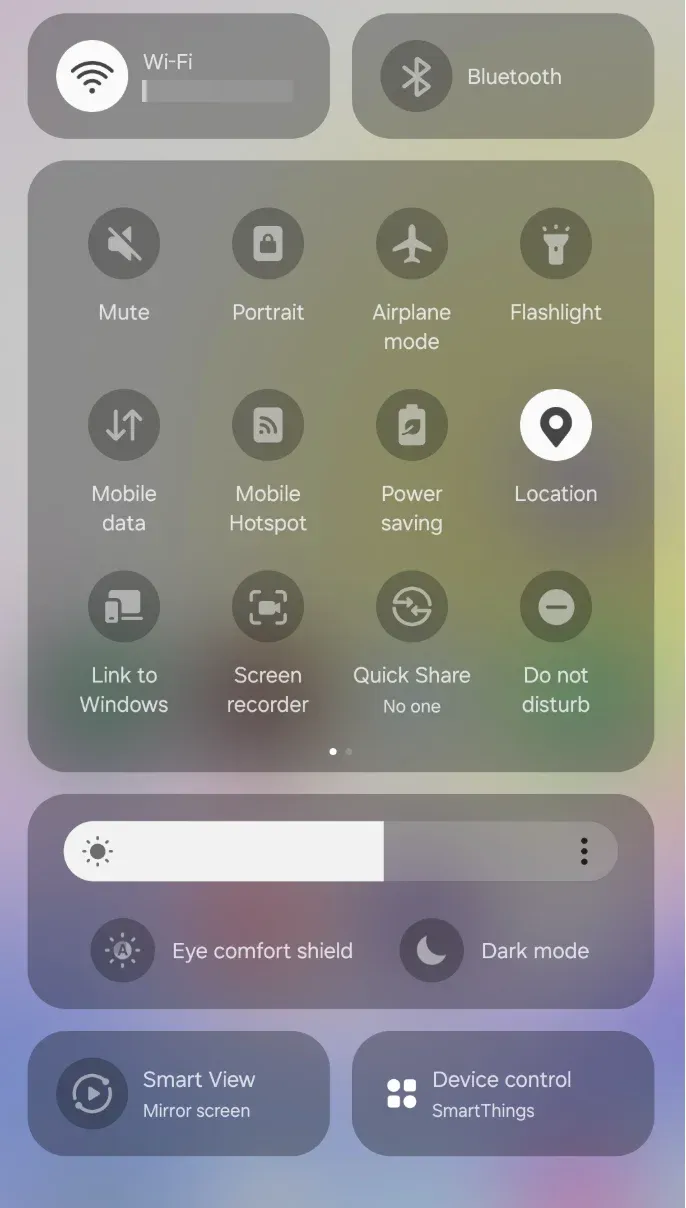
Step 4. Select your FireStick and allow the connection on the TV.
Cast from Google Pixel Phones
Unlike other Android brands, Google Pixel does not natively support Miracast. Instead, Pixel devices rely on Google Cast, which isn't directly compatible with FireStick. The solution is to use a third-party app that allows Amazon Fire TV mirroring Android phones without Miracast. If you are using an iPhone, Samsung phone, or a different Fire TV model, the best way to cast phone to Fire TV may be different.
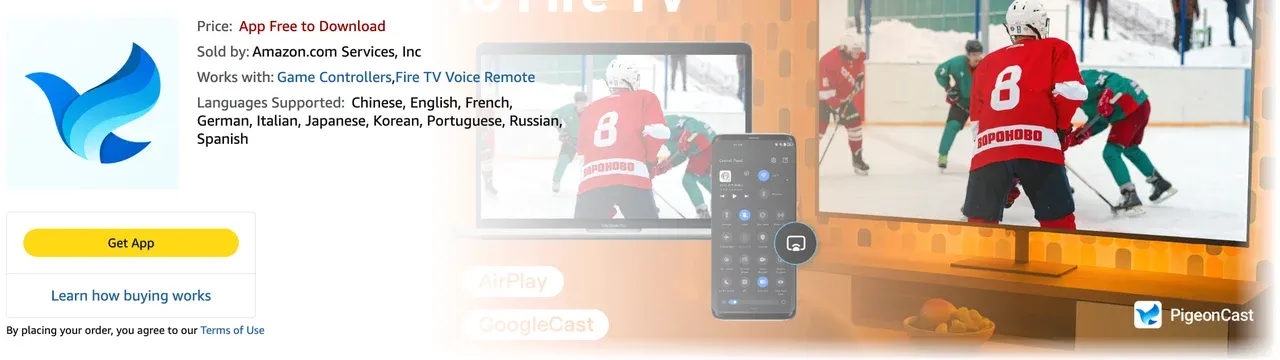
The most reliable option and often considered the best app to mirror Android to FireStick is PigeonCast for Fire TV Stick, which makes your FireStick act like a Chromecast device. Once installed, you can cast directly from apps like YouTube, Chrome, or even your entire Pixel screen.
Wondering how to mirror Android to FireStick with PigeonCast? You just need to:
Step 1. Connect your Google Pixel phone and Fire TV Stick to the same Wi-Fi network.
Step 2. Go to the Amazon App Store, search for PigeonCast, and install it on your device.
Step 3. On your Pixel, open an app with the Cast icon.
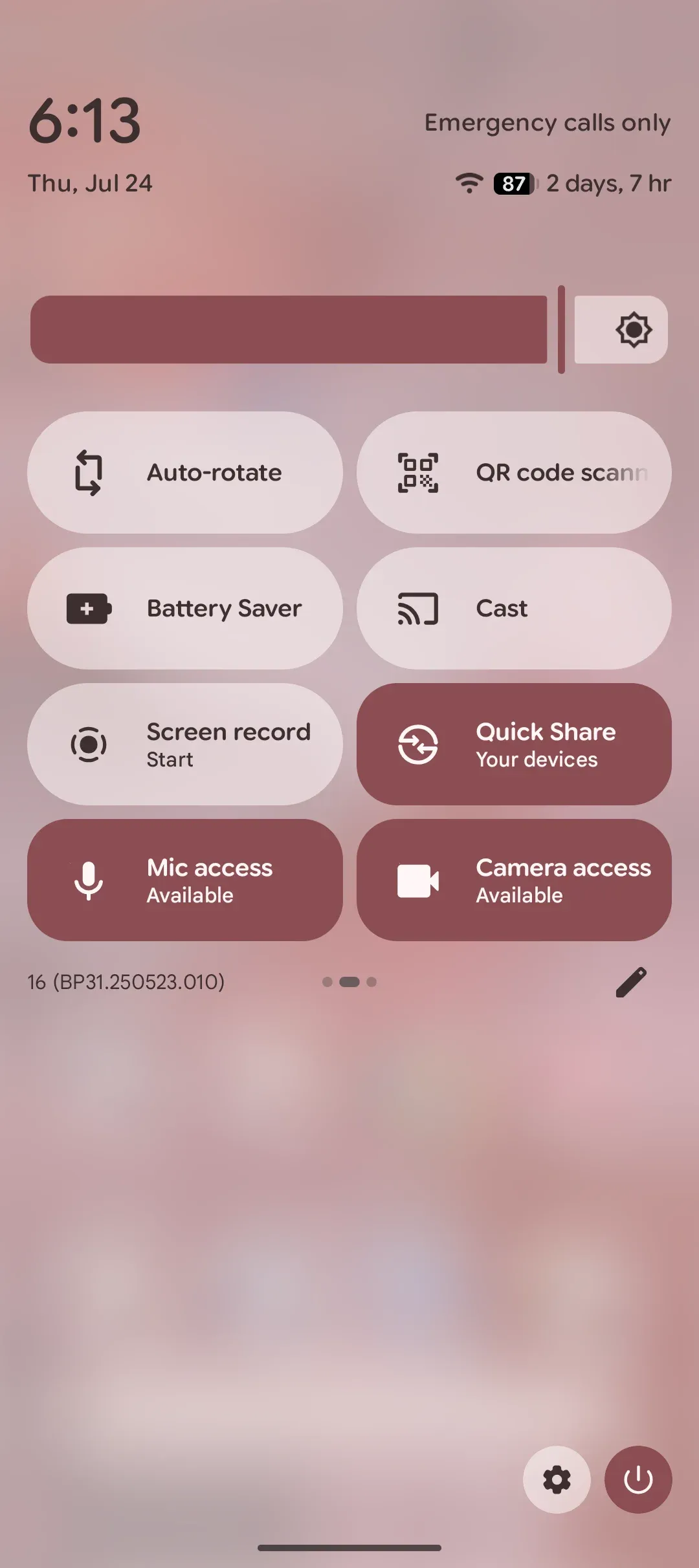
Step 4. Select your FireStick, and your content will play on the TV.
If you prefer alternatives, AirScreen (supports Miracast, Google Cast, and AirPlay) or AllCast (perfect for sharing photos and local videos) are also strong candidates. These apps expand compatibility and ensure smooth casting from Android to FireStick across different devices.
Verdict
How to connect Android to Fire TV? Casting to Fire TV from Android is easier than most people think. Whether you use your phone's built-in feature, Samsung Smart View, Google Pixel with PigeonCast, or a dedicated mirroring app, you'll have plenty of options. Once you know how to cast to Fire TV from Android, you'll never be stuck watching on a small screen again.
How to Cast to FireStick from Android FAQs
Why can't I cast to my FireStick?
Make sure both devices are on the same Wi-Fi, display mirroring is enabled on your FireStick, and your phone supports casting.
How do I enable screen mirroring on my FireStick?
Press the Home button on the remote, go to the Settings menu, and navigate to Display & Sound > Enable Display Mirroring.
Can you cast from phone to FireStick?
Yes, if your phone supports Miracast, you can cast from phone to FireStick without extra apps. However, if your phone supports Google Cast or AirPlay, you need third-party apps, like PigeonCast: install one of them on your FireStick and it can receive content from your phone.
What's the best app to mirror Android to FireStick?
PigeonCast, AirScreen, and AllCast are reliable choices depending on whether you need full screen mirroring or just media casting.
How do I connect Android to Fire TV quickly?
If your Android supports Miracast, open the Cast option on your phone, enable mirroring on FireStick, and select your device from the list. However, you need an extra step: install PigeonCast on the streaming device if your Android is a Google device.
Mia Clarke is a technology editor specializing in screen mirroring and casting solutions across multiple platforms. Mia provides clear, practical guides and in-depth insights to help users seamlessly connect their devices. Passionate about enhancing digital experiences, Mia is dedicated to keeping readers updated on the latest trends and tools in cross-platform screen sharing. Whether you’re looking to mirror your smartphone, laptop, or smart TV, Mia’s content delivers reliable, user-friendly advice to simplify your tech setup.