
Imagine effortlessly watching your favorite videos, sharing photos, or even playing games from your phone directly on your Fire TV. Whether you're hosting a movie night or sharing vacation memories, casting your phone to Fire TV opens up a whole new level of entertainment. But if you've been scratching your head, wondering how to cast phone to Fire TV effectively, you're in the right place. In this guide, we'll walk you through various methods, troubleshoot common issues, and share tips for the smoothest casting experience possible.
What You Need to Cast Your Phone to Fire TV
How to cast from phone to Fire TV? To successfully cast from your phone to Fire TV, it's crucial to understand which devices and casting protocols are supported by different Fire TV models. Here's a breakdown to help you navigate through it:
- Casting Protocols Supported by Fire TV
Fire TV supports Miracast, a wireless standard used to mirror Android phones to TVs, but the level of compatibility can vary depending on the model.
Moreover, AirPlay is also supported. This Apple's protocol allows streaming content from iPhones or iPads to compatible devices like Fire TV. However, it is not natively supported by all Fire TV models but can be enabled with third-party apps like PigeonCast.
- Fire TV Model Compatibility with Miracast and AirPlay
To make it easier to understand which models support which protocols, here's a quick table:
| Fire TV Model | Miracast Support | AirPlay Support |
|---|---|---|
| Fire TV Stick (1st Gen) | Yes | No |
| Fire TV Stick 4K | Yes | No (via third-party apps like PigeonCast) |
| Fire TV Stick Lite | Yes | No (via third-party apps) |
| Fire TV Cube (1st Gen) | Yes | No |
| Fire TV Cube (2nd Gen) | Yes | No (via third-party apps) |
| Fire TV 4K (3rd Gen) | Yes | Yes (via PigeonCast) |
| Fire TV Edition Smart TVs | Yes | Yes (via PigeonCast) |
How to Cast from Android Phone to Fire TV
If you're wondering "how to cast my phone to my Fire TV", here's the step-by-step process for Android devices:
Method 1: Use Built-in Miracast
Fire TV supports Miracast, a popular wireless display protocol for Android phones. Here's how to cast to Fire TV from Android:
Step 1. Make sure both your phone and Fire TV are on the same Wi-Fi network.
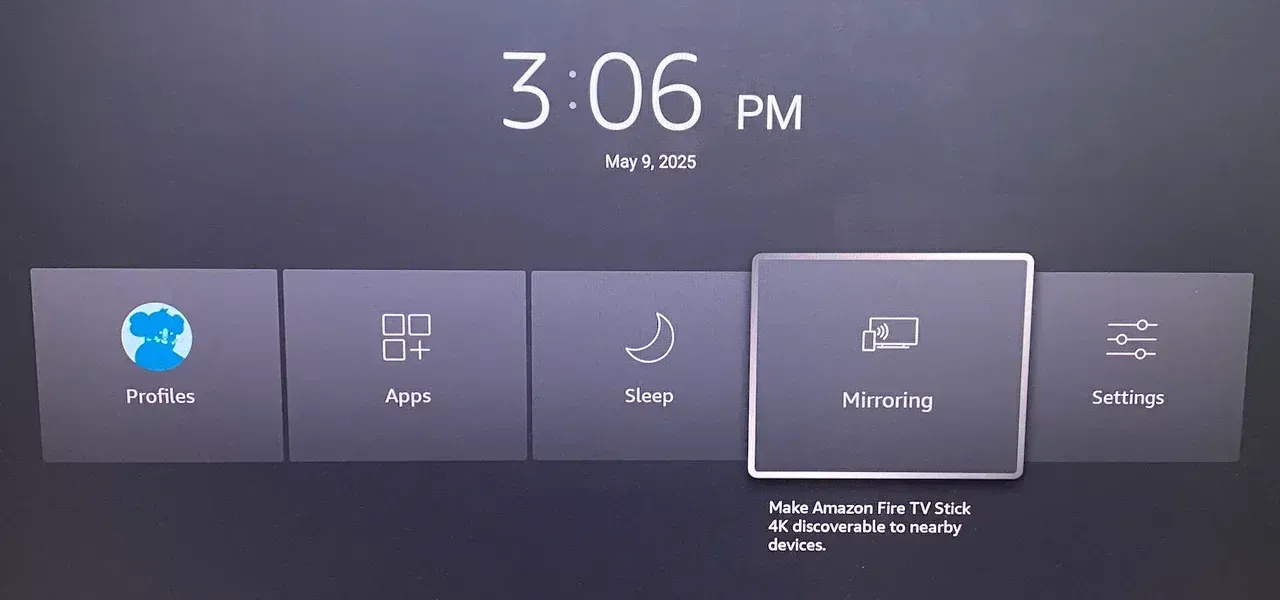
Step 2. On your Fire TV remote, press and hold the Home button for three seconds and choose Mirroring.
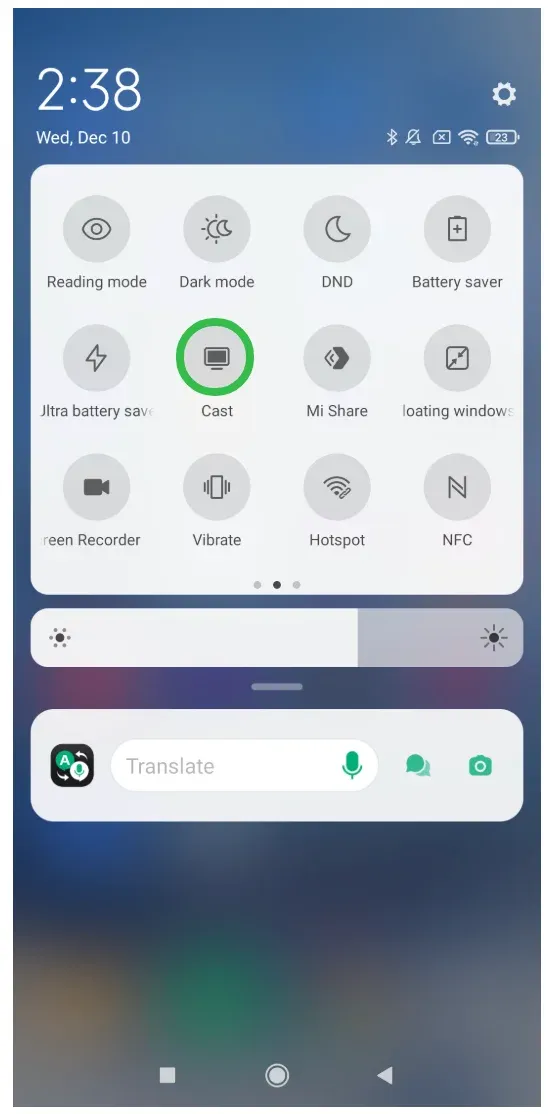
Step 3. Enable Miracast on your Android phone by tapping Cast from the Quick Settings menu.
Step 4. Choose your Fire TV device from the available list of devices.
Step 5. Once connected, your phone screen will be mirrored to the Fire TV.
Method 2: Use Third-Party Apps (PigeonCast)
If you encounter compatibility issues, third-party apps like PigeonCast can be a great solution.
Here's how to cast to Amazon Fire TV with PigeonCast:
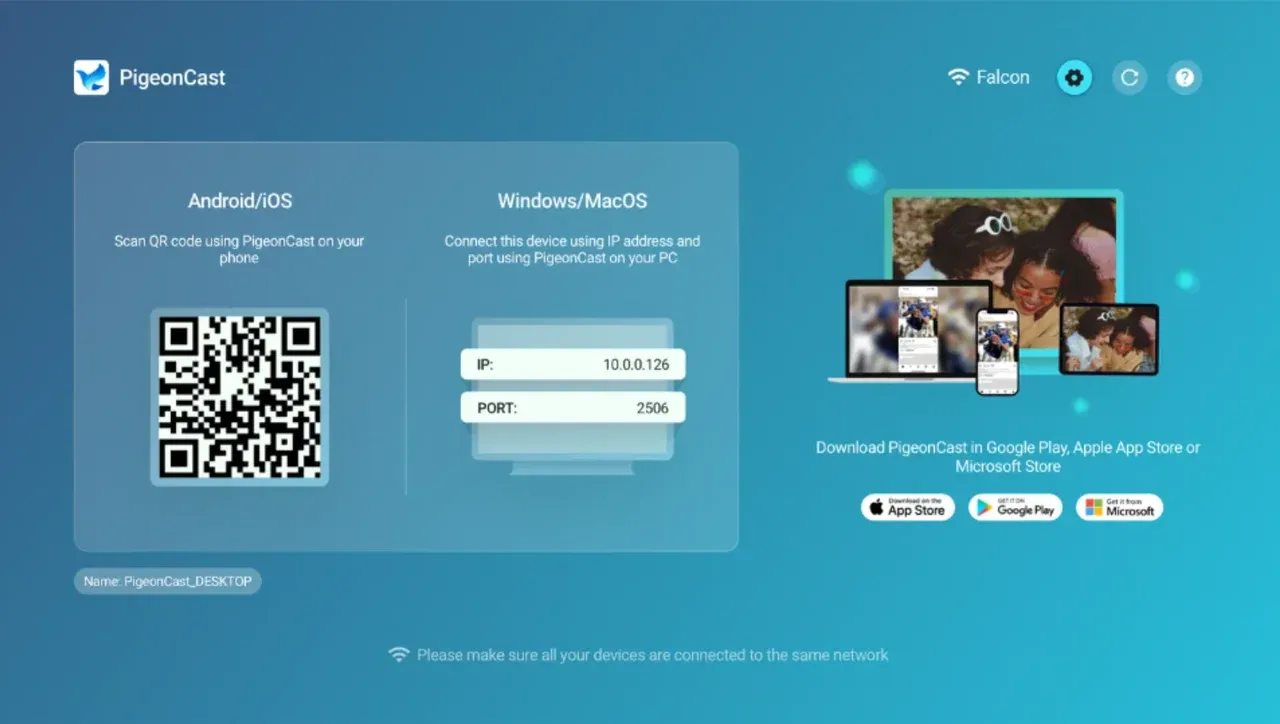
Step 1. Download PigeonCast on your Fire TV via the Amazon Appstore and launch the app.
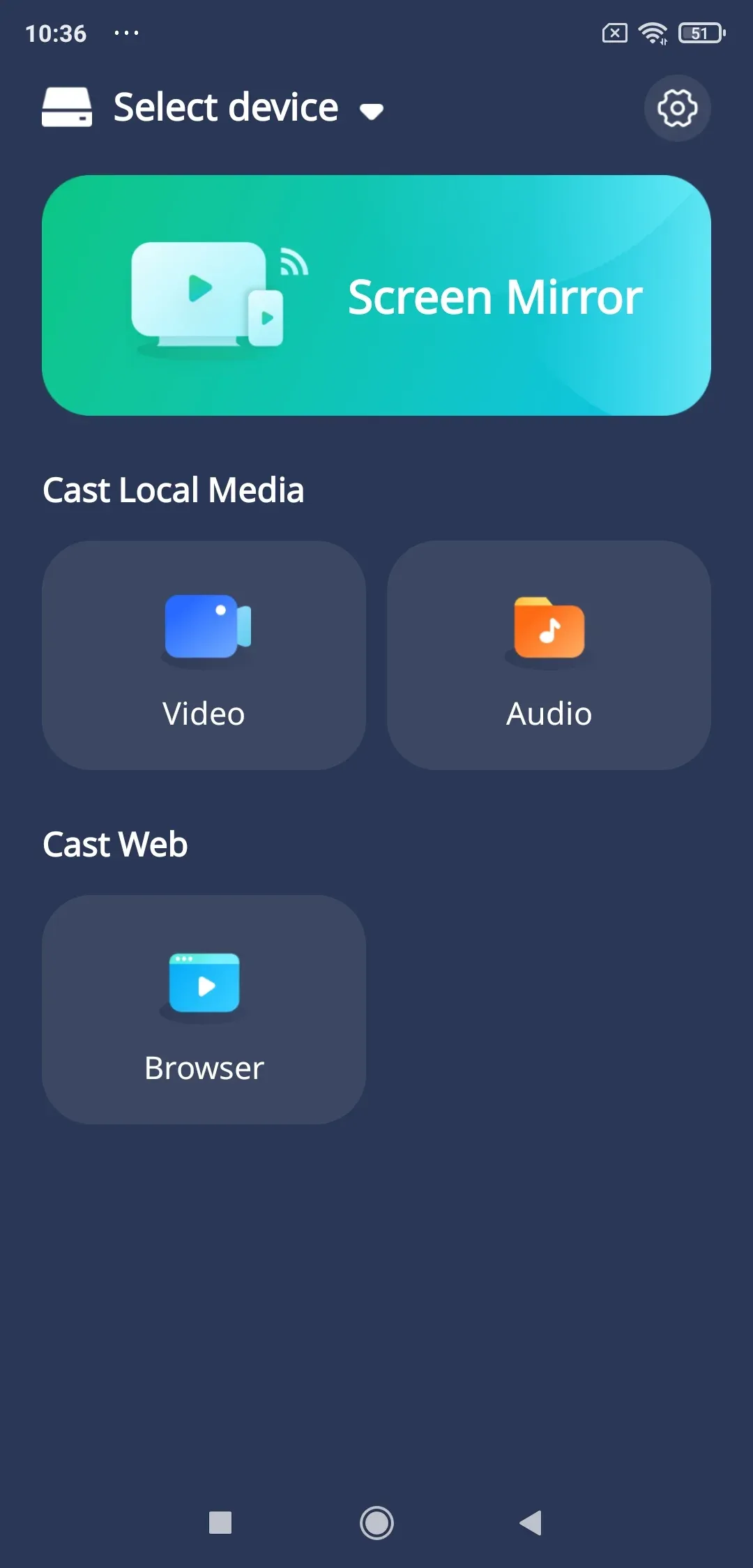
Step 2. Download PigeonCast from Google Play Store on your Android phone and launch it.


Overall Rating:


Step 3. Ensure both your phone and TV are on the same Wi-Fi network.
Step 4. Connect your Android phone to your Fire TV:
- PigeonCast on your phone will automatically detect available devices on the same Wi-Fi network. Once it detects your Fire TV, choose the device from the list.
- Tap the Scan option in the upper-right corner and use scan the QR code displayed on your TV.
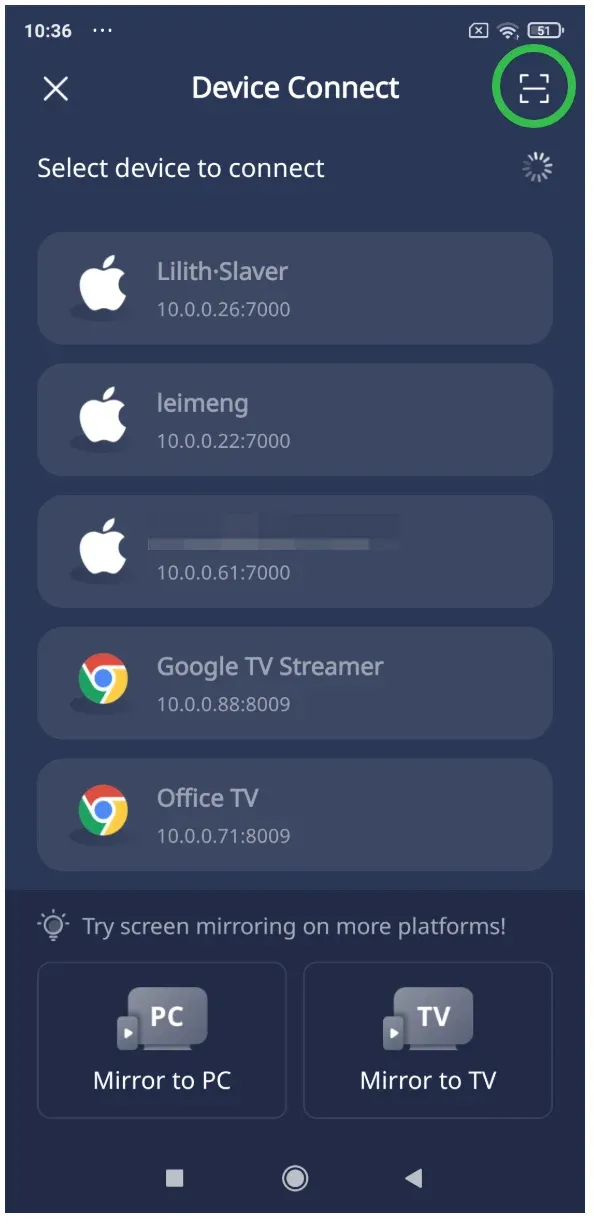
Step 5. Once connected, tap options on the app to cast video, audio, or a webpage.
How to Cast from iPhone to Fire TV
iPhones use AirPlay to cast to Fire TV. Here's how to cast phone to Amazon Fire TV with AirPlay:
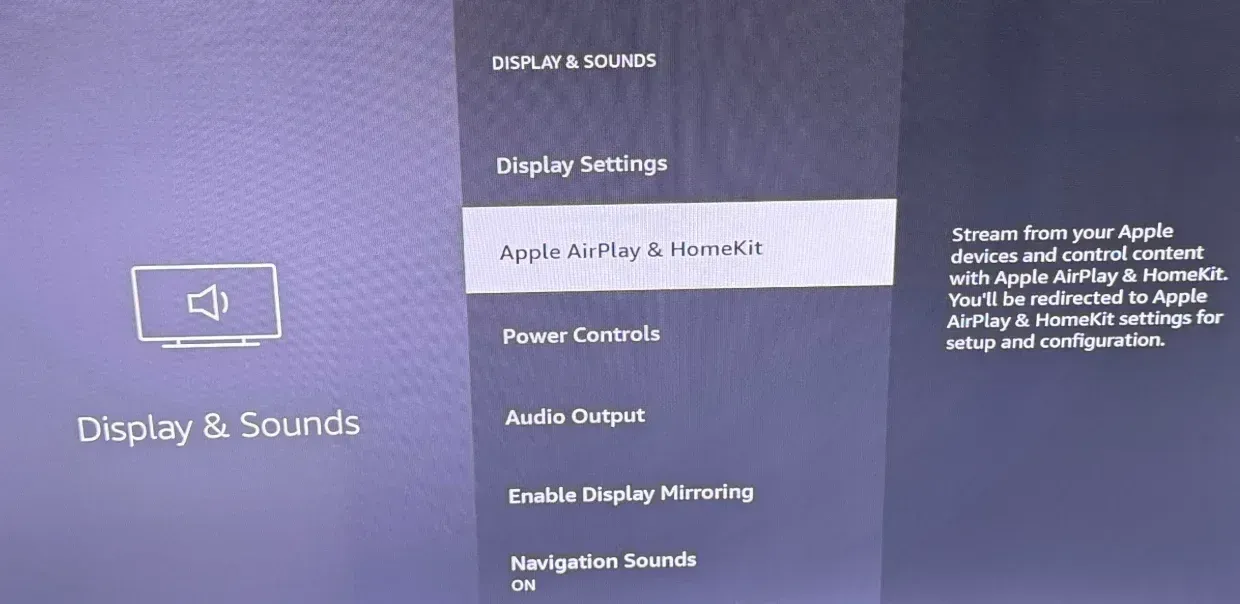
Step 1. Go to Settings, choose Display & Sounds, find Apple AirPlay & HomeKit, and turn on AirPlay on Fire TV. If you can't find the option, your TV lacks AirPlay support, but you can install apps like PigeonCast to add the support.
Step 2. Ensure both your Fire TV and iPhone should be on the same Wi-Fi.
Step 3. On your iPhone, swipe down or up to open Control Center and select Screen Mirroring.
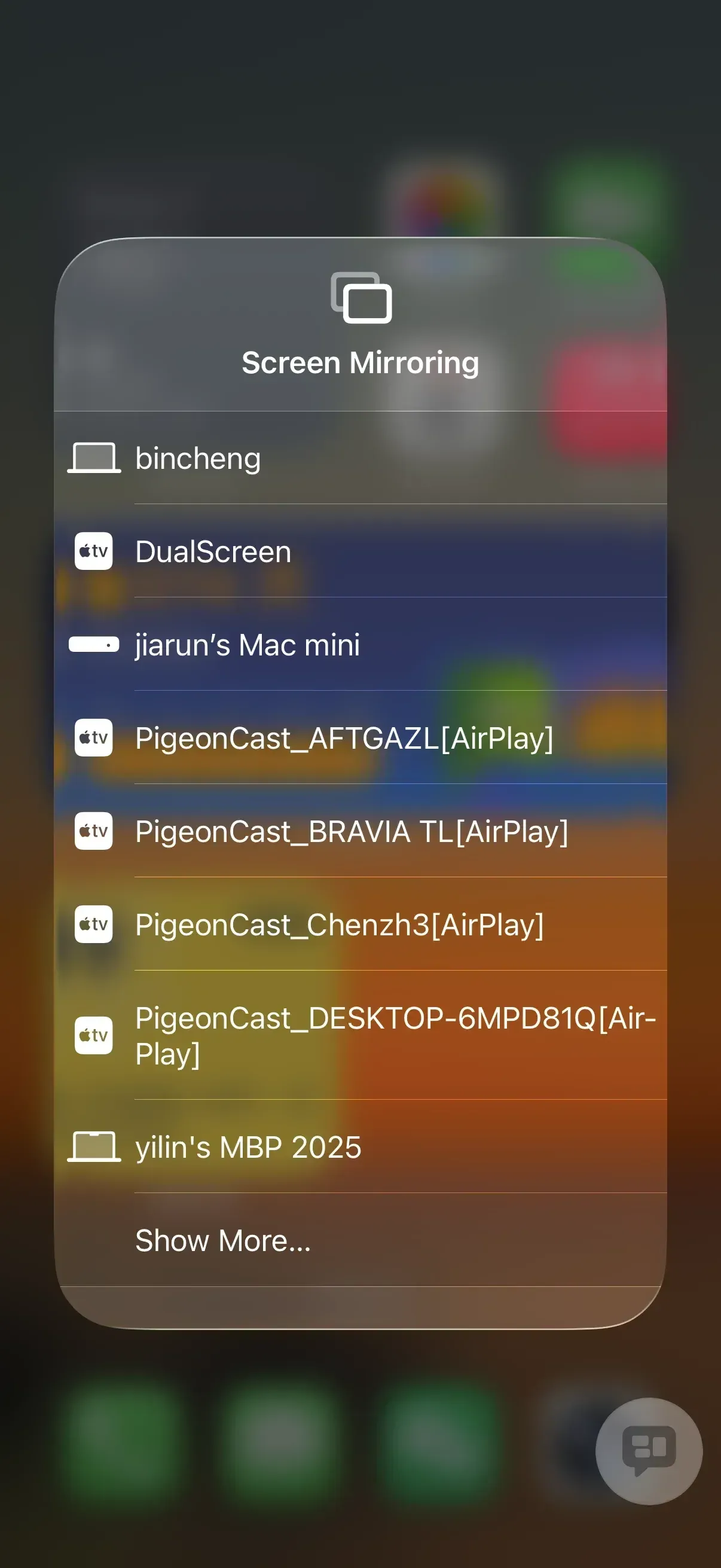
Your iPhone screen will now be displayed on your Fire TV. You can cast videos, photos, or even mirror apps.
Conclusion
Now that you know how to cast to Amazon Fire TV, you're all set to enjoy content from your phone on the big screen! Whether you're using Miracast for Android or AirPlay for iPhone, the process is simple and versatile. If you run into compatibility issues, don't worry; third-party apps like PigeonCast can fill in the gaps and ensure you can cast without trouble. Happy casting!
How to Cast Phone to Fire TV FAQs
Why can't I cast to my Amazon Fire TV?
If you're having trouble casting to your Fire TV, it's usually due to connectivity issues or device compatibility. Ensure both your phone and Fire TV are on the same Wi-Fi network, and check that your device supports Miracast or AirPlay (depending on your phone's platform). If needed, try using third-party apps like PigeonCast for smoother casting.
Is mirroring iPhone to Fire TV easy?
Yes! Mirroring iPhone to Fire TV is relatively easy using AirPlay. Most Fire TV models (via third-party apps like PigeonCast) allow you to cast content directly from your iPhone. Simply enable AirPlay on your Fire TV settings, and you're good to go!
Do Fire TVs have casting?
Yes, Fire TVs support Miracast for Android devices and AirPlay for iPhones. However, some older Fire TV models may require third-party apps to enable AirPlay. Check your Fire TV settings to see which protocol is available for your device.
Can I use AirPlay on Fire TV?
Yes, you can use AirPlay on Fire TV. While it's not natively supported on all models, you can enable it through AirPlay apps for Fire TV, like PigeonCast, to cast content from your iPhone or iPad to your Fire TV.
Is there a free screen mirroring app for Fire TV?
Yes, PigeonCast offers a free screen mirroring solution for Fire TV. It allows you to cast your phone or laptop to your Fire TV without any cost. Simply download the app from the Amazon Appstore on your Fire TV, and you're ready to mirror your screen.
Mia Clarke is a technology editor specializing in screen mirroring and casting solutions across multiple platforms. Mia provides clear, practical guides and in-depth insights to help users seamlessly connect their devices. Passionate about enhancing digital experiences, Mia is dedicated to keeping readers updated on the latest trends and tools in cross-platform screen sharing. Whether you’re looking to mirror your smartphone, laptop, or smart TV, Mia’s content delivers reliable, user-friendly advice to simplify your tech setup.