
Miracast for Android is a powerful tool that allows you to wirelessly mirror your Android device's screen to a compatible TV, projector, or monitor. With Miracast Android, there's no need for cables, making it a convenient way to share your screen for presentations, videos, or games. However, Miracast Android isn't without its limitations. While it works well for many users, it doesn't always provide the smoothest experience, especially when it comes to device compatibility and network requirements. In this article, we'll explore how Miracast works on Android and provide detailed steps on how to use it.
What Is Miracast on Android
Miracast is a wireless display technology that allows you to mirror the screen of your Android device to a TV or other compatible display. It uses Wi-Fi Direct to create a direct connection between devices, eliminating the need for a router or internet connection. This peer-to-peer connection makes Android Miracast a great option for quick, cable-free mirroring, especially when you don't have access to Wi-Fi or a stable internet connection.
Miracast Compatibility on Android Devices
Most Android devices running Android 4.2 or later support Miracast, but not all manufacturers enable this feature in the same way. While brands like LG, Xiaomi, and Huawei may include Miracast for Android, Samsung devices, for example, often use Smart View instead of the default Miracast option.
If your device doesn't use the term Miracast, it might be labeled differently:
- Samsung: Look for Smart View in the quick settings or Settings > Connections > Smart View.
- LG: Check for Screen Share in the display settings.
- Huawei: Some Huawei devices use Mirroring or Wireless Projection.
- Xiaomi: Look for Cast or Wireless Display in the connection or display settings. The exact location may vary between MIUI and HyperOS, but the overall process for casting a Xiaomi phone to a TV remains similar.
To check if your device supports Miracast, or if a manufacturer-specific solution is available, go to Settings > Display > Cast or Screen Mirroring. If these options are listed, your device likely supports wireless mirroring. If you see options like Smart View, Screen Share, or Wireless Projection, these are proprietary solutions offering similar functionality to Miracast.
While Miracast is a popular option for Android screen mirroring, it's not the only choice. Many Android devices, especially those in the Google Pixel and Samsung Galaxy lines, come with built-in support for Google Cast. This makes Google Cast an easy and seamless option for Android users, allowing you to stream content from Chromecast-enabled apps like YouTube, Netflix, or Spotify to your TV.
How to Use Miracast on Android
Now that you understand the basics of Miracast Android, let's go over how to use it in two common scenarios: connecting without Wi-Fi and with Wi-Fi.
Miracast Android to TV Without Wi-Fi
You don't always need Wi-Fi to use Miracast. Here's how to Miracast Android to TV without a network:
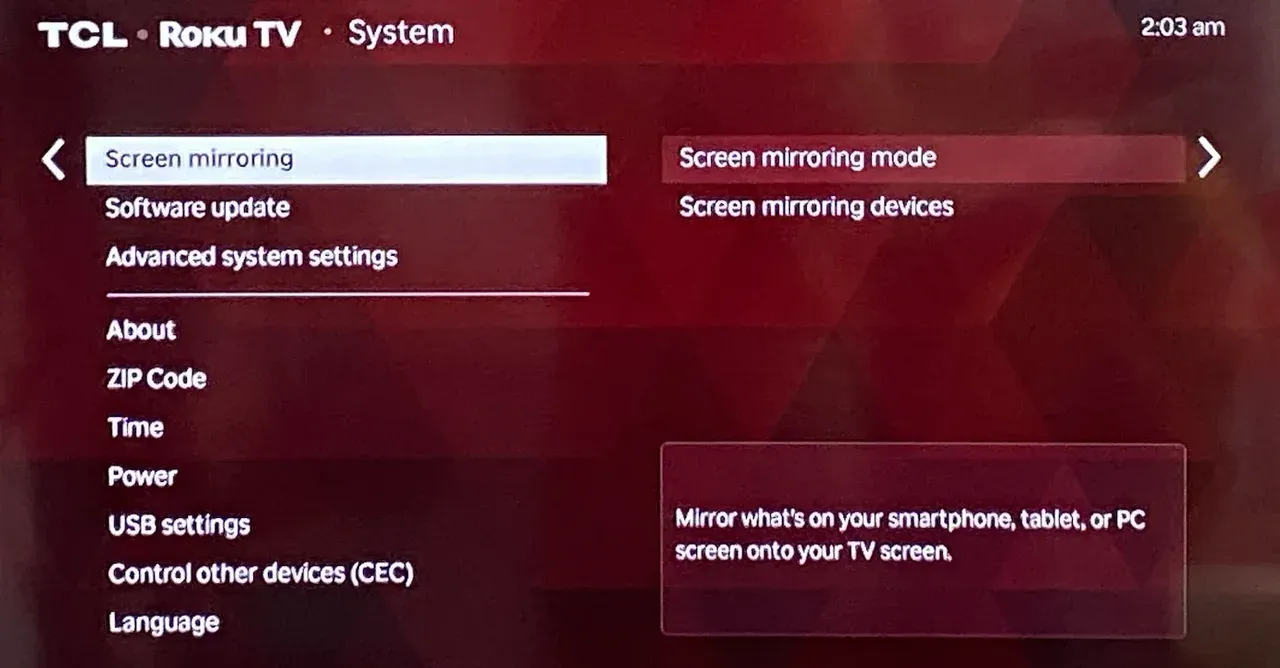
Step 1. Look for the Screen Mirroring or Miracast option in your TV's settings and enable it.
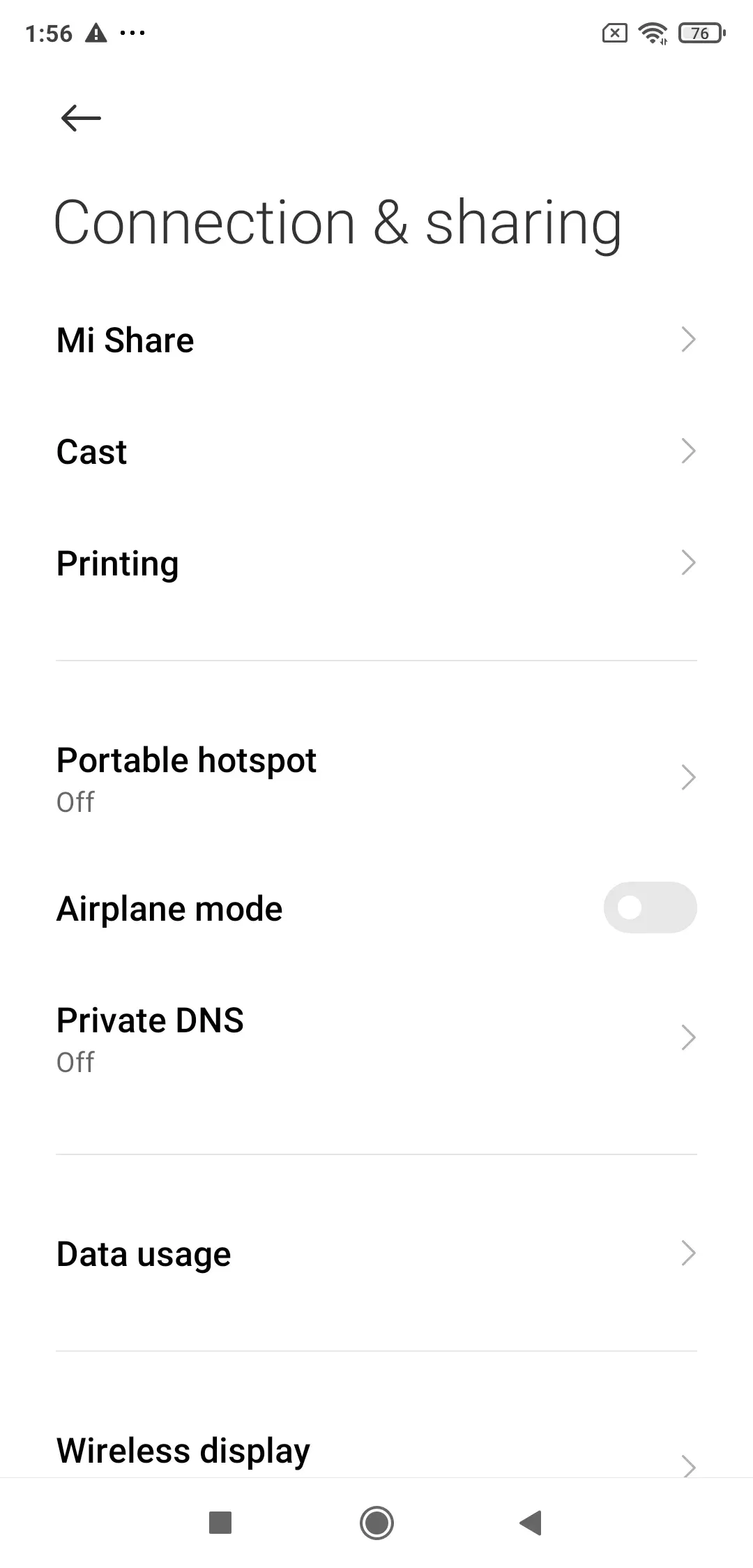
Step 2. On your Android device, go to Settings > Display > Cast or Screen Mirroring.
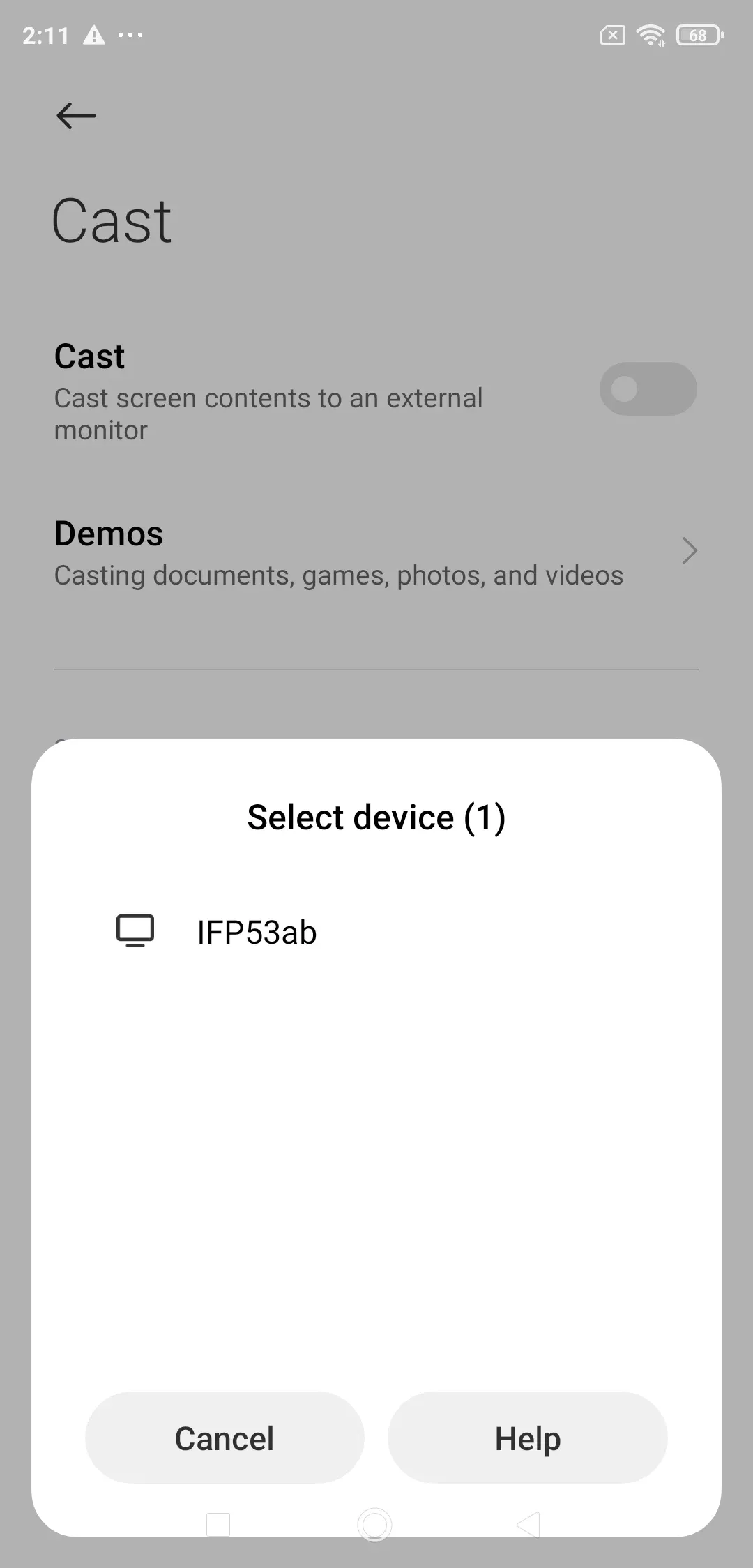
Step 3. Select your TV or display from the list of available devices.
Step 4. Confirm the connection, and your Android device will start mirroring to the TV.
This is an ideal solution when you're in a place without Wi-Fi access, as Miracast creates a direct connection between your device and the display.
Miracast Android to TV with Wi-Fi
If you have access to Wi-Fi, here's how to Miracast on Android for a more stable connection:
Step 1. Connect both your Android device and TV to the same Wi-Fi network.
Step 2. Go to the TV settings and enable the Screen Mirroring or Miracast option.
Step 3. On your Android device, go to Settings > Display > Cast and select your TV.
Step 4. Confirm the connection, and your screen will be mirrored on the TV.
Using Wi-Fi can help provide a stronger and more stable connection, especially for streaming HD content or games.
How to Mirror Android Without Miracast
While Miracast Android is a useful tool, it does have its limitations. The range can be short, and interference from other devices can cause lag or disconnection. Additionally, not all Android devices support Miracast, and some may have limited functionality depending on the manufacturer.
If your Android device doesn't support Miracast or you encounter connection issues, you can use an alternative like PigeonCast (free to use without ads) to easily mirror your device to a TV or computer.

Unlike Miracast, which can have compatibility issues, PigeonCast works across a wide range of devices and platforms. It's also easier to set up and doesn't rely on the limitations of Miracast Android.

PigeonCast Screen Mirroring

Official Download


Step 1. Download PigeonCast on both your Android device and the TV or computer you want to mirror to.
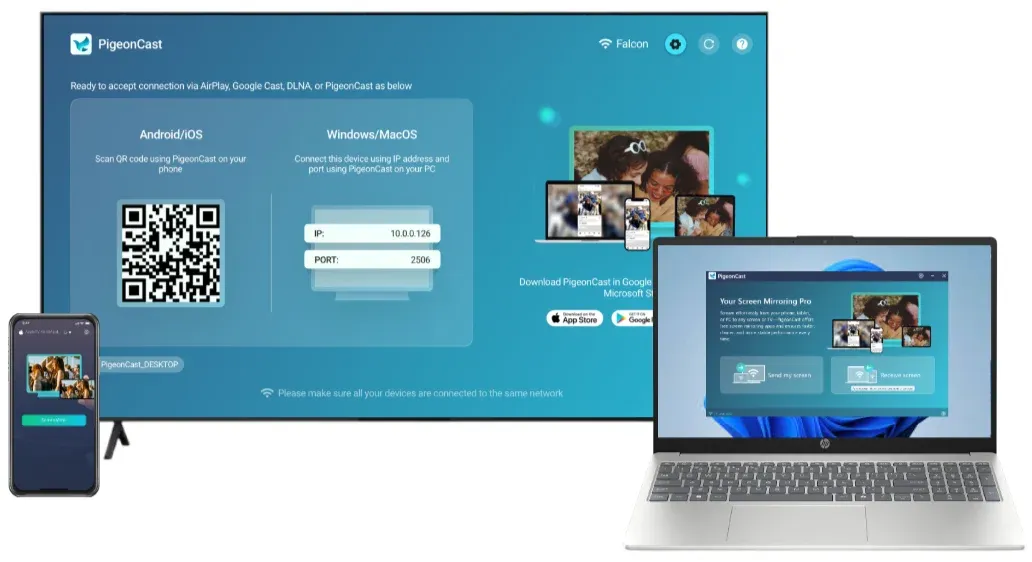
Step 2. Ensure both devices are on the same Wi-Fi network.
Step 3. Launch the PigeonCast app and select the device you want to mirror to.
Step 4. Start streaming or mirroring content from your Android device.
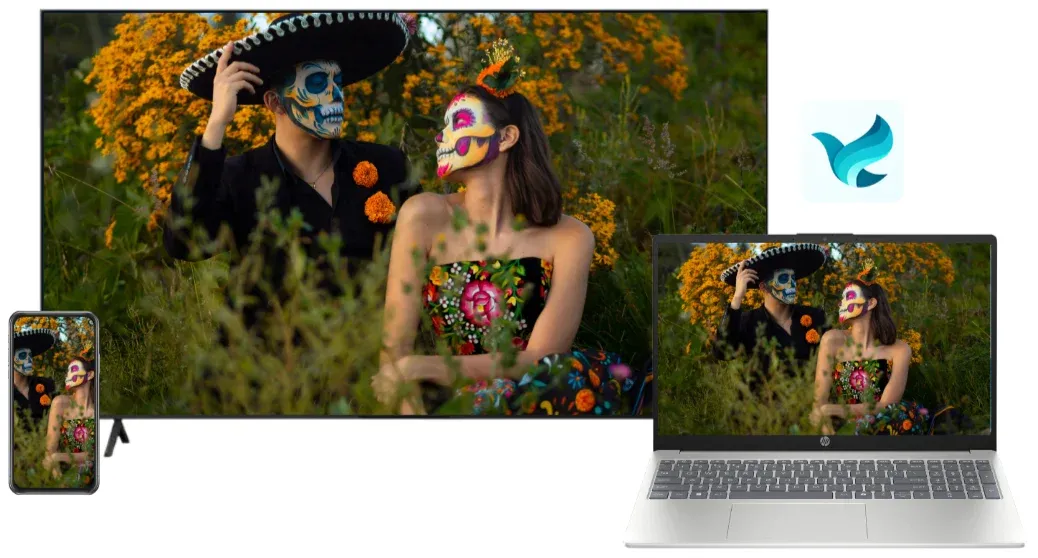
Pigeoncast is available on major platforms, making cross-platform, 4K mirroring smooth without compatibility issues.
The End
Whether you're using Miracast for Android to TV or exploring alternatives like PigeonCast, wireless screen mirroring can simplify how you share content with others. Miracast is perfect for direct, no-network connections, but if you want more flexibility or face compatibility issues, PigeonCast may offer a better solution.
Miracast Android FAQs
Does Android have built-in Miracast?
Yes, many Android devices, especially those running Android 4.2 and later, have Miracast support built in. To check, go to Settings > Display > Cast or Screen Mirroring.
How do I know if my Android has Miracast?
To check, go to Settings > Display > Cast. If you see the Screen Mirroring option, your device supports Miracast.
Where is Miracast on Samsung phone?
On Samsung devices, look for Smart View in the quick settings or under Settings > Connections.
How can I improve Miracast connection quality?
To improve Miracast Android connection quality, ensure both your device and TV are within a reasonable range of each other. Avoid interference from other wireless devices (like Bluetooth speakers or microwaves) that may disrupt the connection. A strong, stable Wi-Fi network can also help if you are mirroring with Wi-Fi.
What's the difference between Miracast and Chromecast?
While both Miracast and Chromecast allow you to mirror your Android device to a TV, Miracast uses a direct connection between the device and TV (no router or Wi-Fi needed). Chromecast requires both devices to be connected to the same Wi-Fi network and uses Google's cloud-based infrastructure to cast content, offering more flexibility and support for streaming apps.
Does Miracast work with all TVs?
Not all TVs support Miracast. To check if your TV supports Miracast, look for Screen Mirroring or Miracast options in the TV's settings. Alternatively, you can connect a Miracast-compatible dongle or streaming device to your TV to enable Miracast functionality.
Can I stream videos in 4K using Miracast?
While Miracast supports HD (1080p) video, the quality of the connection may vary depending on the devices involved and the strength of the wireless signal. Some newer devices may support higher resolutions, but Miracast typically does not support 4K streaming like some other protocols, such as Google Cast.
How do I disconnect Miracast on Android?
To disconnect Miracast on your Android device, go to Settings > Display > Cast and tap Disconnect or select Stop Casting. On some devices, you can also disconnect by swiping down the quick settings and turning off Screen Mirroring or Smart View.
Mia Clarke is a technology editor specializing in screen mirroring and casting solutions across multiple platforms. Mia provides clear, practical guides and in-depth insights to help users seamlessly connect their devices. Passionate about enhancing digital experiences, Mia is dedicated to keeping readers updated on the latest trends and tools in cross-platform screen sharing. Whether you’re looking to mirror your smartphone, laptop, or smart TV, Mia’s content delivers reliable, user-friendly advice to simplify your tech setup.