
LG TV Screen Share lets you display a phone or computer screen on an LG TV without an HDMI cable. The connection method depends on the sender device: Android phones and Windows PCs may use LG Screen Share, while Apple devices usually connect through AirPlay on compatible LG TVs.
This guide explains how LG TV Screen Share works, which devices can use it, and how to mirror Android, iPhone, Mac, and Windows screens using the connection method supported by each device.
What Is LG TV Screen Share?
LG TV Screen Share is a built-in wireless display feature that lets a compatible phone or computer mirror its entire screen to an LG TV. On many LG TVs, Screen Share works with Miracast-compatible wireless display devices, although support and menu names vary by model.
Screen Share is different from casting and AirPlay. Screen mirroring duplicates the full sender display, including apps, menus, and notifications. An in-app Cast button usually sends only supported media, while AirPlay is Apple’s wireless system for streaming or mirroring from an iPhone, iPad, or Mac.
Which Devices Work with LG TV Screen Share?
LG TV Screen Share mainly works with sender devices that support Miracast or a compatible wireless display method, and the common ones are:
- Samsung Galaxy phones and tablets: Usually connect through Smart View.
- Some other Android phones and tablets: May connect through Wireless Display, Screen Cast, Mirror Share, or another Miracast-based feature.
- Windows laptops and PCs: Can connect through Wireless Display, often by pressing Windows + K, when the computer supports Miracast.
However, Apple devices such as iPhone, iPad, and Mac do not use LG’s Miracast-based Screen Share feature. Google Pixel phones, Chromebooks, and other devices that rely on Google Cast also cannot connect through this specific Screen Share method.
These devices may still mirror or cast to an LG TV through another method. iPhone, iPad, and Mac typically use AirPlay when the TV supports it. Google Cast devices can connect to compatible newer LG TVs with Google Cast built in, while other setups may require an HDMI cable, a streaming device, or a cross-platform screen mirroring app.
How to Turn On Screen Share on LG TV
Before connecting an Android device or Windows PC, open the Screen Share receiving feature on the LG TV.
Step 1. Turn on the LG TV.
Step 2. Press the Home button on the remote.
Step 3. Look for Screen Share in the app list, Home Dashboard, or device connection settings.
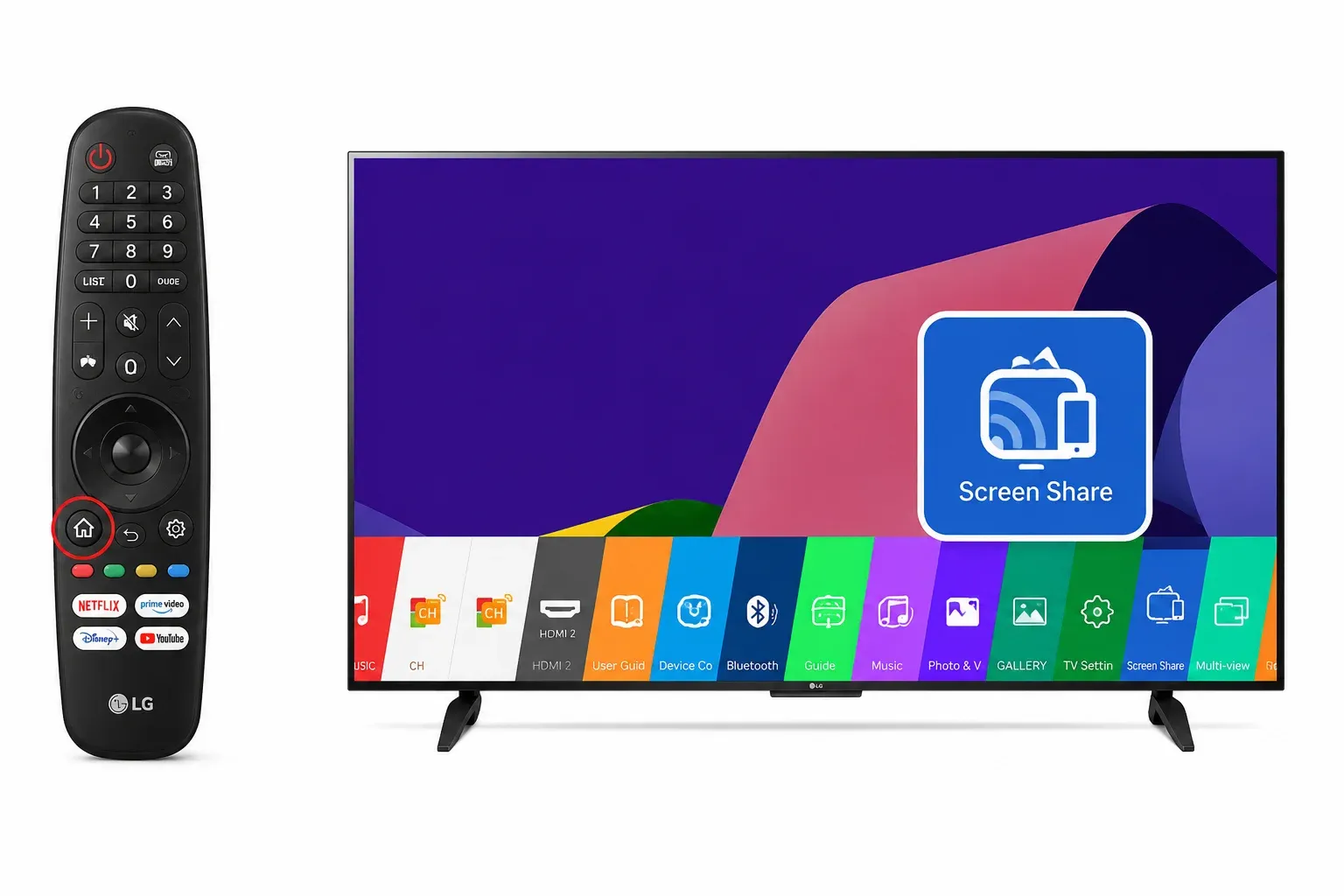
Step 4. Open Screen Share and leave the TV ready while you start the connection from the sender device.
Step 5. Accept the pairing request on the TV if one appears.
The exact menu name and location may vary by LG TV model and webOS version.
How to Screen Share Android to LG TV
The exact menu name varies by Android brand, but the basic connection process is similar when the phone supports Miracast or a compatible wireless display method.
Step 1. Open Screen Share on the LG TV.
Step 2. Turn on Wi-Fi on the Android phone.
Step 3. Open the phone’s quick settings panel.
Step 4. Tap Smart View, Screen Cast, Wireless Display, Mirror Share, or a similar screen mirroring option.
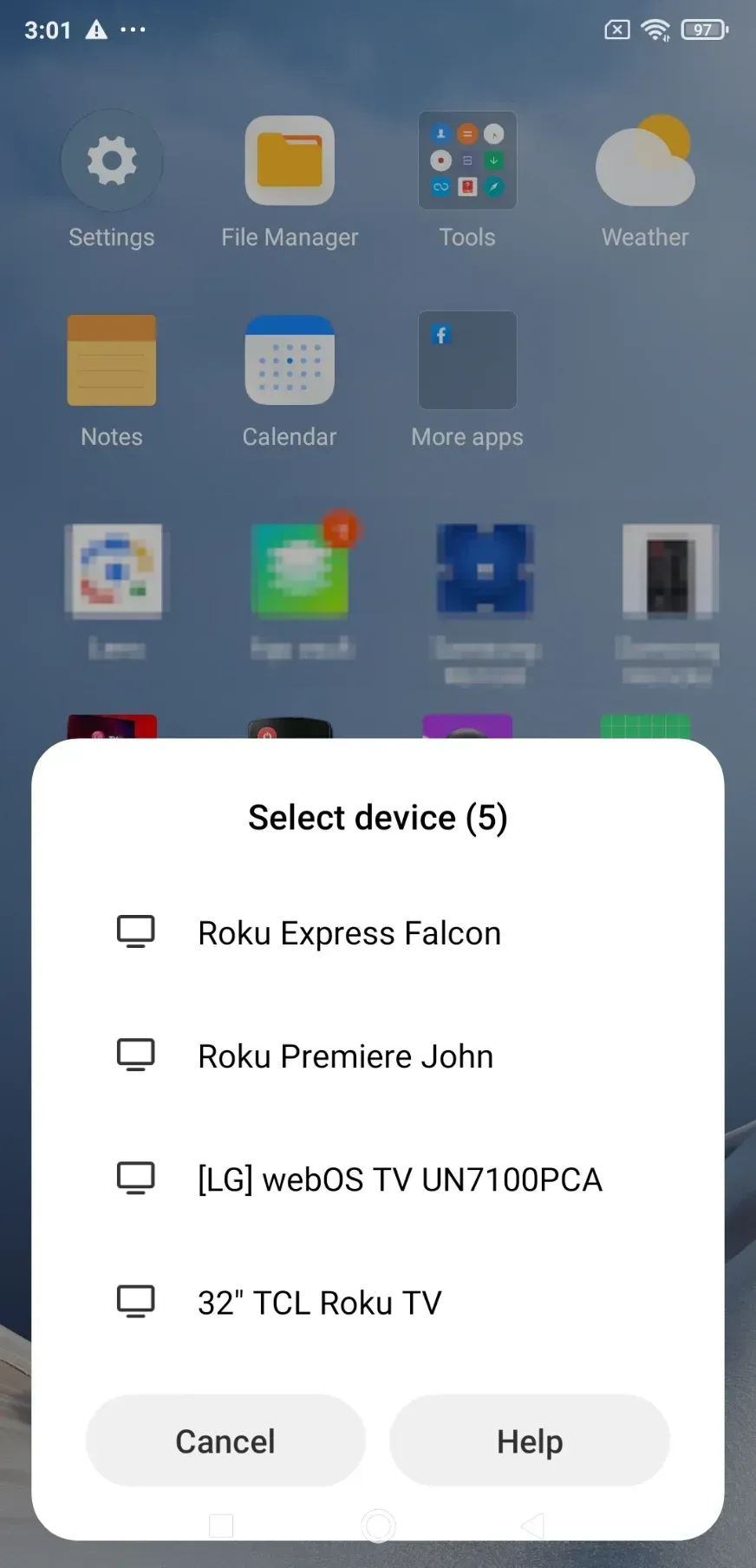
Step 5. Select the LG TV from the available device list.
Step 6. Accept the connection request on the TV if prompted.
On Samsung Galaxy devices, the feature is usually called Smart View. Other Android manufacturers may use different names, and some phones may require you to enable Wireless Display from an additional menu before the LG TV appears.
If the phone has a Cast button but cannot find the TV, check which casting technology both devices support. Some Android phones use Google Cast, while LG Screen Share traditionally relies on Miracast-compatible wireless display. Newer LG TV models may include Google Cast built-in, but support varies by model, region, and software version.
How to Screen Share Windows PC to LG TV
Windows PCs can connect to LG TV Screen Share through the built-in Wireless Display feature when the computer supports Miracast.
Step 1. Open Screen Share on the LG TV.
Step 2. Turn on Wi-Fi on the Windows PC.
Step 3. Press Windows + K to open the available wireless display list.
Step 4. Select the LG TV.
Step 5. Accept the connection request on the TV if one appears.
Step 6. Choose how you want to use the TV:
- Duplicate: Show the same content on the PC and TV.
- Extend: Use the LG TV as an additional display.
- Second screen only: Show the desktop only on the TV.
If the LG TV does not appear under Windows + K, go to Settings > System > Display > Multiple displays and look for the option to connect to a wireless display.
A Windows computer needs compatible wireless and graphics hardware to use Miracast. Updating the Wi-Fi and graphics drivers may help when the TV appears intermittently or the connection fails. Desktop PCs without a compatible Wi-Fi adapter may not support Wireless Display, even when they are connected to the internet through Ethernet.
How to Screen Share iPhone or Mac with AirPlay
iPhone, iPad, and Mac normally mirror to compatible LG TVs through AirPlay rather than LG Screen Share. Before starting, make sure AirPlay is enabled in the LG TV’s AirPlay and HomeKit Settings.
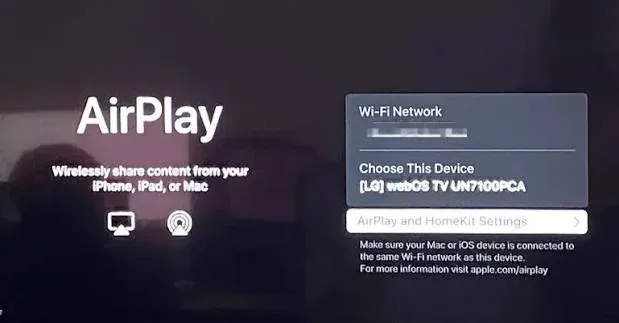
From an iPhone or iPad
Step 1. Connect the Apple device and LG TV to the same local network.
Step 2. Open Control Center.
Step 3. Tap Screen Mirroring.
Step 4. Select the LG TV.
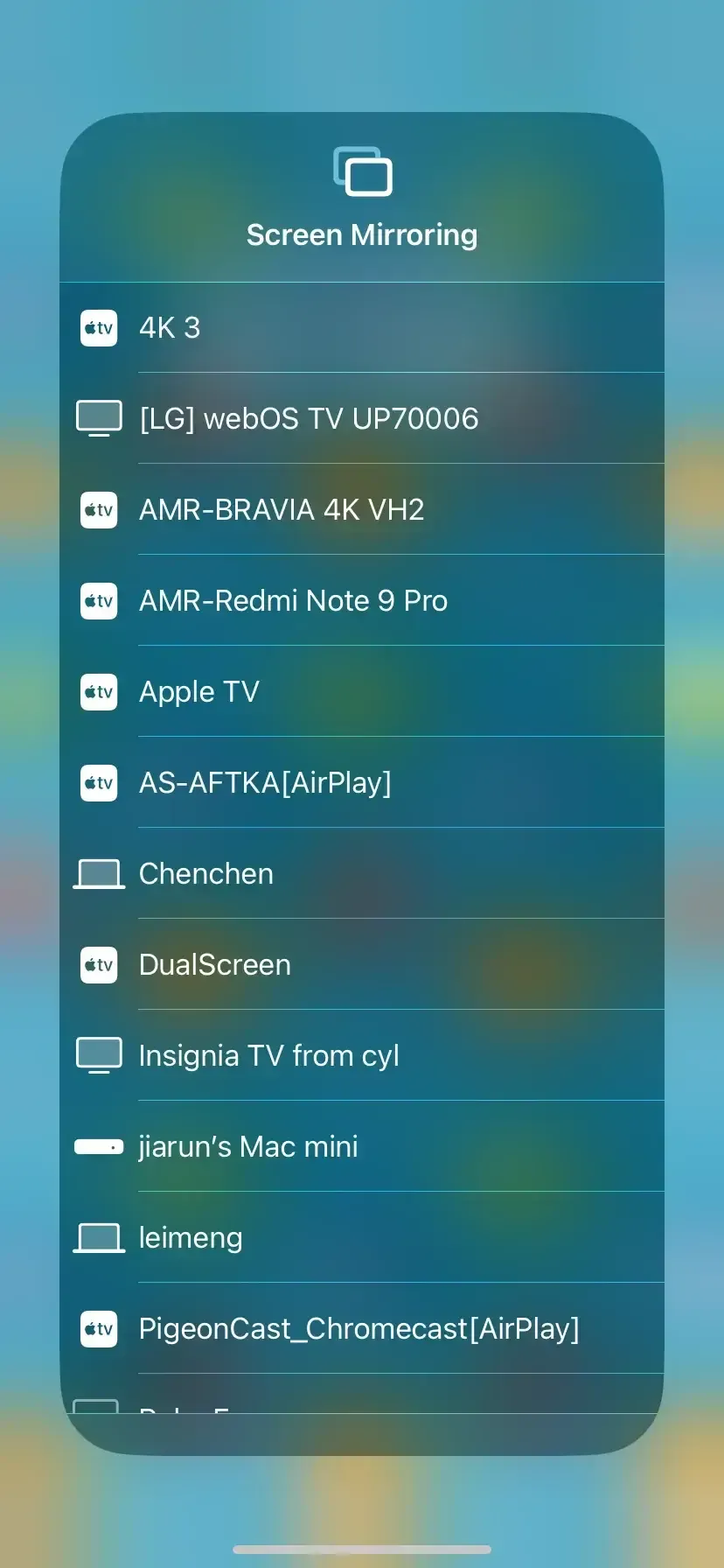
Step 5. Enter the AirPlay passcode shown on the TV if prompted.
This mirrors the full iPhone or iPad screen. To send only a supported video, photo, or music stream, open the content in a compatible app and tap the AirPlay icon instead.
From a Mac
Step 1. Connect the Mac and LG TV to the same local network.
Step 2. Open Control Center from the menu bar.
Step 3. Select Screen Mirroring.
Step 4. Choose the LG TV.
Step 5. Select whether to mirror the Mac display or use the TV as a separate display.
If the LG TV does not appear, confirm that the TV model supports AirPlay, AirPlay is enabled, and both devices are visible on the same local network. An LG TV can support Screen Share for Android or Windows without supporting AirPlay for Apple devices.
How to Screen Share to LG TV with PigeonCast
PigeonCast is a cross-platform screen mirroring app that lets you mirror Android, iPhone, Windows, and Mac screens to an LG TV through one consistent connection process. It is useful when different devices rely on different built-in technologies, or when you prefer not to switch between LG Screen Share, AirPlay, Google Cast, and other mirroring methods.
To screen share to an LG TV with PigeonCast:
Step 1. Install PigeonCast on the phone or computer you want to mirror.
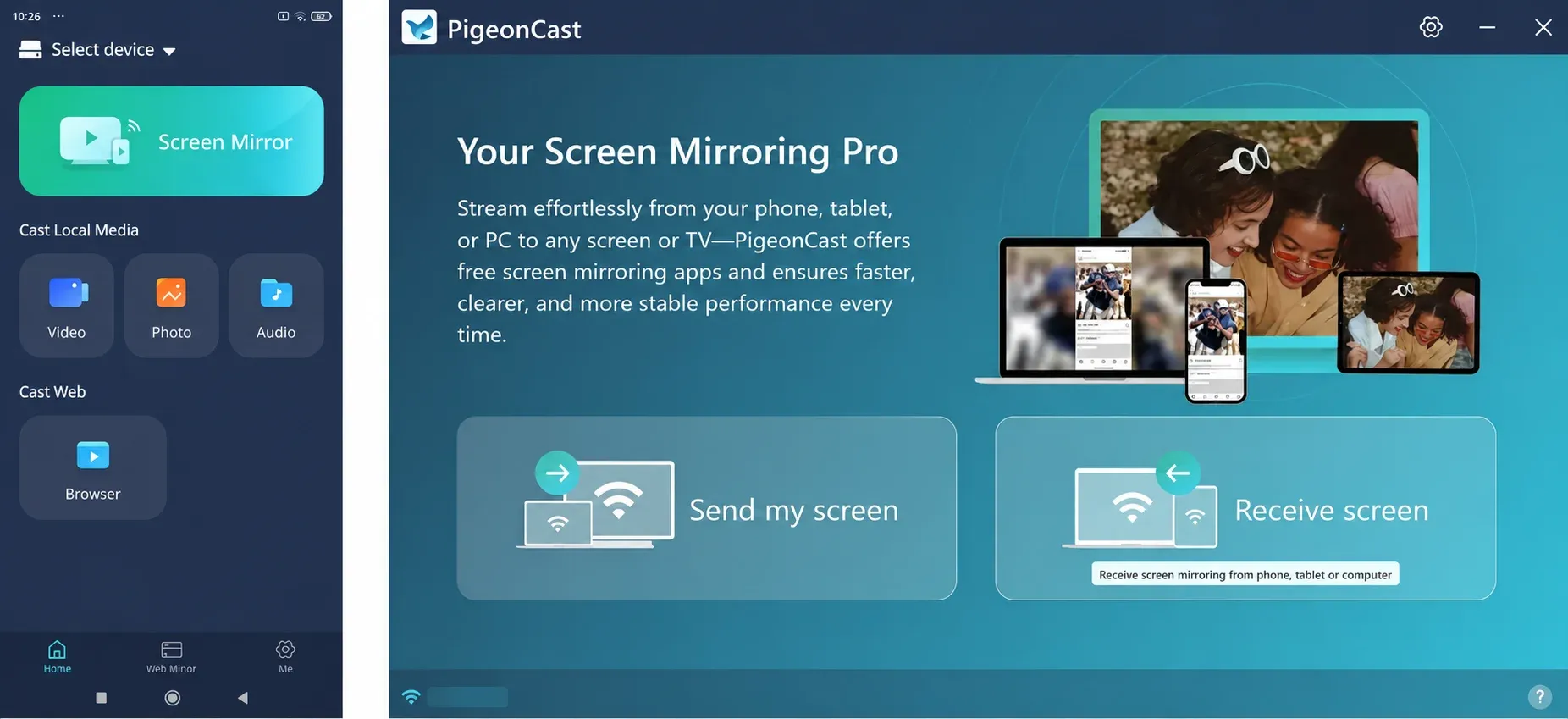
Step 2. Install PigeonCast on your LG TV.
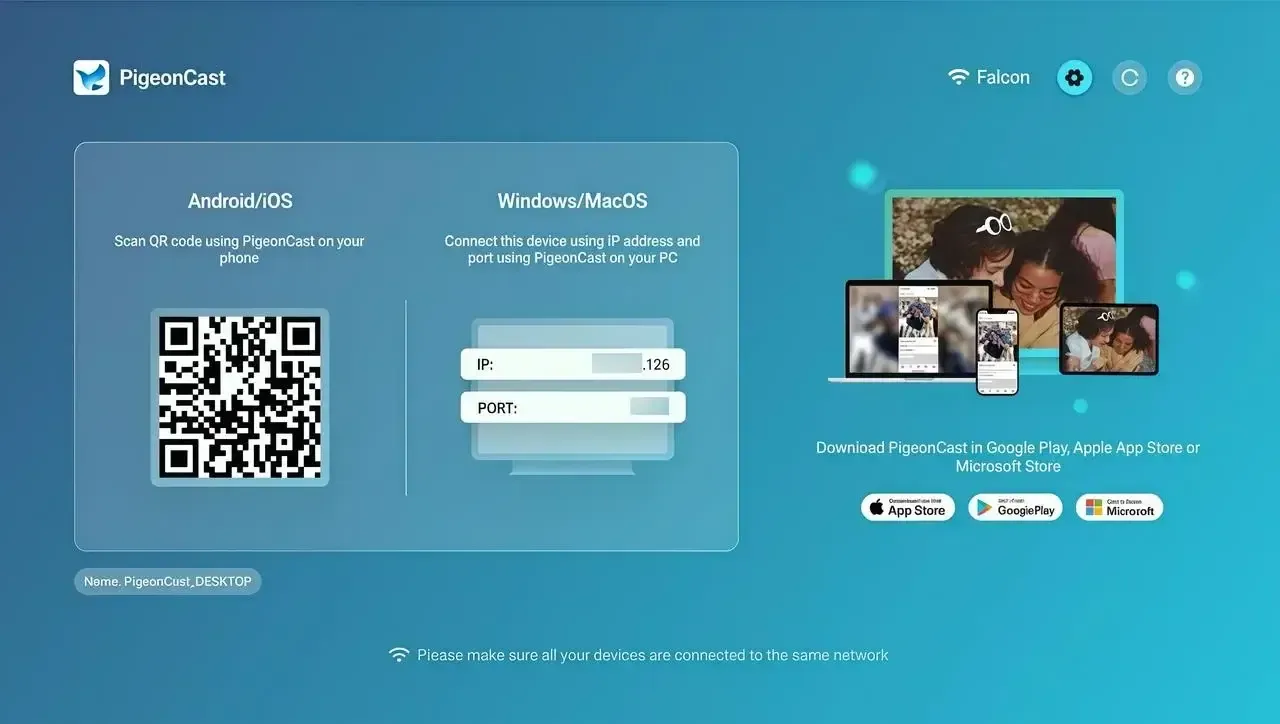
Step 3. Connect the sender and receiver to the same Wi-Fi network.
Step 4. Open PigeonCast on both devices.
Step 5. Select the LG TV from the device list.
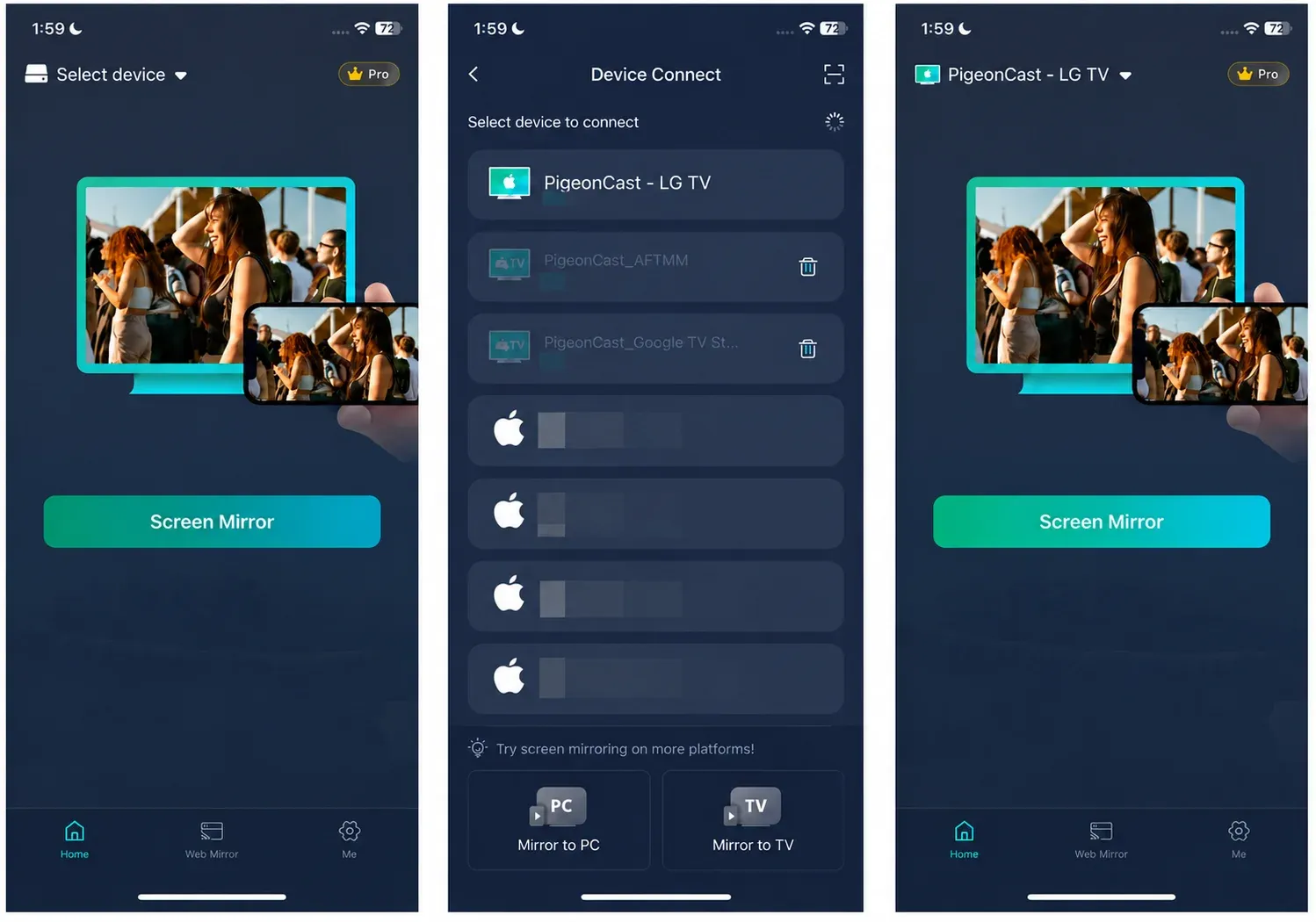
Step 6. Start screen mirroring.
PigeonCast is especially useful in homes, classrooms, or workplaces that use a mix of Android, iPhone, Windows, and Mac devices. Instead of checking whether each sender supports Miracast, AirPlay, or Google Cast, users can follow the same general mirroring process across supported platforms.
Native LG Screen Share or AirPlay may still be convenient when the sender and TV already work well together. PigeonCast provides a broader screen mirroring option when you want cross-platform support and a more repeatable setup.
Conclusion
After the first successful connection, note which receiving feature and sender menu worked for that device. Menu names such as Screen Share, Smart View, Wireless Display, and AirPlay can look similar, so returning to the same connection method can make future sessions faster.
For regular use, keep the TV software, phone or computer system, and Windows wireless drivers up to date. Remove outdated or duplicate TV entries if the device list becomes confusing, and test protected videos or important presentations before displaying them. These habits can help reduce setup problems without requiring you to repeat the full connection process each time.
LG TV Screen Share FAQ
Does LG TV Screen Share need an internet connection?
Not necessarily. Some wireless display connections can work over a direct local connection without active internet access. However, the phone, computer, and TV still need compatible wireless hardware, and online videos or cloud-based content will require internet access to load.
Can LG TV Screen Share play audio from the sender device?
In many cases, audio is sent to the LG TV together with the mirrored screen. Support can vary by device, connection method, and app. If the picture appears but sound remains on the phone or computer, check the audio output settings and select the LG TV as the playback device.
Can I turn off my phone screen while mirroring to an LG TV?
Usually not when mirroring the full phone screen. Locking the phone or turning off its display commonly pauses or ends the mirrored session. If you want the content to continue while the phone screen is off, use an app’s dedicated Cast or AirPlay playback option when available.
Is there a delay when using LG TV Screen Share?
A small amount of latency is normal with wireless screen mirroring. It may not be noticeable when showing photos, documents, or videos, but it can affect gaming, live drawing, or other actions that require immediate response. A wired HDMI connection is generally more suitable when low latency is important.
Can I use LG TV Screen Share on an older LG TV?
It depends on the model and its available wireless features. Some older LG TVs may support Miracast-based Screen Share but not AirPlay or Google Cast. If the TV has no compatible built-in receiving method, you may need an HDMI adapter, a streaming device, or a screen mirroring receiver app.
Can multiple devices screen share to an LG TV at the same time?
A standard LG Screen Share session normally shows one sender at a time. Some newer LG TVs include Multi-View, which can display two compatible sources in supported combinations, but availability varies by model and input type. Check the user guide for your LG TV if you need to show more than one source simultaneously.
Mia Clarke is a technology editor specializing in screen mirroring and casting solutions across multiple platforms. Mia provides clear, practical guides and in-depth insights to help users seamlessly connect their devices. Passionate about enhancing digital experiences, Mia is dedicated to keeping readers updated on the latest trends and tools in cross-platform screen sharing. Whether you’re looking to mirror your smartphone, laptop, or smart TV, Mia’s content delivers reliable, user-friendly advice to simplify your tech setup.