

If you want to use AirPlay on LG TV, start with one question: does your TV support it at all? Many failed attempts happen before setup even begins. People open Screen Mirroring on the iPhone, do not see the TV, and assume AirPlay is broken, when the real issue is that the TV model may not support native AirPlay.
Once compatibility is clear, the rest is much simpler. Then you can move on to setup, troubleshooting, or an app-based alternative if your LG TV does not support built-in AirPlay.
Quick Answer: Does LG TV Support AirPlay?
Yes, but not every LG TV does. The right way to judge this is not by brand, and not even by whether the TV is an LG smart TV. The real test is your exact model and whether the TV settings include Apple AirPlay and HomeKit. If you are checking LG TV AirPlay support, that settings menu matters more than broad product labels.
| Situation | What it usually means |
|---|---|
| Your LG TV has an Apple AirPlay and HomeKit menu | The TV supports native AirPlay |
| Your TV is in LG's early AirPlay-enabled 2019 families | AirPlay support is expected, assuming the TV is properly configured |
| Your TV has no AirPlay or HomeKit menu at all | The TV usually does not support native AirPlay |
| Your TV should support AirPlay but does not appear on iPhone or Mac | The problem is probably setup, network discovery, or software rather than compatibility |
Which LG TV Models Support AirPlay
LG's built-in AirPlay rollout did not cover every model at once. The clearest baseline still comes from LG's 2019 AirPlay-capable lines.
| LG TV Family | AirPlay Support Status | What to Know |
|---|---|---|
| 2019 LG OLED TVs | Supported baseline | This is one of the clearest LG groups tied to built-in AirPlay support |
| LG NanoCell SM9X series | Supported baseline | Part of LG's early AirPlay-enabled 2019 lineup |
| LG NanoCell SM8X series | Supported baseline | Also part of the early compatible lineup |
| LG UHD UM7X series | Supported baseline | Included in LG's early AirPlay-capable set |
| Later LG smart TV models with Apple AirPlay and HomeKit in settings | Usually supported | The menu itself is the best confirmation on a later model |
| Older pre-2019 LG TVs | Usually not supported | These models often do not include built-in AirPlay at all |
| LG TVs with no AirPlay or HomeKit menu | Usually not supported | If the menu is missing, native AirPlay is usually not available |
This table is a starting point, not a blanket rule for every later LG TV. If the settings clearly show Apple AirPlay and HomeKit, that matters more than broad marketing language.
How to Check Whether Your LG TV Supports AirPlay
If you do not know your exact model family, the fastest check is on the TV, not on the iPhone.
Open the LG TV settings and look under sections like General, Connection, or Devices. The exact menu path can vary by webOS version, but the label you are looking for is usually AirPlay, Apple AirPlay, or Apple AirPlay and HomeKit. If you are trying to figure out how to enable AirPlay on LG TV, this is the menu that decides it.
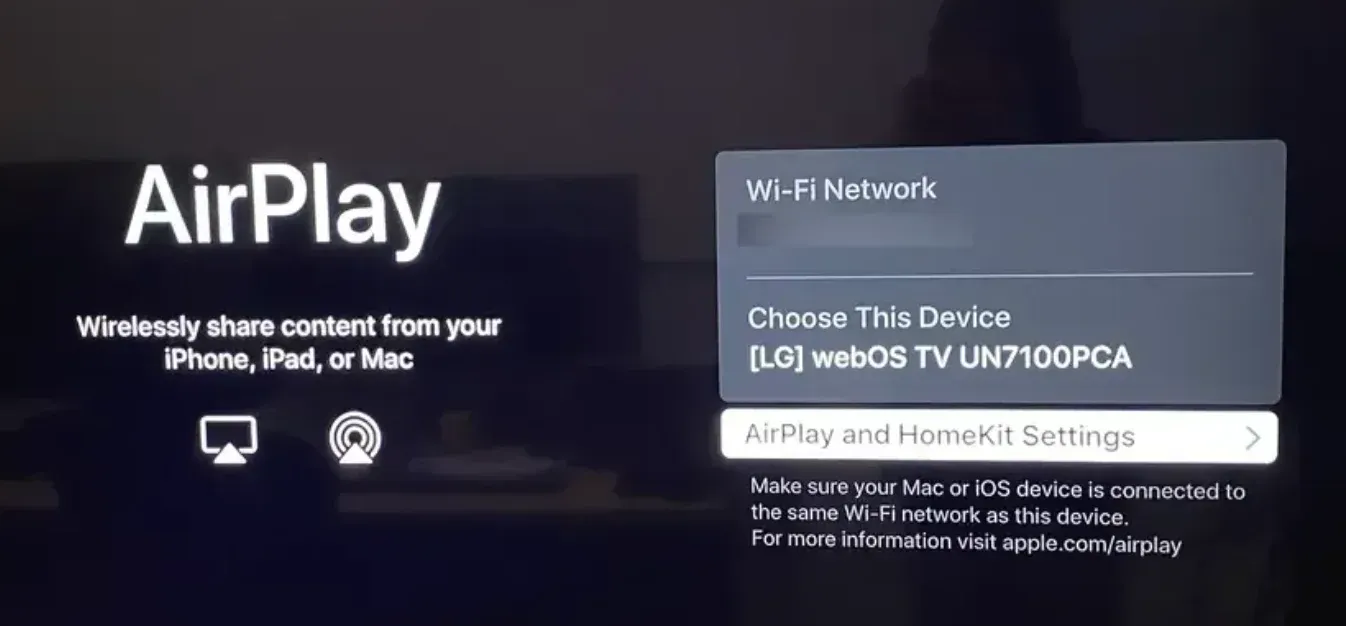
If that menu exists, your LG TV supports native AirPlay. If the menu does not exist at all, the TV usually does not support native AirPlay, and you should stop spending time refreshing the Screen Mirroring list on your iPhone.
You can also check from the sender side. Connect your iPhone, iPad, or Mac to the same Wi-Fi network as the TV and open the normal AirPlay or Screen Mirroring menu. If the TV never appears and the LG settings also show no AirPlay/HomeKit menu, that is usually enough to conclude the TV is not compatible with native AirPlay.
How to AirPlay to LG TV
Once compatibility is confirmed, the setup is fairly simple. Your sender and the receiver should be on the same Wi-Fi network for normal AirPlay discovery and connection.
Before you start, make sure the LG TV is awake, connected to Wi-Fi, and has AirPlay turned on in settings.
AirPlay from iPhone or iPad to LG TV
To AirPlay from iPhone or iPad to LG TV, use this order:
Step 1. On the LG TV, first open the AirPlay settings and confirm that AirPlay is enabled.
Step 2. Connect the iPhone or iPad and the TV to the same Wi-Fi network.
Step 3. On your iPhone or iPad, open Control Center, tap Screen Mirroring, and choose the LG TV from the list.
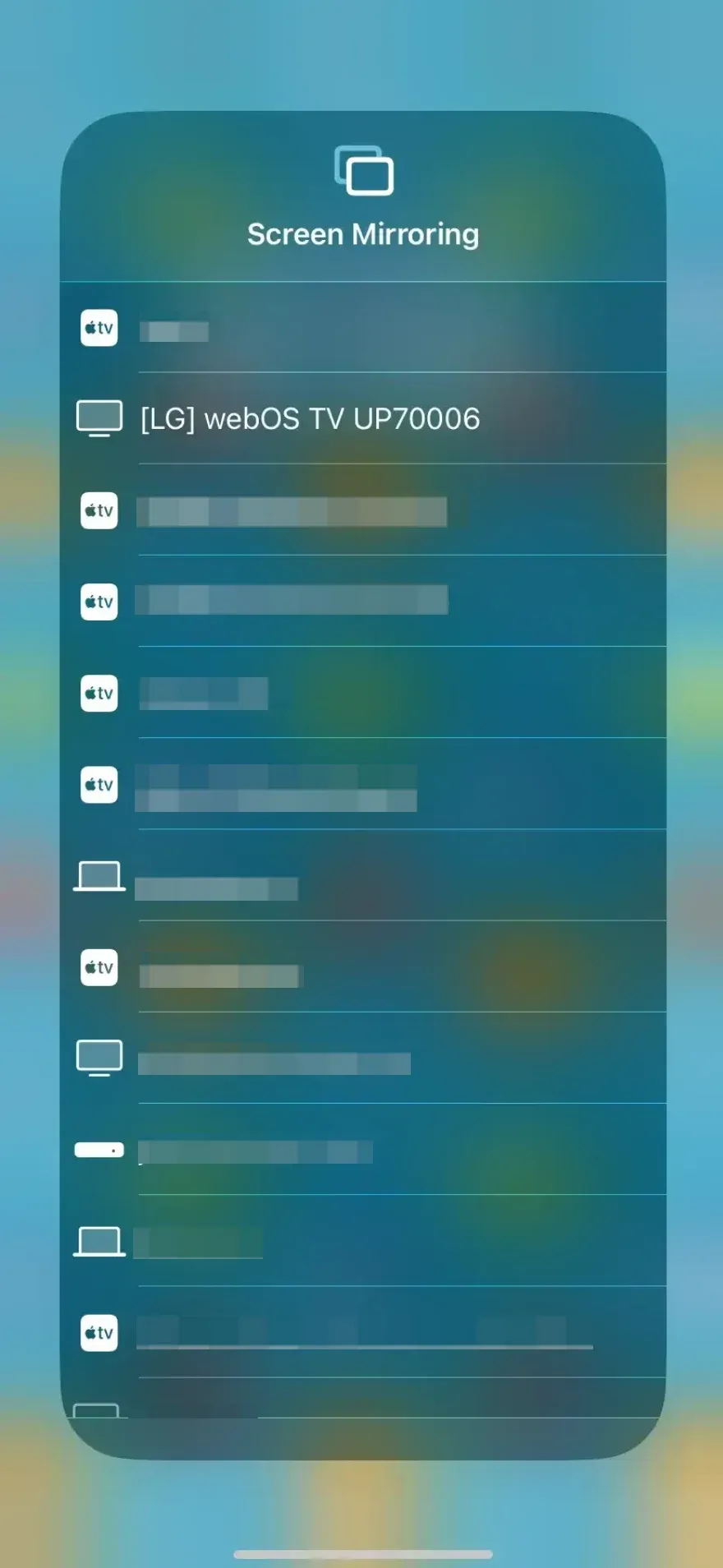
Step 4. If the TV shows an AirPlay passcode, enter it on the iPhone or iPad to finish the connection.
If you only want to send photos, music, or video, some apps may show their own AirPlay button. In that case, tap the button and choose your LG TV instead of mirroring the whole screen.
AirPlay from Mac to LG TV
To connect Mac to LG TV wirelessly, follow the same basic pattern:
Step 1. Turn on AirPlay on the LG TV.
Step 2. Keep both devices on the same Wi-Fi network.
Step 3. Open Control Center on the Mac and choose Screen Mirroring.
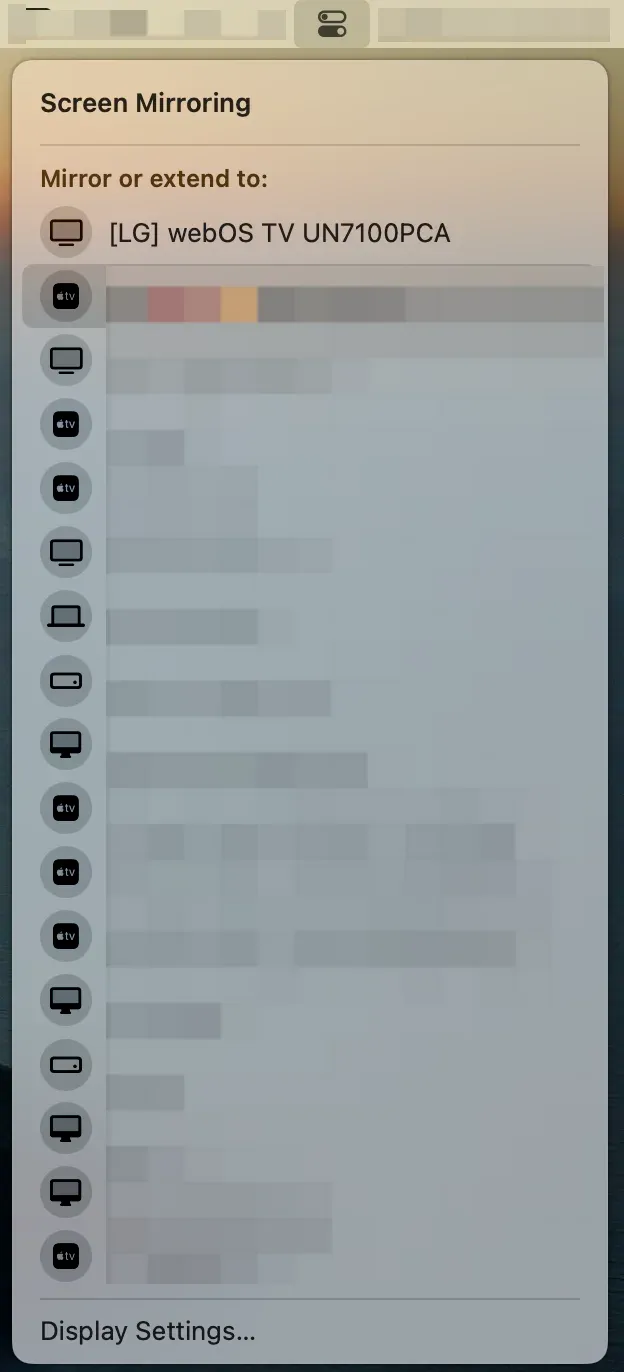
Step 4. Select the LG TV, enter the passcode if prompted, and then choose whether you want to mirror the same screen or extend the display.
If you are sending video or audio from an app, you may also see a separate AirPlay button inside that app. That can be simpler than mirroring the whole Mac display.
LG TV AirPlay Not Working
When LG TV AirPlay fails, the fastest approach is to match the symptom to the most likely cause instead of repeating the same setup steps.
-
The TV does not support AirPlay. If your LG TV does not belong to a supported family and the settings do not include Apple AirPlay and HomeKit, the problem is not that AirPlay is broken. The TV simply does not support native AirPlay.
-
AirPlay is available but turned off. Some users find the correct LG TV AirPlay settings but never switch the feature on. If the AirPlay menu exists, open it and confirm that AirPlay is enabled before testing anything else.
-
The LG TV does not show up on iPhone, iPad, or Mac. This is usually a local network discovery problem. Put both devices on the exact same Wi-Fi network, avoid guest networks, turn off VPN on the sending device, restart Wi-Fi, and try again.
-
The TV appears, but the connection never finishes. This usually points to a handshake problem rather than a compatibility problem. Retry the connection, confirm the passcode if one appears, restart the TV and sender, and check for software updates.
-
AirPlay connects, but the screen turns black. This is often app-specific. Some video apps do not support AirPlay the way users expect. If Photos, Safari, or the home screen mirror correctly but one streaming app stays black, the app is usually the reason, not the TV.
-
The connection keeps dropping. Short sessions that disconnect after a few seconds or minutes usually point to network quality. Move closer to the router, reduce heavy Wi-Fi traffic, and retry on a cleaner network before assuming the TV itself is unstable.
Try Streaming to LG TV with a Screen Mirroring App
If your LG TV does not support native AirPlay, PigeonCast is the simplest next step. It works across Android, iPhone, Windows, Mac, and TVs including LG TV, so you get one easy way to mirror to the TV from the devices you already use.
The basic setup looks like this:
Step 1. Install PigeonCast on the device you want to send from, whether that is an iPhone, Android phone, Mac, or Windows PC.


Overall Rating:



Step 2. Install and open PigeonCast on your LG TV so the TV is ready to accept the connection.
Step 3. Put your phone or computer and LG TV on the same Wi-Fi network.
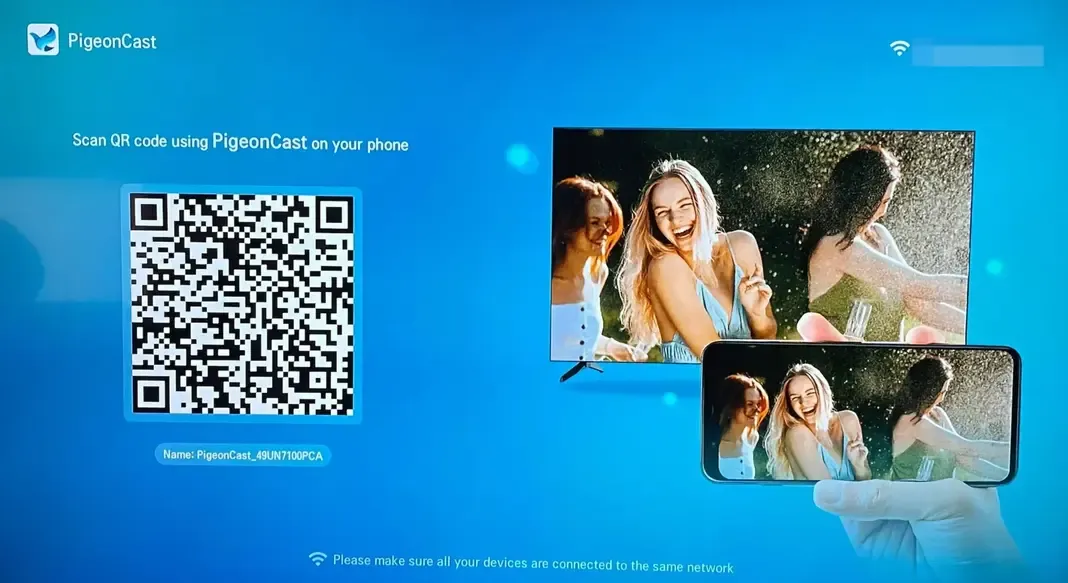
Step 4. Open PigeonCast on the sender, choose the LG TV, and start mirroring.
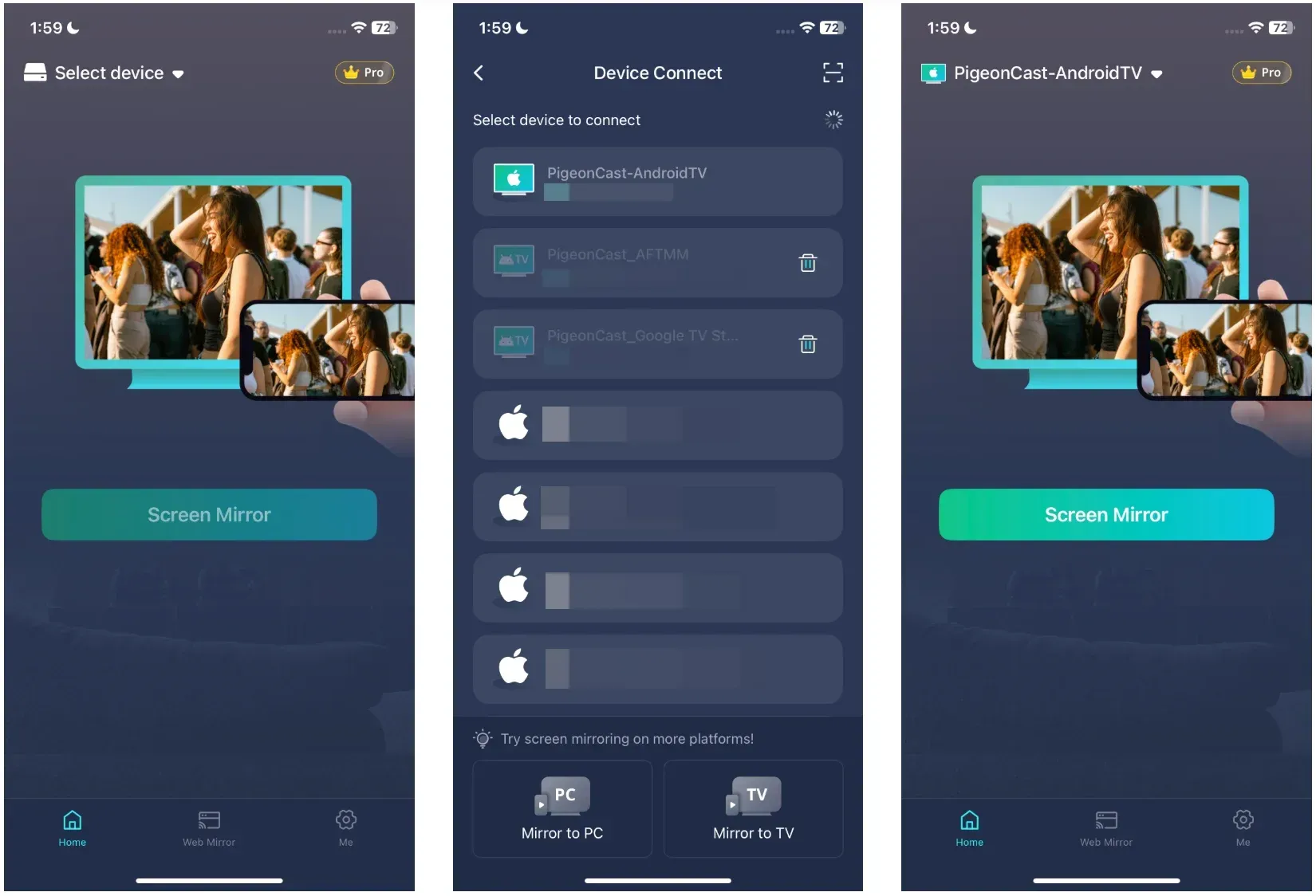
If native AirPlay on LG TV is unavailable, this is the cleaner next step.
Final Words
LG TV AirPlay works best when you treat it as a compatibility-first feature. If your TV includes Apple AirPlay and HomeKit, start with the built-in path. If it does not, move to PigeonCast instead of spending time on unsupported setup.
Once the setup is working, the experience becomes much simpler. You can mirror photos, stream videos, share a presentation, show a workout on a bigger screen, or quickly put a Mac display on the TV without repeating the same troubleshooting every time. That is really the goal here: a setup you can reuse without thinking about it every time.
LG TV AirPlay FAQ
Does every LG TV support AirPlay?
No. Some LG TVs support AirPlay, but many older or non-compatible models do not. The safest check is whether the TV settings include Apple AirPlay and HomeKit.
Which LG TV models support AirPlay?
The clearest compatibility baseline includes LG's 2019 OLED TVs, NanoCell SM9X series, NanoCell SM8X series, and UHD UM7X series. Later LG models may also support AirPlay, but the TV settings menu is still the best final check.
How do I turn on AirPlay on LG TV?
Open the TV settings, look for Apple AirPlay and HomeKit or a similar AirPlay menu, and turn AirPlay on before trying to connect from iPhone, iPad, or Mac.
Why is my LG TV not showing up on Screen Mirroring?
The most common reasons are that the TV does not support AirPlay, AirPlay is turned off in the TV settings, the TV and sender are on different Wi-Fi networks, or local discovery is being blocked by VPN or network isolation.
Why does AirPlay connect to LG TV but show a black screen?
Some apps do not support AirPlay cleanly for protected video. If Photos or the home screen mirrors normally but one video app stays black, the issue is usually the app rather than the LG TV.
What should I use if my LG TV does not support native AirPlay?
If your LG TV does not support native AirPlay, PigeonCast is a practical next step because it gives you a broader screen mirroring path across Android, iPhone, Windows, Mac, and LG TV instead of depending on built-in Apple support inside the television.
Why won't iPhone AirPlay to LG TV?
The most common reasons are that the LG TV does not support native AirPlay, AirPlay is turned off in TV settings, the iPhone and TV are on different Wi-Fi networks, or local discovery is being blocked by VPN or network isolation. Start by checking the TV's AirPlay menu first, then confirm both devices are on the same network.
How do I connect my iPhone to my LG TV?
If your LG TV supports AirPlay, open the AirPlay settings on the TV, connect both devices to the same Wi-Fi network, then open Control Center on the iPhone, tap Screen Mirroring, and select the TV. If the TV does not support native AirPlay, use a screen mirroring app like PigeonCast.
How can I connect my phone to my LG smart TV?
The best method depends on the phone and on the TV model. If you use iPhone and the LG TV supports AirPlay, use the built-in Apple path. If you use Android, or if the LG TV does not support native AirPlay, a screen mirroring app like PigeonCast is usually the more flexible option across different devices.
Mia Clarke is a technology editor specializing in screen mirroring and casting solutions across multiple platforms. Mia provides clear, practical guides and in-depth insights to help users seamlessly connect their devices. Passionate about enhancing digital experiences, Mia is dedicated to keeping readers updated on the latest trends and tools in cross-platform screen sharing. Whether you’re looking to mirror your smartphone, laptop, or smart TV, Mia’s content delivers reliable, user-friendly advice to simplify your tech setup.