
Let's be honest, nobody likes a tangled mess of HDMI cables snaking across the living room floor. While a wired connection is the old-school "good standard" for stability, it's 2026, and you want the freedom to sit on your couch while your screen appears on the big display.
Actually, you have three solid ways to connect Mac to LG TV wirelessly. Whether you have a brand-new OLED or an older model that's starting to show its age, there is a workaround for everyone. Let's dive into how to connect MacBook to LG TV wirelessly.
Method 1: Connect MacBook to LG TV Wirelessly via AirPlay
If your hardware is relatively modern, Apple's native protocol is the path of least resistance. It feels "built-in" because, well, it is.
Most LG TVs released from 2019 onwards (running webOS 4.5 or later) support AirPlay 2 (check the differences between AirPlay and AirPlay 2).
On the computer side, as long as you are running a recent version of macOS, you're good to go. Trying to figure out how to connect MacBook Air to LG TV. This is usually the first button you should click.
How to AirPlay MacBook to LG TV:
-
Ensure your MacBook and LG TV are on the same Wi-Fi SSID.
-
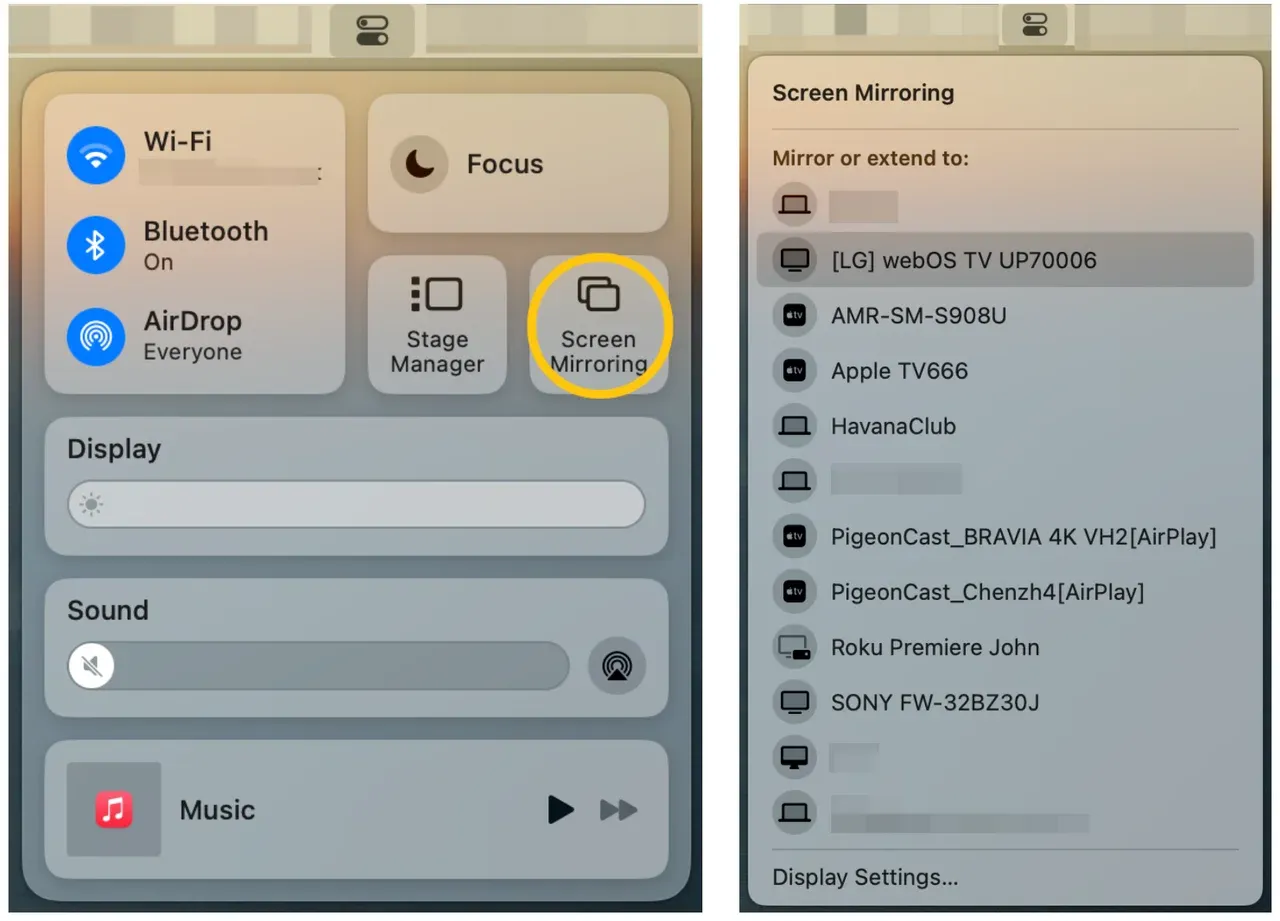
On your LG remote, go to the Home Dashboard and select AirPlay. Ensure AirPlay is set to On.
-
Click the Control Center icon in your macOS menu bar (the two toggle switches) and select Screen Mirroring.
-
A four-digit code will pop up on your TV. Type that into your Mac, and the connection is live.
If your LG TV AirPlay is not working or the device simply won't show up, try toggling your Wi-Fi off and on. Sometimes the "handshake" between macOS and webOS gets stuck.
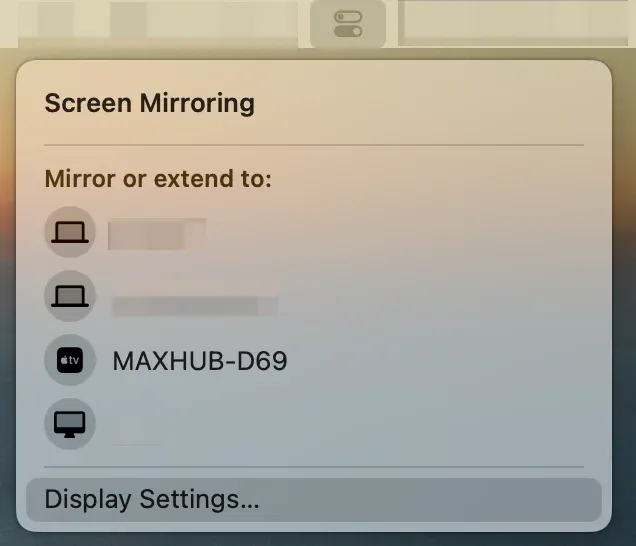
Still nothing? Check if your TV's "IPv6" setting is turned off in the network menu, as this can occasionally interfere with discovery.
If none of these fixes work, don't worry; you can still connect your MacBook to an LG TV wirelessly. Scroll down to learn how to connect MacBook to LG TV without AirPlay.
Method 2: Connect MacBook to LG TV Wirelessly via Google Chrome
Maybe you don't want to mirror your entire desktop. Maybe you just want to throw a Netflix tab or a YouTube video onto the LG TV screen. This is a great way to connect MacBook to LG TV without HDMI if you live inside your browser.
-
Ensure your MacBook and LG TV are on the same Wi-Fi SSID.
-
Open the Google Chrome browser on your MacBook.
-
Go to YouTube, Netflix, or another video web platform.
-
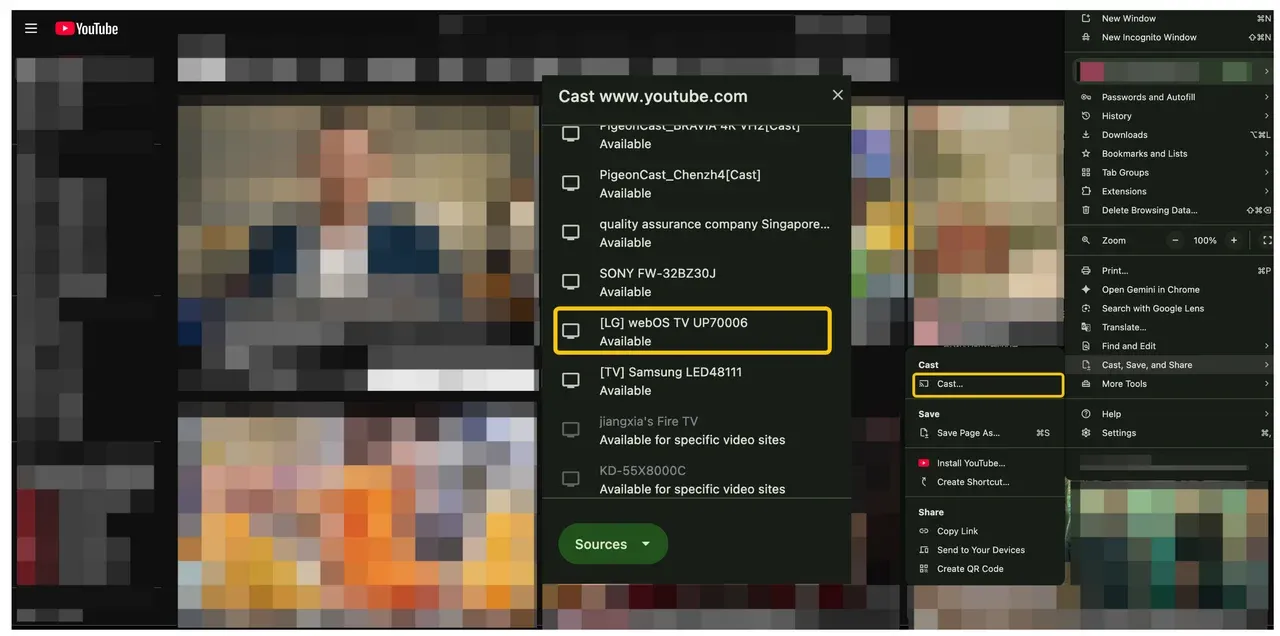
Click the three dots in the top right corner and select Cast, Save, and Share > Cast.
-
Select your LG TV from the list.
-
When the connection finishes, you can enjoy videos on your LG TV.
While this method is limited to browser-based content, it's often more stable for web video playback, especially on sites where Chromecast is available for specific video sites, such as YouTube or Netflix.
Method 3: Mirror Your MacBook to LG TV Wirelessly with PigeonCast
What if AirPlay keeps stuttering because your router is in another room? Or maybe audio keeps playing through your MacBook instead of the TV, or streaming quality drops when casting through Chrome on supported websites?
Enter PigeonCast, a dedicated third-party tool designed for Mac screen mirroring. Key features include:
-
Smooth audio and video synchronization for seamless playback
-
HD-quality screen mirroring for crystal-clear visuals
-
Support for multiple protocols, including AirPlay, Google Cast, and DLNA
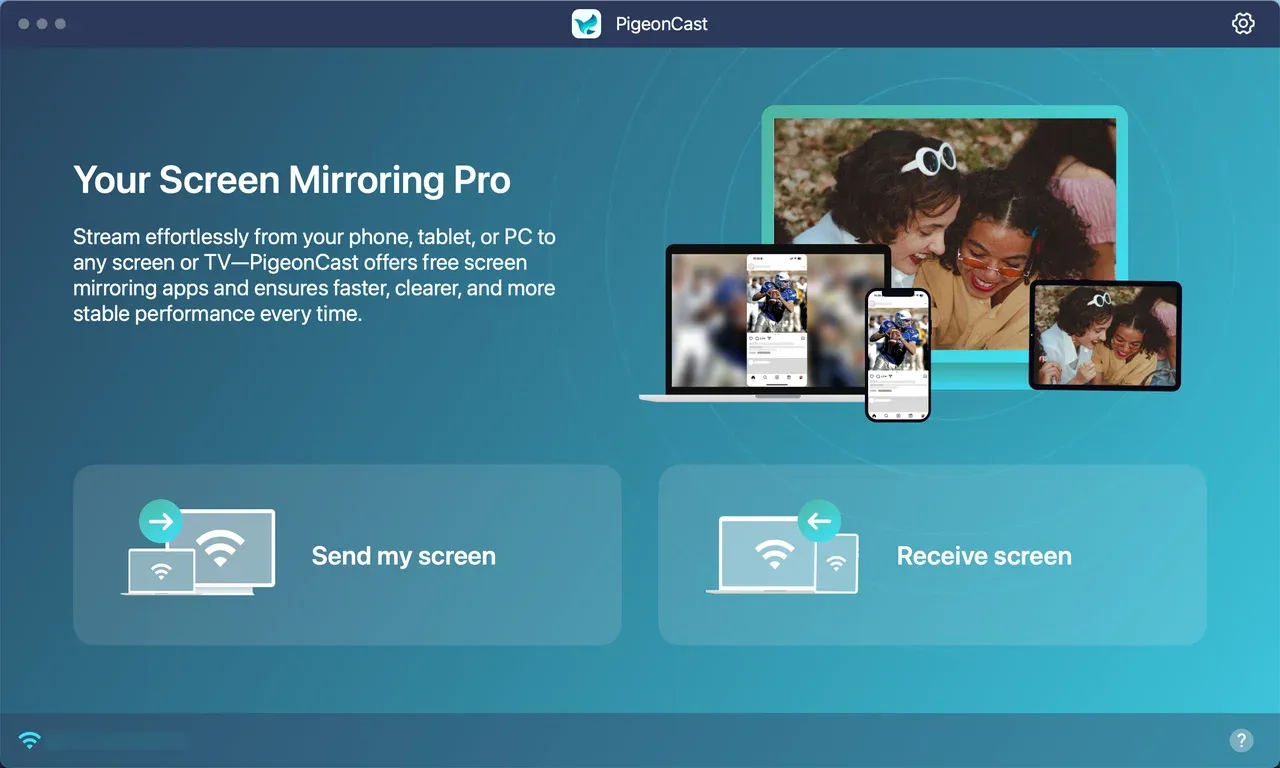
Unlike the native system, PigeonCast often handles different video codecs more gracefully, making it a "set it and forget it" choice for those who find the native Mac-to-TV experience a bit buggy.


Overall Rating:


-
Ensure your MacBook and LG TV are on the same Wi-Fi SSID.
-
Download and install PigeonCast from the App Store.
-
Open PigeonCast on your Mac and click Send my screen.
-
Choose your LG TV from the list.
-
Set your mirroring preference and click Start mirror.
Troubleshooting: MacBook Not Connecting to LG TV Wirelessly
-
If you've tried everything and your MacBook screen mirroring to LG TV still shows a black screen or "No Signal," don't panic.
-
Check Frequency: Ensure both are on 5GHz Wi-Fi rather than 2.4GHz. The latter is often too crowded for video streaming.
-
Reset the NVRAM: On older Intel Macs, resetting NVRAM can fix display detection issues.
-
The "Nuclear" Option: If your Wi-Fi environment is just too noisy, a $15 USB-C to HDMI adapter is your fail-safe. It's not wireless, but it works every single time.
Final Thoughts
I personally lean toward using AirPlay for quick tasks, but I keep a third-party tool like PigeonCast ready for when I'm watching high-bitrate movies. The "best" way really depends on how much you trust your Wi-Fi router.
Ready to get started? Try the AirPlay method first, and if your TV doesn't show up, you'll know exactly which backup plan to trigger.
How to Connect MacBook LG TV Wirelessly FAQs
How do I connect my MacBook to LG TV wirelessly?
You can connect your MacBook to an LG TV wirelessly using AirPlay, a web browser with casting support, or third-party tools like PigeonCast. Ensure your MacBook and LG TV are on the same Wi-Fi network, then choose the method that best suits your needs for video quality and reliability.
How to mirror MacBook to LG TV without AirPlay?
If AirPlay isn't working or your LG TV doesn't support it, you can use PigeonCast or Google Chrome casting. PigeonCast allows full-screen HD mirroring with audio and video in sync, while Chrome casting works for specific websites like YouTube and Netflix.
Can I mirror YouTube or Netflix from MacBook to LG TV without AirPlay?
Yes, you can cast browser tabs using Google Chrome:
-
Open Chrome on your MacBook.
-
Go to YouTube or Netflix.
-
Click the three-dot menu, select Cast, and choose your LG TV.
Keep in mind this method only works for browser-based content, not full-screen apps or local files.
Why is AirPlay not working on my LG TV?
AirPlay may fail if:
-
Your MacBook or LG TV isn't updated.
-
Both devices are not on the same Wi-Fi network
-
Network issues like interference or IPv6 settings are causing problems.
Restarting your devices or checking Wi-Fi connectivity often resolves these issues.
What should I do when my MacBook isn't showing my LG TV in AirPlay?
-
Ensure both devices are on the same Wi-Fi network
-
Ensure AirPlay is enabled on your LG TV.
-
Try toggling Wi-Fi off and on or restarting both devices.
-
Try alternative methods like Chromecast Mac from Chrome or using a third-party app like PigeonCast.
How to fix audio or video out-of-sync issues when mirroring MacBook to LG TV?
Audio-video sync problems often occur with AirPlay or Chrome casting due to network lag. Using PigeonCast can resolve these issues by providing smooth audio and video synchronization and supporting multiple casting protocols for stable playback.
How to connect MacBook to LG TV wirelessly using PigeonCast?
Download and install PigeonCast on your MacBook. Open the app, select your LG TV from the available devices, and start mirroring. PigeonCast supports HD-quality screen mirroring, synchronized audio and video, and multiple protocols including AirPlay and Google Cast.
Which LG TV models support AirPlay from MacBook?
Most LG TVs running webOS 4.0 or later (typically 2018 models and newer) support AirPlay. Some OLED and high-end 2022+ models also receive firmware updates adding AirPlay support. Check your TV's specifications or software updates to confirm compatibility.
Can older LG TVs (2017 or earlier) connect wirelessly to a MacBook?
Older LG TVs usually don't have AirPlay built-in. You can still connect your MacBook using PigeonCast, which works on older models and provides stable HD mirroring without relying on AirPlay.
How to connect MacBook to LG TV wirelessly when AirPlay keeps disconnecting?
If AirPlay keeps disconnecting, try restarting your MacBook, LG TV, and Wi-Fi router. For a more reliable experience, use PigeonCast, which maintains stable connections and supports multiple protocols.
Mia Clarke is a technology editor specializing in screen mirroring and casting solutions across multiple platforms. Mia provides clear, practical guides and in-depth insights to help users seamlessly connect their devices. Passionate about enhancing digital experiences, Mia is dedicated to keeping readers updated on the latest trends and tools in cross-platform screen sharing. Whether you’re looking to mirror your smartphone, laptop, or smart TV, Mia’s content delivers reliable, user-friendly advice to simplify your tech setup.