

You're about to stream a video from your laptop when suddenly a message appears: "Chromecast available for specific video sites". That small sentence can be surprisingly frustrating, especially if casting used to work perfectly. Now, instead of mirroring your Chrome tab or sharing your desktop, Chromecast only works for certain websites like YouTube and Netflix.
So what does this message really mean? Why does Chromecast say available for specific video sites, and what can you do about it? Let's break down the causes, the underlying tech logic, and some effective ways to bring back full-screen mirroring freedom.
What Does Available for Specific Video Sites Mean
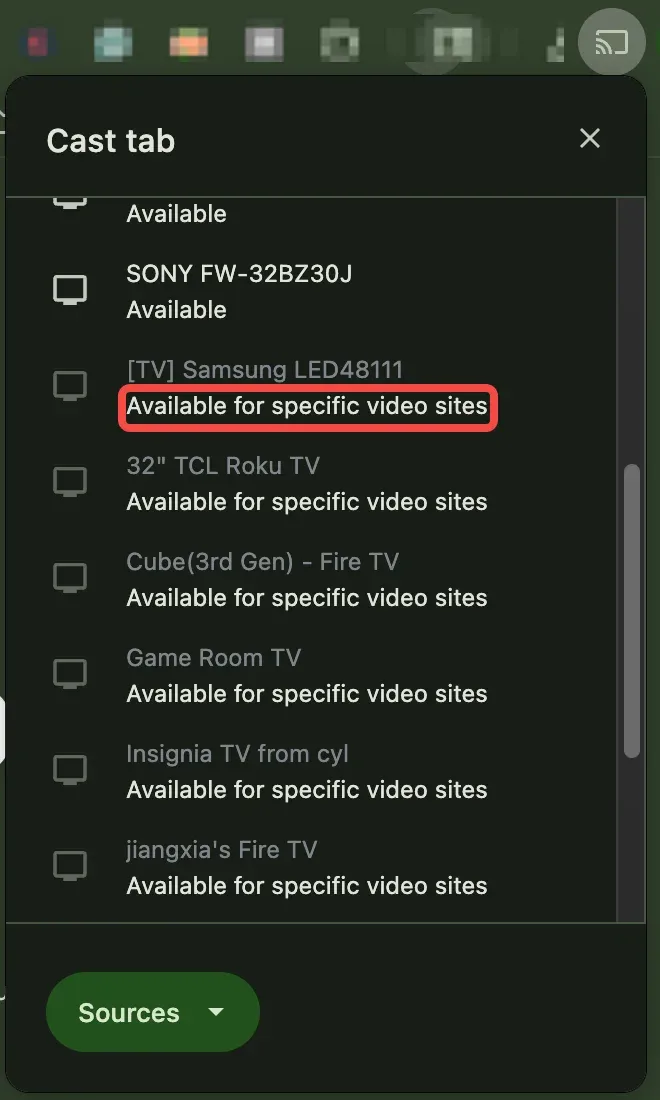
When Chromecast says available for specific video sites, it means that your device has switched from general tab mirroring mode to app-based casting mode.
In this state, Chromecast no longer mirrors everything you see on your browser, while it only accepts video streams from sites that directly integrate Google Cast SDK, such as YouTube, Disney+, and Hulu.
So your Chromecast is still working, but it's no longer functioning as a general screen mirroring tool. That's why you'll notice messages like:
- Casting available for specific video sites
- Google Cast available for specific video sites
- Chromecast won't cast certain websites
They all point to one thing: Chromecast is running in a restricted mode.
Why Does Chromecast Say Available for Specific Video Sites
This limitation can stem from both software configurations and how Google Cast works under the hood. In most cases, it's not that your Chromecast is malfunctioning; it's simply switching to a restricted mode due to how the casting system is designed.
Common Causes Behind the Limitation
Here's a closer look at what typically triggers the "available for specific video sites" message:
| Possible Cause | Explanation |
|---|---|
| Chrome restrictions | In newer versions of Chrome, general tab mirroring has been partially deprioritized to improve performance and stability. As a result, casting may only work with officially supported sites. |
| Chromecast firmware updates | A recent Chromecast or Google TV update might have introduced stricter streaming behavior to improve video playback quality or DRM compliance. |
| Network discovery issues | Chromecast depends on protocols like mDNS and SSDP to detect devices over the same local network. If discovery fails or your router blocks multicast traffic, Chromecast switches to a limited state that allows only certified sites. |
| Browser flags or extensions | Custom Chrome flags, VPNs, or ad-blocking extensions can interfere with Google Cast communication or media router components. Disabling these extensions often restores full functionality. |
| DRM or site-level restrictions | Some websites use protected streaming methods (like EME or Widevine DRM) that prevent generic mirroring to protect copyrighted content. These restrictions stop Chromecast from pulling the video directly. |
How Google Cast Works
Google Cast doesn't mirror your screen in real time. Instead, it works more like a remote control for your TV. When you press the Cast button, your device doesn't stream its own display but sends video directly from the internet. This design keeps the video stream stable and efficient, since the content flows straight from the source to your TV, not through your phone or laptop.
However, it also means that Chromecast can only work with websites and apps that officially support Google Cast integration. If a site doesn't expose a compatible media stream or is protected by DRM encryption (like Widevine or EME), Chromecast simply has nothing valid to play, leading to the message "available for specific video sites".
Troubleshooting and Fixes for "Available for Specific Video Sites"
If Chromecast suddenly limits casting to only certain sites, it's usually a configuration or network issue rather than a device failure.
Here's how you can restore full casting functionality step by step.
Fix 1. Restart Chromecast and Browser
A simple reboot can reset temporary discovery or permission issues:
Step 1. Unplug your Chromecast from the power source for 30 seconds, then plug it back in.
Step 2. Close and reopen Chrome on your computer or phone.
This refreshes the Cast session and reestablishes device visibility on the network.
Fix 2. Check Wi-Fi Connection
Both your casting device and Chromecast must be on the same Wi-Fi network. If you're using multiple routers, guest networks, or mesh nodes, your devices may not see each other properly. So, go to your router settings and confirm both devices share the same 2.4GHz or 5GHz band.
Fix 3. Enable Network Discovery
Chromecast uses mDNS and SSDP for local discovery. If your router blocks these protocols, Chrome can't locate the Chromecast correctly. Here are some suggestions:
- Enable Multicast / UPnP / IGMP in router settings.
- Disable AP Isolation or Client Isolation if it's on.
This ensures proper device-to-device communication.
Fix 4. Ensure Accurate Date and Time
This one surprises many users: incorrect system time can break device authentication and communication.
If your laptop drifts from your Chromecast's time, the Cast handshake may fail, leading to the "Chromecast only available for specific video sites" message.
Therefore, go to your device's Date & Time settings, enable Set time automatically, and ensure all devices show the same time zone. After syncing, restart Chrome and try casting again.
Fix 5. Update Chrome and Chromecast
Outdated software can cause version mismatches or restricted casting behavior.
- On Chrome: go to More > Help > About Google Chrome and update.
- On the Google Home app: check for Chromecast firmware updates
Newer updates often fix compatibility bugs and restore broader casting support.
Fix 6. Enable Chromecast IP Addresses
If you still see the error message "available for specific video sites Chromecast", try enabling Chromecast IP addresses:
Step 1. Open the Chrome browser on your laptop.
Step 2. Type Chrome://flags in the URL box.
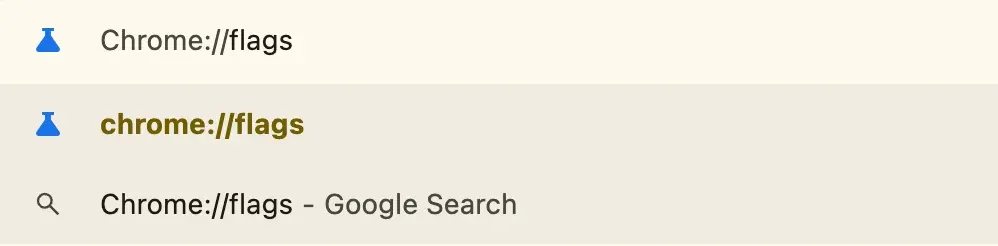
Step 3. Search Connect to Cast Devices on all IP addresses and make sure it is set to Enabled.
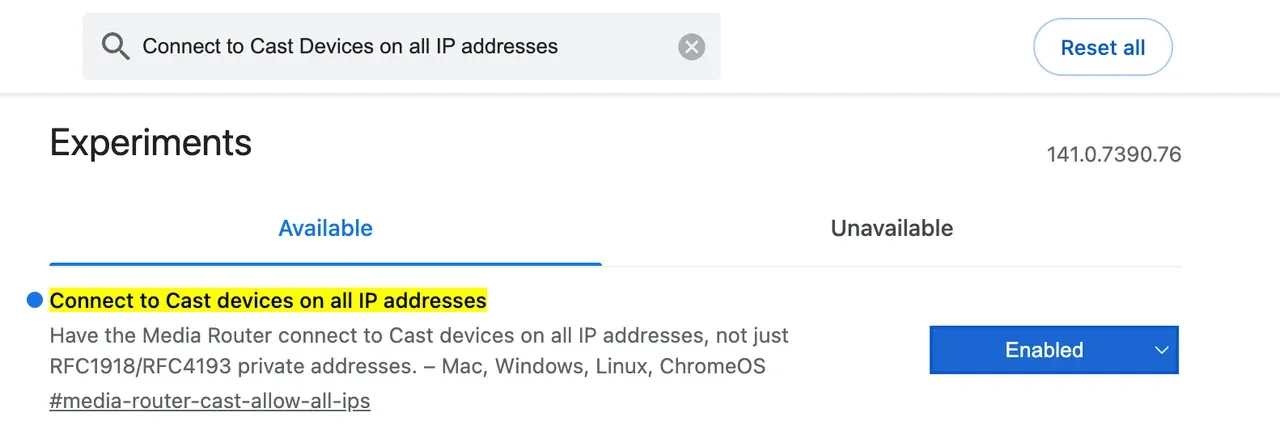
Step 4. Restart your Chrome.
Fix 7. Disable Chrome Extensions
Custom extensions can interfere with Chrome's Media Router. So, try disabling your extensions on Chrome:
Step 1. Click the Menu icon (three dots) in the upper-right corner and choose Extensions.
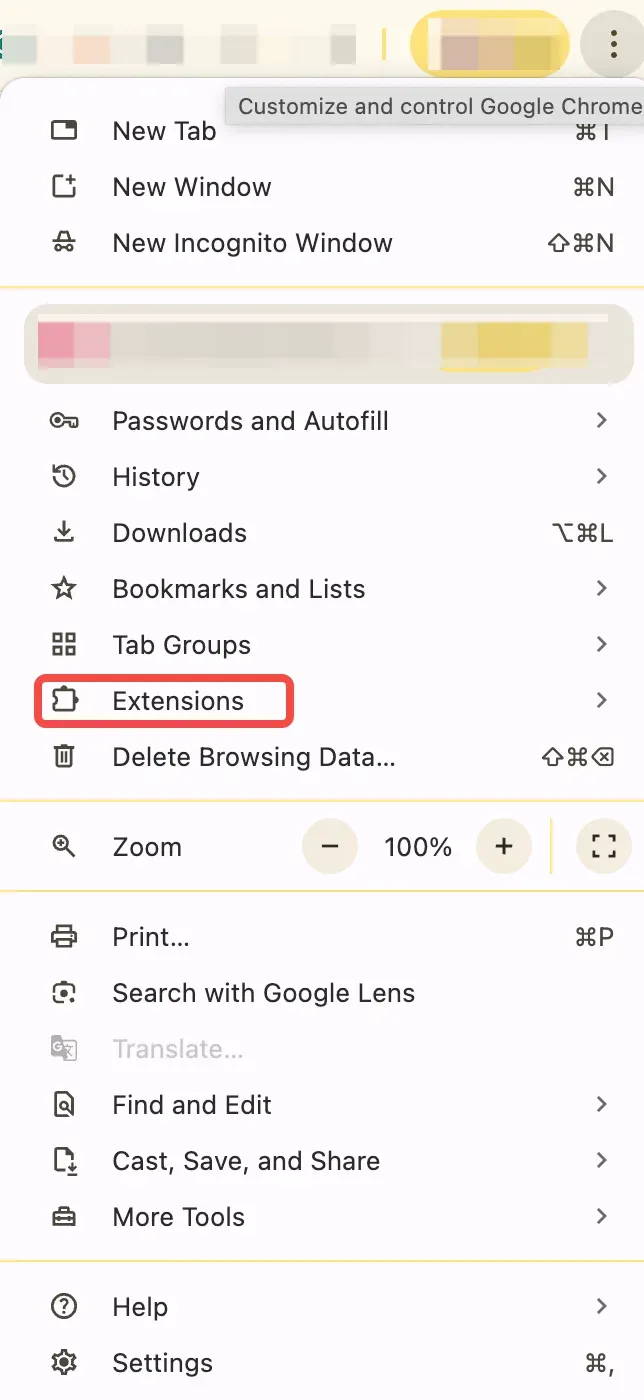
Step 2. Choose which extension to turn off and click the slider to disable it.
Fix 8. Check Supported Site Behavior
Some platforms (like Netflix, Disney+, or YouTube) rely on their own integrated Cast controls. If generic tab casting is restricted, try using their in-page Cast button instead. If the site doesn't have one, use an alternative screen mirroring method (see below).
Fix 9. Factory Reset Chromecast
If all else fails, perform a full reset on your Chromecast (this clears all firmware cache and restores original behavior):
Step 1. Hold the reset button on your Chromecast for 15 seconds until the LED starts flashing.
Step 2. Reconnect it using the Google Home app and try casting again.
Cast Your Laptop with Free PigeonCast App
If you've tried every fix and Chromecast still says "available for specific video sites", it might be time to take a different route.
Instead of fighting Google Cast's built-in limitations, use a dedicated mirroring tool that gives you full freedom to stream any content from your Windows or Mac laptop to your TV, no Chromecast required. That's exactly what PigeonCast does.

Unlike Google Cast, which depends on site-level integrations and API permissions, PigeonCast connects your laptop to your TV directly. Then, it streams your display in real time to your TV over the local network, so you can show anything, from movies to live classes and video calls; you don't need to worry about whether the website officially "supports" casting.
How to use PigeonCast to mirror your Windows PC or MacBook:
Step 1. Install PigeonCast on your Windows PC or MacBook and your TV.

PigeonCast Screen Mirroring

Official Download



Step 2. Ensure your laptop connects to the same network as your TV.
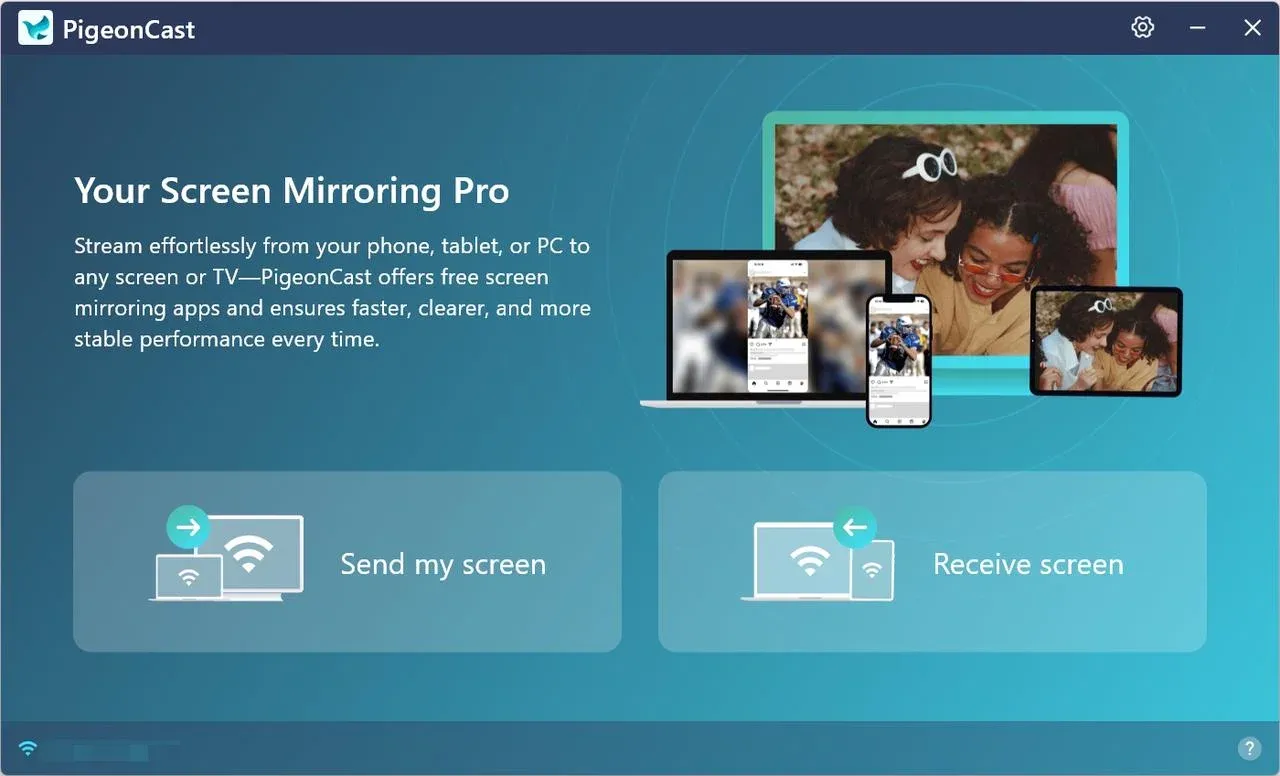
Step 3. Launch the PigeonCast on your laptop and TV, and then the two devices become a universal sender or receiver.
Step 4. On your laptop, click Send my screen.
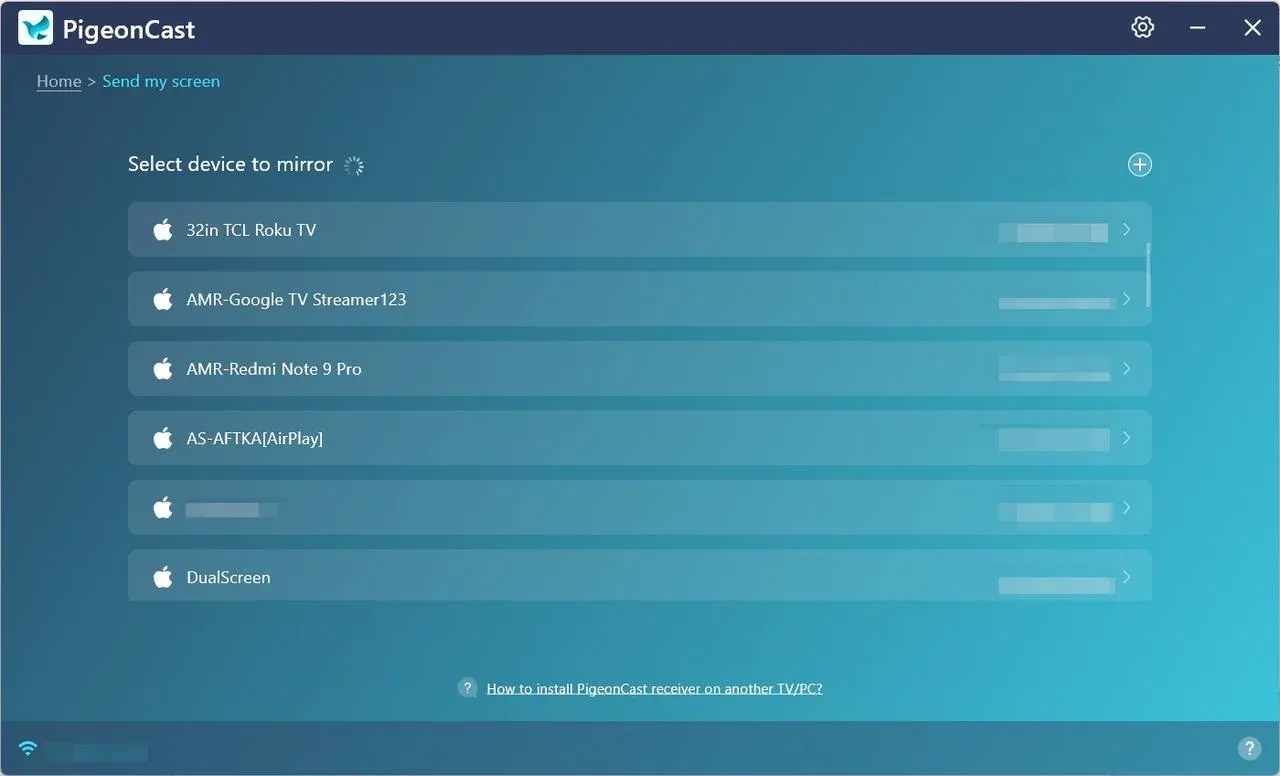
Step 5. Choose your TV or streaming device from the list of available device.
Step 6. Once connected, choose the streaming option you prefer:
- Mirror full screen: PigeonCast will duplicate everything on your computer and show it on your TV.
- Mirror app window: PigeonCast will cast your app from your computer to your TV. But note that you should open the app first and don't minimize it.
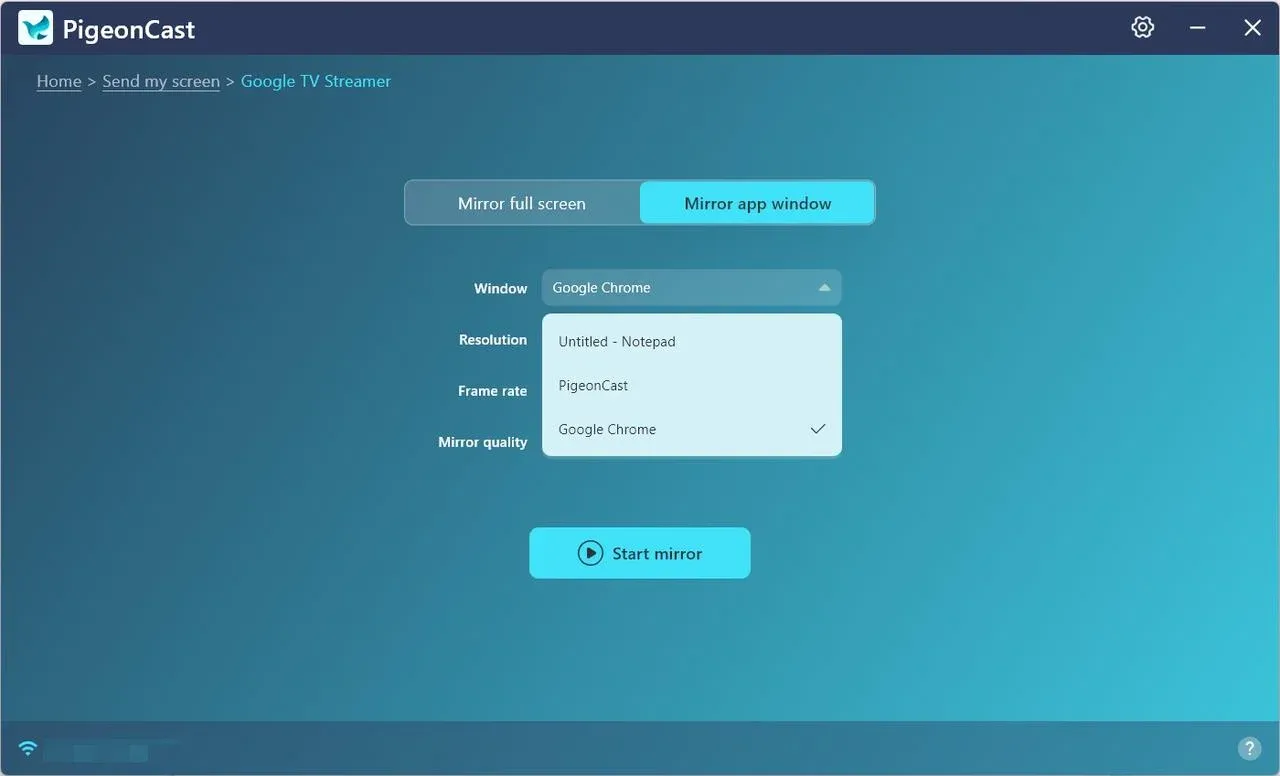
Step 7. PigeonCast will stream your display in real time to your TV over the local network. Enjoy your content on the big screen.
So instead of seeing "Casting available for specific video sites", you'll be streaming whatever's on your screen, instantly and seamlessly.
Final Thoughts
The "Chromecast available for specific video sites" message doesn't always mean something's wrong.
It simply reflects how Google Cast works — optimized for supported video sources rather than full device mirroring.
But if you want more flexibility, enabling the right Chrome settings, keeping your firmware up to date, or switching to a mirroring tool like PigeonCast can help you regain that open, cast-anything experience.
Chromecast Available for Specific Video Sites FAQs
Q: What websites are Chromecast enabled?
Chromecast officially supports websites and apps that integrate Google Cast technology. These include popular platforms like YouTube, Netflix, Disney+, Hulu, and Spotify. Such sites contain a built-in Cast button because they allow Chromecast to fetch media directly from their servers, rather than mirroring your device screen.
Q: Why do some videos not have the Chromecast option?
Not every website or video player supports Google Cast. Some use custom playback systems or DRM-protected content that blocks external casting. If you don't see the Cast icon, it's usually because the site hasn't implemented the Cast API or restricts external streaming for licensing reasons.
Q: Can Chromecast cast any website?
Not anymore. While older Chrome versions allowed full tab mirroring, recent updates limit casting to specific, compatible video sites. This is why you may see the message "Chromecast only available for specific video sites". If you want to mirror any website or local content freely, try PigeonCast, which supports streaming from Windows or Mac to your TV without such restrictions.
Q: Why won't my Chromecast cast certain websites?
When Chromecast says "casting available for specific video sites", it means the page doesn't support Google Cast or uses a video format that Chromecast cannot decode (like MKV or FLV). Network discovery issues, browser extensions, or outdated firmware can also cause this limitation. To bypass these site-specific issues, tools like PigeonCast provide full-screen mirroring without depending on Google Cast protocols.
Q: What is the difference between Google Cast and Chromecast?
Google Cast is the underlying protocol, a software framework that allows apps and browsers to send media to a display device. Chromecast, on the other hand, is the hardware (the dongle or built-in TV feature) that receives and plays the content. In other words, Google Cast is the language; Chromecast is the speaker. If Google Cast becomes limited, Chromecast's functionality also narrows.
Q: Does Netflix still cast to Chromecast?
Yes, Netflix still supports Chromecast. However, it relies on native integration, not tab mirroring. When you tap the Cast icon in Netflix, your Chromecast streams directly from Netflix's servers, not from your phone or laptop. If your Netflix app or browser is outdated, you may lose the Cast option — updating it usually resolves the issue.
Q: What are the disadvantages of Chromecast?
While Chromecast is convenient, it has a few notable drawbacks:
- Limited site support – Only certain video sites are officially cast-enabled.
- Depending on Wi-Fi – It won't work without a stable local network.
- No full desktop mirroring – Modern updates restrict generic screen casting.
- Requires Google ecosystem – Works best within Chrome, Android, or YouTube environments.
Mia Clarke is a technology editor specializing in screen mirroring and casting solutions across multiple platforms. Mia provides clear, practical guides and in-depth insights to help users seamlessly connect their devices. Passionate about enhancing digital experiences, Mia is dedicated to keeping readers updated on the latest trends and tools in cross-platform screen sharing. Whether you’re looking to mirror your smartphone, laptop, or smart TV, Mia’s content delivers reliable, user-friendly advice to simplify your tech setup.