
Screen mirroring your Mac allows you to display your Mac's screen on a TV, projector, or another device. Whether you want to share presentations, watch movies, or play games on a bigger screen, this guide will show you all the methods and tips about how to screen mirror on Mac.
How to Mirror Screen on Mac
If you want to share your Mac screen on a bigger display, from wireless options like Mac's AirPlay to wired connections, you can mirror your Mac effortlessly to a TV or monitor. The following section will guide you step by step on how to screen mirror on a Mac for a smooth and seamless experience.
Method 1. Use AirPlay to Mirror Mac
How to screen mirror Mac on TV? If you want a quick and wireless way to mirror your Mac, AirPlay is the most convenient option. It lets you display your Mac screen on an Apple TV or AirPlay-compatible smart TV without any cables, making it perfect for presentations, videos, or sharing content with friends and colleagues. Here'll show you how to use AirPlay to mirror your Mac step by step.
Step 1. Make sure your Mac and the TV or device are on the same WiFi network.
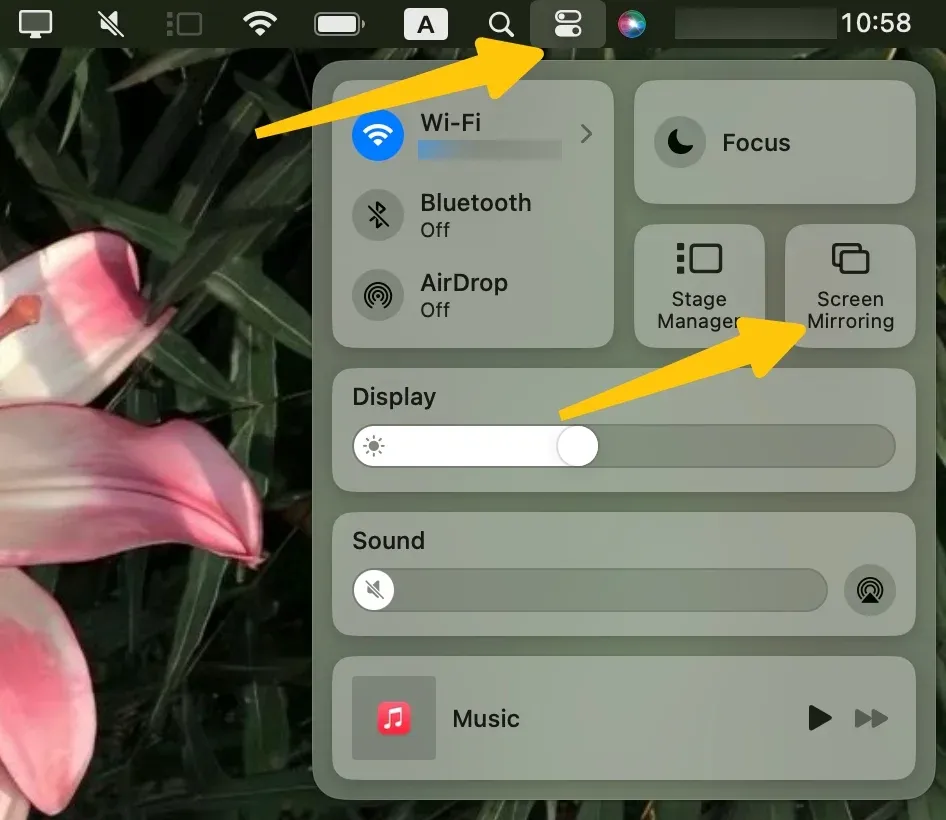
Step 2. On Mac, click the Control Center icon in the menu bar, then select Screen Mirroring.
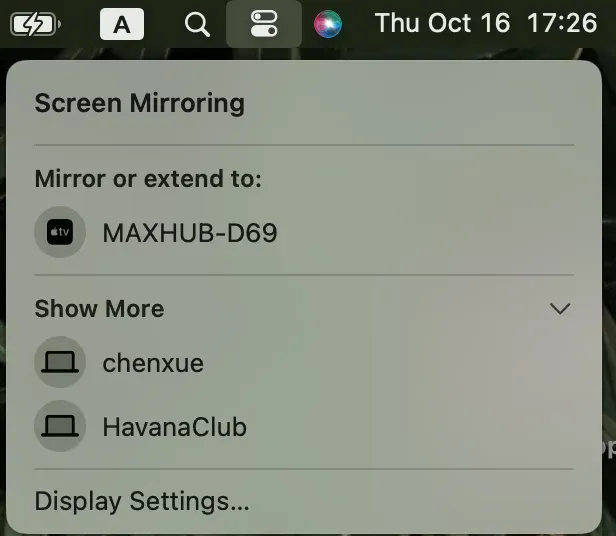
Step 3. Choose your TV from the available device list to connect to.
Step 4. Enter the AirPlay code on your Mac if prompted to confirm the mirroring performance.
Step 5. When you connect successfully, your Mac screen will now appear on the TV or device.
Method 2. Use a Third-Party Screen Mirroring App
How to screen mirror on Mac to TV? If your TV doesn't support AirPlay, or you want a versatile wireless option, a third-party screen mirroring app is a practical solution. These apps allow you to mirror your Mac to a wide range of TVs, monitors, or even PCs, often with minimal setup. Here we take the PigeonCast Mac screen mirroring app as an example:
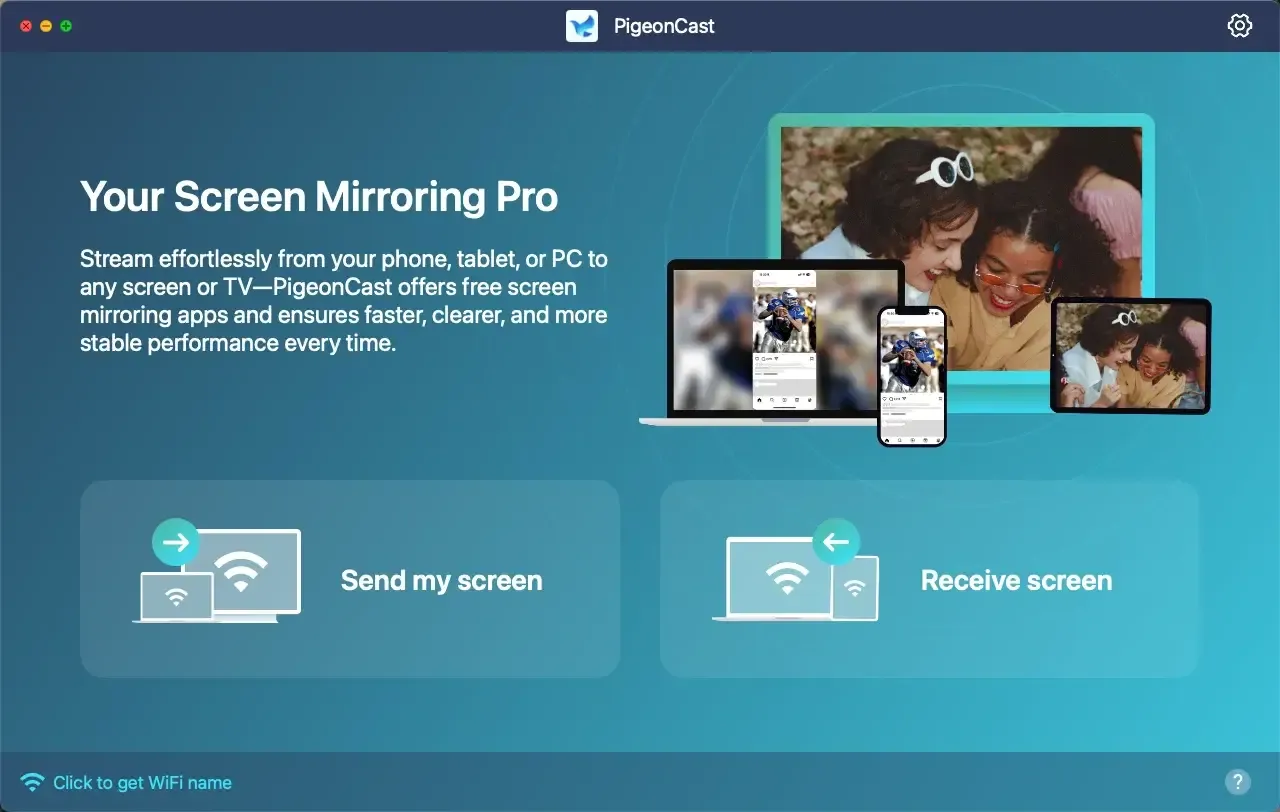

PigeonCast Screen Mirroring

Official Download


PigeonCast keeps your privacy safe by making sure no data is leaked while you mirror your screen. It's easy to use and works with Google Cast-enabled phones, Google Chrome, and DLNA-supported apps. This means you can connect your Mac to almost any smart TV or device, giving you more freedom and fewer compatibility worries. Let's have a quick check about how to use PigeonCast on your MacBook:
Step 1. Install the PigeonCast software on your Mac and the receiving device if required.
Step 2. Connect both your Mac and receiver devices to the same wireless network.
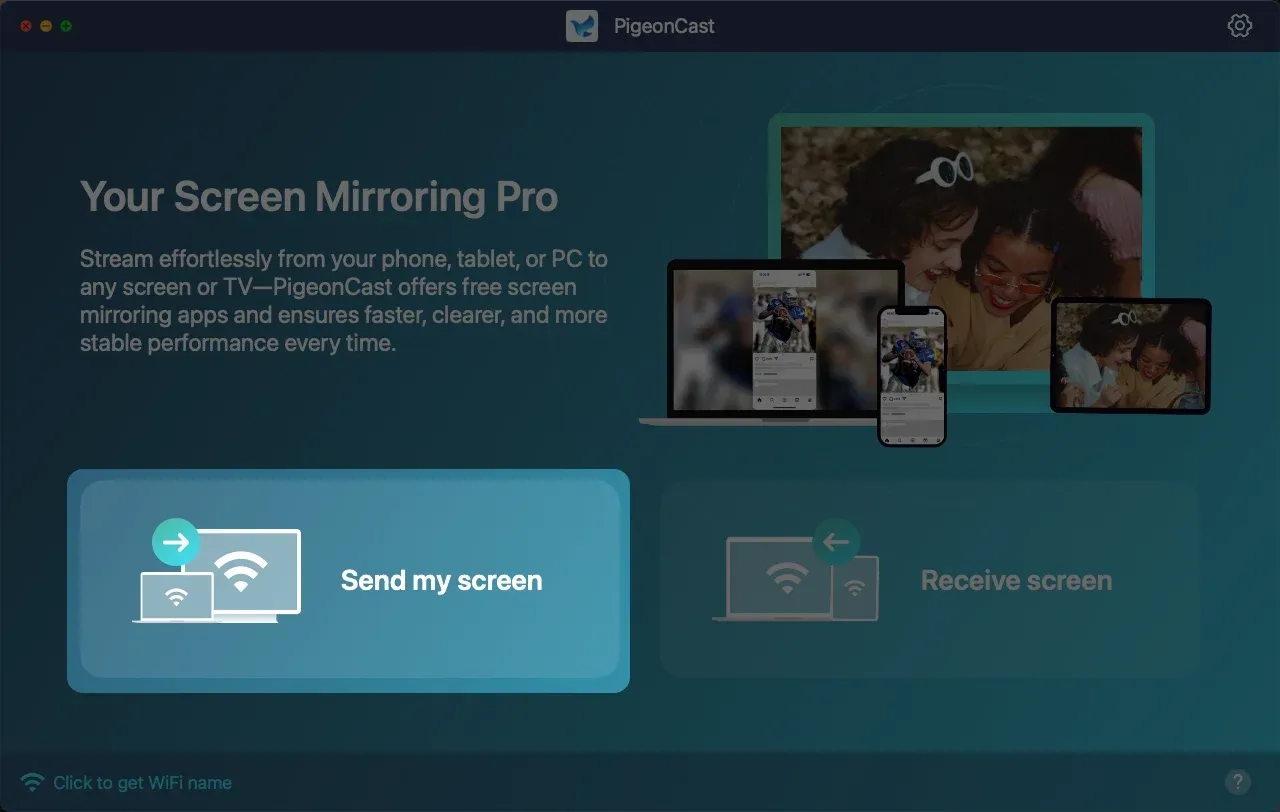
Step 3. Open the app and click Send my screen option to choose your receiver device from the available list.
Step 4. Enter the onscreen PIN code to finish the pairing and start mirroring your Mac screen wirelessly.
Method 3. Use Chrome Browser
If you want to mirror your Mac to a TV or external display but don't have an Apple TV or AirPlay-compatible device, Chrome's built-in casting feature provides a convenient alternative. Using Google Cast technology, you can stream either a single browser tab or your entire desktop directly to a Chromecast-enabled device or smart TV.
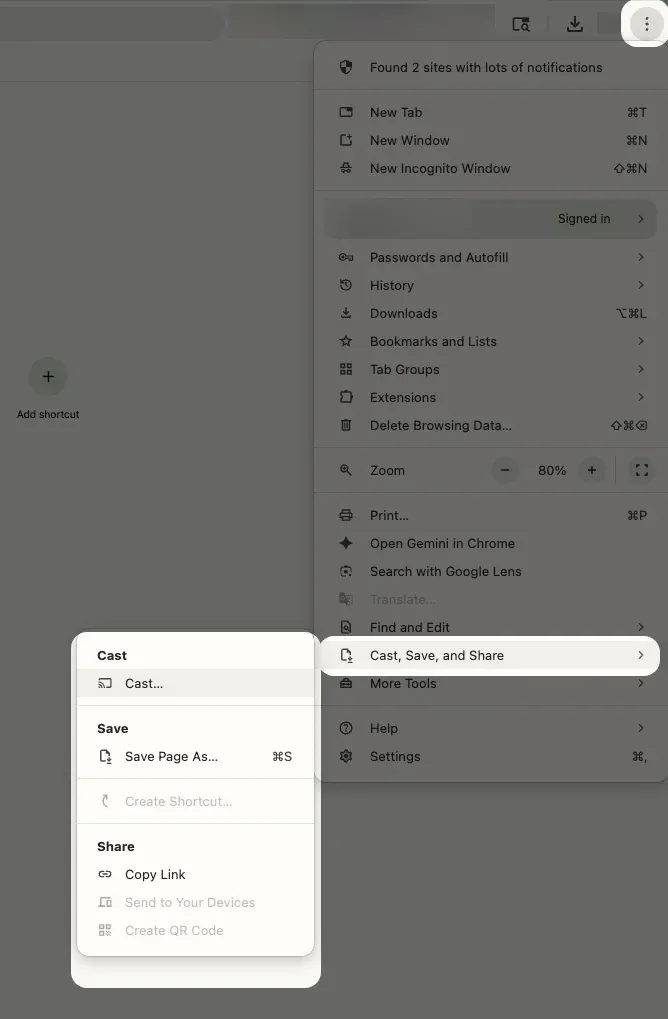
Step 1. Open Chrome on your Mac, click the three-dot menu in the top-right corner and select Cast….
Step 2. Chrome will search for available devices on your network, such as Chromecast or smart TVs that support Google Cast.
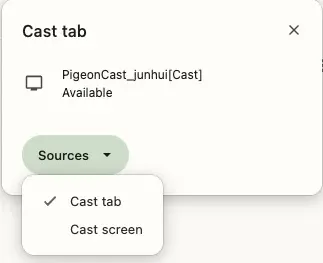
Step 3. Click the Sources dropdown to choose what you want to mirror:
- Cast tab: mirrors only the current Chrome tab.
- Cast desktop: mirrors your entire Mac screen.
Step 4. Select your device from the list, and your Mac screen or Chrome tab will appear on the TV.

Step 5. To stop mirroring, click the Cast icon in Chrome and choose Stop option.
Method 4. Use an HDMI Cable or Adapter
How to mirror screen on Mac with HDMI? If you prefer a stable, high-quality connection or your TV doesn't support AirPlay, using an HDMI cable or adapter is a reliable alternative. This wired method provides consistent video and audio performance, eliminates lag or interruptions from weak Wi-Fi, and supports higher resolutions. It also works with virtually any TV or monitor with an HDMI input, giving you flexibility across different setups.
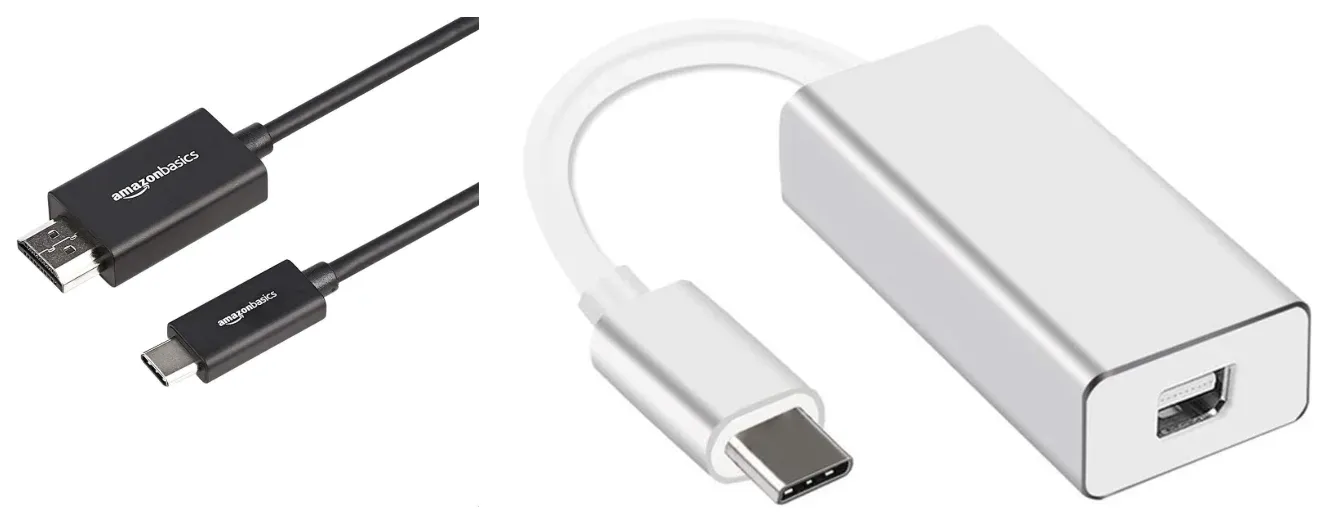
Step 1. Connect your Mac to the TV using an HDMI cable. Use a USB-C to HDMI or Mini DisplayPort adapter if needed.
Step 2. Turn on your TV and switch to the correct HDMI input where your Mac is connected.
Step 3. Your Mac should automatically detect the TV as an external display.
Troubleshooting Mac Screen Mirroring Issues
Even with the right setup, screen mirroring on a Mac doesn't always go as planned. You might see a blank screen, hear no sound, or notice lag during playback. Don't worry, most of these issues come down to simple settings, network hiccups, or outdated software. In this section, we'll walk through the most common Mac screen mirroring problems and how to fix them quickly.
- Device not showing in AirPlay list: Make sure both your Mac and the display are on the same Wi-Fi network and running the latest software updates.
- Laggy or choppy video: Switch to a wired HDMI connection if possible, or reduce the number of devices using your network.
- AirPlay no sound: Open System Settings > Sound (or System Preferences > Sound on older macOS) and select the TV or external display as the output.
- Third-party app connection errors: Restart both your Mac and the display device, and check firewall/security settings that may block the connection.
- Frequent disconnections: Restart your router, reconnect AirPlay, or try using the 5GHz Wi-Fi band instead of 2.4GHz.
- Poor picture quality (blurry or pixelated): Adjust resolution under System Settings > Displays, or move closer to the Wi-Fi router for a stronger signal.
- Black screen during mirroring: Ensure the TV or projector is set to the correct input source, and try reconnecting the AirPlay or HDMI.
- Audio and video out of sync: Pause the stream, reconnect, or switch to a wired connection to minimize delay.
Final Verdict
How to screen mirror on Mac Book Air? You can easily mirror your MacBook Air to a bigger screen using AirPlay, HDMI, Chrome browser or third-party apps. With the right setup and a little troubleshooting, you can enjoy movies, presentations, or apps on a larger display anytime.
How to Screen Mirror on Mac FAQ
Q: How do I mirror my Mac to my TV?
You can use AirPlay, a wired HDMI connection, or a third-party app. For AirPlay, make sure both your Mac and TV are on the same Wi-Fi network, then click the AirPlay icon on your Mac and select your TV. For HDMI, connect your Mac to the TV using an HDMI cable, then select the correct input on your TV. Third-party apps can help if your TV doesn't support AirPlay.
Q: How can I mirror my iPhone with my MacBook?
You can mirror your iPhone to your MacBook using AirPlay or QuickTime Player:
- For AirPlay, make sure both devices are on the same Wi-Fi network, then open Control Center on your iPhone, tap Screen Mirroring, and select your Mac.
- For QuickTime, connect your iPhone to your Mac with a Lightning cable, open QuickTime Player, choose New Movie Recording, and select your iPhone as the camera source.
Q: Why can't I screen mirror on my Mac?
If you can't screen mirror on your Mac, it's usually due to network issues, software settings, or device compatibility. Common causes include:
- Devices not on the same Wi-Fi network: Make sure your Mac and the target device are connected to the same network.
- Outdated software: Update macOS and the device's firmware.
- AirPlay or mirroring disabled: Check that AirPlay is enabled on both devices.
- Firewall or security settings: Some settings can block connections; review them in System Settings > Network > Firewall.
- Hardware limitations: Older Macs or TVs may not support the latest mirroring features.
Q: How do I turn on mirror mode on my Mac?
On newer Macs running macOS Ventura or later, you can turn on mirror mode using the Screen Mirroring menu in the menu bar:
- Click the Screen Mirroring icon in the menu bar (a rectangle with a triangle at the bottom).
- Select the device you want to mirror your Mac to, such as an Apple TV or AirPlay 2-compatible display.
- Your Mac screen will now be mirrored to the selected device.
- To stop mirroring, click the Screen Mirroring icon again and choose Turn Off AirPlay or Stop Mirroring.
Q: Why does AirPlay not work on Mac?
AirPlay may not work on a Mac due to network, compatibility, or software issues. Common reasons include:
- Mac and AirPlay device not on the same Wi-Fi network
- Device compatibility
- Outdated macOS or firmware
- AirPlay is disabled or restricted
- Firewall or security settings
- Temporary network glitches
- Interference or weak Wi-Fi signal
Q: Is iPhone mirroring on Mac?
Yes, iPhone mirroring on a Mac is possible, thanks to Apple's AirPlay to Mac feature introduced in macOS Monterey. This allows your iPhone screen to be mirrored or extended directly onto a Mac, turning it into an external display. It works wirelessly over Wi-Fi, making it convenient for presentations, streaming, or sharing content from your iPhone without needing cables.
Clara Rossi is an experienced technology editor and a seasoned expert in screen mirroring and casting technologies. With a keen eye for detail and a deep understanding of how to seamlessly connect devices, Clara excels at optimizing user experiences for effortless sharing and streaming. Whether you're seeking quick fixes or advanced tips, her expertise and responsiveness ensure that every query is met with a well-informed and efficient solution.