
AirPlay makes it easy to stream music, videos, or even your screen from an iPhone, iPad, or Mac to an Apple TV, HomePod, or smart TV. But sometimes things don't go as planned, and you run into the frustrating problem of AirPlay sound not working. The good news is that this issue is usually simple to fix. This guide will explain the most common reasons behind and walk you through the steps to get your audio back.
Why Is Sound Not Working on AirPlay
Sometimes AirPlay plays the video, but the sound doesn't come through. This sound not working on AirPlay mirroring problem is quite common, and it usually happens for a few simple reasons. Let's take a look at the most common causes so you know what might be going wrong.
- Volume or Mute Settings
The receiving device might be turned down or muted, the mute switch on your iPhone could be on, or external speakers connected to your TV or receiver might be off. Since AirPlay follows the audio settings of the device you're streaming to, even if your iPhone volume is up, the TV or speaker volume can still block the sound.
- Compatibility Issues
Not every device works with AirPlay in the same way. Some smart TVs or speakers can play video through AirPlay, but don't support advanced audio formats like Dolby Atmos or surround sound. In these cases, you might see the video but hear no audio, or the Apple AirPlay sound not working in certain apps. To avoid frustration, it's a good idea to check your device's AirPlay support details to know exactly what's compatible.
- Network-Related Issues
If the network is weak, unstable, or your devices are on different bands, like your iPhone on 5GHz and your TV on 2.4GHz, they may not detect each other properly. Heavy network usage from multiple devices streaming or downloading at the same time can also cause audio dropouts. Physical barriers, microwaves, and other electronics can weaken the signal further.
- Incorrect Audio Output Selection
Sometimes the video connects fine, but the sound ends up in the wrong place. Your iPhone might still be set to play audio through its built-in speakers instead of the AirPlay device. On a Mac, the Output Device in Sound settings could still be set to Internal Speakers. Smart TVs or AV receivers may default to a different speaker system or HDMI port.
- Software Glitches and Bugs
Outdated or buggy software can also lead to AirPlay audio problems. Older versions of iOS or macOS may have audio sync issues, and smart TVs or third-party speakers might need firmware updates to stay compatible. Temporary glitches can also cause AirPlay to play video without sound until the devices are restarted.
- Hardware Problems
The TV or speaker's built-in audio system could be faulty. External soundbars or AV receivers might have loose cables or incorrect input settings. Even the AirPlay device itself, like a HomePod, may need servicing if it isn't producing any sound at all.
10 Fixes to Sound Not Working on AirPlay
After looking at the common causes of sound on AirPlay not working, it's time to focus on solutions. This section will guide you through easy, actionable steps to get your audio back so you can enjoy your videos and music without any interruptions. Remember to test the sound after each step to see what works.
#1. Check Device Compatibility and Audio Formats
Why is my AirPlay sound not working? If your AirPlay device doesn't support the audio format being streamed, you won't hear any sound. This is especially common with older smart TVs, third-party speakers, or unsupported formats like Dolby Atmos. Here are the simple steps you can follow:
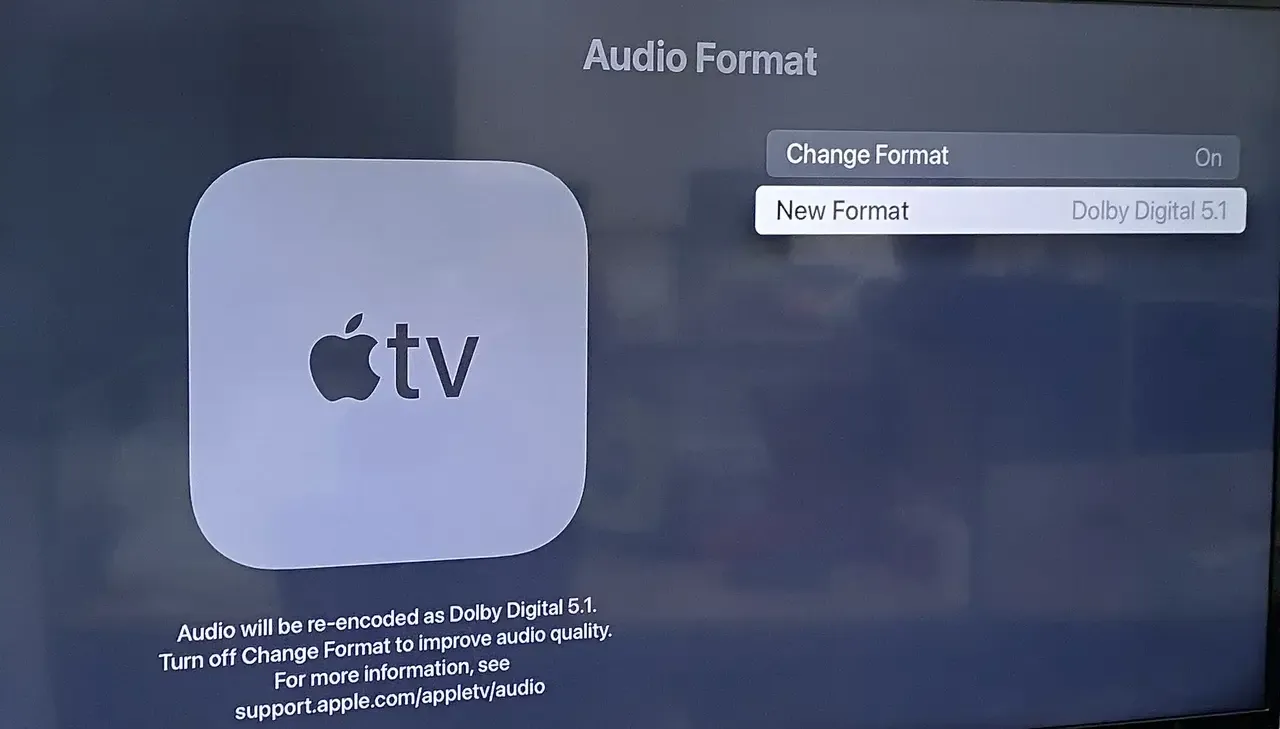
- Apple TV: Navigate to Settings > Video & Audio > Audio Format > Change Format > Stereo or Dolby Digital 5.1.
- Smart TVs/Third-party speakers: Check the manufacturer's manual to see which AirPlay audio formats are supported.
- Apps: Make sure the streaming app isn't outputting an audio format that your device can't play.
#2. Check Volume and Mute Settings
Before diving into more complex fixes, it's essential to ensure that the basics aren't the problem. Many AirPlay sound issues are often caused by a device being set to low volume or being muted. In the next section, we'll walk you through how to check and adjust volume and mute settings on both your sending and receiving devices to make sure audio can play properly.
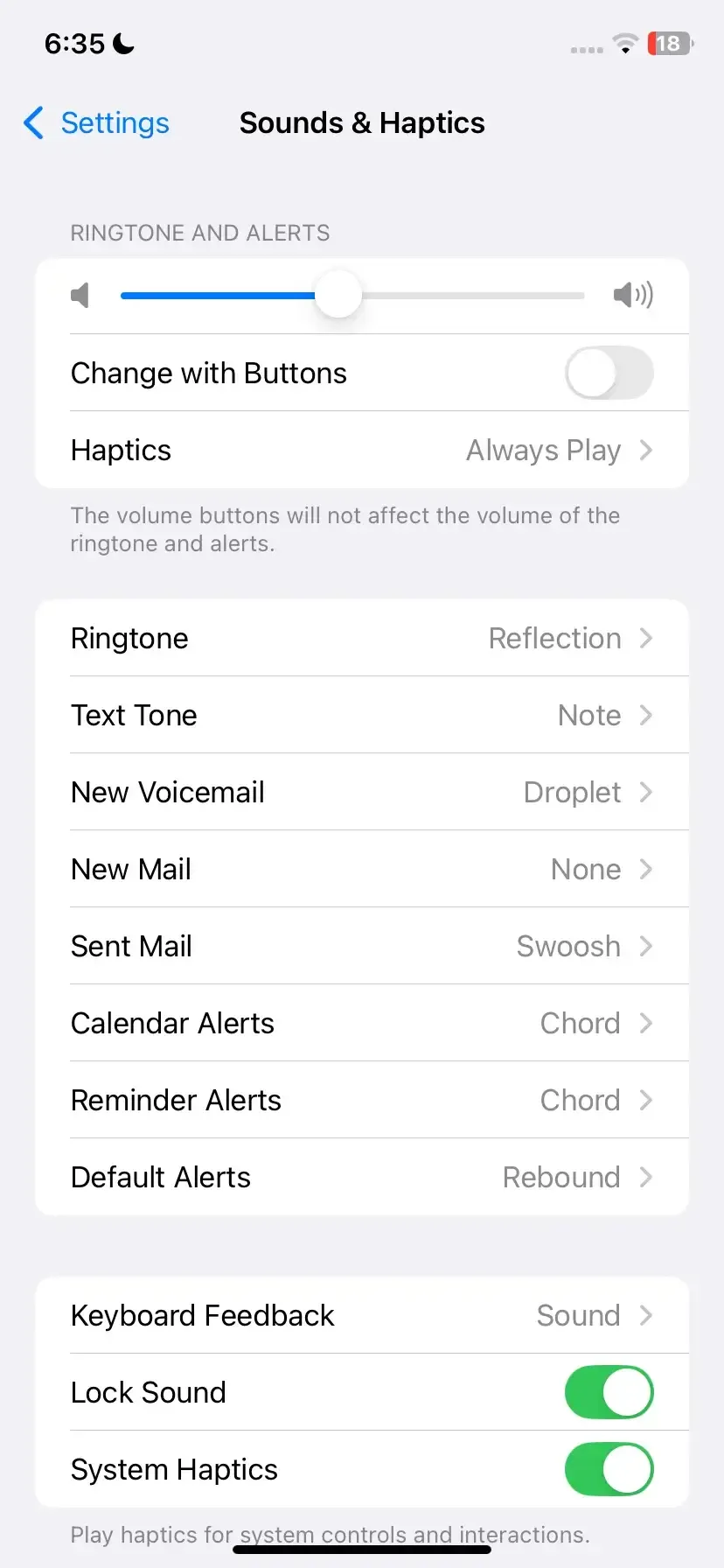
- iPhone/iPad: Make sure the Mute switch is off and the volume is up.
- Mac: Move to System Settings > Sound > Output > Ensure volume is up.
- Receiving Device: Turn up the volume on the TV, speaker, or soundbar.
#3. Verify AirPlay Connection
Once you've checked the volume and mute settings, the next step is to make sure your AirPlay connection is working. If the connection is weak or not set up correctly, audio may not play. Let's go through how to confirm that your devices are properly connected and ready to stream sound.
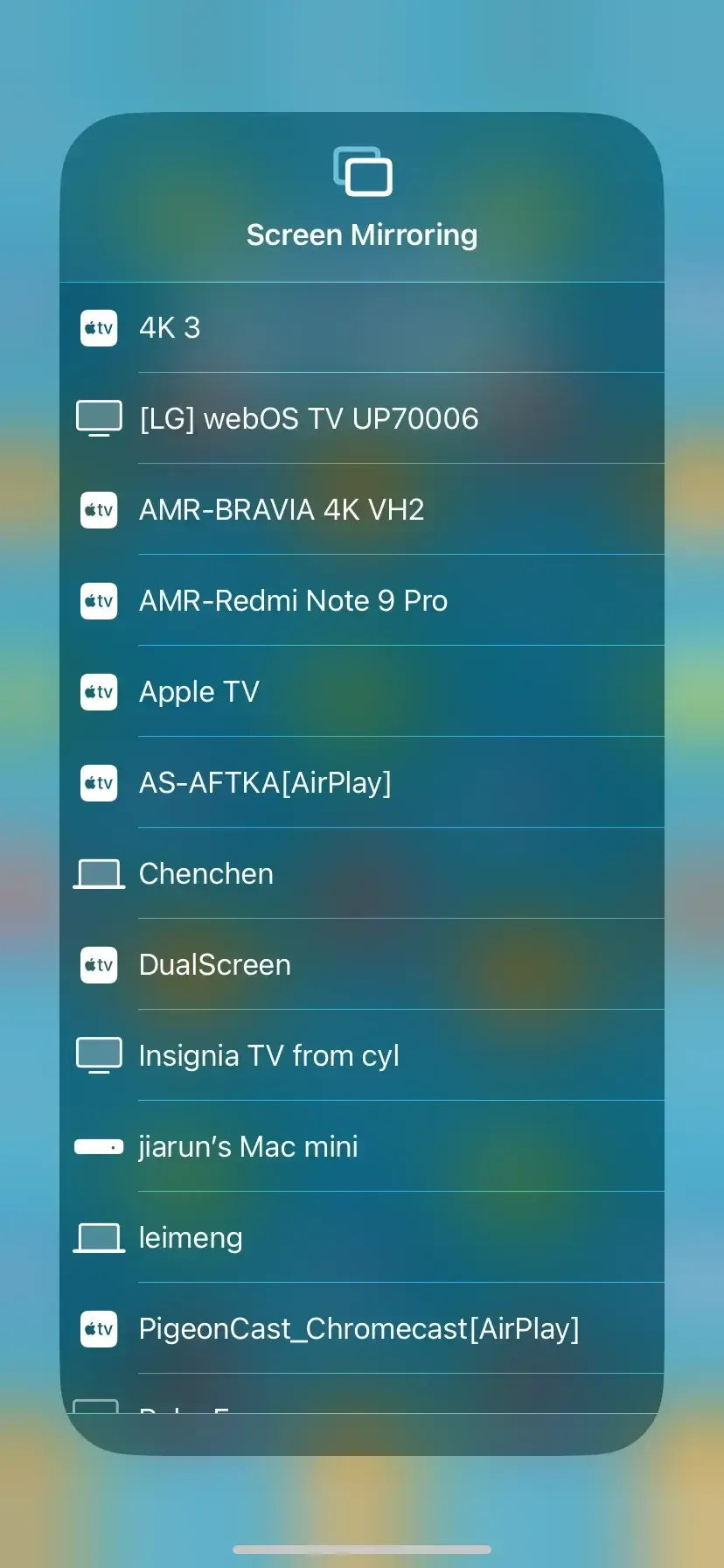
- iPhone/iPad: Control Center > Screen Mirroring > Select the correct device.
- On smart TVs or speakers: Check the device settings or manufacturer instructions to ensure AirPlay is enabled.
#4. Check Network Stability
Why is the sound not working on AirPlay? AirPlay relies on a stable Wi-Fi connection to stream audio. Even if the video works, an unstable network can prevent sound from playing. Follow these steps to ensure your network is strong and reliable:
Step 1. Make sure both devices are on the same Wi-Fi network.
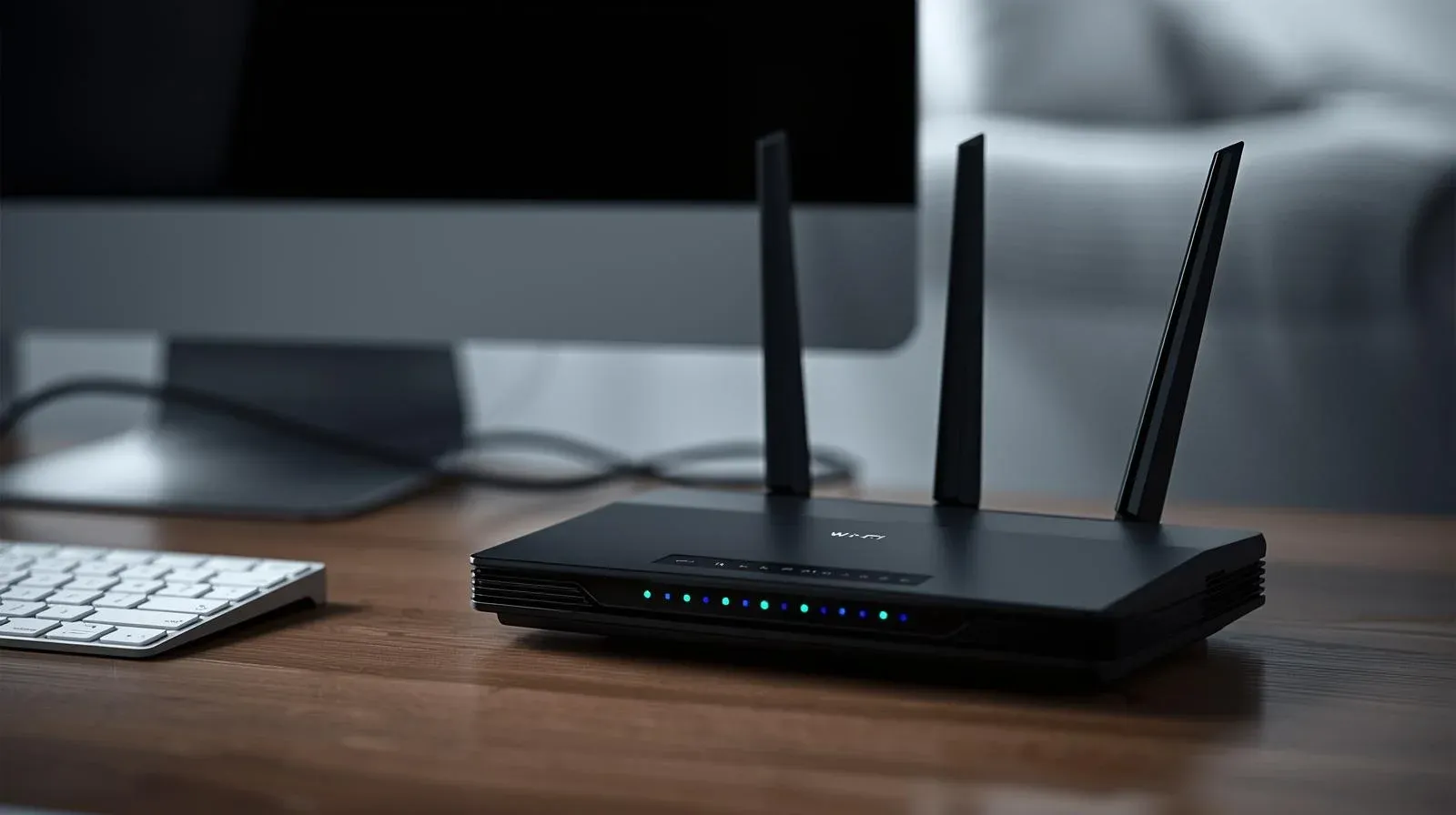
Step 2. Power cycling your router can fix temporary network glitches and improve connection stability.
Step 3. Prefer a 5GHz network for faster speeds and better performance.
Step 4. Reduce congestion by pausing other streams, downloads, or heavy internet usage while using AirPlay.
#5. Restart Devices
Minor software glitches or temporary system hiccups can prevent audio from playing. One of the easiest and most effective solutions is to restart your devices, which refreshes the system and often resolves these temporary issues.
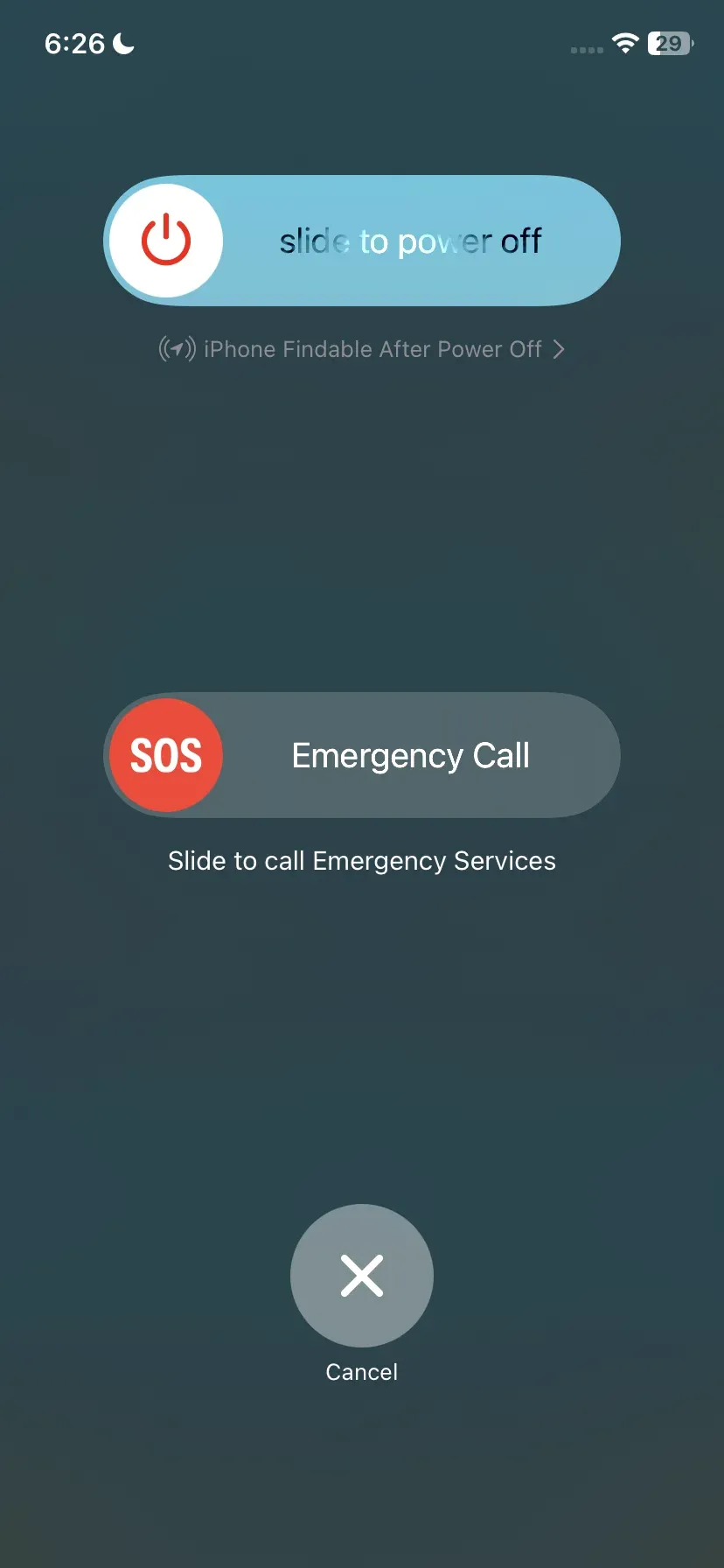
Step 1. On iPhone/iPad: Press and hold the Power button and any Volume button until the slider appears. Slide to power off, wait a few seconds, then turn it back on.
Step 2. On other smart TVs or speakers: Turn the device off, unplug it for 10–15 seconds, then plug it back in and turn it on.
Step 3. Reconnect your iPhone, iPad, or Mac to the AirPlay device and play a video or audio file to check if the sound is working.
#6. Update Software and Firmware
If your AirPlay sound not working on TV persists even after checking settings and restarting devices, outdated software or firmware might be the reason. Ensuring that both your phone, tablet, or Mac and your AirPlay device are up to date can fix bugs and improve compatibility.
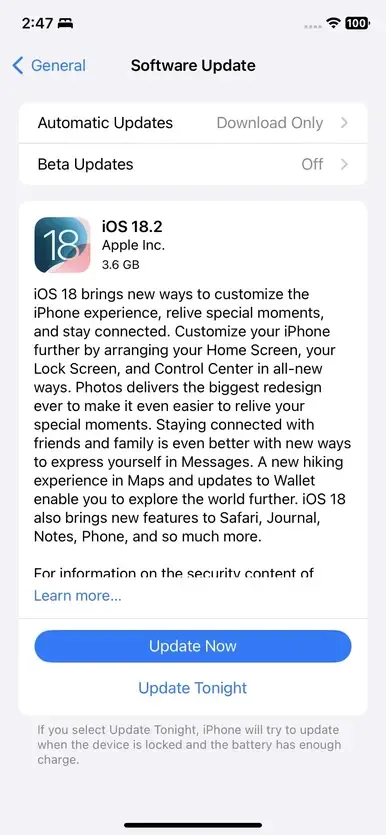
Step 1. Update Your iPhone, iPad, or Mac from the Settings > General > Software Update. If an update is available, tap Download and Install.
Step 2. Update Smart TVs or Third-Party Speakers from the Settings > System Update/Firmware Update/Software Update. Follow the on-screen instructions to install the latest version.
Step 3. After updating, reconnect your device via AirPlay and play a video or audio file to check if the sound is working on your TV.
#7. Allow AirPlay in Home Settings
If your TV or AirPlay device has been added to the Home app on your iPhone or iPad, you'll need to make sure AirPlay access is allowed before you can stream content. This setting controls whether your iOS device can send audio and video to that particular device. Enabling it ensures smooth streaming and prevents issues like missing audio.
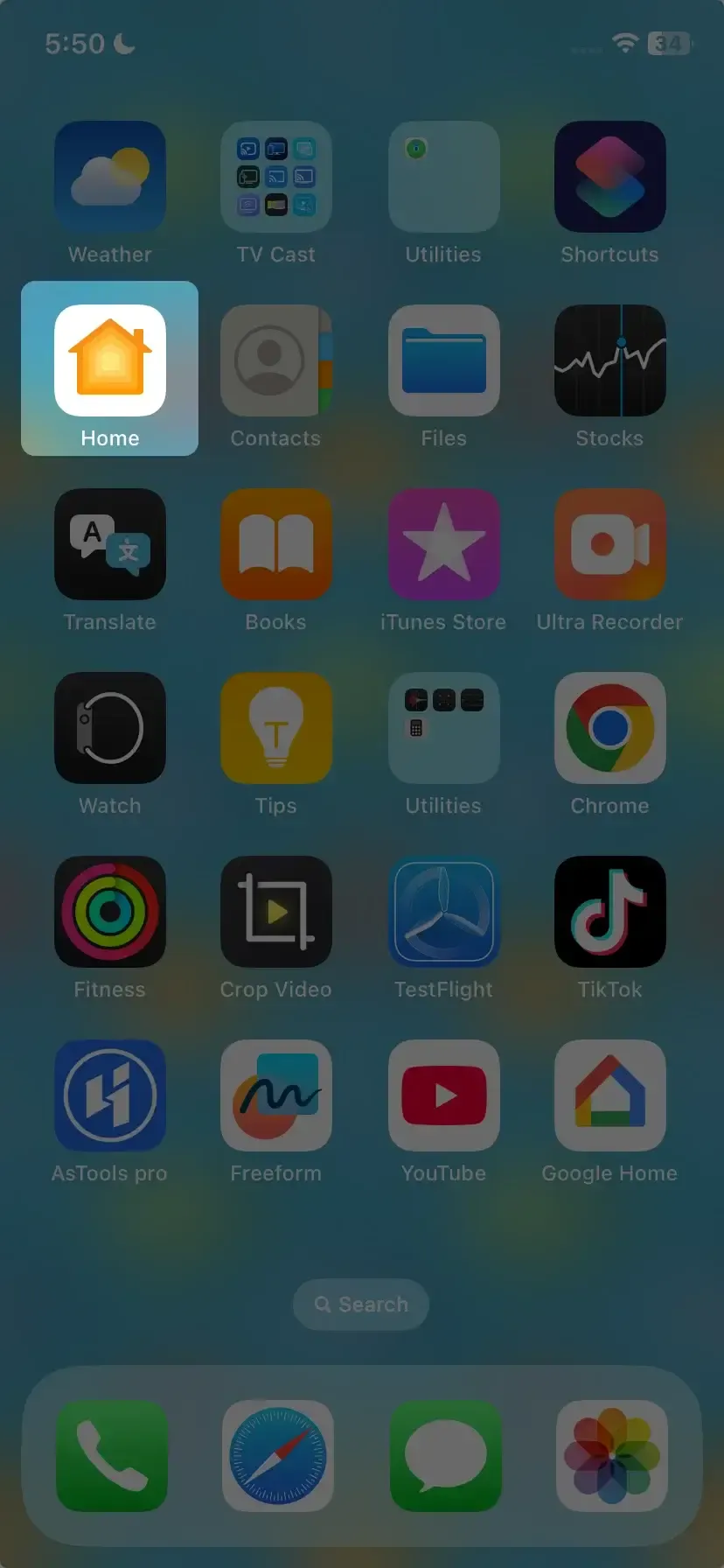
Step 1. Launch the Home app on your iPhone or iPad.
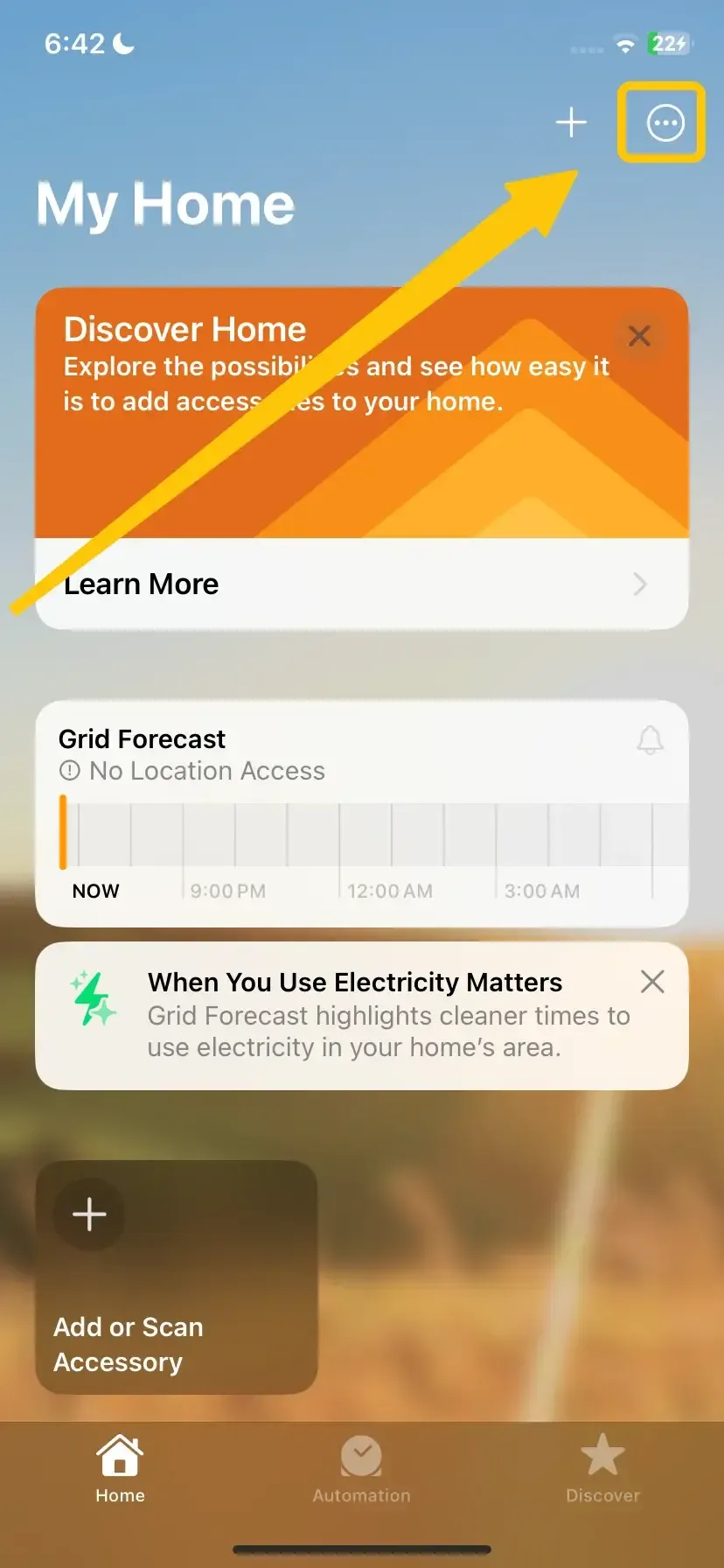
Step 2. Select the ... Icon and select Home Settings.
Step 3. Tap Speakers & TV and allow the AirPlay toggle.
#8. Change Firewall Options on Mac
If you're still experiencing sound not working with AirPlay after checking settings and updates, your Mac's firewall might be blocking the connection. Adjusting the firewall options can ensure that AirPlay is allowed to communicate with your devices, helping audio stream smoothly.
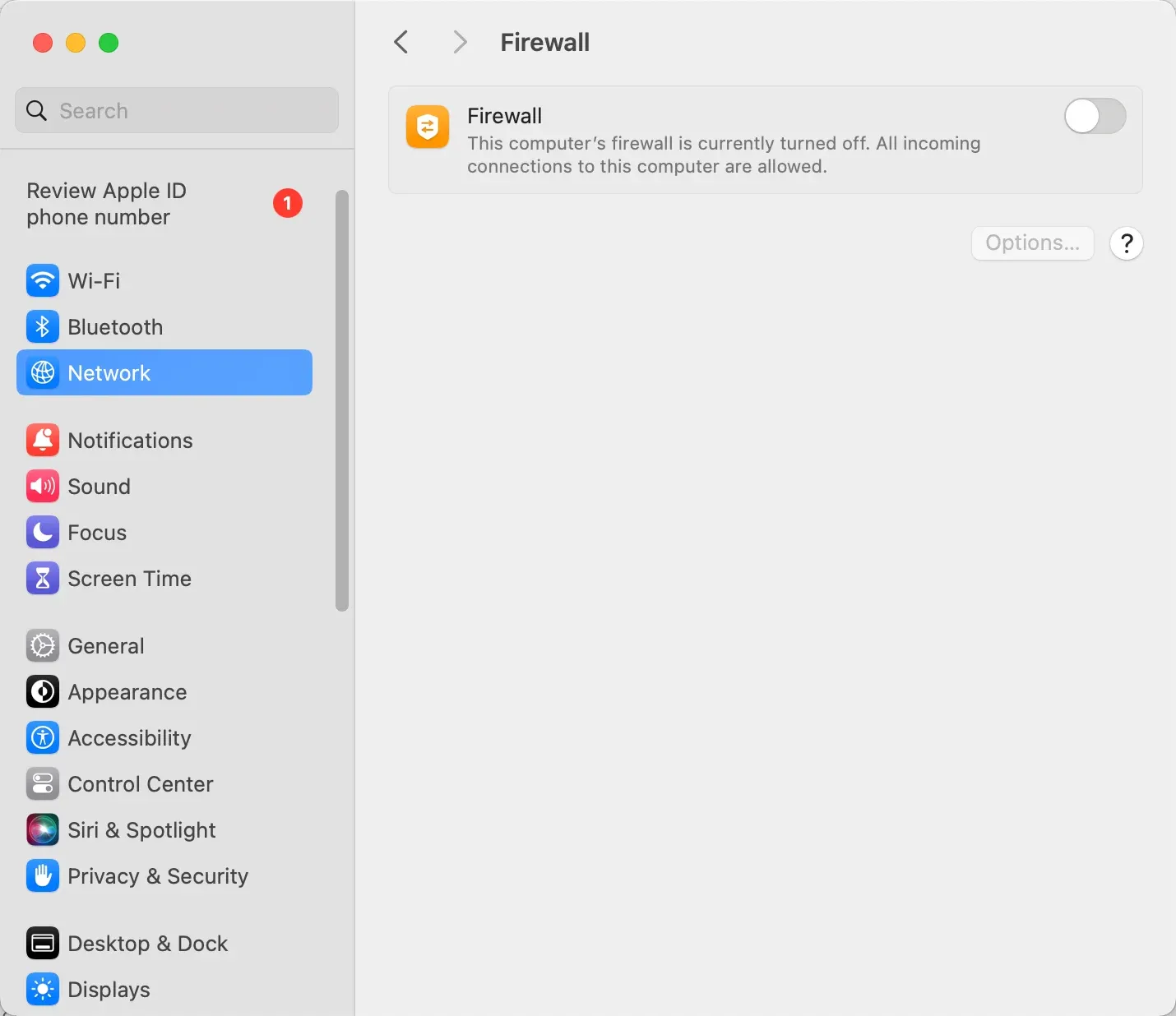
Step 1. Select the Apple icon in the top left-hand corner of the screen.
Step 2. Click System Settings > Network > Firewall > Options….
Step 3. Select the + button to add an application.
Step 4. Scroll and find the Core Audio app and allow it access through your Firewall.
#9. Turn Off the Night Mode on TV
If you have a Roku and sound not working in AirPlay on Roku, there's a simple and effective solution shared by the Roku Community. If you're experiencing audio issues, following this method may help get your sound back quickly.

#10. Check for Hardware Issues
If you've tried all the software fixes and your AirPlay sound is still not working, the problem might be with the hardware. Loose cables, faulty speakers, or issues with the TV's built-in audio system can block sound, even when AirPlay is connected properly. Here's how to check for hardware issues:
Step 1. Test another AirPlay device, for example, try streaming from a different iPhone, iPad, or Mac to see if the problem persists.
Step 2. Check speaker connections such as HDMI, optical, or aux cables to make sure they're secure and properly plugged in.
Step 3. If audio fails on all devices, the built-in speakers, soundbar, or AirPlay device may be faulty, and you might need to consider repair or replacement.
Best Alternative: an AirPlay Screen Mirroring App
If your Apple device is having issues, you can try using PigeonCast's AirPlay screen mirroring app. It lets you mirror your iPhone or iPad to other devices for free and even works across platforms, supporting iOS, Android, Mac, and Windows.
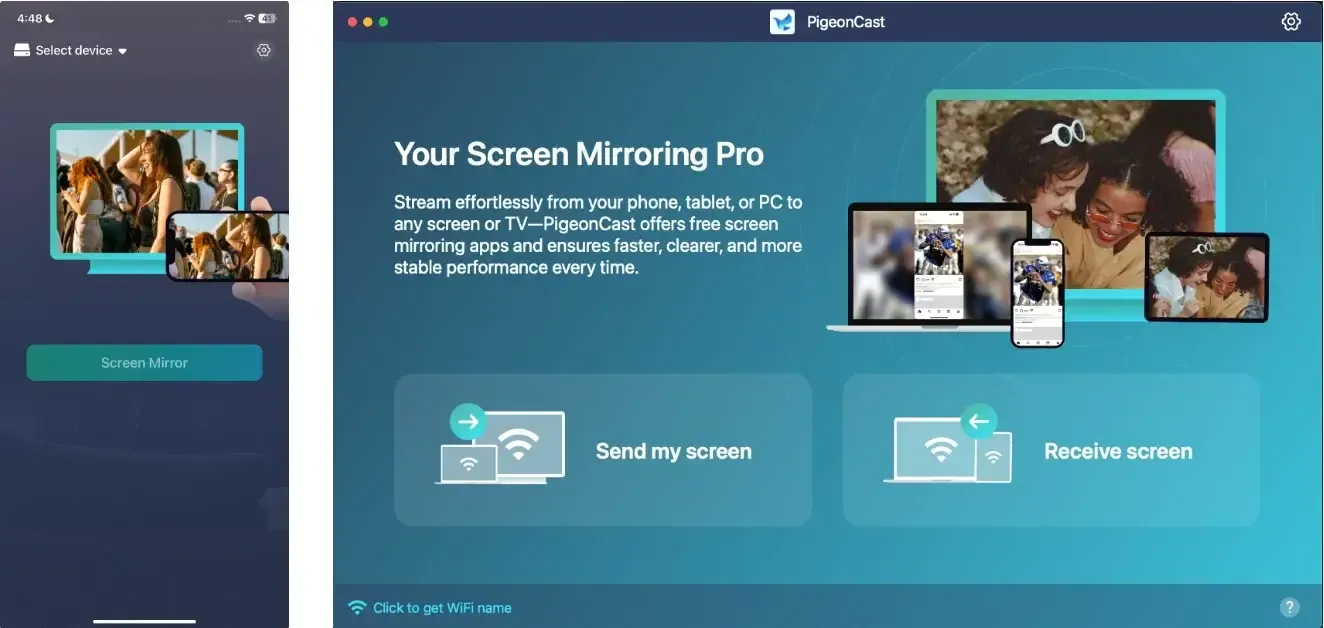
If a device doesn't support standard AirPlay well or supports only older protocols, using PigeonCast (which supports multiple casting/mirroring protocols) might allow a more compatible connection, avoiding "no sound" due to incompatible device or audio format.

PigeonCast Screen Mirroring

Official Download


Step 1. Install the PigeonCast app on your Apple device and ensure your devices are connected to the same wireless network.
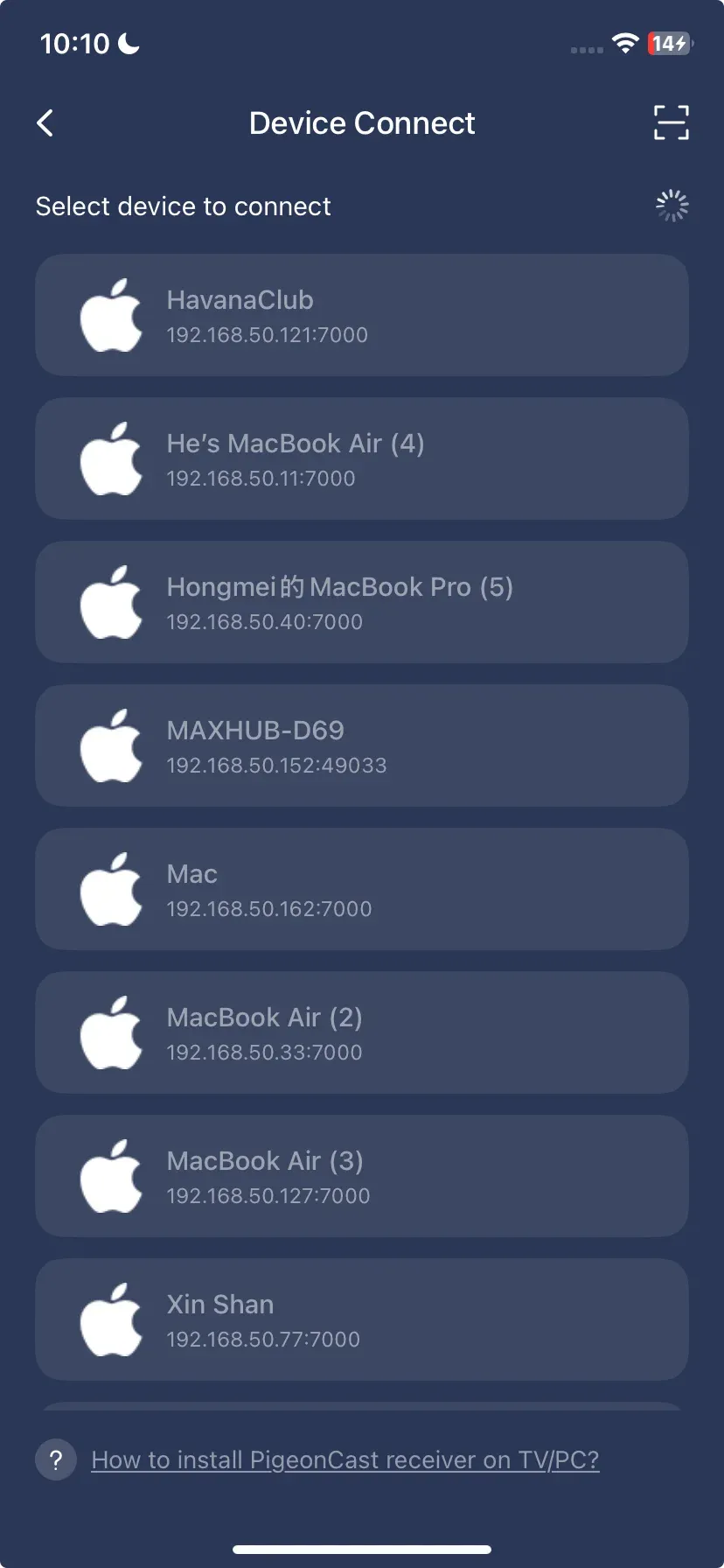
Step 2. Launch the app and choose your laptop or TV from the device list to connect to.
Step 3. Enter the onscreen code to finish the pairing process.

Step 4. Once you succeed, you can tap the Start Mirroring button to mirror what you want to the receiver device.
Closing Words
AirPlay to TV sound not working is a common issue, but it's usually easy to fix. The solutions we've shared can help ease frustration and get your audio back. And if you've only relied on your device's built-in screen mirroring, now might be the perfect time to try a free app like PigeonCast to improve your viewing and listening experience.
AirPlay Sound Not Working FAQ
Q: Why does my AirPlay have no sound?
The most common causes include muted or low volume on either the sending device or the receiver, incorrect audio output selection, and compatibility issues where the receiver doesn't support certain audio formats. Other factors include network problems such as weak or unstable Wi-Fi, software glitches or outdated firmware, and, in some cases, hardware issues like faulty speakers or loose connections.
Q: How do I AirPlay from my iPhone to my TV with sound?
- To AirPlay from your iPhone to your TV with sound, make sure both devices support AirPlay and are connected to the same Wi-Fi network.
- Open Control Center on your iPhone, tap Screen Mirroring, and select your TV.
- Check that the volume on both your iPhone and TV is turned up and not muted.
- Once connected, play your music or video, and the sound should come through the TV speakers.
Q: How to change AirPlay audio output?
- To change the AirPlay audio output, open Control Center on your iPhone or iPad and tap Screen Mirroring.
- Tap the device you want the audio to play from, and your sound will switch immediately to that device.
- On a Mac, go to System Settings > Sound > Output, then select the desired AirPlay device.
Q: How can I fix AirPlay sound not working with external speakers?
If AirPlay sound isn't working with external speakers, try these steps:
- Check connections: Ensure the external speakers are powered on and properly connected.
- Verify AirPlay settings: On your Apple device, make sure the correct speaker is selected in the AirPlay menu.
- Check volume levels: Make sure both your device and the speakers are not muted and the volume is up.
- Update software: Ensure your Apple device and the external speakers (if applicable) have the latest firmware or software updates.
- Restart devices: Restart your Apple device, speakers, and Wi-Fi router to resolve temporary issues.
- Check network: Make sure both devices are on the same Wi-Fi network.
Q: Why is AirPlay sound cutting out intermittently?
AirPlay sound may cut out intermittently due to network or device issues. Common causes include:
- Weak or unstable Wi-Fi signal: Distance from the router or interference can disrupt streaming.
- Network congestion: Too many devices on the same Wi-Fi can cause lag or dropouts.
- Outdated software or firmware: Older versions on your Apple device or receiver may cause instability.
- Interference from other wireless devices: Microwaves, cordless phones, or neighboring Wi-Fi networks can affect performance.
- Router settings: Disabled multicast/Bonjour or certain firewall settings can interrupt AirPlay.
- Receiver performance issues: Some speakers or receivers may struggle with high-bitrate streams or multi-room setups.
Q: Why does my AirPlay sound not sync with video?
AirPlay audio may not sync with video due to network latency or device processing delays. Common causes include:
- Wi-Fi network lag: Weak or congested Wi-Fi can delay audio transmission.
- High-bitrate video or audio: Large streams take longer to buffer, causing misalignment.
- Receiver processing delay: Some speakers or AV receivers introduce audio lag.
- Outdated software or firmware: Older versions of your Apple device or receiver can cause sync issues.
- Multi-room setup: Streaming to multiple AirPlay 2 speakers can introduce slight delays.
Clara Rossi is an experienced technology editor and a seasoned expert in screen mirroring and casting technologies. With a keen eye for detail and a deep understanding of how to seamlessly connect devices, Clara excels at optimizing user experiences for effortless sharing and streaming. Whether you're seeking quick fixes or advanced tips, her expertise and responsiveness ensure that every query is met with a well-informed and efficient solution.