
If you're trying to use Miracast MacBook, you might be surprised to find it doesn't work. That's because Miracast is not natively supported on macOS, while AirPlay is the native feature on macOS. This guide dives deep into whether Miracast works on macOS, how AirPlay differs from Miracast, and what alternative methods exist for screen mirroring from Mac or to Mac, including cross-platform solutions that work across Android, Windows, Smart TVs, and macOS.
What Is Miracast?
Miracast is a wireless display standard introduced in 2012 by the Wi-Fi Alliance. It was intended to standardize peer-to-peer screen mirroring across devices regardless of manufacturer, working over Wi-Fi Direct, a technology that creates a direct connection between two devices without needing an external Wi-Fi router.
It's commonly found on:
- Windows PCs (Windows 8.1 and later)
- Android phones (version 4.2 to Android 9)
- Smart TVs from LG, Sony, Panasonic, and more.
- Streaming adapters like the Microsoft Wireless Display Adapter
But here's the catch: Does Mac support Miracast?
Does Miracast Work on Mac?
No, there is no Miracast macOS. macOS (including macOS Sonoma, Ventura, Monterey, etc.) does not support Miracast, and likely never will.
While Windows and Android devices include Miracast support (either built-in or branded under different names like "Wireless Display" or "Smart View"), macOS has no built-in driver, API, or system-level support for Miracast. Apple chose not to integrate the Miracast protocol, instead relying on its own wireless ecosystem called AirPlay.
If you're using a MacBook, Mac mini, or iMac, you can't mirror directly from it to a Miracast-enabled TV or projector, or an Android mobile device to your Mac using Miracast. If you want to achieve this kind of screen mirroring, you'll need cross-platform third-party apps, like PigeonCast apps.
Miracast vs. AirPlay
Since MacBooks support AirPlay but not Miracast, it's important to understand how the two compare. They both serve the same purpose, wireless screen sharing, but their ecosystems and capabilities differ.
| Feature | Miracast | AirPlay |
|---|---|---|
| Developed by | Wi-Fi Alliance | Apple Inc |
| Connection Type | Wi-Fi Direct (no router needed) | Wi-Fi (requires router or peer-to-peer) |
| Native Support on Mac | Not supported | Fully supported |
| Supported Platforms | Android, Windows, Smart TVs | iOS, iPadOS, macOS, tvOS, AirPlay TVs |
| Mirroring Capability | Full-screen mirroring | Full-screen and extended display |
| Media Streaming (apps) | Not optimized | Stream media directly from apps |
| Multitasking While Casting | Full screen only | Control and multitask |
| Ease of Use | Inconsistent (varies by brand) | Seamless for Apple users |
How to Screen Mirror Between Mac and Miracast Devices
While there is no MacBook Miracast, there are ways to mirror your screen from a MacBook to a Miracast/Android/Windows device or mirror other devices to a MacBook. Here's how to do both using PigeonCast apps, which make your device AirPlay-compatible.
Mirror Android to MacBook
Want to share your Android screen with a MacBook? Most Android phones rely on Miracast or Google Cast for wireless streaming, but neither is compatible with macOS or other Apple devices.
Since you can't connect Android to MacBook via Miracast or Google Cast, the easiest solution is to use the PigeonCast for Screen Mirroring Android app. This third-party tool adds AirPlay support to your Android, allowing you to cast directly to your MacBook just like an Apple device.
Here's how to mirror Android to MacBook with the PigeonCast app instead of "Mac Miracast":
Step 1. Download and install the third-party app on your Android phone.

PigeonCast Screen Mirroring

Official Download


Step 2. Make sure both devices are on the same Wi-Fi network.
Step 3. Power on your MacBook, then launch the app on your Android phone.
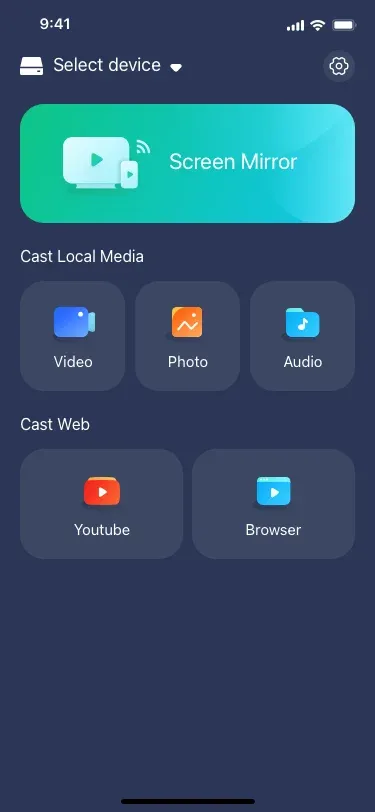
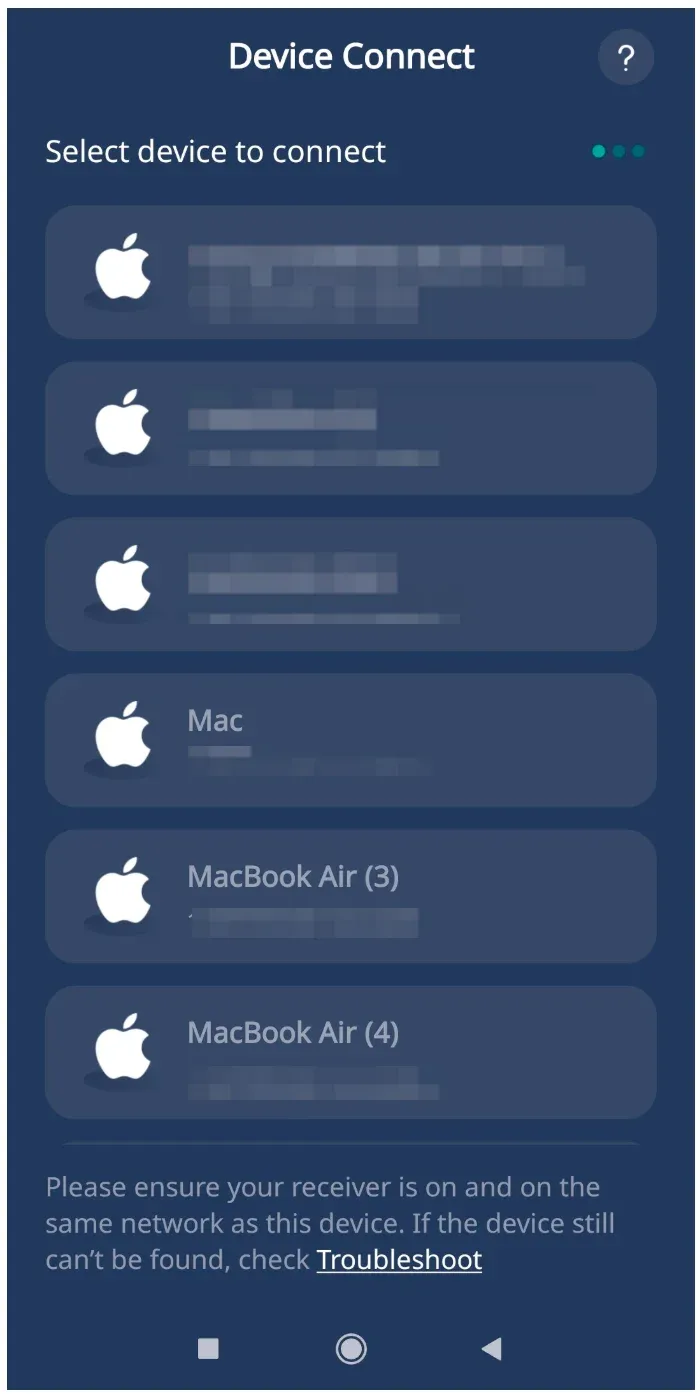
Step 4. Tap the Select device option and choose your MacBook from the device list.
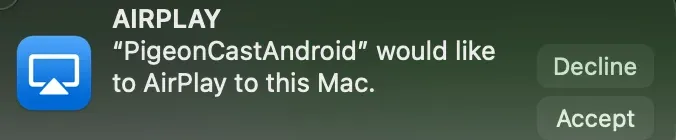
Step 5. Click the Accept button on the pop-up window on your MacBook.
Step 6. Check the four-digit code on your MacBook and enter it on your Android phone.
Step 7. When your Android is connected to your MacBook, you can tap any feature on the app, such as Screen Mirror, then enjoy your Android content on your MacBook.
Mirror MacBook to Windows PC
Windows PCs support several screen mirroring protocols, with Miracast being the primary built-in option for wireless display. DLNA is also supported for streaming local media files. If you're using Google Chrome or Microsoft Edge, you can cast your screen using Google Cast.
However, since there is no native DLNA or Miracast for MacBook, mirroring between a MacBook and a Windows PC requires a different approach. The simplest solution is the PigeonCast for Screen Mirroring Windows application, which bridges the gap by enabling AirPlay support, allowing seamless screen mirroring between macOS and Windows.
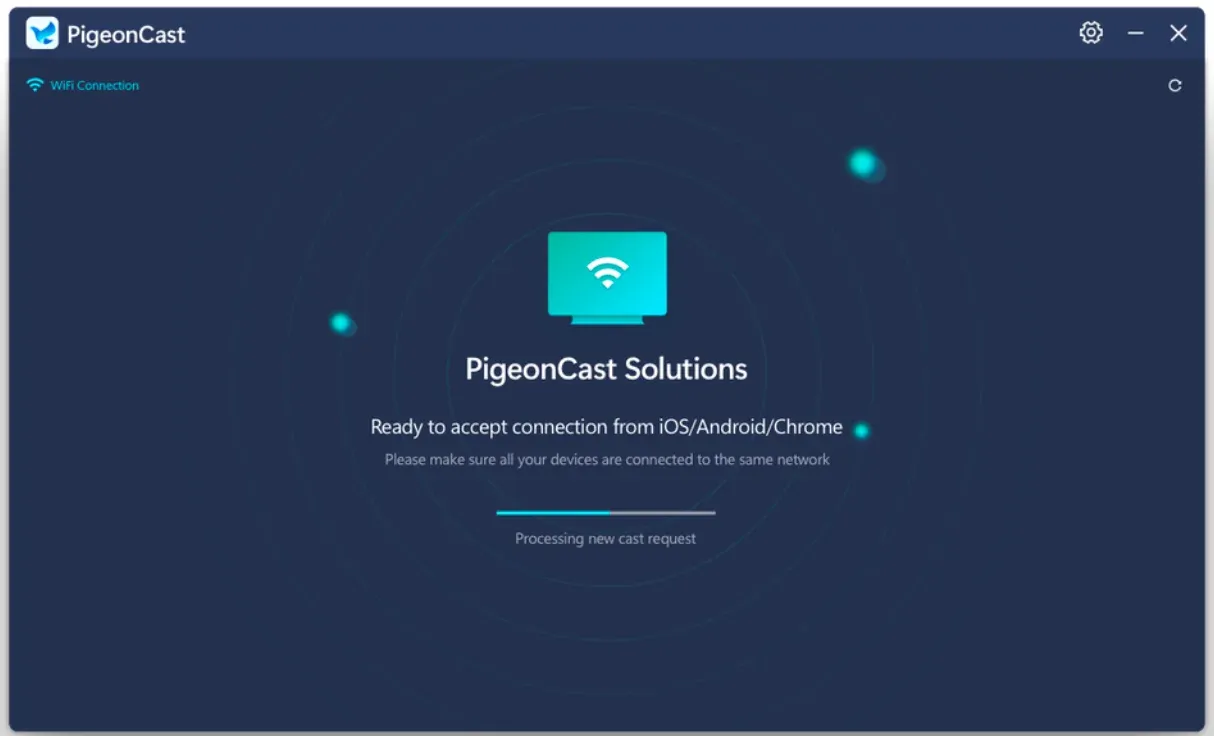
Therefore, although Miracast for Mac isn't available, PigeonCast makes it simple to mirror a Windows PC to a MacBook or vice versa. Just ensure both devices are connected to the same Wi-Fi network, and you’re ready to start.
Step 1. Install the app on your Windows PC and launch it.
PigeonCast Screen Mirroring
Official Download

Step 2. On your MacBook, go to the Control Center and enable AirPlay by clicking Screen Mirroring.
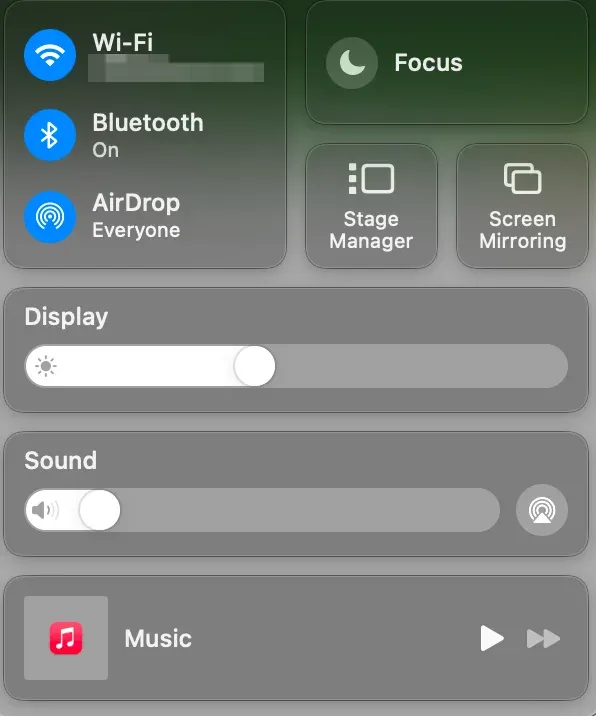
Step 3. Find your Windows name (the app assigns and displays on the Windows PC screen) from the list and click it.
Step 4. Once connected, your Mac screen appears on your Windows PC screen.
Mirror MacBook to Android TV
Many Smart TVs from top brands support Miracast, either natively or under branded names like Screen Mirroring or Wireless Display. However, since Miracast Mac doesn't exist, how can you mirror your MacBook to those TVs?
The solution is the PigeonCast for Screen Mirroring Android TV app. Once installed on your Smart TV, it transforms the TV into a universal receiver, compatible with AirPlay, Google Cast, and DLNA. This makes it easy to mirror or cast your MacBook screen, no Miracast required.
Here's how to use the app:
Step 1. Download and install the third-party app on your Android TV from the Google Play Store.
PigeonCast Screen Mirroring
Official Download
Step 2. Confirm that the two devices are connected to the same Wi-Fi network.
Step 3. Launch the screen mirroring app on your TV and check the name the app assigns to the TV.
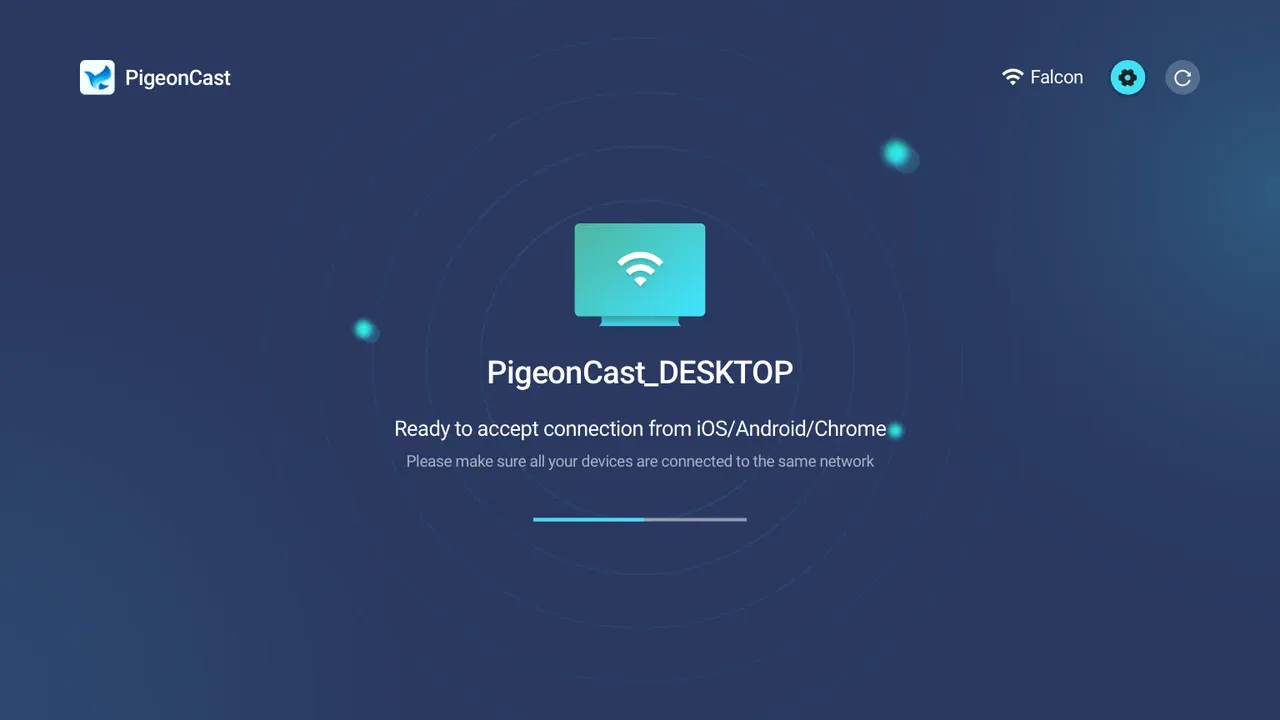
Step 4. On your MacBook, enable AirPlay and choose your TV name from the device list.
Step 5. Enter the PIN code if asked. Then, the app will link your Mac to your Android TV. Once it finishes, you can view your Mac on your TV.

No Miracast MacBook! Adding the AirPlay functionality to your Android phone, Windows computer, or Smart TV is one of the ways to resolve the compatibility issue. The other common way is to update your Mac's functionality by using third-party apps like Mirroring360 that claim to provide Miracast functionality on Mac.
Plus, you can use HDMI and adapters to connect your Mac to other devices. Yet, cables can be hazardous to seniors and kids. Therefore, it is highly recommended that you use a third-party apps to set up a wireless connection.
Wrapping Up
To summarize: MacBooks don't support Miracast, and they probably never will. Apple relies on AirPlay as its built-in solution for wireless screen mirroring. But with cross-platform tools like PigeonCast, you can bridge the compatibility gap effortlessly and mirror between Android and Mac, Windows and Mac, and Mac and Android TV.
Miracast MacBook FAQ
Q: Can I use Miracast on my MacBook?
Natively, you can't use Miracast on your MacBook. MacBook supports AirPlay instead of Miracast, and Miracast is commonly found on Android phones, Windows computers, and smart TVs from top brands, like TCL, Sony, and more. If you want to start screen mirroring or casting between those devices and your MacBook, you need third-party apps like PigeonCast to bridge that gap.
Q: What is the Apple equivalent of Miracast?
There is no Miracast on Apple devices, like iPhone, iPad, MacBook, and Apple TV, but there is an equivalent on those devices: AirPlay. AirPlay is a proprietary Apple technology for wireless streaming between Apple devices and AirPlay-compatible devices.
Q: How to cast macOS screen to TV?
The workaround depends on what TV you have. If you have an AirPlay-enabled TV (many TV manufacturers have integrated AirPlay 2 into their products), you can cast your macOS screen to the TV via AirPlay. However, if your TV only supports Miracast, you need to install a third-party app like PigeonCast for Android TV, which makes your TV AirPlay-compatible. Then, you can AirPlay your MacBook to Android TV directly.
Mia Clarke is a technology editor specializing in screen mirroring and casting solutions across multiple platforms. Mia provides clear, practical guides and in-depth insights to help users seamlessly connect their devices. Passionate about enhancing digital experiences, Mia is dedicated to keeping readers updated on the latest trends and tools in cross-platform screen sharing. Whether you’re looking to mirror your smartphone, laptop, or smart TV, Mia’s content delivers reliable, user-friendly advice to simplify your tech setup.