
Why is my AirPlay not working? Many iPhone, iPad, and Mac users face similar connection problems when trying to stream videos or mirror screens to their TVs. This guide explains the most common causes of AirPlay not working, provides step-by-step solutions, and introduces PigeonCast, a free alternative for wireless streaming that works even when AirPlay fails.
Why Is AirPlay Not Working
Whether on an iPhone, iPad, Mac, or even TV, AirPlay may stop working due to network issues, outdated software, or device compatibility problems. In most cases, both devices are not on the same Wi-Fi network, or one of them has temporary connection restrictions. Below are the most common reasons behind Apple AirPlay not working.
| Why Is AirPlay Not Working | Explanation |
|---|---|
| Devices not on the same Wi-Fi | AirPlay requires both iPhone/Mac and TV to share the same wireless network. |
| Disabled AirPlay feature | Some smart TVs or Mac devices disable AirPlay by default. |
| Outdated software | Old iOS, macOS, or TV firmware may prevent stable mirroring. |
| Bluetooth or firewall restrictions | Wireless interference or network settings can block AirPlay signals. |
| Unsupported device | Not all smart TVs or receivers support native AirPlay |
If your AirPlay not working issue persists, you can switch to PigeonCast, a free wireless tool that supports both AirPlay-style mirroring and cross-platform casting. Unlike AirPlay, PigeonCast allows you to mirror your iPhone, iPad, or MacBook to an Android TV or even to a Windows PC without needing Apple's native ecosystem. It's an excellent backup solution when AirPlay can't connect to a TV.
Try PigeonCast for cross-platform mirroring:
Step 1. Download and set up PigeonCast on both your devices.

PigeonCast Screen Mirroring

Official Download


Step 2. Ensure your devices are on the same Wi-Fi network.
Step 3. Open PigeonCast on the devices and connect them by selecting the target device from the list, scanning the QR code, or inputting the IP address.
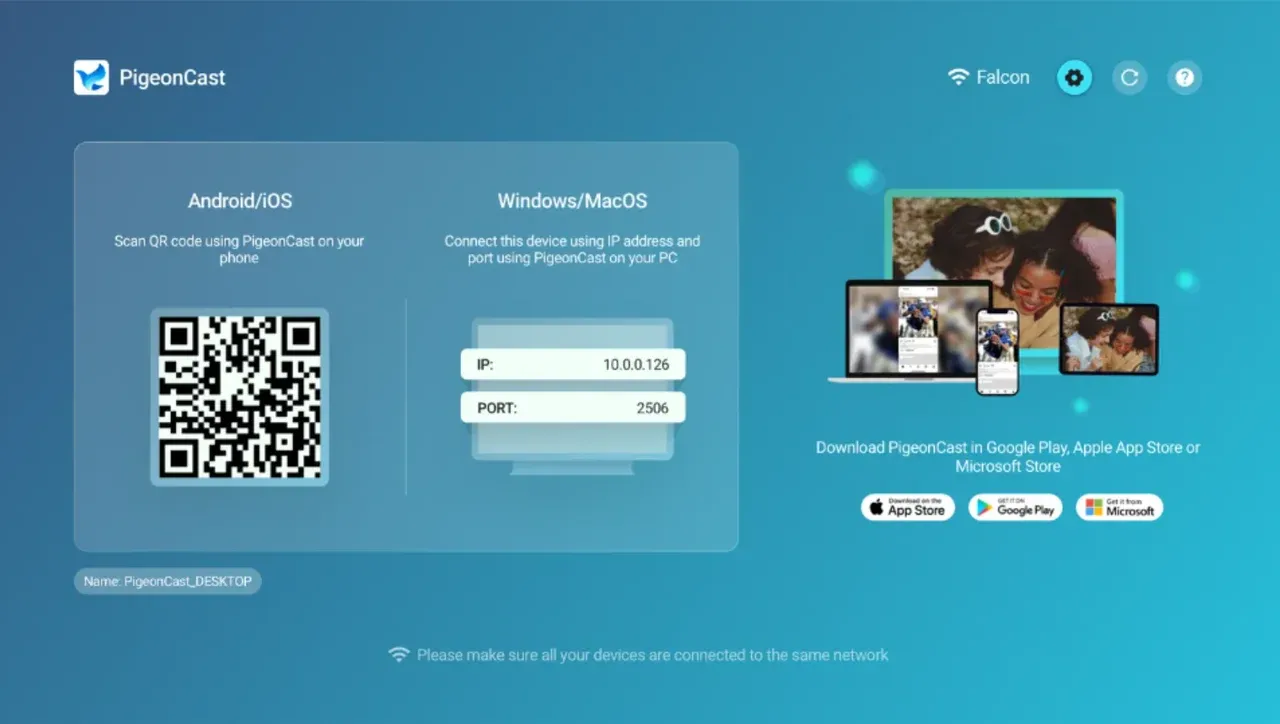
Step 4. Once connected, start mirroring.
How to Fix AirPlay Not Working
The best way to fix AirPlay not working issues is to check your connection settings and device compatibility step by step. Follow these troubleshooting methods to restore your streaming function quickly.
Step 1: Check the Wi-Fi connection. Both devices must be connected to the same network.
- Open Settings > Wi-Fi on your iPhone or iPad.
- Ensure your Apple TV or smart TV is connected to the same TV.
- Restart the router if the connection appears unstable.
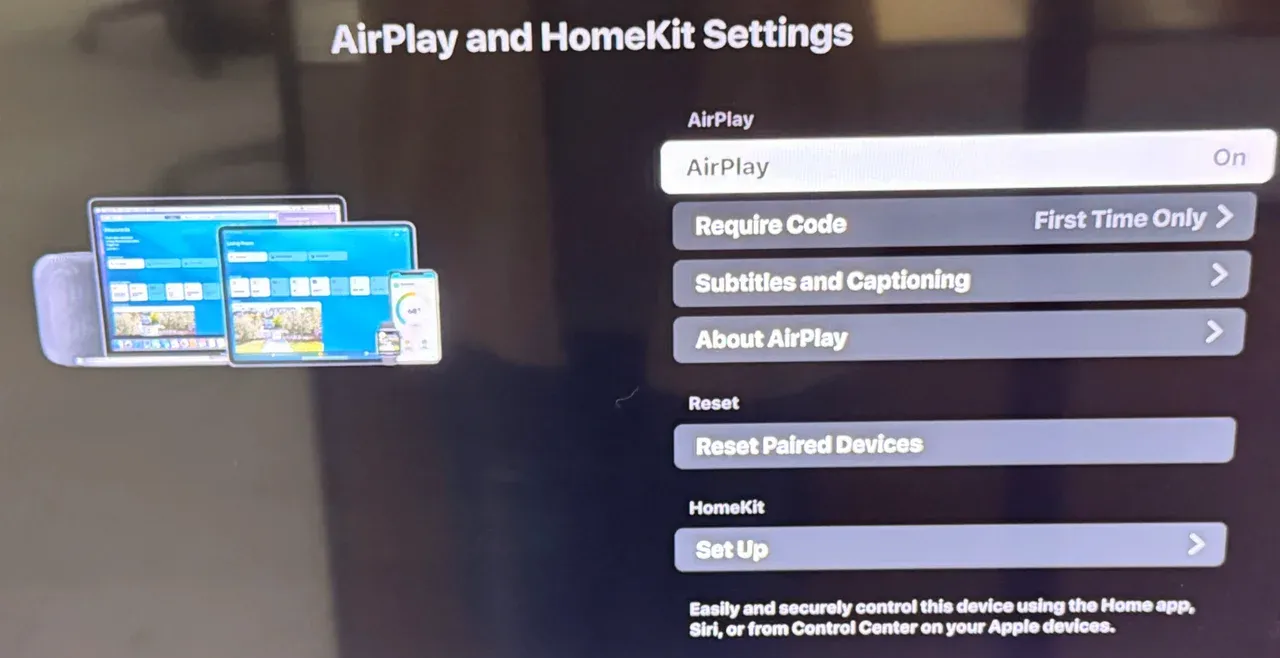
Step 2: Enable AirPlay on your TV or Mac. Sometimes AirPlay is disabled by default.
- On Apple TV or smart TV: go to Settings > AirPlay & HomeKit or Settings > Connections > AirPlay & HomeKit, and turn on AirPlay. If you can't find any AirPlay option on your TV, it doesn't support AirPlay.
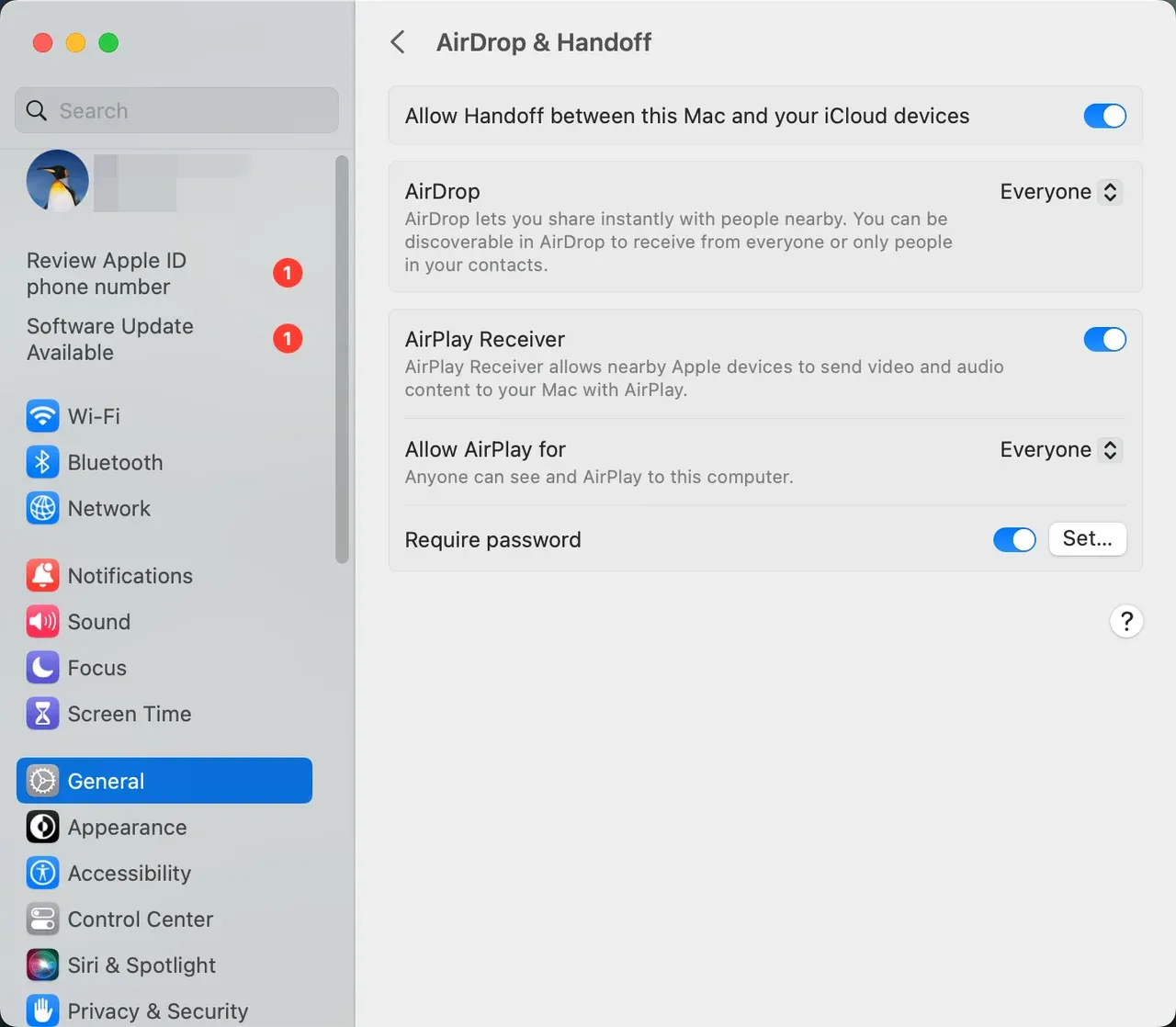
- On MacBook: open System Settings > General > AirDrop & Handoff and ensure AirPlay Receiver is on.
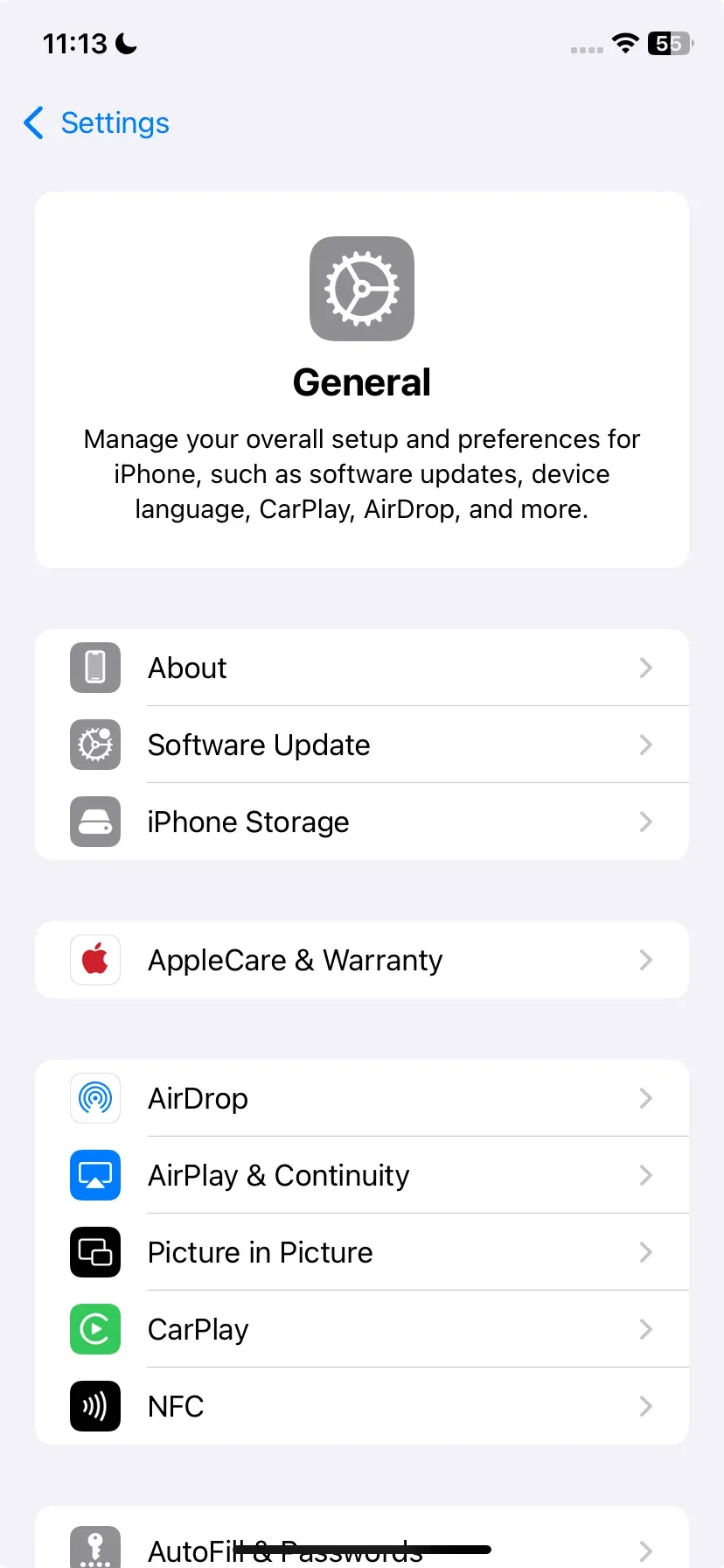
Step 3: Update your devices. Outdated systems can block AirPlay features.
- On your iPhone or iPad, go to Settings > General > Software Update.
- On Apple TV, open Settings > System > Software Updates.
- Restart both devices after updating.
Step 4: Disable VPN or firewall. Network filters can interfere with AirPlay signals.
- Turn off your VPN if it's active.
- On your Mac or router, temporarily disable the firewall to test AirPlay connectivity.
Step 5: Restart both devices. Sometimes, a simple restart resolves temporary wireless glitches.
- Turn off both your iPhone and TV.
- Wait 30 seconds before turning them on again.
- Try reconnecting via the Control Center.
Does your AirPlay work again? If you've tried all these steps and Apple AirPlay not working continues, consider PigeonCast as a seamless alternative. It's free (ad-free), secure, and compatible with nearly all smart TVs, including Fire TV, Android TV, and Google TV.
To Sum Up
AirPlay problems often come down to connectivity or outdated settings. Ensuring your devices are on the same Wi-Fi and have the latest updates usually resolves the issue. However, when AirPlay not working issue persists, PigeonCast provides a free, reliable option for mirroring across any platform. It's especially useful for users who own both Apple and non-Apple devices.
Why Is My AirPlay Not Working FAQs
How do I reset my iPhone AirPlay?
To reset AirPlay, restart your iPhone and Apple TV, then go to Settings > General > AirPlay & Handoff and toggle AirPlay off and back on. Reconnecting both devices often resolves temporary bugs.
How do I get Apple AirPlay to work?
Ensure both your iPhone and TV are on the same Wi-Fi, AirPlay is enabled on your TV, and Bluetooth is turned on. If the issue persists, update both devices and try again.
Is PigeonCast free and safe to use?
Yes. PigeonCast is completely free and designed for secure wireless mirroring. It supports cross-platform connections, allowing you to stream content from your Apple device to almost all smart TVs without quality loss.
What if my smart TV doesn't support AirPlay?
You can install PigeonCast on your TV or streaming device as an alternative. It works with Fire TV, Android TV, and Windows PCs, letting you mirror your screen without native AirPlay support.
How can I fix AirPlay not working after update?
After a system update, restart both devices and check your network settings. Sometimes updates reset Wi-Fi preferences or disable AirPlay by default.
Mia Clarke is a technology editor specializing in screen mirroring and casting solutions across multiple platforms. Mia provides clear, practical guides and in-depth insights to help users seamlessly connect their devices. Passionate about enhancing digital experiences, Mia is dedicated to keeping readers updated on the latest trends and tools in cross-platform screen sharing. Whether you’re looking to mirror your smartphone, laptop, or smart TV, Mia’s content delivers reliable, user-friendly advice to simplify your tech setup.