
Want to enjoy your iPhone content, like movies, photos, games, or apps, on your LG TV? Connecting your iPhone to an LG TV is easier than you might think. Depending on your setup, you can do it wirelessly, with cables, or using apps. In this guide, we will walk you through 4 effective ways of how to connect iPhone or LG TV, compare their pros and cons, and answer common questions so you can start streaming without any hassle.
How to Connect iPhone to LG Smart TV
Ready to enjoy your iPhone's content on the big screen? The following four different methods will show you exactly how to connect to LG TV with iPhone for a seamless viewing experience.
#1. Use the Built-in AirPlay
The easiest and most seamless way to mirror your iPhone to an LG Smart TV is by using Apple's built-in AirPlay feature. AirPlay 2 is Apple's proprietary streaming and screen-mirroring technology that allows you to wirelessly share videos, photos, music, and even games from your iPhone to your TV with just a few taps.
Many LG Smart TVs made from 2018 onwards and running webOS 4.0 or newer are now AirPlay 2 receivers. Older LG TVs, particularly those released before 2017, may not include this feature because of hardware restrictions.
To check if your TV supports AirPlay 2, you can look up the model and production year in the TV's Settings menu or find this information on the label located at the back of the TV. Below is a list of LG Smart TV models compatible with AirPlay 2:
- LG FHD (2022, 2023)
- LG Life Style (2021, 2022, 2023)
- LG Micro LED (2022, 2023)
- LG NanoCell 4K (2018, 2019, 2020, 2021, 2022, 2023)
- LG NanoCell 8K (2018, 2019, 2020, 2021)
- LG OLED 4K, 8K (2018, 2019, 2020, 2021, 2022, 2023)
- LG QNED 4K, 8K (2021, 2022, 2023)
- LG UHD (2018, 2019, 2020, 2021, 2022, 2023)
Once you have confirmed that your LG TV supports AirPlay, follow the steps below to learn how to connect your iPhone to your LG TV. If your TV does not support AirPlay, do not worry, you can continue reading to explore other easy methods that work just as well.
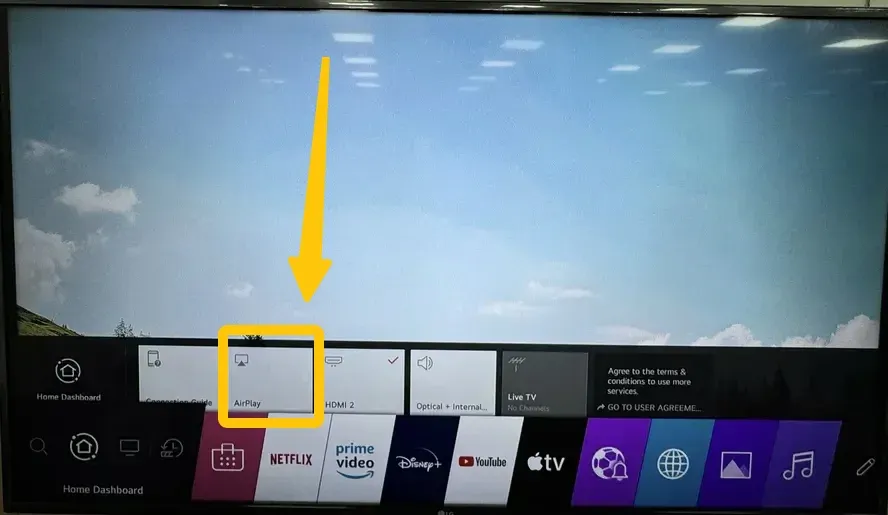
Step 1. Enable AirPlay on your LG tv from the home Dashboard, and select AirPlay > AirPlay & HomeKit settings to turn on AirPlay.
Step 2. Ensure your iPhone and LG TV are covered by the same wireless network.
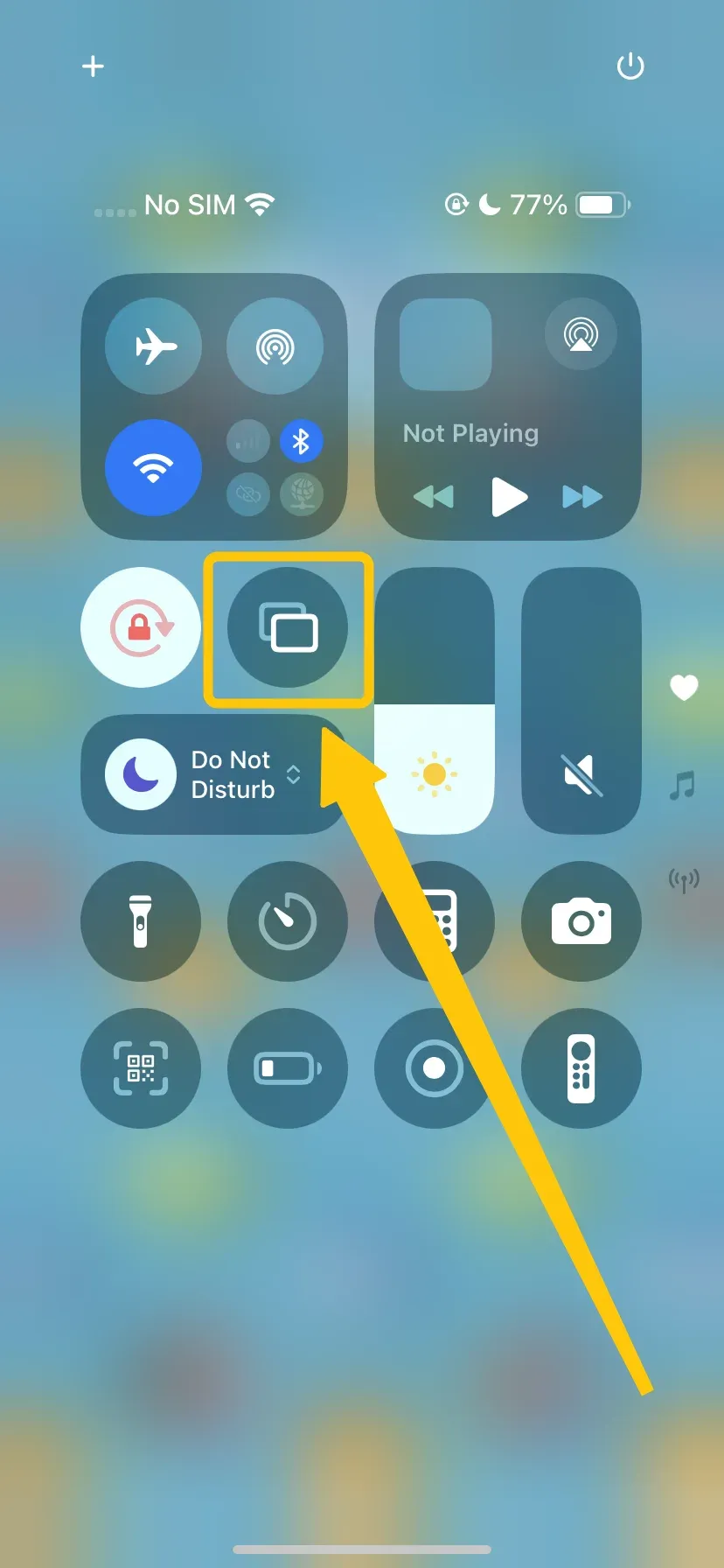
Step 3. On the iPhone, tap Screen Mirroring in the Control Center menu to select your LG TV from the device list.
Step 4. If prompted, enter the AirPlay Code to confirm the connection performance.
Step 5. After finishing the pairing process, your iPhone will display on your LG TV screen.
#2. Use PigeonCast
How to connect iPhone to LG TV wirelessly? Many newer LG TVs, especially 2023 models and some earlier models updated to webOS 4.0 or later, support built-in Google Cast, which lets you stream videos, photos, and apps from your iPhone directly to the TV. If AirPlay is not available on your device, you can use free PigeonCast solution, an app that allows seamless screen mirroring without cables.

This app works across multiple platforms, letting you mirror your iPhone to Google Cast-enabled device with ease. It delivers crystal-clear visuals and stable audio while supporting wireless casting through AirPlay, Google Cast, and DLNA, making it a versatile solution for sharing videos, photos, and apps without cables.
Step 1. Ensure your iPhone and LG TV are connected to the WiFi network.

PigeonCast Screen Mirroring

Official Download


Step 2. Download and install the PigeonCast app from the App Store on your iPhone.
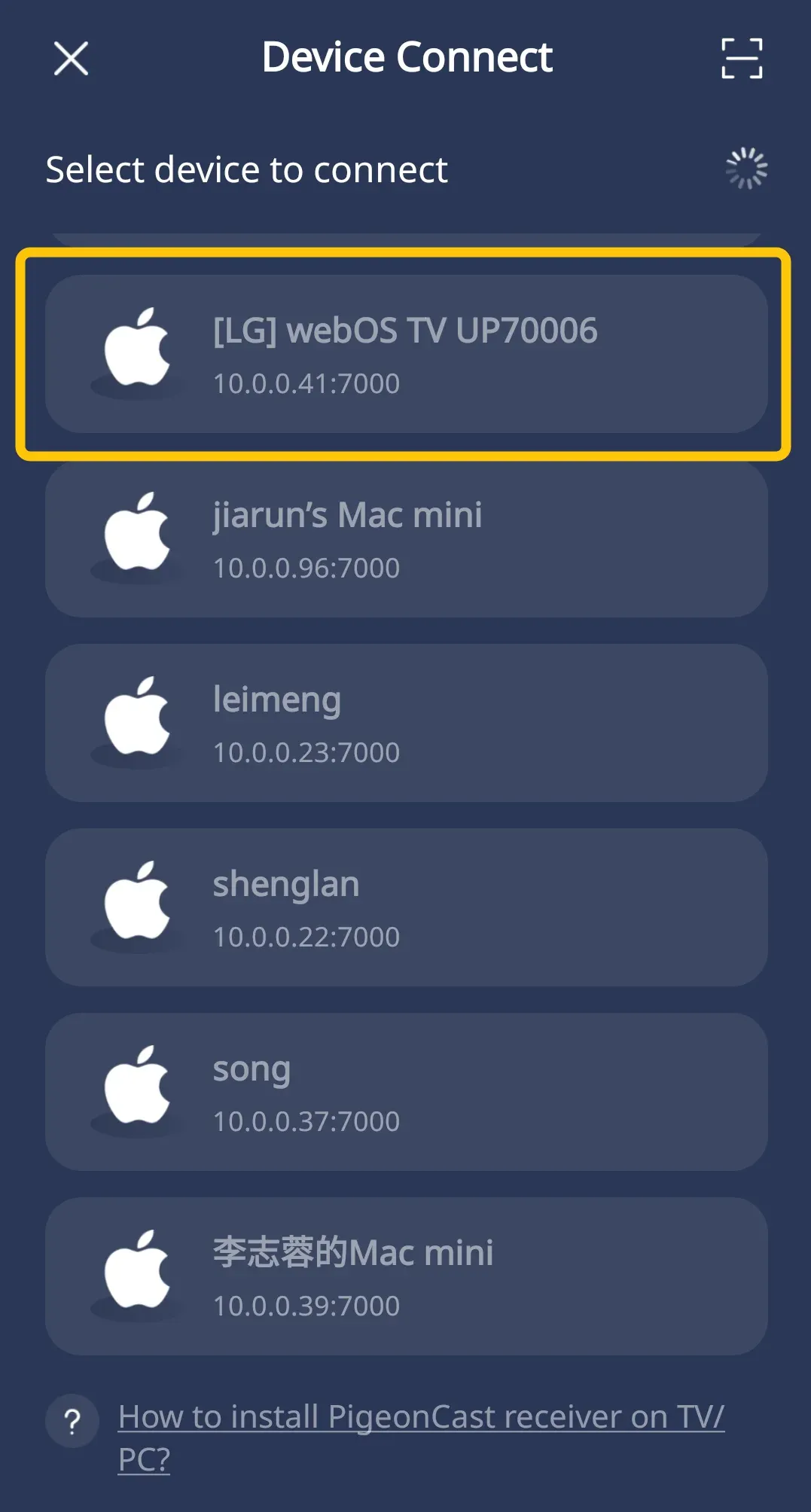
Step 3. Open PigeonCast on your iPhone, and select your LG TV from the available list.
Step 4. Enter the onscreen code to finish the connection, and tap the Screen Mirror button to screen your iPhone to your LG TV.
#3. Use an HDMI Cable and Adapter
How to connect my iPhone to my LG TV? If you want a stable, lag-free connection, using a cable is the most reliable option. A wired connection reduces delays and buffering, making it perfect for gaming, video calls, or presentations where smooth performance is important. Here's the specific step on how to connect iPhone to LG TV with USB?
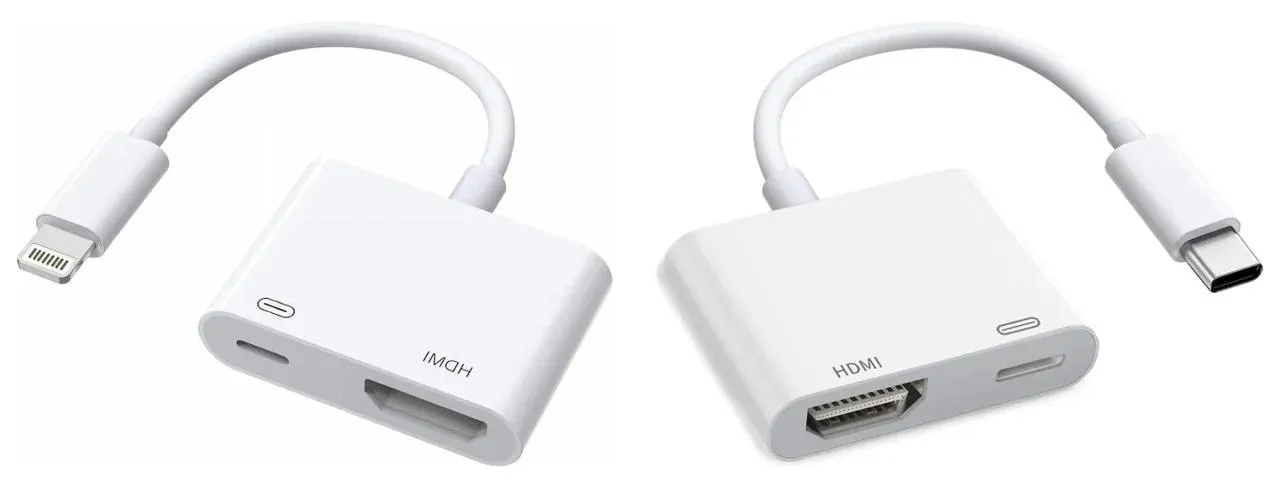
Step 1. Get a Lightning Digital AV Adapter or a USB-C to HDMI Adapter for iPhone 15 or newer models.
Step 2. Connect the adapter to your iPhone's charging port.
Step 3. Plug an HDMI cable from the adapter into your LG TV.
Step 4. Turn on your TV and select the correct HDMI input.
Step 5. Your iPhone display should appear on the TV immediately.
#4. Use Apple TV Set-Top Box
How to connect my iPhone to LG TV? If you own an Apple TV or want the most stable wireless mirroring experience, using the set-top box is the simplest and most reliable method. Apple TV works seamlessly with iPhones, supports full-resolution streaming, and allows you to mirror your iPhone to any TV, including LG TVs that do not have AirPlay built in. Now, let's check how to connect an iPhone to a LG TV with the box:
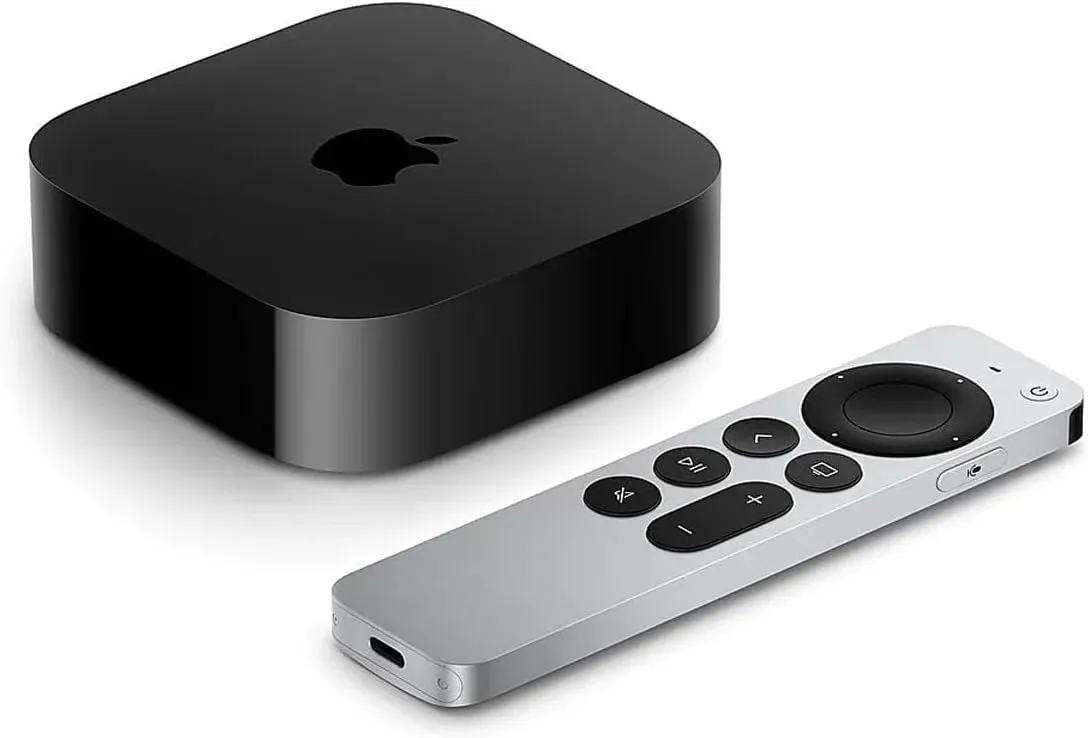
Step 1. Connect the Apple TV to your LG TV using an HDMI cable.
Step 2. Make sure your Apple TV and iPhone are on the same Wi-Fi network.
Step 3. On your LG TV, select the HDMI input where the Apple TV is connected.
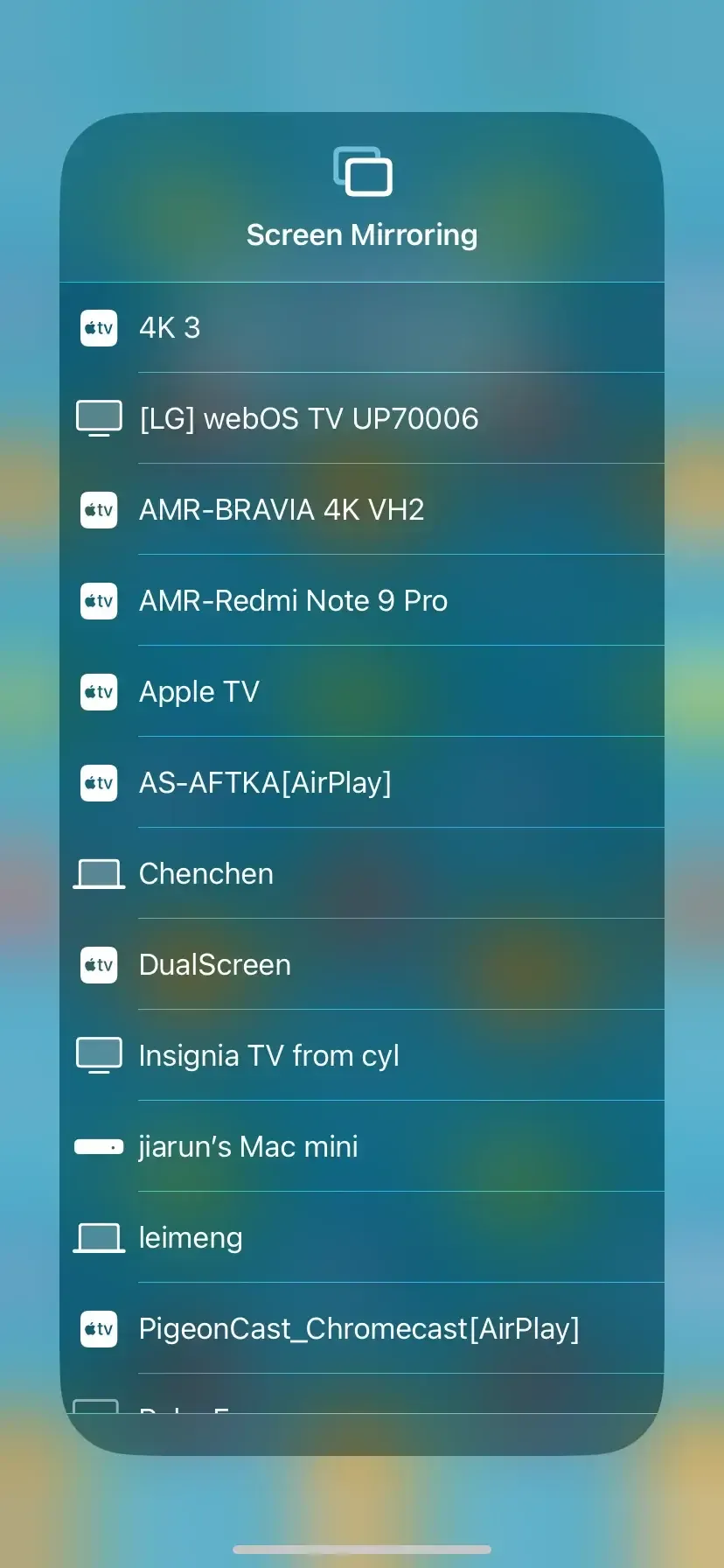
Step 4. On your iPhone, swipe down to open Control Center and tap Screen Mirroring, then select your Apple TV.
Step 5. If prompted, enter the AirPlay code displayed on the TV. Your iPhone screen will now appear on your LG TV via Apple TV.
Comparison of the 4 Ways to Connect iPhone to LG TV
Now that we have covered the main methods to mirror your iPhone on an LG TV, it is helpful to see how they compare. Each option, including AirPlay, cable connection, wireless apps, and Apple TV, has its own strengths and ideal use cases. The following comparison will help you choose the method that best fits your needs.
| Method | Pros | Cons | Best For |
|---|---|---|---|
| AirPlay | Wireless, full-screen, easy | Requires AirPlay-compatible TV | Movies, photos, gaming |
| PigeonCast | Wireless, works on most TVs, app-friendly, and without ads | Requires app installation | Full-screen mirroring without AirPlay |
| HDMI Cable | No lag, stable | Wired needs an adapter | Gaming, presentations |
| Apple TV Set-Top Box | Wireless, full compatibility, stable | Requires an Apple TV device and an HDMI | Full wireless mirroring + app streaming |
Closing Words
How to connect LG TV to iPhone? Connecting an LG TV to your iPhone is easier than ever with options like AirPlay, HDMI adapters, and screen-sharing apps. You can choose the method that best suits your needs. AirPlay offers wireless convenience, HDMI provides a stable connection, and apps allow flexible media streaming. Using these methods, you can enjoy your iPhone content on the big screen within minutes.
How to Connect iPhone to LG TV FAQ
Q: How do I connect my iPhone to my LG smart TV?
You can connect your iPhone to your LG Smart TV wirelessly using AirPlay (if your TV supports it) or via an HDMI/Lightning adapter for a wired connection. You can also use screen-mirroring apps, such as PigeonCast or an Apple TV set-top box for full-screen streaming. Choose the method that best fits your setup and needs.
Q: How to connect iPhone to LG TV without AirPlay?
You can connect your iPhone to an LG TV without AirPlay by using an HDMI or Lightning adapter for a wired connection, or by using screen-mirroring apps such as PigeonCast that support Google Cast or DLNA. These methods let you mirror your iPhone screen or stream media wirelessly without relying on AirPlay.
Q: How do I turn on AirPlay on my LG TV?
To turn on AirPlay on your LG TV: Press the Settings button on your LG TV remote. Go to All Settings > Connection > AirPlay. Switch AirPlay to On.
Q: Why won't my iPhone cast to an LG TV?
If your iPhone isn't casting to an LG TV, it could be due to one or more of the following reasons:
- Incompatible TV model: Older LG TVs may not support AirPlay or Google Cast.
- Wi-Fi issues: Your iPhone and LG TV must be on the same Wi-Fi network.
- AirPlay or casting not enabled: Make sure AirPlay is turned on in your TV settings or that your screen-mirroring app is properly set up.
- Software updates needed: Ensure both your iPhone and LG TV are running the latest software versions.
- Network restrictions: Firewalls, VPNs, or router settings may block casting.
Q: How can I connect my iPhone to LG TV without Wi-Fi?
You can connect your iPhone to an LG TV without Wi-Fi by using an HDMI adapter. Here's how:
- Get a HDMI adapter (Apple's Lightning Digital AV Adapter or USB-C to HDMI Adapter).
- Plug the adapter into your iPhone.
- Connect an HDMI cable from the adapter to one of the HDMI ports on your LG TV.
- Switch the TV input to the correct HDMI source.
Q: Can I stream only videos or photos from iPhone to LG TV?
Yes, you can choose to stream only specific videos or photos. When using AirPlay, many apps like YouTube, Netflix, and your native Photos app allow you to send just the video or photo slideshow to your LG TV without mirroring your entire iPhone screen.
Q: How do I fix lag or delay when mirroring iPhone to LG TV?
To fix lag or delay when mirroring your iPhone to your LG TV:
- Use a Wired Connection: If you're using AirPlay (Wi-Fi), try a Lightning to HDMI adapter for a more stable, lag-free connection.
- Check Wi-Fi: Ensure both your iPhone and TV are on the same Wi-Fi network. Use a strong 5GHz signal if possible.
- Restart Devices: Restart your iPhone, TV, and Wi-Fi router to clear any issues.
- Close Background Apps: Close unused apps on your iPhone to free up resources.
- Update Software: Make sure your iPhone and TV have the latest updates.
Q: Is there a free way to connect my iPhone to LG TV?
The most common free method is using AirPlay. If your LG TV is from 2019 or later, it almost certainly has built-in AirPlay support, which requires no extra equipment or apps. Plus, you can also use PigeonCast, a free all-in-one mirroring tool that supports Google Cast-enabled devices.
Clara Rossi is an experienced technology editor and a seasoned expert in screen mirroring and casting technologies. With a keen eye for detail and a deep understanding of how to seamlessly connect devices, Clara excels at optimizing user experiences for effortless sharing and streaming. Whether you're seeking quick fixes or advanced tips, her expertise and responsiveness ensure that every query is met with a well-informed and efficient solution.