
With Roku screen mirroring iPhone, you can easily share your phone's videos, photos, or even a full slideshow on the big screen. In this guide, we'll show you how to connect iPhone to Roku TV screen mirroring, help you troubleshoot common mirroring issues, and answer the most frequently asked questions so you can make the most of your Roku experience.
How to Screen Mirror iPhone to Roku
Ready to take your iPhone content to the big screen? With Roku screen mirroring iPhone, you can instantly share videos, photos, apps, and even presentations with friends and family. It is a quick and convenient way to enjoy your favorite content without squinting at a small screen. In the steps below, we will walk you through the process from start to finish, making it easy for anyone.
Way 1. Screen Mirroring iPhone to Roku via AirPlay
One popular method of screen mirroring iPhone to Roku TV is by using AirPlay, a built-in feature on Apple devices that lets you share content across compatible devices. The process is simple and quick, making it easy for anyone to get started. Let's take a closer look at how it works.
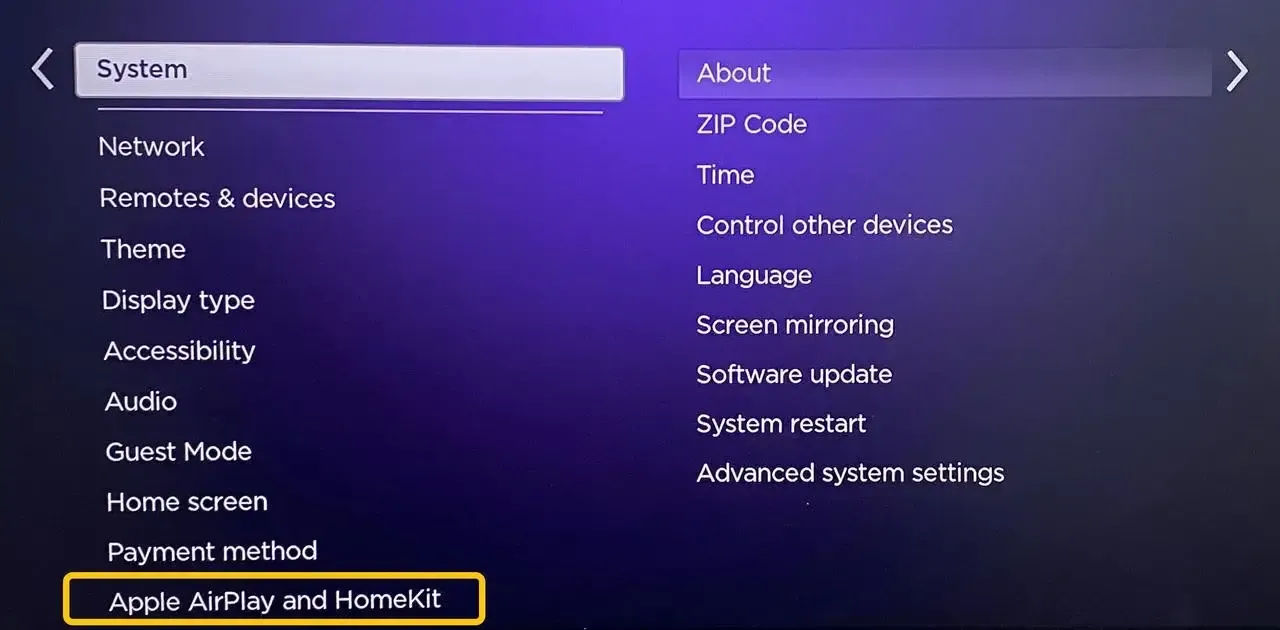
Step 1. Check whether your Roku TV supports AirPlay. Most newer Roku models support AirPlay, but it's best to confirm by going to Settings > Apple AirPlay and HomeKit, then turn AirPlay On.
Step 2. Connect your iPhone and Roku to the same Wi-Fi network.
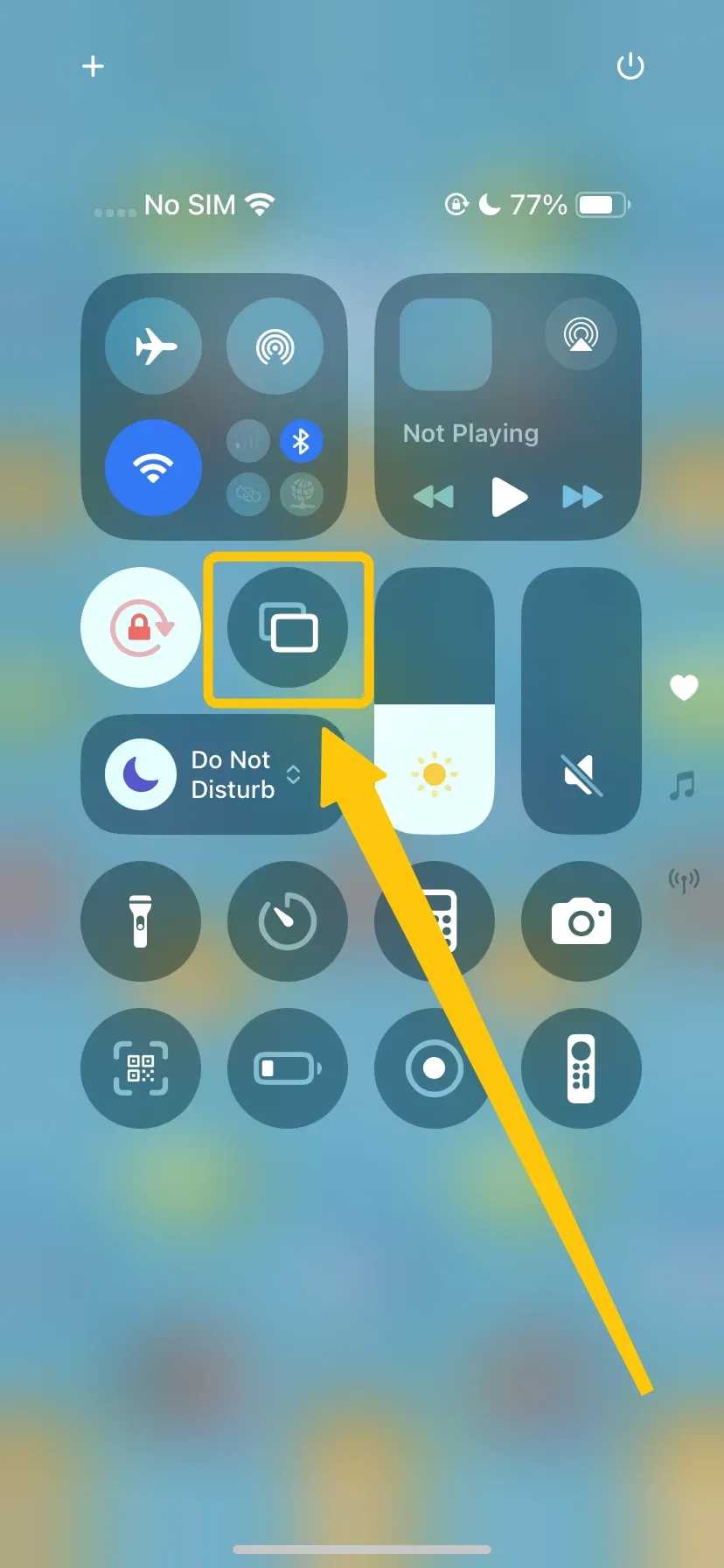
Step 3. Open the Control Center on your iPhone, tap Screen Mirroring, and select your Roku device from the list.
Step 4. If prompted, enter the PIN code to confirm the connection, then your iPhone screen should now appear on your TV.
Tip: If you have a non-Apple TV device and want to mirror your iPhone but face compatibility issues, PigeonCast is a great solution. This app makes screen mirroring simple and reliable, supporting AirPlay, Google Cast, and DLNA for smooth, seamless streaming to almost any TV or display.


PigeonCast Screen Mirroring

Official Download


Way 2. Screen Mirroring iPhone to Roku via HDMI Adapter
Want to see iPhone screen mirroring Roku without any hassle? If your Wi-Fi is unstable or you can't ensure that your iPhone and Roku are on the same network, you can use a wired connection instead. Simply connect your iPhone using a USB-C to HDMI adapter or a Lightning to HDMI adapter for a quick and reliable screen mirroring solution.
Step 1. Plug in the USB-C or Lightning end into your iPhone.
Step 2. Connect one end of the HDMI cable to the adapter and the other end to an available HDMI port on your TV or Roku device.
Step 3. Use your TV remote to select the HDMI input that matches the port you connected to.
Step 4. Your iPhone screen should automatically appear on the TV. If it doesn't, check that all connections are secure and the TV input is correct.
Common Solutions to Roku Screen Mirroring iPhone Not Working
Even though Roku iPhone screen mirroring is easy, sometimes things do not go as planned. Connectivity issues, device compatibility, or simple network glitches cause Roku screen mirroring not working iPhone. If you are running into problems, do not worry. Several tried-and-true solutions can get your screen mirroring back on track.
- Check Wi-Fi Network
- Make sure both your Roku device and iPhone are connected to the same Wi-Fi network.
- Avoid using a VPN or guest networks, as these can block the connection.
- Reduce Interference and Improve Signal
- Keep your iPhone close to the Roku device.
- Avoid obstacles or electronic devices that may interfere with Wi-Fi.
- Restart Devices
- Restart your Roku by unplugging it for 30 seconds and plugging it back in.
- Restart your iPhone to clear temporary software glitches.
- Update Firmware and iOS
- On Roku: go to Settings > System > System Update > Check Now.
- On iPhone: go to Settings > General > Software Update and install any available updates.
- Re-enable AirPlay or Screen Mirroring
- Turn AirPlay off and on in Roku settings (Settings > Apple AirPlay and HomeKit > AirPlay).
- Try reconnecting your iPhone after re-enabling AirPlay.
- Reset Paired Devices on Roku
- In Apple AirPlay Settings, select Reset Paired Devices to remove old connections.
- Reconnect your iPhone to the Roku to refresh the pairing.
By following these steps, most common issues leading to Roku not showing up on screen mirroring iPhone can be resolved quickly, so you can get back to streaming your videos, photos, and apps without interruption.
Final Verdict
Screen mirroring from iPhone to Roku makes it easy to enjoy your iPhone's videos, photos, apps, and presentations on a bigger screen. Whether you use AirPlay or wired connection, connecting your iPhone to Roku is straightforward. If you encounter any issues during the iPhone to Roku screen mirroring process, you can also refer to the given solutions to ensure smooth and reliable screen mirroring.
Roku Screen Mirroring iPhone FAQ
How do I screen mirror my iPhone to my Roku TV?
To screen mirror your iPhone to a Roku TV, first ensure your devices are compatible, then:
- Ensure both devices are connected to the same Wi-Fi network.
- On your Roku, go to Settings > Apple AirPlay and HomeKit and turn AirPlay on.
- On your iPhone, open the Control Center, tap Screen Mirroring, and select your Roku TV from the list.
- If prompted, enter the on-screen code to start mirroring your iPhone's screen.
Can I mirror my iPhone to Roku without Wi-Fi?
Yes, but the available methods depend on your Roku model and network setup. You may be able to use a mobile hotspot, a travel router, a compatible third-party mirroring app, or a wired HDMI adapter. Standard AirPlay usually requires both devices to be on the same local network. See how to mirror an iPhone to Roku without Wi-Fi for the available options.
Why can't I screen mirror to my Roku TV?
You may not be able to screen mirror to your Roku TV due to several reasons: your iPhone and Roku aren't on the same Wi-Fi network, AirPlay may be disabled on the Roku, your devices may have outdated software, or network issues like VPNs, interference, or weak Wi-Fi could be blocking the connection. Checking these settings and updating both devices usually resolves the problem.
Why is Roku not showing up on screen mirroring on iPhone?
Suppose your Roku is not showing up on the iPhone screen mirroring. In that case, it's usually because AirPlay is not enabled on the Roku, your iPhone and Roku are on different Wi-Fi networks, or the Roku software is outdated. Other possible reasons include network interference, VPN usage, or previously paired devices causing conflicts. Ensuring both devices are updated, on the same network, and AirPlay is turned on typically fixes the issue.
What is Roku screen mirroring?
Roku screen mirroring is a feature that allows you to wirelessly display the screen of your device, such as an iPhone, iPad, or Android phone, on your Roku TV. It allows you to stream videos, show photos, share apps, or even present slideshows on a larger screen using technologies like AirPlay or third-party apps for seamless casting.
Clara Rossi is an experienced technology editor and a seasoned expert in screen mirroring and casting technologies. With a keen eye for detail and a deep understanding of how to seamlessly connect devices, Clara excels at optimizing user experiences for effortless sharing and streaming. Whether you're seeking quick fixes or advanced tips, her expertise and responsiveness ensure that every query is met with a well-informed and efficient solution.