
Screen mirroring your iPhone to a Roku TV is a convenient way to share videos, photos, games, and apps on the big screen. Normally, this requires a WiFi connection, but what if you don't have internet available? The good news is, you can still mirror your iPhone to Roku without WiFi by using a few alternative methods. Below, we'll walk you through the best ways about how to mirror iPhone to Roku without WiFi.
How to Mirror iPhone to Roku TV Without WiFi
Even without a WiFi connection, you can still enjoy mirroring your iPhone screen to a Roku TV. Whether you're offline or want a direct connection, there are two simple methods about how to connect iPhone to Roku TV without WiFi quickly. If you do have access to a stable network, tools like PigeonCast can offer an even smoother screen mirroring experience across multiple platforms.
#1. Roku AirPlay Without WiFi via HDMI Adapter
How to screen mirror iPhone to Roku without WiFi? When you don't want to deal with wireless connections or unreliable setups, the most stable method is to use a wired adapter. This lets you mirror your iPhone to Roku via an HDMI connection, ensuring zero lag and a high-quality display.
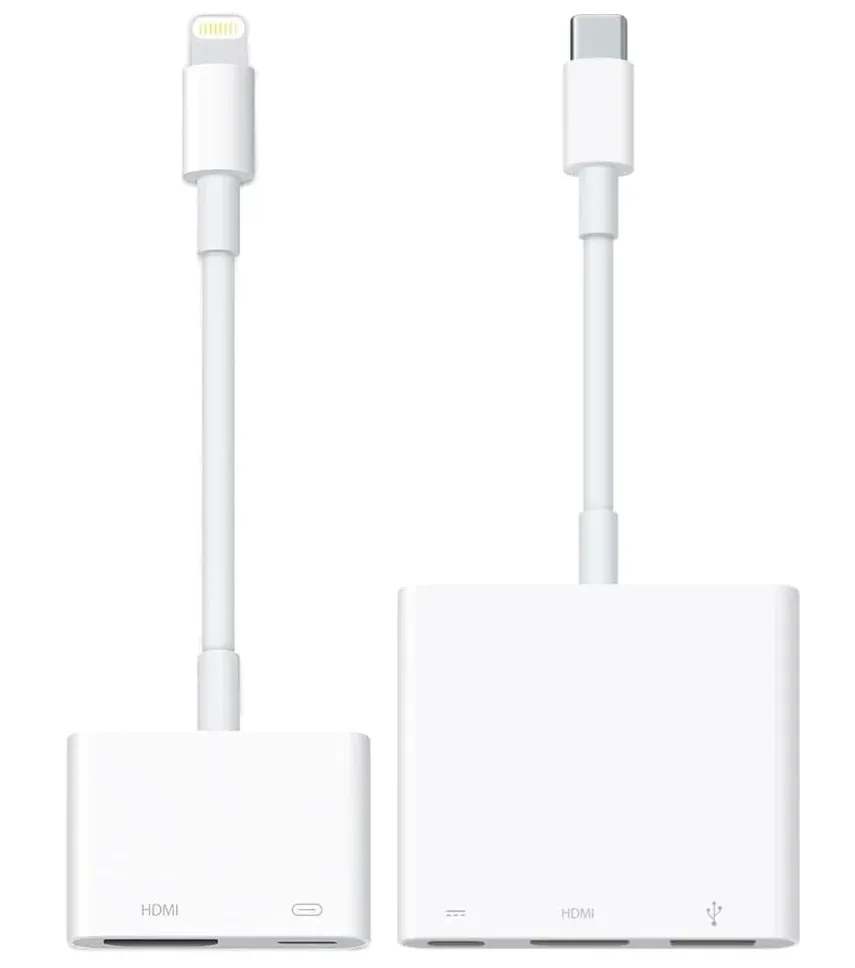
Step 1. Plug the appropriate adapter into your iPhone. Depending on your iPhone model, this adapter could be:
- iPhone 14 and earlier: Apple Lightning Digital AV Adapter (Lightning to HDMI)
- iPhone 15 and later: Apple USB-C Digital AV Multiport Adapter (USB-C to HDMI)
Step 2. Connect an HDMI cable from the adapter to your Roku TV.
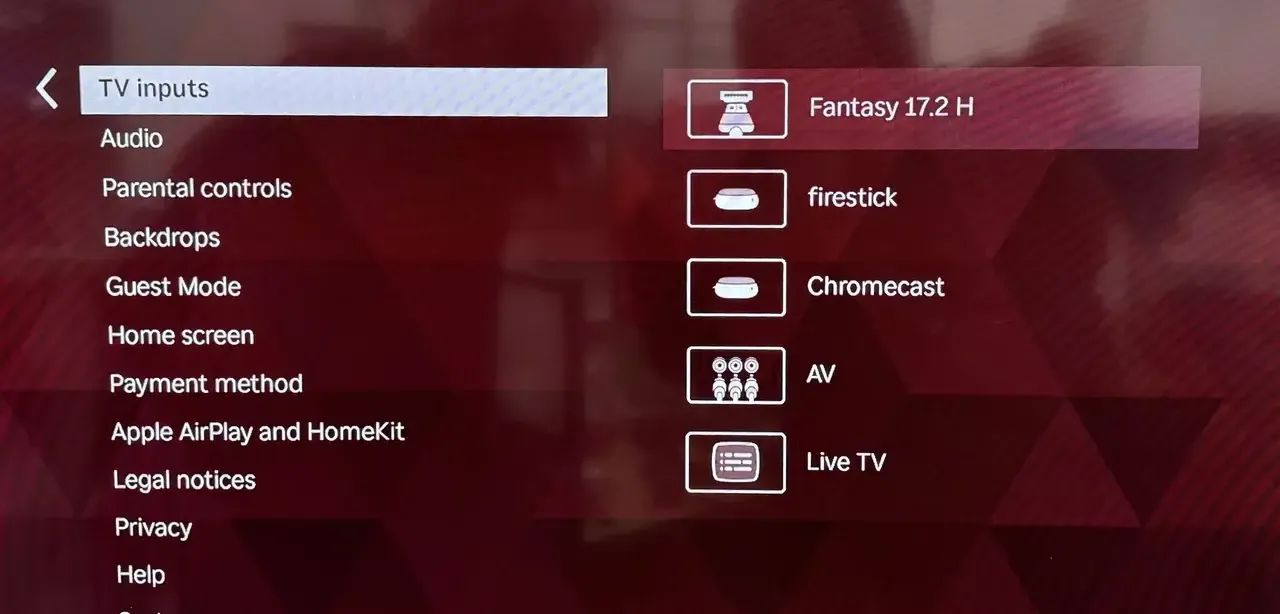
Step 3. Navigate the Home button on the remote to access the TV inputs menu, switch your Roku TV to the HDMI input you used.
Step 4. Your iPhone screen will now appear instantly on your TV.
#2. Roku AirPlay Without WiFi via Hotspot
How to screen mirror iPhone on Roku TV without WiFi? Another option is to create a mobile hotspot. Instead of a home WiFi network, your iPhone and Roku both connect to the hotspot, allowing AirPlay mirroring to work without standard WiFi.
Note: Using your mobile device as a hotspot may consume cellular data from your plan. Depending on your carrier, additional charges may apply if you exceed your monthly data allowance. Please check your mobile plan for hotspot limits, data usage, and any potential fees before using it to mirror your iPhone to a Roku TV via AirPlay.
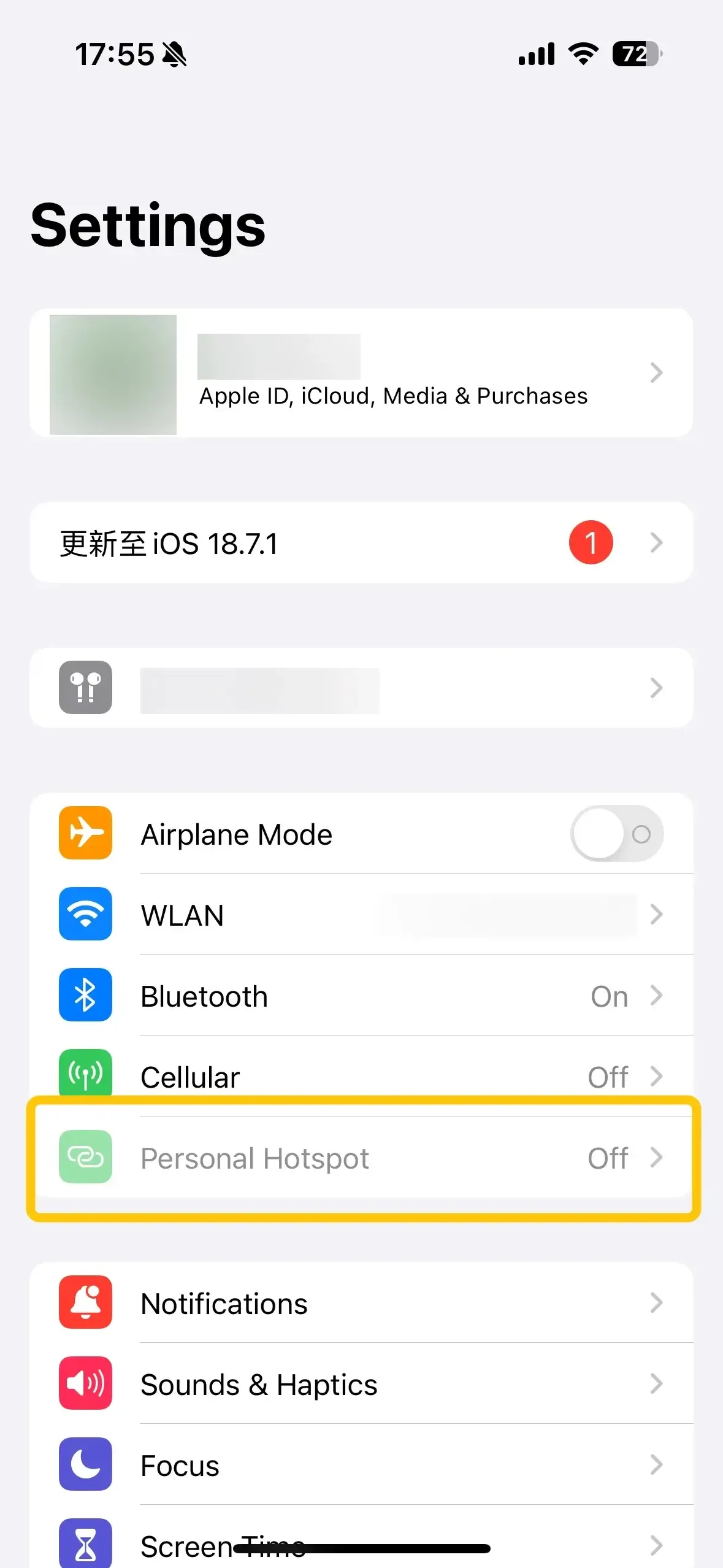
Step 1. On your iPhone or a secondary phone, go to your phone's Settings > Personal Hotspot (or similar).
Step 2. Turn on the hotspot and set a password, and make note of the network name (SSID) and password.
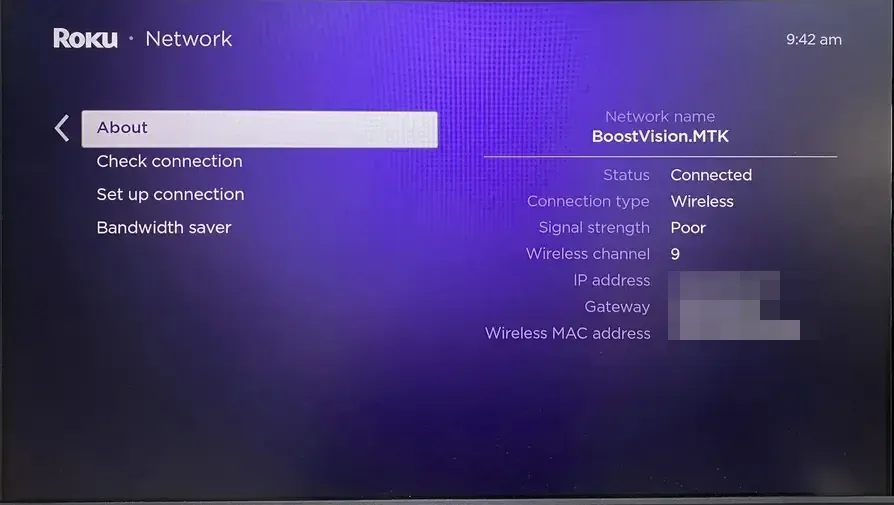
Step 3. On your Roku, go to Settings > Network > Set up connection > Wireless. Select your mobile hotspot network and enter the password.
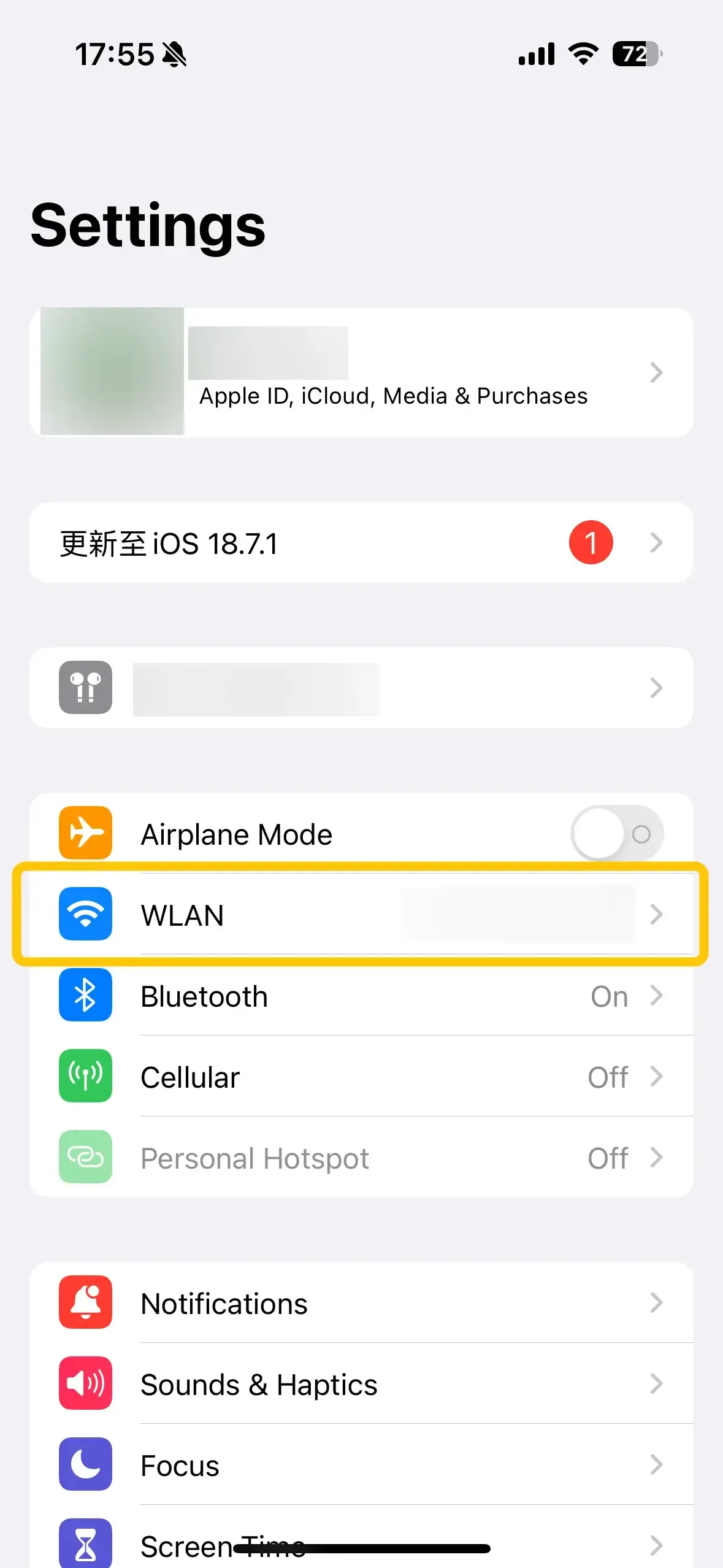
Step 4. On your iPhone, go to Settings > WiFi to connect to the same hotspot network you connected your Roku to. (If you use your iPhone to turn on the hotspot, you can skip this step)
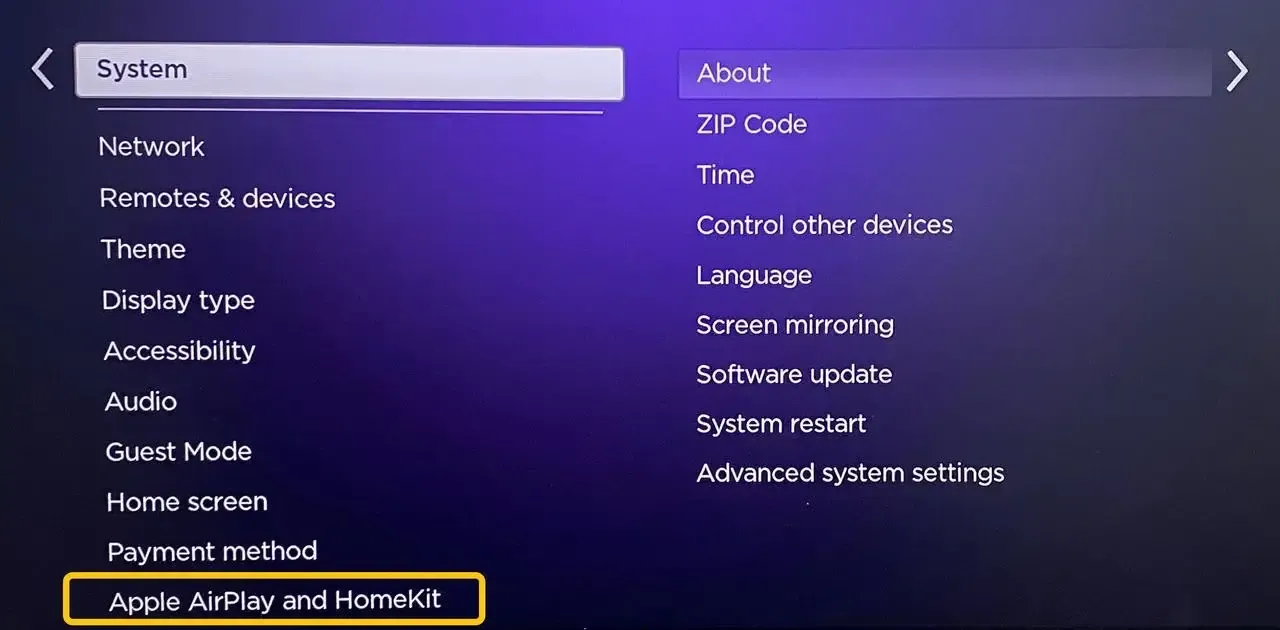
Step 5. Navigate to Settings > Apple AirPlay and HomeKit > AirPlay > On.
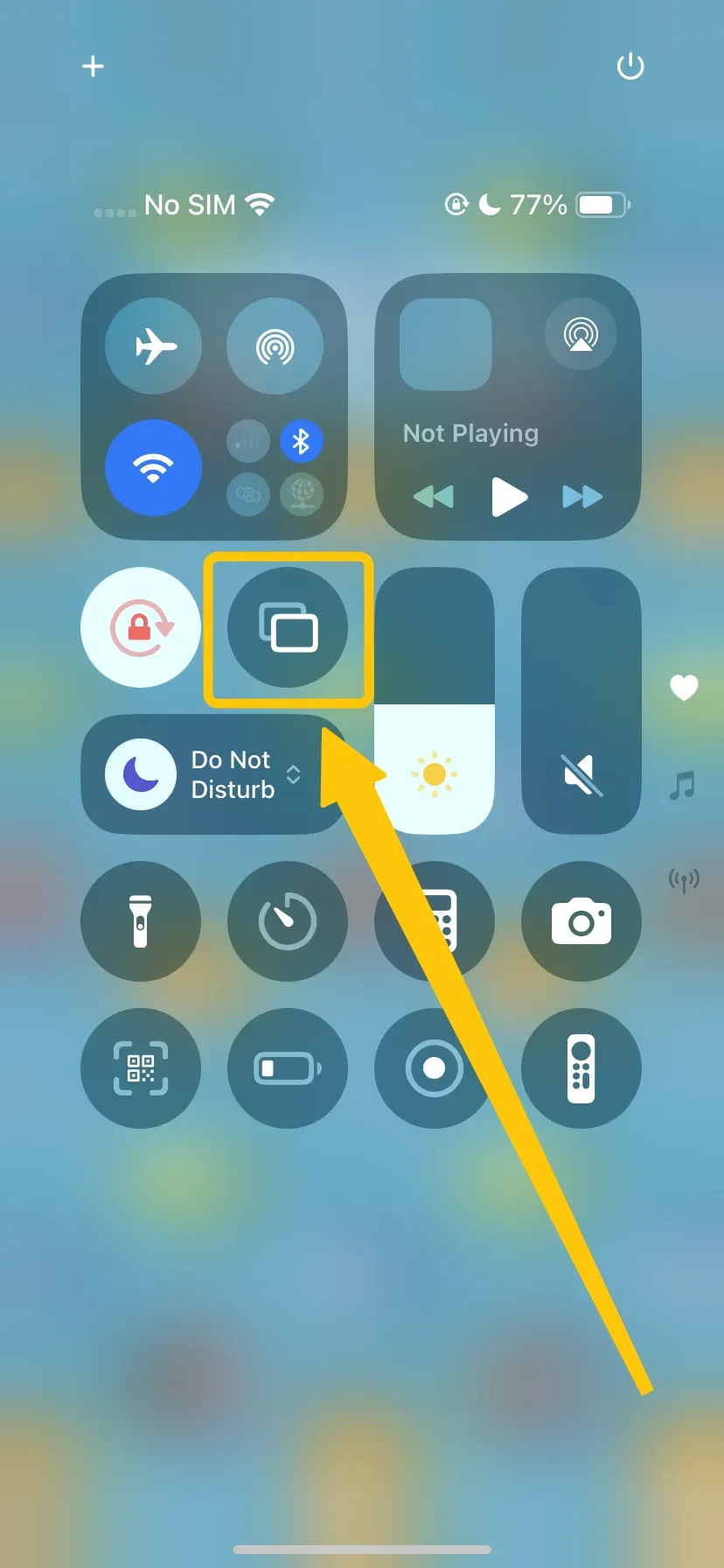
Step 6. Open Control Center on your iPhone, tap Screen Mirroring, and select your Roku device from the list.
Step 7. If prompted, enter the onscreen code to accept the AirPlay connection on your Roku. Your iPhone screen should now appear on your Roku TV.
Best Alternatives to Mirror iPhone
With a stable WiFi connection, you can make screen mirroring even easier with PigeonCast. It allows seamless streaming from iPhone, Android, or PC to TVs and other devices, supporting high-quality video and smooth performance. With its cross-platform compatibility and simple setup, PigeonCast is a reliable way to share content without the usual connectivity issues.

Step 1. Install the screen mirroring app on your iPhone.

PigeonCast Screen Mirroring

Official Download



Step 2. Ensure your sender device and receiver device are connected to the same wireless network.
Step 3. Launch the app on your device and follow the on-screen instructions to complete the pairing process.
Step 4. Once the connection succeeds, you can simply screen your iPhone to Android TV that supports Google Cast or PC, and cast your Android mobile device to Apple TV or MacBook.
Closing Words
How to screen mirror iPhone to Roku TV without WiFi? Screen mirroring your iPhone to a Roku TV doesn't have to be limited by WiFi availability. Whether you choose a wired connection using an adapter, a mobile hotspot for AirPlay, there are practical ways to share your videos, photos, apps, and games on the big screen. You can also expand your iPhone with the free all-in-one solution: PigeonCast.
How to Mirror iPhone to Roku Without WiFi FAQ
Q: Can you AirPlay to Roku without WiFi?
Yes, you can AirPlay to a Roku without WiFi by using a wired adapter (HDMI) or a mobile hotspot. These methods allow your iPhone to mirror its screen to Roku even when a standard WiFi network isn't available.
Q: Can you do iPhone mirroring without Wi-Fi?
Yes, you can mirror your iPhone without Wi-Fi using several methods. You can use a wired connection with a Lightning or USB-C HDMI adapter, create a mobile hotspot, or use Peer-to-Peer AirPlay, which allows your iPhone to communicate directly with a compatible Roku or Apple TV using Bluetooth and a direct Wi-Fi connection.
Q: How do I mirror my iPhone to my Roku?
To mirror your iPhone to your Roku, make sure your Roku supports AirPlay and both devices are on the same network (Wi-Fi or hotspot). Then:
- Turn on your Roku TV and go to Settings > Apple AirPlay and HomeKit > Turn On AirPlay.
- On your iPhone, swipe down to open Control Center > Screen Mirroring, and select your Roku device from the list.
- If prompted, enter the code shown on your Roku screen. Your iPhone screen will now appear on your Roku TV.
Q: Can I screen mirror if my TV is not connected to Wi-Fi?
Yes, you can screen mirror even if your TV isn't connected to Wi-Fi. You can do this by:
- Using a wired adapter: Connect your iPhone to the TV with a Lightning or USB-C HDMI adapter for a direct, lag-free connection.
- Using a mobile hotspot: Create a hotspot on your phone or another device and connect your TV to it, then use AirPlay to mirror.
- Peer-to-Peer AirPlay: Some Roku and Apple TV models allow direct mirroring via Bluetooth and a direct Wi-Fi connection, no home network needed.
Clara Rossi is an experienced technology editor and a seasoned expert in screen mirroring and casting technologies. With a keen eye for detail and a deep understanding of how to seamlessly connect devices, Clara excels at optimizing user experiences for effortless sharing and streaming. Whether you're seeking quick fixes or advanced tips, her expertise and responsiveness ensure that every query is met with a well-informed and efficient solution.