
Windows is one of the most widely used operating systems, and Roku has become a go-to streaming device for many households. Imagine being able to cast your Windows PC to your Roku. Suddenly, sharing movies, presentations, or even games on a big screen becomes effortless. Ready to see how it's done? Let's dive in and learn how to cast from PC to Roku.
How to Cast From PC to Roku
Roku supports screen mirroring from Windows PCs via Miracast and also works with third-party apps or media servers for additional functionality. Whether you prefer using built-in Windows features, a wired connection, or third-party apps, each method makes it easy to stream your content on a bigger screen. Now, let's explore exactly how to cast to Roku TV from PC.
#1. Use the Built-in Miracast
Many Windows PCs support Miracast, which allows you to mirror your laotop screen to Roku over Wi-Fi. This built-in feature makes it easy to stream videos, display presentations, or share photos without needing any additional software. Here's a quick process to cast to Roku from PC Windows 11:
Step 1. Ensure your Roku and Windows PC are connected to the same wireless network.
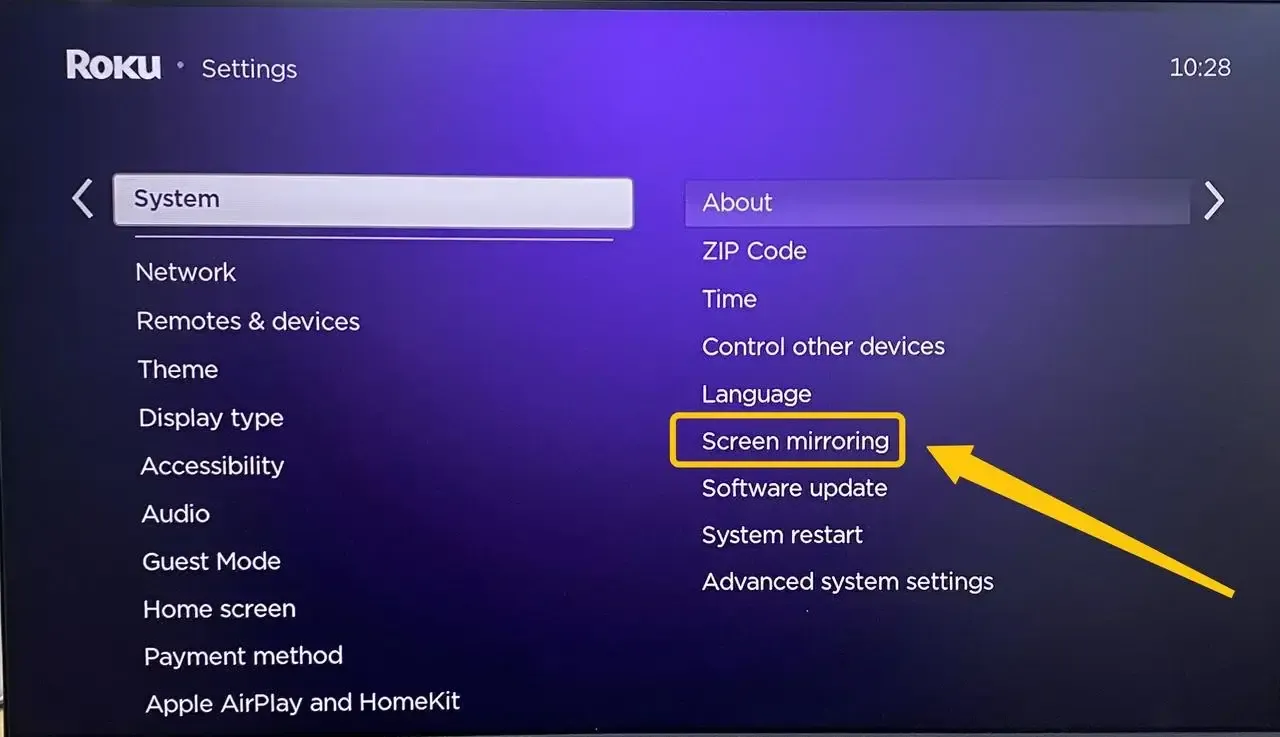
Step 2. On your Roku, access Settings > System > Screen Mirroring and ensure it's enabled.
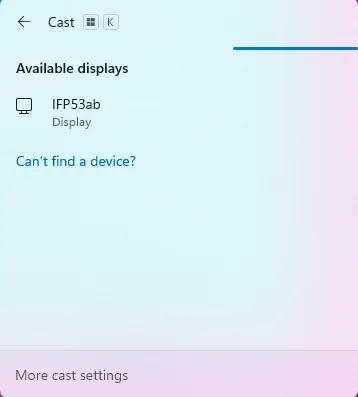
Step 3. On your PC, press Windows + K to open the Connect sidebar.
Step 4. Select your Roku device from the list of available devices.
Step 5. Accept the connection on your Roku if prompted, then your PC screen will now appear on the Roku TV.
#2. Use a Third-Party Screen Mirroring App
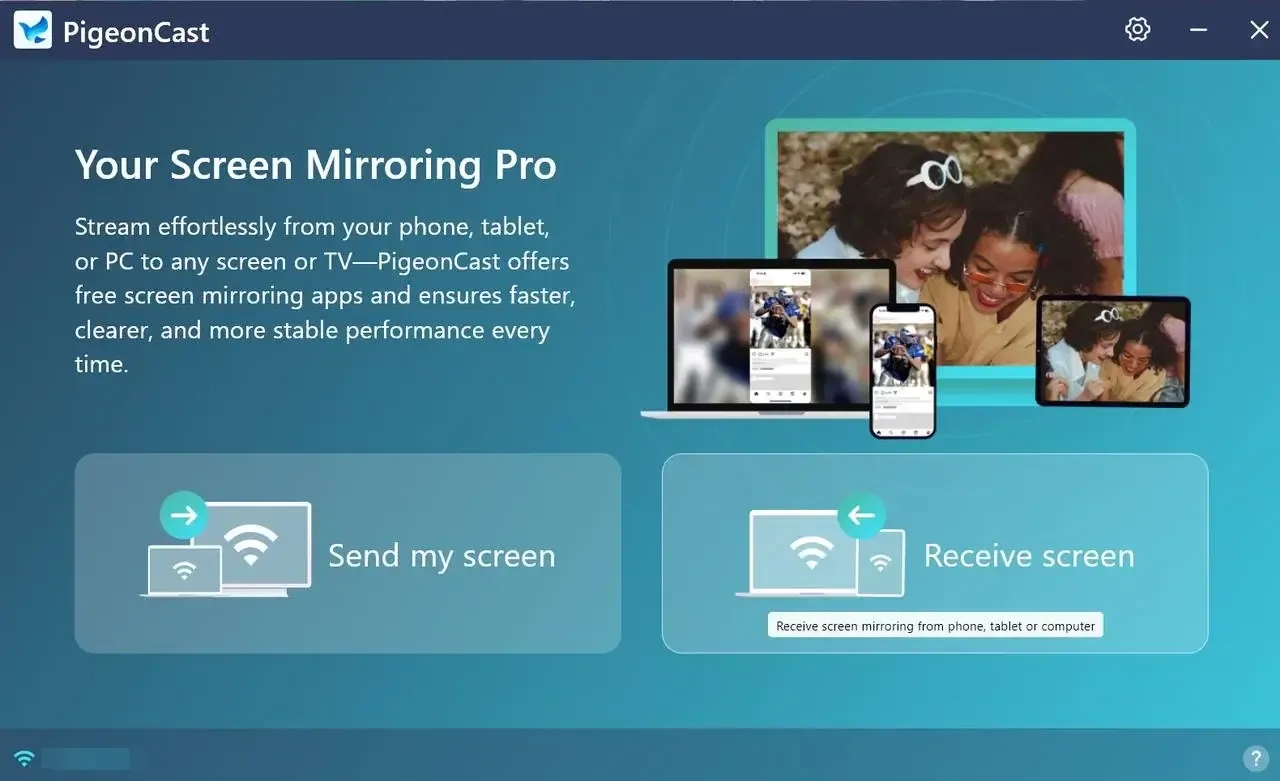
How to do Roku screen mirroring Windows 10? PigeonCast for Windows is an all-in-one solution. This app not only enables seamless Windows-to-Roku screen mirroring, but it can also turn your Windows PC into an AirPlay receiver for Apple devices.

PigeonCast Screen Mirroring

Official Download


PigeonCast supports casting from Windows PCs to Roku, providing a seamless and high-quality streaming experience. Additionally, PigeonCast supports high-resolution streaming, ensuring crisp visuals and smooth playback. Its user-friendly interface and straightforward setup make it accessible for users of all technical levels. Let's explore how to use PigeonCast to mirror your PC screen to Roku.
Step 1. Install the screen mirroring app on your Windows computer.
Step 2. Connect both your Roku and PC devices to the same Wi-Fi network.
Step 3. Open the app on your PC and select the Send my screen option.
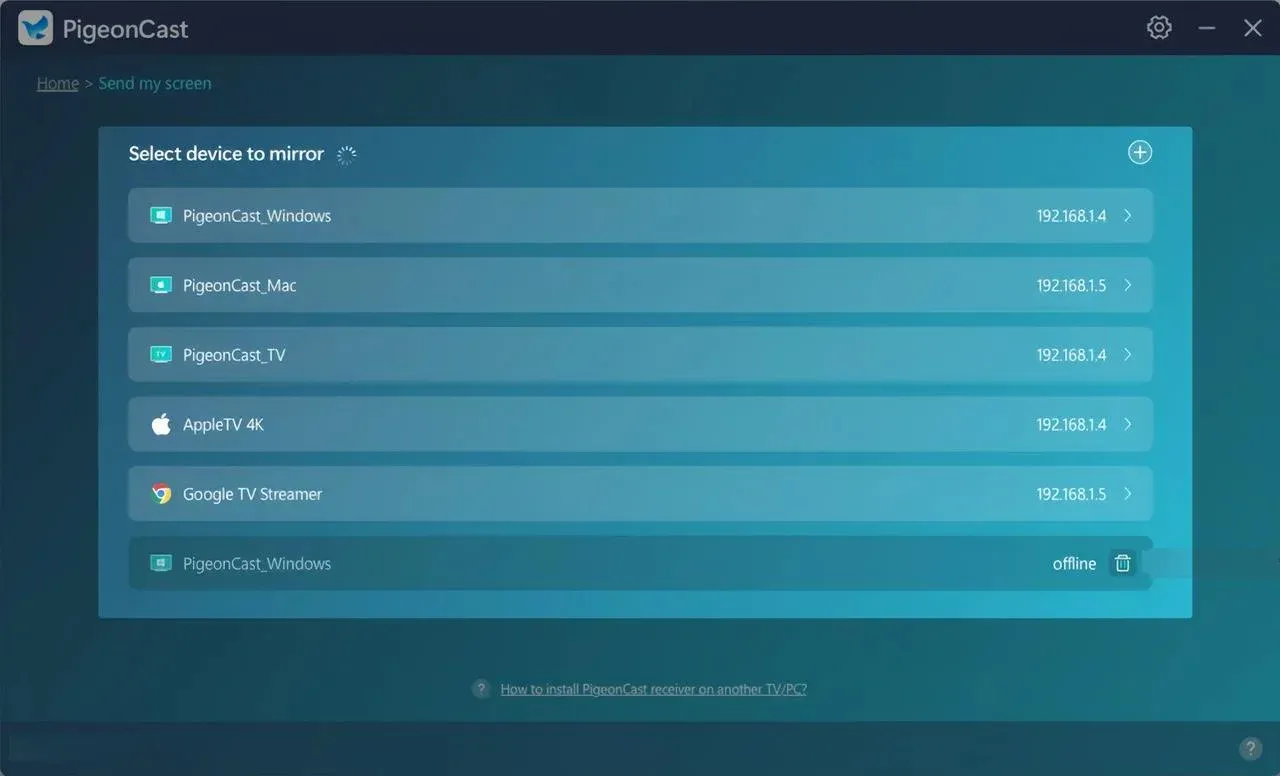
Step 4. Select your Roku from the available list, and enter the onscreen PIN code to finish the connection.
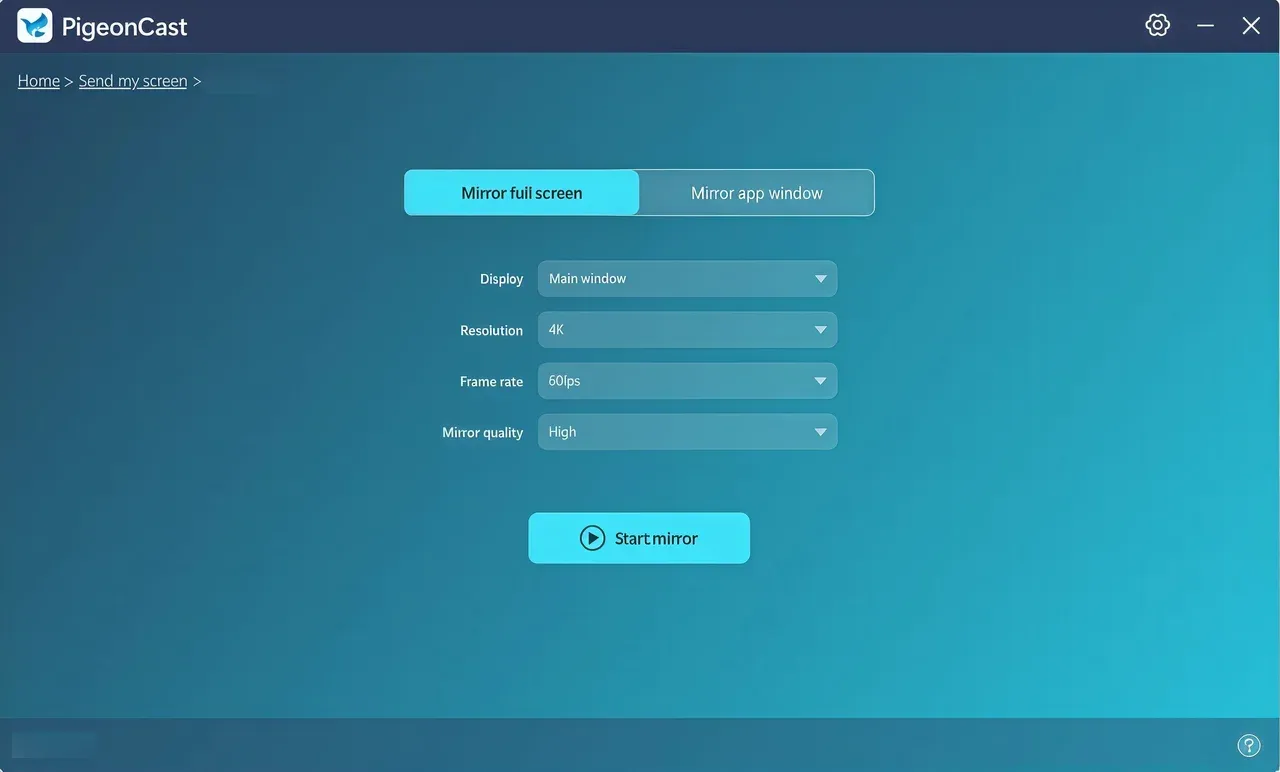
Step 5. Once successful, you can even choose Mirror full screen or Mirror app window to your Roku from Windows.
#3. Use an HDMI Cable
How to cast to Roku from PC? If you prefer a more stable and lag-free connection, using an HDMI cable is a reliable option. Unlike wireless methods, a direct HDMI connection ensures high-quality video and audio without interruptions, making it ideal for movies, gaming, or presentations. Let's go over how to cast to Roku TV from PC using an HDMI cable.
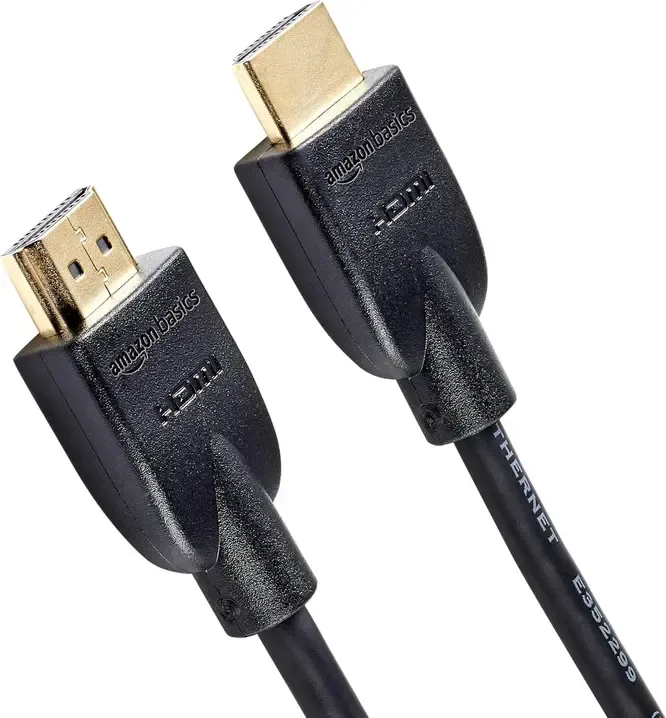
Step 1. Connect an HDMI cable from your PC to your Roku TV.
Step 2. Switch your TV to the corresponding HDMI input, and your PC screen should automatically appear on the TV.
Step 3. Adjust display settings via Settings > Display on your PC for the best resolution and scaling.
To Sum Up
How to cast from Windows PC to Roku TV? Miracast works well for Windows PCs with wireless support, HDMI cables provide a stable connection, and third-party apps expand compatibility to non-Miracast devices. With these tools and tips, you can enjoy your PC content on a bigger Roku screen easily and reliably.
Cast From PC to Roku FAQ
Q: How do I screen mirror my PC to my TV?
You can screen mirror your PC to your TV using several methods:
- Wireless (Miracast/AirPlay): Most modern Windows PCs support Miracast. Enable screen mirroring on your PC and select your TV from the available devices.
- HDMI Cable: Connect your PC directly to your TV using an HDMI cable for a stable, lag-free connection.
- Third-Party Apps: Apps like PigeonCast allow you to mirror your PC screen to TVs that support casting over Wi-Fi.
- Browser Casting: Use browsers like Google Chrome to cast specific content, such as videos or web pages, directly to your TV.
Q: Why can't I screen mirror to my Roku TV?
If you can't screen mirror to your Roku TV, it's usually due to network, software, or compatibility issues. Common reasons include:
- Devices not on the same Wi-Fi network: Both your PC or mobile device and Roku must be connected to the same network.
- Screen mirroring disabled on Roku: Check Settings > System > Screen mirroring and make sure it's enabled.
- Outdated software: Ensure your Roku and PC or mobile device have the latest updates installed.
- Unsupported device or OS: Some older devices may not support Miracast or Roku casting.
- Firewall or security settings: These can block the connection, so check your PC's firewall and antivirus settings.
Q: Can I connect a Roku to a PC?
Yes, you can cast directly to a Roku TV. Roku supports screen mirroring from Windows PCs, Android devices, and some third-party apps over Wi-Fi. You can also cast specific content from browsers like Google Chrome using the Roku's built-in casting features. Make sure your device and Roku TV are on the same network for a smooth connection.
Clara Rossi is an experienced technology editor and a seasoned expert in screen mirroring and casting technologies. With a keen eye for detail and a deep understanding of how to seamlessly connect devices, Clara excels at optimizing user experiences for effortless sharing and streaming. Whether you're seeking quick fixes or advanced tips, her expertise and responsiveness ensure that every query is met with a well-informed and efficient solution.