
Screen casting and mirroring are popular ways to enjoy content on a larger screen. If you have an Android phone and a Roku TV, you're in the right place. This simple guide will show you how to cast to Roku TV from Android so you can enjoy videos, apps, and more on a bigger screen. It's a great way to reduce eye strain and make your viewing experience more enjoyable.
Does Roku Support Screen Mirroring?
Yes, most Roku TVs and Roku streaming devices support screen mirroring using Miracast, a wireless display protocol supported by many Android phones. In addition to screen mirroring, Roku also supports casting for apps like YouTube, Netflix, and Spotify. Before you start, make sure both your Roku device and Android phone are:
- Connected to the same Wi-Fi network
- Running the latest software versions
How to Cast to a Roku TV From Android
There are four different ways to cast or mirror content from your Android phone or tablet to a Roku TV. Depending on what you're trying to share, one method might work better for you than the others. Let's take a closer look at each method about how to cast from an Android phone to a Roku TV.
Way 1. Cast Videos or Apps Using the Cast Icon
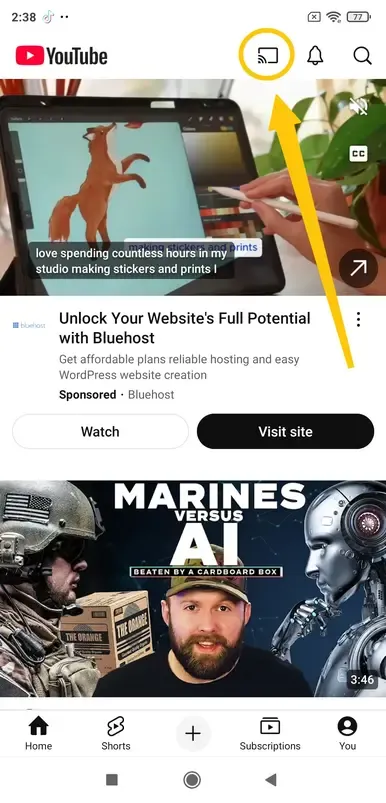
How to cast to Roku TV from Android phone? Many streaming apps like YouTube, Netflix, and Spotify have a built-in Cast icon. This lets you send content directly from your phone to your Roku TV without mirroring the entire screen.
Step 1. Ensure your Android and Roku TV are connected to the same wireless network.
Step 2. Open a supported app (like YouTube) on your Android device.
Step 3. Tap the Cast icon (a rectangle with Wi-Fi waves in the corner).
Step 4. Choose your Roku TV from the list of available devices, and the video will play on your TV while your phone acts as a remote.
Way 2. Use the Screen Mirroring Feature on Roku and Android
Wondering how to cast on Roku TV from Android? If you want to show everything from apps and games to your home screen, the best way to do this is by using the screen mirroring feature, powered by Miracast. In this section, you should also ensure that both your devices are covered by the same wireless network.
- On Roku TV
Step 1. Press the Home button on your Roku remote.
Step 2. Navigate to Settings > System > Screen Mirroring.
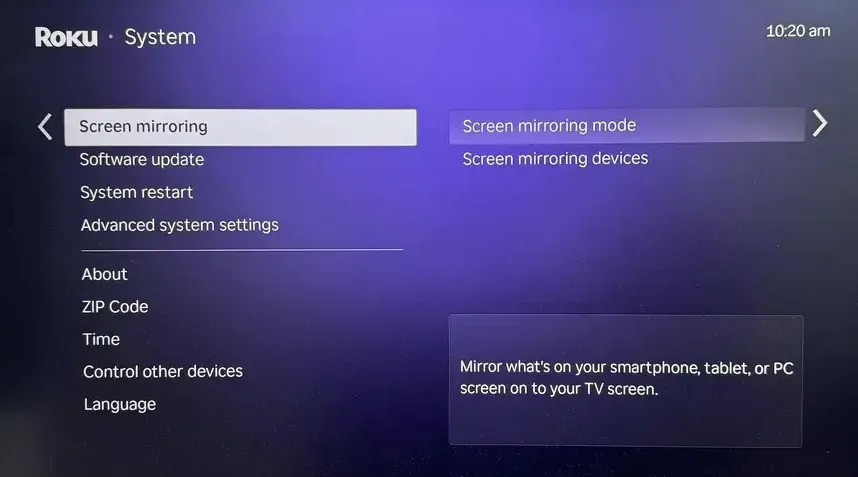
Step 3. Under Screen Mirroring Mode, choose either Prompt or Always Allow, depending on whether you want to manually approve each connection or allow devices to mirror automatically.
- On Android
Step 1. Swipe down to open the Quick Settings panel.
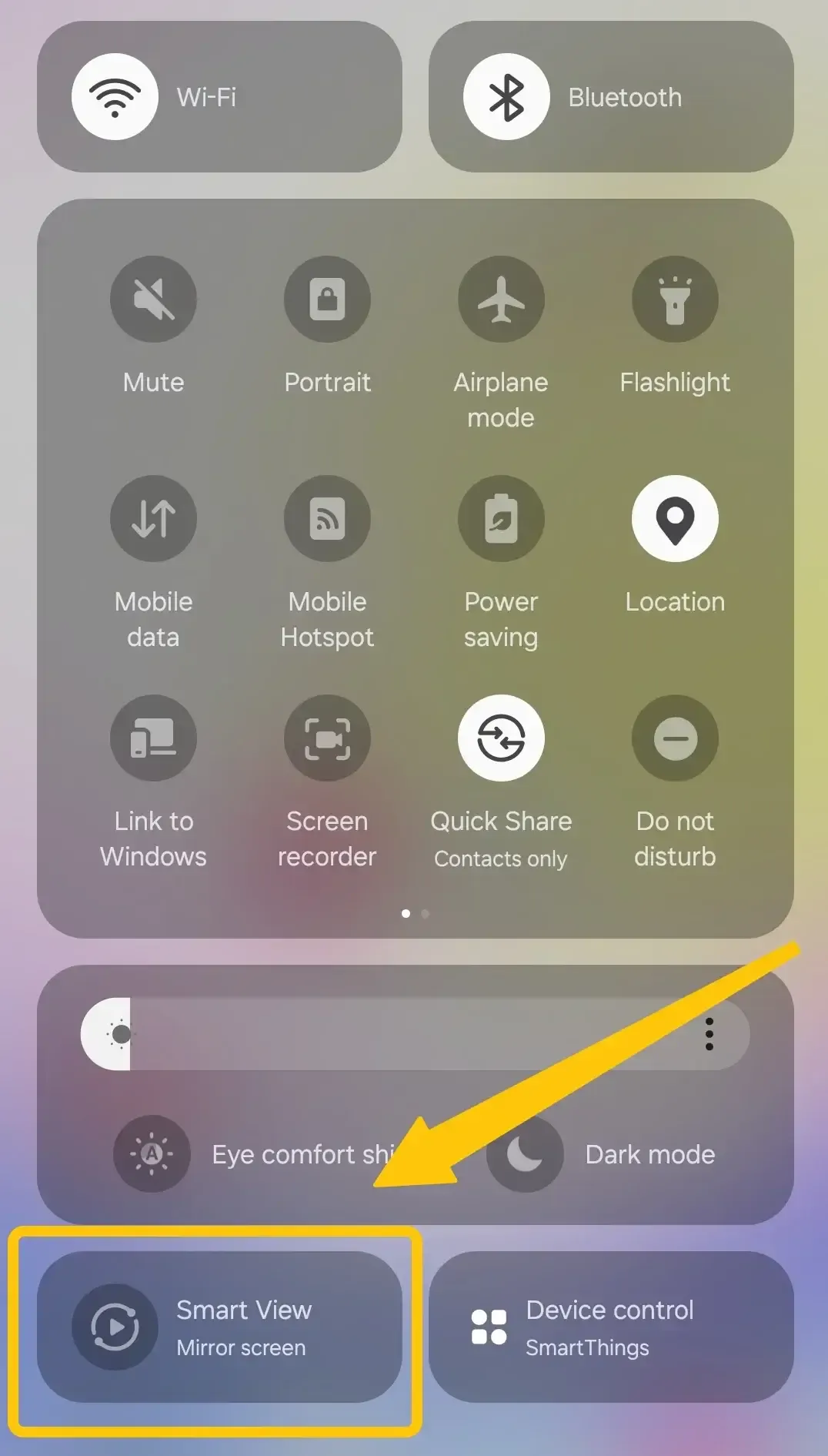
Step 2. Tap Cast, Screen Cast, Smart View, or Wireless Display (the name may vary depending on your phone brand).
Step 3. Select your Roku device from the list and accept the connection prompt on your Roku TV to start mirroring.
Way 3. Use a Universal Android Casting App - PigeonCast
How to screen cast to Roku TV from Android? If your phone doesn't support built-in mirroring, the screen mirroring feature isn't working, or you want more flexibility (like casting web videos, local files, or using DLNA), try a third-party app like PigeonCast for Android screen mirroring app.
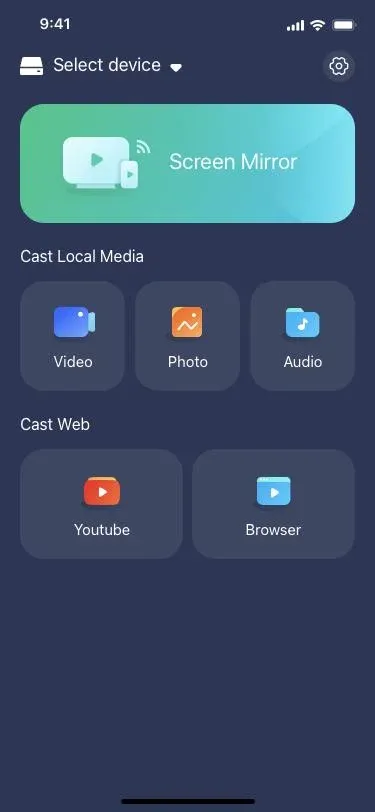
With the free and safe PigeonCast screen mirroring app, you can easily mirror your Android device to your TV or Mac. Enjoy crystal-clear visuals, stable audio, and seamless wireless casting through AirPlay, Cast, and DLNA. Expand your Android screen to your TV or PC for a stunning viewing experience.

PigeonCast Screen Mirroring

Official Download


Step 1. Install the mirroring app on your Android and ensure your devices are under the same WiFi network.
Step 2. On Roku, navigate to Settings > System > Screen Mirroring > Screen Mirroring Mode, choose either Prompt or Always Allow.
Step 3. Launch the mirroring app, choose your Roku TV, and enter the onscreen code to finish the pairing process.
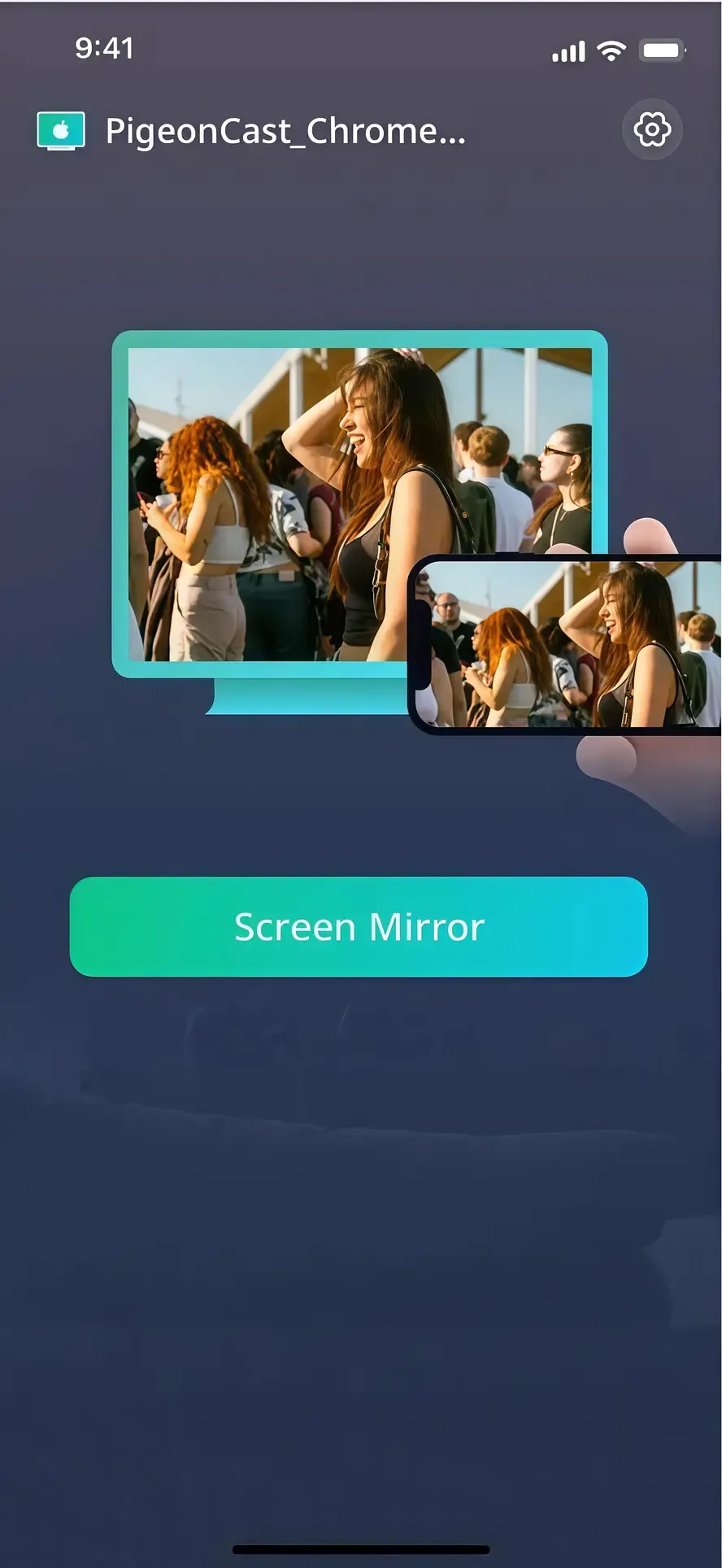
Step 4. Once completed, tap Screen Mirroring to cast or mirror what you want from Android to Roku.
Way 4. Use the Roku App
How to cast from Android phone to Roku TV? Another easy way to cast content is by using the official Roku mobile app. It not only lets you stream photos, videos, and music from your Android device to your Roku TV but also includes built-in remote control features for convenient navigation.
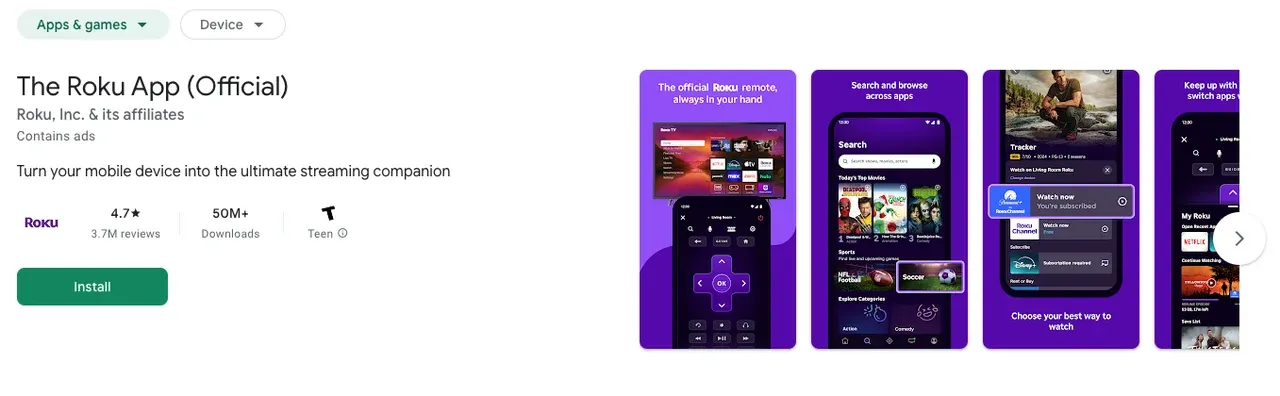
Step 1. Install the Roku app from the Play Store.
Step 2. Connect your Android phone to the same Wi-Fi network as your Roku TV.
Step 3. Open the app, tap Devices, and select your Roku.
Step 4. Tap Media to cast photos, music, or videos from your phone.
Casting vs. Mirroring: What's the Difference
While both casting and mirroring let you share content from your Android device to a bigger screen, they work in different ways. Casting streams specific content, like a video or music, from your phone to a TV, while mirroring displays your entire phone screen, showing everything from apps and games to notifications. Here's a table to help distinguish them:
| Feature | Casting | Screen Mirroring |
|---|---|---|
| What it shows | Only the selected video, photo, or music | Your entire phone screen |
| Phone usage | You can use your phone freely | Your phone must stay on and active |
| Internet needed | Yes (for most apps like YouTube or Netflix) | No (if both devices are on the same network) |
| Best for | Watching content in supported apps | Presentations, games, or unsupported apps |
Bottom Line
How to cast from Android to Roku TV? Casting from an Android device to a Roku TV is easy and doesn't require any special hardware. Whether you're casting YouTube, mirroring your screen, or using a versatile app like PigeonCast, there's a method that suits your needs.
How to Cast to Roku TV From Android FAQ
Q: How do I cast from my Android to my Roku?
You can cast using apps like YouTube or Netflix by tapping the Cast icon and selecting your Roku TV. For full-screen sharing, enable screen mirroring in your Roku's settings and use the Cast or Smart View option on your Android phone.
Q: Why can't I cast anything on my Roku TV?
Check that both your Android phone and Roku are on the same Wi-Fi network. Also, ensure screen mirroring is enabled on Roku (under Settings > System). If you're using a specific app, make sure it supports Roku casting.
Q: Does Roku TV have screen casting?
Yes, Roku TVs support screen casting and screen mirroring. They allow casting from apps that support Google Cast or Roku Connect and also support Miracast for full-screen mirroring from Android devices.
Q: Is Roku compatible with Android phones?
Yes, Roku is fully compatible with Android phones. You can use native casting, screen mirroring, the Roku mobile app, or third-party apps like PigeonCast to connect your phone to your Roku TV.
Clara Rossi is an experienced technology editor and a seasoned expert in screen mirroring and casting technologies. With a keen eye for detail and a deep understanding of how to seamlessly connect devices, Clara excels at optimizing user experiences for effortless sharing and streaming. Whether you're seeking quick fixes or advanced tips, her expertise and responsiveness ensure that every query is met with a well-informed and efficient solution.