
Casting your laptop screen to your Roku TV is an excellent way to share presentations, photos, videos, or even just browse the web on a larger display. Whether you're using a Windows PC or a Mac, Roku offers versatile options to mirror or extend your desktop wirelessly or with a simple cable. This guide will show you how to cast laptop to Roku through the most effective methods.
How to Cast to Roku TV from Laptop
There are several ways to cast content from your laptop to a Roku TV. Whether you prefer a wireless method, a free screen mirroring app, or a reliable wired connection, there's an option that suits your needs. Let's explore the most effective ways about how to cast on Roku TV from laptop.
Method 1. Use the Built-in Mirroring Feature
Roku devices support a feature called Miracast, which allows you to cast the screen of your laptop wirelessly. This feature works with both Windows and Apple devices, and it's quite easy to set up. Here's how you can use the built-in mirroring feature on Roku to cast your laptop:
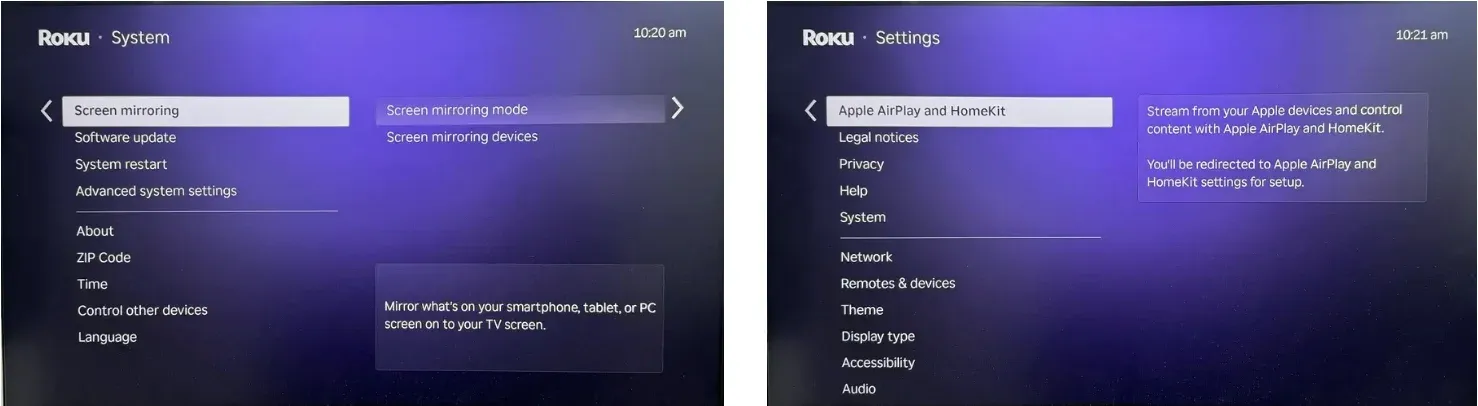
Step 1. On your Roku TV, go to Settings > System > Screen Mirroring. For MacBook, access Roku's Settings > Apple AirPlay and HomeKit and toggle AirPlay On.
Step 2. Make sure both your Windows/MacBook and Roku device are connected to the same Wi-Fi network.
Step 3. Start screen mirroring from your laptop:
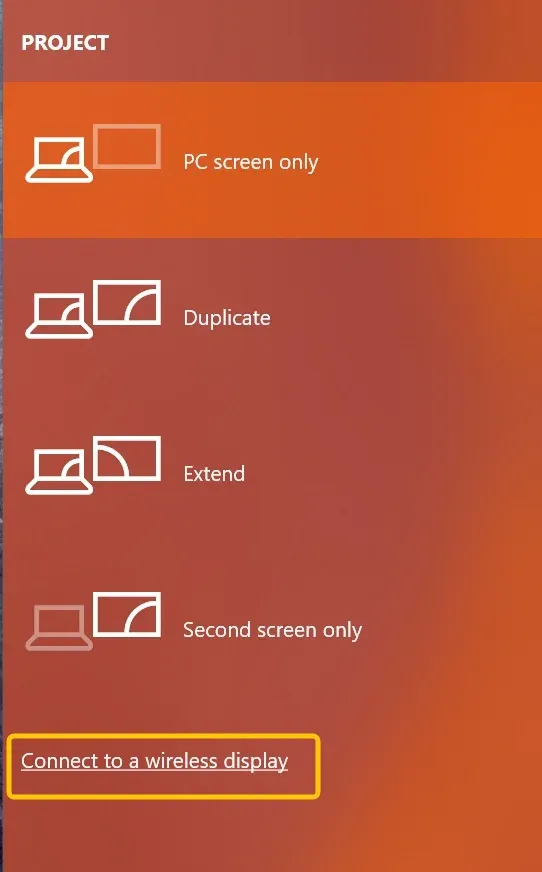
- On Windows, right-click the desktop and select Display Settings > Multiple Displays > Connect to a wireless display, then choose your Roku TV from the available list.
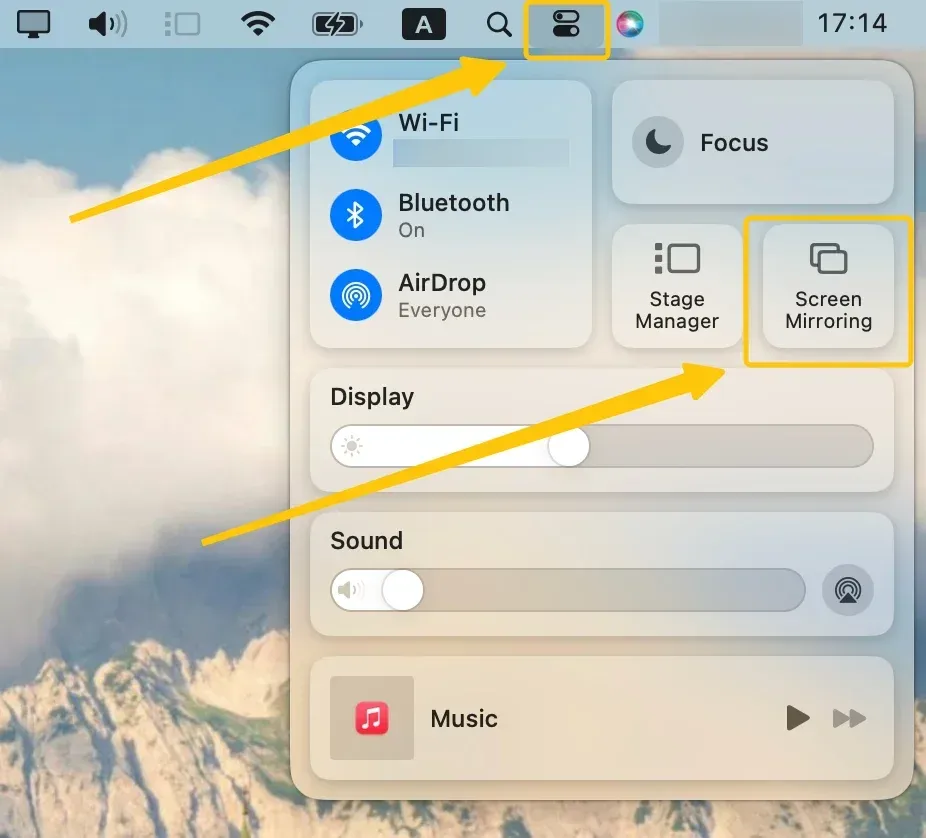
- On MacBook, click Screen Mirroring in the Control Center menu bar to choose Roku from the available list.
Step 4. If prompted, enter the onscreen code to confirm the connection performance.
Step 5. Your laptop screen should now be mirrored on your Roku TV. You can play videos, browse the web, or do anything else on your laptop, and it will display on the TV.
Method 2. Use the Free PigeonCast
How to cast to a Roku TV from laptop? If you encounter any compatibility issues, PigeonCast is a great all-in-one solution. This free app supports wireless streaming across Android, iOS, Windows, Mac, and various TVs. Plus, with no ads, PigeonCast lets you mirror Windows to Mac or Mac to Windows, making it a versatile tool for all your streaming needs.

Step 1. Ensure your laptop connects to the same wireless network as your Roku TV.


Overall Rating:



Step 2. Install PigeonCast on your Windows or MacBook.
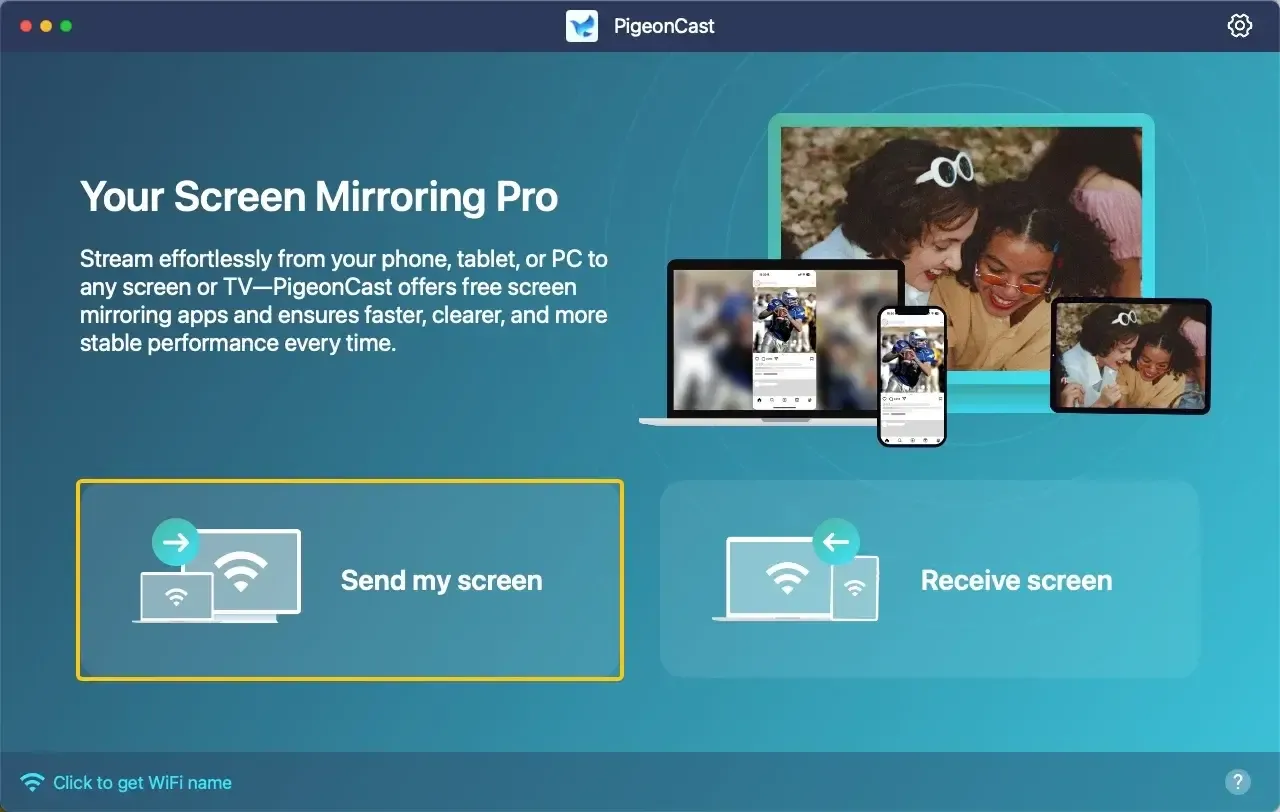
Step 3. Launch the app, click Send my screen to choose your Roku from the available list.
Step 4. Enter the onscreen PIN code to confirm the pairing performance.
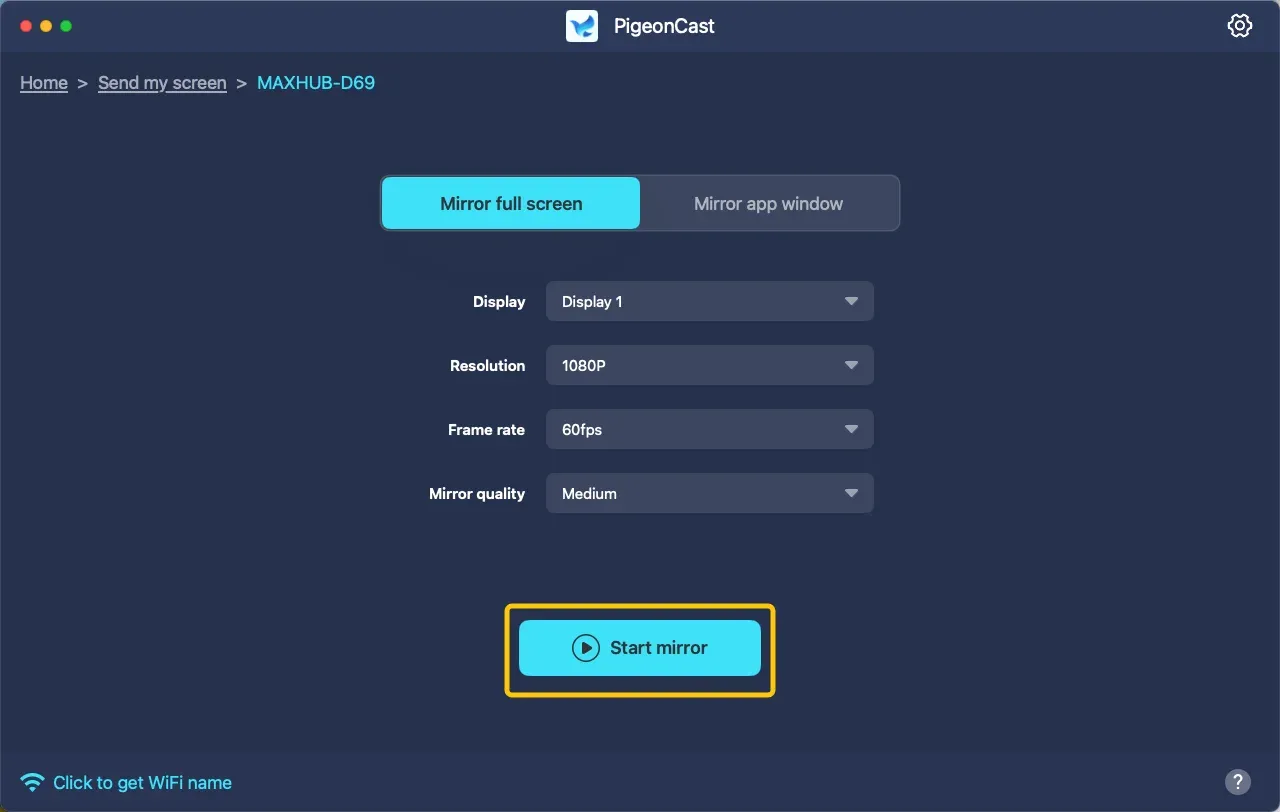
Step 5. When you pair successfully, you can then choose whether to mirror the full screen or a single window, then click Start mirror to begin mirroring activities.
Method 3. Use the HDMI Cable
How to connect laptop to Roku TV? For a more stable and reliable connection, you can use an HDMI cable to connect your laptop to Roku. While this method requires a physical cable, it ensures high-quality streaming without depending on Wi-Fi. If your TV HDMI isn't working properly with the Windows PC, please go back to Method 2 and use PigeonCast for free.
Step 1. Check your laptop's port and get the correct cable:
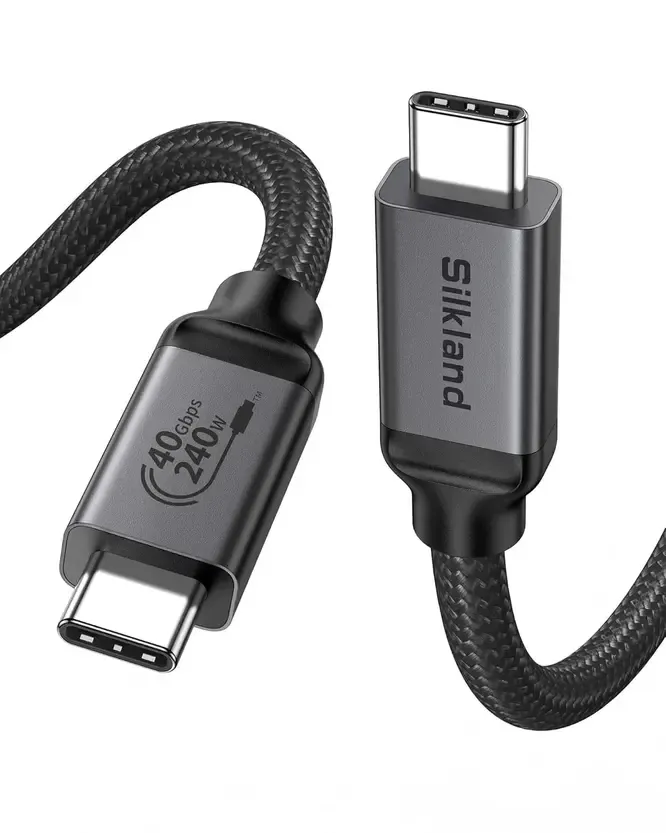
- For Windows: Many modern Windows laptops now feature a USB-C or Thunderbolt 3 port. If your laptop has this port, it can be used for video output with an appropriate adapter or cable.
- For MacBook: Newer MacBook Pro and MacBook Air models are equipped with USB-C or Thunderbolt 3 ports, which can also be used to connect to external displays, including your Roku TV.
Step 2. Plug the USB-C end of the adapter into your laptop and connect the HDMI end into the HDMI port on your Roku.
Step 3. Use your Roku remote to change the TV input to the corresponding HDMI port where the cable is connected.
Step 4. Once connected, your laptop's screen will now be mirrored on the Roku TV, and you can start streaming videos, presentations, or games.
Final Verdict
How to cast from laptop to Roku TV? Whether you're using the built-in screen mirroring feature, a free app like PigeonCast, or a reliable HDMI cable, there are multiple methods to suit your needs. This guide has shown you the best options for streaming from your laptop to your Roku, ensuring a seamless experience no matter the method you choose.
How to Cast Laptop to Roku FAQ
Can you cast directly to Roku TV?
Yes, you can cast directly to Roku TV. You can use screen mirroring from a Windows PC, Mac, or mobile device, or use third-party apps like PigeonCast to stream content wirelessly. Additionally, you can connect via an HDMI cable for a more stable, wired connection.
How to cast laptop to Roku using a USB?
Roku does not support direct casting via USB. To cast from your laptop to Roku, you'll need to use either a wireless method (such as screen mirroring or a third-party app like PigeonCast) or a wired connection via HDMI.
Why can't I cast to my Roku TV?
Here are some reasons why you might not be able to cast to your Roku TV:
- Wi-Fi connection issues
- AirPlay or Screen Mirroring is not enabled
- Incompatible device
- Outdated software
- Roku restrictions
- Too many devices connected
- Casting method not supported
Clara Rossi is an experienced technology editor and a seasoned expert in screen mirroring and casting technologies. With a keen eye for detail and a deep understanding of how to seamlessly connect devices, Clara excels at optimizing user experiences for effortless sharing and streaming. Whether you're seeking quick fixes or advanced tips, her expertise and responsiveness ensure that every query is met with a well-informed and efficient solution.