
Laptops today are getting thinner and more lightweight, but that often means they no longer come with built-in HDMI ports. If you're wondering how to connect laptop to TV without HDMI, don't worry; you still have plenty of options. Instead of relying on an HDMI cable or buying an adapter, you can use other simple methods to mirror or extend your screen. In this guide, we'll walk through 6 effective ways to connect your computer to a TV.
Method 1: Connect Laptop to TV without HDMI but with PigeonCast App
The PigeonCast app is a free third-party solution for wirelessly connecting a Windows or Mac laptop to a TV. It works over Wi-Fi and supports popular streaming protocols like AirPlay, Google Cast, DLNA, and its own protocol, making it one of the most versatile options if your laptop doesn't have HDMI.
Here's how to connect PC to TV without HDMI:
Step 1. Download and install the PigeonCast app on your laptop. For the best performance and smoother mirroring, it's also recommended to install the app on your TV.

PigeonCast Screen Mirroring

Official Download



Step 2. Connect your laptop and TV to the same Wi-Fi network.
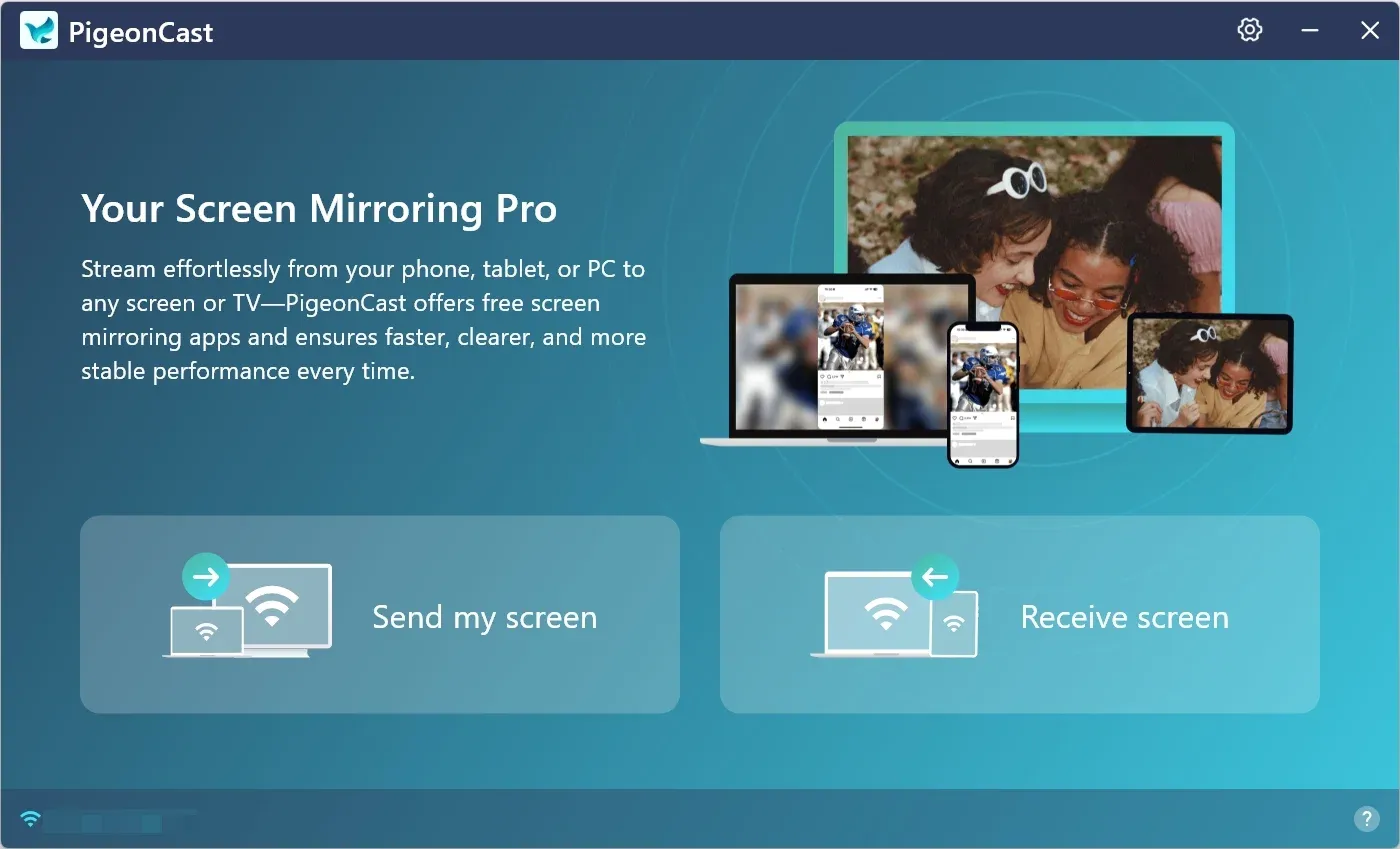
Step 3. Open the app on your device and click the Send my screen option.
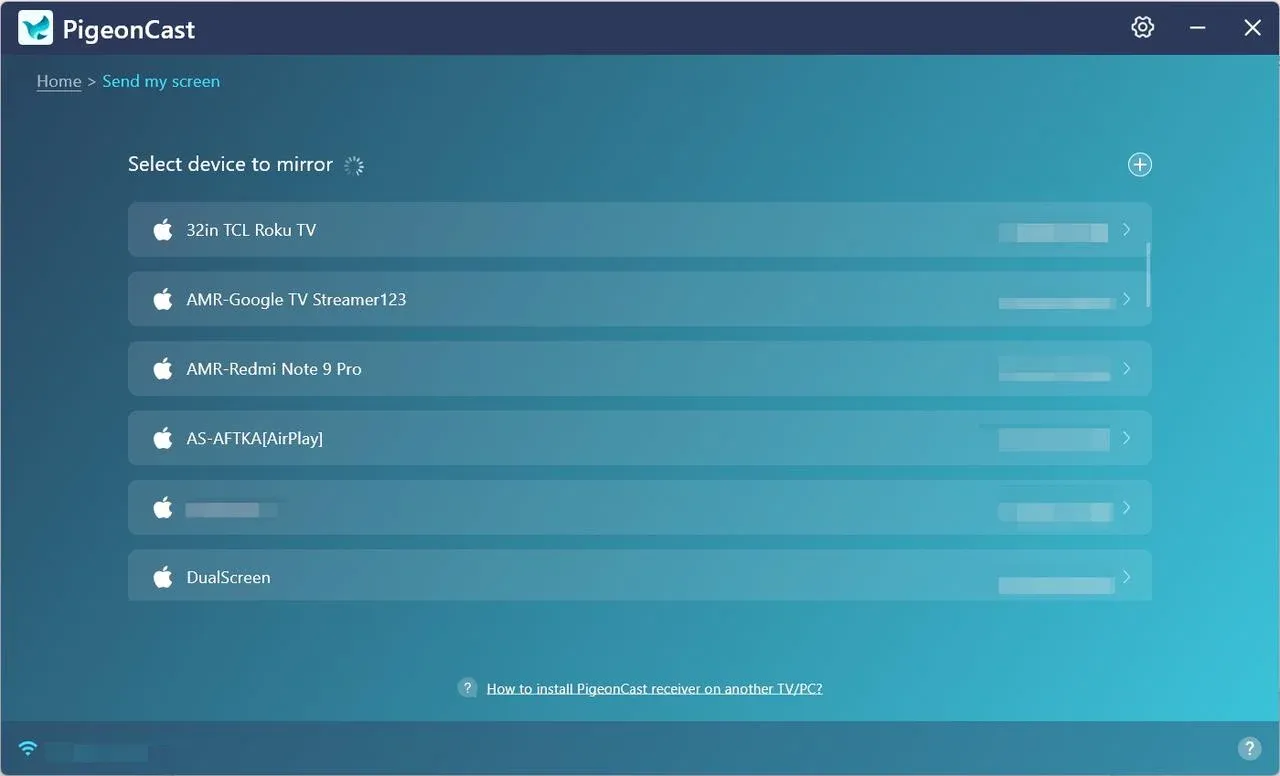
Step 4. Choose your TV from the list of available devices.
Step 5. Choose whether you want to mirror your entire screen (Mirror full screen) or just cast a specific window (Mirror app window).
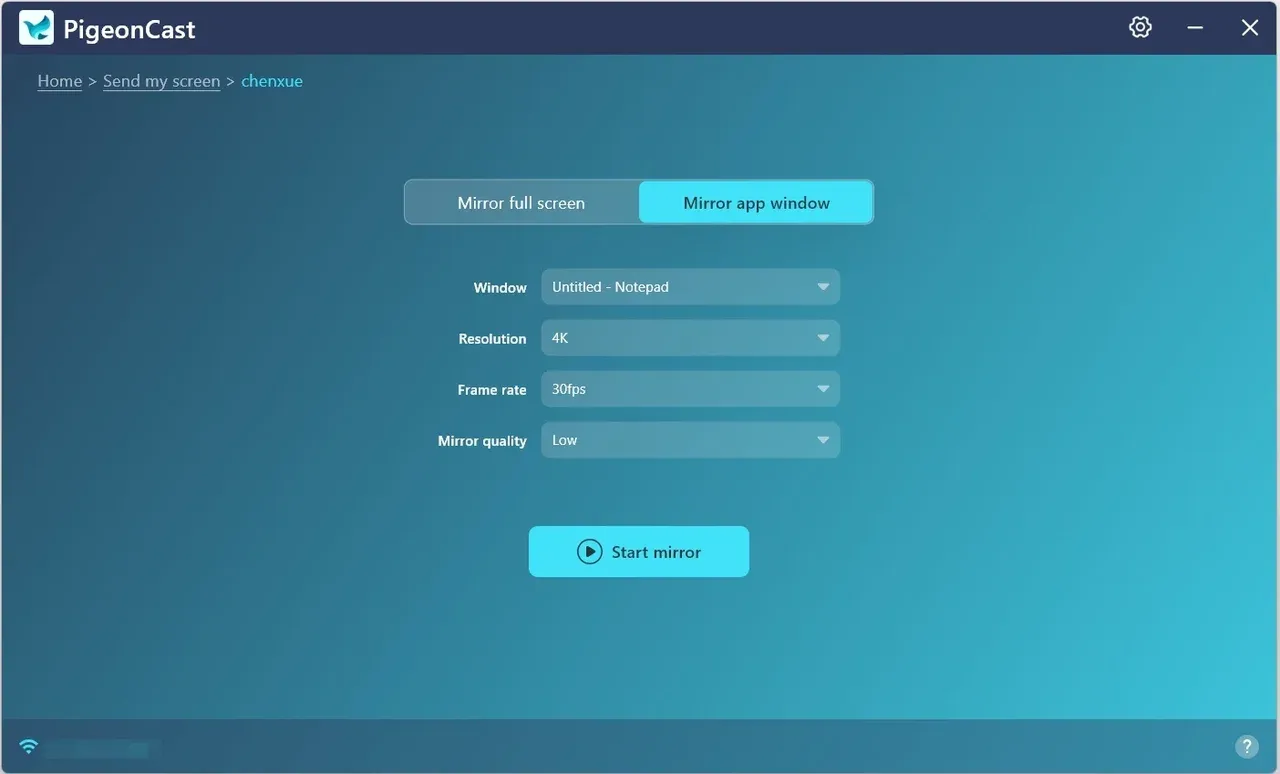
Step 6. Click the Start mirror option and start mirroring your laptop to a TV.
PigeonCast is a convenient solution if you want a plug-free setup and support across multiple devices.
Method 2: Connect Laptop to TV without HDMI but with Windows Miracast
If you're on Windows 8.1 or newer, you can take advantage of Miracast, a built-in wireless display technology. Many smart TVs support Miracast out of the box, so you may not need extra hardware.
See how to connect laptop to TV without HDMI Windows 11 or Windows 10:
Step 1. Power on your TV, then on your Windows, press Windows + K to open the Cast menu.
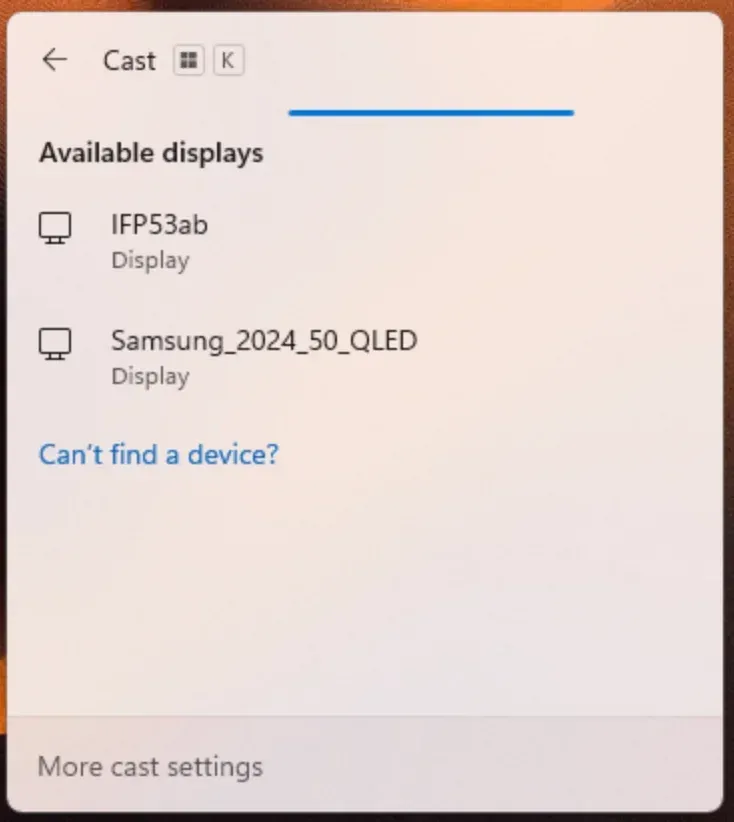
Step 2. Wait for your TV to appear in the list of devices.
Step 3. Choose your TV to start connecting.
Step 4. Approve the connection on your TV if prompted.
Step 5. Your laptop screen will now be mirrored to the TV.
Miracast is ideal for Windows-to-TV screen mirroring without needing any extra software. If pressing Windows + K doesn't work, try the next method.
Method 3: Connect Laptop to TV without HDMI but with Apple AirPlay
For Mac users, AirPlay is the easiest way to connect your laptop to a TV. Most modern smart TVs from Samsung, LG, Sony, and Vizio already support AirPlay, and Apple TV devices are fully compatible. If your TV is AirPlay-compatible, try using AirPlay instead of a USB-C to HDMI adapter:
Here's how to connect laptop to TV without HDMI port:
Step 1. Ensure AirPlay is enabled on your TV and your Mac and TV are on the same Wi-Fi network.
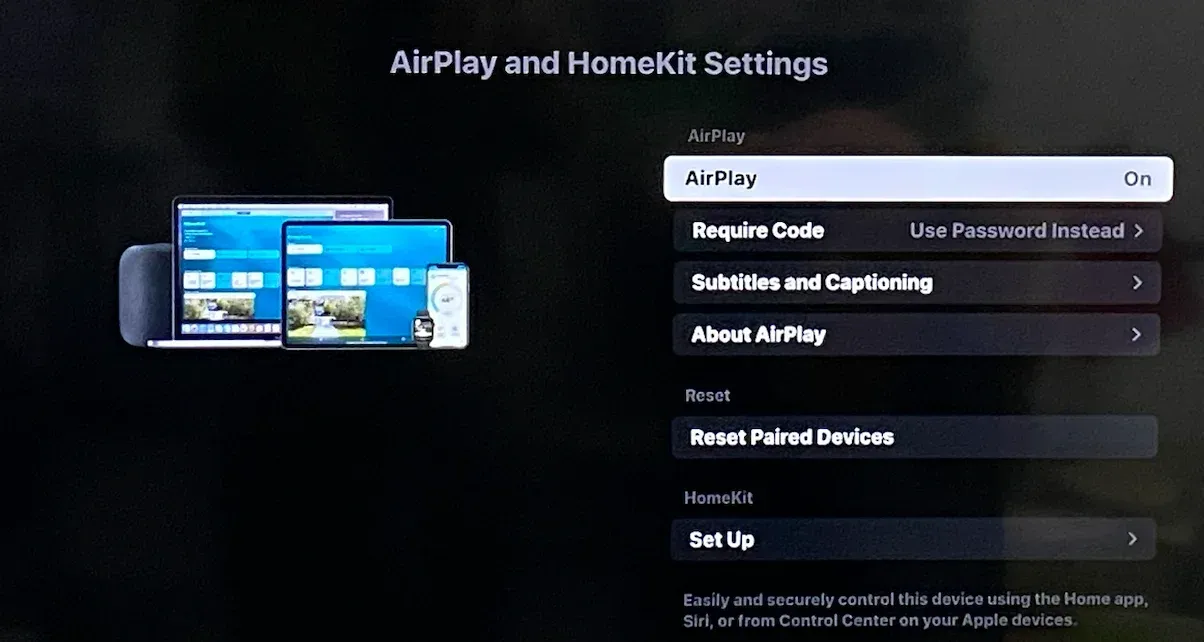
Step 2. On your Mac, click the Control Center in the menu bar and click Screen Mirroring.
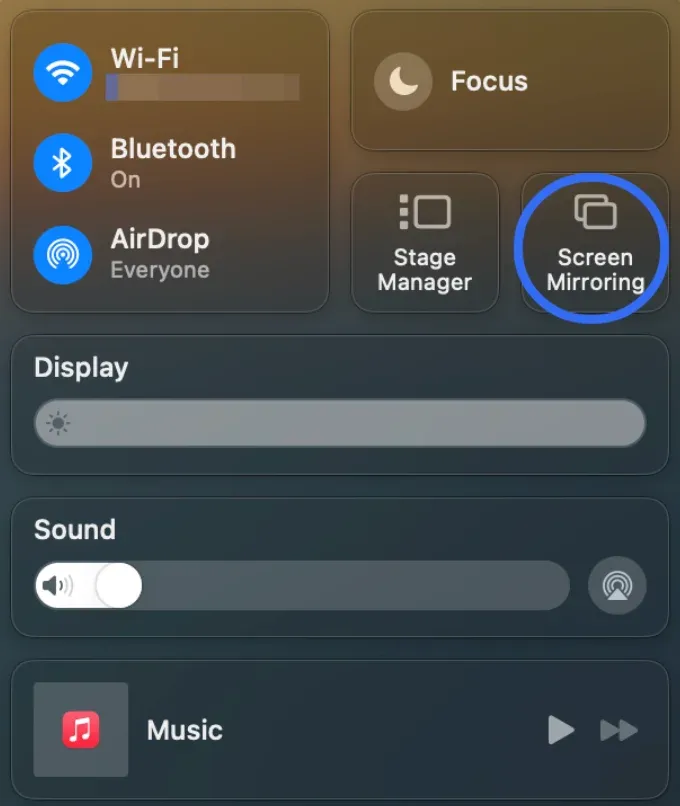
Step 3. Choose your TV from the list of devices.
Step 4. Your Mac screen will now be mirrored wirelessly.
As you see, AirPlay is the go-to option for MacBook-to-TV connections without cables.
Method 4: Connect Laptop to TV without HDMI but with Chrome Browser
Google Chrome has a built-in Cast feature that works with Chromecast devices or TVs with Google Cast support, allowing you to project your entire screen, a tab, or a file onto your TV.
So, how to connect laptop to TV without HDMI cable? Try the Chrome browser on your Windows or Mac:
Step 1. On your laptop, open Google Chrome and check if it is running the latest version.
Step 2. Make sure your laptop and TV are on the same Wi-Fi network.
Step 3. Click the three-dot menu in the upper-right corner.
Step 4. Click Cast, Save, and Share > Cast.

Step 5. Choose your TV or Chromecast device.
Step 6. Pick whether you want to cast the whole desktop or just a tab.
Method 5: Connect Laptop to TV without HDMI but with VGA
If your laptop is slightly older, it may still have a VGA port. While VGA only transmits video (no audio), it can still connect your laptop to older TVs and monitors.
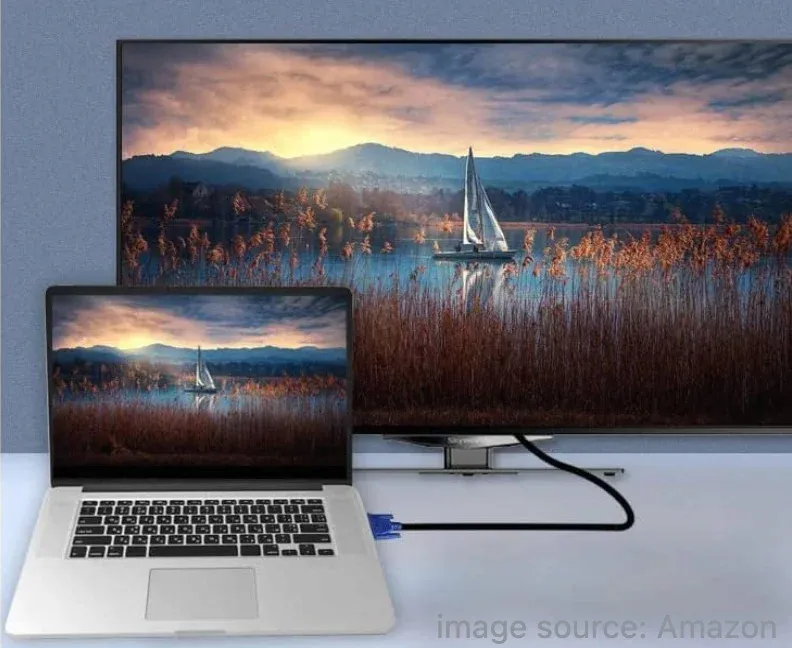
How to connect computer to TV without HDMI but with VGA? The steps are:
Step 1. Connect a VGA cable from your laptop to the TV.
Step 2. Press the Source or Input button and change the input source on your TV to VGA.
Step 3. On your laptop, press Windows + P (Windows) or go to System Preferences > Displays (Mac) to adjust display settings.
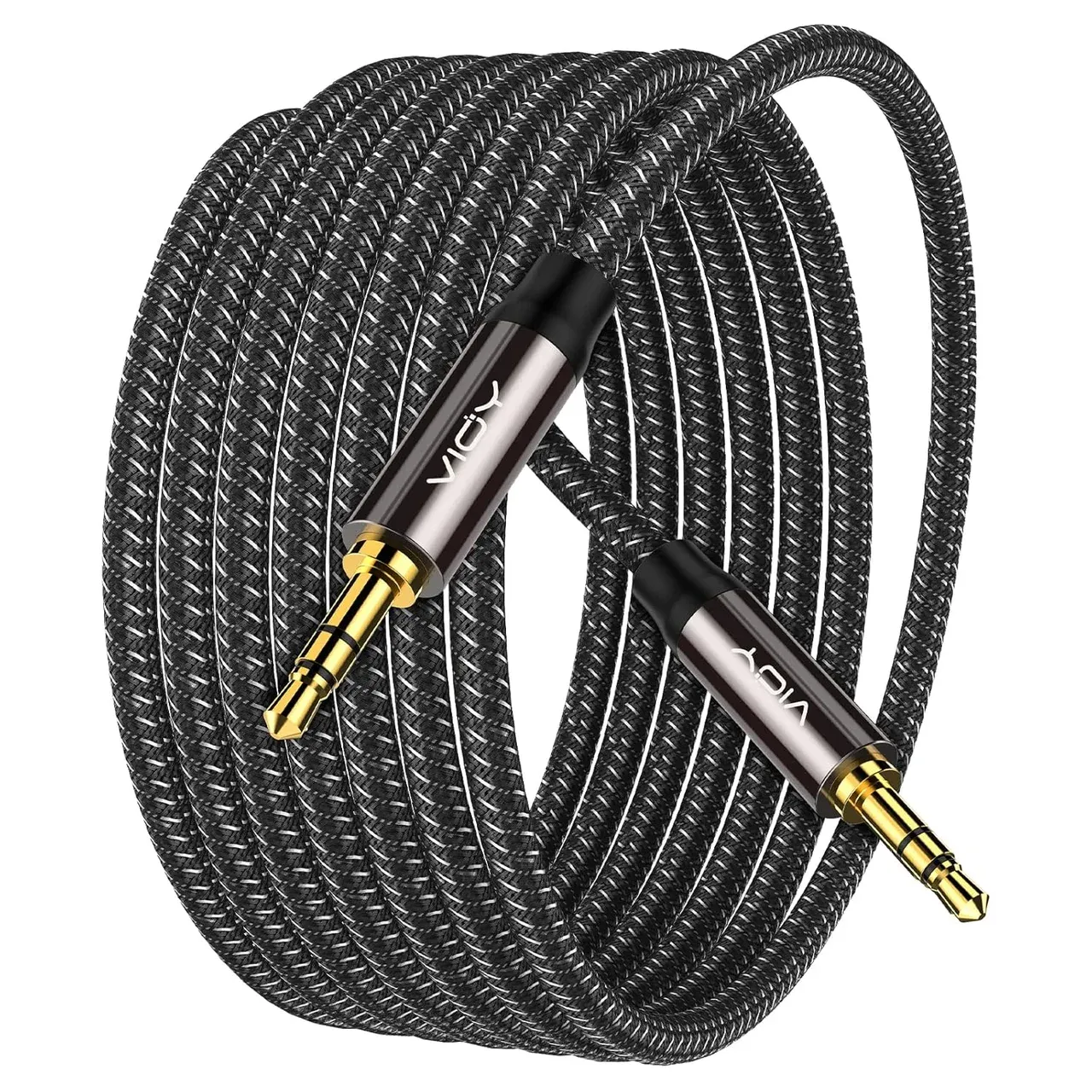
Step 4. Use a separate 3.5mm audio cable if you want sound output on the TV.
Method 6: Connect Laptop to TV without HDMI but with USB
Some smart TVs allow direct connections using a USB-C to USB cable or a USB-C to DisplayPort adapter. If your laptop has USB-C with DisplayPort support, you can use it to send video signals directly to your TV. Here's how to connect laptop without HDMI port to TV:
Step 1. Check if your laptop's USB-C port supports video output.
Step 2. Connect your laptop to the TV via a USB cable. If your TV doesn't have the USB port that your laptop does, you can use an adapter.
Step 3. Press the Source or Input button on the remote and switch your TV input source to the correct port.
Step 4. Configure display settings on your laptop.
Best Way to Connect Laptop to TV Without HDMI
You've learned how to connect laptop to TV without HDMI Windows 10, but which method is the best for your specific needs? Each solution has its own strengths, whether you prefer wireless options like PigeonCast, Miracast, or AirPlay, or a more traditional wired approach like VGA or USB.
Let's break down these methods further so you can find the most convenient and reliable option for you.
| Method | Connection Type | Supported Devices | Pros | Cons |
|---|---|---|---|---|
| PigeonCast | Wireless | Windows, Mac, smart TV | Free, versatile, easy setup | App installation |
| Miracast | Wireless | Windows laptops, Miracast TVs | Built-in on Windows | Not all TVs support it |
| Apple AirPlay | Wireless | Mac, Apple TV, AirPlay-compatible TVs | Native for Mac users | Requires AirPlay-compatible |
| Chrome Cast | Wireless | Windows, Mac, Chrome browser, Chromcast-enabled TVs | Great for streaming | Requires Chromecast-compatible |
| VGA | Wired | Older laptops & TVs | Simple & cheap | No audio, outdated |
| USB | Wired | USB-C laptops, modern TVs | Stable connection | Not universally supported |
Conclusion
Now that you know how to connect computer to TV without HDMI, you can choose the best method based on your needs. Whether it's using wireless solutions like PigeonCast or Miracast, or wired options like VGA or USB, there are plenty of ways to enjoy your laptop's content on a bigger screen. With these methods, you'll never be limited by the lack of an HDMI port or HDMI cable again.
How to Connect Laptop to TV Without HDMI FAQs
Q: How to connect laptop to Roku TV without HDMI?
Roku TVs support both Miracast and AirPlay. To connect a Windows laptop, press Windows + K to access Miracast and set up the connection. For a MacBook, simply open the Control Center and select Screen Mirroring to connect via AirPlay.
Q: How to connect HP laptop to TV without HDMI?
Most HP laptops support Miracast, so you can connect wirelessly if your TV supports it. Alternatively, use Chrome Cast, PigeonCast, or a USB-C adapter.
How to connect Lenovo laptop to monitor without HDMI?
Lenovo laptops with USB-C ports often support DisplayPort, so you can use a USB-C to DisplayPort cable for a monitor. If you want to connect Lenovo laptop to TV wirelessly, try Miracast, Chrome Cast, or a receiver app depending on your TV support.
Q: Can I connect my laptop to my TV wirelessly?
Yes, you can connect your laptop to your TV wirelessly using options like Miracast, AirPlay, or the PigeonCast app. These methods allow you to stream content from your laptop to the TV without the need for cables.
Q: How to connect laptop to TV via Bluetooth?
While Bluetooth can be used for transmitting audio, it doesn't support video streaming. To connect a laptop to your TV for both video and audio, consider using Miracast, PigeonCast, or an HDMI cable as more reliable options.
Q: What other cables can I use besides HDMI?
If your laptop or TV doesn't have an HDMI port, you can use VGA (for older devices), USB-C (if your laptop supports video output), or DisplayPort to connect your devices. Each cable type requires compatible ports on both the laptop and the TV.
Q: What to use if there is no HDMI port?
If there's no HDMI port on your laptop or TV, you can use alternatives like USB-C, VGA, Miracast, AirPlay, or PigeonCast for wireless connections. These methods allow you to connect your devices and stream content without the need for HDMI.
Mia Clarke is a technology editor specializing in screen mirroring and casting solutions across multiple platforms. Mia provides clear, practical guides and in-depth insights to help users seamlessly connect their devices. Passionate about enhancing digital experiences, Mia is dedicated to keeping readers updated on the latest trends and tools in cross-platform screen sharing. Whether you’re looking to mirror your smartphone, laptop, or smart TV, Mia’s content delivers reliable, user-friendly advice to simplify your tech setup.