
Yes, you can cast Disney Plus to TV, whether you have an Android, iPhone, Windows, or MacBook, and the casting process is rather simple. This post walks you through how to cast Disney Plus to TV with different methods, so you can stream your favorite content without hassles.
Method 1. Cast Disney Plus to TV via PigeonCast
How to cast Disney Plus to TV? For a seamless experience, I recommend using PigeonCast. It's a free, lightweight app that works across multiple platforms, including Android, iPhone, Windows, Mac, smart TVs, and Apple TV. Its wide compatibility makes it easy to cast Disney Plus without worrying about ecosystem restrictions.
How to cast Disney Plus from phone to TV via the PigeonCast app:
Step 1. Download and install PigeonCast on your phone and TV.

PigeonCast Screen Mirroring

Official Download



Step 2. Ensure that your phone and TV are on the same Wi-Fi network.
Step 3. Launch the PigeonCast app on your phone and TV.
Step 4. On your phone, choose your TV from the device list.
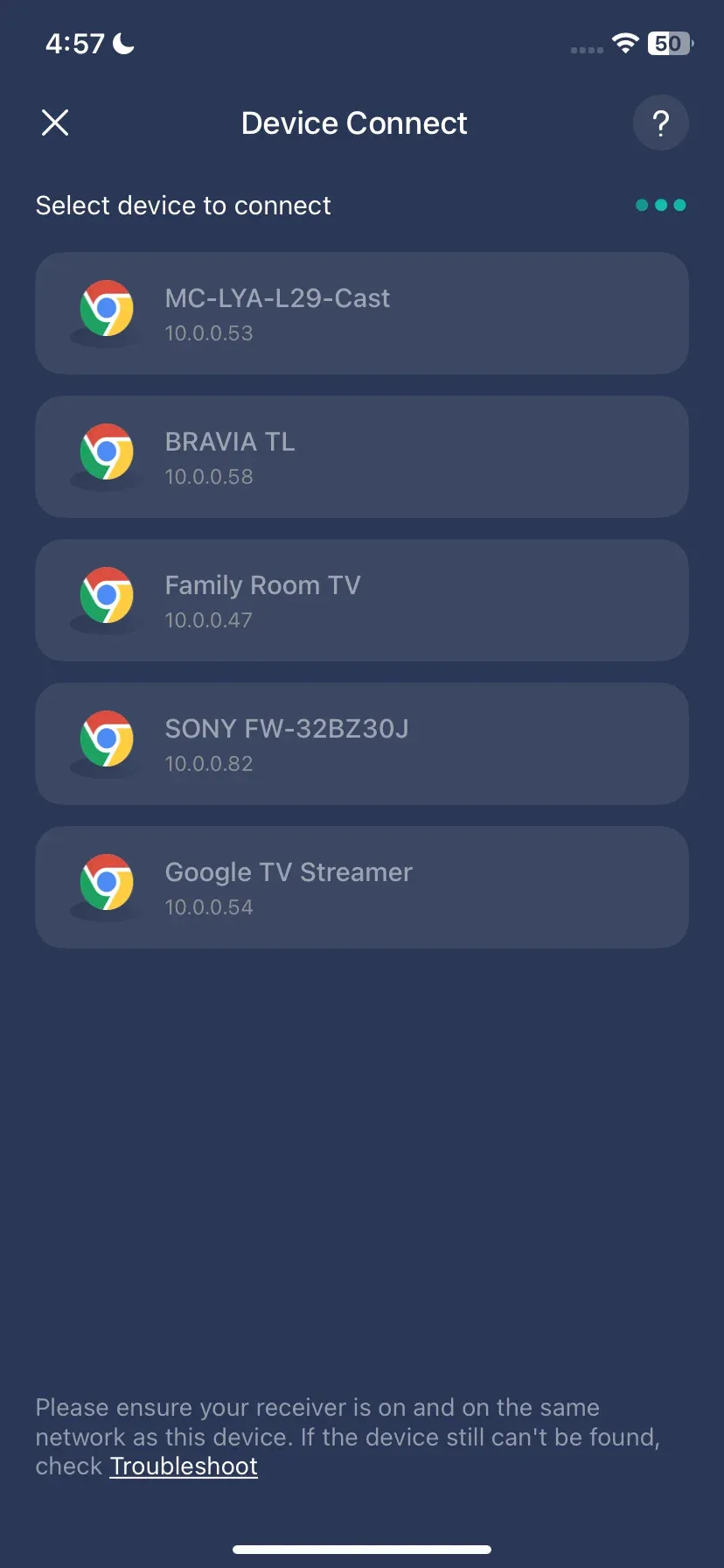
Step 5. Once connected, you can tap the Screen Mirror feature on your phone and follow the onscreen instructions to start mirroring.
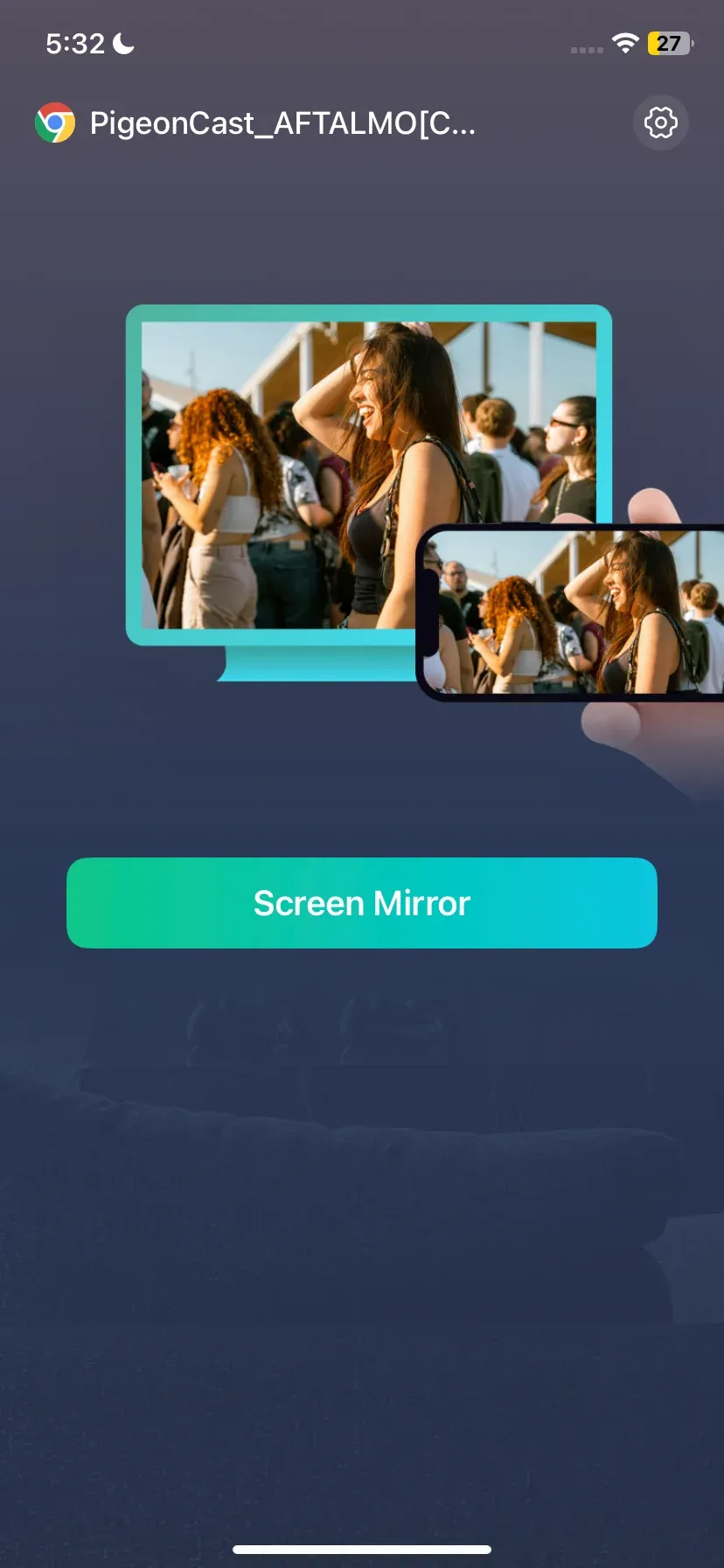
Step 6. When your phone screen appears on your TV, launch the Disney+ app on your phone and play the content you want to watch.
Step 7. Watch Disney+ on your TV.
Why choose PigeonCast for Disney Plus screen mirroring:
- No Chromecast or Apple TV required
- Free and easy to use
- 100% wireless connection
- High-quality, smooth streaming
Method 2. Cast Disney Plus to TV via Chromecast
If you have a Chromecast device plugged into your TV or a TV with Chromecast built in, you can cast Disney+ from your phone (Android or iOS) or laptop (Windows or macOS) in a few steps.
How to cast Disney Plus to TV from Android or iPhone:
Disney Plus is one of the Chromecast-enabled apps, so you can easily cast from Disney Plus:
Step 1. Ensure that Chromecast is plugged into your TV and powered on.
Step 2. Ensure your Chromecast or TV is connected to the same Wi-Fi network as your mobile device.
Step 3. Open the Disney+ app on your mobile device and choose the content you want to view.
Step 4. Play the video and choose the Chromecast icon at the top of the screen.
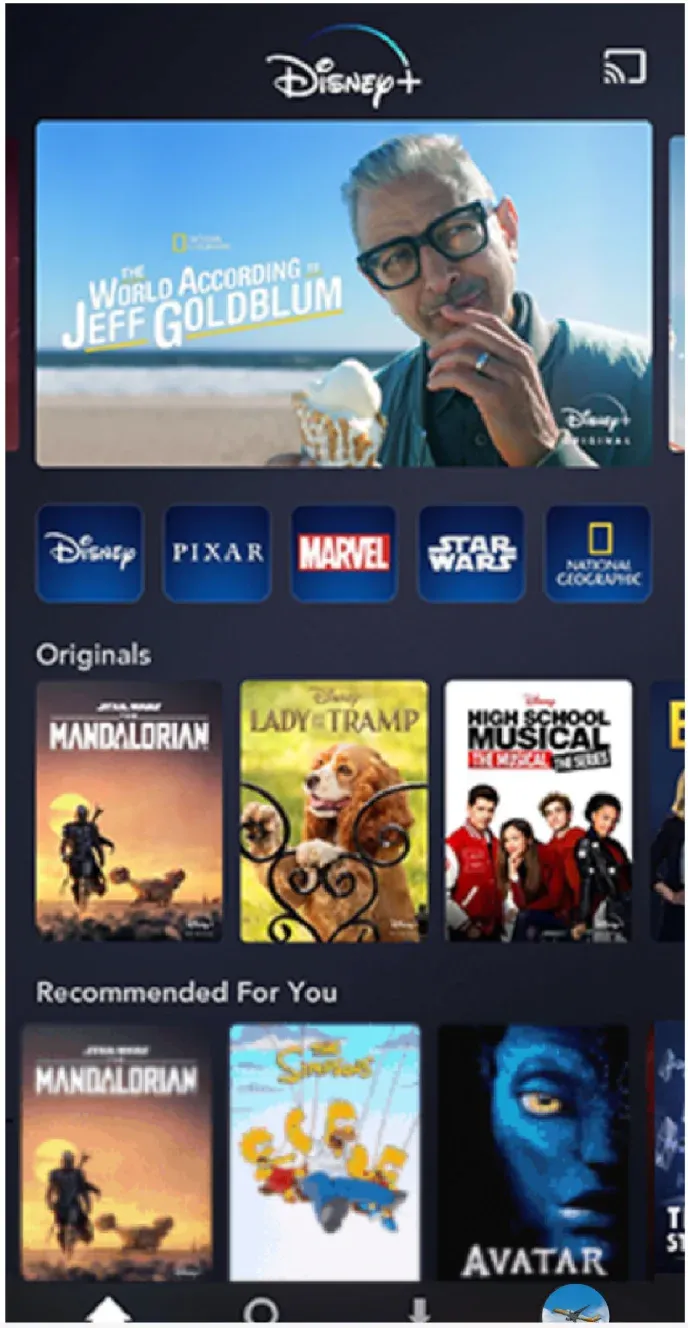
Step 5. Choose your Chromecast device or Chromecast-enabled TV from the device list.
Step 6. When you're connected, you can view the video on the large screen.
How to cast Disney Plus from Windows or MacBook:
Google Chrome is compatible with Google Cast, which allows you to connect your Windows or MacBook to Chromecast directly.
Step 1. Ensure your laptop and TV are on the same Wi-Fi network.
Step 2. Launch Google Chrome on your laptop and go to the Disney+ website.
Step 3. Log into your Disney+ account and choose the content you wish to watch.
Step 4. Click the three-dot menu in the top-right corner of the browser.
Step 5. Choose Cast, save, and share > Cast... from the menu.
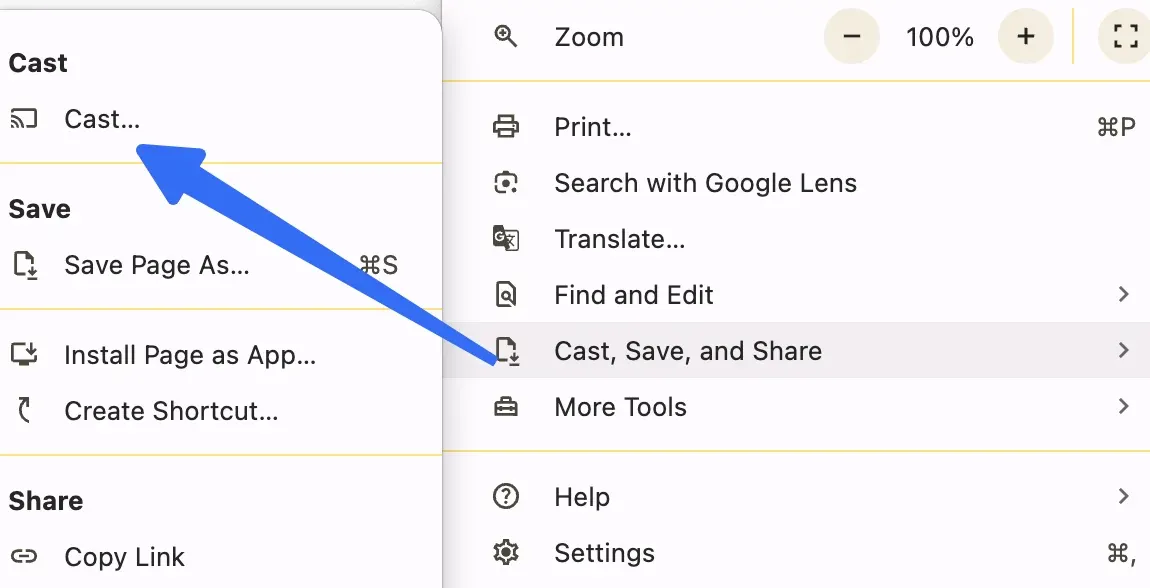 Step 6. Choose your Chromecast device or Chromecast-enabled TV from the list.
Step 7. Select the Cast Tab, and then Disney+ content will appear on your TV.
"Disney Plus Chromecast" works great if you have a Chromecast device, like Chromecast with Google TV, or a TV with built-in Chromecast, such as TCL Google TV.
Method 3. Cast Disney Plus to TV via AirPlay
If you're using Apple devices like an iPhone and have an Apple TV or an AirPlay-compatible smart TV, casting Disney+ is simple. The Disney+ app fully supports AirPlay, making it easy to stream your favorite movies and shows to your TV.
How to cast Disney Plus to TV from iPhone:
Step 1. Go to the Settings menu on your Apple TV or smart TV and turn on AirPlay.
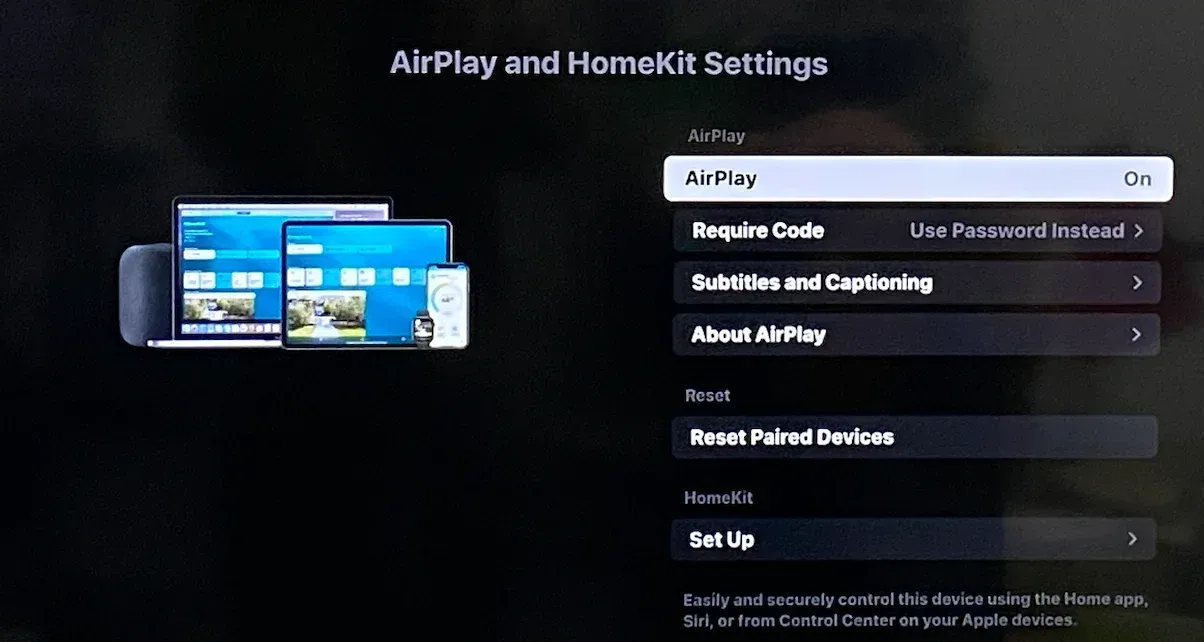
Step 2. Continue to confirm your TV and iPhone are on the same Wi-Fi network.
Step 3. Launch the Disney+ app on your iPhone and play a video you wish to watch.
Step 4. Tap the AirPlay icon at the top of the screen.
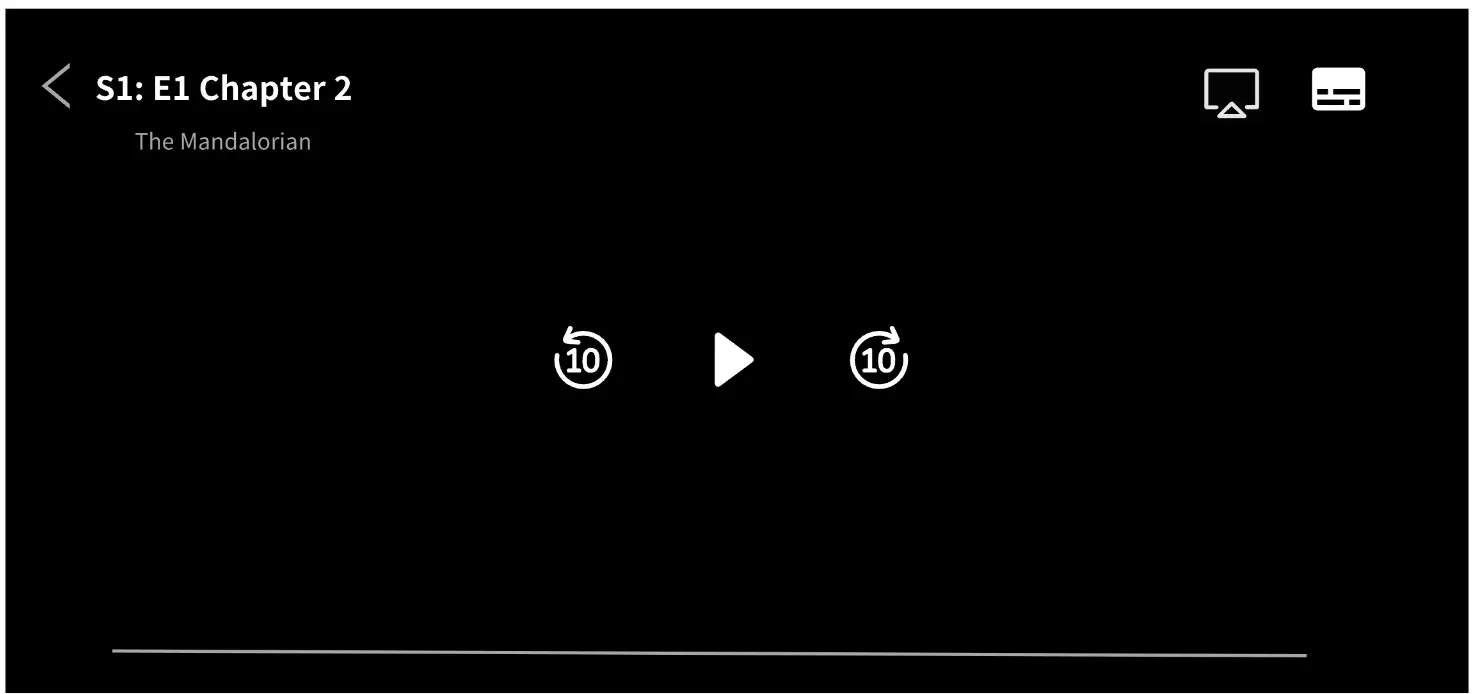
Step 5. Choose the Apple TV or AirPlay-compatible TV you want to use.
Step 6. Once the AirPlay icon changes color, the connection is done, and you can enjoy the big-screen entertainment.
Fix: Disney Plus Won't Cast to TV
Can't finish Disney Plus cast to TV? Sometimes, Disney+ might not cast to your TV as expected. One common reason is related to DRM (Digital Rights Management), which Disney+ uses to protect copyrighted content. If your casting device or TV doesn't fully support DRM, playback may fail even if everything else seems fine. Don't worry; most issues are easy to fix.
Fix 1: Check your network connection
Whether you use the PigeonCast app, Chromecast, or AirPlay for Disney Plus casting, make sure your phone, tablet, or laptop and your TV are connected to the same Wi-Fi network. Additionally, restart your router if the connection seems unstable.
Fix 2: Update your apps and devices
Updating can resolve compatibility issues and improve performance:
- Ensure that your Disney+ app is updated to the latest version.
- Keep your Chromecast, Apple TV, or smart TV firmware up to date.
- Ensure Google Chrome is updated to the latest version.
Fix 3: Restart your devices
Often, a simple restart clears temporary glitches that prevent Disney+ casting;
- Turn off your TV, Chromecast, or Apple TV and turn it back on.
- Restart your phone, tablet, or computer.
Fix 4: Reconnect your casting device
- On your mobile device or computer, disconnect and reconnect to the TV or Chromecast.
- For AirPlay, make sure AirPlay is enabled on your Apple TV or smart TV.
Fix 5: Check for multiple cast devices
If you have multiple Chromecast or AirPlay devices nearby, double-check that you're selecting the right one from the list. To make it easier, you can rename your casting device so it's easy to identify on the same Wi-Fi network.
Fix 6: Clear cache (optional for Android or Chrome)
- On Android, clear the Disney+ app cache via Settings → Apps → Disney+.
- On Chrome, clear the browser cache if casting from a computer.
Fix 7: Check DRM compatibility
Disney+ requires strict DRM support such as Widevine (for Android, Chrome, and Chromecast) or FairPlay (for Apple devices). If your TV, browser, or streaming stick does not support the necessary DRM level, casting may not work. In this case, try updating your device firmware or using a supported casting method like Chromecast Ultra, Apple TV, or a certified smart TV.
Fix 8: Contact Disney+ support
If all else fails, Disney+ support can help troubleshoot device-specific issues.
Wrapping Up
Casting Disney+ to your TV is easier than ever, whether you're using PigeonCast, Chromecast, or AirPlay. PigeonCast works across all major platforms without worrying about ecosystem limits. Chromecast makes casting from Android, iPhone, Windows, or MacBook simple and seamless. AirPlay provides a smooth, high-quality experience for iPhone users streaming to Apple TV or compatible smart TVs. With these methods, you can enjoy your favorite Disney+ movies and shows on the big screen, hassle-free.
How to Cast Disney Plus to TV FAQs
Q: Can you cast Disney Plus?
Yes! Disney+ supports casting to your TV using Chromecast, AirPlay, or other screen-mirroring apps like PigeonCast. Whether you're on Android, iPhone, Windows, or Mac, you can stream Disney+ content to your big screen easily.
Q: How to cast Disney Plus to Samsung TV?
- If your Samsung TV has built-in Chromecast or AirPlay, use the corresponding casting method from your phone or computer.
- Use a Chromecast device or Apple TV plugged into your TV.
- Use a screen-mirroring app like PigeonCast for a wireless connection without relying on Chromecast or Apple TV.
Q: How to cast Disney Plus to Roku?
Disney+ can be cast to Roku via screen mirroring:
- On Android, enable screen mirroring and select your Roku device.
- On iPhone or iPad, use AirPlay if your Roku supports it.
- Alternatively, you can install the Disney+ app directly on Roku for the easiest streaming experience.
Q: How to cast Disney Plus to TV without Chromecast?
You don't need Chromecast to cast Disney+. You can use:
- AirPlay for Apple devices.
- PigeonCast for Android, iOS, Windows, Mac, and smart TVs.
- Direct app installation if your smart TV supports Disney+.
Q: Why is the cast button not showing on Disney Plus?
- Your device and TV are not on the same Wi-Fi network.
- You don't have a Chromecast, AirPlay, or compatible casting device connected.
- The Disney+ app is outdated. Update to the latest version to restore casting functionality.
- Try restarting your devices or reconnecting to the Wi-Fi network if the button still doesn't appear.
Mia Clarke is a technology editor specializing in screen mirroring and casting solutions across multiple platforms. Mia provides clear, practical guides and in-depth insights to help users seamlessly connect their devices. Passionate about enhancing digital experiences, Mia is dedicated to keeping readers updated on the latest trends and tools in cross-platform screen sharing. Whether you’re looking to mirror your smartphone, laptop, or smart TV, Mia’s content delivers reliable, user-friendly advice to simplify your tech setup.