
Have you ever tried pressing Windows + K on your Windows PC to cast your screen to a TV or another device, only to find that nothing happens? Many users experience this frustrating issue, whether they are using Windows 10 or Windows 11. In this guide, we'll explain why Windows K not working, explore common causes, and walk you through reliable solutions. We'll also introduce a Windows K alternative for seamless screen mirroring.
Why Windows + K Might Now Work
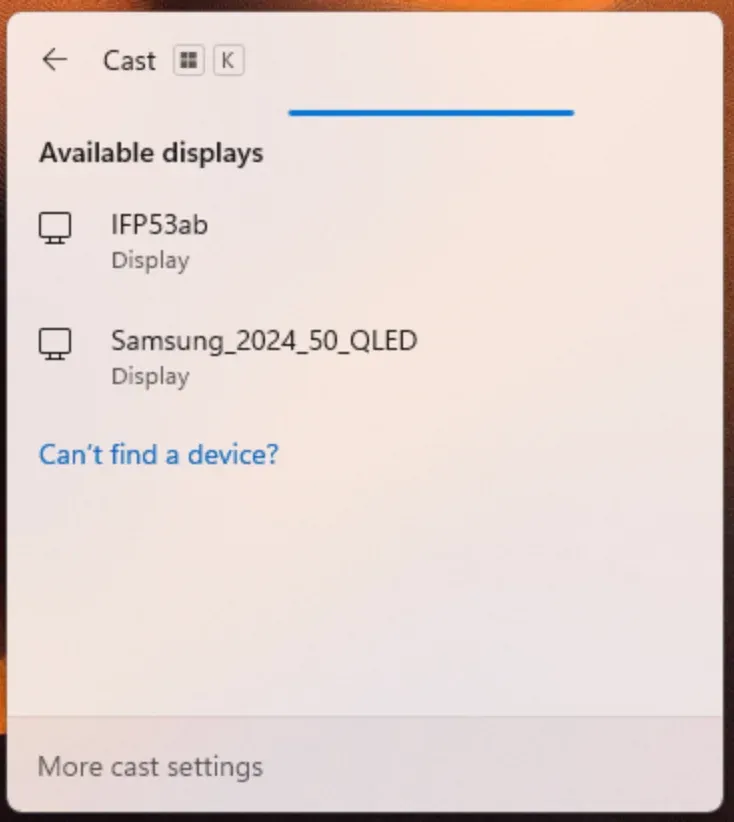
The Windows key + K shortcut is designed to open the "Connect" panel, letting you quickly cast your PC screen via Miracast to supported TVs, monitors, or streaming devices. If it doesn't work, it could be due to several reasons:
- Miracast is not supported or enabled on your PC or target device.
- Network issues prevent your PC from discovering compatible devices.
- Outdated display drivers or missing Windows updates.
- Conflicts with third-party software or keyboard shortcuts.
Method 1: Check Miracast Support on Your Windows PC
Before troubleshooting Windows + K not working, make sure your PC actually supports Miracast, which is the underlying technology for casting:
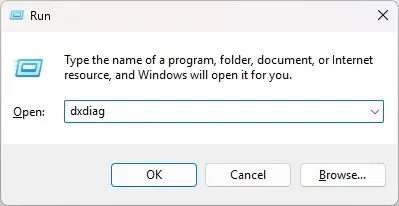
Step 1. Press Windows key + R, type dxdiag, and press Enter.
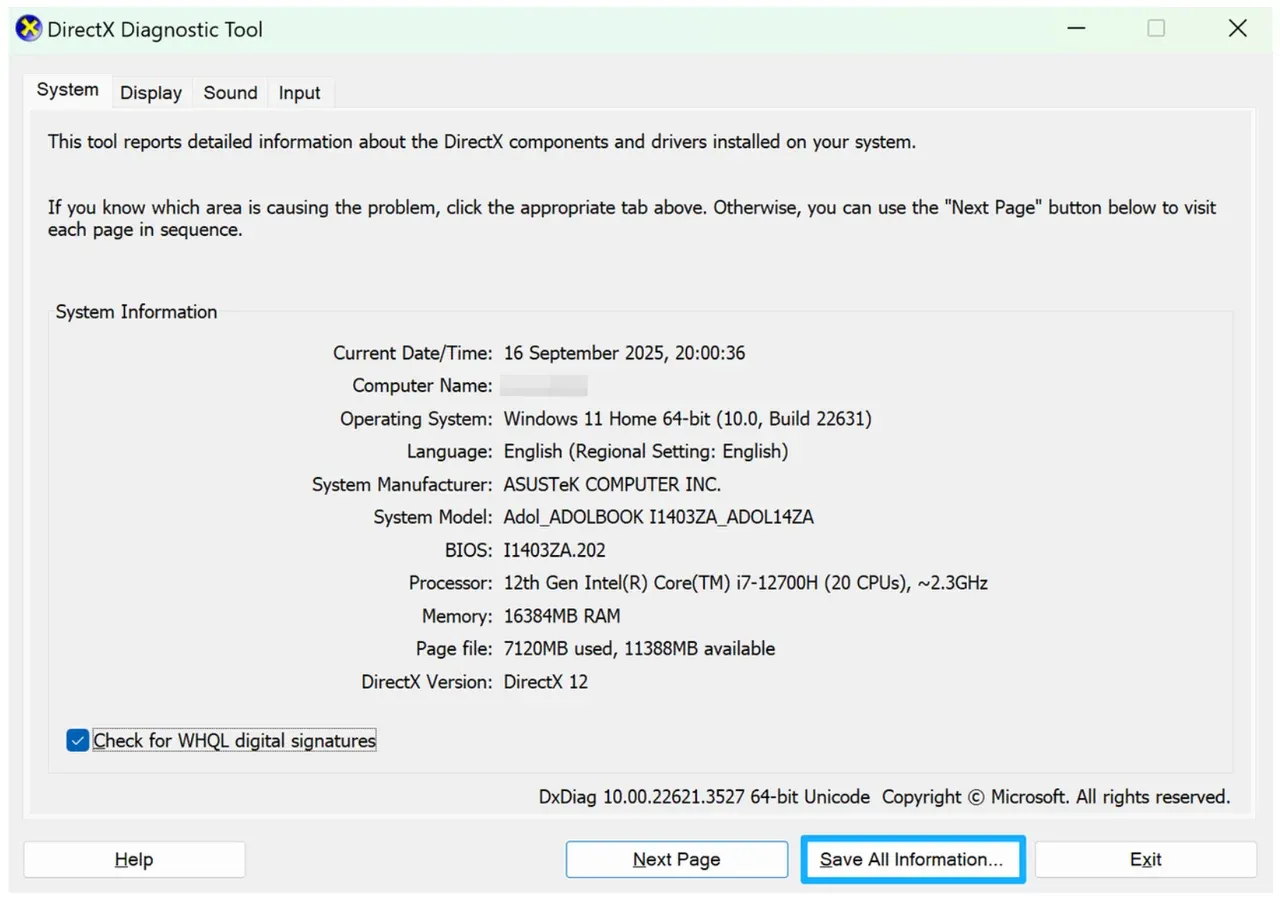
Step 2. Click Save All Information and open the text file.
Step 3. Look for the line that says Miracast: Available.
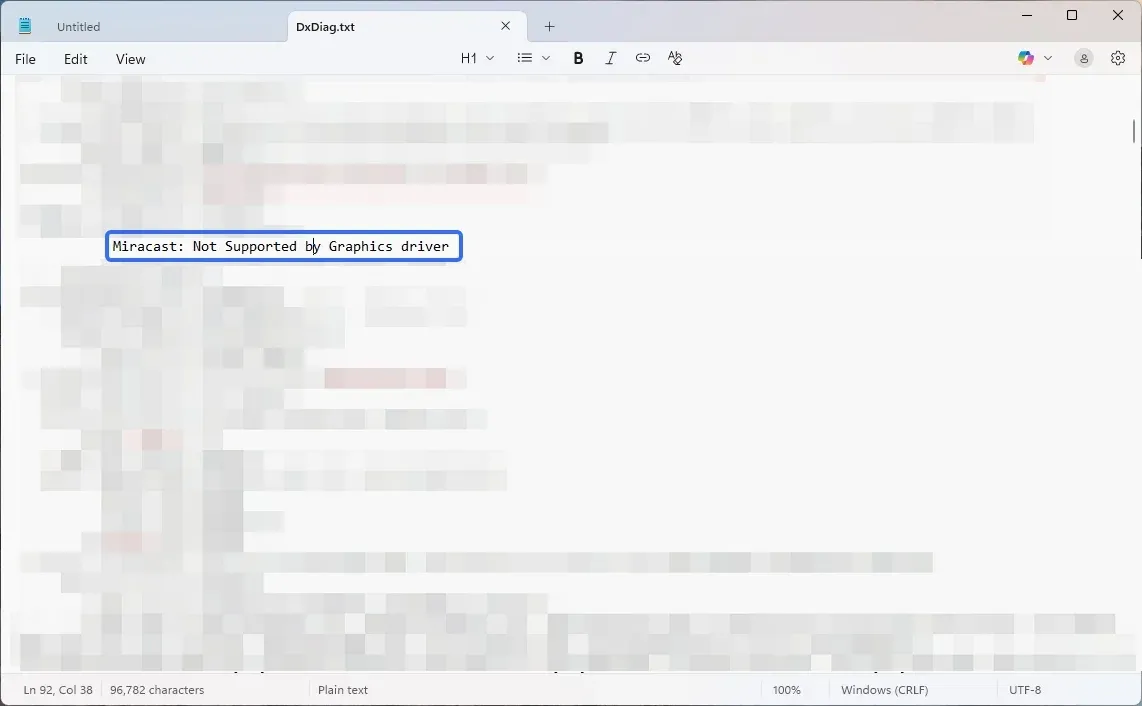
If your PC doesn't support Miracast, pressing Windows K won't do anything. This explains why Windows K not working Windows 11 or other versions can happen even if everything else seems fine. In this case, a Windows K alternative like the PigeonCast for Windows app is highly recommended, as it allows wireless casting without relying on Miracast.
Method 2: Update Your Display and Network Drivers
Outdated or incompatible drivers are a frequent reason for Windows key + K not working. Display and network drivers control your PC's ability to detect and connect to external displays. So, update the drivers on your Windows PC:
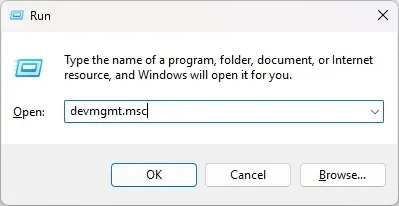
Step 1. Press Windows key + R, type devmgmt.msc, and open the Device Manager window.
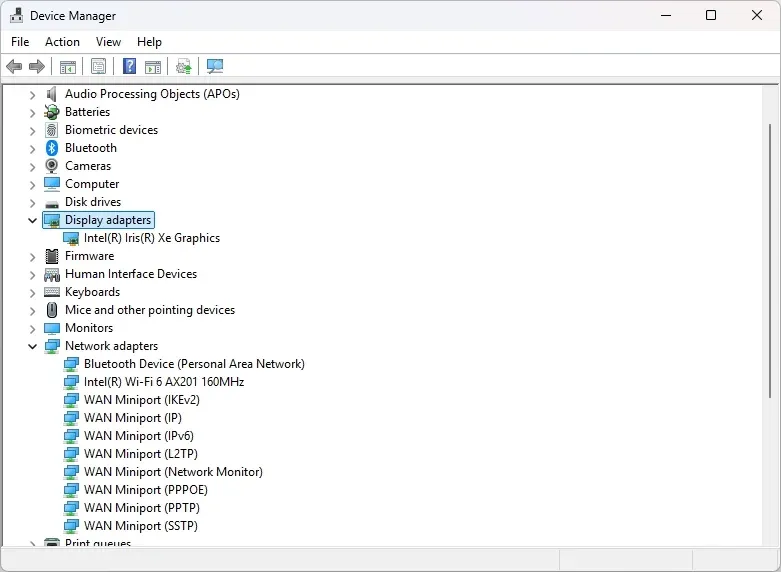
Step 2. Expand Display adapters and Network adapters.
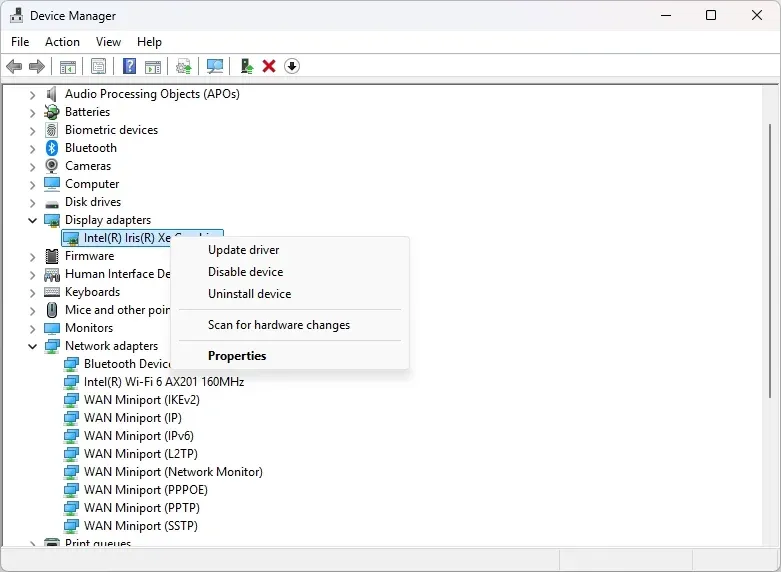
Step 3. Right-click each device and choose Update driver and Search automatically.
Many users find that even with Miracast-enabled hardware, Windows K cast fails because Windows can't communicate with the target device properly. Updating drivers restores the connection and often solves the problem without needing extra tools.
Method 3: Ensure Both Devices Are on the Same Network
Casting via Windows K Miracast requires that your PC and the TV or display are on the same Wi-Fi network. If they aren't (often, this happens because your laptop is on a different network band (e.g., 5GHz) while the TV is on 2.4GHz), the Windows K menu may open but show no available devices.
To troubleshoot Windows key + K not working, you need to:
Step 1. Check your network settings on both devices.
Step 2. Connect both devices to the same Wi-Fi SSID.
Step 3. Restart your router if necessary to refresh network discovery.
Method 4: Restart the Connect App and Related Services
You press Windows + K, the panel opens, but no devices are listed. This usually means the Connect app is hung, or a service required for Miracast is inactive.
The Connect app in Windows handles casting via Windows key + K (the app is no longer on Windows 11 and is replaced by the Wireless Display app). Sometimes, the app or related services fail, resulting in Windows K not functioning properly.
Step 1. Press Windows + S, type Services, and open it.
Step 2. Look for the Connect or Wireless Display app or related Miracast services.
Step 3. Right-click and select Restart.
This often resolves intermittent issues without needing third-party software. You can press the shortcut again and try casting from your Windows PC.
Method 5: Use a Windows K Alternative - PigeonCast Solution
If all else fails or your PC doesn't support Miracast, don't worry. PigeonCast is an excellent Windows K alternative:
- Works on any Windows 10 or 11 PC
- Supports Android, iPhone, Mac, smart TVs, and Apple TV
- Completely wireless and lightweight
- Allows you to cast any screen or media without relying on Miracast
How to use PigeonCast as a Windows K replacement:
Step 1. Download and install PigeonCast for Windows on your PC and target device.

PigeonCast Screen Mirroring

Official Download


Step 2. Connect both devices, such as your PC and TV, to the same Wi-Fi network.
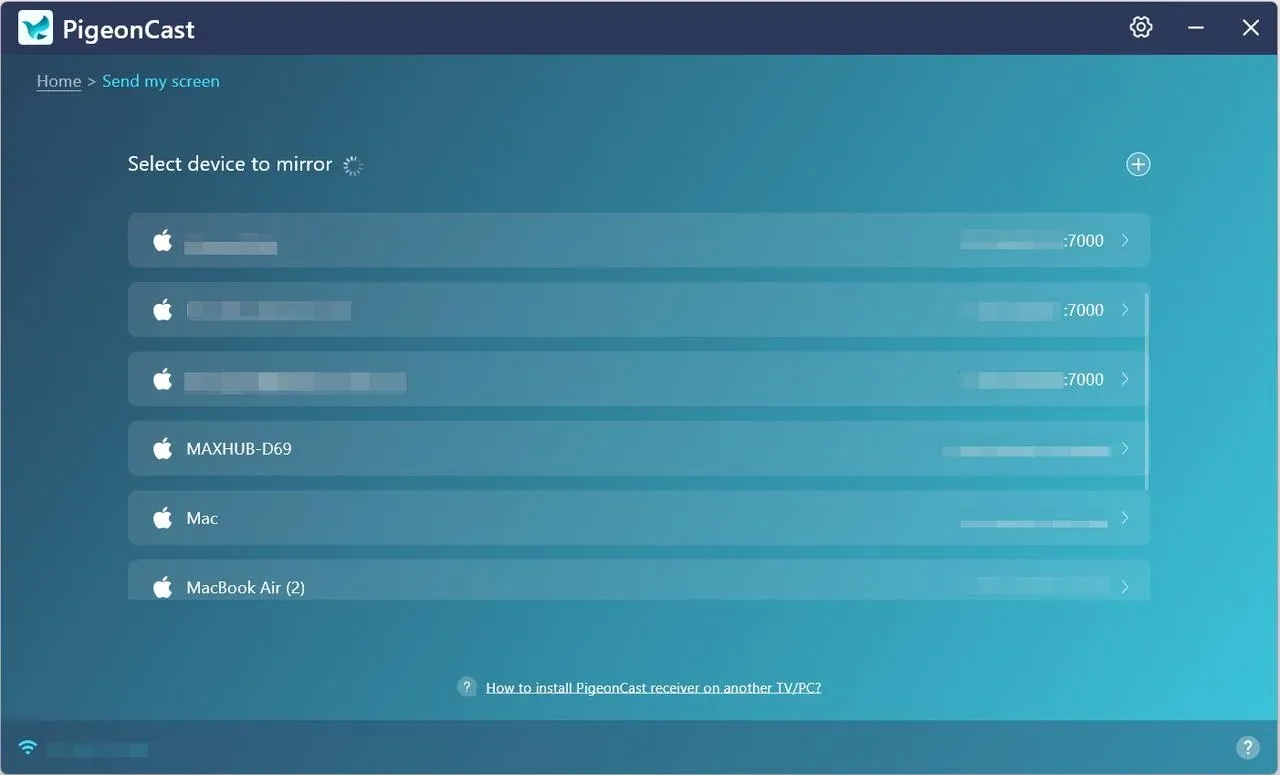
Step 3. Launch the app and click Send my screen.
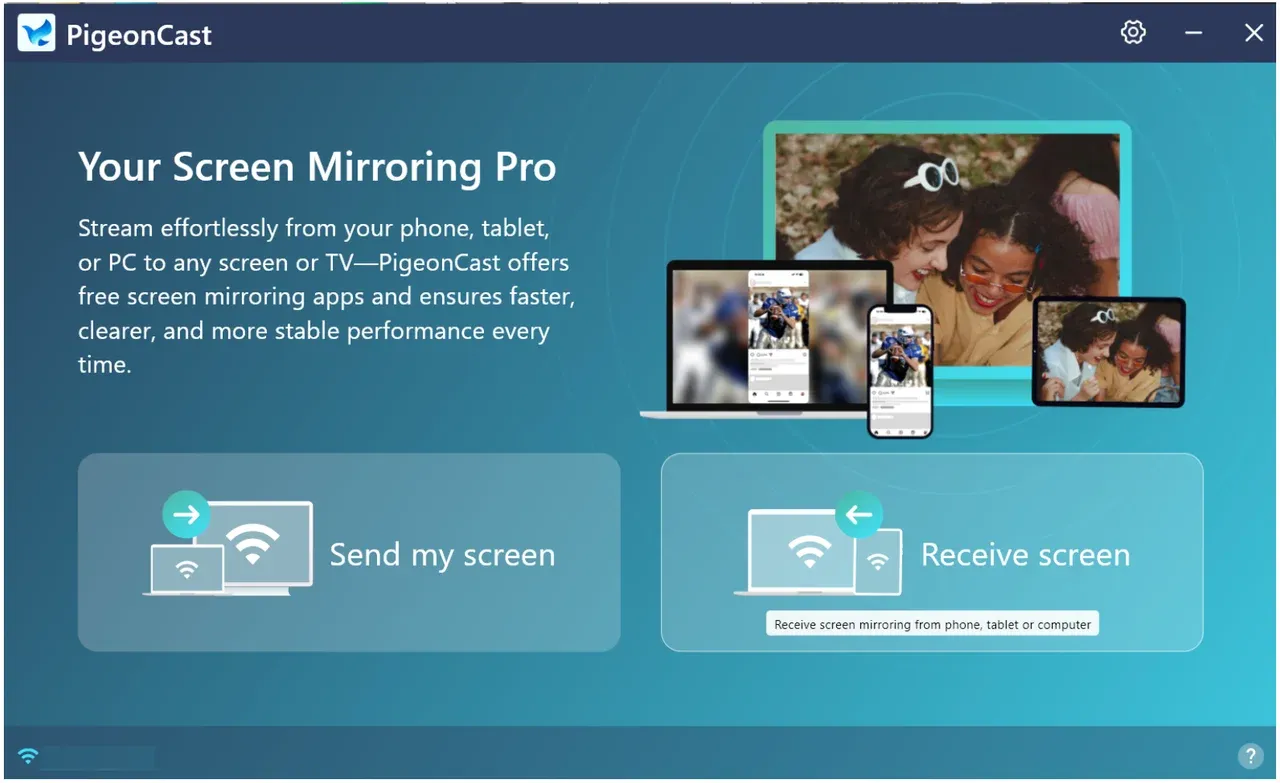
Step 4. Select your TV or receiver from the device list.
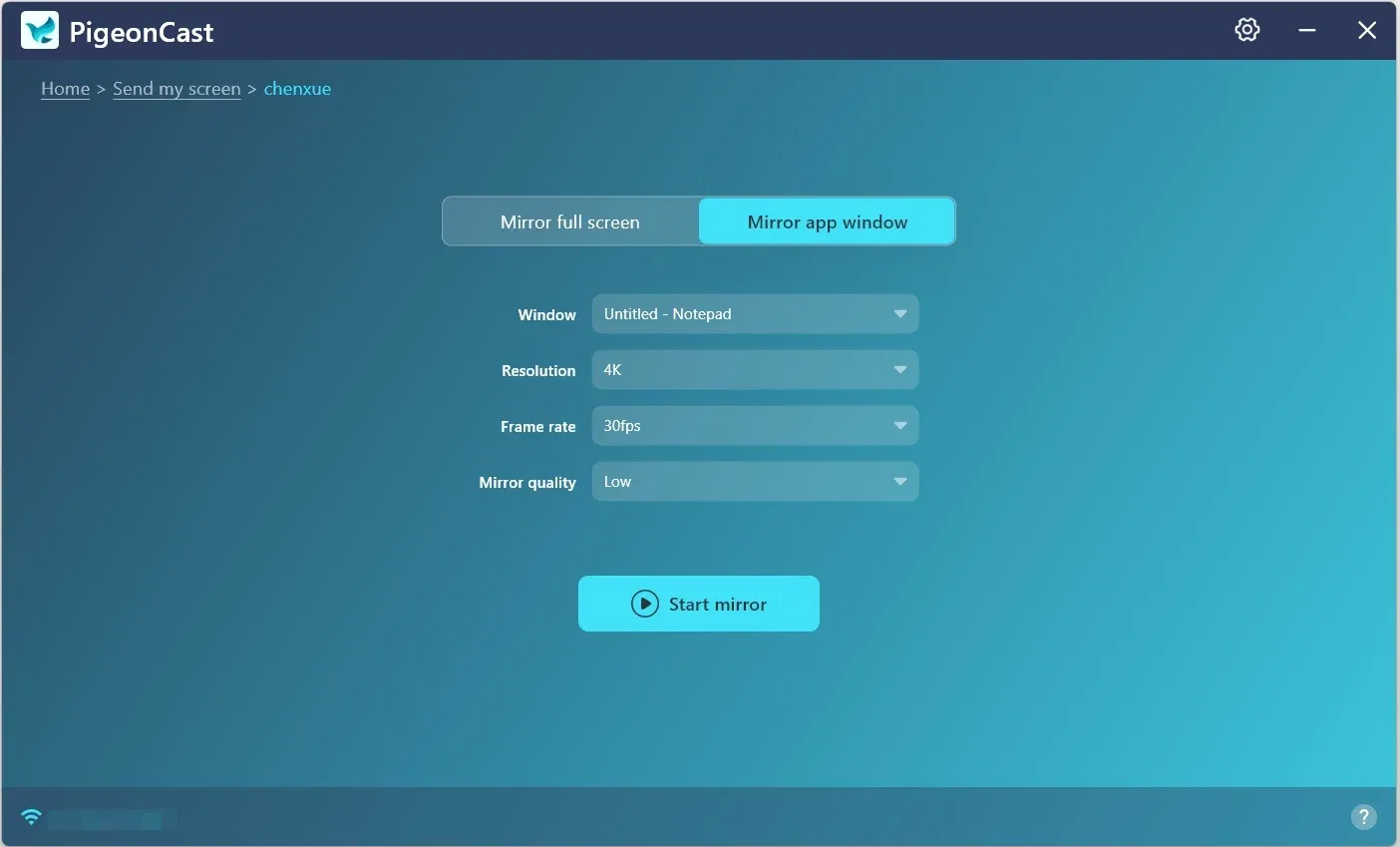
Step 5. Choose Mirror full screen or Mirror app windows, then click Start mirror, and your PC screen will appear instantly on the big screen.
Using PigeonCast ensures that even if Windows K Miracast isn't working, you can still enjoy smooth wireless casting without limitations.
Final Thoughts
If your Windows key + K shortcut fails to cast, it's rarely a hardware failure. Most of the time, the problem is related to Miracast compatibility, outdated drivers, network issues, or hung services.
Try the methods above step by step, and you'll usually get Windows K cast working again. If not, PigeonCast for Windows is a reliable alternative that works across devices and platforms, letting you mirror your screen or stream media seamlessly.
Windows K Not Working FAQs
Q: Does Windows K work on Windows 10?
Yes, Windows key + K works on both Windows 10 and Windows 11. The main difference is the interface: in Windows 10, the sidebar that pops up looks a little different compared to Windows 11's quick settings. Functionally, though, it's the same shortcut for launching the Connect panel to cast your screen.
Q: What does Windows key + K do?
The Windows key + K shortcut opens the Cast menu, letting you connect your PC to a wireless display or audio device via Miracast or Bluetooth. It's basically the quick-access tool for screen mirroring.
Q: How do I disable Windows key K?
There isn't a single toggle to turn off Windows key + K, since it's built into Windows as a shortcut for casting. However, you can disable it indirectly by turning off the "Connect" feature or using Group Policy/Registry edits that block specific Windows hotkeys. Most people don't bother, though it's easier just to ignore it unless you're hitting it by mistake often.
Q: How do you set up Windows K?
There's no separate setup for Windows key + K. Pressing it simply opens the Connect panel, which relies on your PC's wireless display feature (Miracast). To get it working, make sure your Wi-Fi and Bluetooth are turned on, your TV or wireless display supports Miracast, and both devices are on the same network. Once those requirements are met, pressing Windows + K will bring up nearby displays you can connect to.
Q: Is there a Windows K alternative if the shortcut doesn't work?
Yes. You can still connect to a display by going to Settings > System > Display > Multiple displays > Connect to a wireless display. Or, if you want a more reliable solution, apps like PigeonCast for Windows let you cast via AirPlay, Google Cast, and DLNA without depending on the built-in Windows K shortcut.
Q: Does Windows K only work with Miracast?
By default, yes. Windows K is designed for Miracast connections. But if your device or TV doesn't support Miracast, you'll need an alternative. That's where third-party tools like PigeonCast come in handy, since they work across different protocols and devices.
Q: Why does Windows K say "Your PC doesn't support Miracast"?
This error means either your hardware (Wi-Fi card or GPU) isn't compatible, or the right drivers aren't installed. Updating drivers and checking Miracast support in dxdiag can clarify whether it's a software issue or a hardware limitation.
Mia Clarke is a technology editor specializing in screen mirroring and casting solutions across multiple platforms. Mia provides clear, practical guides and in-depth insights to help users seamlessly connect their devices. Passionate about enhancing digital experiences, Mia is dedicated to keeping readers updated on the latest trends and tools in cross-platform screen sharing. Whether you’re looking to mirror your smartphone, laptop, or smart TV, Mia’s content delivers reliable, user-friendly advice to simplify your tech setup.