
You open your HP laptop for a meeting, class, or family share session and need your phone or PC screen on a different device fast. The problem is protocol mismatch across phone-to-PC and PC-to-TV paths, which is why random retry loops usually fail.
This guide gives one practical flow for HP screen mirroring: check setup first, pick the right path, and switch methods quickly when the same failure repeats.
How to Mirror HP Laptop to TV: Preflight Checks That Work
Most HP screen mirroring failures happen before you press connect. A two-minute preflight check prevents half of the common discovery and black-screen issues.
What should you check first before HP screen mirroring:
Step 1. Put both devices on the same Wi-Fi network name and avoid guest Wi-Fi during first pairing.
Step 2. Turn off VPN, proxy, or network isolation features until the first successful mirror session is complete.
Step 3. On the receiver device, enable the matching mode in advance: wireless display mode for Windows receiving, AirPlay receiving app for iPhone casting, or TV cast/mirror mode for TV targets.
Step 4. Install pending Windows graphics and Wi-Fi driver updates on the HP laptop, then restart once.
Step 5. Update TV firmware or phone OS if the target device has not been updated recently.
How to Do HP Screen Mirroring from Android Phone
Android to HP screen mirroring works best when your HP laptop can receive wireless display traffic.
How to mirror phone to HP laptop:
Step 1. On the HP laptop, install Wireless Display in Windows settings if it is not already available.
-
Go to Settings > Optional Features.
-
Click View Features.
-
Scroll down to the Wireless Display option.
-
Click the checkbox for the option, click Next > Add.
-
Wait for Windows to download and install the feature.
-
Go to Settings > System > Projecting to this PC and set it to allow connection on secure networks.
-
Enable Wireless Display from the Start menu on your PC.
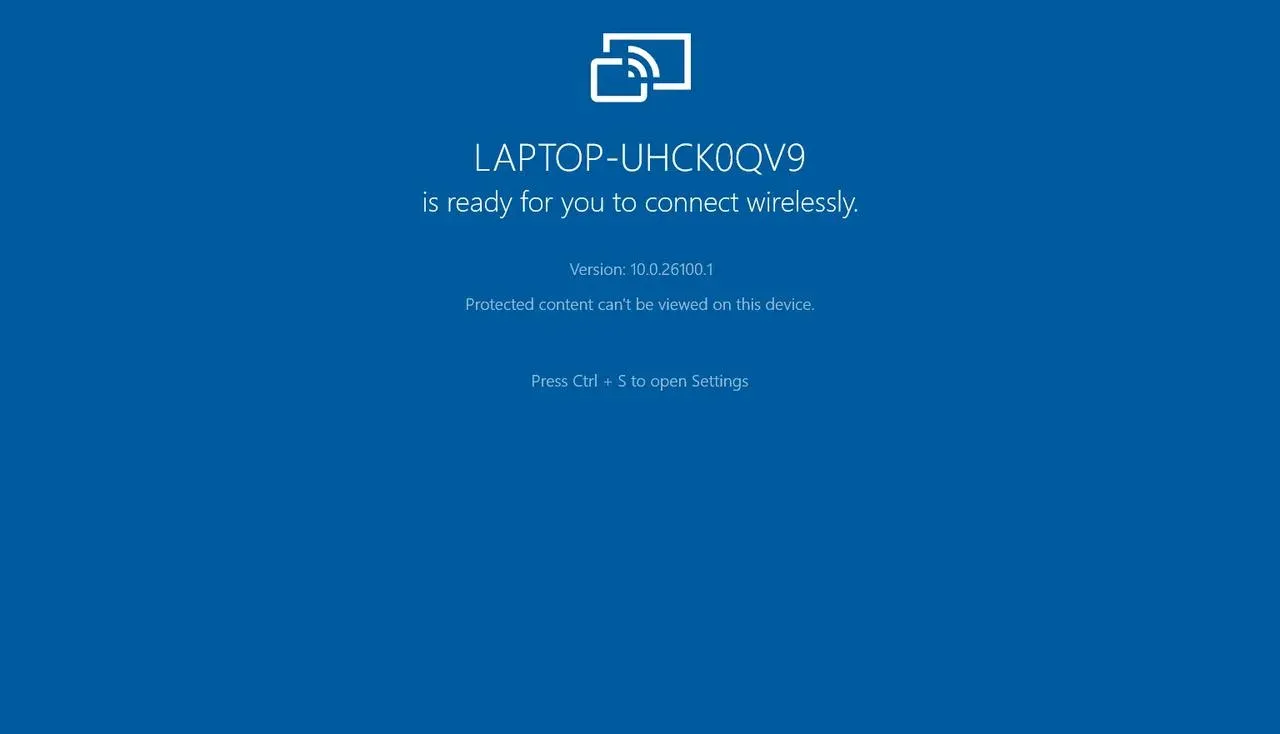
Step 2. On Android, open Cast, Smart View, Screen Share, or your phone brand's equivalent mirroring control.
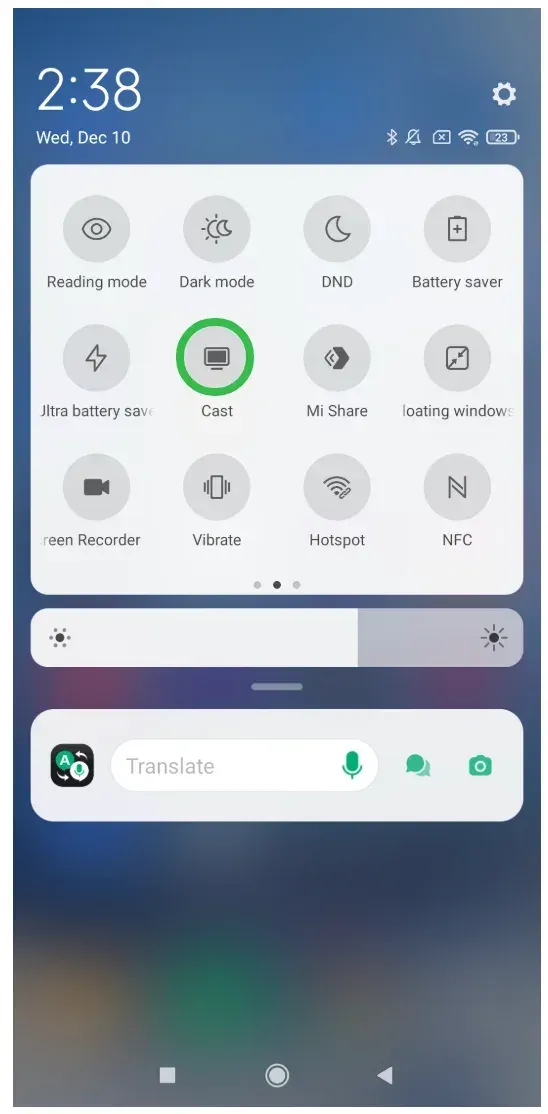
Step 3. Select the HP laptop from the discovered device list and approve the connection prompt on the PC.
Step 4. Start with portrait mode, then rotate to landscape to verify resolution and latency behavior.
If the HP laptop never appears after one reboot cycle, or delay is too high, stop repeating scans and switch methods.
How to Do HP Screen Mirroring from iPhone
iPhone to HP screen mirroring is different because Windows does not include a built-in AirPlay receiver. How do you mirror iPhone to HP laptop when AirPlay is unavailable? You need a screen mirroring app to bridge the gap. For example, PigeonCast for Windows is a solid choice: it is free to use and offers stable experience.
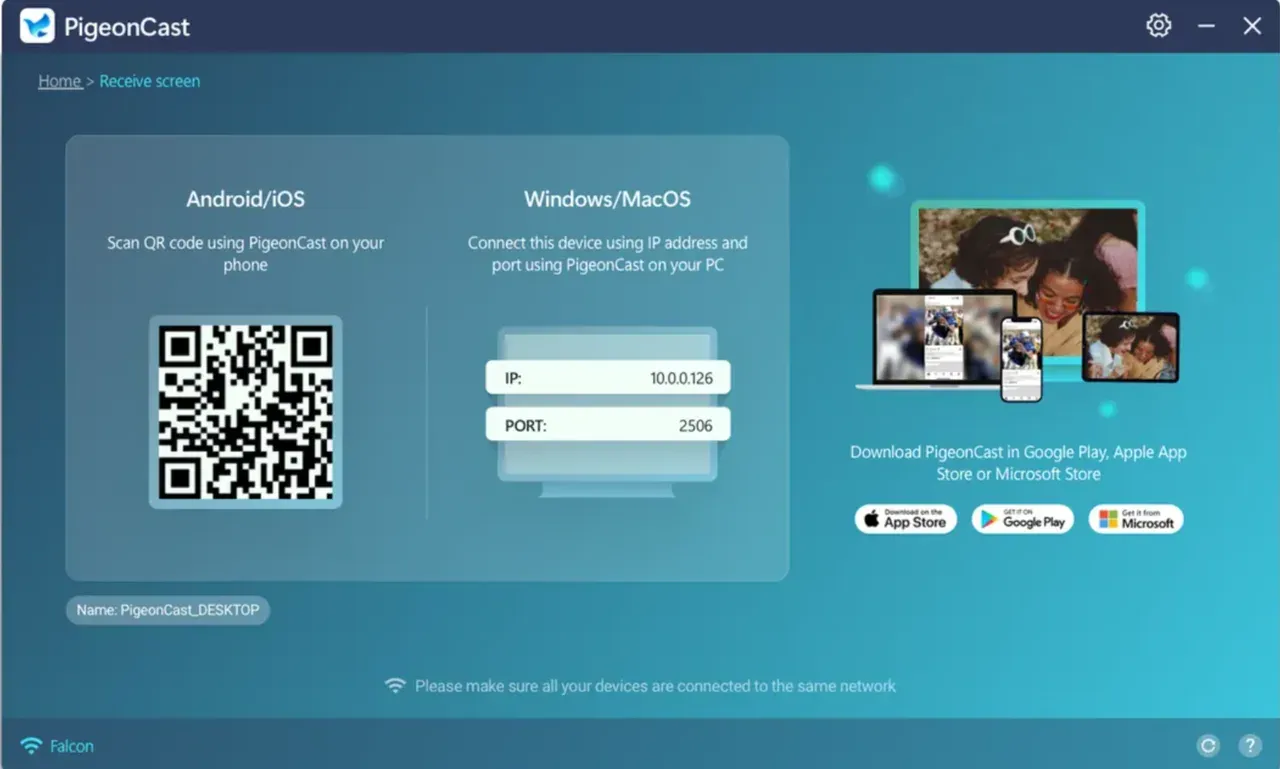
Step 1. On the HP laptop, install and open PigeonCast from the Microsoft Store, and click Receive screen.
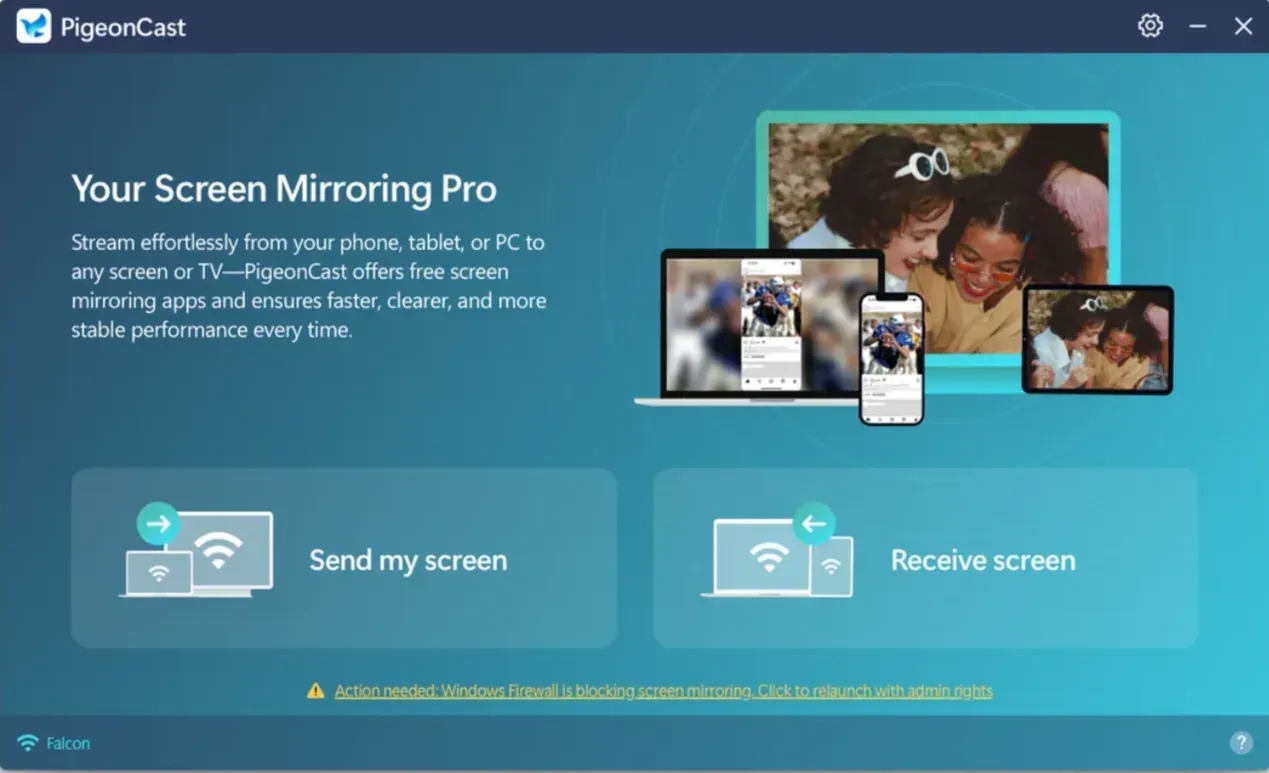
Tip: You can also set PigeonCast up on your phone for a stable connection.


Overall Rating:



Step 2. Keep iPhone and HP laptop on the same Wi-Fi network and leave the receiver window open.
Step 3. On iPhone, open Control Center, tap Screen Mirroring, and choose the HP receiver target.
Step 4. Enter the on-screen code if prompted and confirm the stream appears on the HP laptop.
Step 5. Test touch-heavy and video-heavy actions separately, because they expose latency issues differently.
How to Do HP Screen Mirroring to Any TV
To connect your HP computer to TV wirelessly, you can utilize Miracast or Google Cast, depending on which protocol the target device supports. If the target device uses AirPlay, or there is a protocol mismatch, switch to PigeonCast.
Method 1: Screen Mirror HP Laptop to TV via Miracast
If your TV supports Miracast, HP laptop screen mirroring to TV is straightforward:
Step 1. Turn on your TV.
Step 2. Press Win + K and choose your TV from the list.
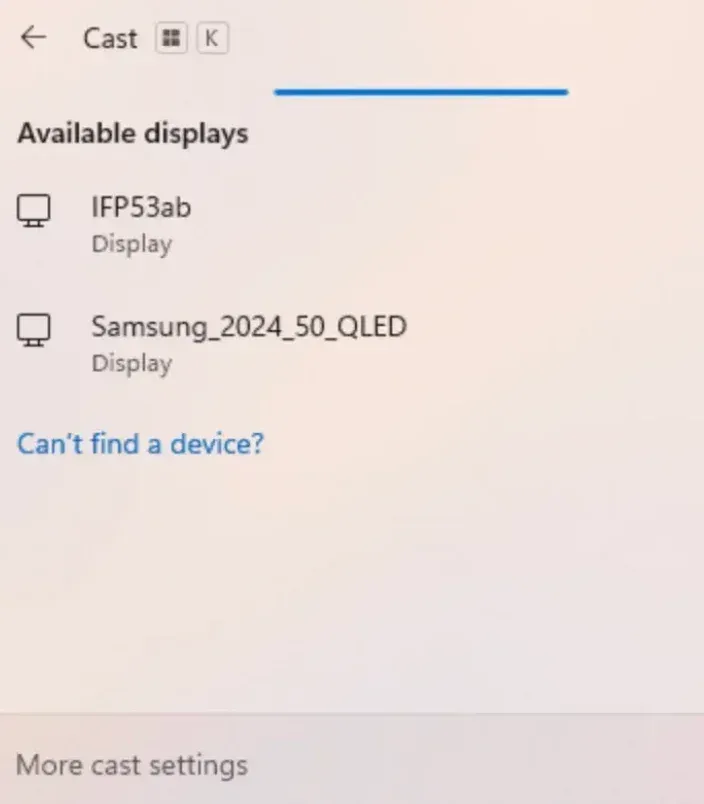
Step 3. Once connected, your laptop screen appears on the TV.
Method 2: Screen Mirror HP Laptop to TV via Google Cast
If you have a Chromecast plugged into your TV or your TV is Chromecast built-in, you can cast from Chrome to the TV directly:
Step 1. Install and open Chrome on your HP computer if it is unavailable.
Step 2. In the Chrome app, click the three vertical dots and go to Cast > Save, and Share.
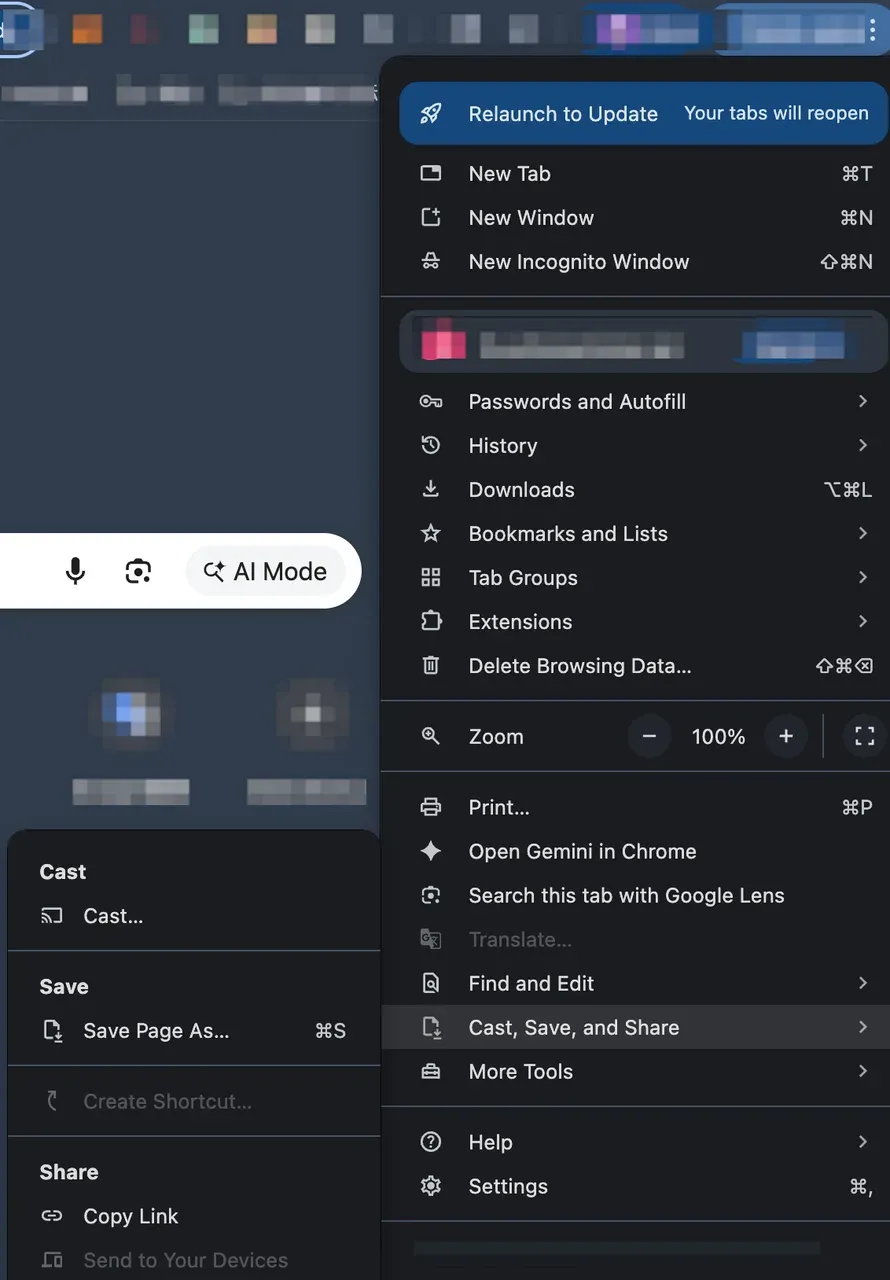
Step 3. Choose Cast tab or Cast screen from the Sources menu and choose your target TV.
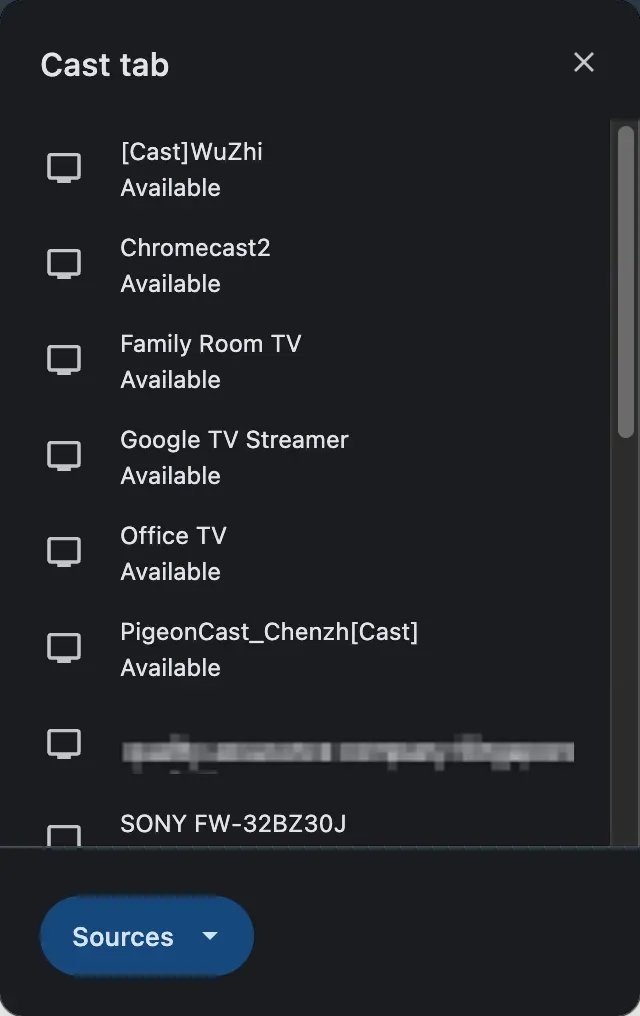
Step 4. Once connected, you can view your computer on your TV.
Method 3: Screen Mirror HP Laptop to TV via PigeonCast
If you don't ensure what protocol your TV supports, use a cross-platform tool like PigeonCast to start screen mirroring quickly.
Step 1. Set up PigeonCast on your laptop and TV from the app store.
Overall Rating:
Step 2. Launch PigeonCast on your TV, turning your TV into a universal receiver.
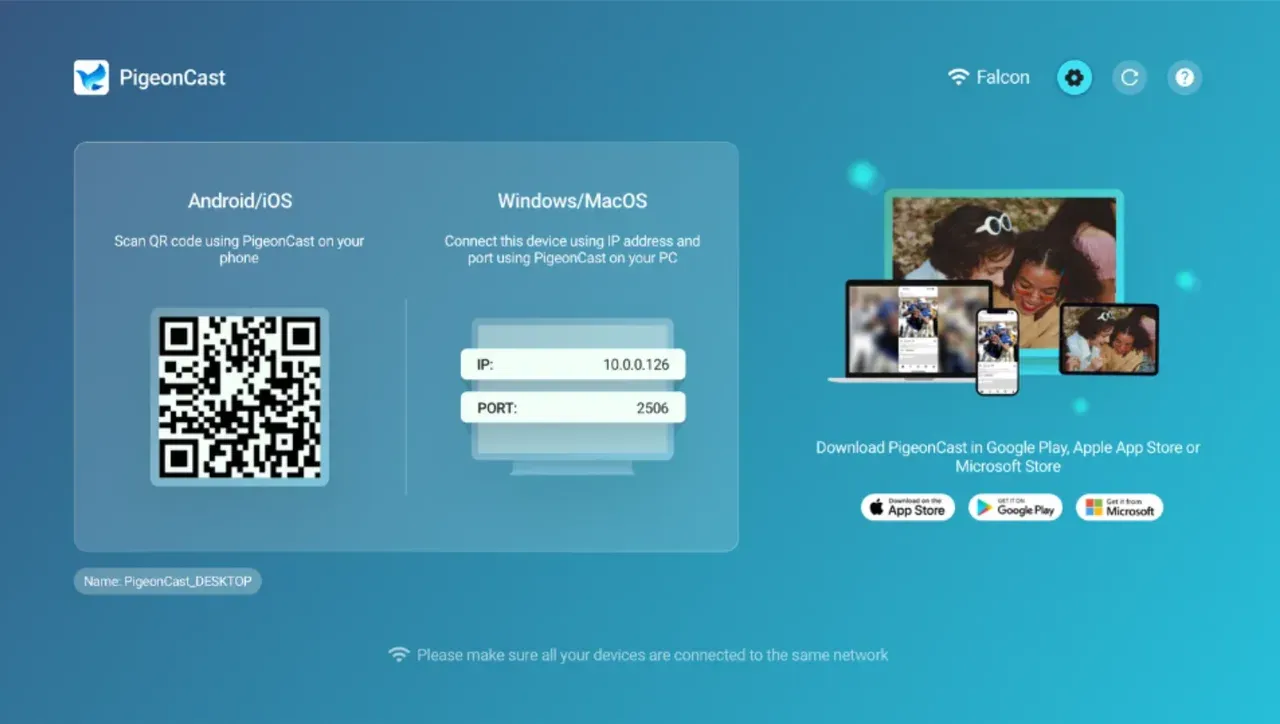
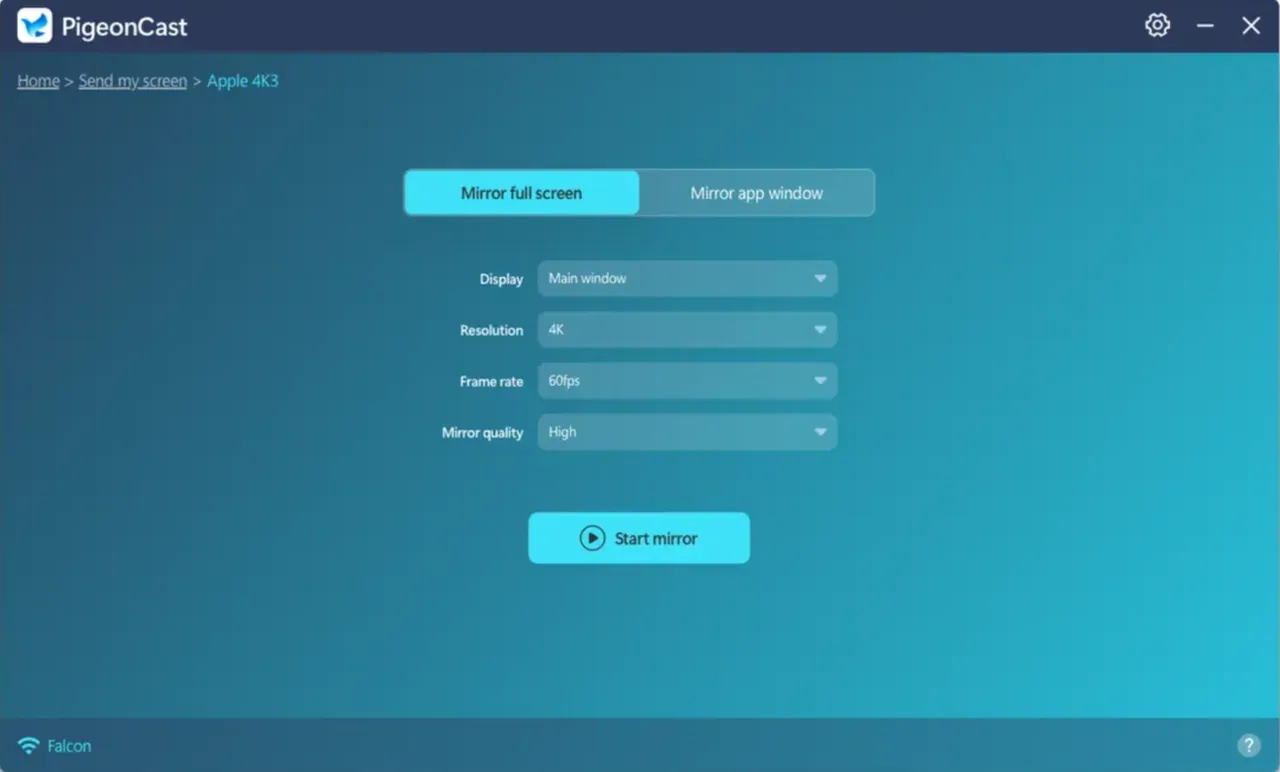
Step 3. On your PC, launch PigeonCast and click Send my screen.
Step 4. Choose your TV from the device list and click Start mirror.
How to Troubleshoot HP Screen Mirroring Not Working
Here are some common HP laptop screen mirroring issues and common fixes.
HP screen mirroring shows sound but no picture
Step 1. Set Windows projection mode to Duplicate and retest with local media.
Step 2. Reduce output resolution to 1080p for compatibility testing.
Step 3. Update graphics driver, then test again before changing the casting method.
HP screen mirroring keeps disconnecting
Step 1. Move devices closer to the router and avoid congested guest networks.
Step 2. Disable battery saver during mirroring sessions on phone and laptop.
Step 3. If disconnects continue after these checks, switch to HDMI for time-critical sessions and revisit wireless later.
The End
The most reliable way to handle HP screen mirroring is to treat it as a workflow, not a one-button feature. Run preflight checks, choose the right path for phone to HP PC or HP PC to TV, and switch methods quickly when the same failure repeats.
HP Screen Mirroring FAQ
Can HP screen mirroring work without Wi-Fi?
Yes, but with limitations. Most wireless screen mirroring methods (like Miracast or Chromecast) require both devices to be on the same local Wi-Fi network for discovery. However, some options work without internet access:
- Miracast (Wi-Fi Direct) can connect devices directly without a router.
- HDMI cable works entirely offline and provides the most stable connection.
How do I connect my HP laptop to my TV screen?
You have two main options:
-
Wireless connection:
- Use Miracast (built into Windows for compatible devices)
- Use Google Cast (Chromecast) for supported TVs/apps
- Use third-party tools like PigeonCast or similar apps
-
Wired connection:
- Connect via an HDMI cable (plug-and-play, most reliable)
- Select the correct input source on your TV
How do I enable screen mirroring on my laptop?
On a Windows-based laptop:
- Press Windows + K to open the Connect panel.
- Select your TV or wireless display from the list.
- Follow any on-screen prompts (e.g., PIN on TV).
Alternatively, go to Settings → System → Display → Multiple displays → Connect to a wireless display.
Why is my screen mirroring not showing up?
Common reasons include:
- Devices are not on the same Wi-Fi network
- Your TV doesn't support Miracast/Cast
- Wireless display feature is not installed on Windows
- Drivers are outdated (especially graphics/network)
- Firewall or VPN is blocking discovery
Quick fixes:
- Restart both devices
- Update Windows and drivers
- Enable Wireless Display in Windows Optional Features
Mia Clarke is a technology editor specializing in screen mirroring and casting solutions across multiple platforms. Mia provides clear, practical guides and in-depth insights to help users seamlessly connect their devices. Passionate about enhancing digital experiences, Mia is dedicated to keeping readers updated on the latest trends and tools in cross-platform screen sharing. Whether you’re looking to mirror your smartphone, laptop, or smart TV, Mia’s content delivers reliable, user-friendly advice to simplify your tech setup.