
If you are searching for how to mirror HP laptop to TV, the fastest path is to choose a method based on compatibility first, not by guesswork. Most HP laptops run Windows, but different TVs support different casting protocols, which is why some methods work instantly while others fail to connect.
This guide gives you a practical order that works for most beginner to intermediate users: start with a quick compatibility check, try native Windows wireless casting first, use Chrome when your TV supports Chromecast, switch to an app when discovery is inconsistent, and use HDMI when reliability matters more than convenience.
Can You Mirror an HP Laptop to a TV
Yes, you can mirror an HP laptop to a TV in most cases, because nearly all HP laptops run Windows 10 or Windows 11, which support screen mirroring through Miracast (Windows Cast) as well as wired output via HDMI or USB-C.
On HP laptops, screen mirroring mainly relies on three paths:
-
Miracast (Windows Cast): native wireless option, no extra software needed.
-
Chrome casting (Chromecast): best for browser-based sharing.
-
App-based casting (e.g., PigeonCast): works across different TV brands and mixed environments.
-
HDMI or USB-C to HDMI: the most stable wired solution.
However, whether you can successfully mirror depends on hardware support. Here are the HP model differences:
-
HP EliteBook (business series): Usually has better driver stability and consistent Miracast support. Ideal for meetings and presentations.
-
HP Pavilion (mainstream series): Supports casting on most newer models, but performance may vary depending on Wi-Fi hardware.
-
HP Envy (premium consumer series): Typically offers better graphics and wireless performance, making it more reliable for wireless mirroring.
If your HP laptop is an older model (around 2017 or earlier), Miracast may not be fully supported. In that case, using Chrome casting, an app, or HDMI is more reliable.
How to Mirror HP Laptop to TV with Miracast
Windows Cast (which relies on Miracast) is the best first method for users who want wireless mirroring without extra software. It works best when both your HP laptop and TV support Miracast and are on the same network.
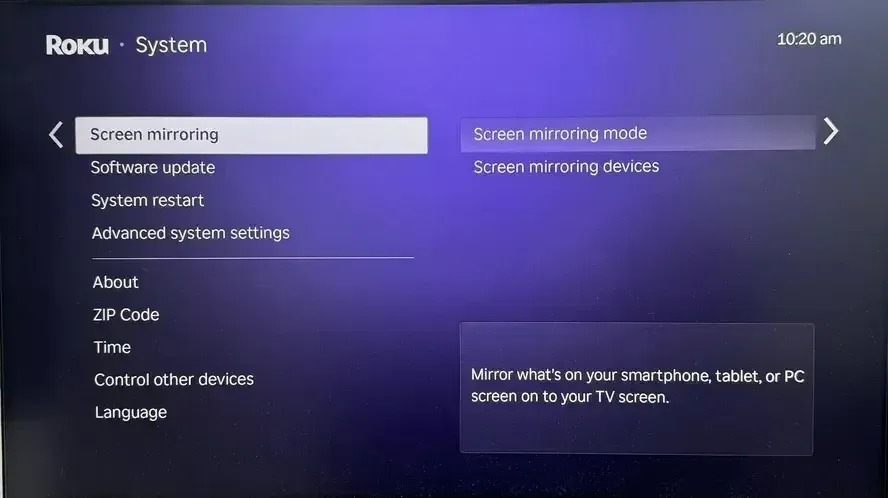
Here is how to mirror HP laptop to Roku TV:
Step 1. On the TV, turn on Wireless Display, Screen Mirroring, or Cast mode.
Step 2. On the HP laptop, press Windows + K.
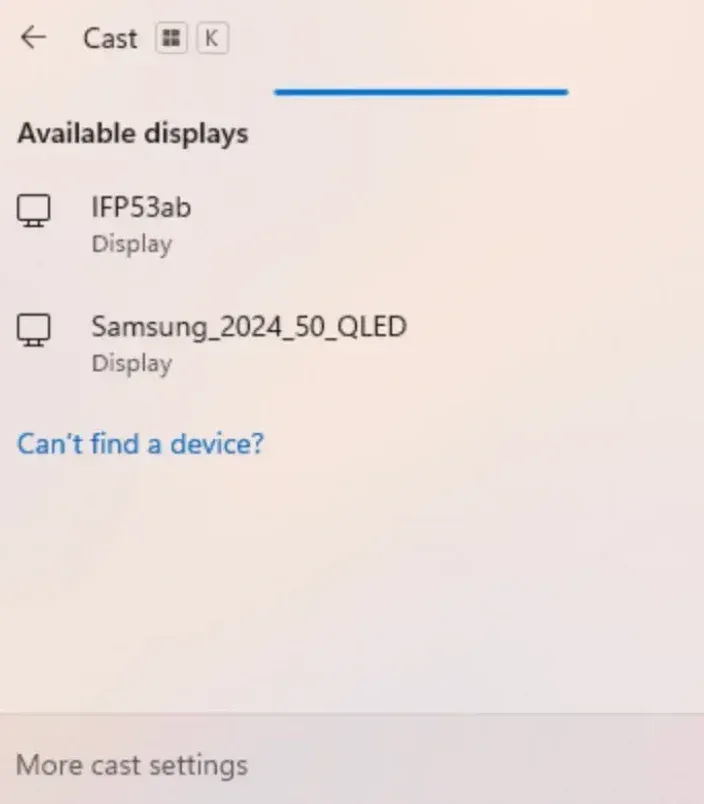
Step 3. Select the TV from the list of discovered devices.
Step 4. Accept the TV prompt and wait for pairing to complete.
Step 5. Press Windows + P, then choose Duplicate for mirror mode.
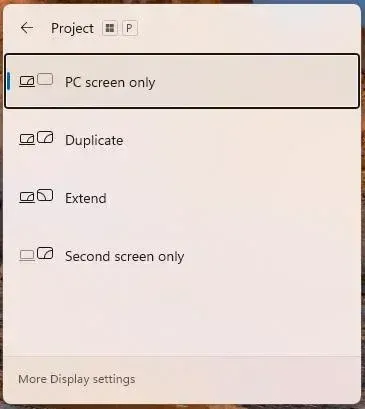
If your TV appears quickly and stays connected, Miracast is the simplest daily solution. But if the TV never shows up or disconnects repeatedly, the issue is usually compatibility rather than setup. In that case, switch methods instead of retrying.
How to Mirror HP Laptop to TV via Chrome
If your TV supports Chromecast (built-in or via a device like Chromecast or Google TV), using Chrome is one of the easiest ways to cast laptop to TV without relying on Miracast.
This method is especially useful when:
-
Your TV does not support Miracast
-
Windows + K cannot find your TV
-
You mainly need to share browser content or videos
Step 1. Open Google Chrome on your HP laptop.
Step 2. Click the three-dot menu in the top-right corner.
Step 3. Select Cast, Save, and Share > Cast.
Tip: To access the Cast option quickly, you can go to the Settings menu, and add Cast to the toolbar.
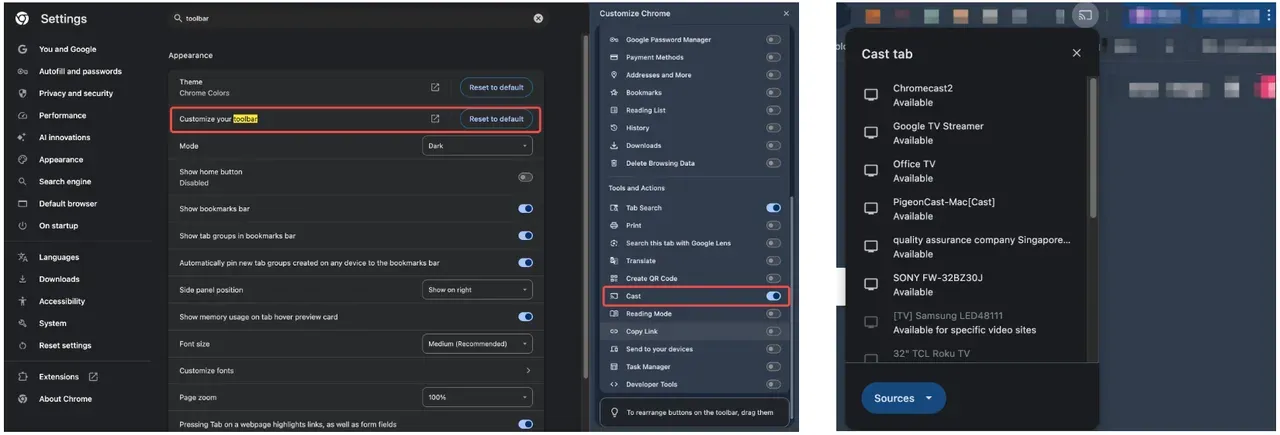
Step 4. Choose your TV from the list.Step 5. Select Tab, File, or Desktop depending on what you want to share.
Chrome casting works best with Chromecast-compatible TVs and is often more reliable than Miracast in mixed-device setups. However, for full desktop mirroring, performance may be less stable than native casting; this Chromecast method only works for specific video sites. If you need a consistent full-screen output, switch to Miracast or HDMI.
How to Mirror HP Laptop to TV with PigeonCast
When native casting is inconsistent across different TVs, setting up a screen mirroring application like PigeonCast for Windows and TV can reduce friction. This is useful for users who move between rooms, offices, or mixed TV brands and want one repeatable process.
How to screen mirror HP laptop to TV with PigeonCast:
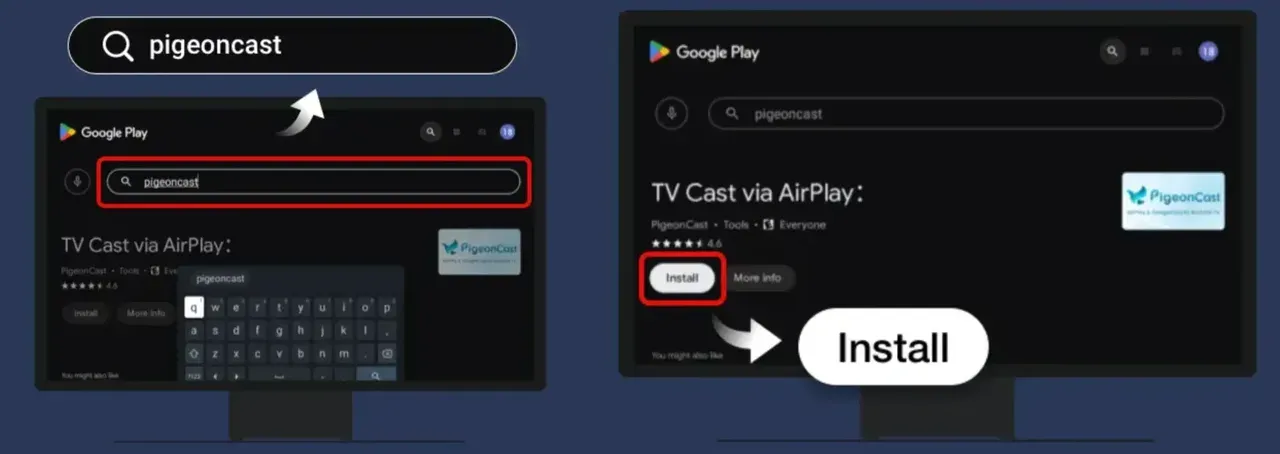
Step 1. Download and install PigeonCast on your HP laptop and TV.


Overall Rating:


-
Go to the Microsoft Store, search for PigeonCast, and download it.
-
Go to the app store on your TV, search for PigeonCast, and download it.
Step 2. Keep both devices on the same local network during the first pairing.
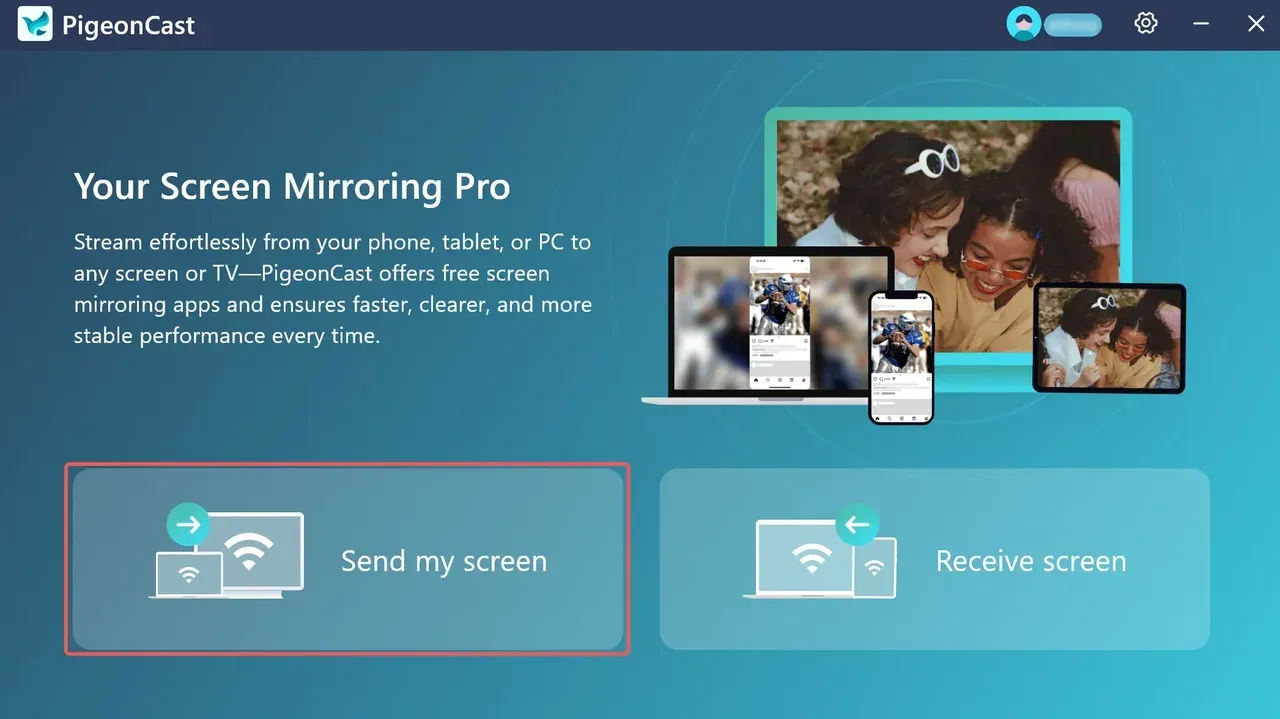
Step 3. Launch PigeonCast on both sides. On your HP laptop, click Send my screen.
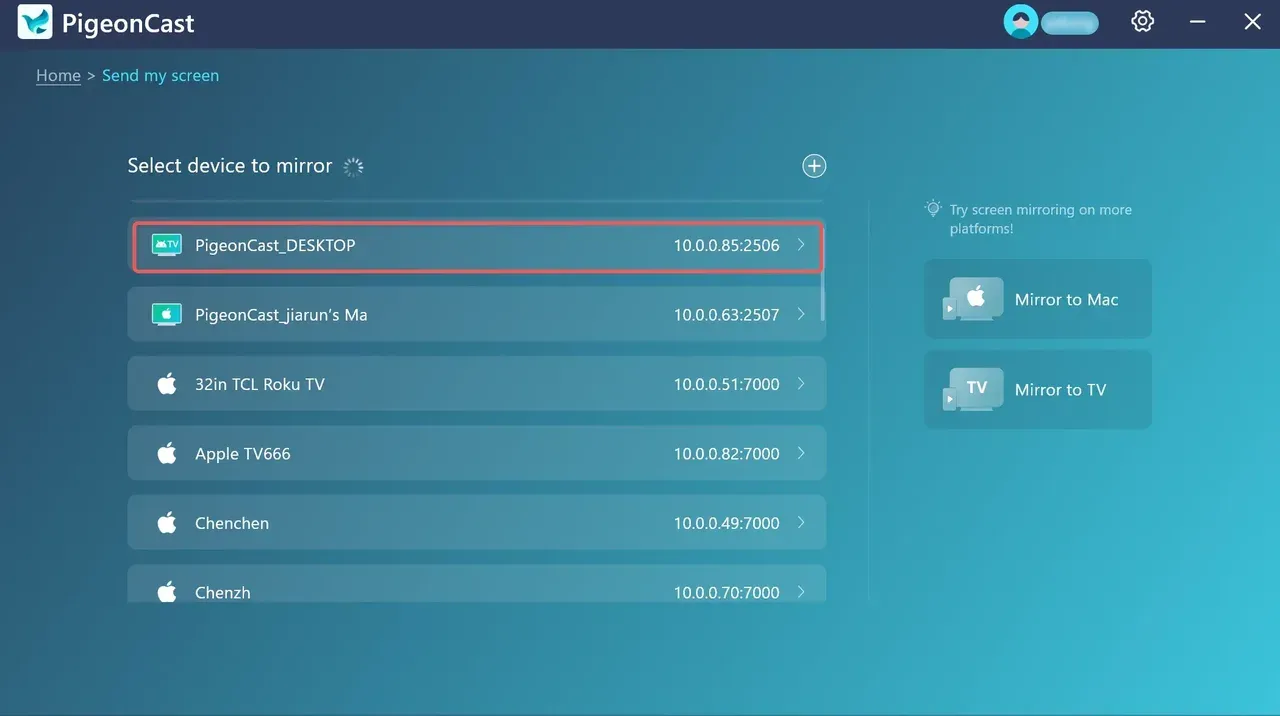
Step 4. Choose your TV from the device list and click Start mirror.
Step 5. The receiver app on your TV will receive the signal and display your laptop screen immediately.
This method is ideal when you need a consistent workflow across different TVs. If native casting fails due to compatibility or discovery issues, an app-based approach saves time. If both wireless options are unstable, switch to HDMI for immediate results.
How to Mirror HP Laptop to TV with HDMI Cable
HDMI is the most reliable option when timing is tight and you cannot risk wireless failure. It removes discovery variables and usually gives immediate picture and audio once input selection is correct.
To start screen mirroring with an HDMI cable, you need to:
Step 1. Check your HP port type (HDMI, USB-C, or mini HDMI) and use the correct cable or adapter.
Step 2. Connect laptop to TV, then select the matching HDMI input on the TV remote.
Step 3. Press Windows + P and choose Duplicate.
Step 4. In display settings, set resolution to a TV-safe value such as 1920x1080 if scaling looks wrong.
Step 5. In sound settings, change audio output to the HDMI/TV device.
HDMI is the most reliable option when stability matters more than convenience. If wireless fails more than once and you are on a deadline, switching to HDMI immediately is usually the fastest solution.
The End
The practical answer to how to mirror HP laptop to TV is to choose methods in a fixed order instead of random retries. Run the readiness checklist first, try Windows Cast when your TV is discoverable, use Chrome when applicable, use an app workflow when native discovery is inconsistent, and keep HDMI as your fast reliability fallback.
For most users, this saves time and reduces frustration: wireless first for convenience, alternate wireless flow for mixed setups, and cable fallback when reliability is critical.
How to Mirror HP Laptop to TV FAQ
How to mirror HP laptop to Vizio Smart TV?
Most Vizio TVs support Chromecast (SmartCast) but not native Miracast. You can:
-
Use Chrome browser casting (tab or desktop)
-
Use a casting app like PigeonCast
-
Or connect via HDMI for full compatibility
How to screen mirror HP laptop to LG TV?
LG TVs mainly support Miracast (Screen Share) and sometimes AirPlay:
-
Enable Screen Share on the LG TV.
-
Press Windows + K on your HP laptop.
-
Select the TV.
How do I connect my laptop to my TV without HDMI?
You can connect wirelessly using:
-
Miracast (Windows Cast)
-
Google Cast (via Chrome browser)
-
Screen mirroring apps
Wireless works best when both devices are compatible and on the same network.
Can I mirror my laptop to my TV wirelessly?
Yes, most HP laptops support wireless mirroring through Miracast, Google Cast, or a screen mirroring app like PigeonCast.
Can an HP laptop do screen mirroring?
Yes. HP laptops support screen mirroring through:
-
Built-in Windows Cast (Miracast)
-
Browser-based casting
-
Third-party apps
-
HDMI or USB-C output
The available method depends on your model, GPU, and TV compatibility.
Does it matter if I use HDMI 1 or HDMI 2?
No, both HDMI ports usually work the same. However, some TVs label one port as ARC/eARC (for audio systems). If you get no signal, switch ports and reselect input.
Why does my HP laptop not detect my TV?
Common reasons include TV mirroring mode not turned on, different Wi-Fi networks or bands, Miracast not supported on one device, and driver issues on the laptop. If the TV still does not appear after one restart cycle, switch to another method instead of retrying.
Why is there lag when I mirror my HP laptop to TV?
Lag is usually caused by:
-
Weak Wi-Fi signal
-
Network congestion
-
High-resolution streaming
To reduce lag:
-
Move closer to the router
-
Use 5GHz Wi-Fi
-
Lower resolution or switch to HDMI
Mia Clarke is a technology editor specializing in screen mirroring and casting solutions across multiple platforms. Mia provides clear, practical guides and in-depth insights to help users seamlessly connect their devices. Passionate about enhancing digital experiences, Mia is dedicated to keeping readers updated on the latest trends and tools in cross-platform screen sharing. Whether you’re looking to mirror your smartphone, laptop, or smart TV, Mia’s content delivers reliable, user-friendly advice to simplify your tech setup.