
When you're juggling multiple tasks, constantly switching between interfaces can be inconvenient and increase the chances of mistakes. Thanks to modern technology, Windows allows you to extend your screen so you can view multiple pages or apps side by side without hassle. Follow this guide to learn how to extend screen on Windows and make multitasking much easier.
Requirements for Extending Your Screen on Windows
Before you start extending your screen, it's important to make sure your setup is ready. Having the right hardware, software, and connections will make the process smooth and hassle-free. Here's what you need:
- A second monitor or display such as your smart TV.
- A graphics card that supports multiple monitors. Most modern cards do, but check your specs if your system is older.
- The right cables, such as HDMI, DisplayPort, VGA, USB-C, or DVI, depending on your monitor and PC.
- Windows 10 or Windows 11 is recommended to ensure full multi-monitor support and compatibility with the latest features.
- Make sure your PC has enough ports to connect additional monitors.
- You may need adapters if the ports on your monitor and PC don't match.
- Keeping your display drivers up to date helps your system detect and manage multiple monitors efficiently, preventing common display issues.
Ensuring these requirements are in place before you begin will save time and prevent setup problems, letting you extend your Windows screen quickly and efficiently.
How to Screen Extend on Windows
Once your hardware and software requirements are in place, you're ready to extend your Windows screen. There are several ways to do this, from using built-in settings to keyboard shortcuts or a screen mirroring app. Each method has its own advantages, and we'll walk you through them step by step.
Tip 1. Use the Display Settings
How to extend screen on Windows 11 or how to extend screen on Windows 10 HDMI? The easiest and most reliable way to extend your screen is through Windows' built-in display settings. This method allows you to configure multiple monitors, adjust resolutions, and choose display modes without installing extra software.
Step 1. Plug your monitor into your computer using the correct cable (HDMI, DisplayPort, USB-C, or VGA). Make sure the monitor is powered on and properly connected.
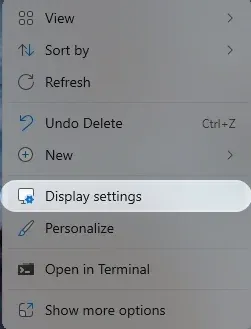
Step 2. Right-click anywhere on your desktop and select Display settings from the context menu.
Step 3. Under Display, you should see both monitors. If the second monitor isn't detected, click Detect. Drag and drop the monitor icons to match your physical setup.
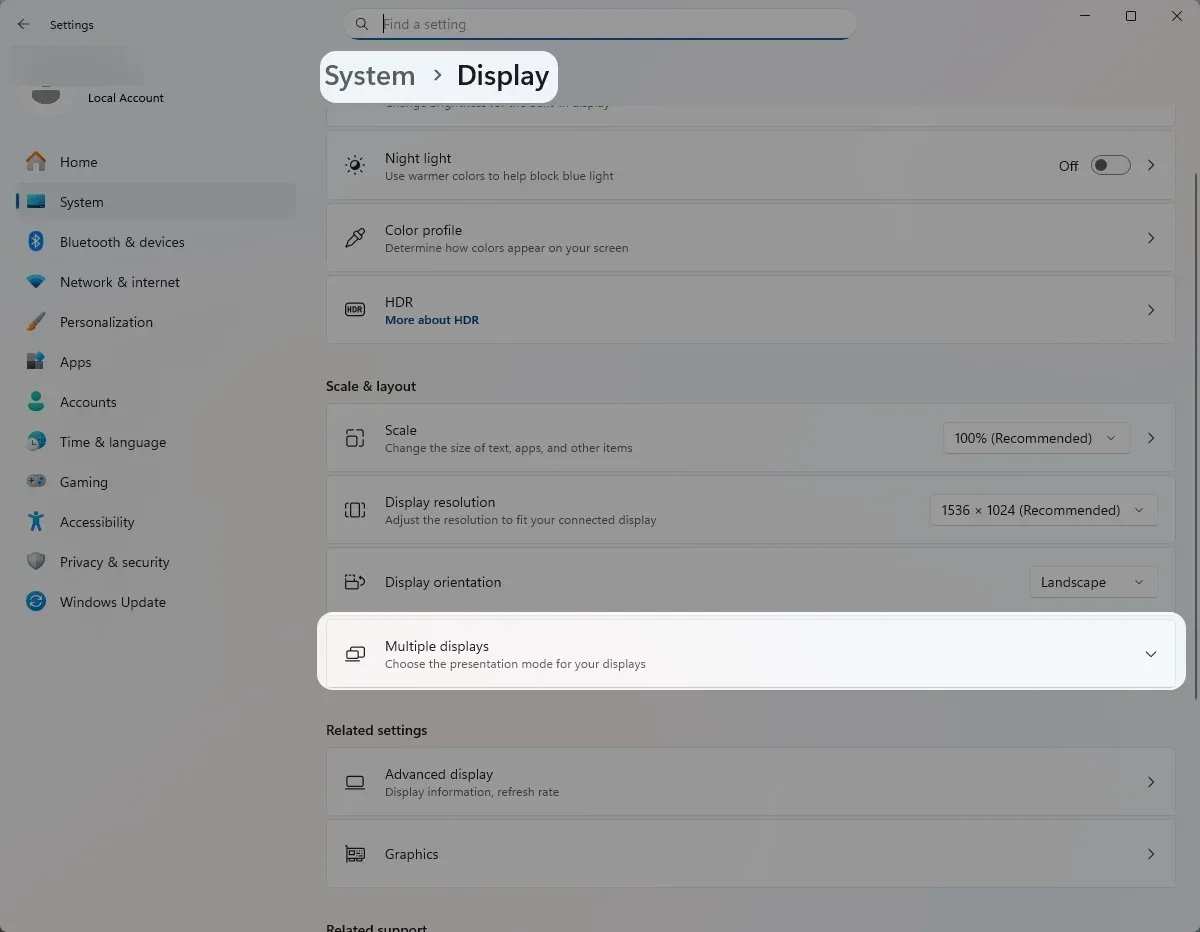
Step 4. Scroll down to Multiple displays to choose your desired display mode:
- Duplicate: shows the same screen on both monitors.
- Extend: expands your desktop across both monitors (this is the option you want).
- Second screen only: uses only the external display.
Tip 2. Use Keyboard Shortcuts
How to extend the screen on Windows? For faster access, Windows offers keyboard shortcuts that let you quickly switch between display modes. This is ideal if you frequently connect and disconnect monitors or need to toggle between mirrored and extended screens rapidly.
Step 1. Connect your PC to a second display (such as a monitor, TV, or projector) via HDMI, DisplayPort, VGA, USB-C, or wireless casting (like Miracast).
Step 2. Press Windows key + P simultaneously.
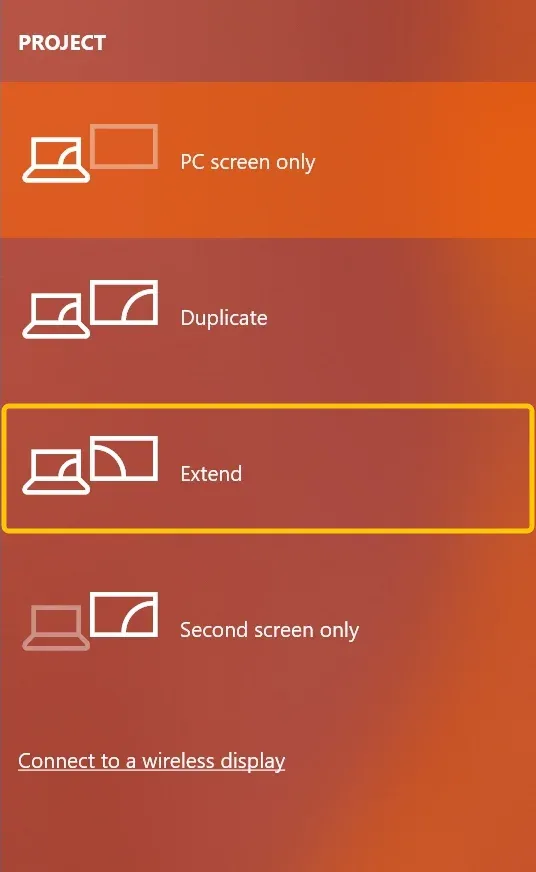
Step 3. A sidebar will appear with display options (Duplicate, Extend, Second screen only), and select Extend.
Step 4. Your desktop will now stretch across both monitors, letting you drag and arrange windows between them.
Step 5. If the display arrangement doesn't look right, right-click on the desktop, go to Display settings, and manually adjust the screen order, resolution, or orientation.
Tip 3. Use the PigeonCast Windows Screen Mirroring App
How to extend screen on Windows 10 wirelessly or other Windows PCs? With the PigeonCast Windows screen mirroring app, you can mirror your PC to a TV, giving you a larger display to reduce eye strain and work more comfortably. Let's take a look at how to extend screen on Windows TV:
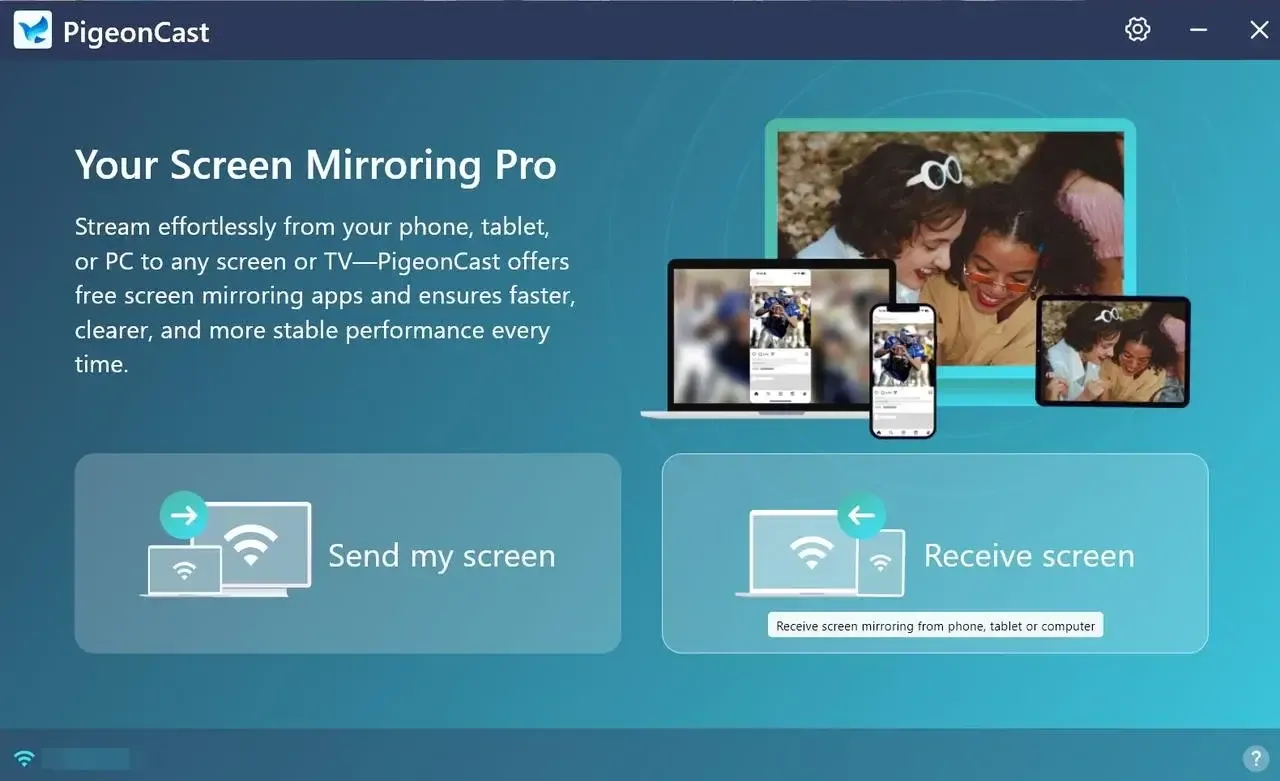
This universal screen mirroring application lets your Windows PC act as either a sender or receiver, making it easy to mirror or cast your screen to another device. It's designed with privacy in mind, ensuring that your data stays secure and there's no risk of information leakage. With PigeonCast, extending or sharing your display is simple, safe, and seamless.

PigeonCast Screen Mirroring

Official Download


Step 1. Install the mirroring app on your Windows Computer.
Step 2. Ensure your Windows and TV are connected to the same wireless network.
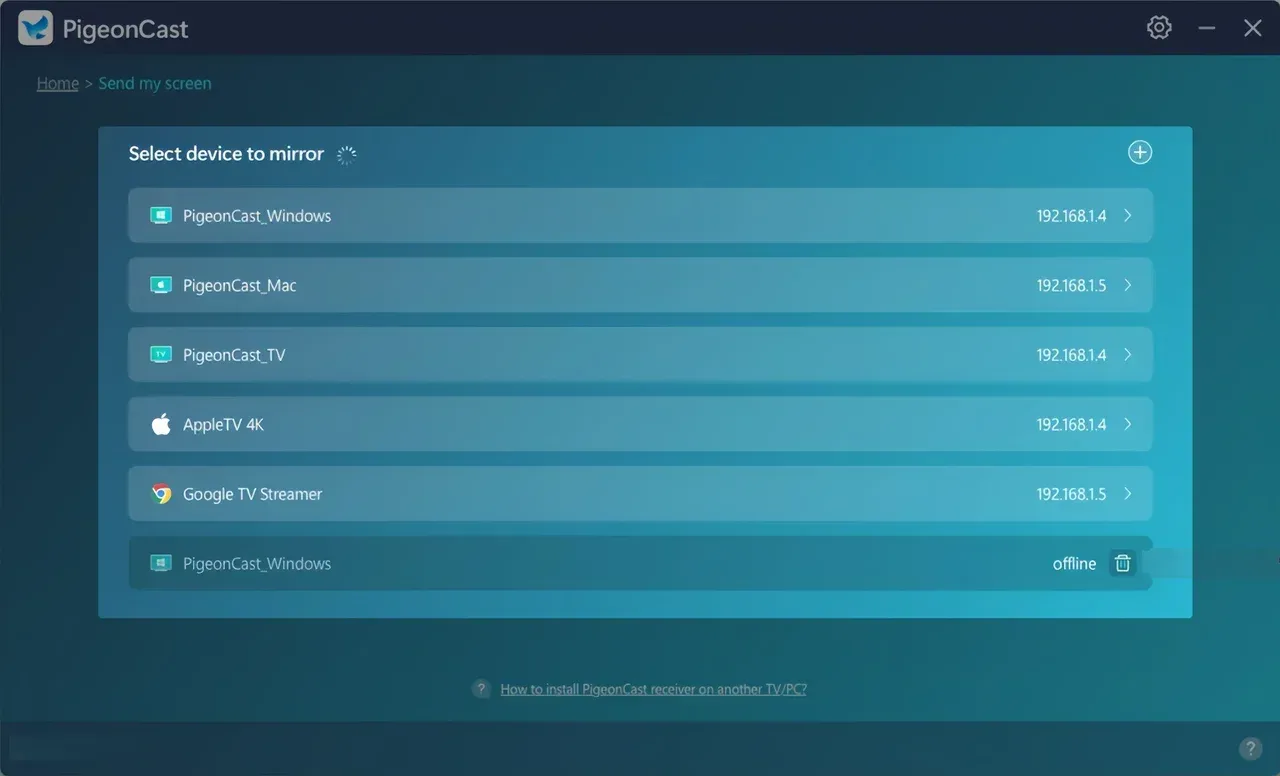
Step 3. Launch the app on the computer and click Send my screen to choose your TV from the device list to pair with.
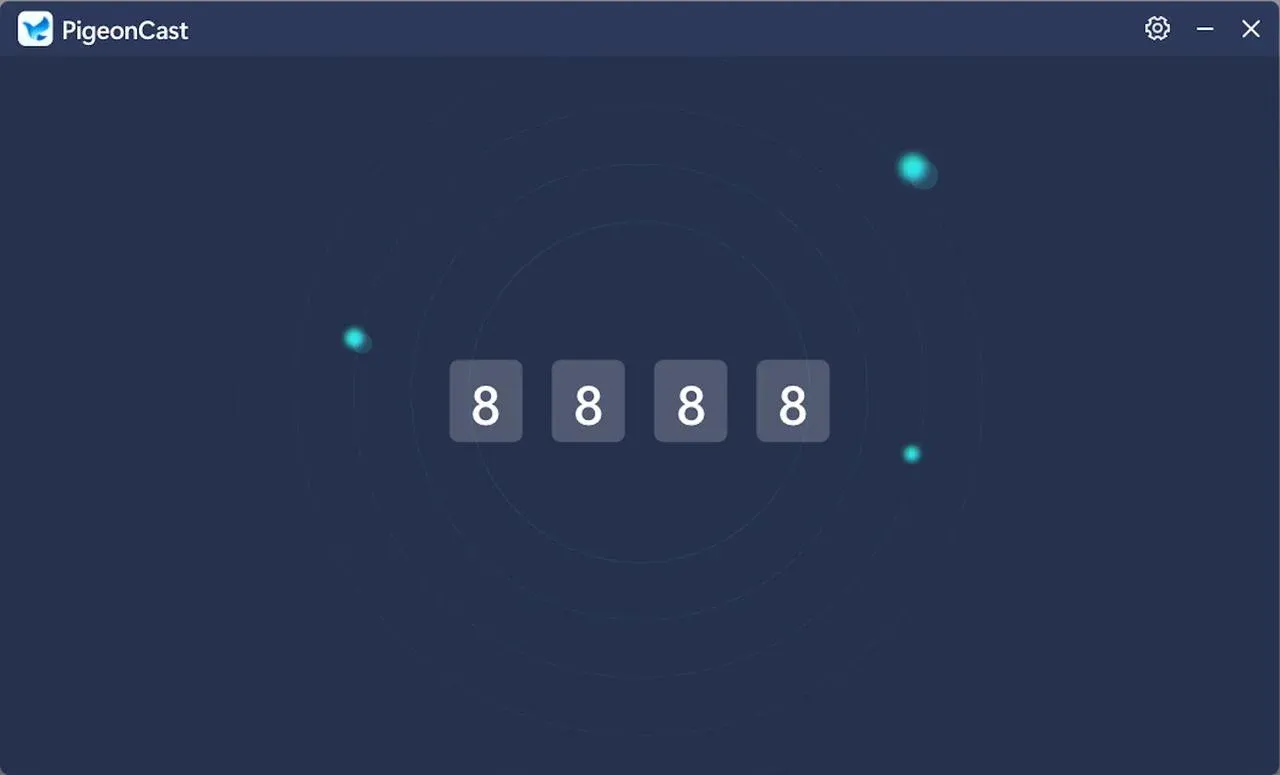
Step 4. If prompted, enter the onscreen codes to finish the pairing process. Once you succeed, you can see the PC's screen on your smart television.
- Why Choose PigeonCast for Windows App
When it comes to screen mirroring or casting from a Windows PC, there are plenty of tools available, but not all of them deliver the same experience. Some are limited by compatibility, while others require extra hardware or come with frustrating lag. This is where PigeonCast for Windows stands out, offering a reliable, versatile, and user-friendly solution.
- Multiple Protocol Support
- Dual Functionality: Sender & Receiver
- High Quality, Low Latency Performance
- Simple Setup Over Wi-Fi
- Good Media Control Features
- Privacy & Security Built-In
- Flexible Quality Settings
Troubleshooting Common Issues When a Second Monitor Is Not Detected
Even with the right hardware and setup, sometimes your second monitor may not work as expected. Common issues include the monitor not being detected, incorrect resolution, or the screen going black. The good news is that most of these problems can be fixed quickly with a few simple checks and adjustments.
- Second Monitor Not Detected
- Make sure all cables are securely connected.
- Try using a different port on your PC or monitor.
- Update your graphics drivers to ensure your system can recognize additional displays.
- Incorrect Resolution or Blurry Text
- Adjust the scaling and resolution in Windows display settings for a clearer view.
- Verify that your graphics card supports the monitor's resolution to prevent display issues.
- Monitor Keeps Going Black
- Test the monitor with a different cable to rule out connection problems.
- Check that your graphics card is compatible and functioning properly with multiple displays.
By following these troubleshooting steps, you can quickly identify and resolve most issues, ensuring your extended display setup works smoothly and efficiently.
Bottom Line
How to extend a screen on Windows? Extending your screen to Windows can dramatically improve productivity, workflow, and entertainment. By using display settings, keyboard shortcuts, or PigeonCast screen mirroring app, you can create a multi-monitor setup that works perfectly for your needs. Hoping this guide helps you get started with extending your Windows screen!
How to Extend Screen on Windows FAQ
Q: How do I extend my display to two screens?
- Connect your second monitor to your PC using the appropriate cable (HDMI, DisplayPort, VGA, etc.).
- Go to Settings > System > Display, select Extend these displays under the multiple displays dropdown, and adjust the arrangement and resolution as needed.
- Once applied, you can use both screens independently for work, gaming, or entertainment.
Q: What is the shortcut to extend screen?
The shortcut to extend your screen on Windows is Windows key + P. This opens the Project menu, where you can choose Extend to use multiple monitors as an extended display.
Q: What does "extend screen" mean on Windows?
Extending your screen allows you to use two or more monitors as a single, larger desktop. This means you can move apps, windows, and documents between screens to improve productivity or gaming experience. Plus, you can change your mind to try PigeonCast to cast or screen mirror the screen.
Q: Can I extend my Windows screen wirelessly?
Yes, Windows 10 and 11 support wireless screen mirroring. You can use built-in features like Project to this PC or apps like PigeonCast to extend your screen to a TV or another monitor without cables.
Q: Why is my second monitor not detected?
Common reasons include loose cables, outdated graphics drivers, incompatible ports, or incorrect display settings. Checking connections, updating drivers, and ensuring your graphics card supports multiple monitors usually resolves the issue.
Clara Rossi is an experienced technology editor and a seasoned expert in screen mirroring and casting technologies. With a keen eye for detail and a deep understanding of how to seamlessly connect devices, Clara excels at optimizing user experiences for effortless sharing and streaming. Whether you're seeking quick fixes or advanced tips, her expertise and responsiveness ensure that every query is met with a well-informed and efficient solution.