
Whether you're creating tutorials, capturing gameplay, or recording a video call, screen recording is a valuable tool. Fortunately, Macs come with built-in features that make this process simple and efficient, without other assistance. Here's your comprehensive guide on how to screen record on a Mac, whether you're using which Mac version.
Can You Screen Record on a Mac Book
Yes, absolutely! Your MacBook comes with built-in tools that make screen recording easy and hassle-free: Screenshots and QuickTime Player, both designed for different purposes.

If you need to capture something quickly, like a bug or a short tutorial, the Screenshots feature is your best choice. It's super fast and perfect for grabbing quick screenshots or recording short clips. Whether you're sharing a small issue with a colleague or creating a simple how-to, it has you covered.

On the other hand, if you're working on something more detailed, like a professional presentation, a step-by-step tutorial, or even recording a video call, QuickTime Player is your go-to. It gives you more control, whether you want to record your full screen or just a specific area, and it allows for audio narration too.
How Do You Screen Record on a Mac
Whether you're creating professional documentation, sharing educational content, recording entertainment, or troubleshooting technical issues, mastering your Mac's built-in screen recording tools can significantly boost your productivity and make digital communication easier. Now, let's walk through how to record your screen on a Mac:
Use Screenshot
How to record a screen on Mac? The macOS introduced an updated screen recording feature within the Screenshot Toolbar, starting with macOS Mojave (10.14) and later. This tool provides a cleaner, more integrated way to record your screen with additional options.
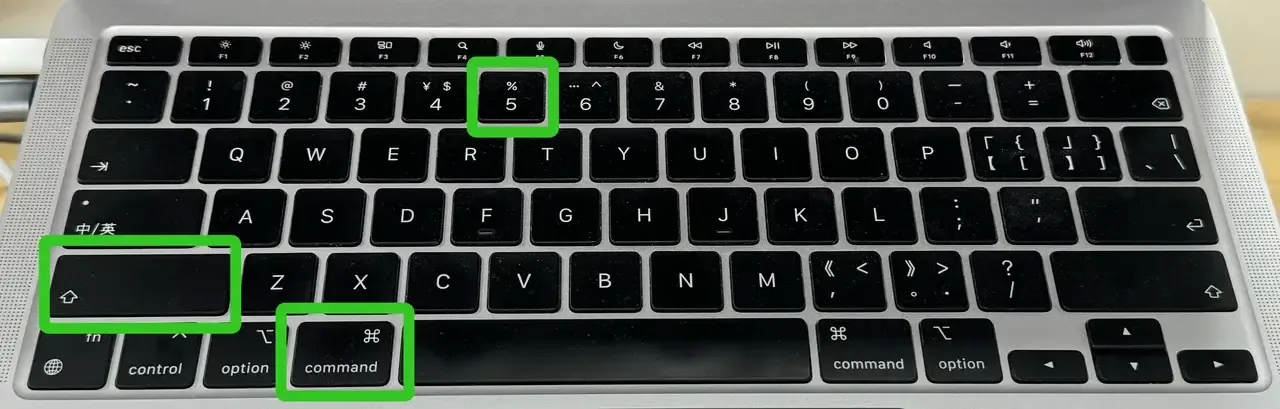
Step 1. Press Shift, Command, and 5 keys together to open the Screenshot Toolbar.
Step 2. You'll see options to record either the full screen or a selected portion of the screen, then you can select your recording Type:
- Full Screen: Click the icon that looks like a screen to record everything on your display
- Selected Portion: Click the dashed box icon to select an area to record. You can resize the box before starting.

Step 3. Once you've selected your area or full screen, click the Record button.

Step 4. When you're done, click the Stop button in the menu bar or press the Control, Command, and Esc keys together.
Use QuickTime Player
How to screen record a video on Mac? QuickTime Player is also the default media player on your Mac, and it comes with a built-in screen recording feature that's super easy to use. Whether you're making a quick tutorial, recording a video call, or capturing a bug to report, QuickTime is your go-to tool.

Step 1. Search QuickTime in your Applications folder or Spotlight by pressing the Command + Space keys.
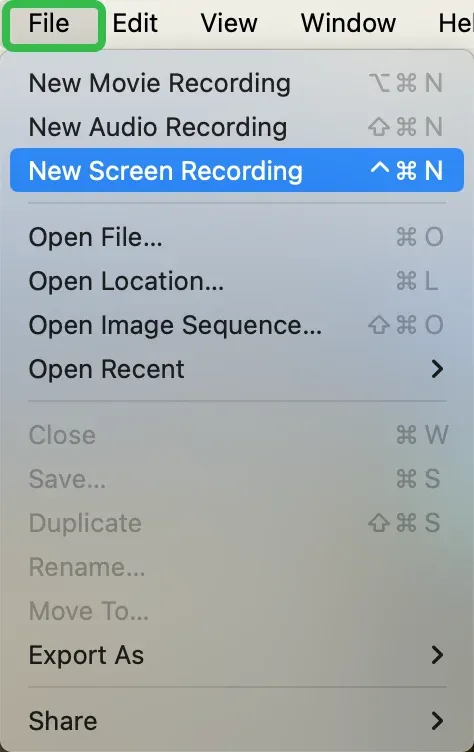
Step 2. Select New Screen Recording from the File button in the menu bar.
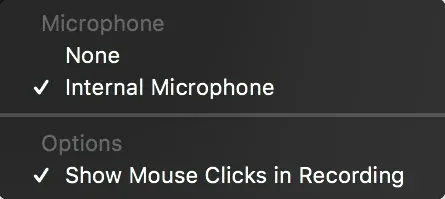
Step 3. A small window will appear with a Record button. Before starting, click on the tiny downward arrow next to the record button to adjust settings. You can choose to:
- Enable or disable the microphone to record sound from your Mac's mic.
- Show mouse clicks to make your clicks visible in the video.

Step 4. To stop recording, click the Stop button in the menu bar or press the Command, Control, and Esc (Escape) keys simultaneously.
Step 5. After you stop recording, QuickTime Player automatically opens the recording. You can now play, edit, or share the recording.
Bonus: Use a Mac Screen Mirroring App
How do you record your screen on a Mac? Alternatively, you can choose to use a universal MacBook screen mirroring app from PigeonCast to change your mind. Instead of screen recording the Mac to cover the memory, you can simply adopt the current mirroring or casting feature to share your screen smoothly.
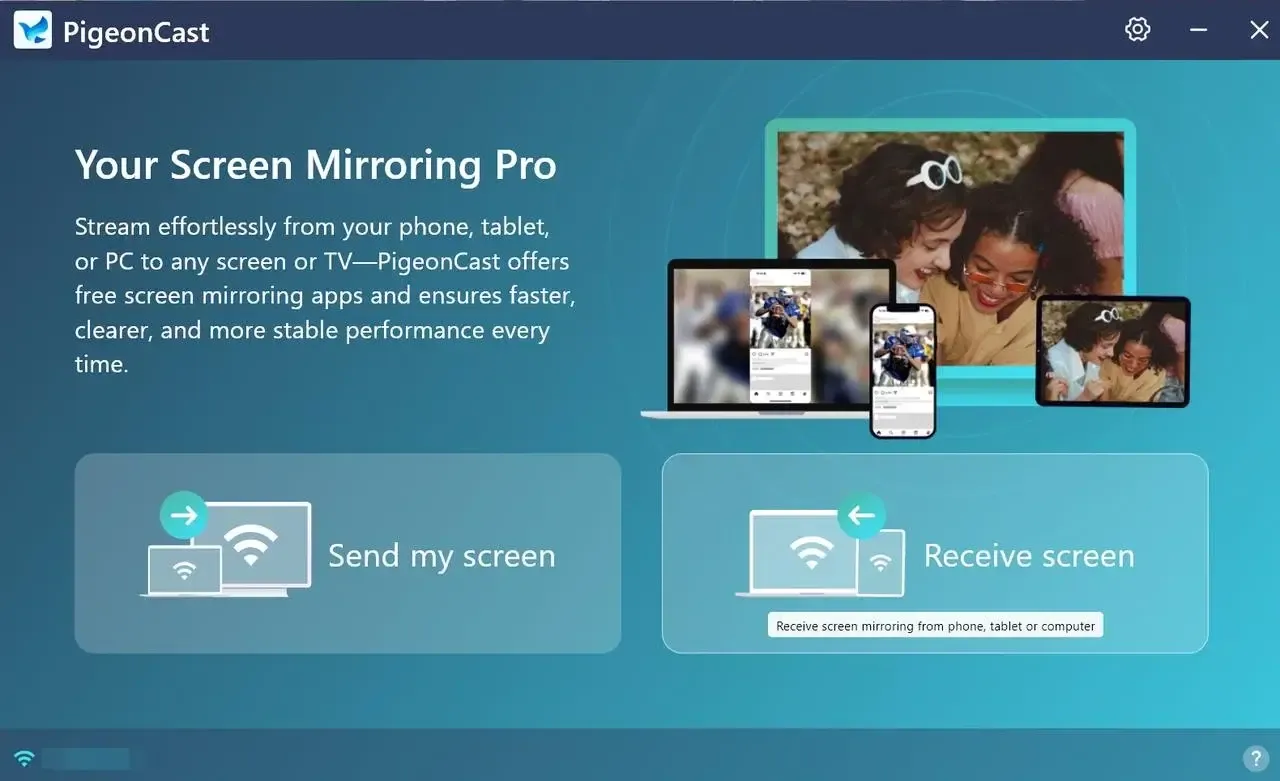

PigeonCast Screen Mirroring

Official Download


Step 1. Install the mirroring app on your MacBook, and ensure your MacBook and another device (such as a smart television or PC) are connected to the same wireless network.
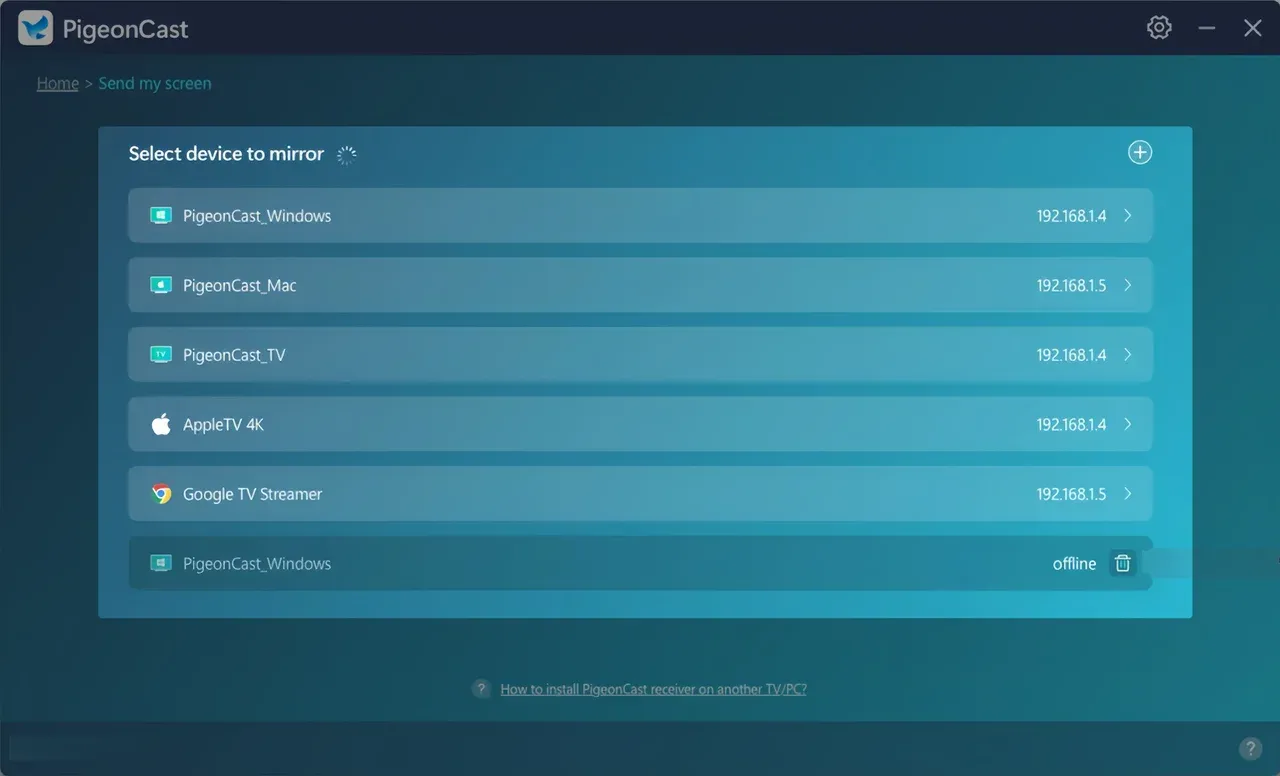
Step 2. Open the application on your Mac, and choose the Send my screen option from the device list to connect your device.
Step 3. If prompted, enter the onscreen code to finish the pairing process. Once connected, you'll see your Mac screen on the other device. From there, you can either mirror the screen or record your Mac to carry out the task.
Bottom Line
How do I screen record on a Mac? Fortunately, you can easily use the built-in Screenshot tool or QuickTime Player. And if you decide to switch things up, you can mirror your MacBook screen to another device using PigeonCast's universal Mac screen mirroring app.
How to Screen Record on a Mac FAQ
Q: How do I screen record on my Mac computer?
To screen record on your Mac, press Shift + Command + 5 to open the screenshot toolbar. From there, you can choose to record the entire screen or a selected portion. Once you're ready, click Record, and to stop, click the Stop button in the menu bar at the top of your screen. The recording will automatically save to your desktop.
Q: How do I record video with sound on my Mac?
To record video with sound on your Mac, you can use QuickTime Player.
- Open QuickTime Player, click File in the menu bar, and select New Screen Recording.
- In the recording window, click the drop-down arrow next to the record button and choose your microphone to capture sound.
- Then, click the record button to start. Once done, click the stop button in the menu bar, and the video will save automatically.
Q: How do I record my computer screen?
To record your computer screen, you can use built-in tools or third-party software like PigeonCast's screen mirroring app.
- On a Mac, press Shift + Command + 5 to open the screen recording options. Choose whether to record the entire screen or just a portion, then click Record.
- On Windows, you can use the Xbox Game Bar by pressing Win + G, then clicking the record button.
Q: How to screen record on Windows?
- To screen record on Windows, press Win + G to open the Xbox Game Bar.
- Click the Record button (or press Win + Alt + R) to start recording.
- The Game Bar will record the screen, and when you're done, click the Stop button.
- The recording will automatically save in the Videos folder under Captures. If you need more advanced features, you can also use third-party software like PigeonCast's Mac screen mirroring app.
Clara Rossi is an experienced technology editor and a seasoned expert in screen mirroring and casting technologies. With a keen eye for detail and a deep understanding of how to seamlessly connect devices, Clara excels at optimizing user experiences for effortless sharing and streaming. Whether you're seeking quick fixes or advanced tips, her expertise and responsiveness ensure that every query is met with a well-informed and efficient solution.