
How to disconnect phone from Mac? Whether you're switching devices, managing work-life boundaries, or just want to stop the cross-talk between your phone and Mac, this guide will show you the disconnection process completely, both from iPhone and Android across all connection types.
Why Build a Connection Between Phone and Mac
Whether you're transferring important files, syncing your calendars, or backing up your data, having your devices linked keeps everything working seamlessly together. Setting up this connection makes managing your digital life easier and more efficient, no matter where you're working from.
- Effortless File Transfers
Whether you are sending photos, videos, or documents, connecting your phone to your Mac allows for fast and secure file transfers. You can simply drag and drop using Finder, Bluetooth, or AirDrop without needing additional software.
- Automatic Backups
By regularly connecting your iPhone to your Mac through Finder or iTunes, you can ensure that your data is automatically backed up. This includes your photos, contacts, messages, and settings, giving you peace of mind in case you lose or replace your phone.
- Syncing for Productivity
Using tools such as iCloud, Handoff, and Continuity, you can start an email on your phone and finish it on your Mac. Your calendars, reminders, notes, and even Safari tabs stay updated across devices in real time.
- Software Updates and Device Management
A connection allows you to update your phone's software, manage storage, and restore the device if needed, all from your Mac. This provides greater control over your phone's performance and health.
- Tethering and Internet Sharing
When Wi-Fi is not available, you can use your phone to share its mobile data connection with your Mac. This is especially helpful when you are working on the go or in areas with limited connectivity.
- Local Convenience
In places with spotty internet or limited access to cloud services, having a direct connection between your phone and Mac means you can work offline, transfer large files faster, and avoid relying on slow uploads.
How to Disconnect My Phone From My Mac
Before you begin, it's important to understand that disconnecting your phone from your Mac will disable many of the features that make your workflow more efficient. You will lose access to automatic syncing, quick file transfers, and the seamless integration between devices that helps you stay organized and productive.
Way 1. Disconnect USB Connection
If you're using a USB cable to charge your phone, transfer files, or sync data with your Mac, you're using the most direct and common type of connection. Safely disconnecting it ensures that no files are lost or corrupted in the process.
Step 1. Gently unplug the USB cable from your phone or your Mac.
Step 2. If you're using an iPhone and it shows up in Finder or iTunes, make sure to click Eject next to the device name before unplugging it.
Step 3. For Android users, if the Android File Transfer app opens automatically, just close the app before disconnecting the cable.
Tips: Sometimes, apps like Photos, Music, or Image Capture open every time you plug in your phone. You can disable this setting:
Step 1. Connect your phone to your Mac.

Step 2. Open the Image Capture app (you can find it via Spotlight search)
Step 3. Select your device from the list on the left. At the bottom, look for Connecting this device opens, and set it to No application.
Way 2. Unpair Bluetooth to Forget Your Phone
Bluetooth is a wireless connection for sharing files or connecting audio between your phone and Mac. If you want to completely disconnect your phone, unpairing the Bluetooth connection will stop any automatic pairing or background activity between the two devices.
- On Your Mac:
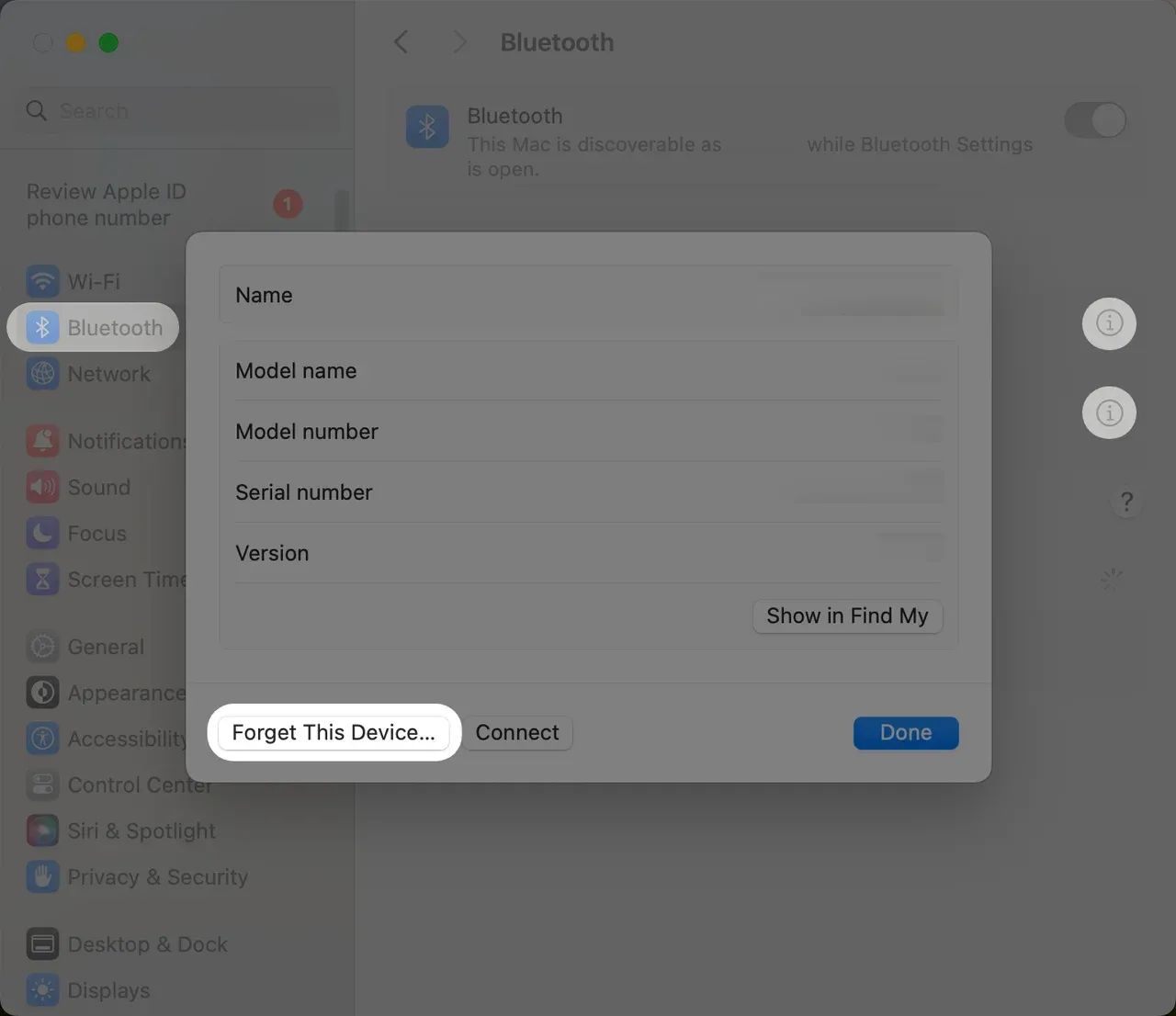
Step 1. Open System Settings > Bluetooth.
Step 2. Find your phone in the list of connected devices, and click the info icon (i) or right-click the device name.
Step 3. Select Forget or Remove to unpair your mobile device.
- On Your Phone (iPhone or Android):
Step 1. Open the Bluetooth settings and find your Mac in the list of paired devices.
Step 2. Tap your mobile device and then choose Forget This Device option.
Way 3. Disconnect Wi-Fi Hotspot Sharing
If your Mac is using your phone as a personal Wi-Fi hotspot, it is important to turn off the connection when it is no longer needed. Leaving it active can lead to unnecessary data usage, battery drain, and potential privacy concerns, especially if you are on a limited mobile plan or working in a public space.
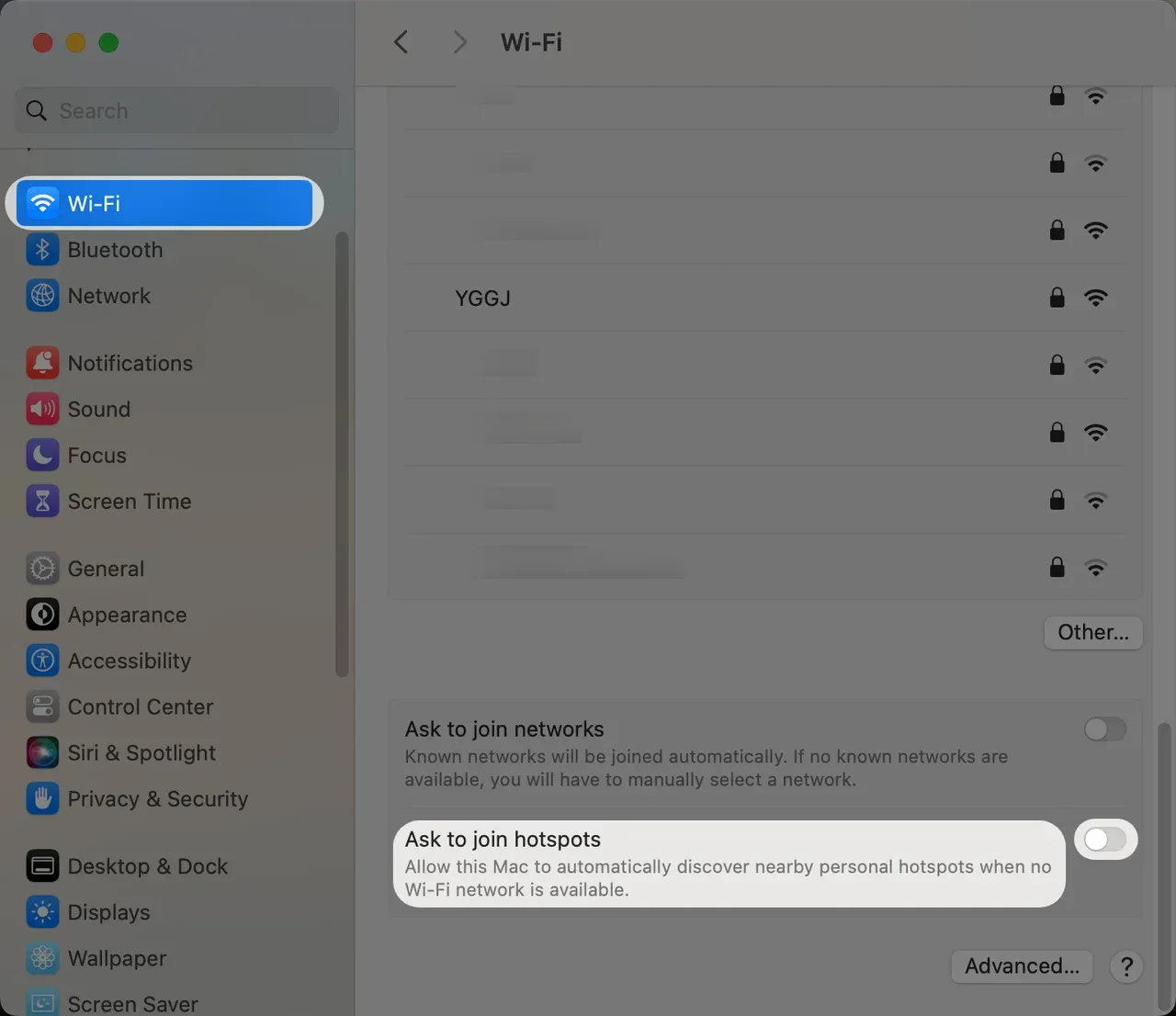
Step 1. Go to System Settings > Wi-Fi on your Mac.
Step 2. Select a different network to switch connections, or choose the Forget This Network option to stop using the hotspot.
Step 3. You can also turn off the Ask to join hotspots choice to avoid automatic hotspot connection.
Way 4. Disconnect Apple ID to Stop Syncing (iPhone Only)
If you're using an iPhone with your Mac, your devices stay linked through your Apple ID. This enables syncing of iCloud data, Messages, FaceTime, Safari, Notes, Handoff, and more. To truly disconnect the iPhone from the Mac, you'll need to disable or sign out of these Apple ID-based services.
Step 1. On your Mac's System Settings > [Your Name].
Step 2. Scroll down to see the list of devices associated with your Apple account.
Step 3. Select your iPhone and choose Remove from Account.
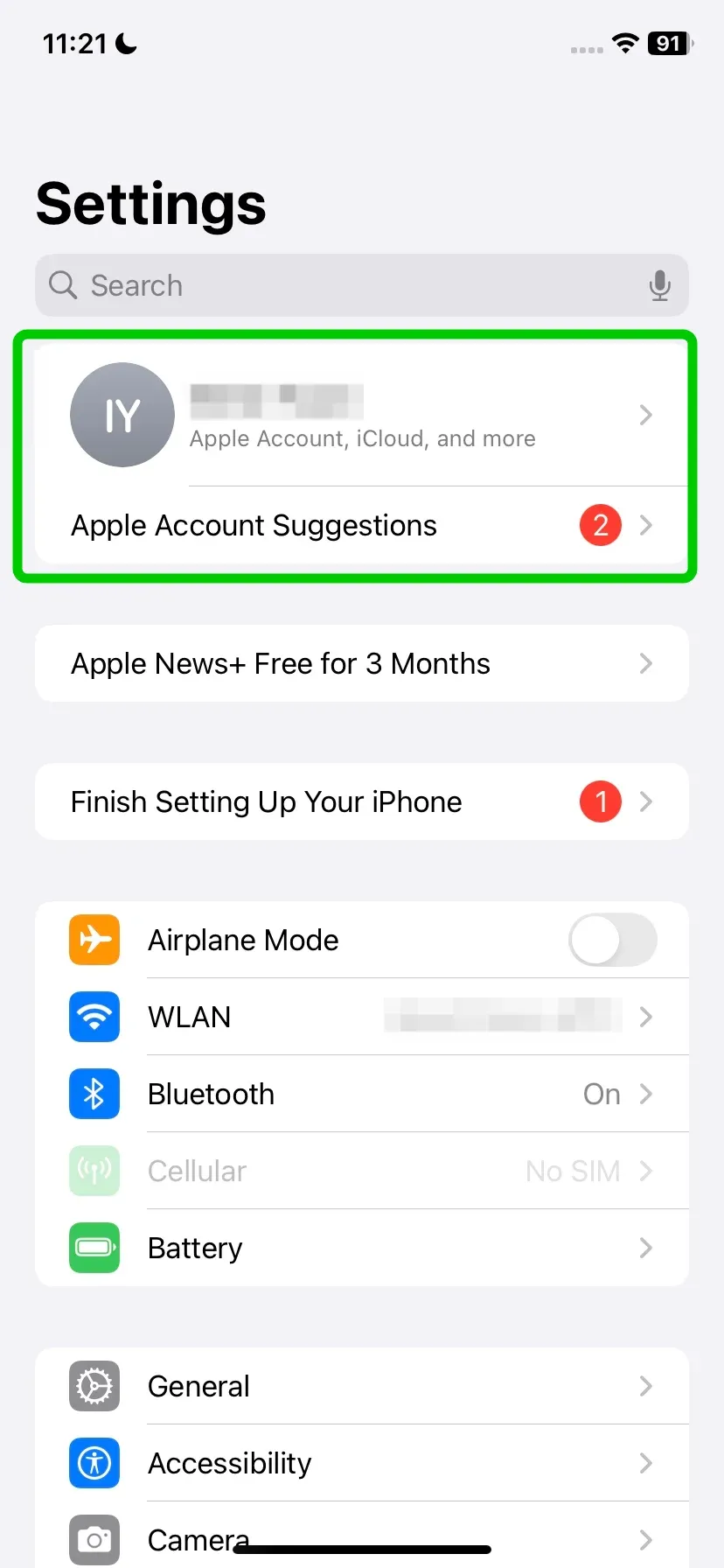
Alternatively, you can navigate your iPhone's Settings > [Your Name] > Sign out of Apple ID.
Way 5. Uncheck iPhone From Finder
If you're using macOS Catalina or later, your iPhone shows up in Finder when connected via USB or Wi-Fi. Disconnecting it properly ensures that no data sync is interrupted or corrupted.

Step 1. Open Finder from your Dock or Applications folder.
Step 2. In the sidebar, locate your iPhone under the Locations section.
Step 3. Uncheck the Show this iPhone when on Wi-Fi option.
Way 6. Disable AirDrop (iPhone Only)
AirDrop makes it easy to share files between your iPhone and Mac, but sometimes you may want to turn it off for privacy, security, or to limit distractions. Disabling it is quick and simple.
Step 1. On the iPhone, go to Settings > General > AirDrop and select Receiving Off.
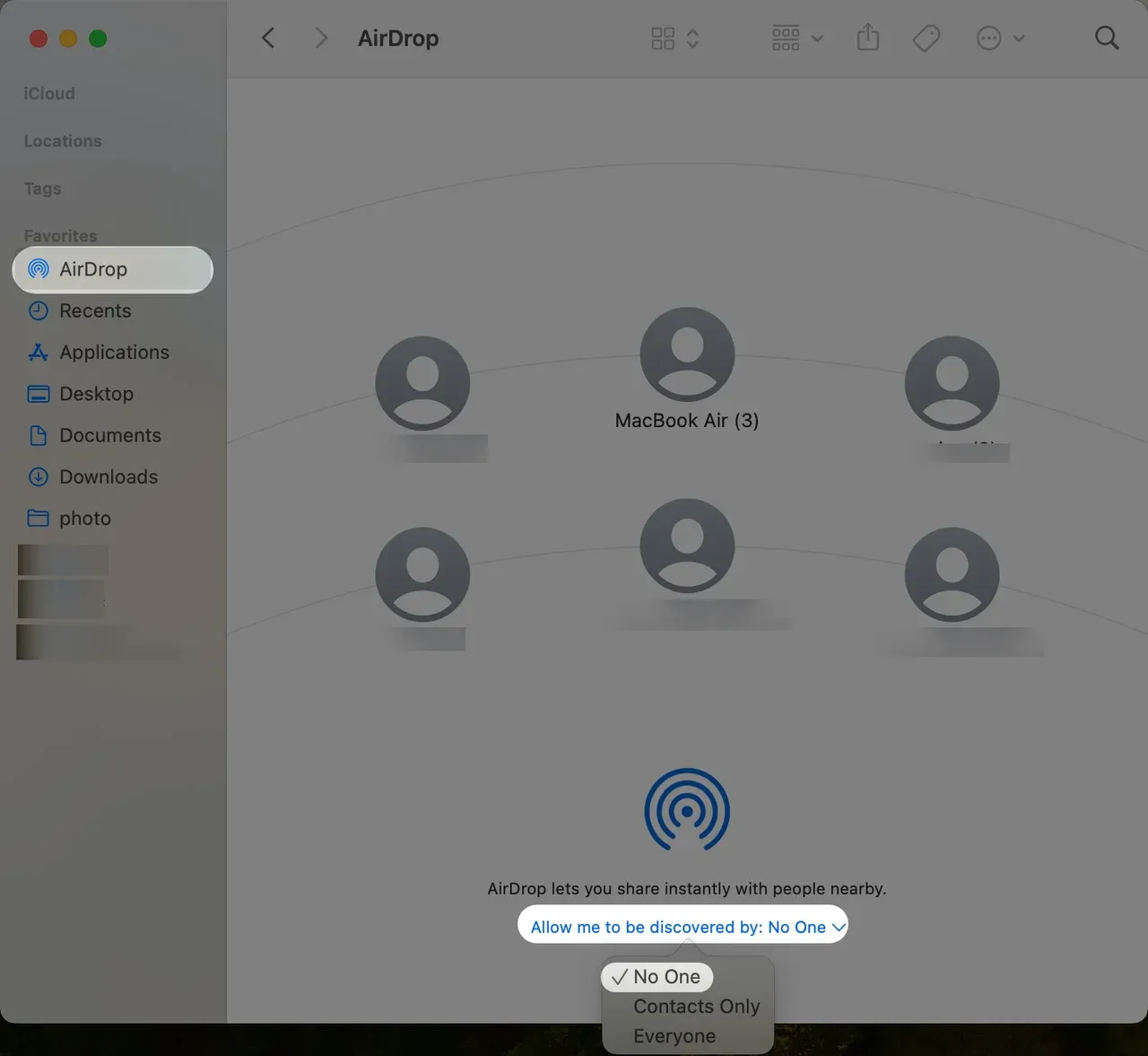
Step 2. To stop your Mac from appearing in AirDrop on your iPhone, choose AirDrop from Finder and set Allow me to be discovered by to No One.
Way 7. Disconnect Handoff (iPhone Only)
Handoff is a feature that lets you start a task on your iPhone and continue it on your Mac, like browsing a webpage, writing an email, or editing a document. While it's helpful, it can also be distracting or unnecessary if you prefer to keep your devices separate.
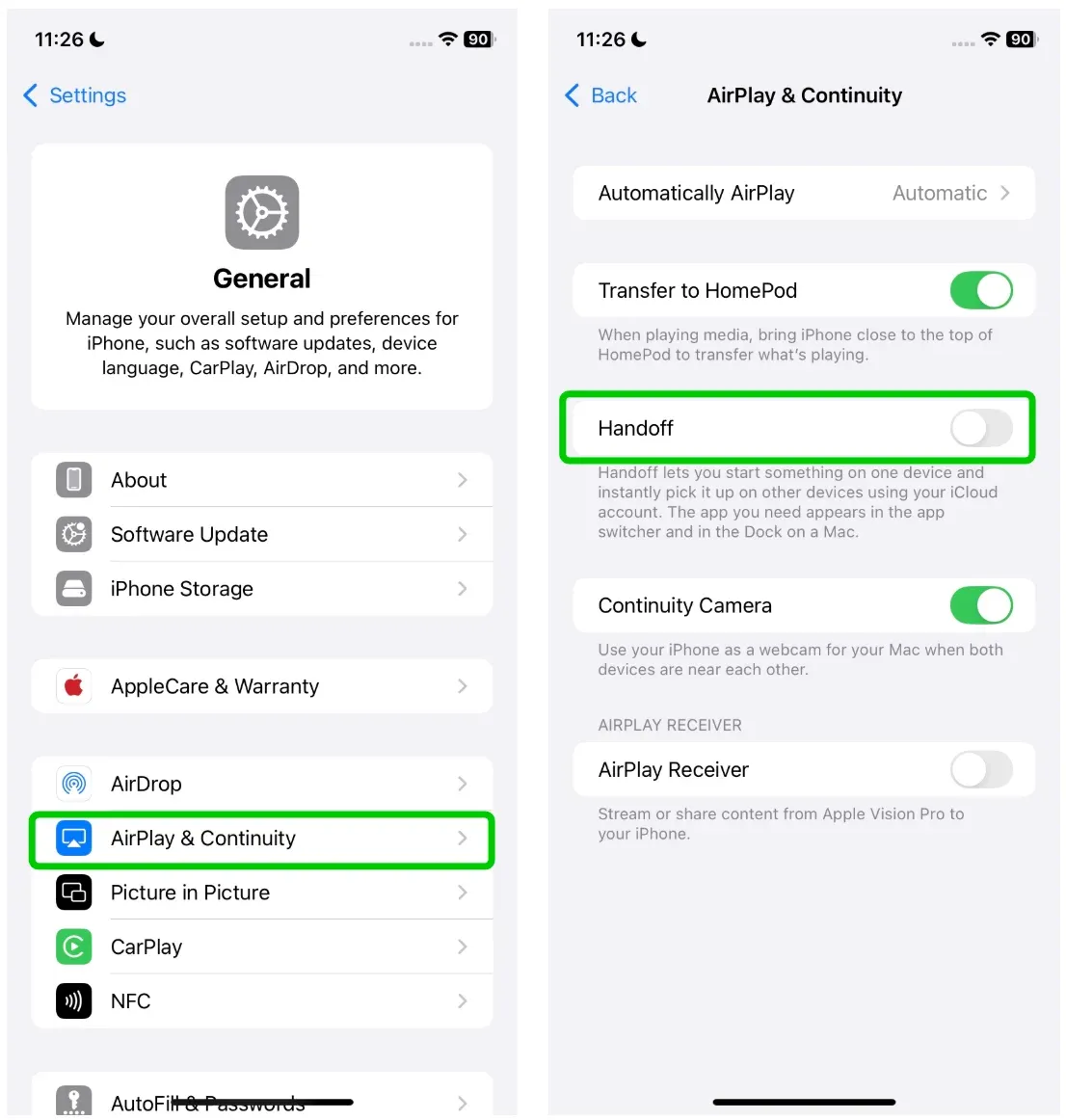
Step 1. Go to Settings > General > AirPlay & Continuity, and turn off Handoff on iPhone.
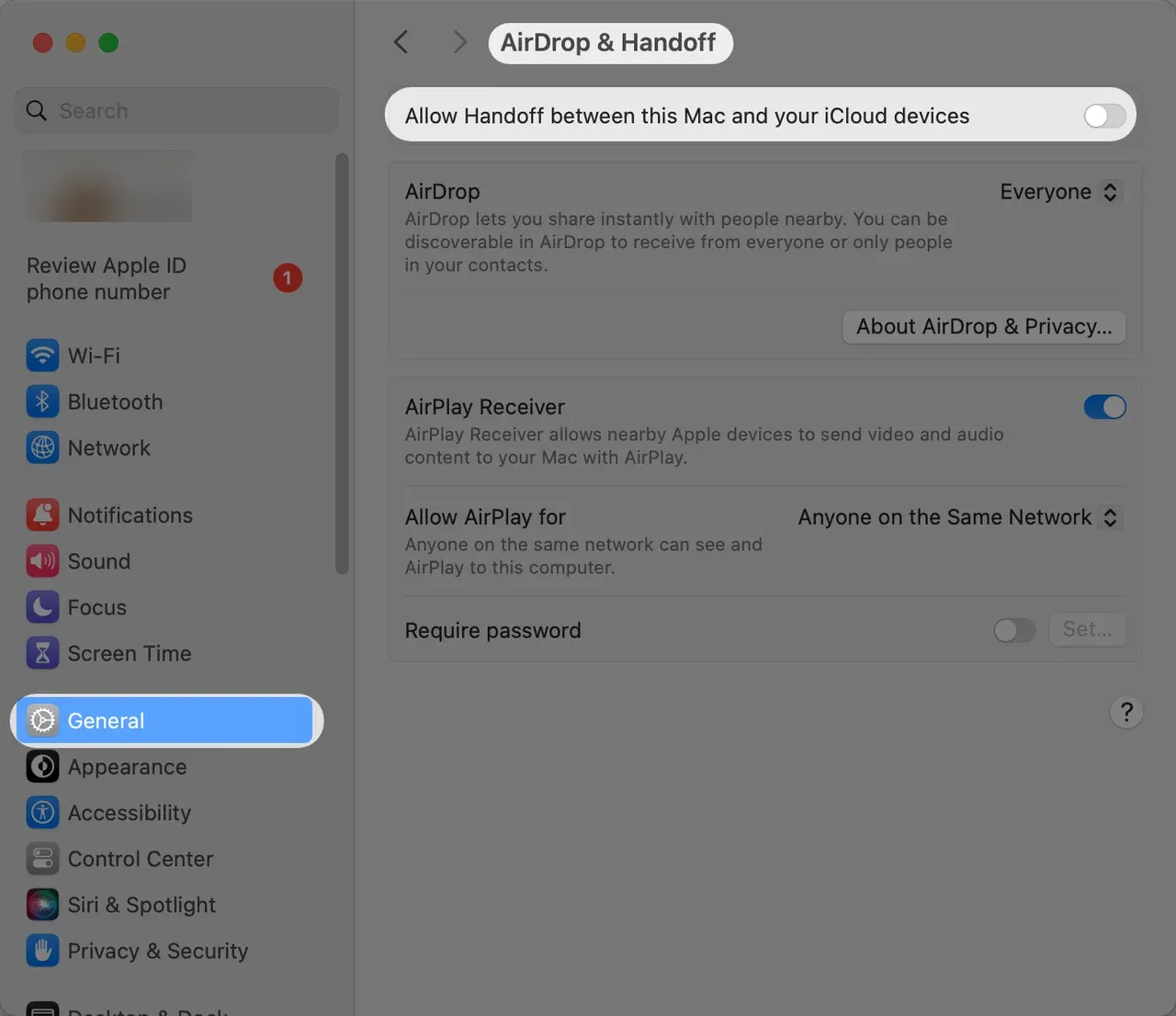
Step 2. To disable Handoff on Mac, go to System Settings > General > AirDrop & Handoff and turn off Allow Handoff between this Mac and your iCloud devices.
Way 8. Stop Getting iPhone Messages on Mac
When your iPhone and Mac are connected through the same Apple ID, your text messages and iMessages can appear on both devices. While convenient for some, it can feel invasive or distracting if you want to keep communications private or separate.
Step 1. Open the Messages app on your Mac, click on Messages > Settings from the top menu bar,
Step 2. In the iMessage tab, deselect the Enable Messages in iCloud option**.**
Step 3. You can also disable getting messages on any email address here (the one related to your Apple ID).
Way 9. Stop Getting iPhone Calls on Mac
If your Mac rings every time you get a FaceTime call on your iPhone, you're not alone. It can quickly become a distraction, especially when you're in the middle of a meeting, focusing on a task, or working in a quiet space. What might seem like a handy feature can turn into a constant interruption during your day.
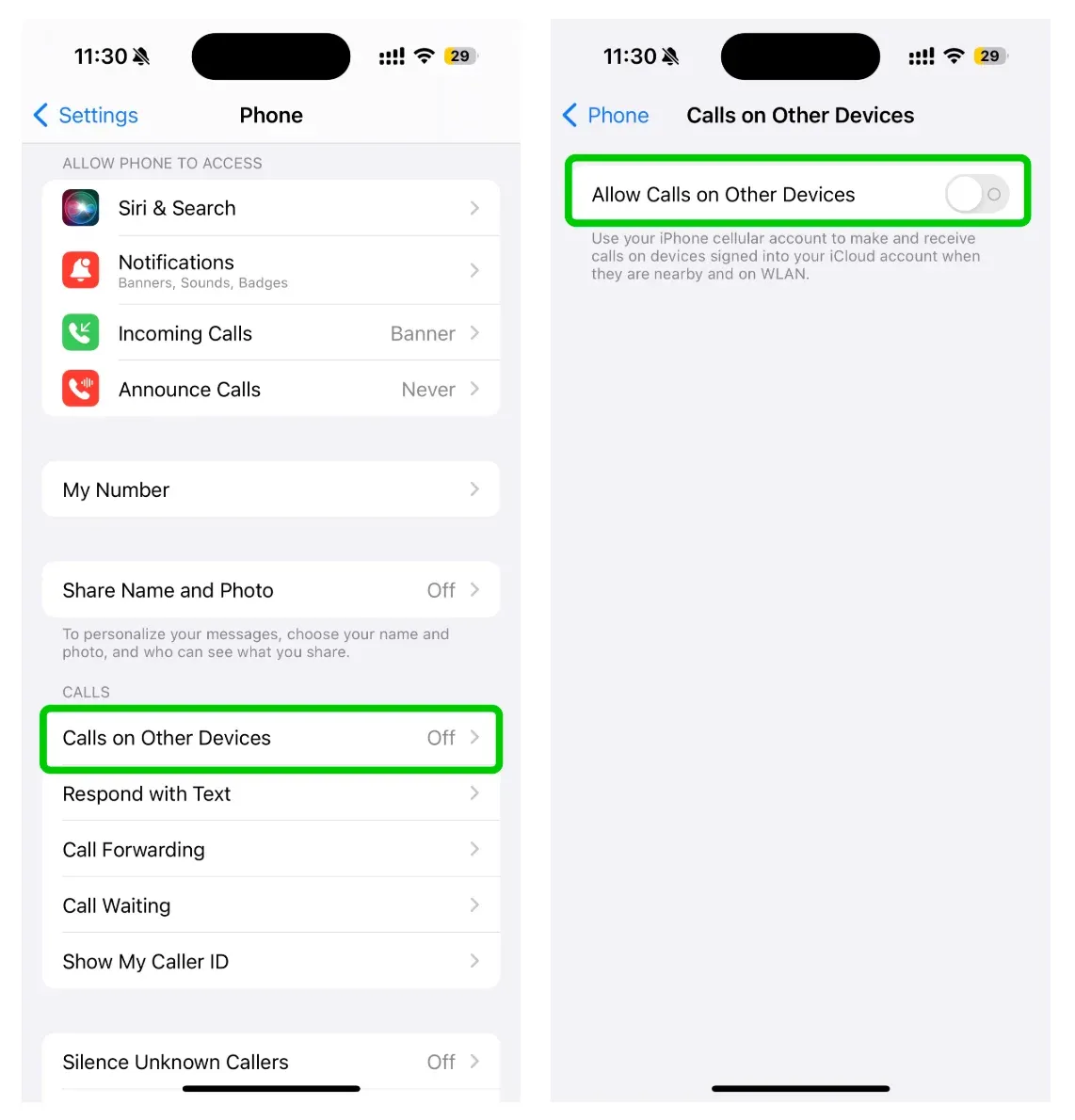
Go to Settings > Apps > Phone > Calls On Other Devices and turn off the Allow Calls on Other Devices option.
How to Connect a Phone to a MacBook
How to disconnect phone calls from Mac? Now that you are familiar with the 9 methods above, you can confidently unpair your phone from your Mac when needed. If you want to reconnect your phone, whether it is an Android or an iPhone, you can use a PigeonCast for Mac Screen Mirroring app.
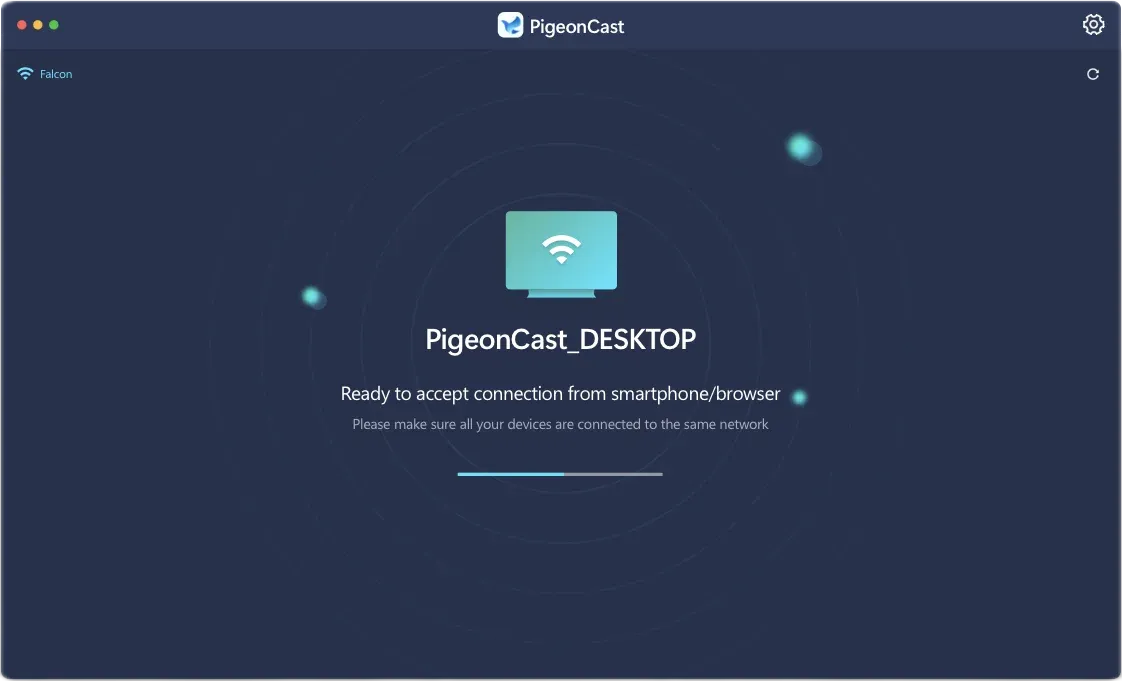
With its help, you don't need to enable such tedious settings mentioned above, but just make sure your devices are under the same wireless network. Here's the pairing process in detail:

PigeonCast Screen Mirroring

Official Download


Step 1. Download the screen mirroring app on your Mac. You can also tap the above download button to get it quickly.
Step 2. Launch the app on your MacBook and follow the onscreen instructions to finish the setup.
Step 3. On your mobile device, tap the Cast or Screen Mirroring feature to choose your MacBook from the device list.

Step 4. If prompted, enter the onscreen codes to finish the pairing process.
Step 5. Once pairing succeeds, you can start mirroring or casting your mobile device to the MacBook.
Bottom Line
How do I disconnect my phone from my Mac? This step-by-step guide covers 9 effective ways to disconnect your phone safely and completely. If you want to reconnect your phone later, you can use PigeonCast's Mac screen mirroring app. It lets you display your phone screen in full screen, record content directly, and maintain data privacy without any leaks, which is perfect for both professional and personal use.
How to Disconnect Phone From Mac FAQ
Q: How do I unlink my phone from my Mac?
To unlink your phone from your Mac, you can:
- Disconnect USB connection
- Unpair Bluetooth to forget your phone
- Disconnect Wi-Fi hotspot sharing
- Disconnect Apple ID to stop syncing (iPhone only)
- Uncheck iPhone from Finder
- Disable AirDrop (iPhone only)
- Disconnect Handoff (iPhone only)
- Stop getting iPhone Messages on Mac
- Remove Mac from iPhone Mirroring List
Q: How do I permanently disconnect my iPhone from my Macbook?
To permanently disconnect your iPhone from your MacBook, start by turning off features that link the two devices. Go to your iPhone and Mac and sign out of the same Apple ID if they are sharing one.
- On your iPhone, disable Handoff, iMessage, and FaceTime under Settings.
- On your Mac, open Bluetooth settings and remove your iPhone from the paired devices list. You should also open Finder, locate your iPhone under Devices, and click Eject.
Q: How do I disable AirDrop between my phone and Mac?
On the iPhone, go to Settings > General > AirDrop and select Receiving Off.
On the Mac, choose AirDrop from Finder and set Allow me to be discovered by to No One.
Q: Is it necessary to sign out of iCloud to disconnect my phone?
Not always. Signing out of iCloud is only needed if you want to fully separate your devices and stop all syncing across Apple services like iCloud Drive, Photos, and Notes.
Clara Rossi is an experienced technology editor and a seasoned expert in screen mirroring and casting technologies. With a keen eye for detail and a deep understanding of how to seamlessly connect devices, Clara excels at optimizing user experiences for effortless sharing and streaming. Whether you're seeking quick fixes or advanced tips, her expertise and responsiveness ensure that every query is met with a well-informed and efficient solution.