
AirPlay lets you stream content from Apple devices to your TV, but parental controls or app limitations can sometimes disrupt the connection. If you want to know how to turn off AirPlay restrictions safely on your iPhone or Apple TV, here is the step-by-step configuration guide.
What Are AirPlay Restrictions
AirPlay restrictions are built-in iOS, iPadOS, and tvOS security measures designed to manage how and when Apple devices share content wirelessly. Rather than a system bug, these controls are typically implemented by users or IT administrators for privacy, corporate compliance, or digital rights safety.
These settings can affect your streaming experience in a few specific ways:
- Parental Controls & Screen Time: Parents often configure Apple's built-in Screen Time settings to restrict access to explicit content or completely pause screen mirroring on a child's iPhone or iPad.
- Corporate MDM Profiles: Devices managed by school IT departments or corporate offices often have Mobile Device Management (MDM) policies that restrict peer-to-peer AirPlay connection to protect sensitive organization data.
- Network Security Measures: Enterprise, hotel, or school Wi-Fi networks frequently segregate their connections, blocking the specific network subnets required for Apple devices to authenticate and stream.
- DRM-Protected Content Blocks: Premium platforms, such as Netflix, Disney+, and YouTube, utilize Digital Rights Management (DRM) to protect copyrights, which can automatically trigger restrictions or black screens during standard mirroring.
How to Turn Off AirPlay Restrictions on iPhone
On Apple mobile devices, wireless casting blocks are usually caused by parental controls inside Screen Time or custom network configurations. If you need to know how to turn off AirPlay restrictions on iPad or iPhone to resume normal family streaming, follow these standard system steps to adjust your settings.
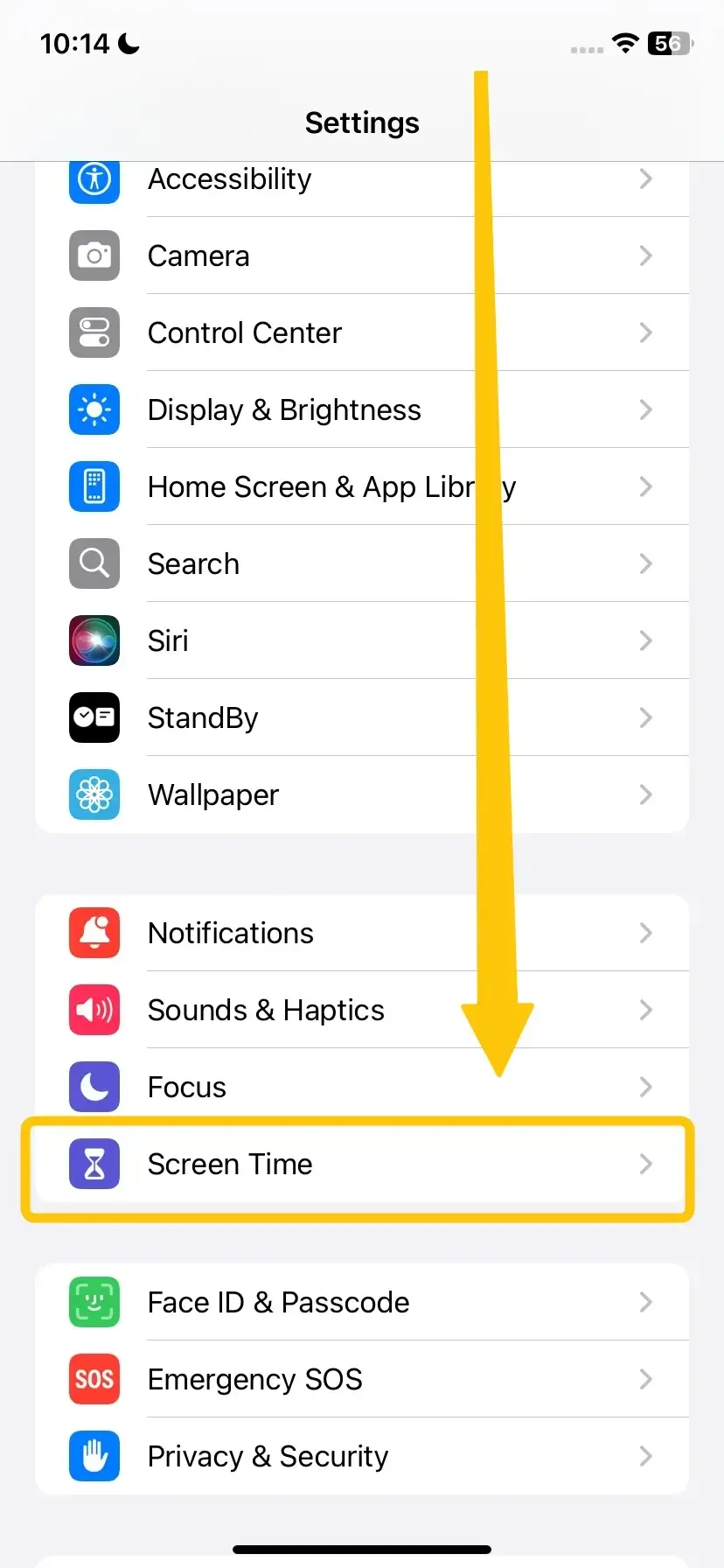
Step 1. Open the Settings app on your iPhone. Tap Screen Time > Content & Privacy Restrictions.
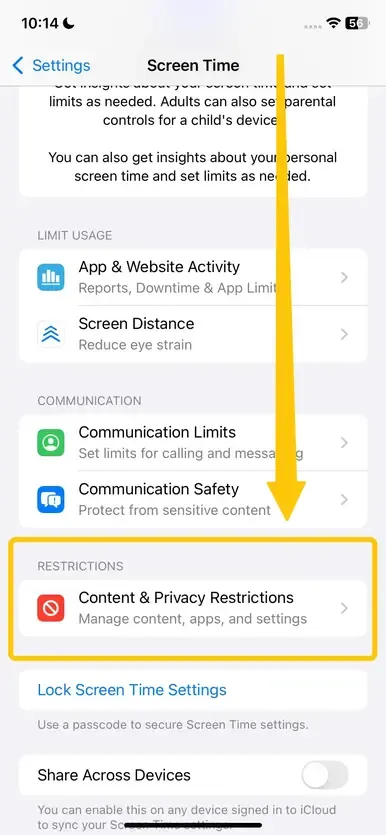
Step 2. If you want to permit all casting features, you can turn off the main switch for Content & Privacy Restrictions. If you prefer to keep other parental blocks active but want to allow screen sharing, tap Allowed Apps and ensure the AirPlay toggle is turned On.
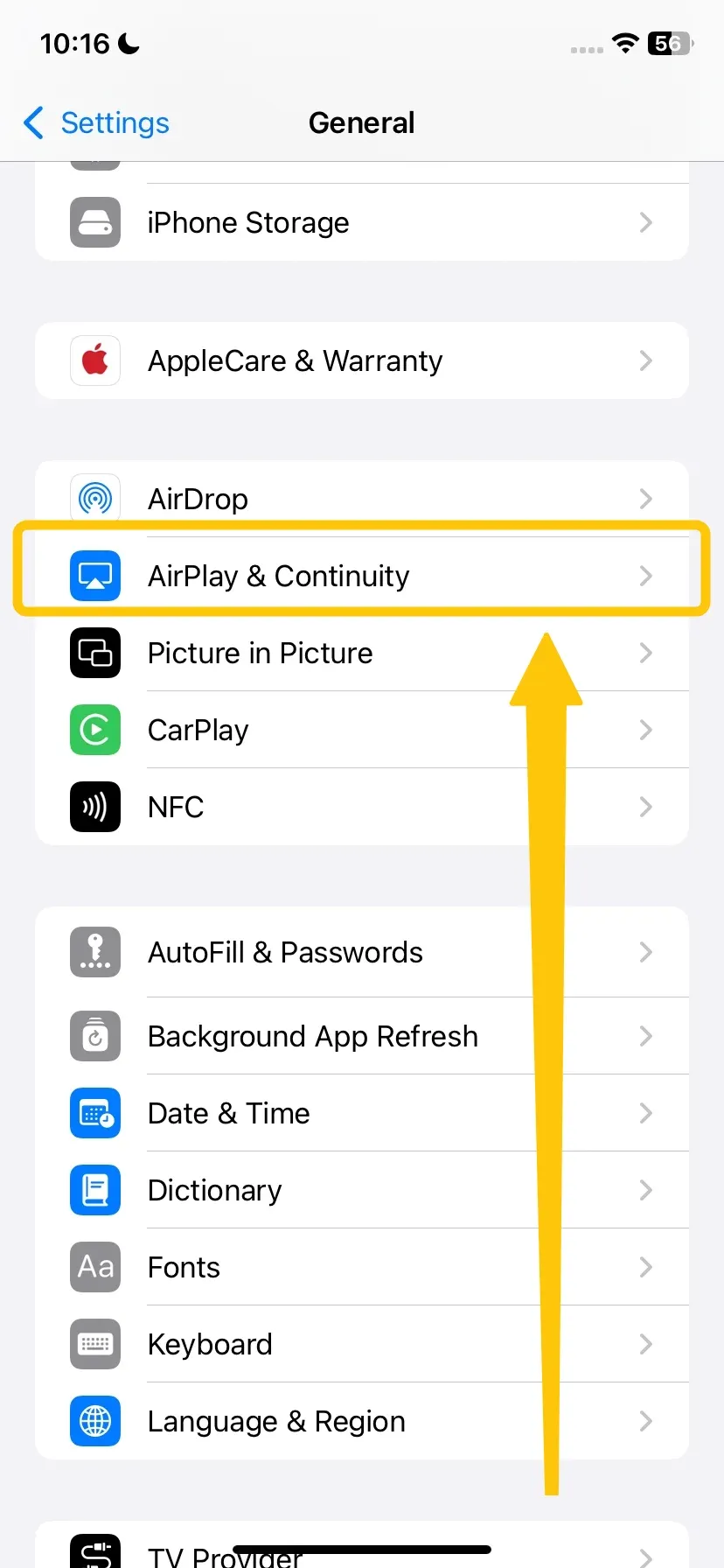
Step 3. Return to Settings > General > AirPlay & Continuity.
Step 4. Under AirPlay Automatically to TVs, select Ask or Automatic to allow connections freely.
How to Turn Off AirPlay Restrictions on Apple TV
If you have already configured your mobile device but still face connection issues, adjusting the built in security settings on your television box is the next step. Here are simple steps to allow access:
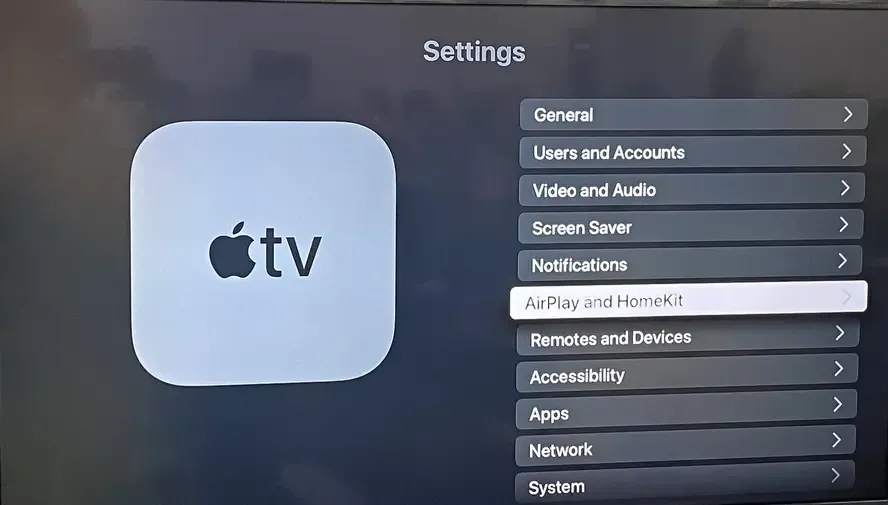
Step 1. Open Settings > AirPlay and HomeKit > Allow Access.
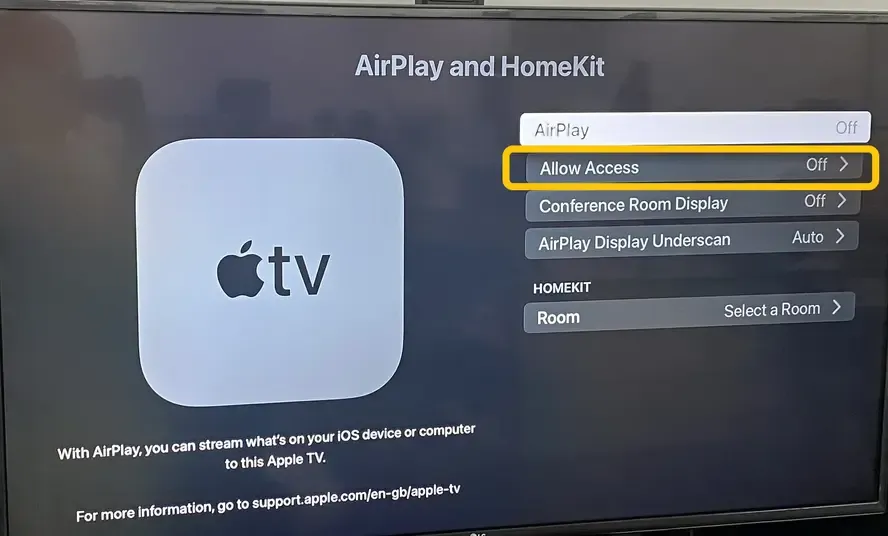
Step 2. Select Everyone or Anyone on the same network.
Step 3. For convenience in a trusted family environment, you can turn off the Require Password option to prevent prompt interruptions during playback.
AirPlay Still Not Working? Try PigeonCast
If you adjust all the settings on your Apple devices and still face connection hurdles, you can try using PigeonCast as an alternative. This free software supports AirPlay, DLNA, and Google Cast to give you maximum flexibility when sharing screens. It works smoothly across Android, iOS, Windows, Mac, and various television setups including Android TV, letting you stream your favorite media without system complications.


PigeonCast Screen Mirroring

Official Download


Step 1. Install the PigeonCast on your Apple device.
Step 2. Ensure your devices are connected to the same WiFi.

Step 3. Launch the app on your device, and follow the onscreen instructions to select your receiver device from the available list.
Step 4. If prompted, enter the PIN code to finish the connection and adjust the mirroring settings to start your casting or mirroring performance.
Bottom Line
How to turn AirPlay restrictions off? If you followed all the troubleshooting steps above, your devices should now communicate freely with each other. For the best streaming experience at home, always ensure your software is updated and your devices remain on the same Wi-Fi frequency.
How to Turn Off AirPlay Restrictions FAQ
How to fix black screen mirroring?
To fix a black screen while mirroring, try these steps:
- Check connections: Ensure your device and TV are on the same Wi-Fi network and properly connected.
- Restart devices: Reboot your phone, tablet, or computer and your TV or casting device.
- Update software: Make sure your device, TV, and any casting apps or firmware are up to date.
- Adjust display settings: On some devices, selecting the correct resolution or display mode can resolve black screen issues.
- Re-establish the connection: Disconnect and reconnect the screen mirroring session.
How do I change AirPlay settings?
To change AirPlay settings on your Apple device, follow these steps:
- On iPhone or iPad:
- Open Settings and go to General > AirPlay & Handoff.
- Adjust AirPlay Automatically to TVs to Automatic, Ask, or Never, depending on your preference.
- To manage device access, go to Settings > Screen Time > Content & Privacy Restrictions > Allowed Apps and ensure AirPlay is enabled.
- On MacBook:
- Open System Settings (or System Preferences on macOS Monterey and earlier).
- Go to General > AirPlay & Handoff.
- Under AirPlay, you can set AirPlay Automatically to TVs to Automatic, Ask, or Never, depending on your preference.
- Back o to System Settings > Screen Time > Content & Privacy Restrictions > Allowed Apps and ensure AirPlay is enabled.
- On Apple TV:
- Open Settings > AirPlay and HomeKit > Allow Access.
- Choose who can stream to your Apple TV: Everyone, Anyone on the Same Network, or Only People Sharing This Home.
- Optionally, disable Require Password for unrestricted streaming.
Does AirPlay have restrictions?
Yes, AirPlay can have restrictions. These restrictions are part of Screen Time, privacy settings, and Apple TV access controls, and they help manage how and when devices can stream or share content. Common AirPlay restrictions include:
- Limiting streaming from certain apps (especially DRM-protected content).
- Blocking devices on different network subnets.
- Requiring a password for connections.
- Parental controls that restrict who can access AirPlay or disable it entirely.
How to turn off AirPlay and CarPlay restrictions?
To turn off AirPlay and CarPlay restrictions on your Apple device, follow these steps:
- Open Settings on your iPhone or iPad.
- Go to Screen Time > Content & Privacy Restrictions.
- If Content & Privacy Restrictions is enabled, either toggle it off entirely or go to Allowed Apps and ensure AirPlay and CarPlay are enabled.
- For AirPlay, you can also check Settings > General > AirPlay & Handoff and set AirPlay Automatically to TVs to Ask or Automatic for unrestricted access.
Why does a black screen appear while using AirPlay on Netflix or Disney Plus?
A black screen with audio via AirPlay but no video during screen mirroring is typically caused by digital rights management or copy protection protocols embedded in premium streaming apps like Netflix and Disney Plus.
Why is my TV not showing up on AirPlay?
- Devices connected to different Wi-Fi bands on a split router.
- Local network discovery permissions turned off on the television.
- Outdated TV firmware causing compatibility issues with Apple systems.
- Bluetooth disabled on the iPhone preventing the initial connection handshake.
- Smart TV stuck in a low power sleep mode that suspends wireless services.
Clara Rossi is an experienced technology editor and a seasoned expert in screen mirroring and casting technologies. With a keen eye for detail and a deep understanding of how to seamlessly connect devices, Clara excels at optimizing user experiences for effortless sharing and streaming. Whether you're seeking quick fixes or advanced tips, her expertise and responsiveness ensure that every query is met with a well-informed and efficient solution.