
If your stream produces sound but no picture, the problem is usually compatibility or network related. Many users see AirPlay only playing audio while the video fails to appear, and that can happen on iPhone, iPad, or Mac when the receiving device cannot accept the video stream even though audio passes through. This guide explains the common causes, fixes you can try right away, and a cross-platform option if Apple AirPlay only playing audio keeps happening.
Why Is AirPlay Only Playing Audio: Top 5 Reasons
There are the top 5 reasons for AirPlay not showing video but playing audio, including app and content limits, device compatibility, network instability, power and background activity, and format and codec problems. Let's dive into them one by one:
- App and content limits
Certain services restrict video output for licensing reasons, so AirPlay playing audio only will occur even though the app continues to send sound. For example, if you try to AirPlay a movie from Netflix to a non-certified TV, you might hear sound but see a black screen. That's DRM in action.
If you suspect this, use the app on the TV itself or try mirroring your entire screen rather than using the app's built-in AirPlay button.
- Device compatibility
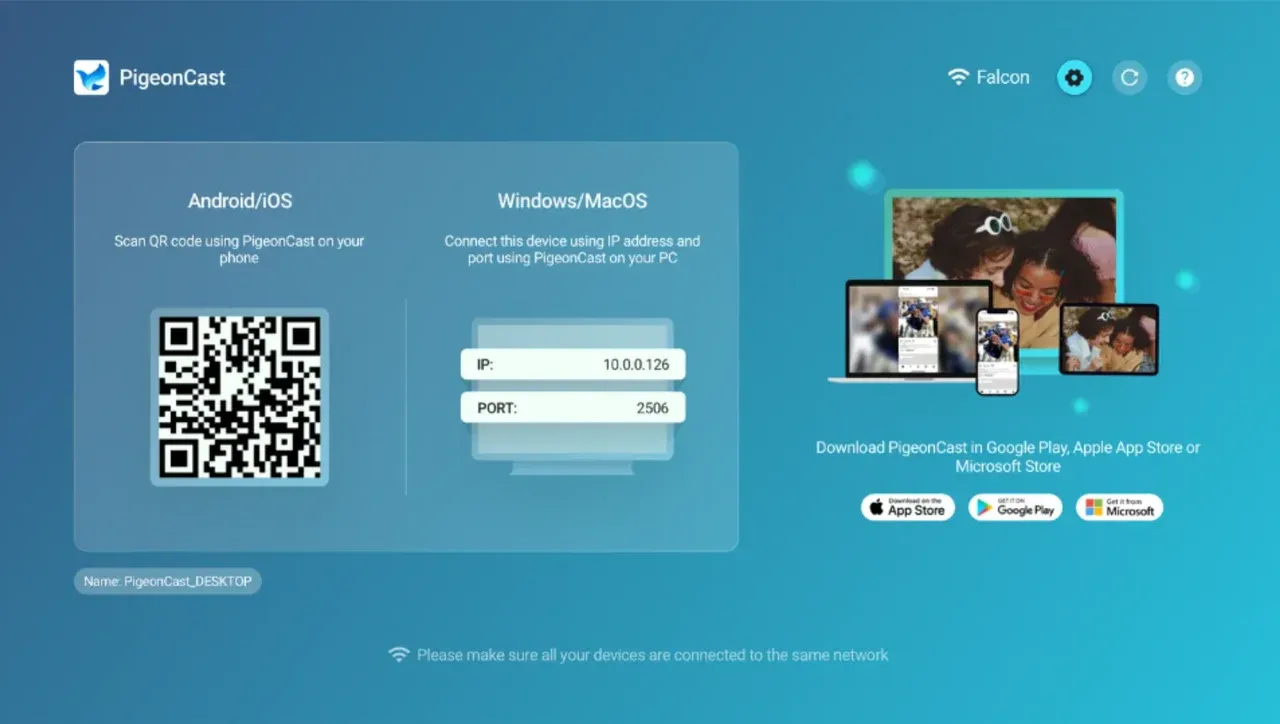
When the receiver's firmware does not support the video codecs or the AirPlay 2 implementation, you will hear audio while the display remains blank. In short, Older receivers or TVs may accept audio but not the video codec AirPlay uses. Updating the TV or using a dedicated Apple TV or a software solution like Pigeoncast usually resolves the mismatch.
- Network stability
A slow or unstable W-Fi connection often forces AirPlay to prioritize audio. Video needs higher sustained bandwidth than audio, so when the network drops packets or disconnects briefly, AirPlay may degrade to audio only to keep playback continuous. Hence, try connecting both devices to the same 5GHz network or move them closer to your router.
- Power and background activity
Background processes or power saving can interrupt video transmission while leaving audio intact. If your sending device is in low power mode or running many background apps, the screen frame rate can drop or stop sending, producing a sound only result. Close unused apps and disable power save features before streaming.
- Format and codec problems
If the video you mirror on your iPhone uses an uncommon codec or container, the receiver may not decode the frames and will refuse the picture but still decode the audio track. Convert the file to a standard MP4 H.264 format or play via an app that supports on-the-fly transcoding.
How to Fix AirPlay Only Playing Audio
Start with these simple steps; then fix most audio-only problems. Here is a quick checklist:
- Verify both devices are on the same Wi-Fi network.
- Restart the sending device and the receiver.
- Update iOS, macOS, or the TV firmware.
- Disable VPNs and firewall rules that could fragment traffic.
- Try screen mirroring instead of using the app's AirPlay button.
- Test another app, such as YouTube, to determine whether the problem is app-specific.
Troubleshooting Process on iPhone or iPad
Follow this sequence to rule out common causes on your mobile device:
Step 1. Open Settings and confirm the device is connected to your home Wi-Fi.
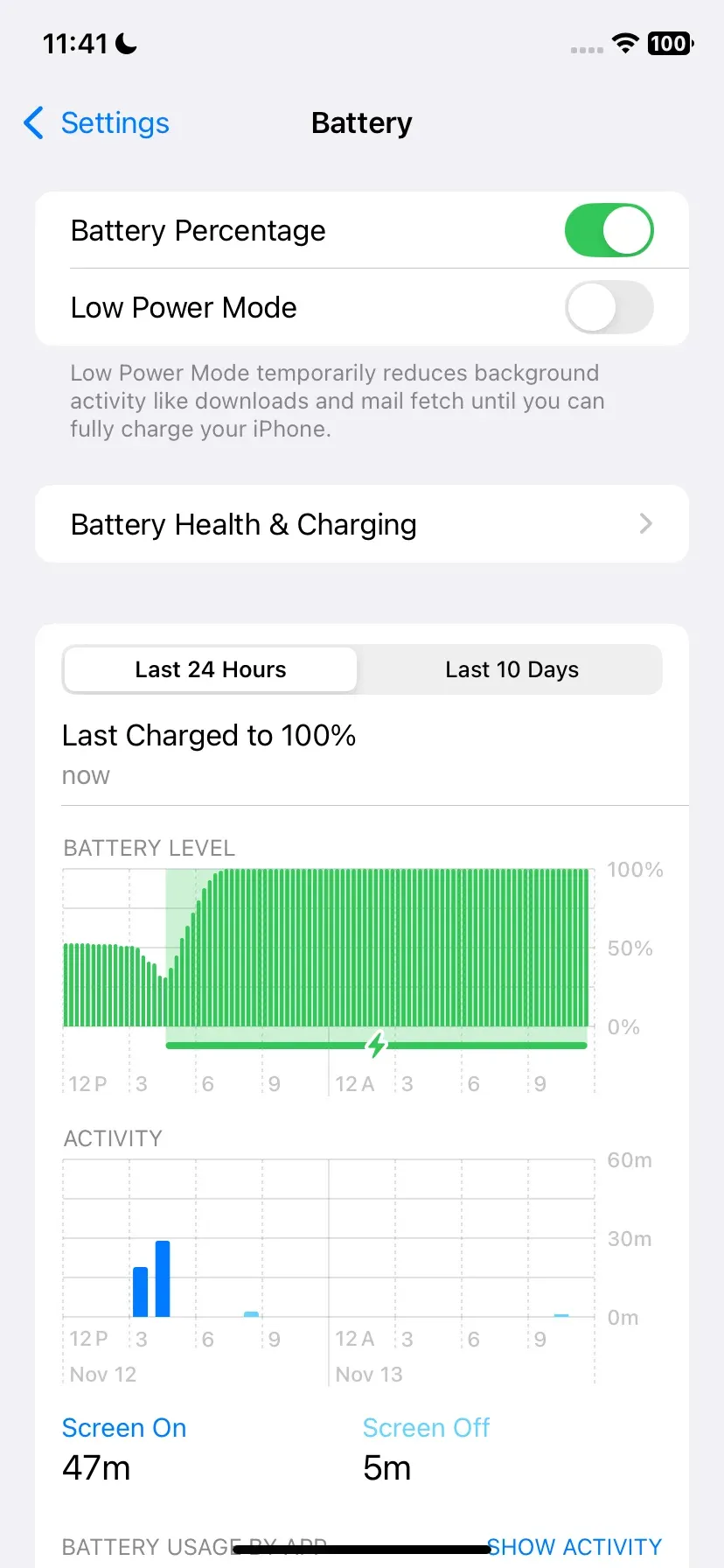
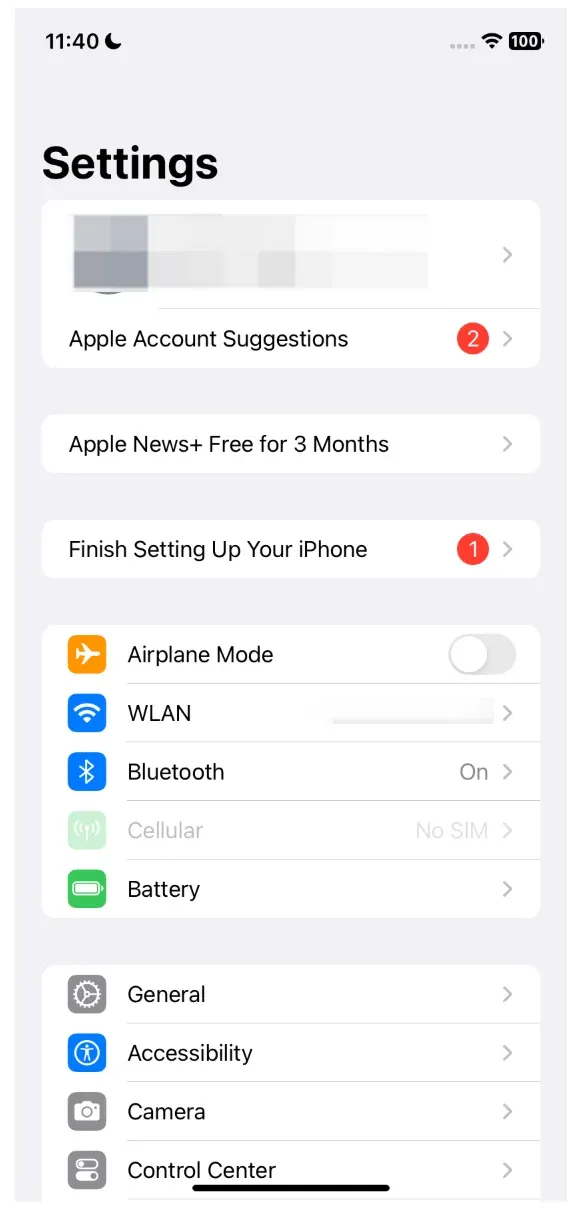 Step 2. Make sure Lower Power Mode is off under Battery.
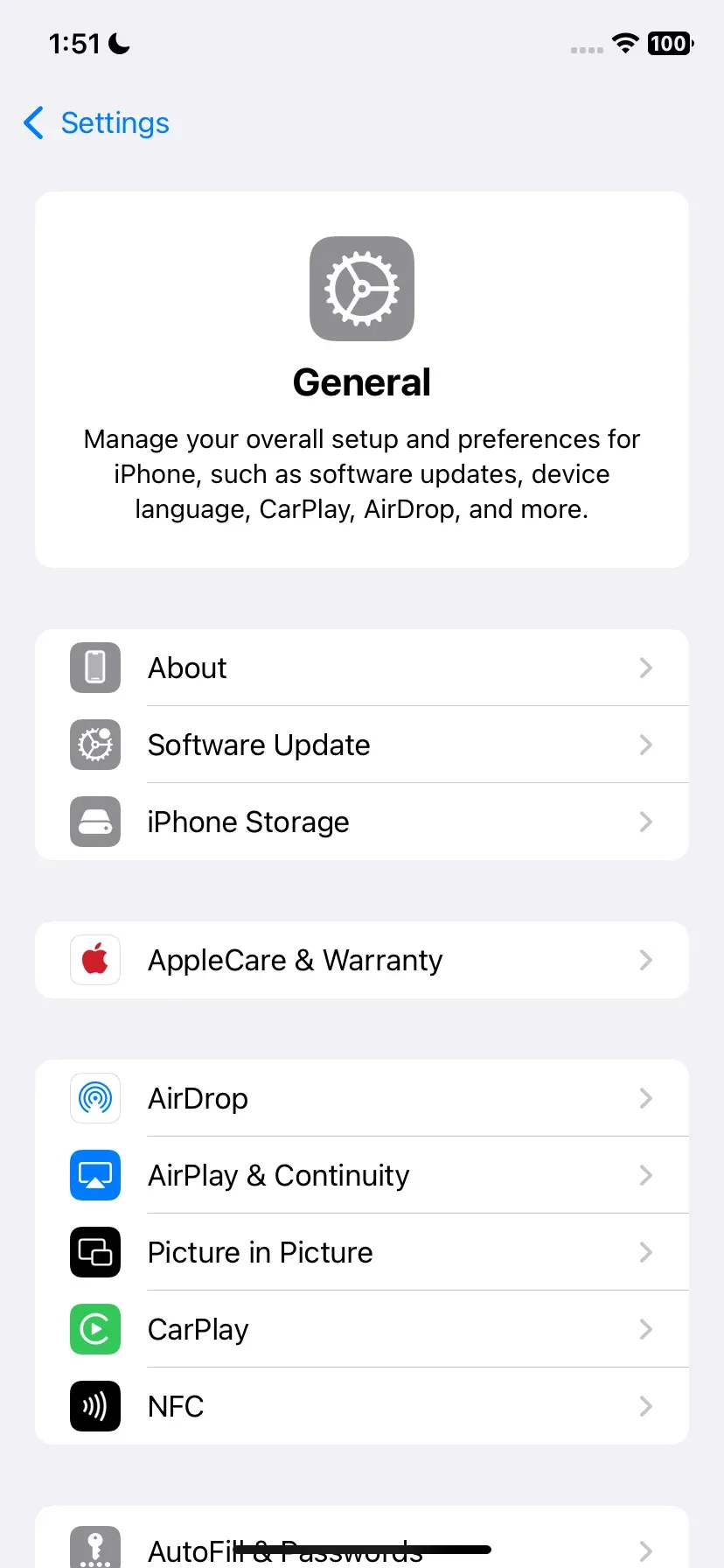
Step 3. Update iOS in Settings > General > Software Update and restart the mobile device.
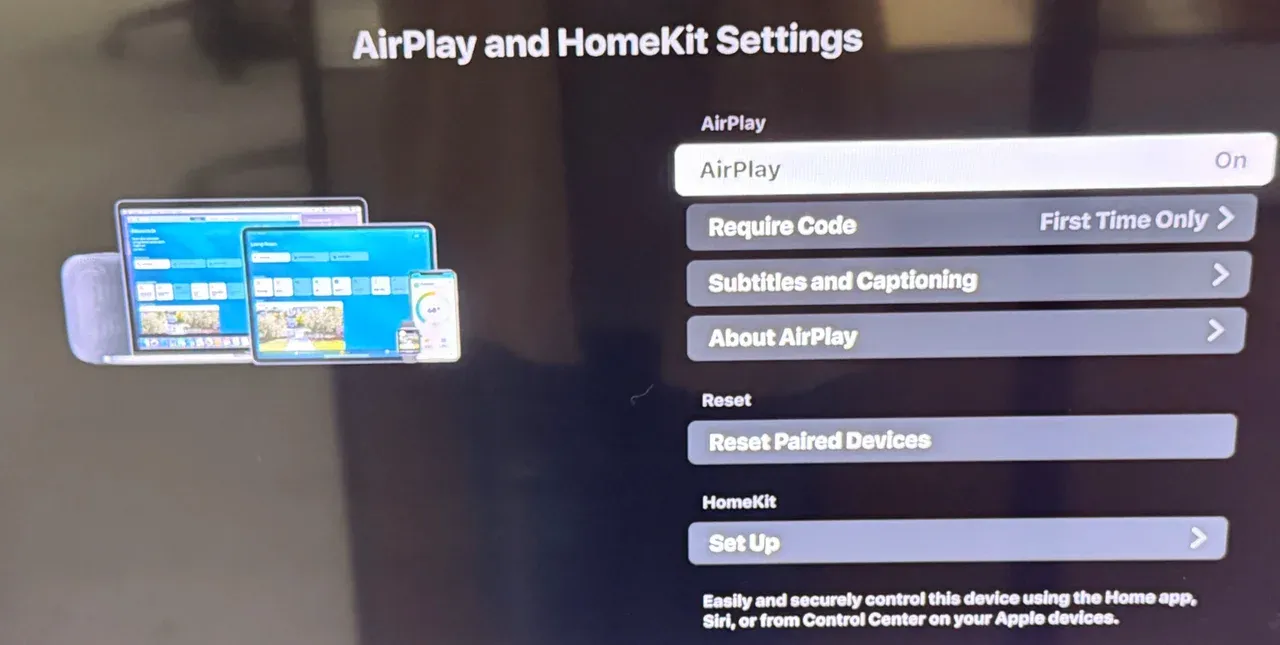
 Step 4. On the TV or AirPlay 2 receiver, enable AirPlay in settings if applicable.
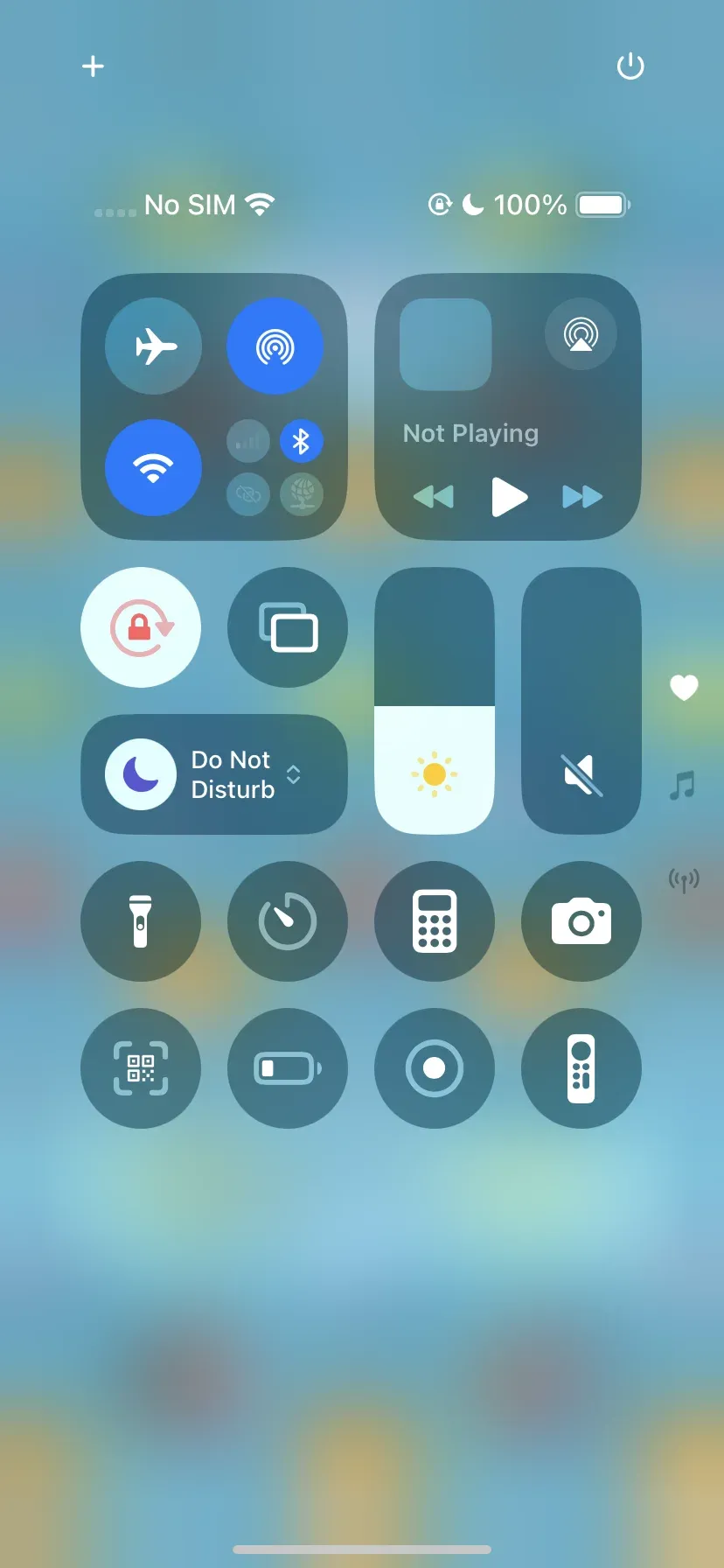
Step 5. Open Control Center, tap Screen Mirroring, and select the receiver rather than using the in-app casting button. If video appears after mirroring, the app likely limits AirPlay video, and you can use mirroring as the workaround.
Troubleshooting Process on MacBook
Use these steps when AirPlay is only sending sound from macOS:
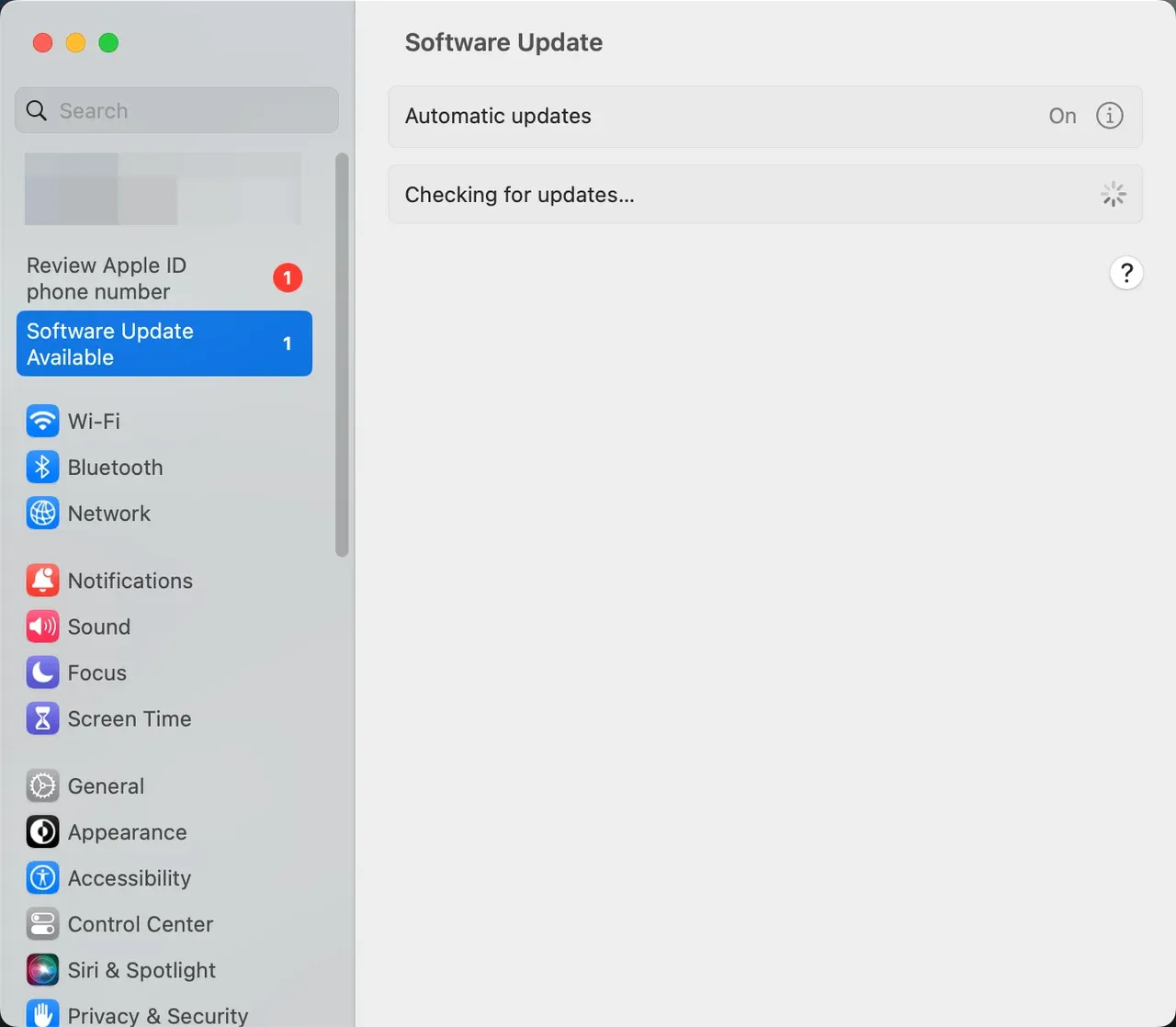
Step 1. Click the Apple menu, choose System Settings, and update macOS to the latest release.
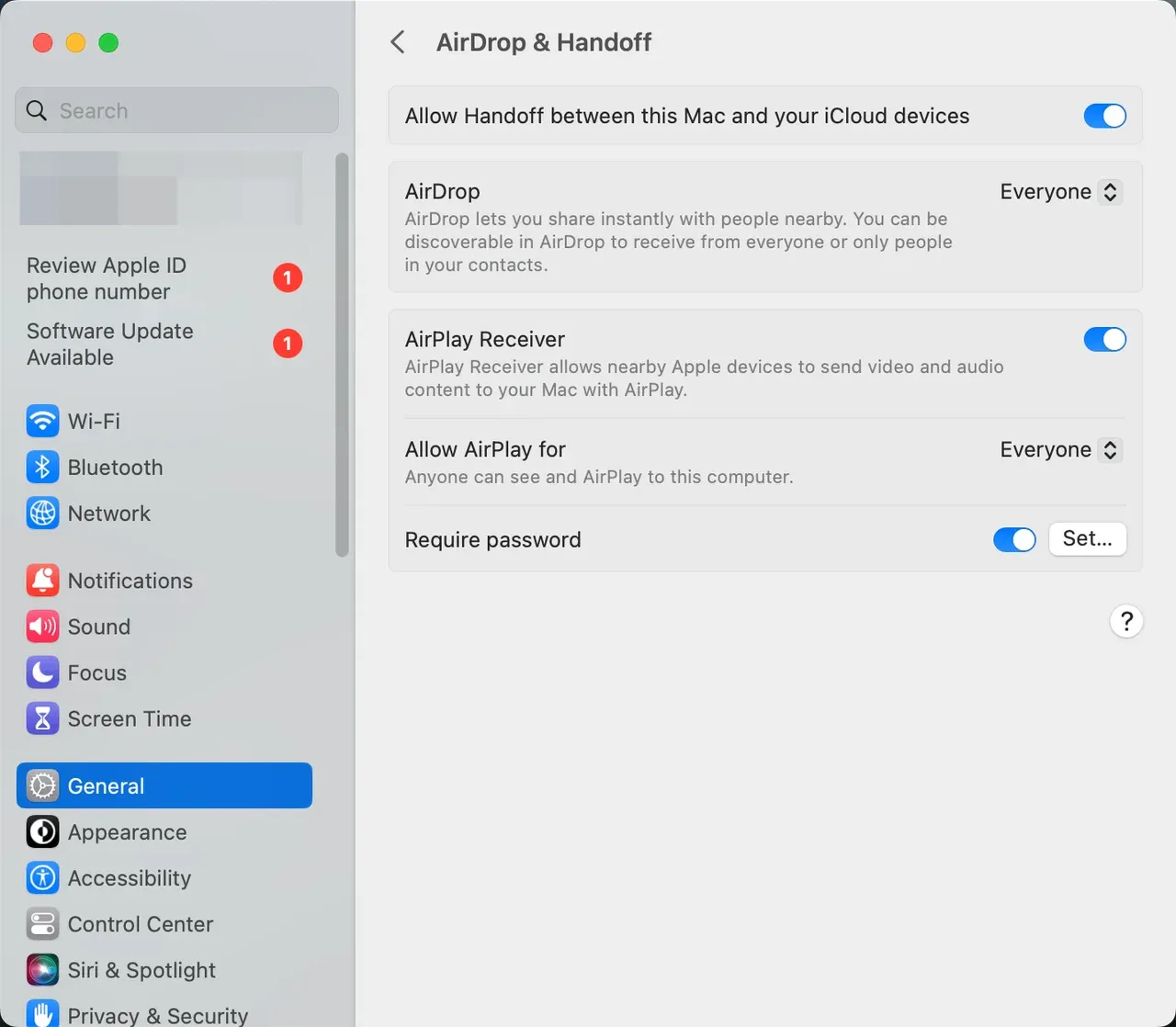
 Step 2. Open System Settings, then General and AirDrop and Handoff to verify AirPlay Receiver is enabled.
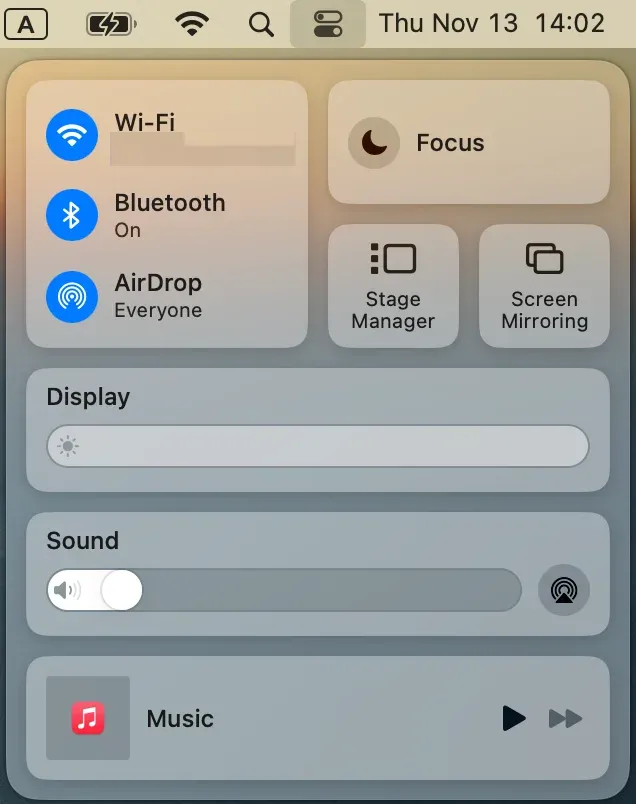
Step 3. Use the Control Center > Screen Mirroring option to connect to the receiver and enter any on screen code.
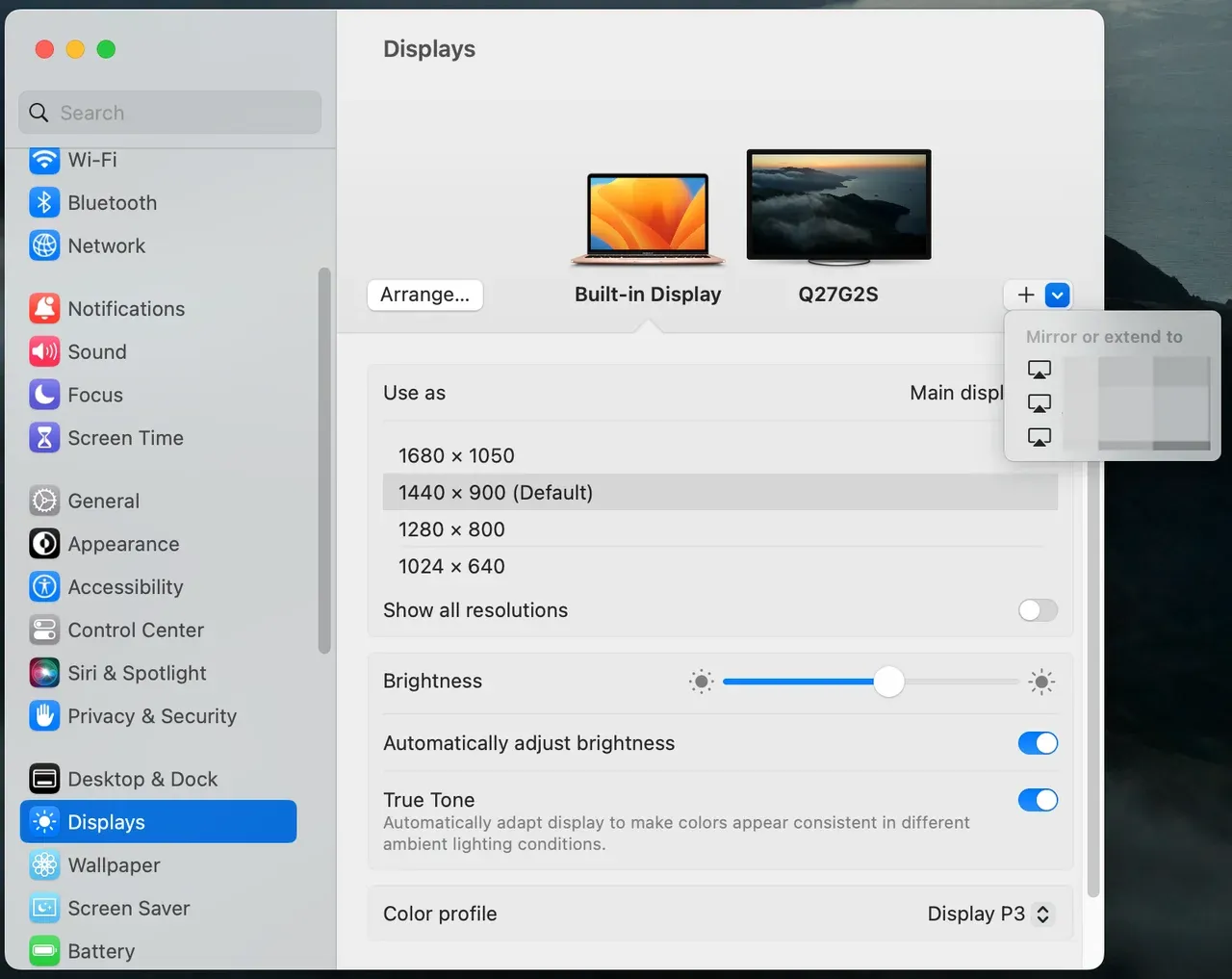
Step 4. If the screen is black, check Displays settings and try extending the desktop instead of mirroring.
Step 5. Restart both devices if necessary.
Best AirPlay Alternative for Apple users: PigeonCast
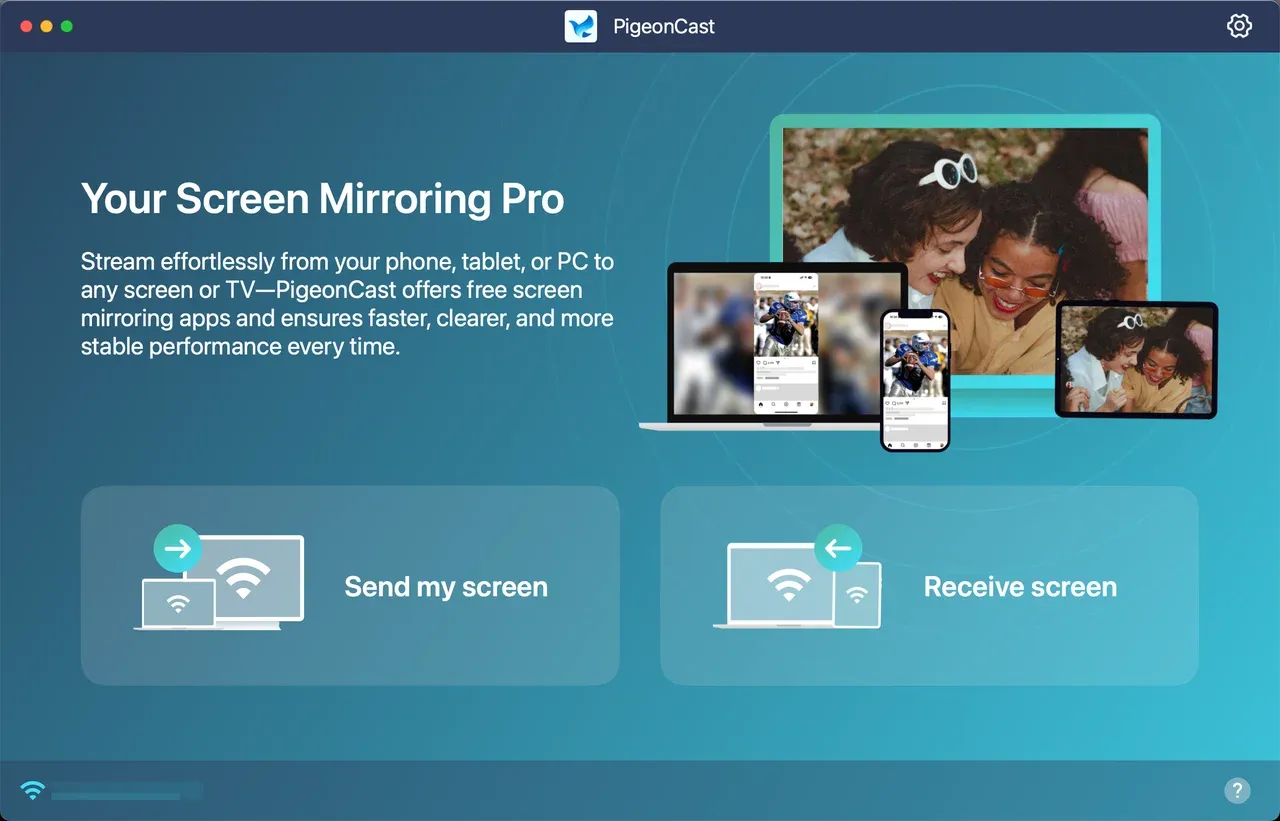
PigeonCast provides a consistent mirroring experience when AirPlay only plays audio on unsupported hardware.

PigeonCast Screen Mirroring

Official Download


The app is free, runs without ads, and delivers high-definition streaming when both ends run the software. To use it, install PigeonCast on the device you want to mirror from and on the receiver that can run the app. Pair them on the same Wi-Fi and start mirroring.
This approach is particularly helpful when Apple AirPlay only playing audio not video occurs because the TV or receiver lacks full AirPlay video support.
Final Thoughts
Audio-only playback is a signal, not a dead end, and usually points to compatibility or network issues. Resolving AirPlay not playing video only audio most often requires a software update, a network fix, or switching to a cross-platform tool such as PigeonCast. Keeping devices current and testing alternative mirroring methods will get your video back quickly.
AirPlay Only Playing Audio FAQs
Why is screen mirroring playing sound but not video?
This usually indicates the receiver cannot decode the video codec while accepting audio, or the network is dropping video frames.
How to get AirPlay to show video?
Update all devices, ensure they share the same Wi Fi, disable VPNs, and try screen mirroring instead of the app's AirPlay function.
Why is my video only playing audio and not video?
Unsupported video formats or app restrictions often cause the receiver to play only the audio track.
Why do I only get audio but no video when casting the video?
Network congestion, low bandwidth, or codec mismatch typically results in audio surviving while video fails.
Why is my stream showing a black screen?
A black screen can mean the sender is not sending frames, the receiver is failing to decode video, or a DRM restriction is blocking video output.
Is there a free alternative to AirPlay?
Yes. PigeonCast is free, ad-free, and supports AirPlay functionality across Android, iPhone, Windows PC, MacBook, and many smart TVs, making it a strong free substitute when Apple AirPlay only playing audio becomes a recurring problem.
Mia Clarke is a technology editor specializing in screen mirroring and casting solutions across multiple platforms. Mia provides clear, practical guides and in-depth insights to help users seamlessly connect their devices. Passionate about enhancing digital experiences, Mia is dedicated to keeping readers updated on the latest trends and tools in cross-platform screen sharing. Whether you’re looking to mirror your smartphone, laptop, or smart TV, Mia’s content delivers reliable, user-friendly advice to simplify your tech setup.