
Mirroring a video on an iPhone can be useful in many situations, from sharing content with others to displaying your media on a larger screen for better viewing. Whether you're trying to play a video on a smart TV or reflect your iPhone's screen on a computer, there are several ways to do so. Below, we will explore how to mirror a video on iPhone, making it easy to share and enjoy your videos on a bigger screen or with a different orientation.
How to Screen Mirror Video on iPhone
Casting video from iPhone to TV or laptop is easier than you might think, though it can be a bit tricky to find the right mirror window. Don't worry, we'll guide you through it. In this section, we'll check how to share a video on iPhone, so you can enjoy your content on a bigger screen with ease.
Way 1. Use the Built-in AirPlay/Cast Button
The most direct method for mirroring video is often found within the app you are using. Many popular streaming services like Netflix, YouTube, and Disney+ have a built-in AirPlay or Cast button directly in their video players. This method streams the video directly from the internet to your AirPlay-compatible smart TV, often providing a higher quality and more stable experience than full-screen mirroring. Here's the step on how to play iPhone video on TV:
Step 1. Ensure both your iPhone and AirPlay-compatible device are on the same Wi-Fi network.
Step 2. Launch the video you want to mirror, whether it's in the Photos app, YouTube, or another video player.
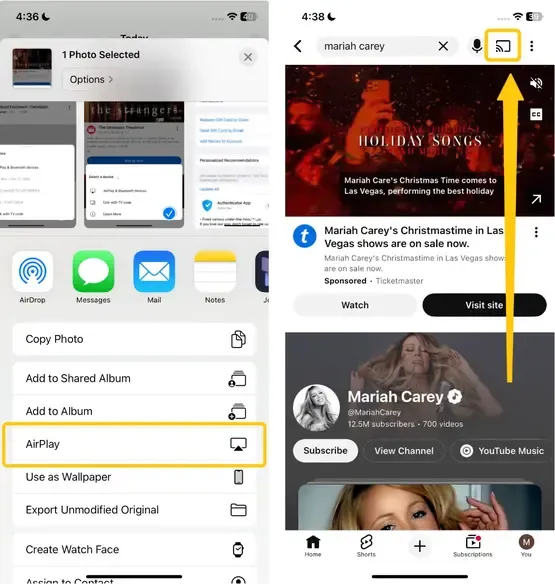
Step 3. Tap the AirPlay or Cast icon in the targeted app.
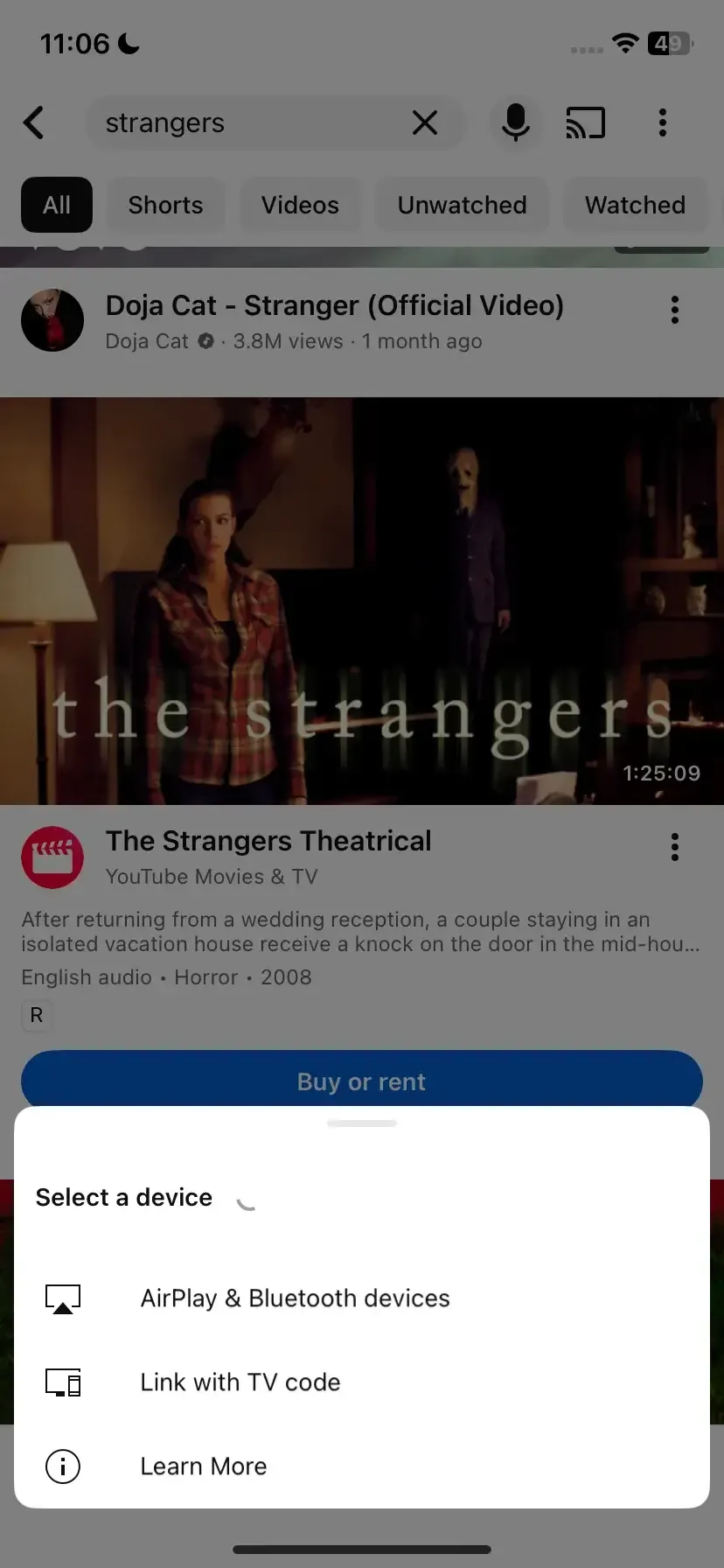
Step 4. Tap on the device you want to mirror the video to. This can be an Apple TV, a smart TV that supports AirPlay, or another compatible device.
Step 5. Once connected, the video will start playing on your larger screen, mirroring everything from your iPhone.
Way 2. Use the Built-in Screen Mirroring Feature
How to make a video mirror on iPhone? For videos stored within apps that lack their own cast option, the full Screen Mirroring feature is your best option. This method mirrors everything on your iPhone's display to compatible receiver devices in real time, making it ideal for sharing home videos, browsing the web, or giving presentations. Now, let's dive into how to mirror video on iPhone:
Note: Some apps may have content protection measures that prevent you from mirroring or casting their videos, like streaming platforms that block screen mirroring to protect their content.
Step 1. Swipe down from the top-right corner (on iPhones without a Home button) or swipe up from the bottom (on older iPhones with a Home button) to open the Control Center.
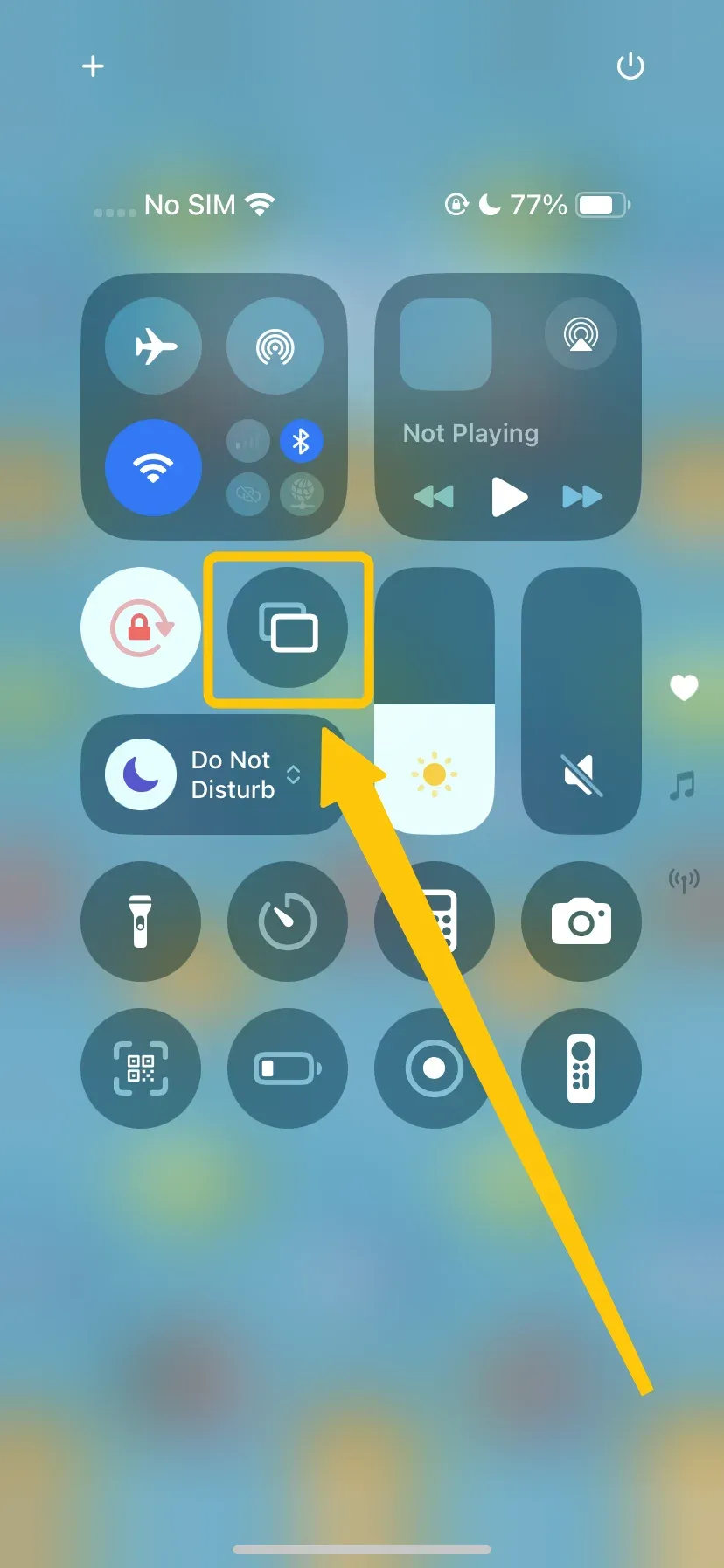
Step 2. Tap the Screen Mirroring and select the compatible device that you want to mirror your iPhone screen to.
Step 3. If a TV passcode appears on your TV screen, enter it on your iPhone.
Step 4. Once the mirroring is active, open the video or app you want to view on your iPhone, and it will be mirrored onto the larger screen.
Way 3. Use PigeonCast to Cross Different Platforms
If you have an Android TV, a projector with Google Chromecast built in, you can still mirror your iPhone screen using a third-party app. Apps like PigeonCast act as a bridge, allowing your iPhone to connect to a wide range of devices that support AirPlay, DLNA, and Google Cast. Plus, this free mirroring tool can also mirror your iPhone to a Windows PC. Here's the step on how to play video from iPhone to TV or Windows PC:
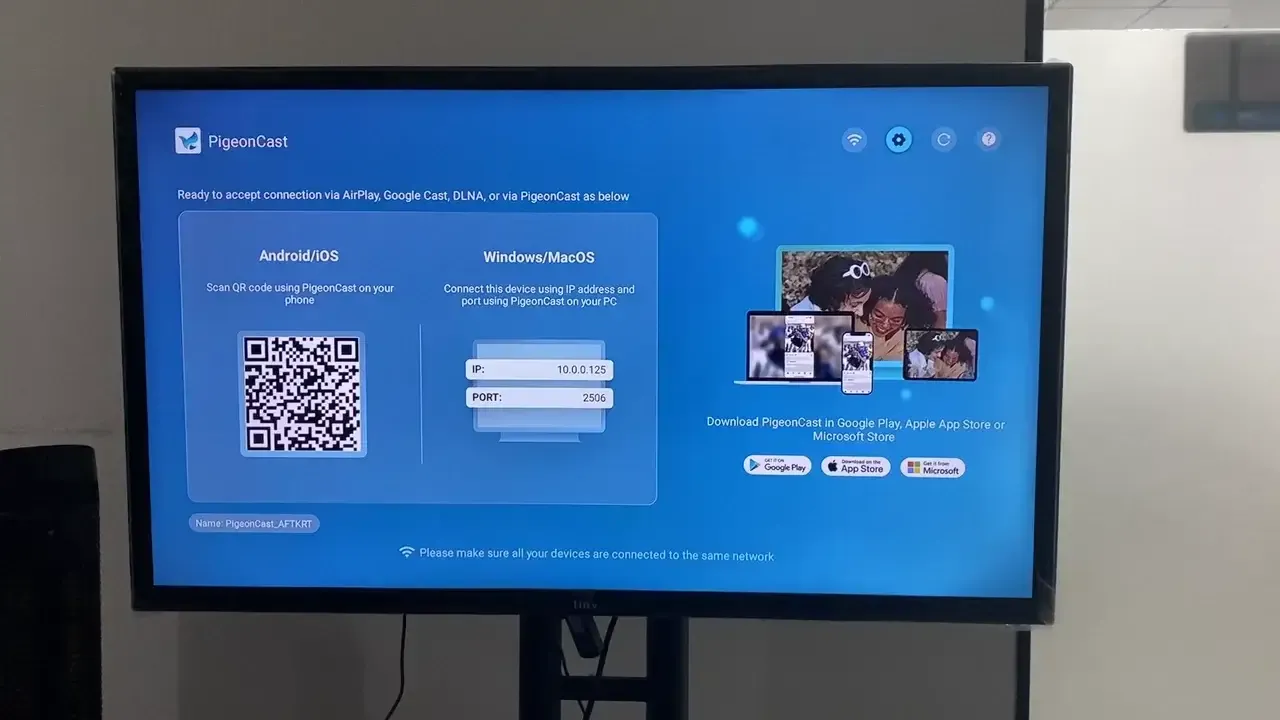
Step 1. Ensure your iPhone and the receiver device are covered by the same wireless network.

PigeonCast Screen Mirroring

Official Download



Step 2. Install the PigeonCast on your iPhone and the receiver device.
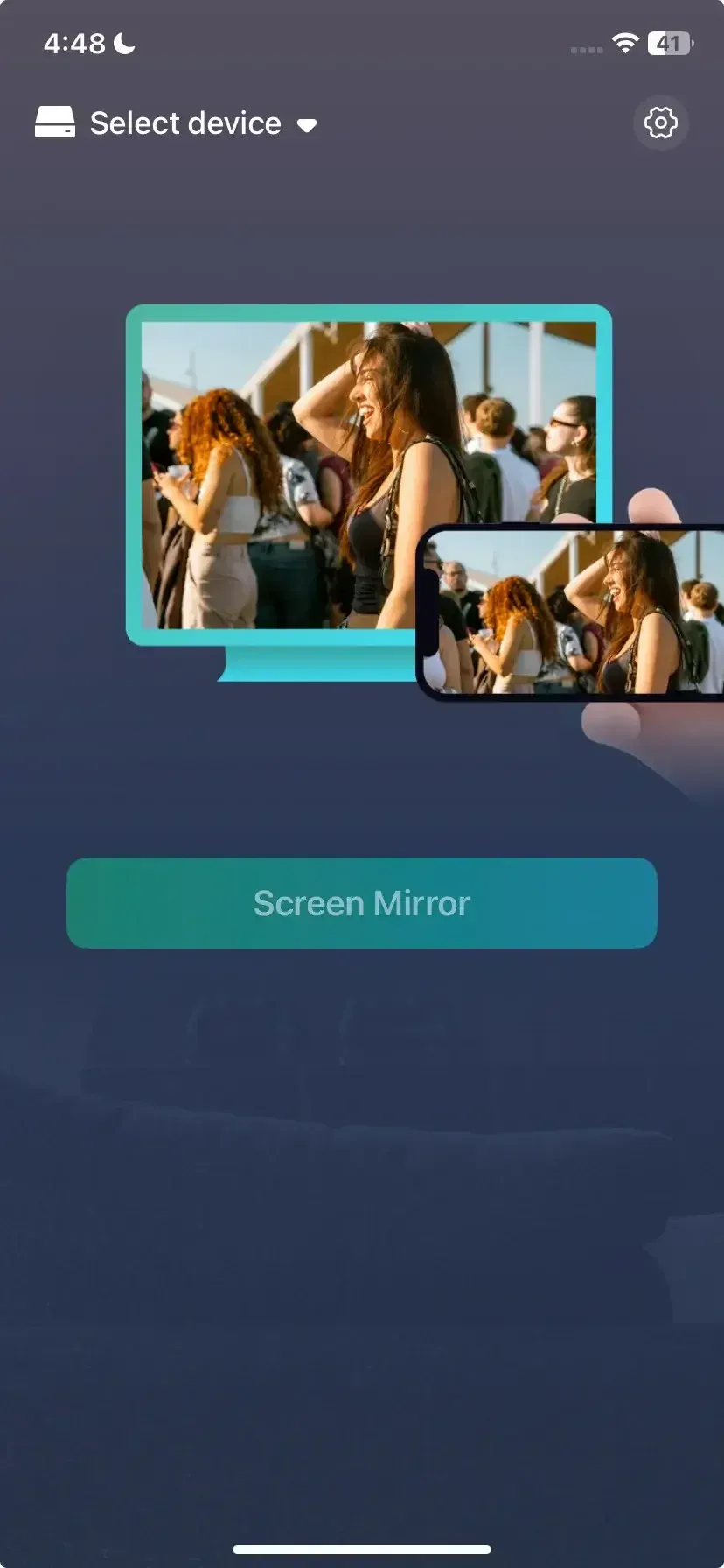
Step 3. Launch the app on both your devices, tap Select device to choose your receiver device from the available list or scan the QR code.
Step 4. Enter the onscreen code to confirm your connection performance.
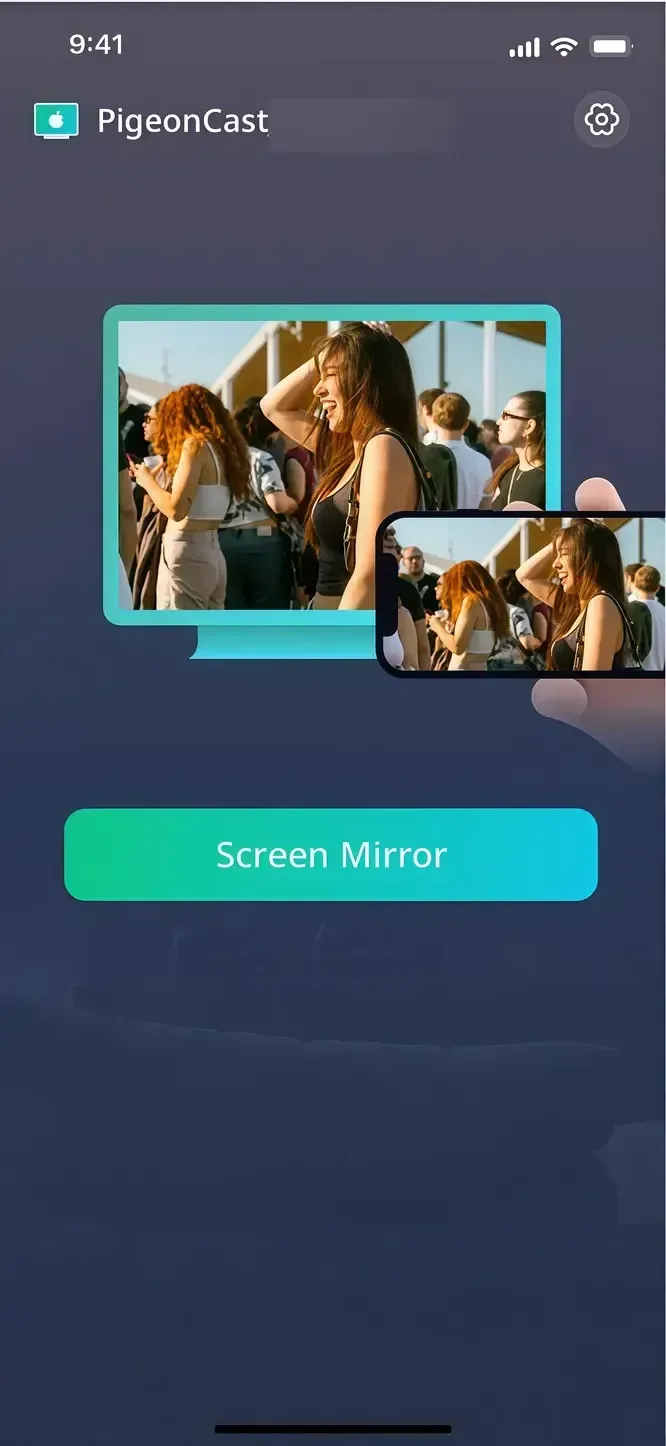
Step 5. When the pairing process finishes, you can then tap Screen Mirror to share your iPhone's screen and choose the desired video to display
Way 4. Use an HDMI Cable
How to cast a video from iPhone to TV? If you prefer a wired connection or don't have a strong Wi-Fi connection, you can use an HDMI cable to directly mirror your iPhone to a TV or monitor. This method requires an adapter to connect your iPhone to an HDMI cable, which is then connected to your TV. You will need a Lightning to Digital AV Adapter (for iPhones with a Lightning port) or a USB-C to HDMI Adapter (for newer iPhones).
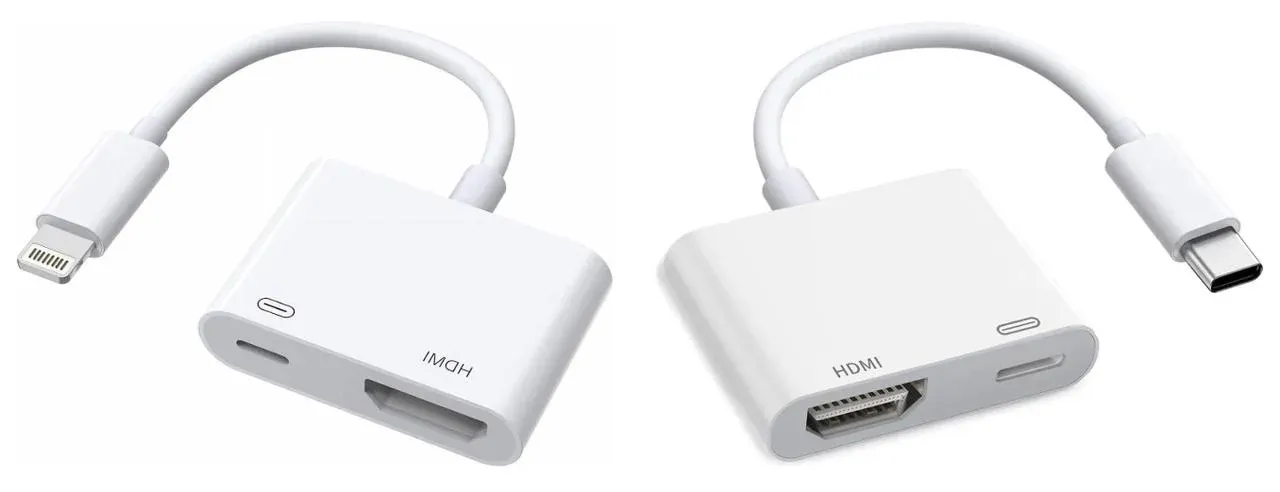
Step 1. Purchase the official Apple Lightning to Digital AV Adapter or a certified USB-C to HDMI Adapter.
Step 2. Plug the adapter into your iPhone's charging port. Then, connect a standard HDMI cable between the adapter and your TV.
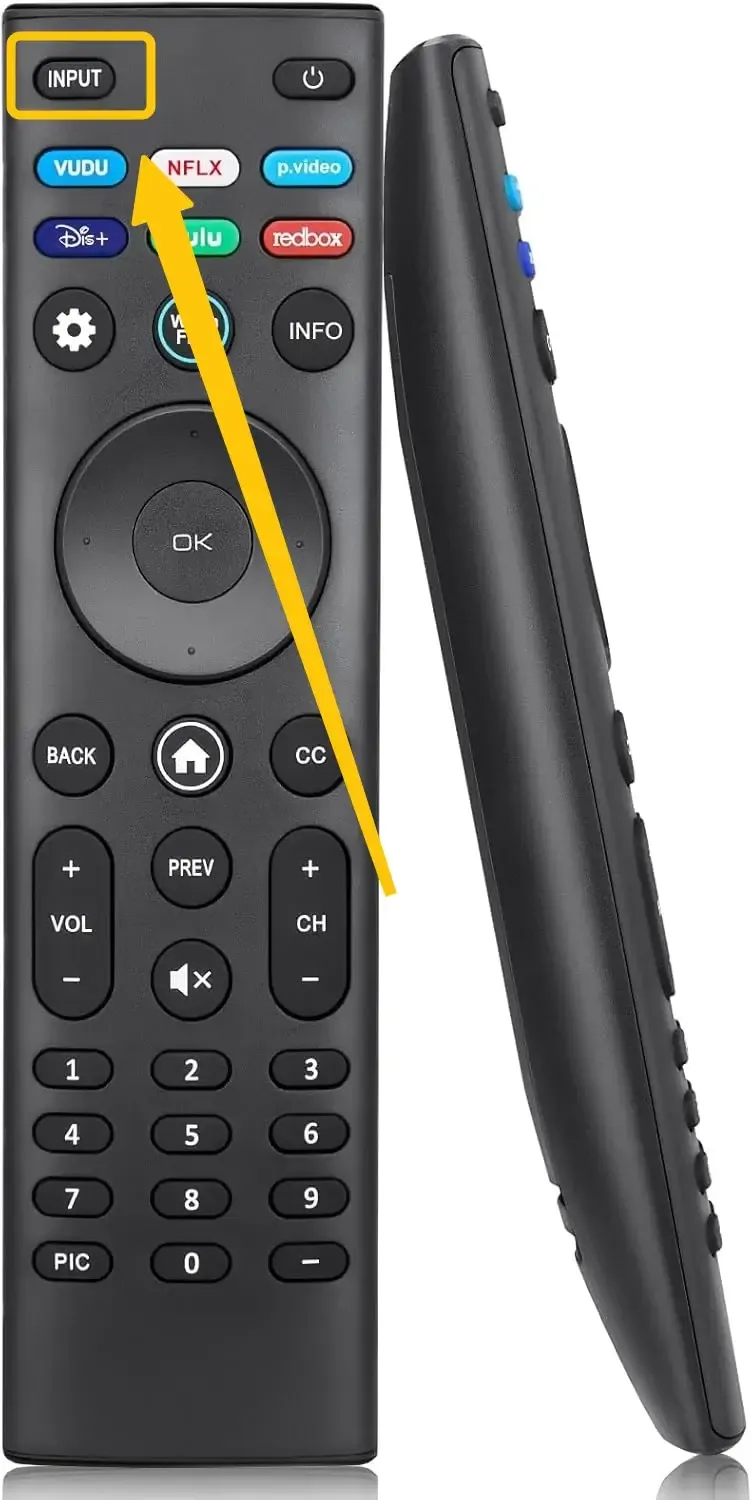
Step 3. Use your TV remote, change the Input/Source to the corresponding HDMI port you plugged the cable into (e.g., HDMI 1).
Step 4. Your iPhone's screen will instantly and automatically appear on the TV. Simply open your video, and you can cast video from iPhone to TV.
Conclusion
How to watch video from iPhone to TV? For app-specific streaming, use the built-in AirPlay/Cast button. To share your entire screen within an Apple ecosystem, the Screen Mirroring feature works seamlessly. For non-Apple TVs like Google TV, PigeonCast is a great option. And for the most reliable performance, an HDMI cable ensures flawless playback. With these methods, you can easily share your content anytime, anywhere.
How to Mirror a Video on iPhone FAQ
How to play video from an iPhone to Samsung TV?
To play a video from your iPhone to a Samsung TV, you can use the following methods:
- AirPlay and Screen Mirroring (for supported Samsung TVs)
- PigeonCast (If your Samsung TV is connected to a Chromecast)
- HDMI Cable (need a Lightning to HDMI Adapter or USB-C to HDMI Adapter)
Is there a way to mirror video on iPhone?
Yes. As detailed in this guide, you can mirror video using the built-in AirPlay/Screen Mirroring for Apple TV and compatible TVs, free third-party apps like PigeonCast for cross-platform use, or a direct HDMI cable connection for a guaranteed wired solution.
How do I mirror a video in the gallery?
- Ensure your sender and receiver devices are connected to the same wireless network.
- Open the gallery app, choose the video you want to screen share.
- Find the Cast or AirPlay button and tap it to choose the receiver device to mirror.
How to mirror a YouTube video on iPhone?
There are three ways you can try and remember to ensure your devices are under the same WiFi network.
- Use the YouTube Cast Button
- Use Screen Mirroring in iPhone's Control Center
- Use the free third-party app PigeonCast
Clara Rossi is an experienced technology editor and a seasoned expert in screen mirroring and casting technologies. With a keen eye for detail and a deep understanding of how to seamlessly connect devices, Clara excels at optimizing user experiences for effortless sharing and streaming. Whether you're seeking quick fixes or advanced tips, her expertise and responsiveness ensure that every query is met with a well-informed and efficient solution.