
Screen mirroring makes it easy to display your phone, tablet, or computer screen on a TV or another device. But there are times when you need to stop sharing your screen, whether for privacy, security, or simply because you're done. In this guide, we'll show you how to turn off screen mirroring on iPhone, iPad, MacBook, Android, Windows, and smart TVs.
Quick answer:
- iPhone/iPad: Control Center > Screen Mirroring > Stop Mirroring.
- Android: Quick Settings > Cast/Smart View > Disconnect.
- Mac: Control Center > Screen Mirroring > Stop Mirroring.
- Windows: Windows + K > Disconnect.
- Smart TV: Open the TV's Screen Mirroring, AirPlay, or Connected Devices menu and disconnect the active device, or disable screen mirroring in the TV settings.
How to Turn Off Screen Mirroring on iPhone, iPad
If you're looking for a quick way to stop casting, most devices let you do it right from the Control Center. Here's how to turn off screen mirroring on iPad or iPhone in just a few seconds.
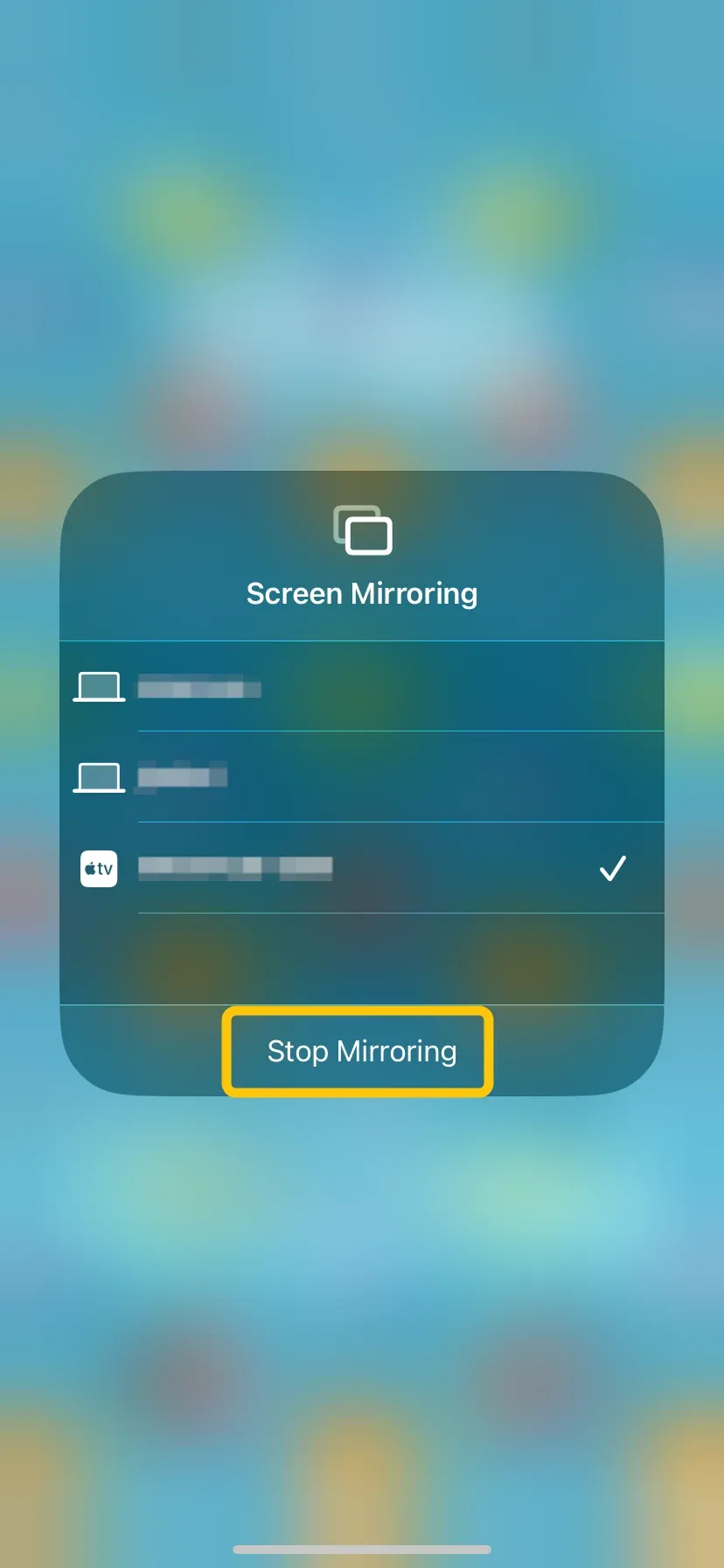
Step 1. Swipe down or up to access the Control Center.
Step 2. Tap Screen Mirroring to the device list menu.
Step 3. Select the Stop Mirroring option to stop your iPhone or iPad screen mirroring.
How to Turn Off Screen Mirroring on MacBook
MacBooks also use AirPlay to mirror screens to Apple TV or compatible smart TVs. The steps are also simple and similar on MacBook, now let's check how to disconnect phone from Mac to stop mirroring:
Step 1. Find the Mac Control Panel icon in the top right corner of the screen.
Step 2. Click Screen Mirroring and click the Stop Mirroring option.
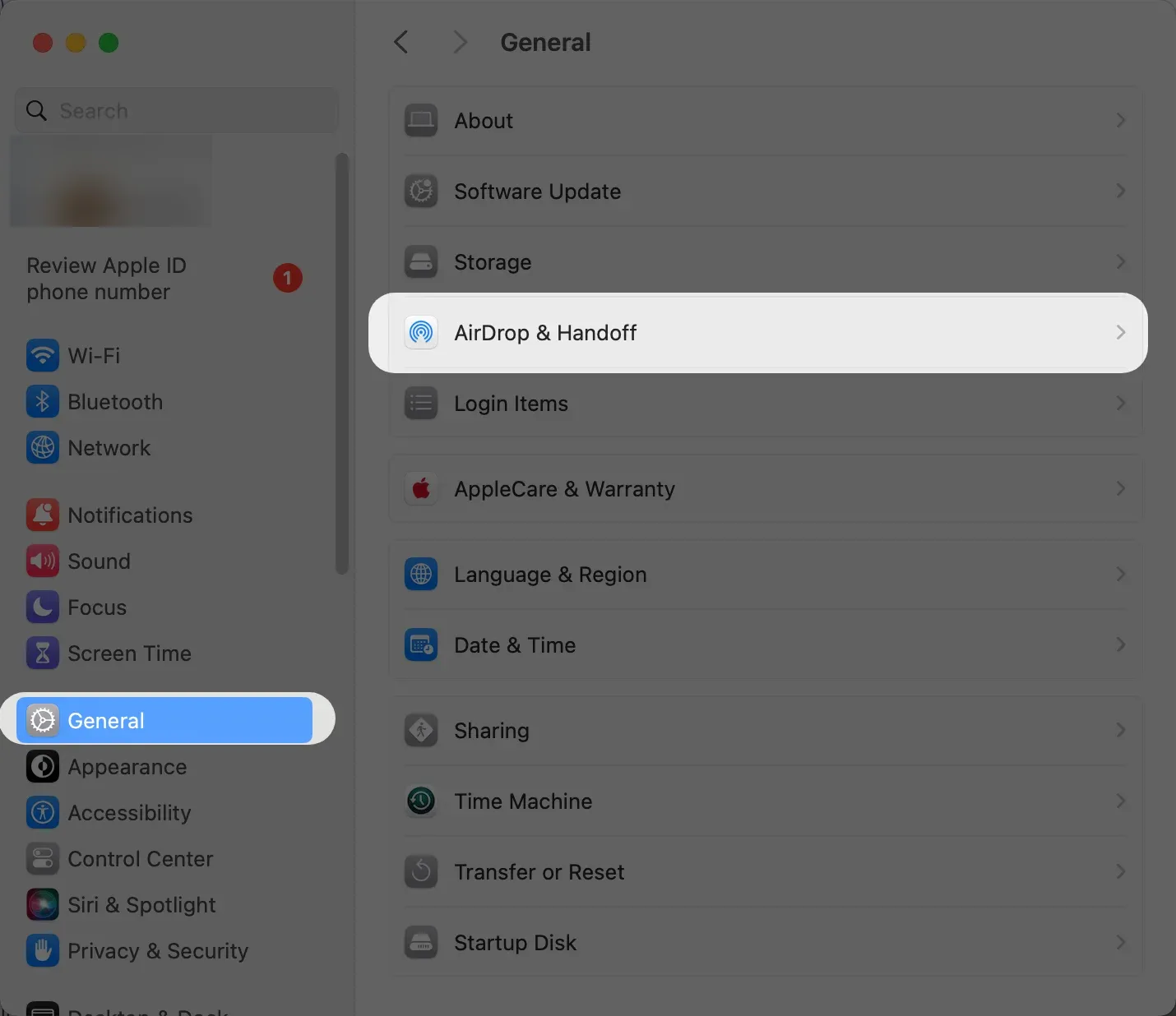
If you want to prevent your Mac from automatically appearing as an available AirPlay receiver, go to Settings > General > AirDrop & Handoff and adjust the AirPlay Receiver settings.
How to Turn Off Screen Mirroring on Android
If you've been using your Android device to share content on a TV or another screen, there may come a time when you want to stop screen mirroring. Knowing how to stop screen mirroring on Android ensures that your device disconnects safely, conserves battery, and prevents others from viewing your screen.
The steps may vary depending on your device brand. For Samsung phones, screen mirroring is usually controlled through Smart View, and you can turn off Smart View to disconnect your TV connection.
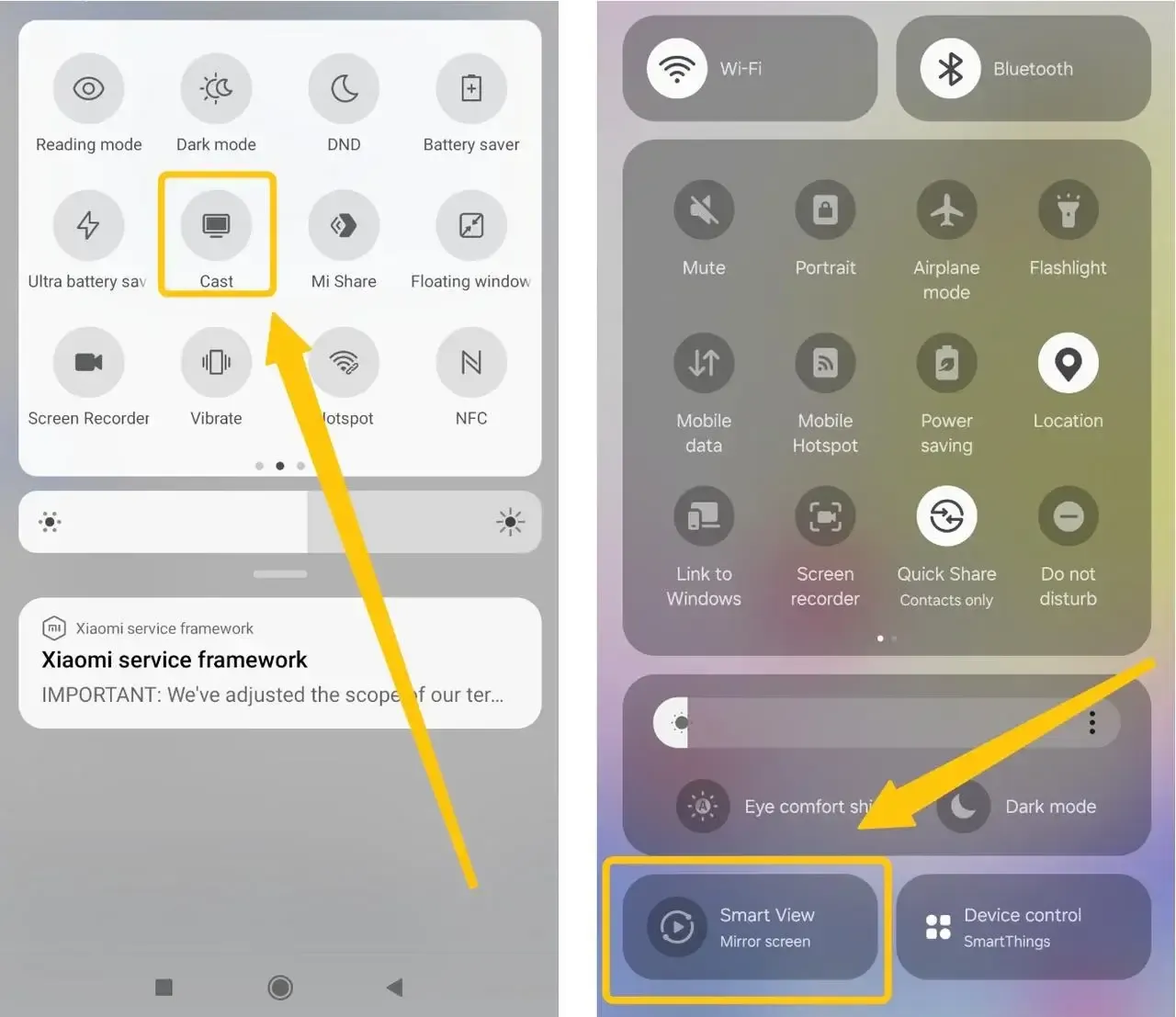
Step 1. Swipe down to access Quick Settings.
Step 2. Tap Cast, Smart View, or Screen Mirroring, and then select Disconnect or turn off the casting option.
How to Turn Off Screen Mirroring on Windows
On Windows PCs, screen mirroring is often done through Projecting to this PC or Miracast. Knowing how to turn it off is important to keep your screen private and prevent accidental sharing. When you need to disconnect your Windows computer from the mirror, follow these steps.
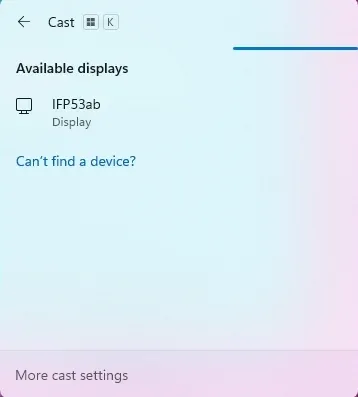
Step 1. Press Windows + K to open the Connect panel.
Step 2. Click on the connected display > select Disconnect.
Plus, you can also turn off projecting in Settings > System > Display > Connect to Wireless Display.
How to Turn Off Screen Mirroring on TV
Most smart TVs support built-in mirroring features like Miracast, AirPlay, or Chromecast, and you can stop the connection either directly from the TV menu or through your connected device. In the following section, we'll walk you through easy ways to turn off screen mirroring on different TV models.
- For Apple TV
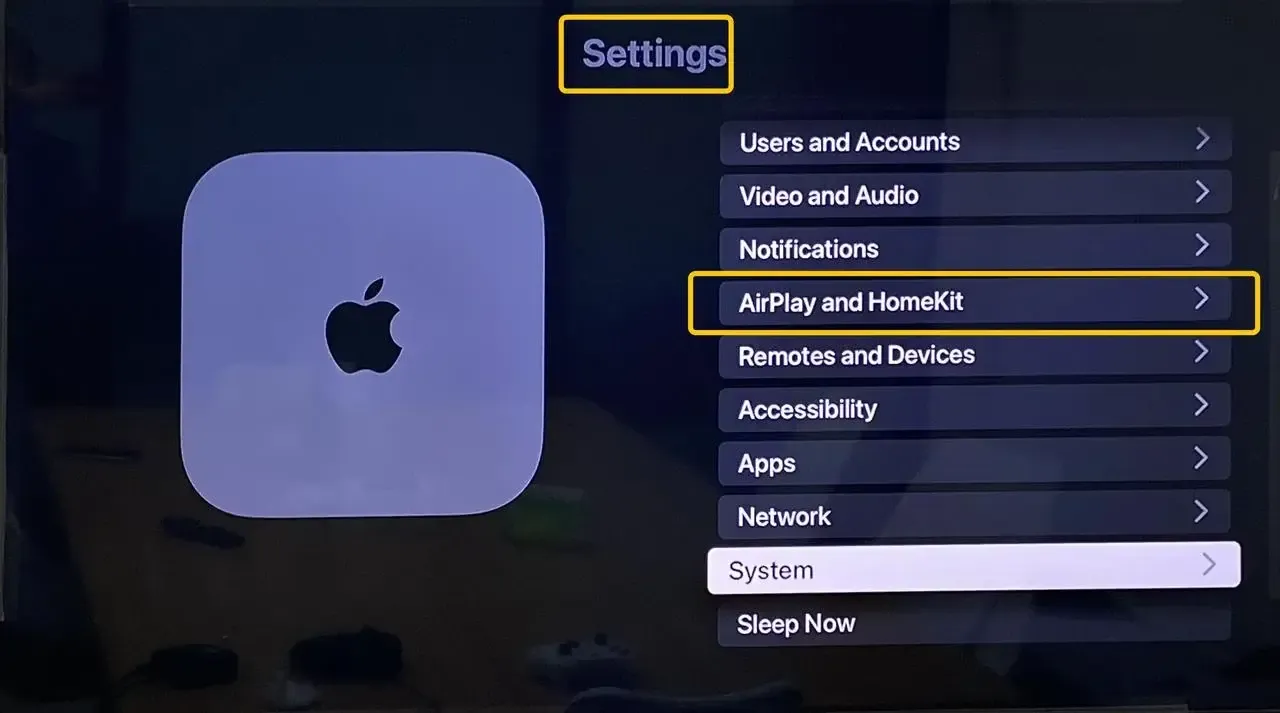
Step 1. Go to Settings > AirPlay and HomeKit > AirPlay.
Step 2. Select Allow Access.
Step 3. Choose Require Password to limit access to screen mirroring.
- For Android TV
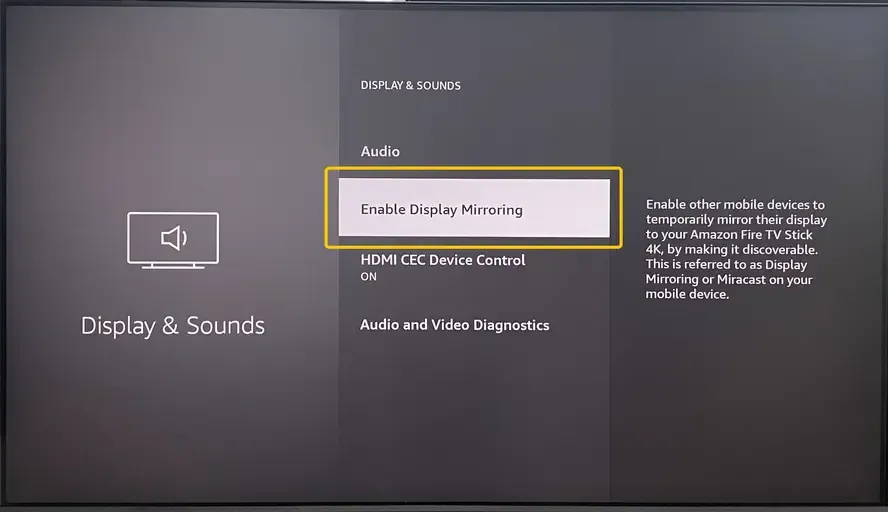
Step 1. Go to Settings > Screen mirroring/Connected Devices.
Step 2. Choose Screen Mirroring and set its status to Off.
How to Turn Off Screen Mirroring on Third-Party App
Once you've been casting your screen using a third-party app, it's important to know how to reset screen mirroring properly. Turning it off prevents unintended sharing, protects your privacy, and helps save battery. In this section, we'll show you how to disable screen mirroring on PigeonCast as an example.


PigeonCast Screen Mirroring

Official Download



Step 1. Open the app on your device.
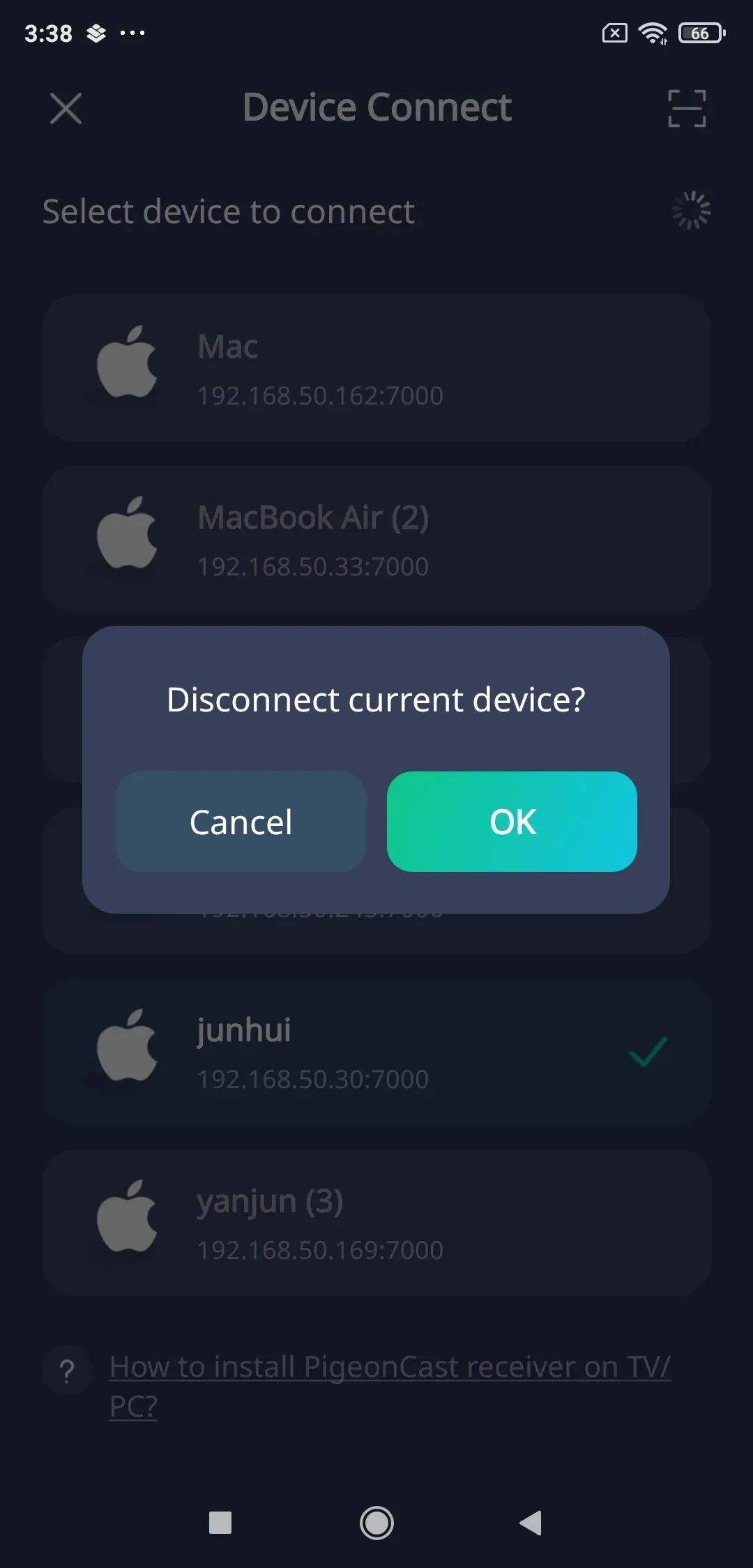
Step 2. Tap the connected device and select the OK option to disconnect correct device.
Why Won't Screen Mirroring Turn Off
If screen mirroring won't turn off, keeps reconnecting, or the Stop Mirroring button is gray and unclickable, the connection between your device and TV may have frozen or become unstable. Try the fixes below to disconnect the device and stop screen mirroring.
- Restart Both Devices: Turn off and then turn on your TV and device to refresh the connection.
- Check Wi-Fi Connection: Ensure both your device and TV are connected to the same stable Wi-Fi network.
- Update Software: Make sure your device and TV firmware are up to date.
- Force-Close the Mirroring Feature or App: On your device, exit or force-close the mirroring app or screen mirroring feature, then try reconnecting.
- Retry Mirroring: After completing the steps above, start a new mirroring session and see if the issue is resolved.
Conclusion
Turning off screen mirroring is simple once you know where to look. Whether you're using an iPhone, Android, MacBook, Windows PC, or smart TV, you can stop sharing your screen in just a few taps or clicks. Knowing these steps ensures your content remains private and prevents accidental sharing on other displays.
How to Turn Off Screen Mirroring FAQ
Why does my phone keep connecting to my TV?
Your phone may automatically reconnect to a TV when previously paired devices, casting settings, or automatic connection features are enabled.
- Automatic AirPlay or casting settings are turned on.
- Your phone remembers and reconnects to a previously paired TV.
- Both devices are connected to the same Wi-Fi network and discover each other automatically.
- A screen mirroring or casting app is running in the background.
- The TV is set to accept screen mirroring connections automatically.
Your phone may keep reconnecting to your TV if automatic AirPlay or screen mirroring settings are enabled. Disable these settings to prevent future connections.
How do I remove a device from screen mirroring on my iPhone?
To remove a device from screen mirroring on your iPhone, open the Control Center, tap Screen Mirroring, and then select Stop Mirroring. This will disconnect your iPhone from the currently connected device.
How do I stop my phone from being mirrored?
To stop your phone from being mirrored, open the Screen Mirroring or Cast option on your device and select Stop Mirroring or Disconnect. On the iPhone, use the Control Center; on Android, use Quick Settings or the Cast menu. On TVs or other devices, you can also disconnect the phone from the device's mirroring settings.
How to turn off screen mirroring on Roku TV?
To turn off screen mirroring on a Roku TV:
- Press the Home button on your Roku remote.
- Go to Settings > System > Screen mirroring.
- Select Screen mirroring mode and choose Never allow or Prompt to disable or control screen mirroring.
This will stop devices from automatically mirroring your Roku TV.
How do I disable AirPlay completely?
To disable AirPlay on Apple TV, go to Settings > AirPlay and HomeKit > AirPlay, then turn AirPlay off. On iPhone or iPad, you can stop automatic AirPlay by going to Settings > General > AirPlay & Continuity > Automatically AirPlay, then selecting Never.
Clara Rossi is an experienced technology editor and a seasoned expert in screen mirroring and casting technologies. With a keen eye for detail and a deep understanding of how to seamlessly connect devices, Clara excels at optimizing user experiences for effortless sharing and streaming. Whether you're seeking quick fixes or advanced tips, her expertise and responsiveness ensure that every query is met with a well-informed and efficient solution.