
Whether you're sharing a presentation, displaying your vacation photos, or streaming a movie, mirroring your iPhone to a bigger screen can enhance your viewing experience. In this guide, we'll explain everything about how to turn on screen mirroring on iPhone and how to turn screen mirroring off on iPhone.
What Is Screen Mirroring On iPhone
Screen mirroring on an iPhone allows you to wirelessly project the content from your device's screen onto another display, like a smart TV, projector, or computer monitor. It's a convenient way to share what's happening on your iPhone, whether it's videos, apps, photos, games, or presentations.

The core technology behind iPhone screen mirroring relies on AirPlay, Apple's proprietary wireless streaming technology. AirPlay allows devices to communicate and transmit content across local networks like Wi-Fi. Here's a closer look at how the process works:
- AirPlay Protocol
AirPlay is a wireless streaming protocol developed by Apple, and it enables screen mirroring as well as audio/video streaming between devices. When you use screen mirroring, AirPlay sends a video or image signal from your iPhone to the destination device (like a TV or monitor) over your Wi-Fi network.
- Wi-Fi Network
Both the iPhone and the device you're mirroring must be connected to the same Wi-Fi network. The iPhone uses this network to communicate with the destination display, sending data about what's currently on your screen. This can include real-time data, which means there's minimal lag between what you do on your iPhone and what shows up on the larger screen.
- Display Device Compatibility
To enable screen mirroring, the receiving device (like a smart TV or Apple TV) needs to support AirPlay or a compatible protocol. For example, an Apple TV directly supports AirPlay, while many newer smart TVs from brands like Samsung, LG, or Sony also have built-in support for AirPlay 2, which ensures seamless mirroring.
- Bluetooth & Wi-Fi Synchronization
iPhone uses Bluetooth to initially detect available AirPlay-compatible devices nearby. Once you select the device, the actual mirroring and data transfer happen over the Wi-Fi network. The Bluetooth component primarily helps in discovering devices and establishing the initial connection.
How to Turn Screen Mirroring On iPhone
Before diving into the various methods for turning on screen mirroring, ensure that your iPhone is connected to the same Wi-Fi network as the device you wish to mirror to. This is crucial for most mirroring techniques. Once you've done that, follow these simple steps on how to turn on screen mirroring iPhone.
Tip: You can also use streaming media players like Roku, Amazon Fire TV, or Google Chromecast for screen mirroring. Just ensure that your streaming media player is powered on and connected to the same Wi-Fi network as your iPhone.
How to Turn On iPhone Screen Mirroring via AirPlay
One of the easiest and most common ways to mirror your iPhone's screen is using AirPlay. AirPlay is a feature built into Apple devices that allows wireless streaming of audio, video, and screen content between Apple devices. Here's how to use AirPlay for screen mirroring:
Step 1. Ensure your device supports AirPlay, like an Apple TV or a compatible smart TV.
Step 2. Make sure the device is powered on and connected to the same Wi-Fi network as your iPhone.
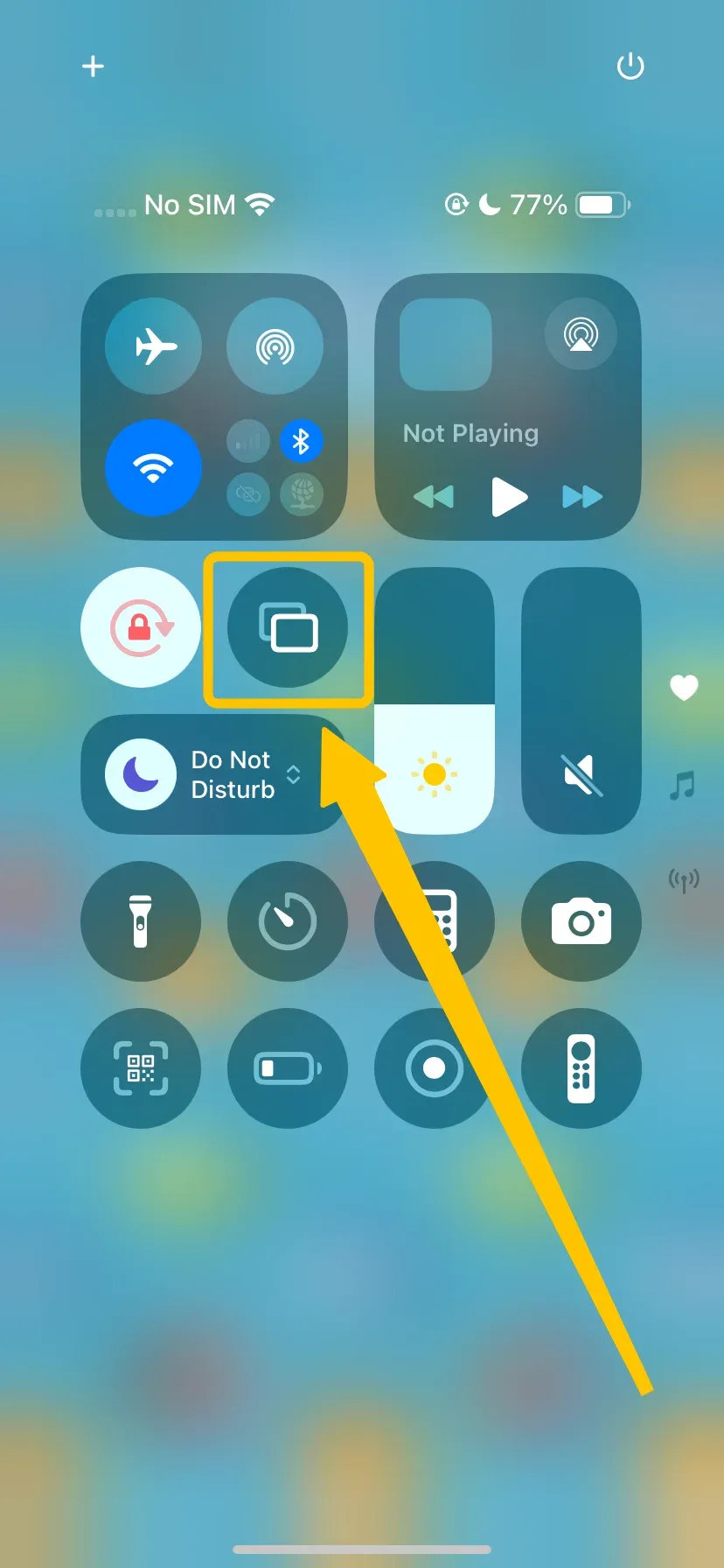
Step 3. Swipe down or swipe up to access the Control Center and tap the Screen Mirroring option.
Step 4. Choose your Apple TV or AirPlay-enabled TV from the device list.
Once connected, your iPhone screen will appear on the TV or another compatible device. You can now share photos, videos, apps, presentations, and other content on a larger display. For the best viewing experience, make iPhone screen mirroring full screen to reduce black borders and better fit your display.
How to Turn On iPhone Screen Mirroring via PigeonCast
Alternatively, you can use an iPhone screen mirroring app, and PigeonCast is a dedicated screen mirroring app that allows you to mirror iPhone to PC and most smart televisions with smooth and secure experience.
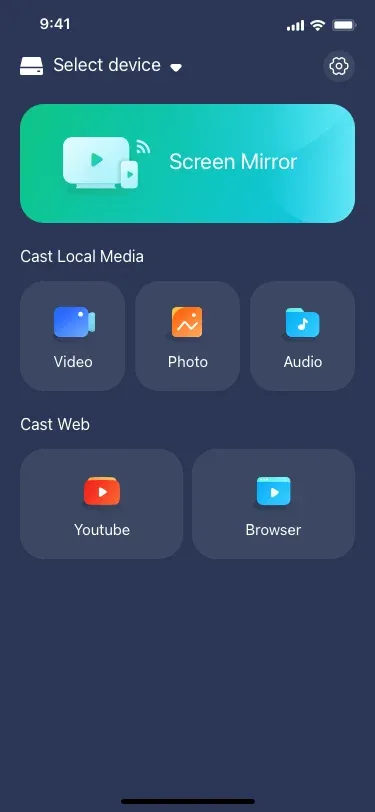

PigeonCast Screen Mirroring

Official Download


Step 1. Download and install the PigeonCast app on your iPhone or iPad.
Step 2. Connect both devices to the same Wi-Fi network.
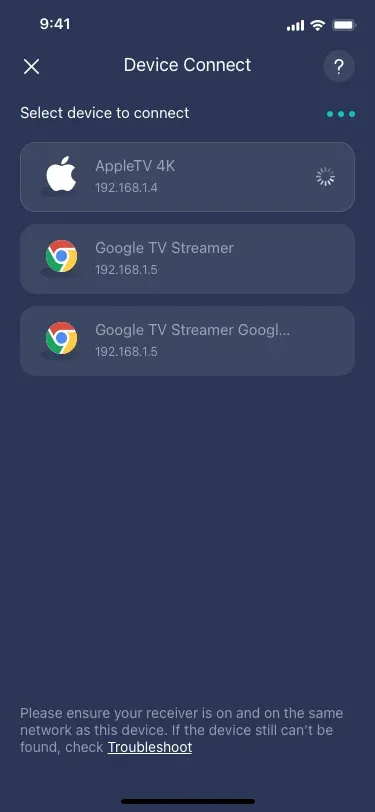
Step 3. Launch the app to tap Select device to choose your receiver device from the device list to connect to.
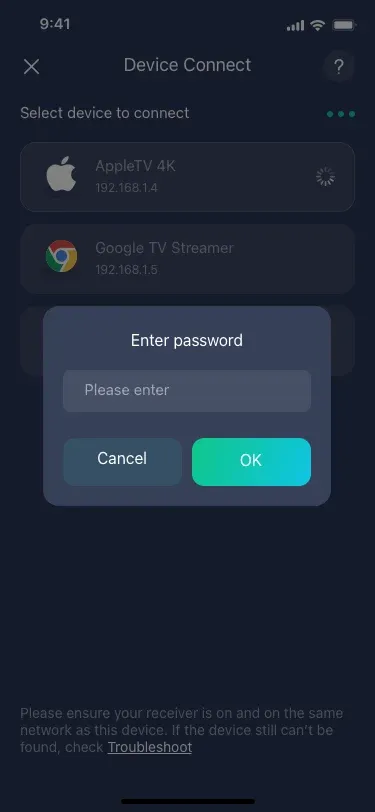
Step 4. If prompted, enter the onscreen code to finish the connection. Then you will see your iPhone screen to displayed on the receiver.
- Why choose PigeonCast for iPhone screen mirroring:
- Cross-Platform and Wide Device Support: PigeonCast supports multiple protocols (e.g. AirPlay, Google Cast, DLNA) so it can mirror from iPhone/iPad/macOS to smart TVs, Macs, Windows PCs, and more.
- Wireless & Cable-Free Setup: Everything works over Wi-Fi. No need for HDMI cables, adapters, or other messy hardware. Just make sure your iPhone and the receiving device are on the same Wi-Fi network.
- Low Latency & High Quality Streaming: PigeonCast emphasizes smooth performance, minimal lag, and high quality for streaming or mirroring. Great for watching videos, sharing presentations, even gaming or interactive content.
- Versatility / Multiple Use Cases: Whether you want to share media (photos, videos, music), mirror your screen for presentations, demo apps, or just stream for entertainment, it supports many scenarios.
- Free or Affordable: As of now, PigeonCast is offered freely on many platforms, which makes it an attractive option versus having to pay for expensive mirroring hardware or subscription apps.
How to Turn On iPhone Screen Mirroring via TV's HDMI Cable
How to turn on screen mirroring on iPhone 11, or how to turn on screen mirroring on iPhone 16? For those who prefer a wired connection or don't have a Wi-Fi network handy, you can mirror your iPhone screen using an HDMI cable and an adapter. The steps are also straightforward to follow:
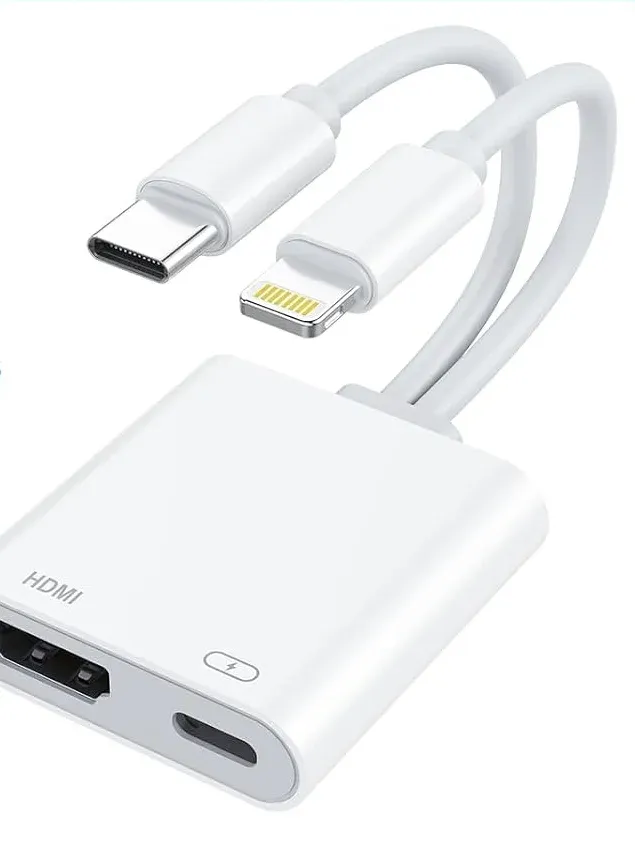
Step 1. Prepare an Apple Lightning to HDMI Adapter (also called a Lightning Digital AV Adapter) to connect your iPhone to the TV via HDMI.
Step 2. Plug the Lightning end of the adapter into your iPhone and connect the HDMI cable to the adapter and the HDMI port on your TV.
Step 3. On your TV, switch the input to the HDMI port where you've plugged in the cable.
Step 4. Your iPhone screen should automatically appear on the TV. If not, swipe down to open the Control Center and tap Screen Mirroring to manually enable mirroring.
How to Turn Off Screen Mirroring On iPhone
Once you're done with screen mirroring on your iPhone, it's important to turn it off. This will not only bring your device back to its normal display but also help protect your screen's privacy. Now, let's check how to turn off screen mirroring on iPhone 11 or how to turn off screen mirroring on iPhone 13:
Step 1. Open the Control Center to choose Screen Mirroring:
- On iPhones with Face ID, swipe down from the top-right corner of the screen.
- On iPhones with a Home Button, swipe up from the bottom of the screen.
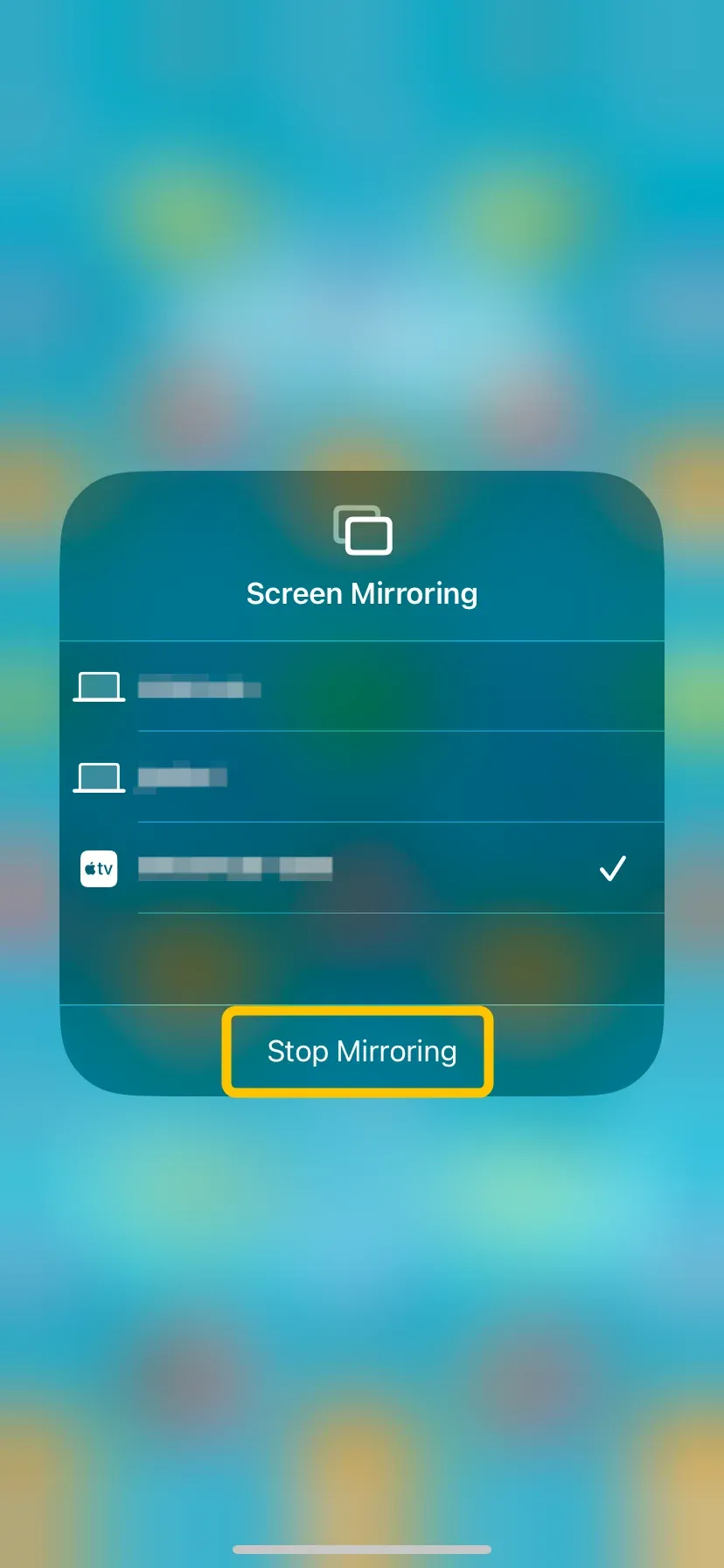
Step 2. Simply tap the Stop Mirroring option. This will disconnect your iPhone from the device you were mirroring to, and your iPhone's screen will return to normal.
Conclusion
How to turn on iPhone screen mirroring? By following the steps outlined in this guide, you can effortlessly mirror your iPhone screen to a variety of devices. For smooth and hassle-free mirroring, we recommend using PigeonCast, which offers excellent compatibility with a wide range of devices.
How to Turn on Screen Mirroring on iPhone FAQ
How to turn screen mirroring on iPhone?
To turn on screen mirroring on your iPhone, open the Control Center by swiping down from the top-right corner (on iPhones with Face ID) or swiping up from the bottom (on older models). Tap Screen Mirroring, then select the device you want to mirror to, like a smart TV or Apple TV. Your iPhone's screen will now be displayed on the selected device.
How to know if screen mirroring is on iPhone?
To know if screen mirroring is on your iPhone, open the Control Center. If screen mirroring is active, you'll see the Screen Mirroring icon highlighted, and it will show the name of the device you're connected to. If it's not active, the icon will be grayed out or not visible.
Why is my iPhone not showing screen mirroring?
- Wi-Fi Network Issues: The iPhone and the device you're mirroring to might not be on the same Wi-Fi network.
- Device Compatibility: The device you're trying to mirror to may not support AirPlay or screen mirroring.
- AirPlay Disabled: AirPlay might not be enabled on the receiving device.
- Software Issues: Outdated software or bugs on your iPhone or the other device could prevent mirroring from working.
- Connectivity Problems: Weak Wi-Fi signal or network interference might cause the connection to fail.
- Bluetooth Disabled: Some mirroring setups also rely on Bluetooth for discovery; ensure Bluetooth is turned on.
Can I mirror my iPhone screen to a non-Apple TV?
Yes, as long as the other device supports AirPlay or has a compatible app installed (like PigeonCast), you can mirror your iPhone's screen. Many smart TVs now have built-in support for AirPlay 2.
Q: Can I use screen mirroring without a Wi-Fi connection?
Screen mirroring typically requires a Wi-Fi connection. However, you can use peer-to-peer AirPlay in some cases, which doesn't rely on Wi-Fi but requires the devices to be close to each other and uses Bluetooth for the initial connection.
Clara Rossi is an experienced technology editor and a seasoned expert in screen mirroring and casting technologies. With a keen eye for detail and a deep understanding of how to seamlessly connect devices, Clara excels at optimizing user experiences for effortless sharing and streaming. Whether you're seeking quick fixes or advanced tips, her expertise and responsiveness ensure that every query is met with a well-informed and efficient solution.