
If you're trying to figure out how to make screen mirroring full screen iPhone, the issue is usually not the connection itself. In most cases, black bars come from differences in screen ratio, app playback behavior, or TV display settings. The fastest way to fix it is to adjust the TV picture settings first, then check orientation and app mode, since these solve most full screen issues without affecting image quality.
Why Is iPhone/iPad Screen Mirroring Not Full Screen Happen
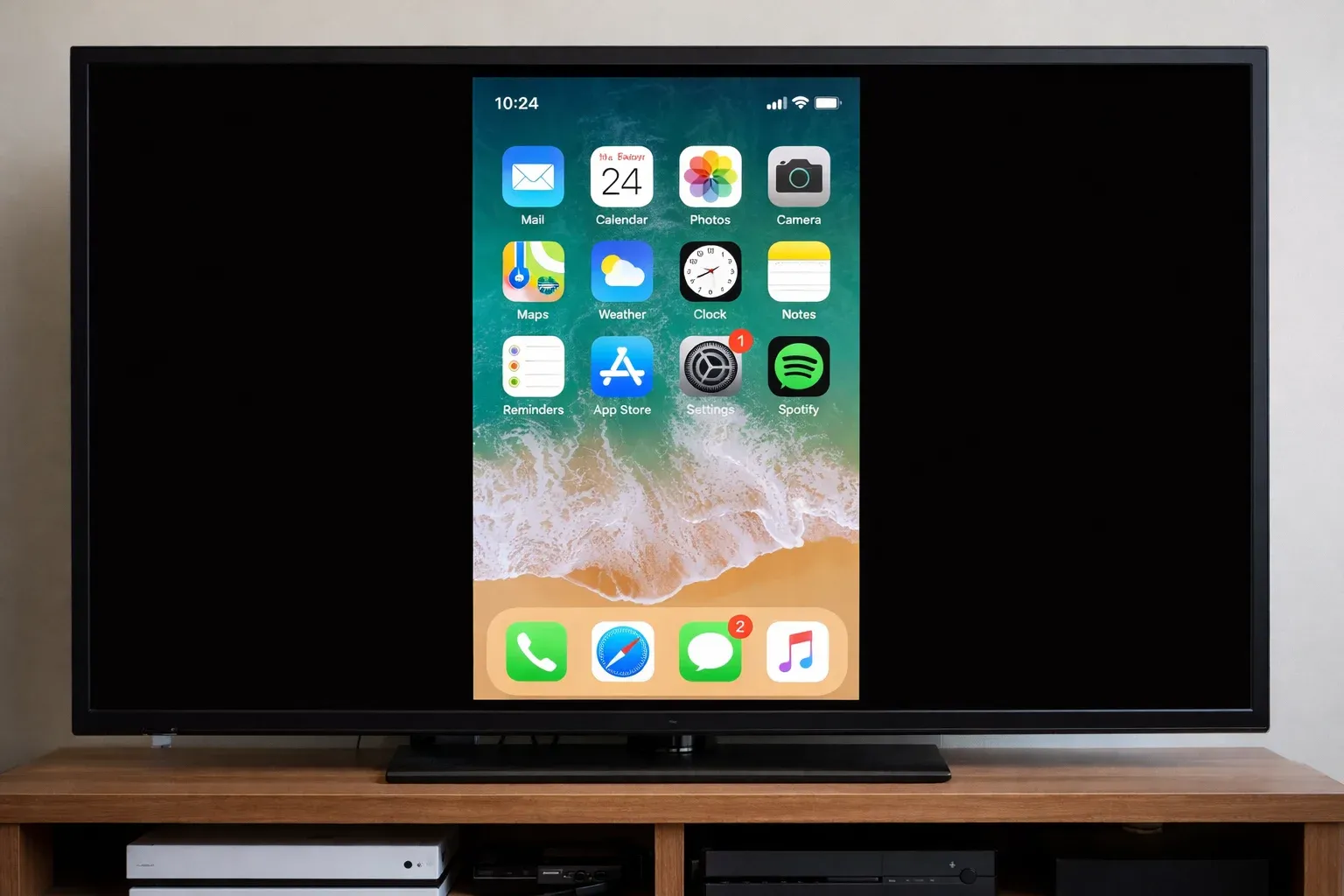
Seeing black bars? iPhone or iPad screen mirroring not filling the TV is often an aspect ratio setting, not a connection fault. In most cases, it happens because the phone screen, content type, and TV settings do not match the TV's display ratio, so the image is kept in its original shape instead of being stretched.
-
Different screen ratios: iPhone screens are taller than standard 16:9 TVs, so black bars appear on the sides or top and bottom.
-
Content format limits: portrait videos, 4:3 clips, and some apps are designed not to fill the entire screen.
-
App playback behavior: full screen mirroring keeps the phone layout, while in-app AirPlay or casting often fits the TV better.
-
TV display settings: aspect ratio, zoom, or scaling options can prevent the image from filling the screen.
How to Make iPhone Screen Mirroring Full Screen
Once you understand why the image doesn't fill the screen, the next step is to adjust how it's displayed. In most cases, getting a full-screen result is not about forcing the image to stretch, but about choosing the right display behavior for your content.
TV Aspect Controls
How to make screen mirroring full screen on TV iPhone? This is usually the first thing to check, because it changes how the TV displays the image rather than the signal itself. If the TV is using overscan or a default fit mode, the picture may appear smaller than the screen. Adjusting the aspect ratio can often remove black bars immediately.
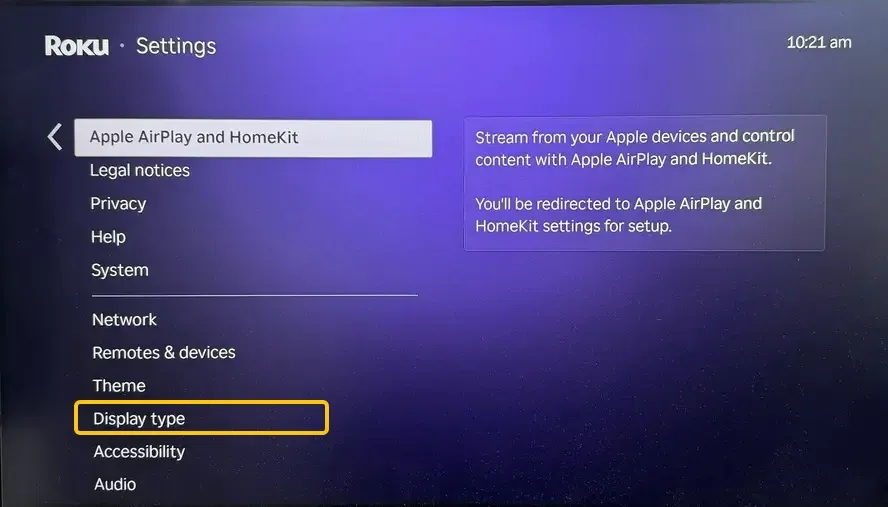
Step 1. Open the TV's picture or display settings while mirroring is active.
Step 2. Look for options like Aspect Ratio, Picture Size, Screen Fit, Just Scan, Fit to Screen, Full Pixel, or Zoom (names vary by TV).
Step 3. Choose a mode that fills the screen without stretching or cutting off edges.
Step 4. If "Auto" still shows black bars, switch to a manual fit option and test again.
Step 5. If the image looks cropped, switch back to a less aggressive setting.
App Playback Mode
How you send content to the TV makes a big difference. Full screen mirroring copies your iPhone exactly, so the TV keeps the same layout and aspect ratio. AirPlay or casting feature in the app sends only the video, which usually fits the screen better and avoids extra UI elements.
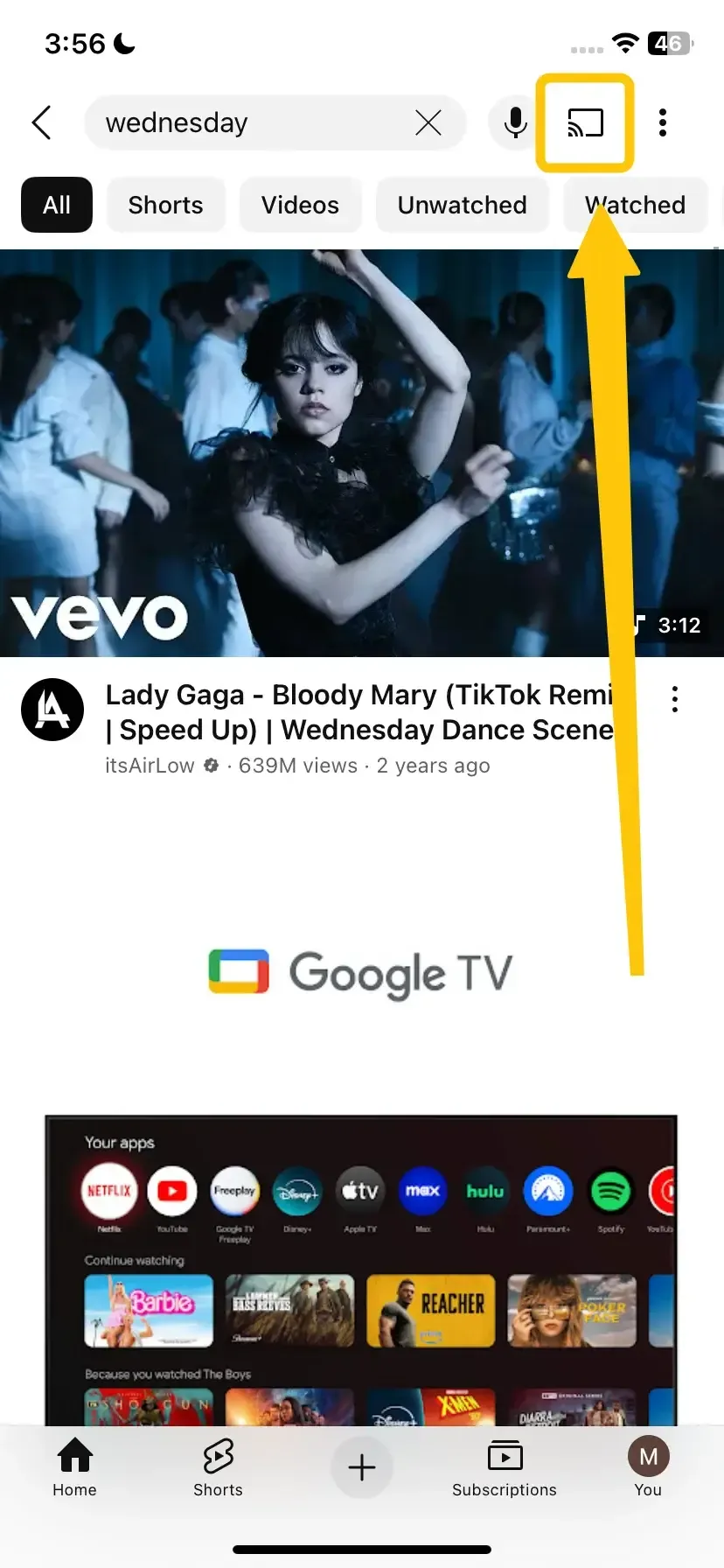
Step 1. Open the video directly in the app instead of mirroring your iPhone home screen.
Step 2. Switch the video to full screen and rotate to landscape before casting.
Step 3. Use the app's AirPlay or Cast button when available instead of screen mirroring.
Step 4. Compare in-app playback with screen mirroring to see which fills the screen better.
Step 5. Keep the app updated to avoid playback or casting issues.
Orientation and Rotation
How to make AirPlay full screen? Orientation does not always make the image fully fill the TV, but it can significantly improve how it fits. Landscape content matches a TV much better, while portrait content will usually leave side bars. Also, starting in the correct orientation gives better results than rotating after mirroring begins.
Step 1. Rotate your iPhone to landscape before starting playback for wide content.
Step 2. Turn off rotation lock if the app needs to switch orientation.
Step 3. Start the video or presentation after the phone is in the correct orientation.
Step 4. Expect side bars for vertical content, as it does not match the TV's shape.
Step 5. For slides, photos, or video calls, try both orientations and use the one that fits best.
Scaling and Zoom Controls
Scaling can help remove small black borders, but it should be used carefully. Zoom or stretch modes may fill the screen, but they can also crop content or distort the image. It's best to use these settings only for fine adjustments.
Step 1. Check if your TV has zoom, wide, or size settings separate from the main aspect ratio menu.
Step 2. Start with the mildest option to avoid cutting off subtitles or screen edges.
Step 3. Test with content that clearly shows borders or UI elements.
Step 4. Avoid stretch modes unless you are okay with distortion.
Step 5. If the image looks cropped or blurry, switch back to a standard fit mode.
HDMI (Wired Fallback)
How to mirror iPhone to TV full screen? HDMI is the most stable option because it avoids wireless issues like lag, dropouts, or inconsistent scaling. However, it does not change the original aspect ratio, so black bars may still appear depending on the content.
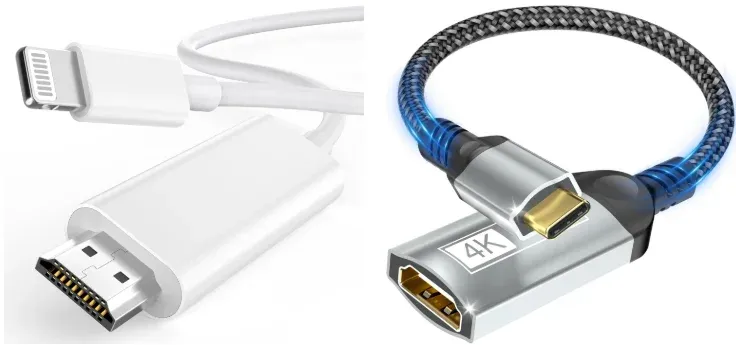
Step 1. Connect your iPhone using a Lightning-to-HDMI or USB-C-to-HDMI adapter (depending on your model).
Step 2. Switch the TV to the correct HDMI input and make sure the adapter is properly powered if required.
Step 3. Open the same content on your iPhone and check how it displays on the TV.
Step 4. If black bars remain, adjust the TV's aspect ratio settings, since HDMI does not change content shape.
Step 5. Use HDMI for presentations, gaming, or unstable Wi-Fi environments where reliability matters most.
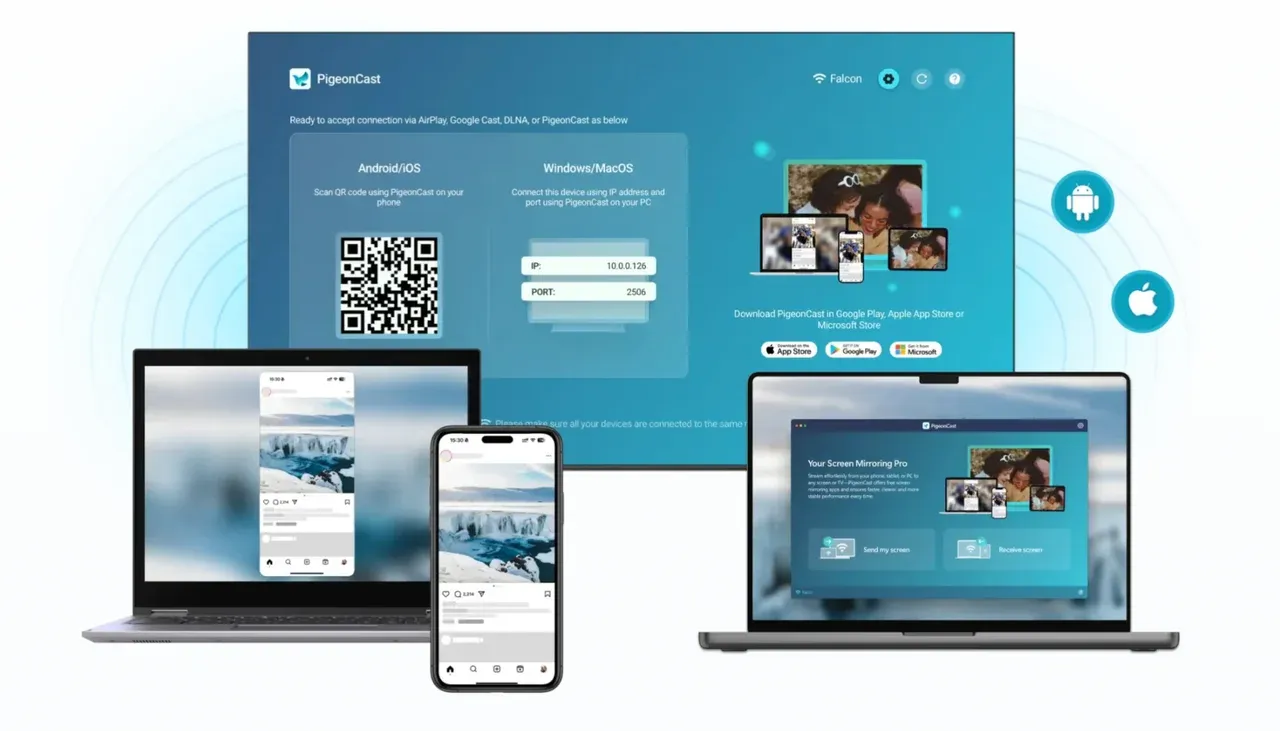
Tips: In some cases, even after adjusting TV settings, playback mode, and orientation, the result can still vary across apps or devices. This usually comes from differences between protocols like AirPlay, DLNA, or casting.


Overall Rating:


If you want a more consistent experience across different devices and apps, tools like PigeonCast can help by supporting multiple casting protocols in one place. Instead of relying on a single method, you can switch between AirPlay, DLNA, and Google Cast more easily, which often reduces issues like black bars, playback differences, or unstable connections.
How Different Devices Affect iPhone Screen Mirroring
Not all receivers handle iPhone mirroring the same way. The final display depends not only on your iPhone, but also on the TV or device receiving the signal. Even with the same phone, results can vary due to scaling, playback behavior, and device settings.
AirPlay TVs
AirPlay-compatible TVs usually provide the cleanest wireless experience, but they still rely on the TV's own display settings. AirPlay TVs from brands like LG, Samsung, Sony, Vizio, Hisense, and TCL generally work well, but they still follow the TV's own scaling rules. If the image does not fill the screen, it is usually due to aspect ratio limits, not a connection issue.
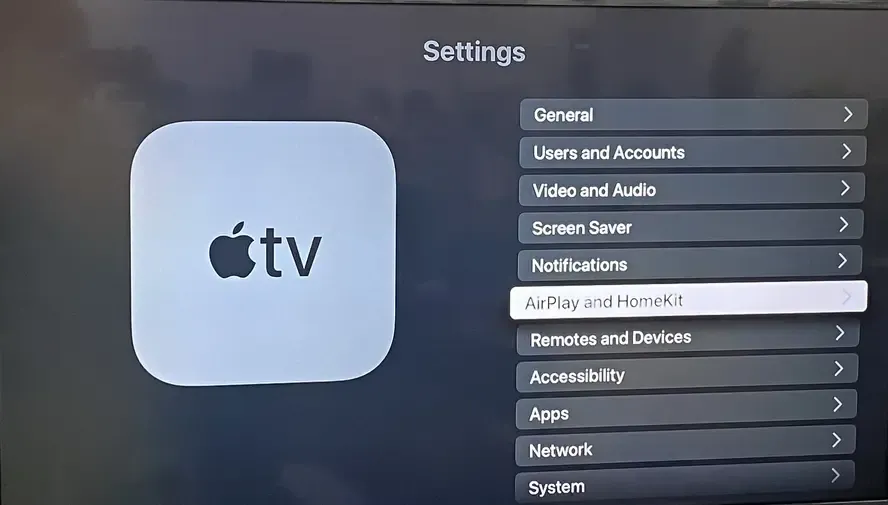
Step 1. Make sure AirPlay is enabled in the TV settings.
Step 2. Adjust the TV's picture settings (aspect ratio, screen fit) while mirroring.
Step 3. Check if the TV has separate settings for wireless casting and HDMI inputs.
Step 4. Try in-app AirPlay if full screen mirroring still shows black bars.
Step 5. Restart the TV's network or AirPlay service if the connection behaves inconsistently.
Streaming Devices (Roku, Apple TV, Chromecast, etc.)
Apple TV usually provides the most consistent AirPlay experience. Roku, Fire TV, and Chromecast devices can work well, but results may vary depending on the app and casting method. In many cases, app-level casting is more reliable than mirroring the entire screen.
Step 1. Check whether the device supports AirPlay or only app-based casting.
Step 2. Use the app's Cast or AirPlay button when available instead of full screen mirroring.
Step 3. Match the device's resolution settings to your TV for better scaling.
Step 4. Test any zoom or screen-fit options on the device after adjusting the TV settings.
Step 5. If performance is unstable, check Wi-Fi quality before troubleshooting the iPhone.
Closing Words
How to get full screen when mirroring iphone? It's mainly about display settings, not connection problems. Black bars come from screen ratio differences and app behavior. Adjust the TV aspect ratio, use in-app playback, and set the correct orientation for better results. HDMI is the most stable option but will not remove black bars, and tools like PigeonCast can help improve consistency across different apps and devices.
How to Make Screen Mirroring Full Screen iPhone FAQ
How to screen mirroring iPad to Samsung TV full screen?
To screen mirror an iPad to a Samsung TV in full screen, use AirPlay and adjust how the content is displayed rather than forcing the image to stretch. Black bars are usually caused by aspect ratio differences, not connection issues.
-
Make sure both iPad and Samsung TV are on the same Wi-Fi and enable AirPlay on the TV.
-
Rotate the iPad to landscape before starting mirroring.
-
Use TV picture settings like "Fit to Screen" or "Screen Fit".
-
For videos, use in-app AirPlay instead of full screen mirroring.
-
If needed, use an HDMI adapter for a more stable connection.
How to make screen mirroring full screen on LG TV?
To make screen mirroring full screen on an LG TV, focus on adjusting how the TV displays the image rather than the connection itself. Black bars are usually caused by aspect ratio differences between your device and the TV.
-
Open Settings > Picture > Aspect Ratio Settings on your LG TV.
-
Set Aspect Ratio to Just Scan or 16:9 (avoid zoom or stretch unless needed).
-
Turn off overscan if enabled (often under "Just Scan").
-
Rotate your phone or tablet to landscape before mirroring.
-
Use in-app casting or AirPlay for videos instead of full screen mirroring.
-
If needed, adjust Zoom or Screen Fit carefully to remove small borders without cropping.
How to make iPhone mirroring full screen on Mac?
To make iPhone mirroring full screen on a Mac, adjust the display mode and how the content is shown rather than forcing the image to stretch. Black bars usually come from aspect ratio differences between the iPhone and Mac screen.
-
Use Screen Mirroring and select your Mac from the Control Center.
-
Click the mirroring window and switch to full screen mode (green button or full screen icon).
-
Rotate your iPhone to landscape before or during mirroring.
-
For videos, use in-app AirPlay or full-screen playback inside the app.
-
Avoid zooming unless necessary, as it may crop or distort the image.
Why is AirPlay full screen not working?
AirPlay full screen not working is usually not a connection issue but a display limitation caused by how the content is formatted and shown.
-
Aspect ratio mismatch between your device and the TV or Mac screen
-
Portrait or non-16:9 content that cannot fill the screen
-
Full screen mirroring vs in-app playback differences
-
TV or display settings like aspect ratio, zoom, or overscan
-
App restrictions (DRM) that limit how video is displayed
-
Incorrect orientation when starting mirroring
-
Receiver behavior (AirPlay TV, Apple TV, or other devices handle scaling differently)
Why does iPhone mirroring stay in portrait instead of going wide?
iPhone mirroring stays in portrait instead of going wide usually because the display is following the phone's current orientation or the app does not switch to landscape mode.
-
Rotation lock is enabled on the iPhone, preventing landscape mode
-
The app you're using does not support landscape playback
-
Mirroring started while the phone was in portrait, and the receiver did not update
-
Full screen mirroring copies the exact phone layout, including portrait orientation
-
The receiver (TV or device) does not re-scale dynamically after rotation
Is there a setting that forces every mirror to go full screen?
No, there is no universal force-full-screen switch on the iPhone. The final result depends on the TV, the app, and the receiver. The most reliable path is still to match aspect ratio, use the app's playback mode, and fall back to HDMI when needed.
Clara Rossi is an experienced technology editor and a seasoned expert in screen mirroring and casting technologies. With a keen eye for detail and a deep understanding of how to seamlessly connect devices, Clara excels at optimizing user experiences for effortless sharing and streaming. Whether you're seeking quick fixes or advanced tips, her expertise and responsiveness ensure that every query is met with a well-informed and efficient solution.