
Have you ever wanted to share a website's content, whether it's a live stream, a presentation, a recipe, or a funny video, directly from your phone or computer to a larger TV screen? The process, known as screen mirroring or casting, is easier than you might think. This comprehensive guide will walk you through how to mirror a website with the most effective methods.
How to Mirror a Website Online to TV
Mirroring websites essentially involves projecting the visual output of your device's screen. This can be achieved either wirelessly using built-in protocols or physically with a cable. The best method for you depends on the devices you own and your specific needs. Now, let's dive into how to mirror a website to TV.
Way 1. Use the Built-in Mirroring Feature
Most modern operating systems have integrated screen mirroring functions, offering a straightforward, no-download-required solution. Here's how to access these native tools on different platforms. Your device's built-in feature is often the quickest way to mirror your entire screen, including your browser.
- Android
For Android devices, the most common way to mirror your full screen is through the Cast or Smart View feature, both of which can be easily accessed through the Quick Panel. Here are the steps to mirror an Android mobile deivce:
Step 1. Ensure your Android device connects to the same wireless network as your TV.
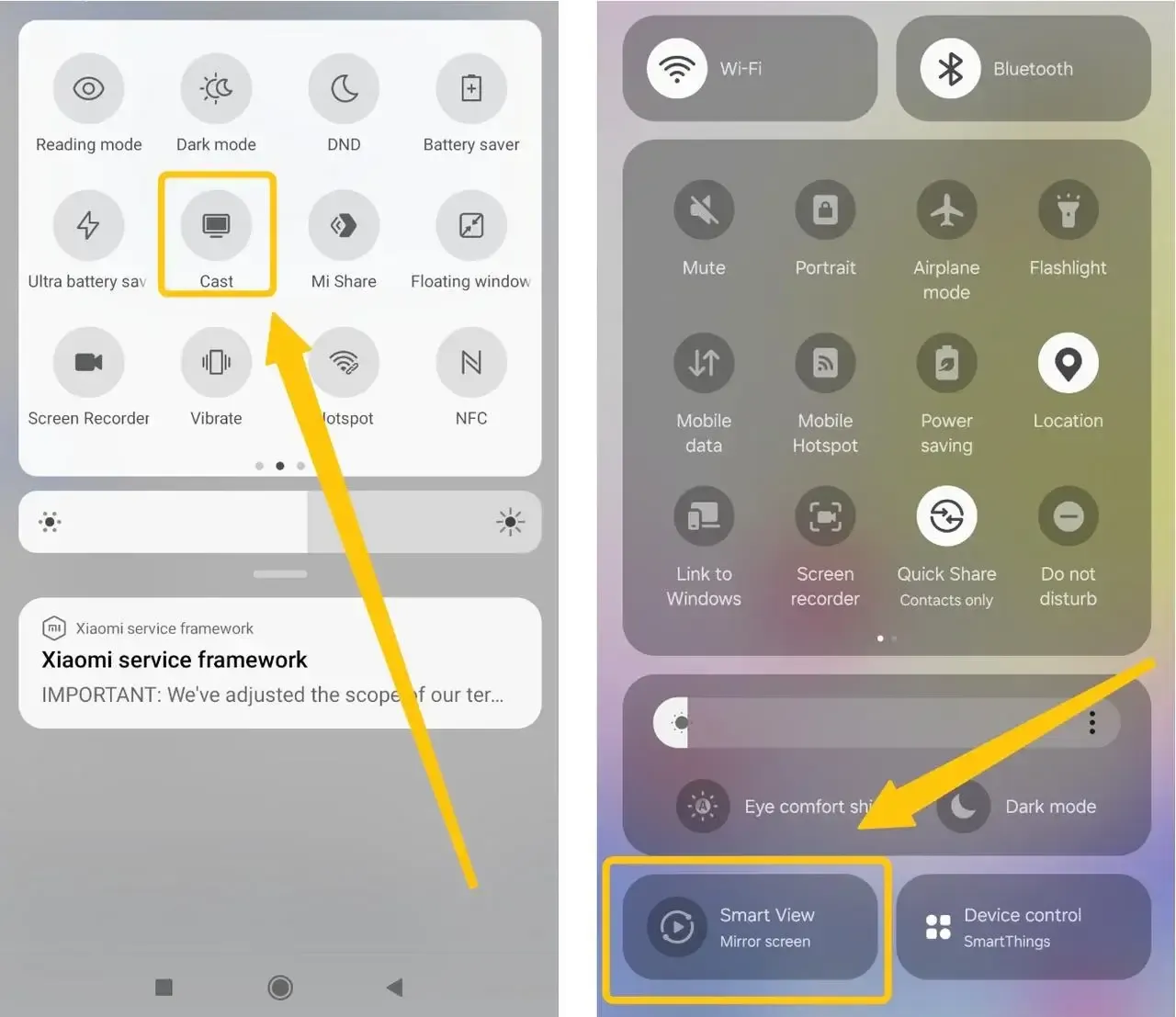
Step 2. Swipe down the Quick panel to tap Cast or Smart View on your Android.
Step 3. Select your TV from the list of available devices and confirm the pairing behavior.
Step 4. When your connection succeeds, launch the website and begin your online website mirroring.
- iPhone, iPad, and MacBook
This method works seamlessly with AirPlay-enabled smart TVs or Apple TV, allowing you to mirror your entire screen and then navigate to the desired website to cast.
Step 1. Connect your iPhone, iPad, or MacBook, and the TV are covered by the same wireless network.
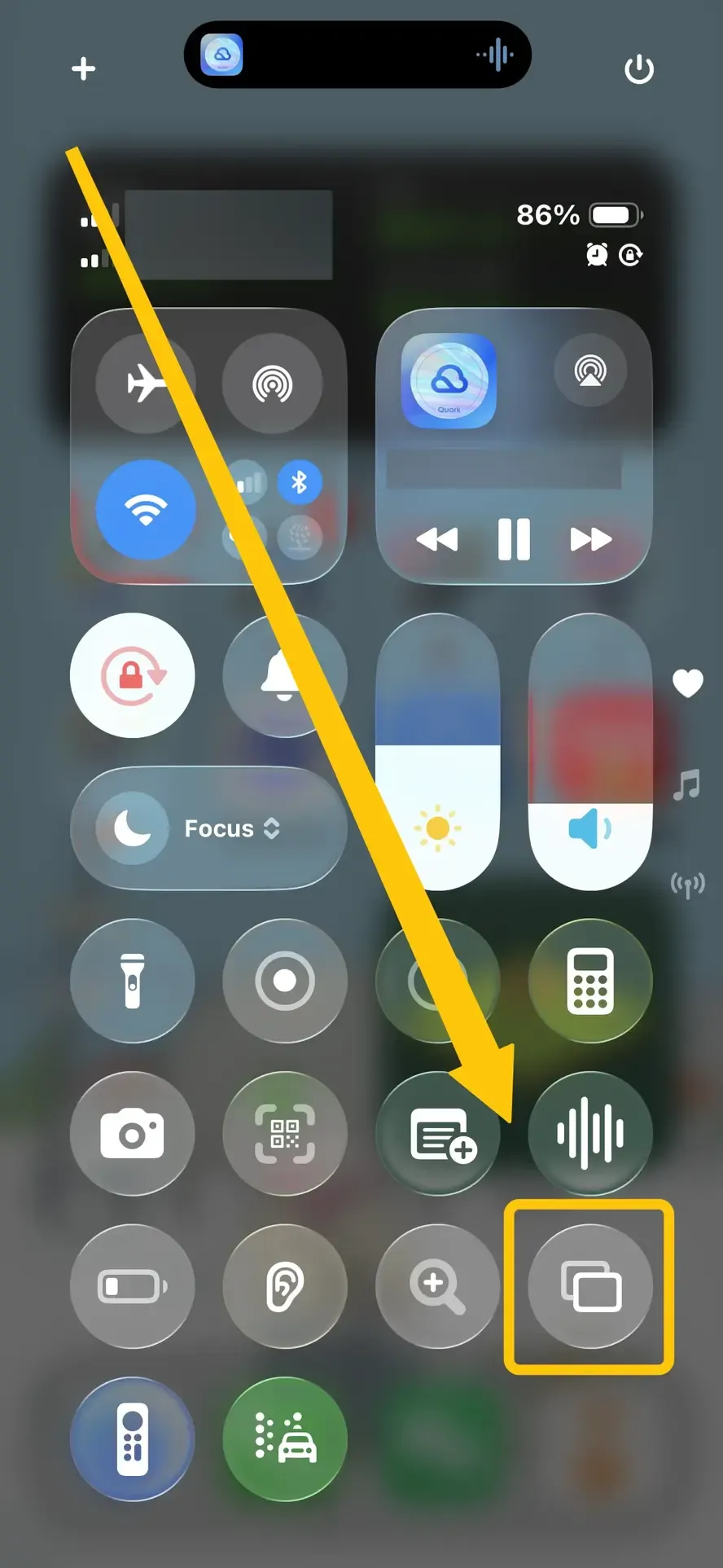
Step 2. Tap Screen Mirroring in the Control Center on your iPhone or iPad to select your TV from the list of devices.
Step 3. If prompted, enter the onscreen code to finish the pairing process.
Step 4. Your iPhone's screen will mirror on the television, then open the desired website on your iPhone.
- Windows
Screen mirroring Windows PC to TV, is straightforward using the Wireless Display feature. Here's how to mirror your Windows desktop and display websites on your TV without any cables.
Step 1. Make sure your Windows PC and smart TV are under the same WiFi network.
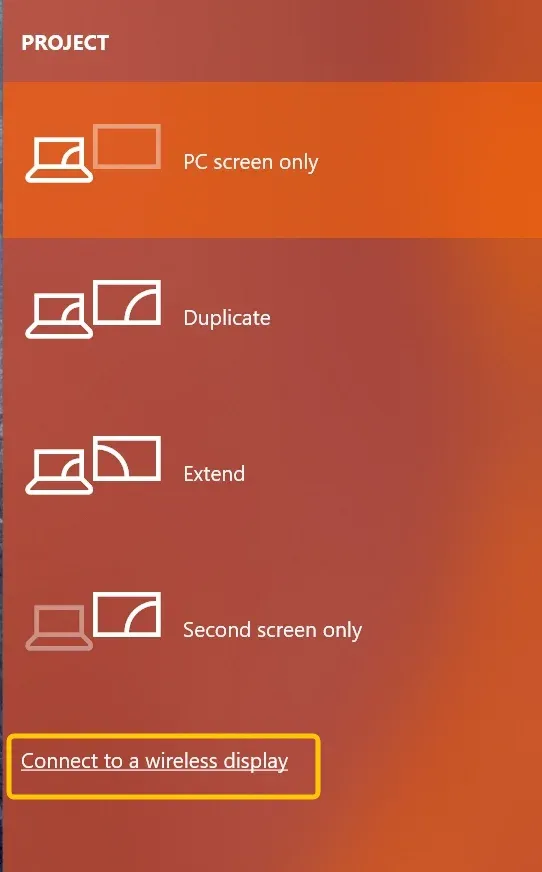
Step 2. Press the Windows logo key and P on your keyboard simultaneously to open the Project menu.
Step 3. Select Connect to a wireless display to choose your TV from the available list.
Step 4. Your Windows desktop will now be mirrored, and you just need to open your browser to start website mirroring activities on the TV.
Way 2. Use the Cast Option in Chrome
If you'd rather not share your entire screen and want to keep your notifications and desktop icons private, Chrome's built-in casting feature provides a more targeted site mirroring solution. It allows you to cast just your browser content. However, to use this feature, you'll need a Chromecast-compatible casting device:
- Chromecast: Available as a standalone device or built into select smart TVs.
- Smart TVs with built-in Google Cast support: Including models from brands like Samsung, LG, and Sony.
- Streaming devices: Such as Roku, Android TV, and certain game consoles that support Google Cast.
Step 1. Open Google Chrome on your Windows PC, MacBook, or Chromebook, then navigate to the website you want to display
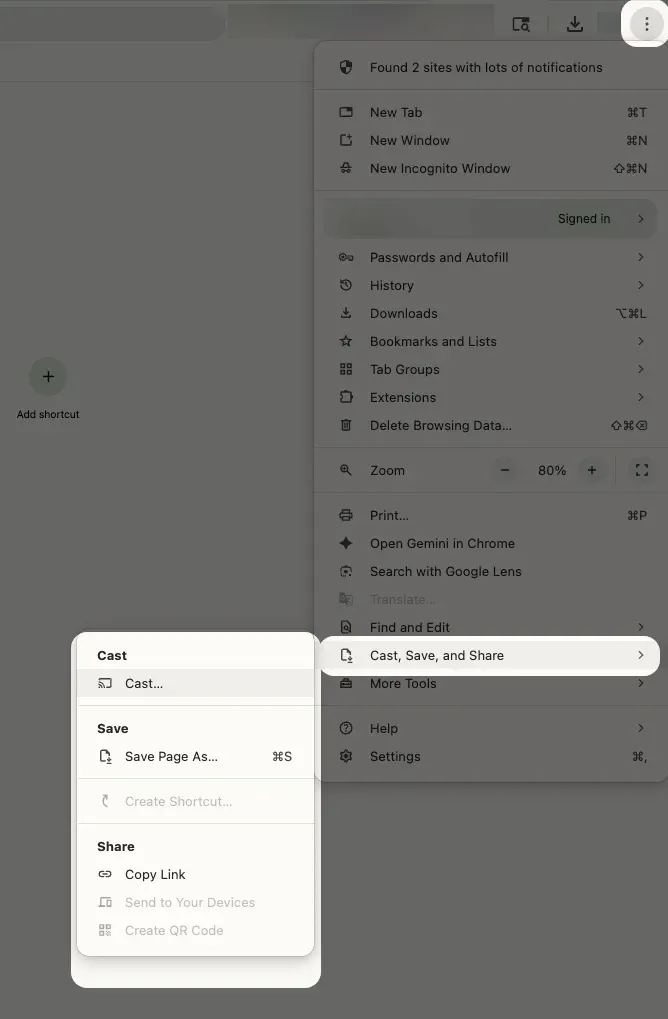
Step 2. Click the three-dot menu (⋮) in the top-right corner, and select Cast... from the dropdown menu.
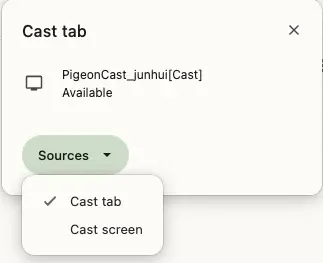
Step 3. In the pop-up window, choose your casting source:
- Cast tab: Streams only the current browser tab.
- Cast screen: Mirrors your entire screen.
Step 4. Select your Chromecast or built-in casting TV from the list, and the website will now appear on your TV while remaining fully controllable from your laptop.
Way 3. Use the HDMI Cable
When wireless options fall short, or you need flawless, lag-free video playback, nothing beats the reliability of a physical connection. Depending on your device, you'll need the correct HDMI cable or adapter:
- For Android: Use a USB-C to HDMI adapter (for newer models with USB-C) or an MHL to HDMI adapter (for older models with micro-USB).
- For iPhone or iPad: Use an Apple Lightning to HDMI adapter or USB-C to HDMI adapter.
- For Windows: Use a standard HDMI cable. If your laptop has a USB-C port, you'll need a USB-C to HDMI adapter.
- For MacBooks: If your MacBook has a Thunderbolt/USB-C port, you'll need a USB-C to HDMI adapter. Older MacBooks may require a Mini DisplayPort to HDMI adapter.
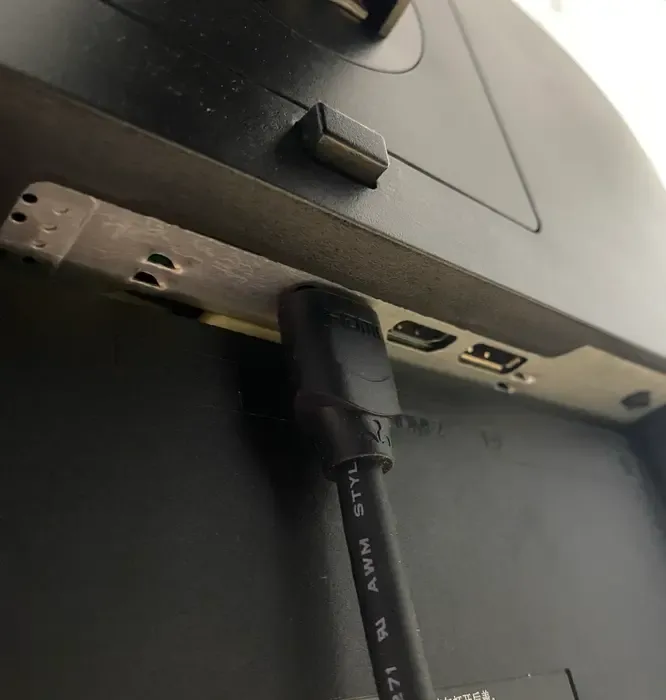
Step 1. Plug one end of an HDMI cable into your mobile device and the other into any available HDMI port on your TV.
Step 2. Using your TV remote, change the Source/Input to match the HDMI port you used (e.g., "HDMI 1").
Step 3. On your mobile device, access the site in any browser, and it will now display identically on both screens.
Way 4. Use PigeonCast (Free Mirroring App)
When devices don't support the same protocols or when you need flexibility across different platforms, third-party mirroring apps can help bridge the gap. PigeonCast Screen Mirroring App is a great choice that's a free and easy way to mirror websites from your phone or project computer to your TV. It supports wireless mirroring and is compatible with Android, iOS, Windows, Mac, and most smart TVs, making it a versatile option for all your streaming needs.

Step 1. Ensure your devices are connected to the same wireless network.


Overall Rating:



Step 2. Download PigeonCast on your phone, tablet, or laptop from the Google Play or App Store, then launch the app.
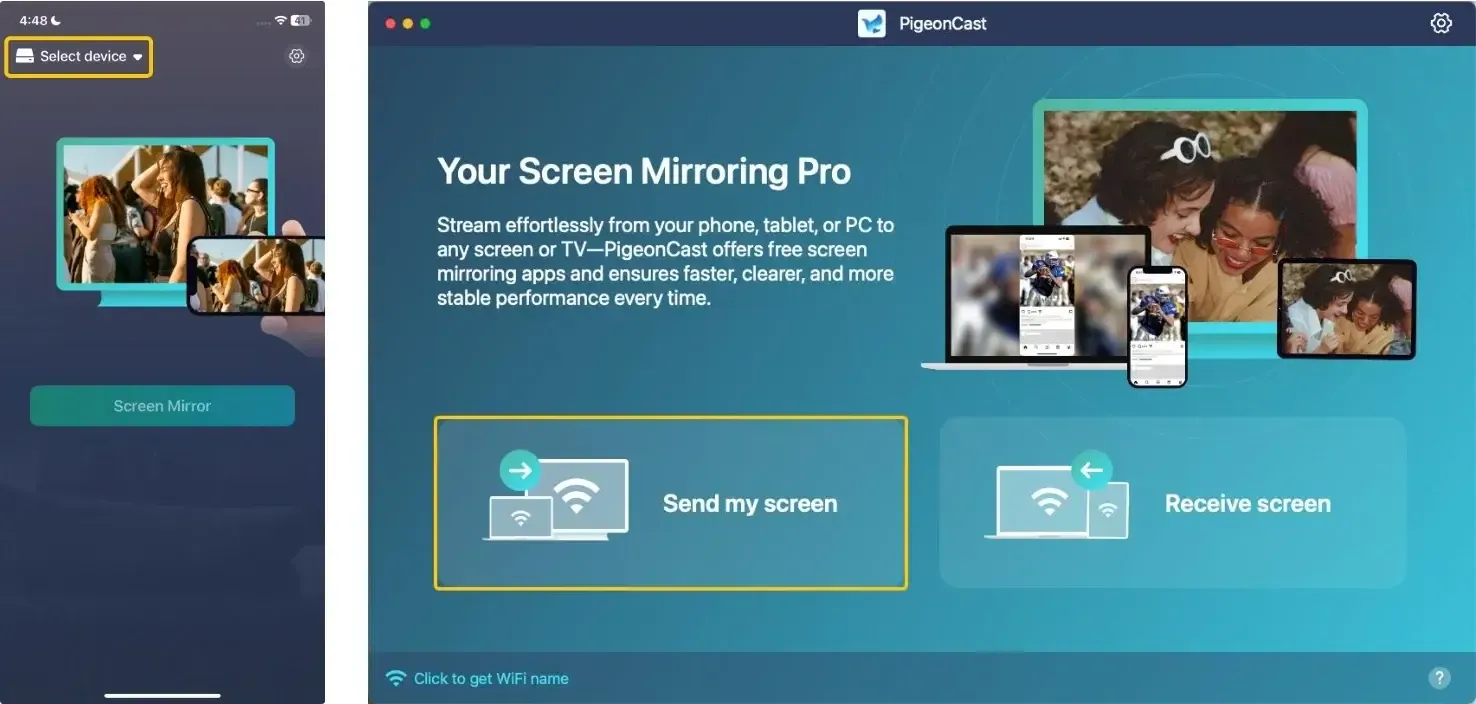
Step 3. Tap Select device or Send my screen to choose your TV from the device list.
Step 4. Enter the onscreen PIN code to confirm the pairing requisition.
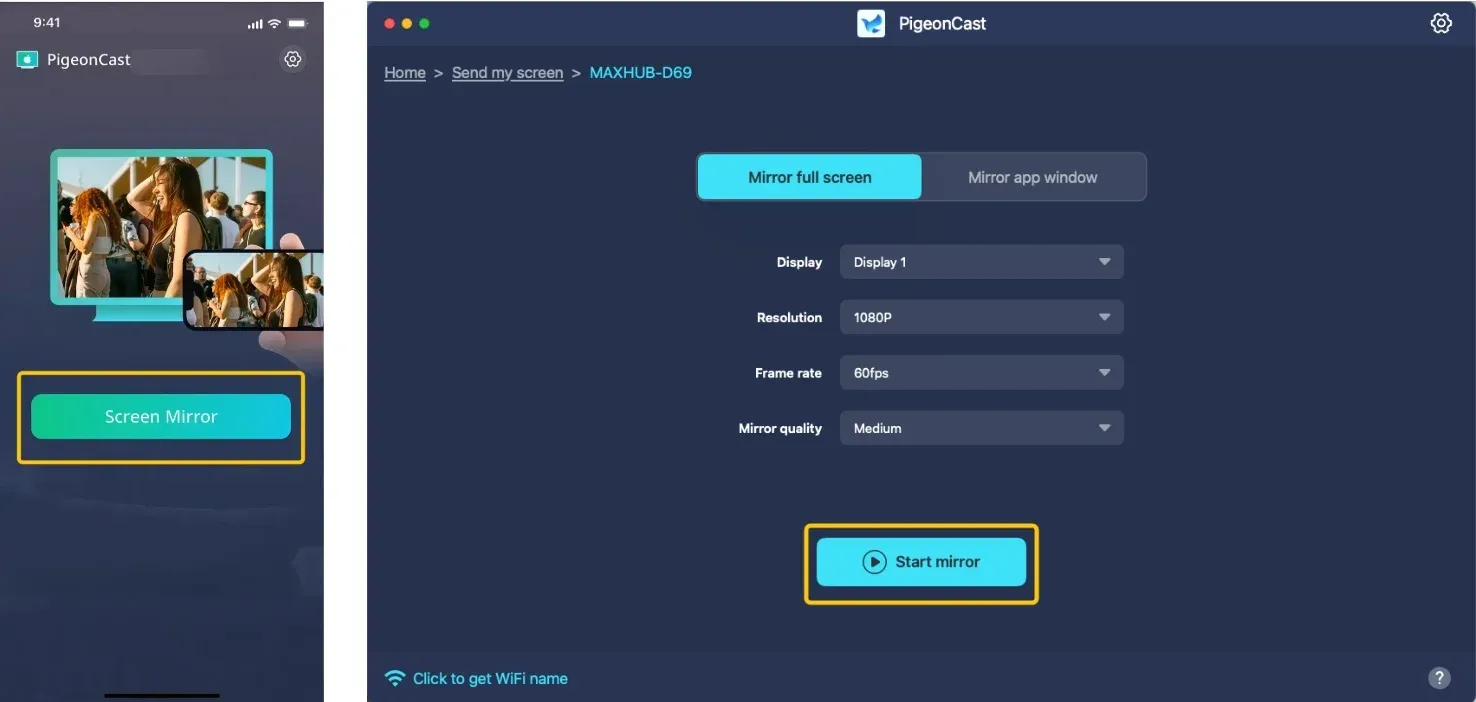
Step 5. Once you finish the connection, tap Screen Mirror or Start mirror to website mirror. If you use a laptop, you are allowed to choose whether to cast the full screen or a single app window on the television screen.
To Sum Up
Screen mirroring a website to your TV is easy with several methods to choose from. Whether you use your device's built-in mirroring feature, Chrome's casting option, an HDMI cable, or a free app like PigeonCast, you can quickly share a website on your TV. Just follow the steps for how to screen mirror a website, and enjoy your content on a larger screen.
How to Mirror a Website FAQ
Can you mirror a website?
Yes, you can mirror a website from most modern devices, including smartphones, tablets, laptops, and desktops. The website displays on your TV exactly as it appears on your device, with live scrolling and interaction.
Can you mirror the site for Netflix?
You can mirror the Netflix website using screen mirroring methods, but due to Digital Rights Management (DRM/HDCP), the quality may be limited to 480p, and some methods may even result in a black screen with audio.
Is It Safe to Mirror Websites to My TV?
Yes, it's completely safe to mirror websites to your TV. However, make sure you're using trusted apps or methods to connect your devices. Avoid downloading third-party mirroring apps from unverified sources to protect your privacy and security.
How Do I Mirror a Website to My TV Using Chromecast?
To mirror a website to your TV using Chromecast, follow these steps:
- Open the website in Google Chrome on your device.
- Click the three-dot menu in the top-right corner.
- Select Cast, then choose your Chromecast-enabled TV from the list.
- Your website will display on your TV.
How Do I Mirror a Website on a Non-Smart TV?
If you have a non-smart TV, you can still mirror a website by using external devices like Chromecast, Roku, or Amazon Fire TV Stick. These devices support screen mirroring and can help you display content from your smartphone or computer to a regular TV.
Can I mirror a website without sound?
Yes, but it depends on your method:
- HDMI cable: Carries both video and audio automatically
- Wireless mirroring (Smart View/AirPlay): Typically includes audio
- Chrome Cast: Includes audio from the cast tab
- Third-party apps: Check audio settings within the app
If audio isn't working, check your device's sound output settings to ensure it's set to stream to the TV.
Clara Rossi is an experienced technology editor and a seasoned expert in screen mirroring and casting technologies. With a keen eye for detail and a deep understanding of how to seamlessly connect devices, Clara excels at optimizing user experiences for effortless sharing and streaming. Whether you're seeking quick fixes or advanced tips, her expertise and responsiveness ensure that every query is met with a well-informed and efficient solution.