
What is AirPlay on iPhone? AirPlay is a popular feature built into iPhones and other Apple devices that allows you to stream content wirelessly to your TV or speakers. If you are new to this feature or want to make the most of it, this guide will help you understand what AirPlay is on iPhone and show you how to set it up on your device for a smoother and more enjoyable experience.
What Is AirPlay on My iPhone
AirPlay is Apple's wireless streaming technology that allows you to share content from your iPhone, iPad, or Mac to other compatible devices like TVs, speakers, and computers.
Originally launched in 2010 as "AirTunes", it was first designed for streaming audio from iTunes to speakers. In 2011, Apple expanded the feature and rebranded it as AirPlay, introducing support for video, screen mirroring, and broader device compatibility. Apple introduced AirPlay 2 in 2018, adding multi-room audio, smoother playback, and broader support across TVs, speakers, and third-party devices.
Today, AirPlay works seamlessly with a range of Apple devices and third-party products. You can stream videos to an Apple TV, AirPlay-enabled smart TVs (from brands like Samsung, LG, and Sony), and Macs running macOS Monterey or later. It also supports wireless audio on HomePod, AirPlay-compatible speakers, and even some AV receivers. With AirPlay, you can:
- Stream movies and videos from your iPhone to your TV or Mac
- Mirror your screen in real time, showing exactly what's on your device
- Play music across multiple speakers at once
- Share photos and slideshows with family and friends
How Does AirPlay Work
After having a brief understanding of AirPlay on iPhone, let's explore another question: how does AirPlay work. AirPlay uses your local Wi-Fi network to wirelessly connect your iPhone, iPad, or Mac to other compatible devices. As long as your devices are connected to the same Wi-Fi network, you can stream or mirror content with just a few taps.
In a typical setup, you choose an AirPlay-enabled device such as a smart TV, Apple TV, speaker, or Mac directly from your iPhone. Once selected, your iPhone sends the audio or video stream to that device, allowing it to play or display your content in real time. There are two main ways AirPlay works:
- AirPlay Streaming
AirPlay Streaming allows you to send specific audio or video content from your iPhone, iPad, or Mac directly to another compatible device, such as an Apple TV, smart TV, speaker, or even a Mac. This is useful when you want to watch a movie, stream a YouTube video, or play a song without mirroring your entire screen.
For example, you can be browsing Instagram on your iPhone while your favorite show plays on the TV in the background. The streaming runs independently of your screen activity, so you can continue using your device for other tasks. It also supports high-quality playback, including full HD and even 4K resolution on supported devices, along with multi-channel audio when available.
- AirPlay Mirroring
What is AirPlay mirroring on iPhone? AirPlay Mirroring duplicates your entire screen onto another display in real time. Whatever you see and do on your iPhone or iPad also appears on the connected screen. This includes your home screen, apps, swipes, keyboard input, system notifications, and more.
Keep in mind that since everything is mirrored live, even incoming notifications and battery pop-ups will be shown on the screen. The resolution will match your device's display ratio, so black bars may appear depending on the screen size of the TV or monitor.
How to Set Up AirPlay on iPhone, MacBook
Whether you're looking to stream your favorite content to a TV or mirror your iPhone or MacBook screen, setting up AirPlay is quick and easy. In this section, we'll guide you through the easy steps to enable AirPlay on both your iPhone and MacBook, helping you get a clear understanding of iPhone AirPlay.
How to Set Up AirPlay on iPhone, iPad
Now that you know the basics of AirPlay, let's dive into how you can set it up on your iPhone or iPad. Whether you're looking to stream videos, share photos, or mirror your screen, enabling AirPlay on these devices is a breeze. In the next section, we'll walk you through the step-by-step process about how to use airplay on iphone or iPad in no time.
Step 1. Ensure that both your iPhone and the receiving device (like an Apple TV or AirPlay-compatible smart TV) are connected to the same Wi-Fi network.
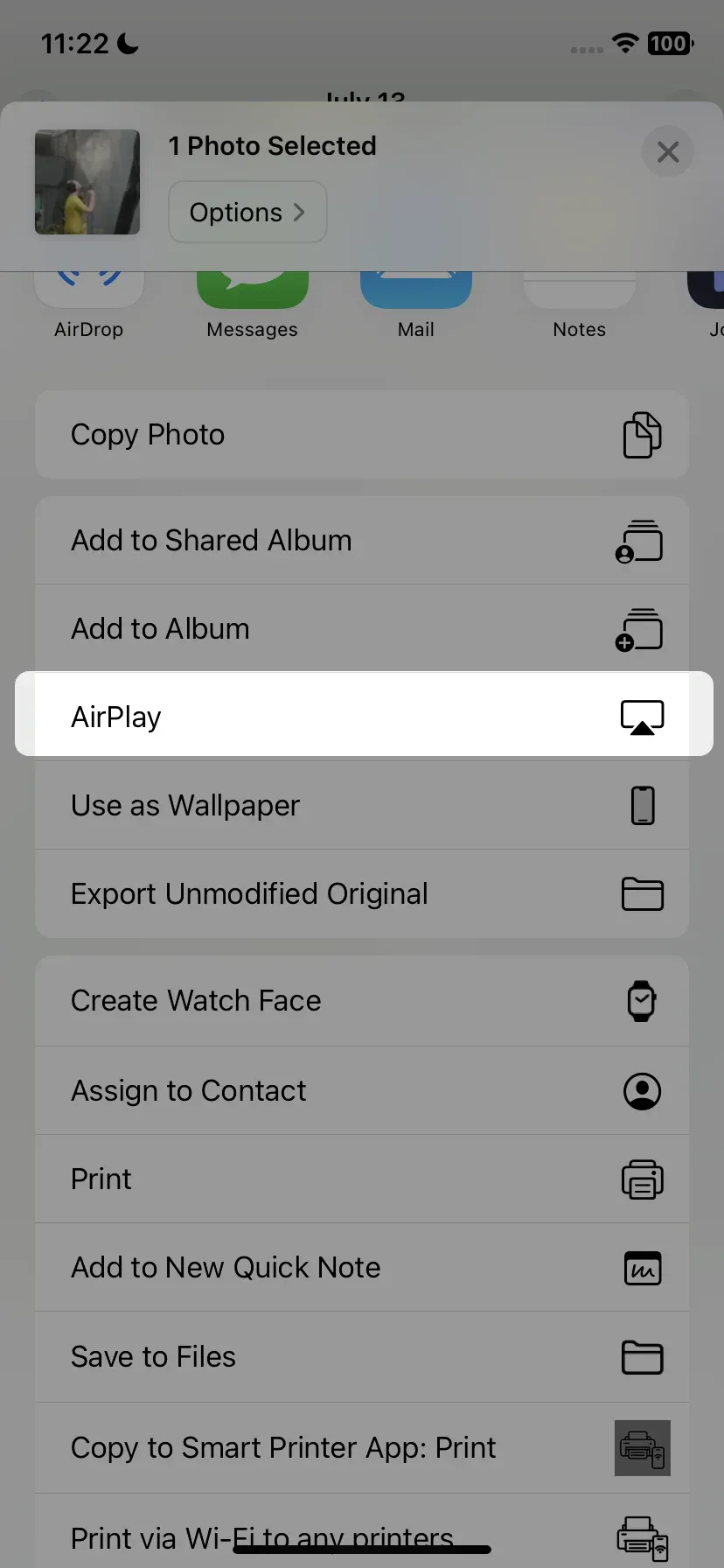
Step 2. When using apps like YouTube, Photos, or Apple Music, look for the AirPlay icon (a rectangle with a triangle at the bottom). Tap the icon and select your AirPlay device.
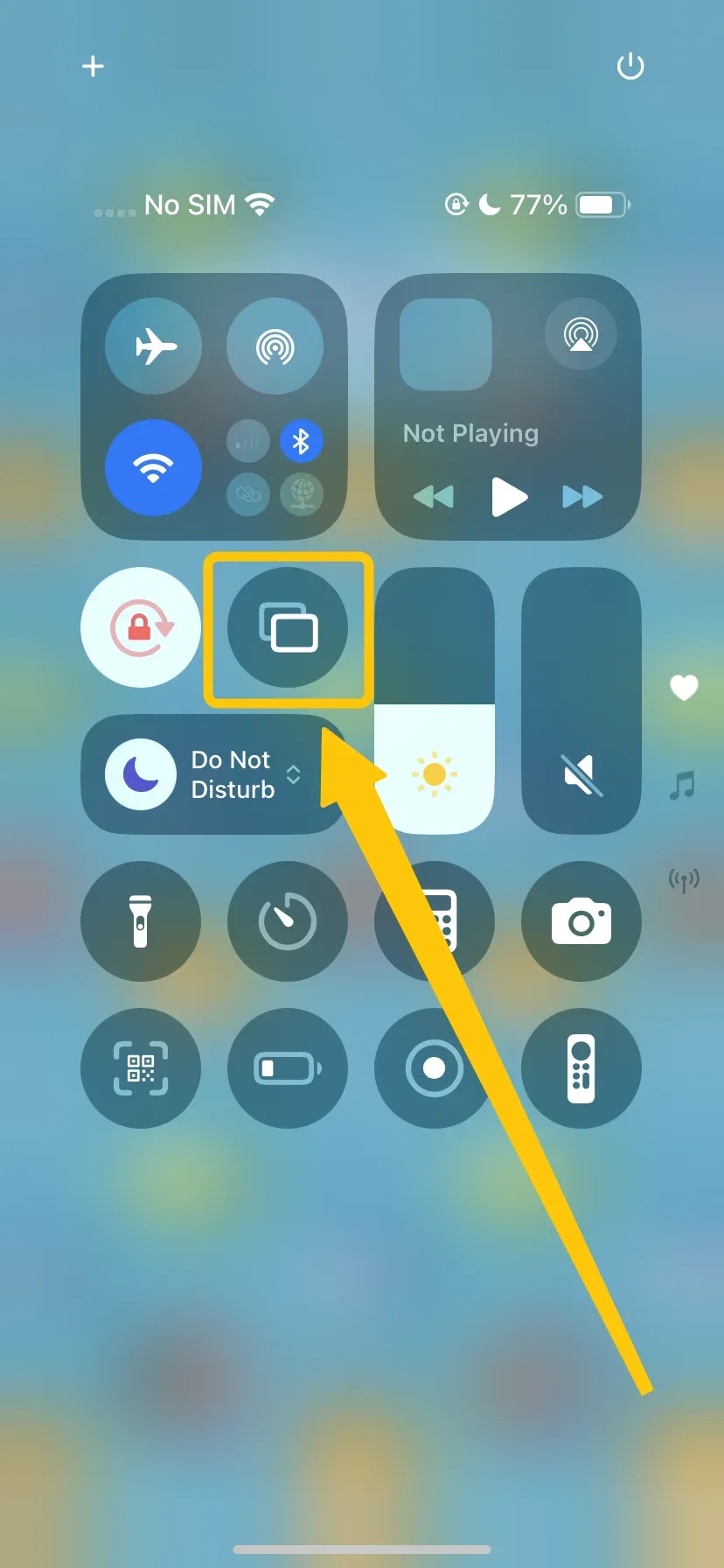
Screen Mirroring in iPhone's Control Center
Step 3. To mirror your entire iPhone screen, swipe down to open Control Center > Screen Mirroring, then choose your AirPlay device.
Step 4. To stop casting or mirroring, simply return to Control Center > Stop Mirroring.
How to Set Up AirPlay on MacBook
If you're running macOS Monterey or later, your MacBook can easily stream content to other AirPlay-enabled devices, such as an Apple TV or compatible smart TV. Whether you're sharing a presentation, playing videos, or just showing off photos, AirPlay from your MacBook is an effortless way to share your screen.
Step 1. Ensure that both your MacBook and the receiving device (e.g., Apple TV or AirPlay-compatible smart TV) are connected to the same Wi-Fi network.
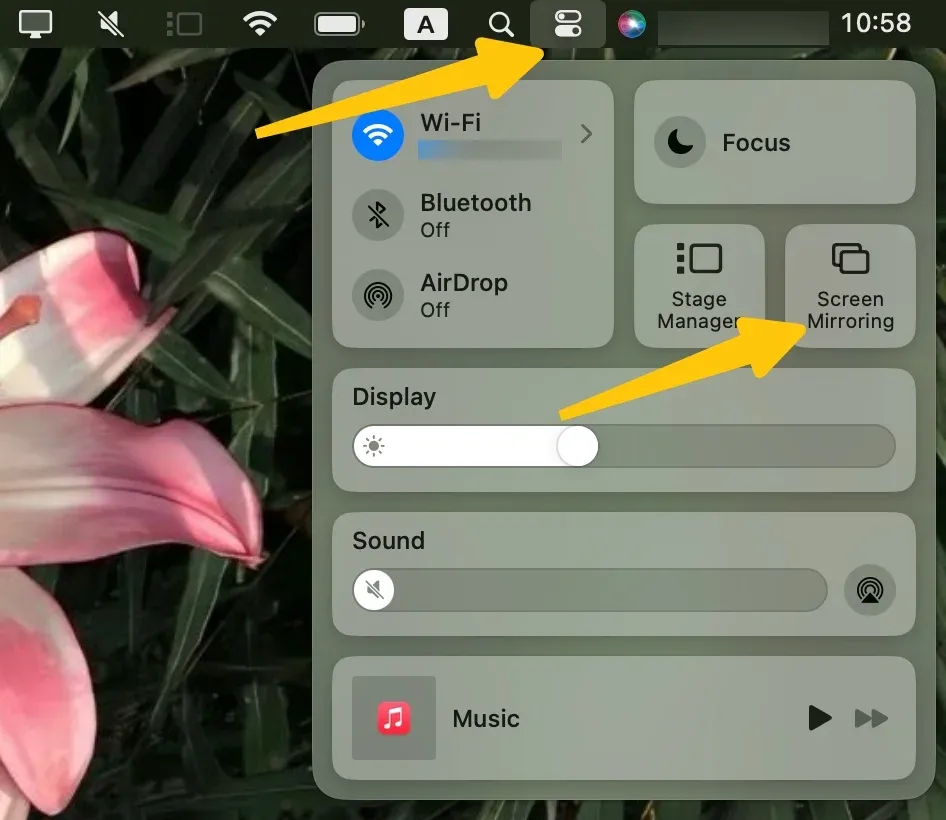
Step 2. On your MacBook, click the Control Center icon in the top-right corner (next to the clock) and click on Screen Mirroring.
Step 3. Select your AirPlay-compatible device from the list, and then you can either mirror your MacBook screen or extend the display to the connected device.
Step 4. To disconnect, go back to Control Center, click on Screen Mirroring, and select Turn Off AirPlay.
How to AirPlay iPhone to Android TV
If you're looking to extend your AirPlay capabilities to Android TV, you're in luck! With the help of third-party apps like PigeonCast on iPhone, you can easily AirPlay from iPhone to TV. PigeonCast ensures your privacy is protected with no data leakage, giving you peace of mind while enjoying seamless 1080p streaming with no loss in quality.


PigeonCast Screen Mirroring

Official Download


Step 1. Install the PigeonCast on your iPhone from the App Store.
Step 2. Ensure your iPhone and Android TV are connected to the same wireless network.
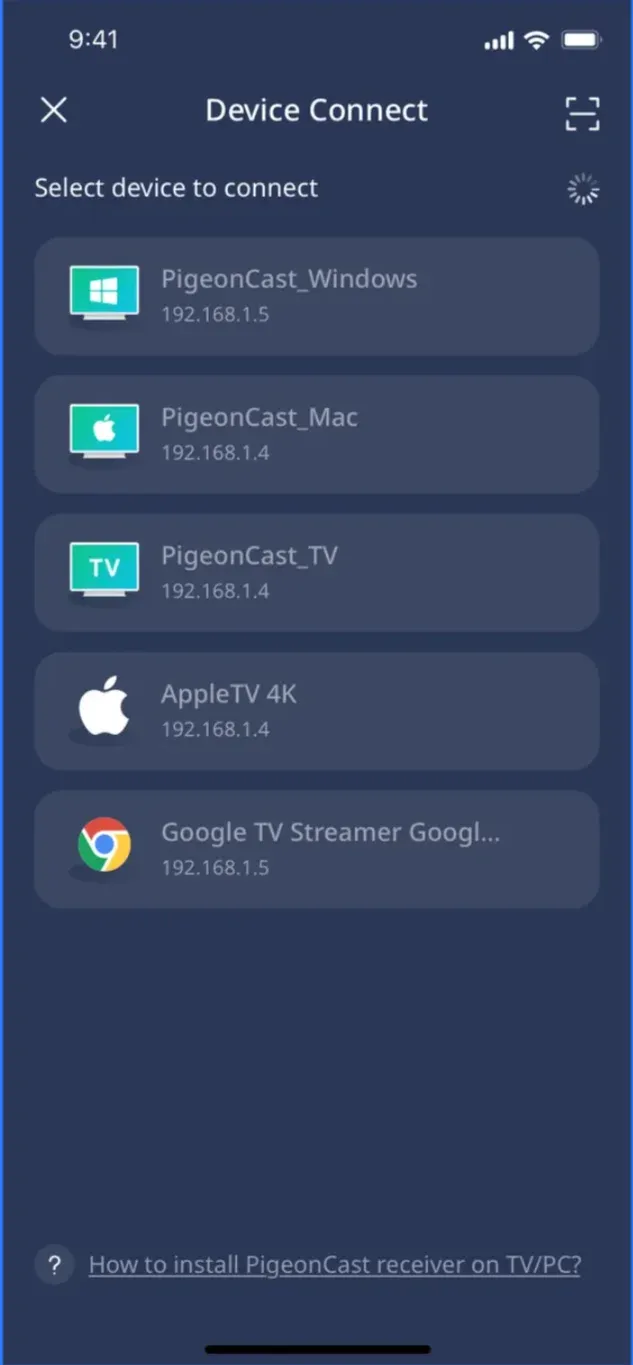
Step 3. Launch the app and select your receiver device from the list of available devices.
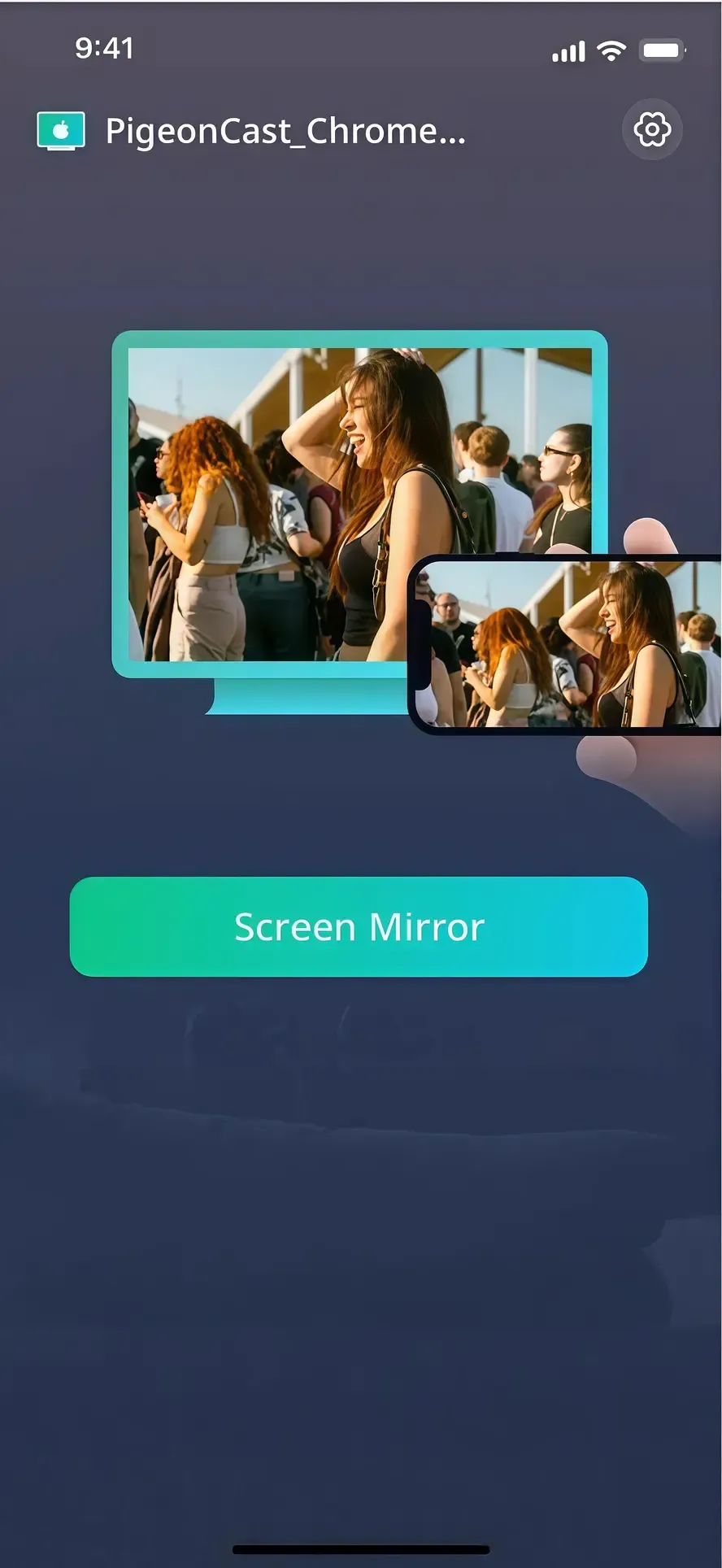
Step 4. Enter the onscreen code to finish the pairing process. When connected successfully, tap the Screen Mirror option to start mirroring activities.
Final Verdict
What is AirPlay on the iPhone? Simply put, it's a seamless way to wirelessly share content, whether you're casting a YouTube video to your TV or mirroring your screen for a group presentation. If you plan to mirror your iPhone to an Android device frequently, it's best to use a reliable app like PigeonCast or AirServer. These apps support AirPlay 2, deliver HD streaming, and keep lag to a minimum for a smooth experience.
What Is AirPlay on iPhone FAQ
Q: How do I turn off AirPlay on my iPhone?
To turn off AirPlay, swipe down to open Control Center, tap Screen Mirroring, and then tap Stop Mirroring. If you're casting audio or video, just tap the AirPlay icon in the app and choose iPhone as the output.
Q: What happens when AirPlay is on?
When AirPlay is active, your iPhone is streaming or mirroring content to another device. You'll see the screen or media playing on your TV, speaker, or Mac. Your iPhone continues to act as the controller.
Q: How do I use AirPlay on my iPhone?
- For video/audio: Tap the AirPlay icon in supported apps and select a device.
- For screen mirroring: Open Control Center > Tap Screen Mirroring > Select your receiver device.
Q: What is the purpose of AirPlay?
AirPlay allows iPhone users to wirelessly share media or mirror their screen to compatible devices, making it ideal for entertainment, collaboration, and presentations.
Q: Is it good to use AirPlay?
Yes, AirPlay is fast, reliable, and well-integrated into the Apple ecosystem. It's perfect for streaming videos, music, presentations, or sharing photos on a larger display.
Q: Why can't I AirPlay anymore?
If AirPlay suddenly stops working, it's usually linked to a simple issue rather than a major fault. Before assuming something is wrong with your device, it helps to understand the most common causes.
- Devices are not on the same Wi-Fi network
- AirPlay is turned off on the TV or receiver
- Outdated iOS, macOS, or TV firmware
- Weak or unstable Wi-Fi connection
- Bluetooth or firewall settings blocking the connection
- Temporary glitches requiring a device restart
Clara Rossi is an experienced technology editor and a seasoned expert in screen mirroring and casting technologies. With a keen eye for detail and a deep understanding of how to seamlessly connect devices, Clara excels at optimizing user experiences for effortless sharing and streaming. Whether you're seeking quick fixes or advanced tips, her expertise and responsiveness ensure that every query is met with a well-informed and efficient solution.