
Watching videos, sharing photos, or presenting slides on a bigger screen is always more enjoyable. With screen mirroring iPhone to TV, you can effortlessly display your iPhone's content on smart TVs, Android TVs, or even computers. Whether you want iPhone screen mirroring to smart TV or simply want to connect iPhone to TV for family viewing, there are multiple ways to get started. In this guide, we'll cover every method from AirPlay to PigeonCast and wired solutions, helping you mirror iPhone to TV with ease.
How Screen Mirroring iPhone to TV Works
Screen mirroring iPhone to TV allows your iPhone's display to be replicated on a larger screen in real time. This can be done wirelessly or via a wired connection.
Wireless mirroring methods typically use protocols like:
- iPhone AirPlay: Apple's proprietary technology for iOS devices, ensuring low-latency, high-quality mirroring.
- PigeonCast: A third-party solution allows iPhone content to stream to Android TVs, PCs, and other smart devices.
Wired mirroring uses an HDMI adapter and HDMI cable, which offers zero-lag and stable video and audio, making it ideal for presentations or video playback.
Method 1. Screen Mirroring iPhone to TV via AirPlay
AirPlay is the most straightforward method for Apple ecosystem users. It allows seamless screen mirroring iPhone to smart TV without third-party apps. If you have an AirPlay-supported TV, you can start iPhone screen mirroring to TV without Apple TV:
Step 1. Ensure your TV is AirPlay-compatible and the feature is enabled.
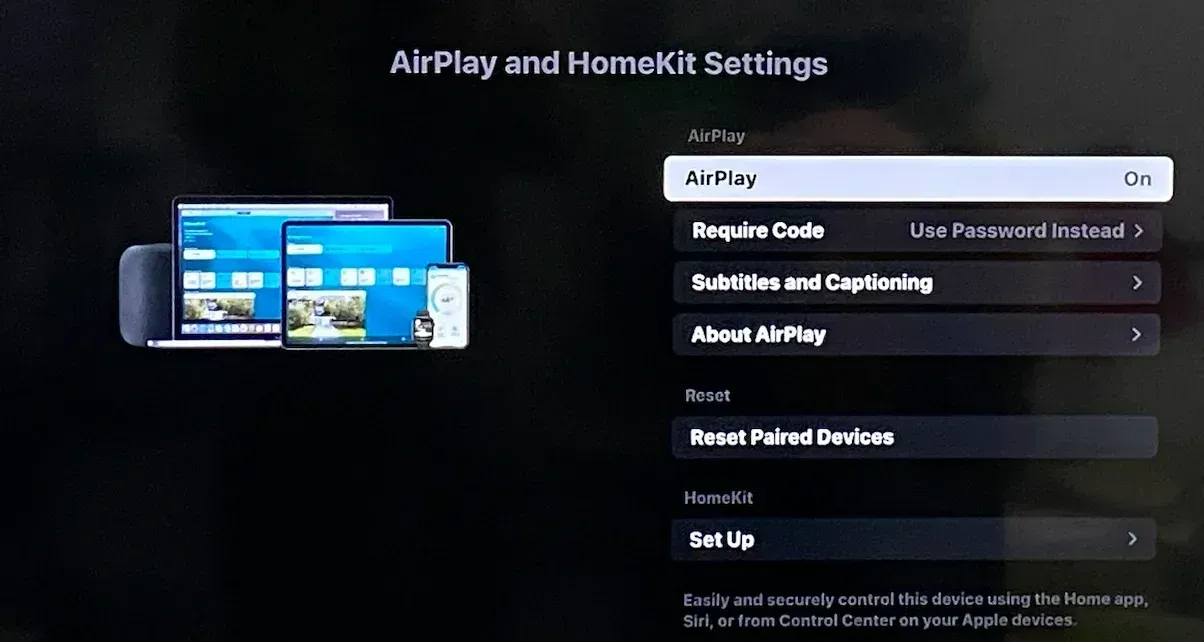
Step 2. Connect your iPhone and TV to the same Wi-Fi network.
Step 3. On your iPhone, go to the Control Center and tap the Screen Mirroring icon.
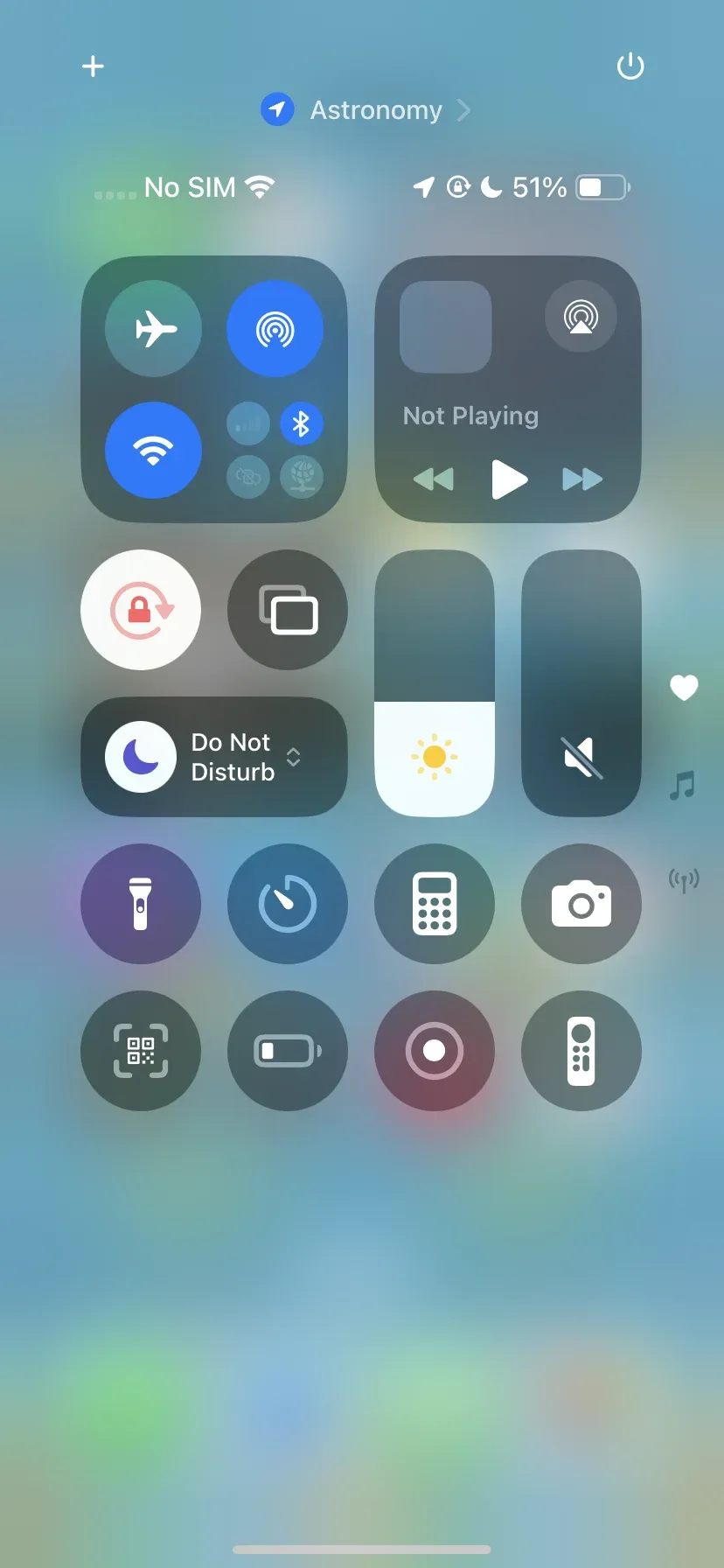
Step 4. Wait for your iPhone to detect your TV and choose the TV from the list of available devices.
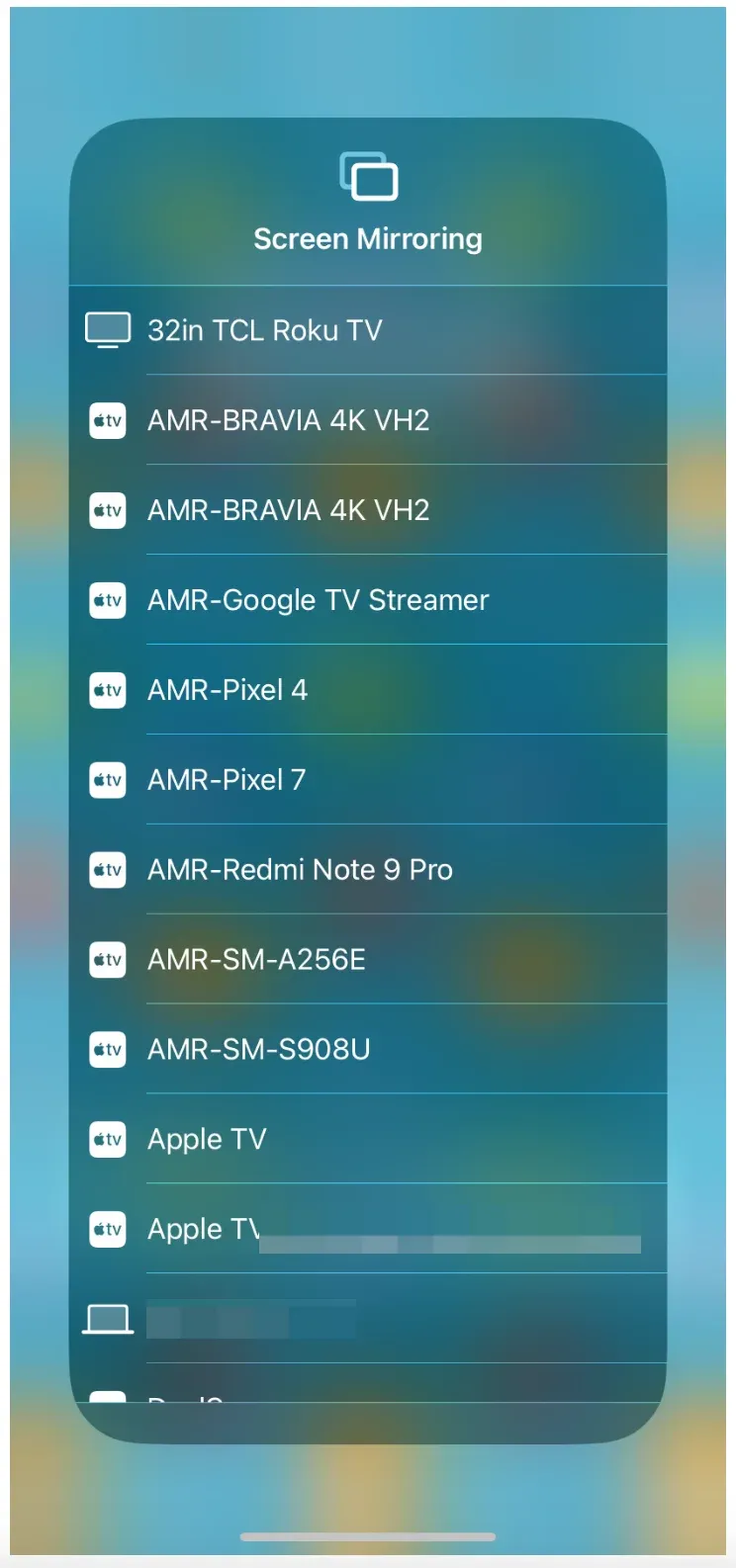
Step 5. Enter the code displayed on your TV on your iPhone to verify the connection if prompted.
Step 6. Once connected, your iPhone screen will appear on the TV. You can launch a game on your iPhone and enjoy it on the large screen.
AirPlay works best if you're within the Apple ecosystem. But how to add TV to screen mirroring iPhone when your TV runs on Android? In that case, third-party apps like PigeonCast can bridge the gap and let you mirror across platforms.
Method 2. Screen Mirroring iPhone to TV via PigeonCast
PigeonCast is a versatile free screen mirroring app iPhone to TV. Once you set up PigeonCast on your iPhone, you can directly connect your iPhone to Chromecast, Android TV, or Google TV. The process is easy, and here's how to mirror iPhone to Android TV for free:
Step 1. Install the PigeonCast on your iPhone, then you can Chromecast from the device.

PigeonCast Screen Mirroring

Official Download


Tip: You can also install the PigeonCast app on your TV, allowing it to function like an AirPlay receiver for seamless iPhone screen mirroring. Alternatively, install the app on both your devices and start screen mirroring from iPhone to TV without ecosystem limits
Step 2. Connect both devices to the same Wi-Fi network.
Step 3. Launch the PigeonCast on iPhone, choose your TV from the list of available devices, and set up a connection.
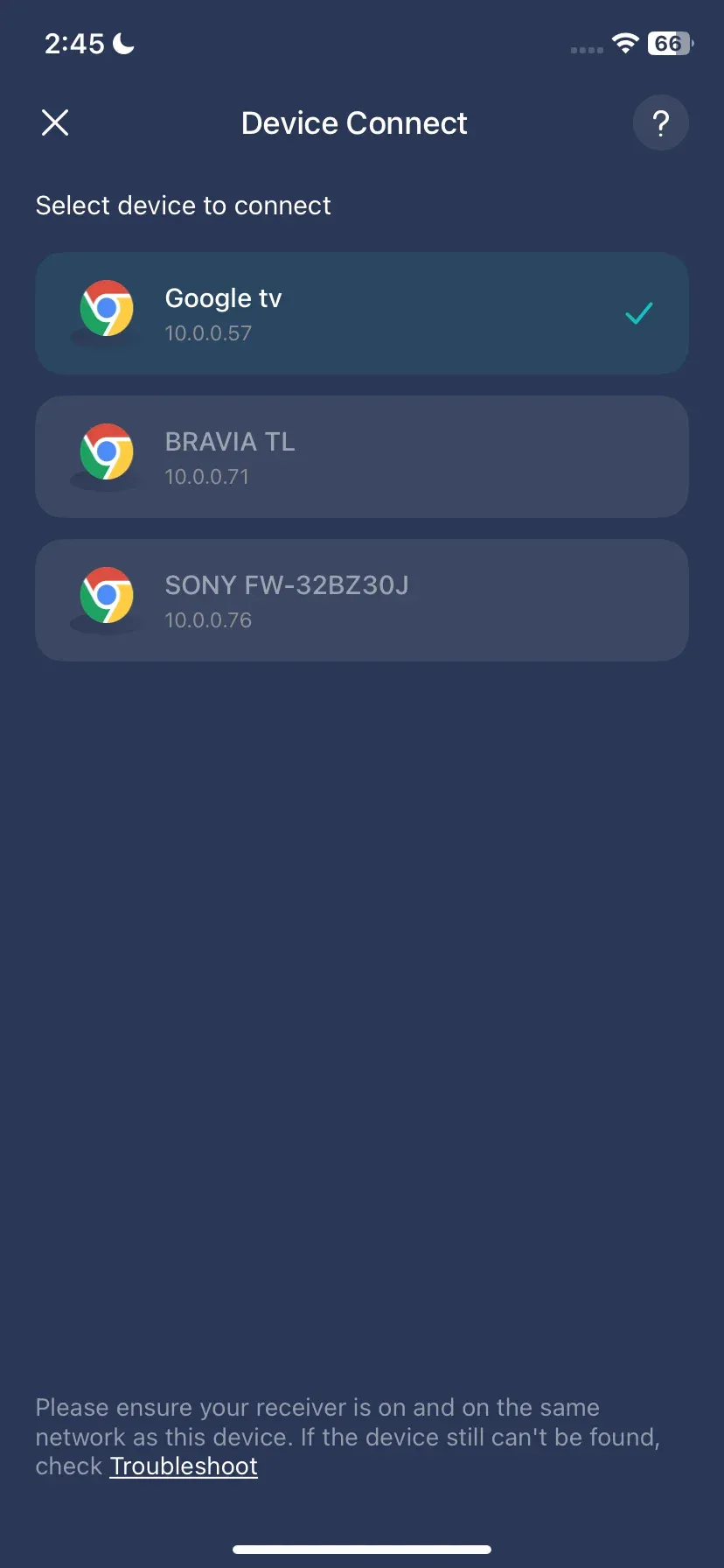
Step 4. Tap the Screen Mirror option on the app and start screen mirroring iPhone to Android TV.
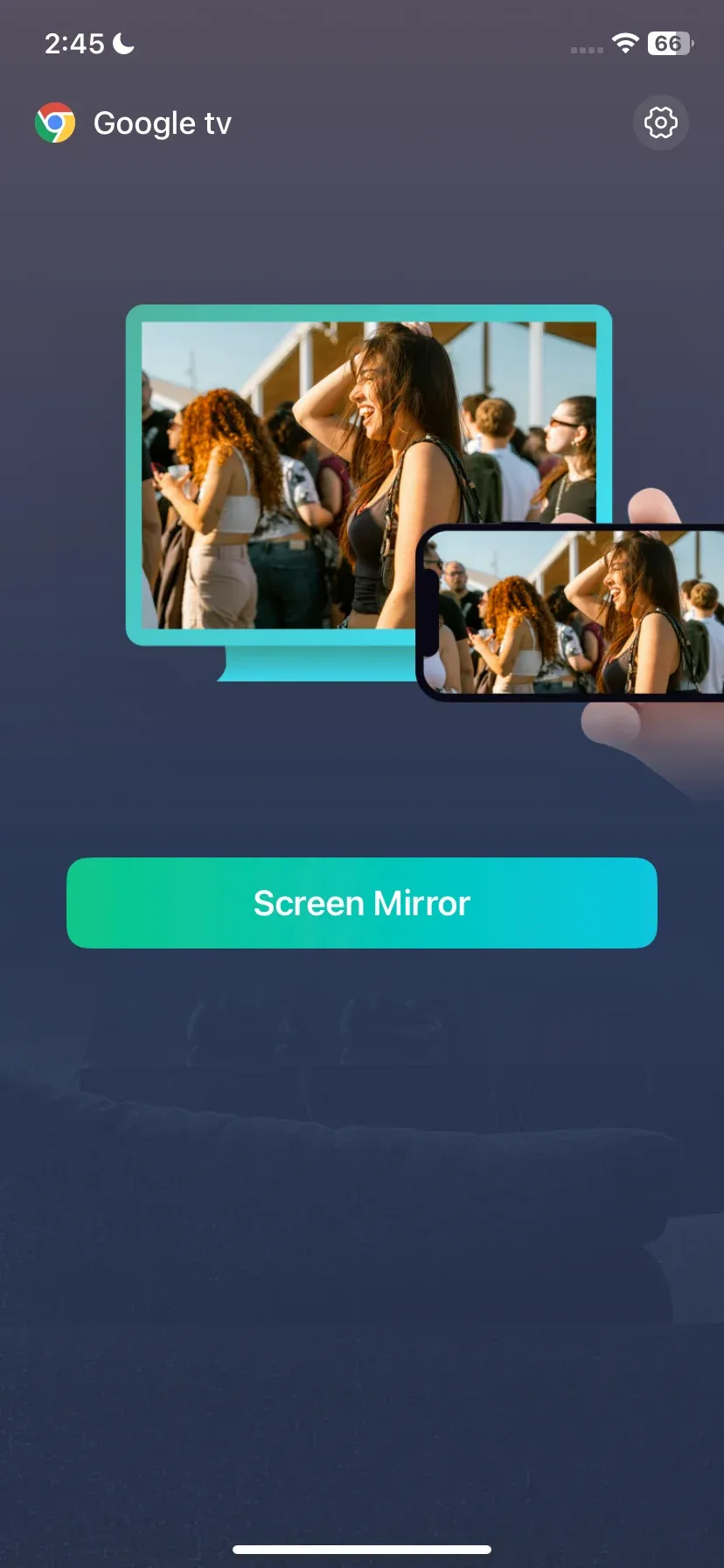
That's how to mirror iPhone to TV using PigeonCast — a simple, reliable, and hassle-free solution for seamless screen mirroring.
Method 3: Screen Mirroring iPhone to TV via HDMI
Wondering how to screen mirror an iPhone to a TV without Wi-Fi? An HDMI connection is usually the most reliable option because it provides stable, high-definition mirroring without depending on a wireless network.
This method is also useful when you need to mirror an iPhone to Roku without Wi-Fi and the Roku setup does not support a direct wireless connection.
All you need is a compatible HDMI adapter, such as a Lightning Digital AV Adapter or USB-C-to-HDMI adapter, plus a standard HDMI cable.
Step 1. Connect the HDMI adapter to your iPhone.
Step 2. Connect the adapter to your TV with an HDMI cable.
Step 3. Turn on the TV and switch to the corresponding HDMI input.
Your iPhone screen should then appear on the TV, allowing you to play videos, show photos, or run apps with minimal delay.
Best Way for Screen Mirroring iPhone to TV
How to screen mirror iPhone to TV? You can enable the built-in AirPlay feature, set up a third-party app like PigeonCast, or try the HDMI solution. Which is the best way to start iPhone screen mirroring? Here's a quick comparison table to help you choose the best method based on your setup:
| Method | Supported Devices | Latency | Video Qulaity | Convenience | Best For | Cost |
|---|---|---|---|---|---|---|
| AirPlay | Apple TV, AirPlay 2 smart TVs | Low | HD / 4K | High | Apple ecosystem users | Free |
| PigeonCast | Android TV, Apple TV, Windows, Mac, Android, iPhone | Low | HD / 4K | High | Mixed devices, cross-platform | Free |
| HDMI | Any TV with HDMI | None | HD / 4K | Low | Stable wired connection, no Wi-Fi | Adapter cost |
How to choose:
- Use AirPlay for Apple devices for seamless experience.
- Use PigeonCast for cross-platform streaming including Android TV.
- Use HDMI when you need stable, zaro-lag, high quality mirroring.
iPhone-to-TV Screen Mirroring Tips & Troubleshooting
Is screen mirroring iPhone to TV not working, or are you getting no sound when screen mirroring iPhone to TV? If you run into these issues, try the troubleshooting tips below:
- Ensure both devices are on the same Wi-Fi for wireless mirroring.
- Restart devices, including iPhone, TV, and router.
- If there's no sound, check your iPhone's mute switch, TV volume, or cable connections.
- Keep your apps and system software updated to prevent compatibility problems.
- For smooth HD playback, use a wired HDMI connection or ensure a strong Wi-Fi signal.
- Disable VPNs or firewalls that could block device discovery.
The End
Whether you choose AirPlay, PigeonCast, or a wired HDMI connection, screen mirroring iPhone to TV lets you enjoy videos, photos, and apps on the big screen. Wireless solutions are convenient for casual streaming, while HDMI ensures reliability and zero-lag performance. Pick the best approach for your devices and start mirroring iPhone to TV effortlessly.
Screen Mirroring iPhone to TV FAQs
Q: Why won't my iPhone show my TV on screen mirroring?
Your TV and iPhone are not on the same Wi-Fi network or the TV doesn't support AirPlay. So, make sure your iPhone and TV are on the same Wi-Fi network. If your TV doesn't support AirPlay, you'll need a third-party app (like PigeonCast) or a wired HDMI connection.
How can I mirror my iPhone to my TV without Apple TV?
You can use AirPlay-compatible smart TVs, third-party apps such as PigeonCast for Android/Google TVs, or connect directly with a compatible HDMI adapter. If you use a Skyworth model, the best way to mirror iPhone to Skyworth TV depends on whether that TV supports AirPlay, Android TV apps, or HDMI input.
Why is my iPhone not connecting with my TV?
- Your iPhone and TV may not be on the same Wi-Fi network.
- The TV might not support AirPlay or screen mirroring natively. Support can vary by model, so you may need to check the TV’s operating system before choosing a connection method. For example, the steps to screen mirror an iPhone to a Sceptre TV differ between Roku, Android, and non-smart models.
- Outdated software on either device can cause compatibility issues.
- VPNs or firewalls may block device discovery.
- Wireless interference or weak Wi-Fi signals can also prevent a stable connection.
Q: Where is screen mirroring in iPhone?
Open Control Center (swipe down from the top-right on iPhone X or later, or swipe up on older models). You’ll find Screen Mirroring as an option.
How to connect iPhone to TV without AirPlay?
Use a compatible HDMI adapter with an HDMI cable, or install a mirroring app like PigeonCast on both devices for wireless cross-platform streaming. If you need to screen mirror from iPhone to projector, the same choice usually depends on whether the projector supports HDMI, Chromecast, or a receiver app.
Mia Clarke is a technology editor specializing in screen mirroring and casting solutions across multiple platforms. Mia provides clear, practical guides and in-depth insights to help users seamlessly connect their devices. Passionate about enhancing digital experiences, Mia is dedicated to keeping readers updated on the latest trends and tools in cross-platform screen sharing. Whether you’re looking to mirror your smartphone, laptop, or smart TV, Mia’s content delivers reliable, user-friendly advice to simplify your tech setup.