

If you want to know how to screen mirror iPhone to projector, the right method depends on what your projector supports. If it has AirPlay, use that first. If it has HDMI but no AirPlay, use Apple TV or HDMI. If it only has its own wireless system, you may need a mirroring app or a cable.
Most people fail on the first try for a very simple reason. Either the projector does not support the way they are trying to connect, or the projector is not switched to the right screen source.
This guide helps you quickly figure out which type of projector you have, which method to use, and what to do if your iPhone does not see it.
Quick Answer: Which iPhone-to-Projector Method Should You Use?
If you want the fastest answer, pick the method that matches your projector instead of trying random fixes.
| Method | Best for | What you need | Reliability |
|---|---|---|---|
| AirPlay | Projectors with built-in AirPlay | Same Wi-Fi, AirPlay turned on | Good if supported |
| Apple TV or similar device | Projectors with HDMI but no AirPlay | Apple TV or another device plugged into the projector | Good for wireless use |
| Screen mirroring app | Setups where AirPlay does not work well | A screen mirroring app | Depends on Wi-Fi |
| HDMI adapter | Meetings, school, unstable Wi-Fi | USB-C or Lightning to HDMI adapter and cable | Most stable |
If you want the easiest setup, try wireless first. If you want the fewest problems, use HDMI.
What Your Projector Must Support Before Mirroring Will Work
Before you start, check what kind of projector you have. This matters more than the app on your phone.
Most projectors fall into one of these groups:
1. Projectors with Built-In AirPlay
These are the easiest ones to use with iPhone. If the projector already supports AirPlay, your iPhone can usually find it in Screen Mirroring as long as both devices are on the same Wi-Fi.
You are probably in this group if:
- the settings menu says AirPlay, Apple AirPlay, or AirPlay 2
- you see a menu like Apple AirPlay and HomeKit
- the product page clearly says it works with AirPlay
If you cannot find any of those words, do not assume it supports AirPlay just because it has Wi-Fi.
2. Projectors with HDMI but No AirPlay
This is very common. The projector can show video, but it cannot connect to your iPhone by itself. In that case, you need either a device plugged into the projector through HDMI or a direct HDMI adapter from the iPhone.
You are probably in this group if:
- the projector has HDMI
- there is no AirPlay setting anywhere
- your iPhone never sees it in Screen Mirroring
This is the most common type. If this sounds like your projector, skip to the Apple TV method or the HDMI method.
3. Smart Projectors with Their Own Wireless System
Some projectors have built-in apps or their own wireless features. That does not always mean they work with iPhone screen mirroring. A projector can be "wireless" and still not support AirPlay.
You are probably in this group if:
- the projector has apps and Wi-Fi
- the menu says Chromecast, Google Cast, Miracast, or Screen Share
- it looks smart, but there is still no AirPlay option
If this sounds like your projector, do not assume iPhone Screen Mirroring will work natively. You will likely need a screen mirroring app, Apple TV, or HDMI.
4. Older Projectors with VGA or Basic HDMI Only
Older projectors often work better with a cable. If the projector is mainly used for office slides or classroom presentations, HDMI is usually the safest choice. If it only has VGA, setup is usually more annoying.
You are probably in this group if:
- the projector has VGA, or only very basic HDMI
- there are no smart menus, no casting menu, and no AirPlay setting
- it is mainly used for office or classroom slides
If this sounds like your projector, use a cable first. HDMI is better if available, and VGA is usually the last-choice fallback.
Method 1: Use AirPlay on a Compatible Projector
Use this only if your projector clearly lists AirPlay or AirPlay 2 support. If it does, this is usually the easiest wireless option.
Step 1. Turn on the projector and open its settings if needed.
Step 2. Make sure AirPlay is turned on if the projector has that setting.
Step 3. Connect your iPhone and projector to the same Wi-Fi network.
Step 4. Open Control Center on your iPhone and tap Screen Mirroring.
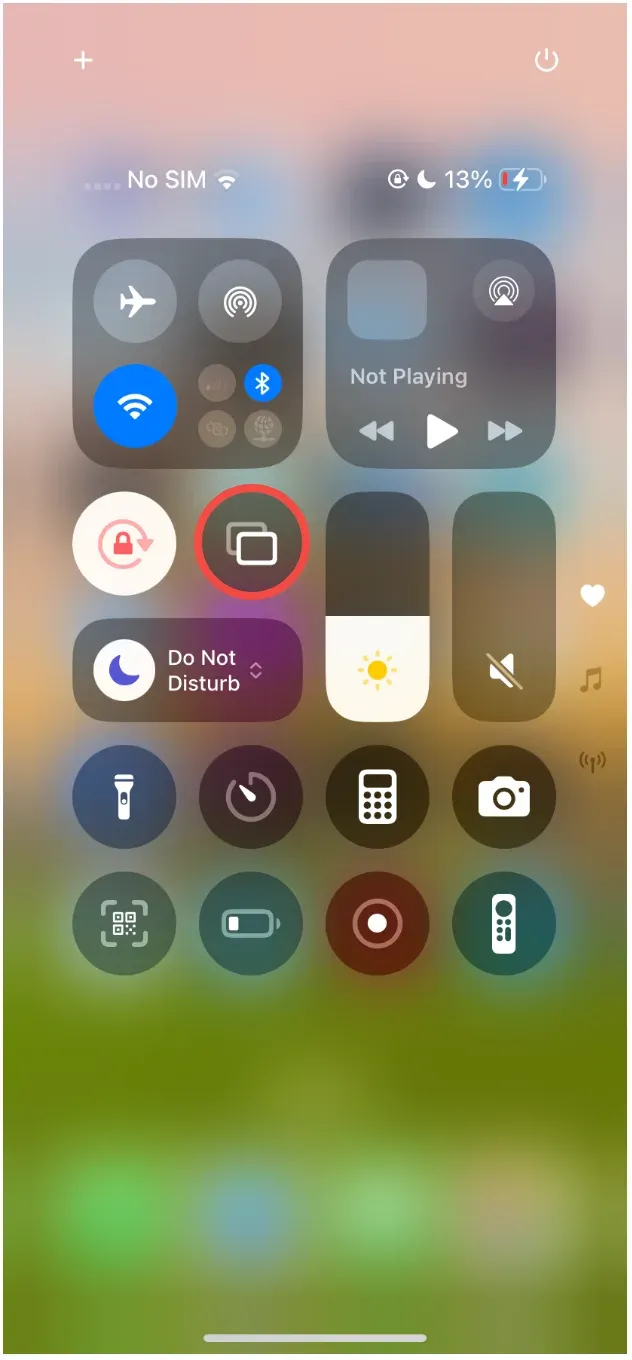
Step 5. Tap the projector or available AirPlay receiver.
Step 6. Enter the on-screen AirPlay code if prompted.
Step 7. Play a short video or open a few photos to make sure both picture and sound work.
Method 2: Use Apple TV or Another HDMI Receiver Device
If the projector has HDMI but no AirPlay, Apple TV is usually the most reliable wireless receiver for iPhone. Other HDMI devices can also work, but only if they clearly support AirPlay receiving or iPhone mirroring.
Step 1. Plug the device into the projector's HDMI port.
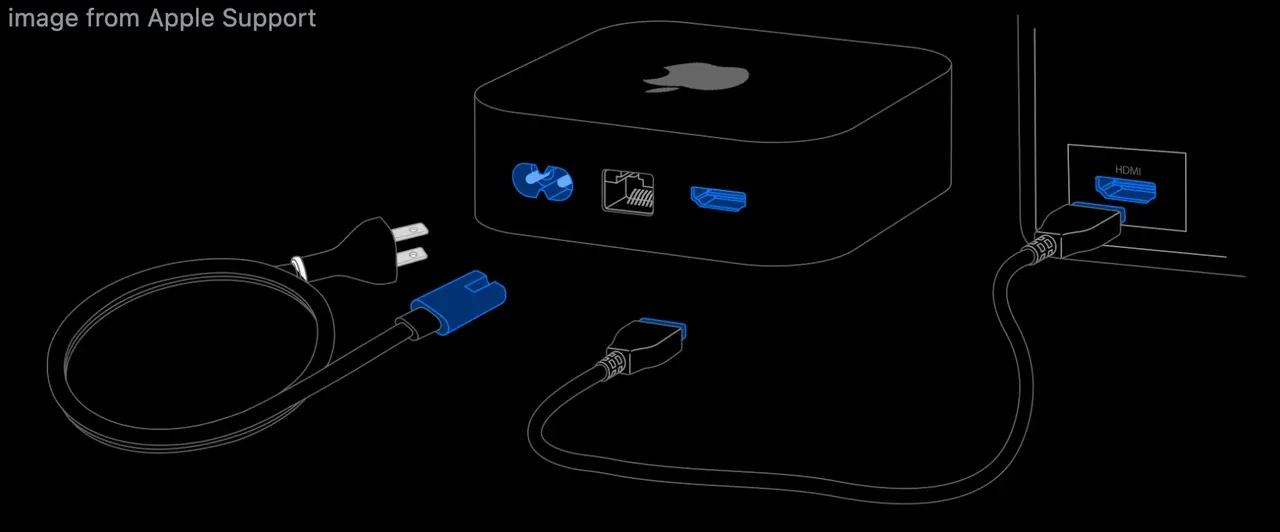
Step 2. Turn it on and finish the basic setup.
Step 3. Connect both your iPhone and the device to the same Wi-Fi.
Step 4. Switch the projector to the HDMI input you are using.
Step 5. On iPhone, open Control Center and tap Screen Mirroring.
Step 6. Tap the device name and enter the code if it asks.
This works well because the extra device handles the wireless connection, and the projector only needs to show the picture through HDMI.
Method 3: Use a Mirroring App for Broader Compatibility
If the built-in options do not work well, a screen mirroring app like PigeonCast can help. PigeonCast works best when you have a supported receiver, such as an Android TV projector, Fire TV device, computer, browser receiver, or another supported display setup.
Step 1. Install the mirroring app for your iPhone and your supported projector.


Overall Rating:



Step 2. Make sure both devices are on the same Wi-Fi.
Step 3. Open the app on both sides and get the receiver screen ready.
Step 4. Select the receiver or scan the QR code shown on the receiver screen.
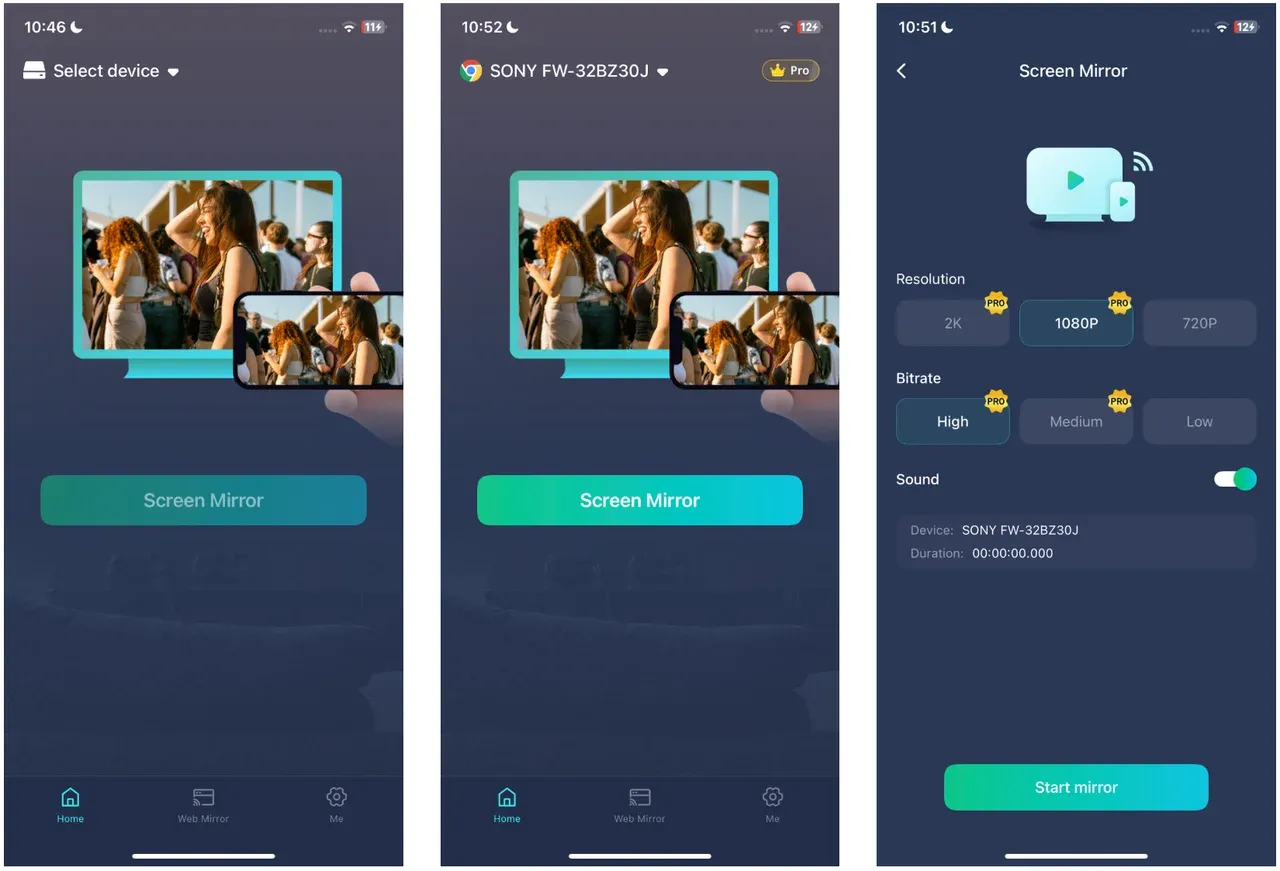
Step 5. Start mirroring and check that the picture and sound work properly.
This is not always better than AirPlay, but it can be a good option when the projector itself does not support AirPlay directly.
Method 4: Use a Wired HDMI Adapter
If you want the most reliable way to connect an iPhone to a projector, use HDMI. This is usually the best choice for meetings, school, or any time you do not want surprises.
Step 1. Connect the right adapter to your iPhone: USB-C to HDMI for newer iPhones or Lightning to HDMI for older ones.
Step 2. Connect the adapter to the projector with an HDMI cable.
Step 3. Change the projector input to that HDMI port.
Step 4. Unlock your iPhone and wait a few seconds.
Step 5. If the image does not appear, reconnect the adapter and test another HDMI cable.
Step 6. If you want sound through the projector, make sure it is set to use HDMI audio.
If there is no usable Wi-Fi, or you are on hotel, school, or office Wi-Fi that blocks device discovery, HDMI is also the best answer.
In that situation, do not waste time trying to force AirPlay. A direct HDMI connection is faster, more stable, and much easier to trust when you need the screen working right away.
Wireless vs Wired: Which Is Better for Your Situation?
Pick based on where you are using it, not just what sounds easiest.
| Situation | Better choice | Why |
|---|---|---|
| Home movie night | AirPlay or Apple TV | Easy if the Wi-Fi is good |
| Classroom or meeting | HDMI | Least likely to fail |
| Shared office projector | Apple TV or HDMI | Works better with older projectors |
| Hotel or public Wi-Fi | HDMI | Wireless setup often fails there |
| Different rooms and different devices | Mirroring app or HDMI | Easier to repeat |
Why Your iPhone Projector Mirroring May Fail
Most iPhone-to-projector problems come from one of these four issues:
The Projector Does Not Actually Support the Method
Many people think that if a projector has Wi-Fi, it should work with iPhone mirroring. That is not always true. Some only work with their own app, and some do not support iPhone mirroring at all.
The Devices Cannot See Each Other on the Network
If the projector never shows up in Screen Mirroring, the most common reason is Wi-Fi. Guest Wi-Fi, VPN, or router settings can stop devices from seeing each other even if both are online.
The Projector Is on the Wrong Input
This sounds obvious, but it causes a lot of failed setups. If the projector is on the wrong source, your phone may connect but nothing useful appears on the wall.
The App or Content Is Blocking Mirroring
If the connection works but the video stays black, the problem may be the app, not the mirroring itself. This happens with some streaming apps. Test your home screen, Photos, or a normal video first.
Troubleshooting: iPhone Screen Mirroring to Projector Not Working
If it still does not work, try these fixes in order instead of changing random settings.
The Projector Does Not Show Up in Screen Mirroring
Try these checks:
- Make sure the projector or other device is turned on.
- Make sure your iPhone and the other device are on the same Wi-Fi.
- Turn off VPN and leave guest Wi-Fi.
- Switch the projector to the right source and open Screen Mirroring again.
- Restart both devices once.
The iPhone Connects but There Is No Picture
This usually means one of three things: wrong source, cable problem, or the app is blocking the video.
Start by showing your iPhone home screen instead of a streaming app. If the home screen appears but the video stays black, the problem is probably the app.
The Picture Works but There Is No Sound
Check whether the projector supports sound in the way you are connecting. Some projectors show video fine but need separate sound settings or external speakers.
If you are using HDMI, make sure the projector is set to use HDMI sound. If you are connecting wirelessly, test the sound before the real presentation or movie starts.
The Connection Is Laggy or Keeps Dropping
If the picture is slow or keeps disconnecting, it is usually a Wi-Fi problem.
Try the following:
- Move closer to the router.
- Avoid heavy downloading on the same network.
- Restart the router if it used to work before.
- Stop other devices from using too much Wi-Fi.
- Switch to HDMI if you need it working right away.
Final Thoughts
Screen mirroring from an iPhone to a projector is usually straightforward once you know what your projector actually supports. Many connection problems happen because users assume every wireless projector works with AirPlay, when in reality different models use different wireless technologies.
Before buying adapters or changing settings, take a minute to check whether your projector supports AirPlay, only offers HDMI, or relies on its own casting system. Choosing the right method from the start can save a lot of trial and error. If you regularly use different projectors at home, school, or work, keeping both a wireless solution and an HDMI adapter available gives you the most flexibility.
If you often switch between different projectors and devices, a cross-platform screen mirroring solution like PigeonCast can also make the connection process more consistent across different setups.
How to Screen Mirror iPhone to Projector FAQ
Can I screen mirror from iPhone to projector without Apple TV?
Yes. If the projector supports AirPlay, you may not need Apple TV at all. If it does not, you can use a mirroring app or an HDMI adapter.
Why is my projector not showing up on iPhone Screen Mirroring?
The most common reasons are that the projector does not support AirPlay, it is on a different Wi-Fi network, guest Wi-Fi is blocking the connection, or the projector is on the wrong source.
What is the easiest way to connect an iPhone to a projector?
The easiest wireless way is AirPlay on a supported projector. The easiest reliable way overall is HDMI.
Can I connect iPhone to projector with USB?
Usually, not with a plain USB cable alone. In most cases, you need a USB-C to HDMI or Lightning to HDMI adapter, or you need a wireless method the projector actually supports.
Is HDMI better than wireless mirroring for presentations?
Usually, yes. HDMI is more stable and less dependent on Wi-Fi quality, which makes it a safer choice for classrooms, work meetings, and live demos.
Why do some streaming apps show a black screen while mirroring?
This often happens because the app limits mirrored playback of protected content. Test the iPhone home screen or a local video to confirm whether the issue is the app rather than the projector connection itself.
Can I use a projector that only has VGA?
Possibly, but the setup is less straightforward than HDMI. In most cases, users get a better and simpler result with HDMI-capable projectors or with a receiver device connected through HDMI.
Mia Clarke is a technology editor specializing in screen mirroring and casting solutions across multiple platforms. Mia provides clear, practical guides and in-depth insights to help users seamlessly connect their devices. Passionate about enhancing digital experiences, Mia is dedicated to keeping readers updated on the latest trends and tools in cross-platform screen sharing. Whether you’re looking to mirror your smartphone, laptop, or smart TV, Mia’s content delivers reliable, user-friendly advice to simplify your tech setup.