
Squinting at a small screen during a meeting or movie is a hassle you can easily avoid. Figuring out how to AirPlay from iPhone to laptop should be simple, yet the process changes completely depending on your operating system. This guide maps out the exact steps to turn your Mac or Windows PC into a high res receiver without the usual trial and error.
Can You AirPlay from iPhone to a Laptop
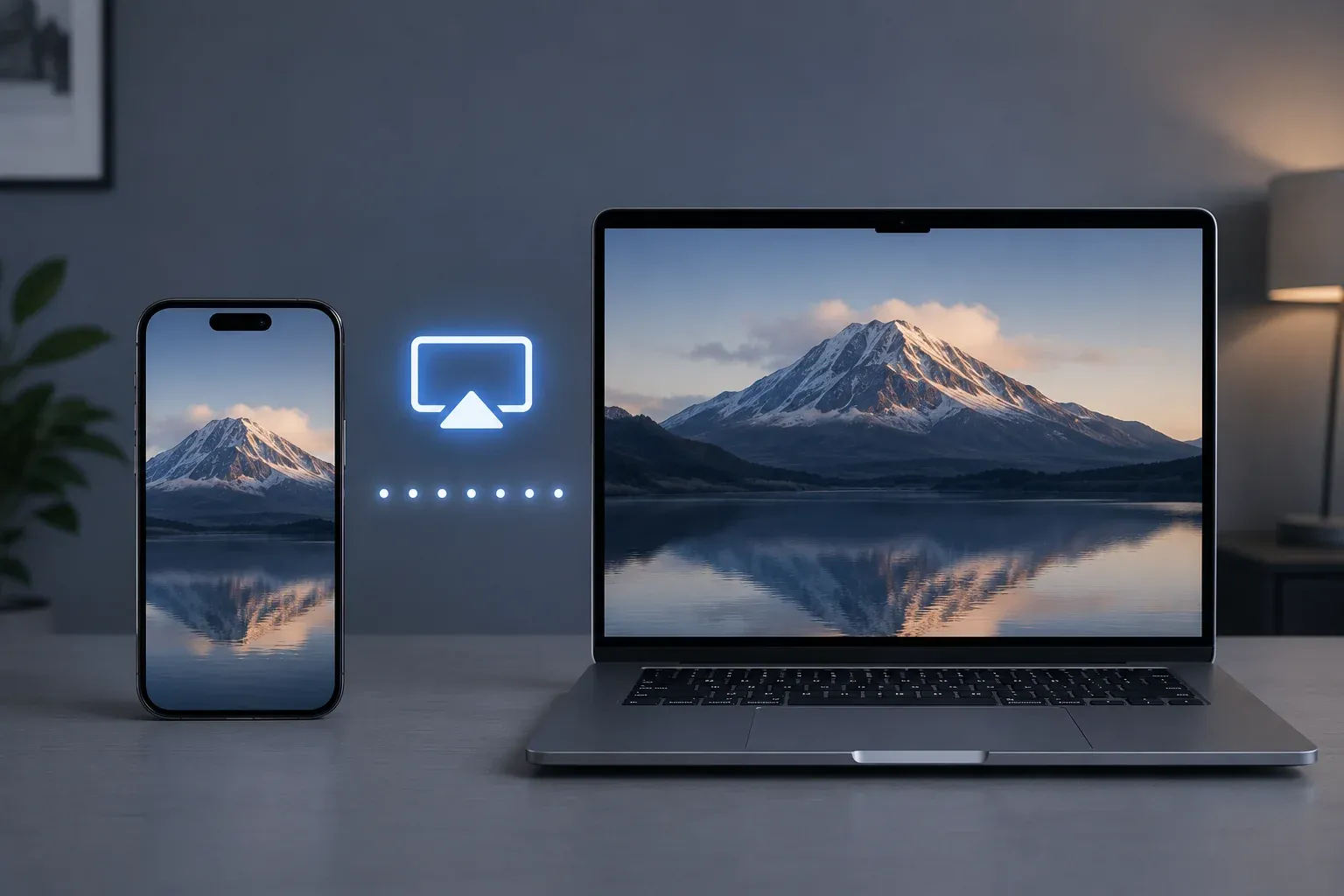
Yes, but the method depends on your laptop operating system. While Apple built AirPlay to be a seamless bridge between its own devices, connecting to a laptop usually falls into one of two categories.
- The Mac Experience
If you use a Mac, the feature is likely already built in. Apple introduced native AirPlay support in recent macOS versions, allowing your laptop to act just like an Apple TV. You can mirror your screen or cast video with a single tap, provided your hardware is relatively modern.
- The Windows Challenge
Windows laptops do not support AirPlay out of the box. Because Microsoft uses different wireless standards, your iPhone will not see a PC in the mirroring menu by default. To make this work, you simply need to install an AirPlay receiver app that translates the AirPlay signal for the Windows environment.
How to AirPlay from iPhone to Laptop
Your laptop can act as a high-resolution extension of your iPhone for better viewing and easier sharing. While the steps vary by operating system, both paths below provide a stable and low-latency connection.
How to AirPlay from iPhone to Mac
Apple built native receiver technology into macOS Monterey and all subsequent versions. This allows most Macs from 2018 or later to function as an AirPlay destination without any additional downloads.
Step 1. Ensure your iPhone and Mac are covered by the same wireless network.
Step 2. Open System Settings on your Mac, click General, then select Sharing. Toggle the AirPlay Receiver switch to on and set the permissions to Current User for better security.
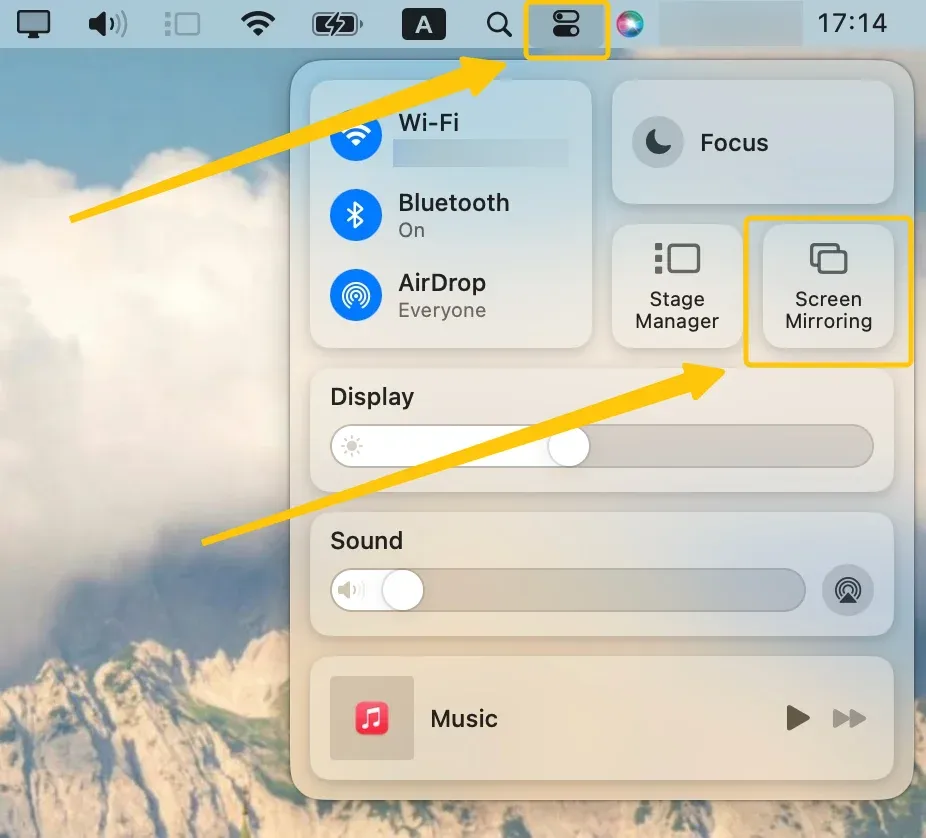
Step 3. Swipe down from the top right of your iPhone to open the Control Center > Screen Mirroring to select your Mac from the list.
Step 4. Enter the four digit code shown on your Mac into your iPhone, and your screen will mirror to your laptop immediately.
How to AirPlay from iPhone to Windows
Since Windows does not support AirPlay natively, you need receiver software to make your PC visible to your iPhone. You can use PigeonCast as an AirPlay receiver, or mirror your iPhone to a PC without AirPlay through its direct app connection or a supported USB method. For Windows laptops from brands like Dell, HP, Lenovo, or ASUS, receiver app support and network permissions can affect whether the device appears. If you are using a Dell model, check the device-specific steps to screen mirror iPhone to Dell laptop.
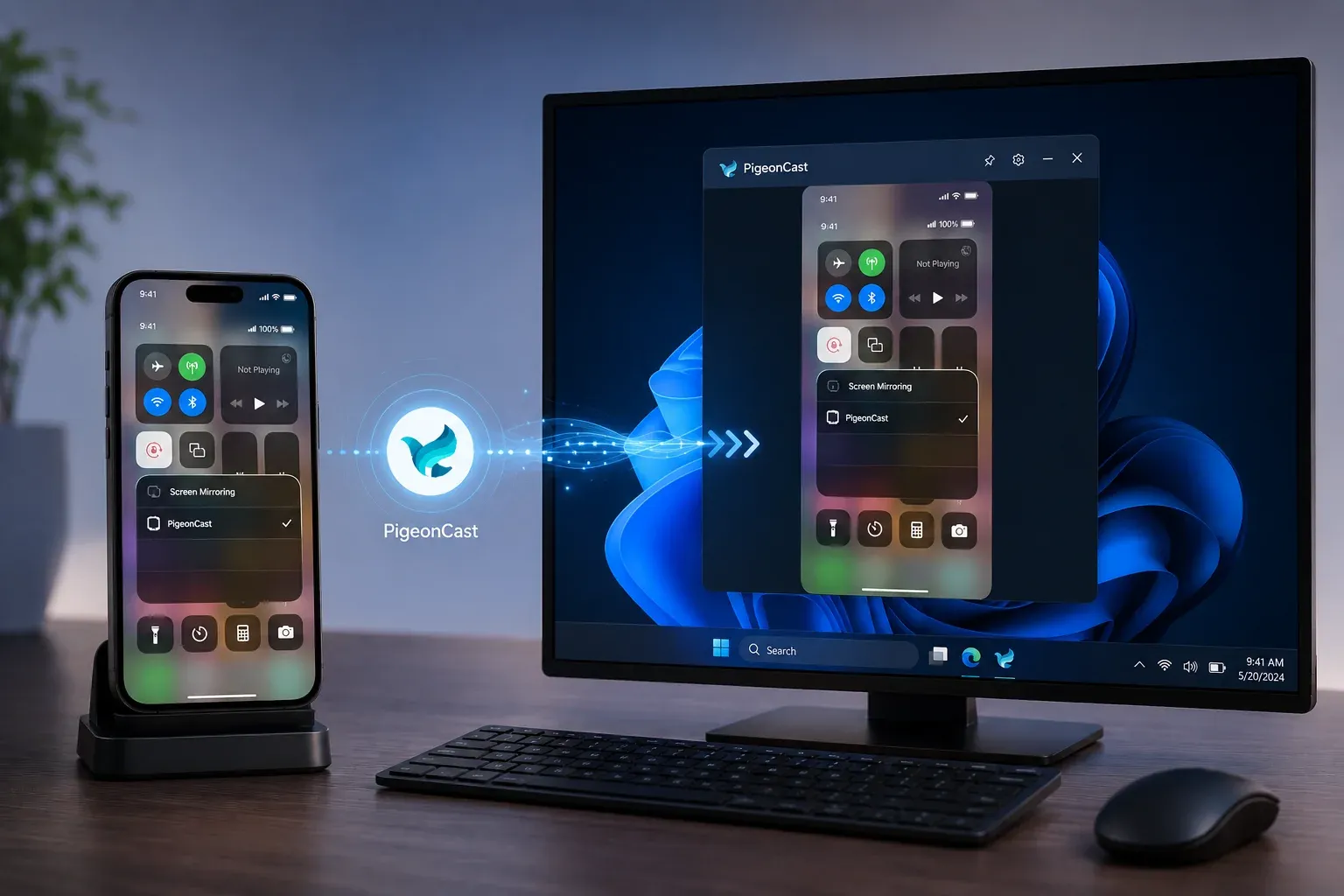
- Why PigeonCast is the practical choice: This free tool provides a high performance engine that supports crystal clear streaming up to 4K resolution with near zero latency. It functions as a versatile receiver for multiple protocols including AirPlay, DLNA and Google Cast, ensuring a stable connection for smooth video playback and professional presentations.
Step 1. Connect your iPhone and Windows laptop to the same Wi-Fi network.


Overall Rating:



Step 2. Install and open PigeonCast on your iPhone from App Store and on Windows computer from Microsoft Store.
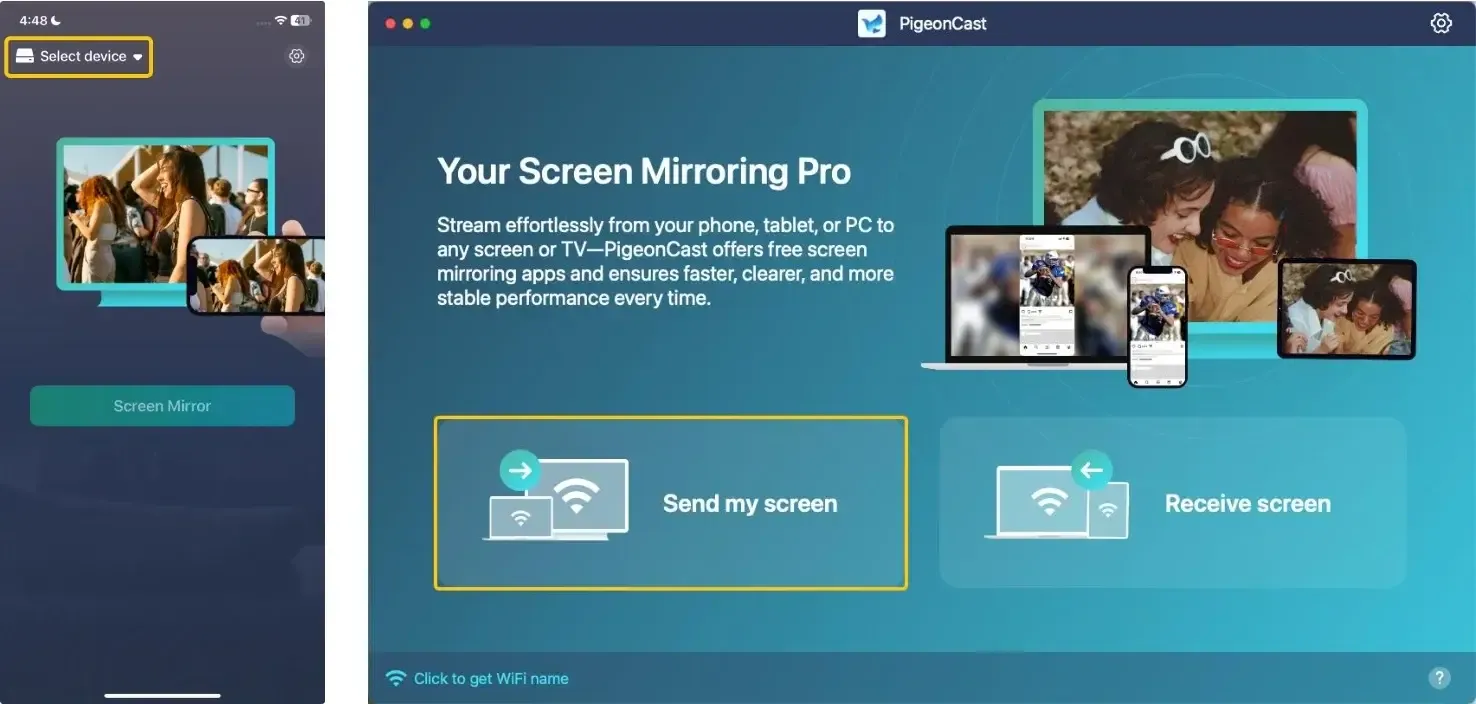
Step 3. Launch the app, tap Select device or Send my screen to choose your PC from the device list to connect.
Step 4. Enter the onscreen PIN code to finish the pairing process.
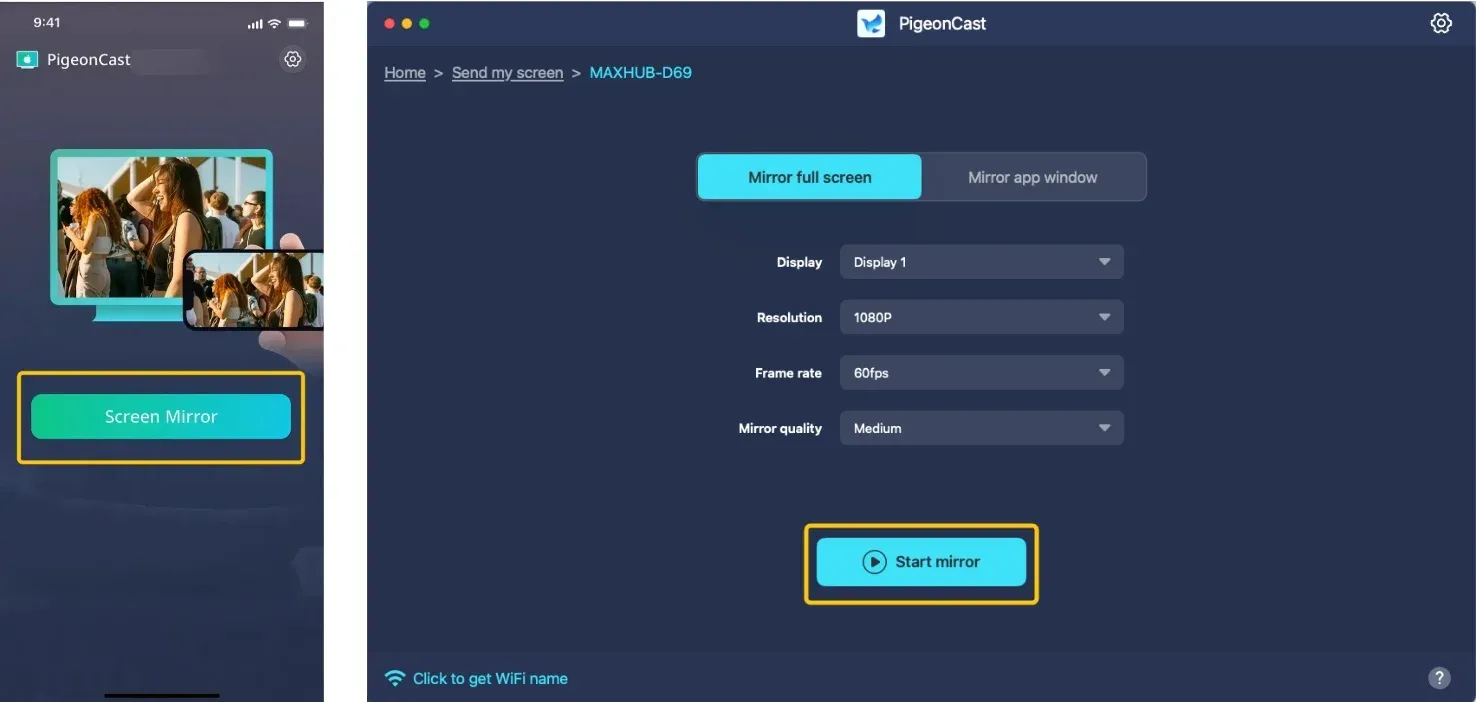
Step 5. Once you finish the connection, you can tap Screen mirror or start mirror to begin your mirroring activities on the Windows computer.
How to Fix AirPlay Not Working on Laptop
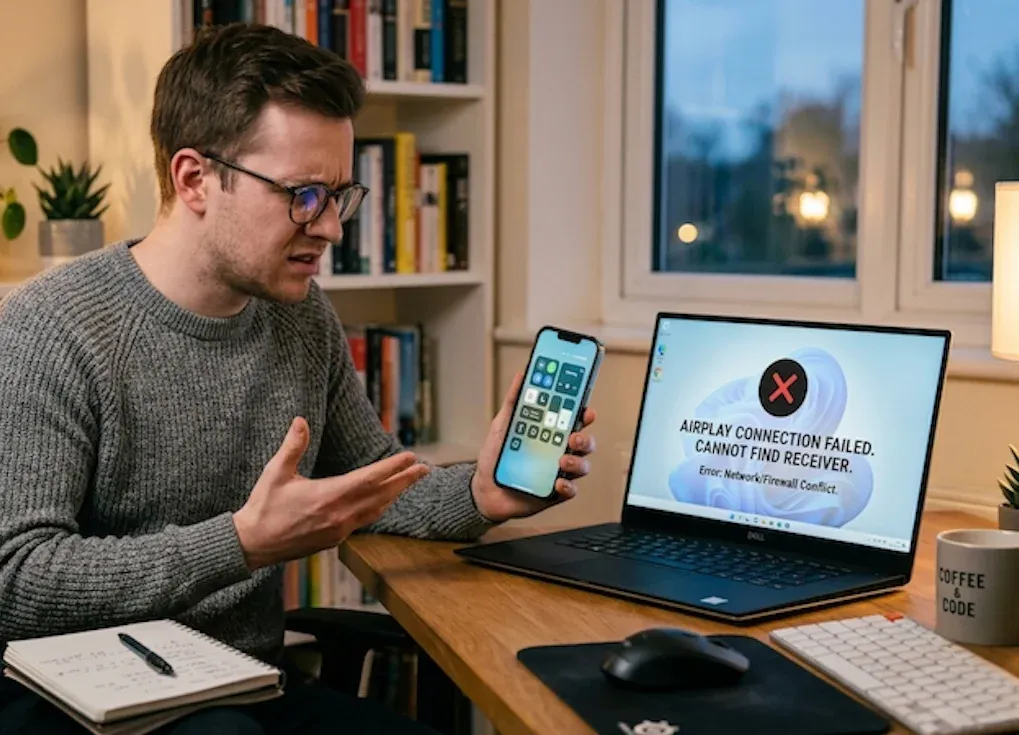
Technical glitches or restrictive network settings can sometimes prevent a successful handshake between your iPhone and your laptop. These AirPlay issues typically stem from signal interference, security blocks, or software version mismatches that disrupt the local discovery protocol.
-
Network Alignment. Verify that both your iPhone and laptop are connected to the exact same Wi-Fi SSID. Mismatched connections between 2.4GHz and 5GHz bands on the same router can often prevent your laptop from appearing in the mirroring menu.
-
Security Permissions. Check your Windows or macOS firewall settings to ensure the receiver software is granted full access to the local network. You must allow the application to communicate through private networks to stop the system from blocking the incoming video signal.
-
Service Reset. Toggle the Wi-Fi off and back on for both devices to force a fresh network handshake. If the connection still fails, restart the specific receiver app on Windows or toggle the AirPlay Receiver switch in the Mac Sharing menu to clear temporary glitches.
-
Connection Isolation. Disable any active VPN or proxy services on both your iPhone and your laptop. These virtual tunnels mask your local IP address and effectively hide your devices from each other during the AirPlay discovery process.
-
Software Compatibility. Update your iPhone to the latest iOS and ensure your laptop network drivers are current. Running the most recent software versions eliminates known bugs and optimizes the stability of high resolution streaming protocols.
The End
Connecting your iPhone to a laptop is a seamless experience once you select the right path for your hardware. Mac users can rely on built in support for recent versions while Windows users get the most professional results through a high performance receiver like PigeonCast. If you run into trouble, focus on aligning your network settings and clearing firewall blocks as your first step.
How to AirPlay from iPhone to Laptop FAQ
Can I AirPlay from iPhone to any laptop?
You can AirPlay to most modern laptops, but not in the same way. On Mac, AirPlay receiving can work natively on supported versions and hardware. On Windows, you normally need a receiver app running first so your iPhone can detect the laptop as a target.
Why can’t my iPhone find my laptop?
-
Network Fragmentation. Your iPhone and laptop are likely connected to different Wi-Fi networks or separate frequency bands such as 2.4GHz and 5GHz which prevents local discovery.
-
Firewall Restrictions. Security software on your Windows or Mac laptop is actively blocking incoming connection requests from unauthorized mobile devices.
-
Active VPN Tunnels. An active VPN on either device creates a virtual network path that masks your local IP address and hides the laptop from the AirPlay menu.
-
Disabled Receiving Service. The native AirPlay Receiver setting on Mac or the third party software on Windows is not currently active or running in the background.
-
Software Version Mismatch. Outdated iOS versions or legacy network drivers on your laptop are causing compatibility errors with the modern AirPlay handshake protocol.
-
Temporary System Glitches. Minor cache errors in the network stack of either device are preventing the signal from broadcasting correctly across the local network.
Is AirPlay the same as screen mirroring?
Not exactly. AirPlay is the transport technology, and it can be used either for media casting (sending only a video or audio stream) or for full screen mirroring (duplicating everything on your iPhone display). Use casting for smoother playback, and mirroring for demos, apps, or presentations.
How to airplay from iphone to laptop wirelessly?
Wireless AirPlay works best when both devices are on the same network so pairing can complete properly. Mac supports this natively, while Windows usually needs a third-party receiver app.
-
Prepare your receiver. Enable AirPlay Receiver in the Sharing menu on a Mac or launch a dedicated app like PigeonCast on Windows to make your laptop discoverable.
-
Sync your network. Connect your iPhone and laptop to the same Wi-Fi SSID. Using a 5GHz band is recommended to ensure enough bandwidth for a smooth video stream.
-
Activate Screen Mirroring. Open the Control Center on your iPhone and tap the Screen Mirroring icon which looks like two overlapping rectangles.
-
Link the devices. Select your laptop name from the list and enter the pairing code if one appears on your laptop screen. Your iPhone display will project to your desktop immediately.
Can I AirPlay without Wi-Fi?
Yes. With Peer-to-Peer AirPlay, you can mirror without a traditional Wi-Fi network or internet access in compatible Apple-device scenarios. It uses Bluetooth for device discovery, then creates a direct Wi-Fi link for the streaming data.
Does AirPlay work for apps, games, and video calls?
Yes, but performance depends on device and network conditions. For static demos and app walkthroughs, mirroring is usually fine. For fast interaction (like gaming), a wired setup is often more responsive than wireless mirroring.
Clara Rossi is an experienced technology editor and a seasoned expert in screen mirroring and casting technologies. With a keen eye for detail and a deep understanding of how to seamlessly connect devices, Clara excels at optimizing user experiences for effortless sharing and streaming. Whether you're seeking quick fixes or advanced tips, her expertise and responsiveness ensure that every query is met with a well-informed and efficient solution.