
If you have a smart device, you're probably familiar with AirPlay, which works seamlessly on Apple devices and other AirPlay-compatible devices. But have you ever been frustrated by common Apple AirPlay issues such as connection problems, audio sync, lag, buffering, compatibility issues, or missing icons? Don't worry, this comprehensive guide has you covered. If you're short on time, just use the table of contents to jump straight to the solution you're looking for!
Issue 1. AirPlay Connection & Discovery Issues
A common AirPlay issue is when your Apple TV disappears from the device list, preventing a connection. You might also get stuck in an endless connection loop, or find AirPlay working one day and failing the next, with no changes made. These inconsistencies can make AirPlay connected but not playing.
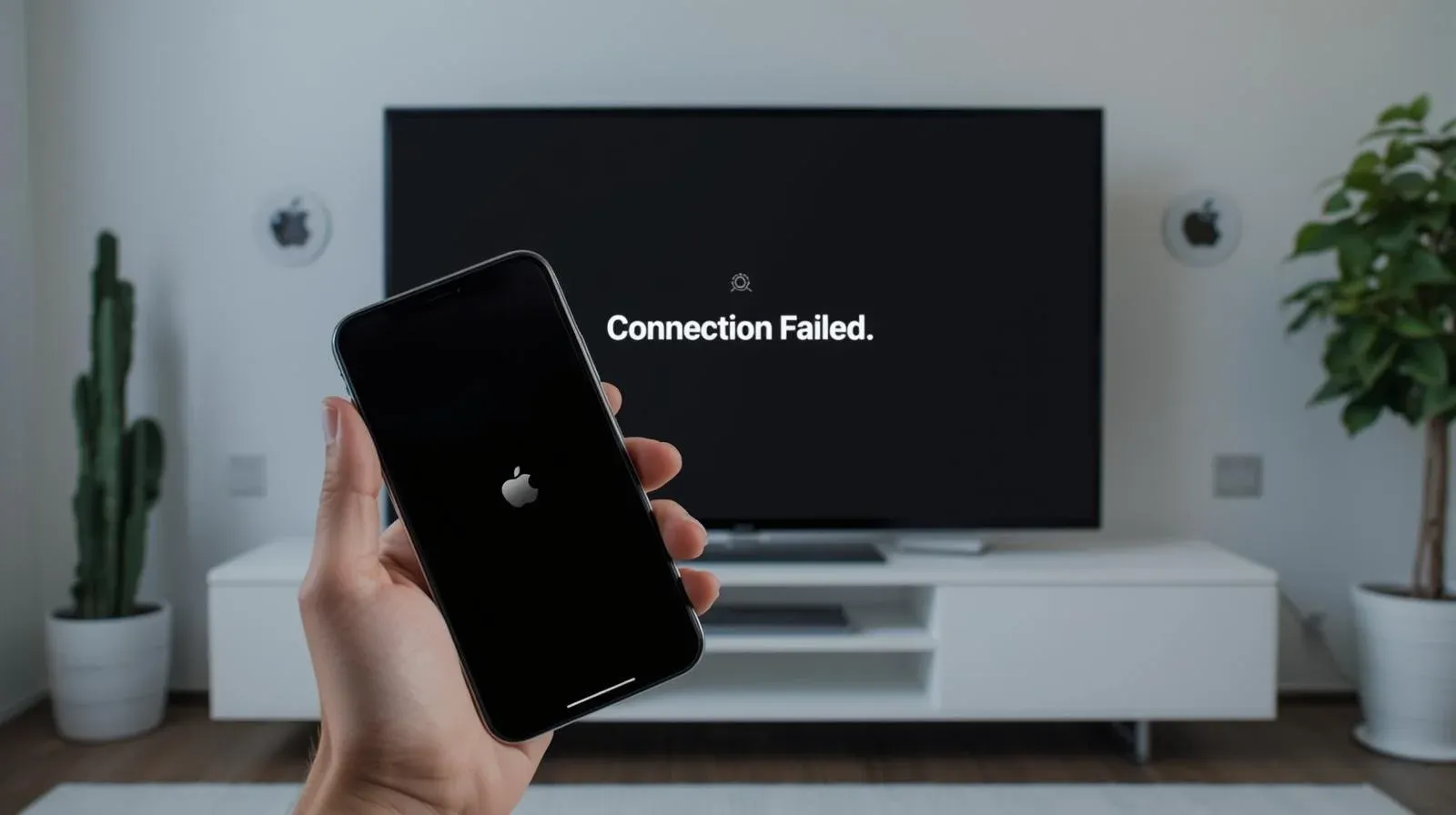
How to solve AirPlay connection issues:
- Ensure Devices Are on the Same Wi-Fi Network: AirPlay requires both your Apple device and the receiving device (like Apple TV or an AirPlay-compatible speaker) to be on the same Wi-Fi network. Double-check your WiFi connection and reconnect if necessary.
- Check for Wi-Fi Interference: Devices like microwaves, baby monitors, or cordless phones can interfere with Wi-Fi signals. Try moving these away from your router and devices.
- Restart Devices: Start by restarting your core network hardware. Unplug your router and modem for 30 seconds, then plug them back in and wait for a full restart. Next, restart your sending device (iPhone, etc.) and your AirPlay receiver.
- Enable AirPlay on the Target Device: Make sure AirPlay is enabled on the receiving device, whether it's Apple TV or an AirPlay-compatible device.
- Check for Updates: An OS mismatch can cause discovery failures. Check for updates on your iPhone/iPad (Settings > General > Software Update), your Apple TV (Settings > System > Software Updates), and crucially, your router's firmware by accessing its admin page.
Issue 2. AirPlay Streaming Quality Problems
Another common issue is constant AirPlay buffering issues when streaming 4K videos or dealing with noticeable delays where the audio and video go out of sync. This can quickly ruin a movie night or make a music video unbearable to watch. Many users also find that their high-quality content is automatically downgraded to a lower resolution or that HDR fails to activate correctly, leading to a less-than-ideal viewing experience.
How to solve AirPlay streaming issues:
- Prioritize Your Network for Streaming: Ensure other devices on your network aren't hogging bandwidth. Pause large downloads, cloud backups, or updates on other computers and phones.
- Optimize Wi-Fi Signal Strength: AirPlay streaming, especially for 4K/HDR content, requires a strong, stable signal. Move your router and Apple TV closer together, or remove physical obstructions. Consider using a wired Ethernet connection for your Apple TV if possible.
- Match Content Settings to Reduce Burden: On your Apple TV, navigate to Settings > Video and Audio. Try disabling Match Content for both Dynamic Range and Frame Rate temporarily. While this feature is ideal, it can sometimes cause AirPlay only playing audio, leading to buffering. Set the format to a standard like 4K SDR 60Hz for testing stability.
- Reduce Streaming Quality at the Source: If buffering persists, manually lower the playback quality within the app you're using before starting AirPlay. For example, on YouTube or Netflix, select 1080p instead of 4K.
- Check for Interference and Congestion: Use a Wi-Fi analyzer app to check if your network channel is overcrowded (common in apartments). Access your router's admin settings and switch to a less congested channel (e.g., channel 1, 6, or 11 for 2.4GHz). Ensure your router's firmware is updated, as newer versions often improve streaming performance.
Issue 3. AirPlay Screen Mirroring Limitations
When trying to mirror your iPhone, iPad, or Mac screen for presentations, gaming, or sharing photos, you may encounter a deal-breaking lag between your actions and what appears on the TV. These AirPlay issues on TV delay make real-time activities like gaming or live demos nearly impossible. Plus, the mirrored image often suffers from reduced frame rates or resolution, making it look choppy or blurry compared to your device's pristine display.
How to solve AirPlay screen mirroring limitations:
- Use a Direct Peer-to-Peer Connection When Possible: For the lowest latency, avoid the Wi-Fi network altogether. When mirroring from an iOS device, look for the option to connect directly to the Apple TV (it may appear as the Apple TV's name with a direct icon). This creates a dedicated wireless link between the two devices, bypassing network congestion.
- Simplify the Content Being Mirrored: Before starting mirroring, prepare your device. Close all unnecessary applications to free up processing power and RAM. On your Mac, set your desktop wallpaper to a static image instead of a dynamic one. When presenting, use applications in full-screen mode rather than mirroring a cluttered desktop with multiple windows.
- Adjust Display Settings for Responsiveness: On your Mac, go to System Settings > Displays. While mirroring, try lowering the resolution of your Mac's display to match the TV's native resolution (e.g., 1080p). This reduces the amount of data that needs to be compressed and transmitted in real-time, which can significantly improve responsiveness.
- Ensure Line-of-Sight and Proximity: For the best mirroring performance, especially peer-to-peer, keep your iOS device or Mac within clear sight of the Apple TV, ideally within 10-15 feet.
- Select the Correct Mirroring Mode: Some third-party mirroring apps and receivers offer different modes. If available, choose a "Performance" or "Low Latency" mode over a "High Quality" mode. This prioritizes speed over visual fidelity, which is crucial for interactive mirroring.
Issue 4. AirPlay Compatibility Restrictions
A significant limitation surfaces in mixed-device environments: AirPlay simply doesn't work with Windows PCs or Android phones, locking out a large portion of users in a home or office. Alternatively, even devices advertised as "AirPlay-compatible", like certain smart TVs or third-party speakers, often deliver a spotty or limited experience, failing to support all AirPlay features like screen mirroring or multi-room audio.
How to solve AirPlay to TV issues with compatibility:
- Use AirPlay-Compatible Devices: Ensure the device you're streaming to supports AirPlay. Apple TV, certain smart TVs (e.g., Samsung, LG), and AirPlay-compatible speakers are the best options.
- Check for Feature Parity: Not all "AirPlay-compatible" devices offer the same features. Some support only audio playback, while others, like AirPlay 2, support multi-room audio and stereo pairing. Check your device's manual to confirm what's supported.
- Check for Software Updates: Many compatibility issues can be fixed by updating the firmware or software on your devices.



Overall Rating:



- Third-Party Solutions: If your device doesn't support AirPlay, consider alternatives like PigeonCast, a universal mirroring solution that works with a wider range of devices, including Android and Windows.
- Consider a Universal Hardware Bridge: For a reliable, long-term solution, use a hardware adapter that supports multiple protocols. Devices like PigeonCast accept AirPlay from Apple, Miracast from Windows, and Google Cast from Android, offering a consistent mirroring hub for all your devices.
Issue 5. AirPlay Icon Missing
A frustrating AirPlay issue arises when the AirPlay icon simply doesn't appear where it should, whether in an app's playback controls, your iPhone's Control Center, or your Mac's menu bar. The feature should be available, but its absence comes without any error message or explanation, leaving you unsure whether the problem is with your device, network, or the content itself.
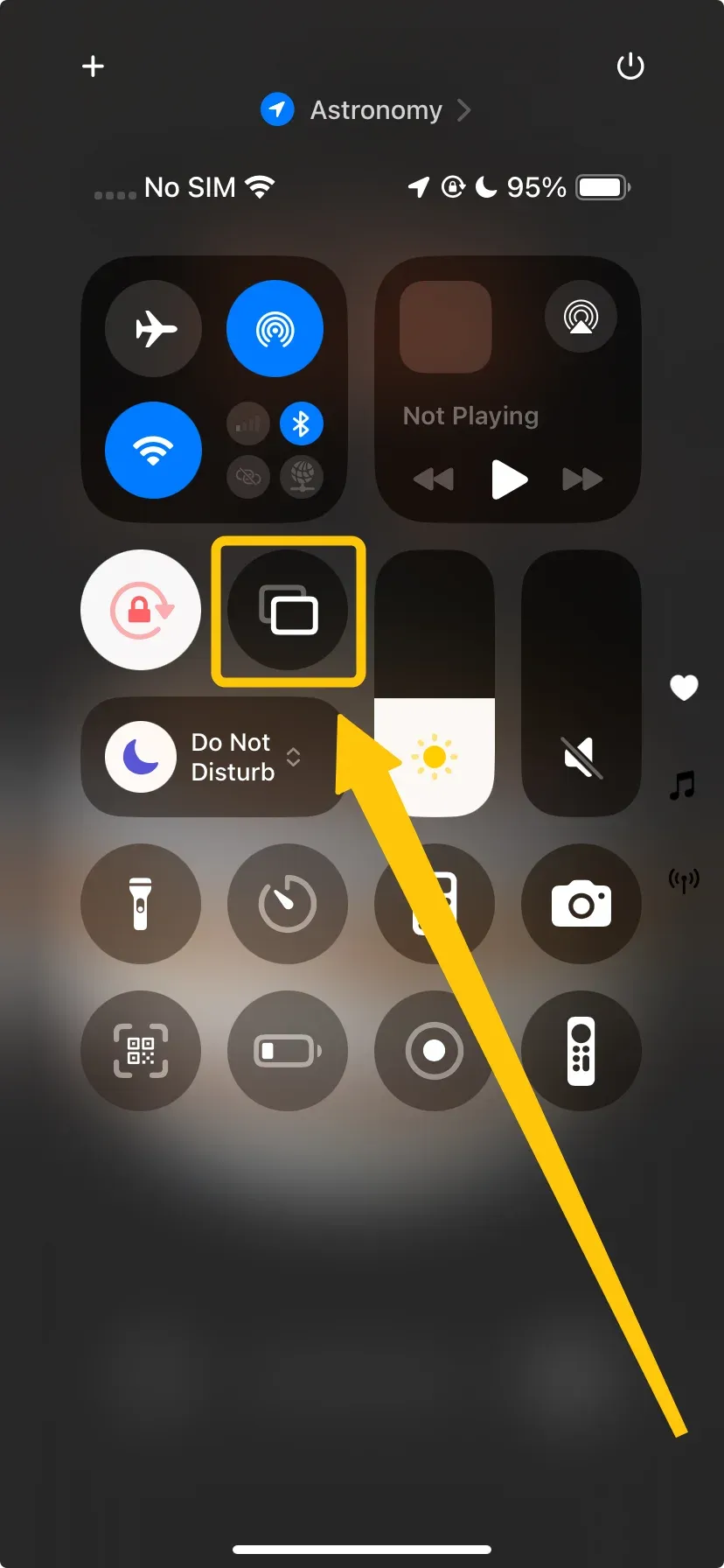
- Force Quit and Relaunch the Problematic App: If the icon is missing within a specific app (like YouTube or Spotify), completely close the app.
- Check for Content or App Restrictions: The AirPlay icon is often deliberately hidden by developers for DRM-protected content. If you're trying to stream a movie from certain paid streaming services, it may be blocked.
- Verify System-Level AirPlay Settings: On your iOS device, go to Settings > General > AirPlay & Handoff. Ensure that "Automatically AirPlay to TVs" is set to "Automatic" and not "Never." Also, check that any Screen Time restrictions aren't blocking AirPlay. On your Mac, go to System Settings > General > AirDrop & Handoff and ensure "AirPlay Receiver" is configured as desired.
- Reset Network Services and Connectivity: A corrupted network configuration can hide the AirPlay icon. Try toggling Airplane Mode on for 10 seconds, then off. If that fails, perform a more thorough reset: On iOS, go to Settings > General > Transfer or Reset iPhone > Reset > Reset Network Settings.
- Update Software and Check for Conflicts: Ensure your iOS/iPadOS/macOS, the problematic app, and the firmware of your AirPlay receiver are all updated to their latest versions. Additionally, temporarily disable any VPNs, firewall software, or network security apps, as they can interfere with the discovery protocols that make the AirPlay icon appear.
Closing Words
If your AirPlay having issues like connection drops, buffering, or compatibility problems, you're not alone. Most of these issues can be resolved by ensuring your devices are on the same Wi-Fi network, restarting them, or updating the software. If the problems persist, third-party solutions or hardware adapters can provide a more reliable fix. With these simple steps, you can address common AirPlay issues and restore smooth streaming.
Airplay Issues FAQ
Why is AirPlay not working on Roku?
Here are some potential reasons why AirPlay might not work on Roku:
- Devices are not on the same Wi-Fi network.
- Roku or Apple device software is outdated.
- AirPlay is not enabled on Roku.
- Older Roku models may not support AirPlay.
- Other devices or apps on the network may cause interference.
- Some Roku devices may not have the necessary hardware to support AirPlay properly.
- Restrictions or settings on your Apple device may prevent AirPlay from functioning.
- Certain router settings, such as firewall or security protocols, may block AirPlay communication.
Why is screen mirroring not working in the Samsung TV?
Here are the reasons why screen mirroring might not work on a Samsung TV:
- Devices are not on the same Wi-Fi network.
- Firmware on the Samsung TV or device is outdated.
- Screen mirroring is not enabled on the TV.
- The device may not be compatible with the TV's screen mirroring feature.
- Other devices or apps may cause network interference.
- Issues with Bluetooth or Wi-Fi Direct connectivity.
- Firewalls, VPNs, or other security features may block the connection.
- The devices are too far apart for a stable connection.
How to solve AirPlay suddenly not working?
Here are some steps to fix AirPlay stop working:
- Double-check that both your Apple device and the AirPlay receiver (Apple TV or compatible speaker) are connected to the same Wi-Fi network.
- Restart both your Apple device and the AirPlay receiver (e.g., Apple TV or smart speaker). This can resolve temporary connection issues.
- Ensure that your iPhone/iPad, Mac, and the AirPlay receiver are running the latest software versions.
- Make sure AirPlay is enabled on the device you're trying to stream to, whether it's Apple TV or a third-party speaker.
- Weak Wi-Fi signals can cause AirPlay to fail. Move the devices closer to your router or use a wired connection for the AirPlay receiver (if possible).
- On your Apple device, go to Settings > General > Reset > Reset Network Settings. This can resolve network-related issues.
- If you're using a VPN or firewall, try disabling them, as they might interfere with AirPlay's ability to discover devices.
- If the issue persists, try rebooting your router to fix any network-related problems that could be affecting AirPlay.
- On your iPhone/iPad, go to Settings > General > AirPlay & Handoff and make sure that AirPlay is set to Automatic.
Why and how to fix Spotify AirPlay issues?
Here are some common reasons for Spotify AirPlay issues and how to fix them:
- Ensure your Apple device and AirPlay receiver (e.g., Apple TV, AirPlay-compatible speakers) are compatible with AirPlay.
- Both devices must be on the same Wi-Fi network. If either device is on a different network or has a weak connection, AirPlay may not work.
- Ensure that you have the latest version of the Spotify app installed on your device.
- Make sure that AirPlay is enabled on your receiving device (Apple TV or speakers).
- Some content in Spotify may be restricted from streaming via AirPlay, such as certain DRM-protected songs or playlists.
- If there's interference or a weak signal, it could affect AirPlay performance. Try moving the devices closer together or rebooting your router.
- If AirPlay was used recently with another device, it might still be "connected" to that device. Disconnect it from any previous sessions by turning off AirPlay on other devices.
- Occasionally, bugs within the Spotify app itself can prevent AirPlay from working. Closing and reopening the app or restarting the device might help.
Why is my Apple AirPlay glitchy?
Here are some common reasons why your Apple AirPlay might be glitchy:
- Weak Wi-Fi signal
- Network interference
- Outdated software
- Device compatibility
- AirPlay settings
- High streaming quality
- Router issues
- Too many devices on the network
- Bluetooth or Wi-Fi problems
- AirPlay conflicts
How to solve AirPlay not working after the update?
If AirPlay stopped working after an update, here are the steps to troubleshoot and solve the issue:
- Restart both your Apple device (iPhone, iPad, Mac) and the AirPlay receiver (Apple TV or AirPlay-compatible speaker). A simple reboot can fix minor software glitches after an update.
- Sometimes, updates can introduce bugs. Make sure both your Apple device and AirPlay receiver are fully updated, including any patch releases that might fix issues introduced by the latest update.
- Go to Settings > General > AirPlay & Handoff (on iOS devices) and ensure AirPlay is enabled. For Apple TV, check Settings > AirPlay and HomeKit and ensure AirPlay is turned on.
- After an update, network settings might be reset or misconfigured. On your iPhone/iPad, go to Settings > General > Reset > Reset Network Settings to clear out any network-related issues.
- Turn off both Wi-Fi and Bluetooth on your Apple device, wait for a few seconds, and then turn them back on. This can help reestablish a fresh connection between devices.
- Ensure that the AirPlay receiver is compatible with the latest update. Some older devices may not support all the new AirPlay features introduced in the update.
- If you're using a VPN or any security software, it might interfere with the connection. Disable it temporarily to see if that resolves the issue.
- Sometimes, after updates, the router might need a reboot to handle new devices or connections properly.
- Try disconnecting the devices from AirPlay, and then reconnect them. On your Apple device, open the Control Center, tap Screen Mirroring, and select your receiver again.
- If another device has been connected to AirPlay recently, disconnect it, as multiple connections can sometimes cause issues after updates.
Clara Rossi is an experienced technology editor and a seasoned expert in screen mirroring and casting technologies. With a keen eye for detail and a deep understanding of how to seamlessly connect devices, Clara excels at optimizing user experiences for effortless sharing and streaming. Whether you're seeking quick fixes or advanced tips, her expertise and responsiveness ensure that every query is met with a well-informed and efficient solution.