

AirPlay compatible devices include both devices that send content and devices that receive it. That difference matters because an iPhone, iPad, or Mac can start an AirPlay session, while an Apple TV, a supported smart TV, a supported Mac, or a compatible speaker usually acts as the destination.
Most confusion starts when those two roles get bundled into one phrase. A device can support AirPlay for audio only, for video and screen mirroring, or only as a sender. The useful question is not just whether a device is "AirPlay-compatible." The useful question is what role it plays and what kind of AirPlay session it can handle.
Quick Answer: Which Devices Support AirPlay?
The main AirPlay sender devices are iPhone, iPad, and Mac. The main AirPlay receiver devices are Apple TV, supported Macs with AirPlay Receiver, supported smart TVs, HomePod, AirPlay speakers, and some AV receivers or audio systems.
AirPlay compatibility does not mean every device supports the same functions. Some devices handle video and screen mirroring, while others support audio only.
| Device type | Examples | AirPlay role | Main use |
|---|---|---|---|
| iPhone / iPad | Supported models | Sender | Audio, video, photos, screen mirroring |
| Mac | Supported models | Sender and selected receiver models | Audio, video, display mirroring |
| Apple TV | Apple TV HD and Apple TV 4K | Receiver | Video, audio, screen mirroring |
| Smart TV | Selected supported models | Receiver | Video, audio, screen mirroring |
| HomePod / speaker | HomePod and selected speakers | Receiver | Audio |
| AV receiver / amp | Selected audio products | Receiver | Audio |
Use that table as the fast filter. If your device pair does not match a sender on one side and a compatible receiver on the other, the session will not work no matter how many settings you reset.
AirPlay Compatible Devices List
iPhone and iPad
iPhone and iPad are the main AirPlay sender devices. They can stream music, photos, and supported videos, or mirror the full screen to Apple TV, an AirPlay-compatible smart TV, a supported Mac, or an AirPlay audio device.
For modern AirPlay and AirPlay 2 use, the supported device range generally includes:
| Device family | Supported models | AirPlay role |
|---|---|---|
| iPhone | iPhone 5s and later | Sender |
| iPhone SE | All iPhone SE generations | Sender |
| iPad Pro | All iPad Pro models | Sender |
| iPad Air | iPad Air and later | Sender |
| iPad | iPad 5th generation and later | Sender |
| iPad mini | iPad mini 2 and later | Sender |
Compatibility still depends on the software version installed on the device. AirPlay 2 was introduced with iOS 11.4, so older devices running earlier software may support basic AirPlay without supporting the full AirPlay 2 feature set.
iPhone and iPad normally work as AirPlay senders rather than general-purpose receivers. Some newer software features may allow limited receiving behavior in specific Apple workflows, but they should not be listed as standard AirPlay receiver devices.
Mac Computers
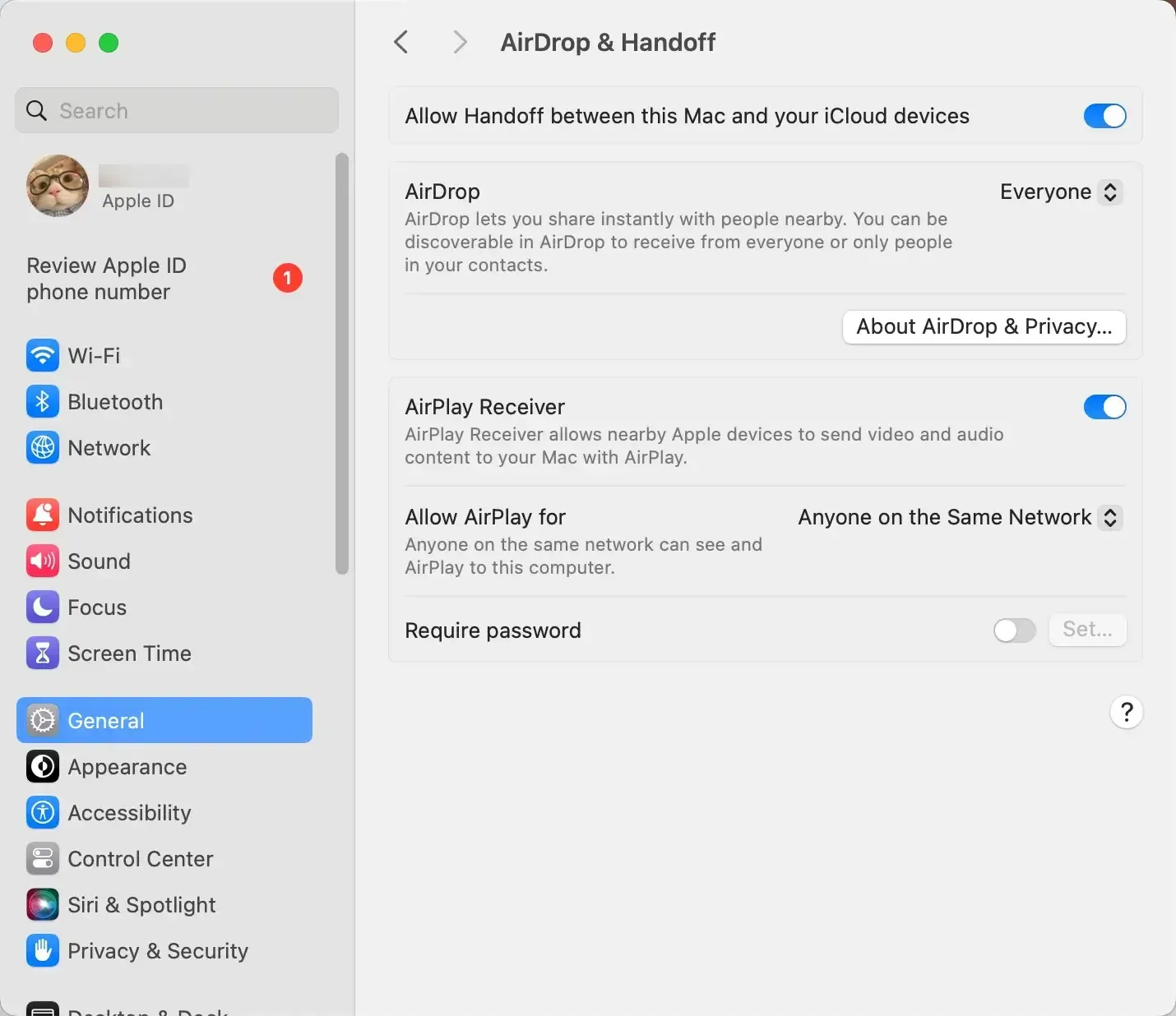
Mac can send AirPlay from most supported macOS devices, but only selected Mac models running macOS Monterey 12 or later can work as full AirPlay receivers.
For full AirPlay to Mac receiver support, Apple lists the following models:
| Mac family | Supported receiver models | Required software |
|---|---|---|
| iMac Pro | All iMac Pro models | macOS Monterey 12 or later |
| Mac mini | Models introduced in 2020 or later | macOS Monterey 12 or later |
| MacBook Air | Models introduced in 2018 or later | macOS Monterey 12 or later |
| MacBook Pro | Models introduced in 2018 or later | macOS Monterey 12 or later |
| iMac | Models introduced in 2018 or later | macOS Monterey 12 or later |
| Mac Pro | Models introduced in 2019 or later | macOS Monterey 12 or later |
| Mac Studio | All models | macOS Monterey 12 or later |
A supported Mac receiver can accept content from:
- iPhone 7 or later running iOS 14 or later
- iPad Pro 2nd generation or later
- iPad 6th generation or later
- iPad Air 3rd generation or later
- iPad mini 5th generation or later
- another supported Mac
Older Apple devices may still stream to a Mac at a lower video resolution when AirPlay Receiver is enabled and access is allowed for users on the same network or for everyone.
Apple TV
Apple TV is the most straightforward dedicated AirPlay receiver. It can accept audio, photos, supported video, and full-screen mirroring from iPhone, iPad, and Mac.
The currently AirPlay-supported Apple TV families include:
| Apple TV family | Models | AirPlay support |
|---|---|---|
| Apple TV HD | Apple TV HD | Audio, video, photos, and screen mirroring |
| Apple TV 4K | 1st, 2nd, and 3rd generations | Audio, video, photos, and screen mirroring |
Apple TV HD and all generations of Apple TV 4K are supported by tvOS and can act as full AirPlay receivers. Apple TV 4K models can also receive 4K-compatible content when the source, app, network, television, and video format support it.
Older Apple TV generations may support earlier versions of AirPlay, but they no longer receive current tvOS software updates and should not be presented as part of the main modern compatibility list.
Because Apple controls both the hardware and software, Apple TV generally has fewer model-specific compatibility questions than third-party smart TVs.
AirPlay-Compatible Smart TVs
Smart TV compatibility is more complicated because AirPlay support depends on the exact model, model year, operating system, region, and firmware version.
AirPlay is commonly available on selected televisions from:
| TV brand or platform | Typical AirPlay support | Main role |
|---|---|---|
| Samsung | Selected smart TV models | Video, audio, photos, and screen mirroring receiver |
| LG | Selected webOS TV models | Video, audio, photos, and screen mirroring receiver |
| Sony | Selected Android TV and Google TV models | Video, audio, photos, and screen mirroring receiver |
| Vizio | Selected SmartCast TV models | Video, audio, photos, and screen mirroring receiver |
| Roku TV | Selected Roku TV models and Roku devices | Video, audio, photos, and screen mirroring receiver |
| Hisense | Selected Roku TV, Google TV, and other supported models | Depends on the exact TV platform |
| TCL | Selected Roku TV, Google TV, and supported regional models | Depends on the exact TV platform |
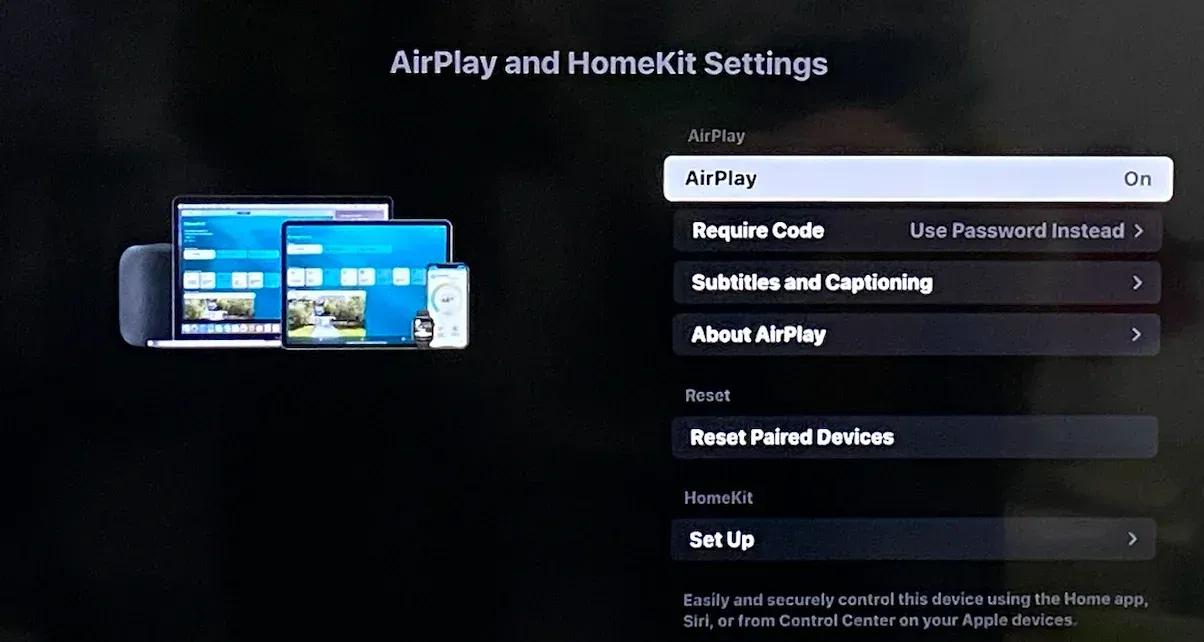
To verify a specific television, check for:
- an Apple AirPlay or Apple AirPlay and HomeKit menu
- a Works with Apple AirPlay label
- AirPlay listed in the official product specifications
- current firmware that includes or enables AirPlay support
For detailed model years, television series, and brand-specific compatibility, see AirPlay-compatible TV.
Most compatible smart TVs work as AirPlay receivers only. They do not normally send their own screen or media to another AirPlay device.
HomePod and AirPlay Speakers
HomePod and AirPlay-compatible speakers are audio receivers. They can play music, podcasts, and other audio sent from an iPhone, iPad, Mac, or another compatible Apple device.
The main Apple speaker models include:
| Speaker model | AirPlay receiver | Audio | Video | Screen mirroring |
|---|---|---|---|---|
| HomePod, 1st generation | Yes | Yes | No | No |
| HomePod, 2nd generation | Yes | Yes | No | No |
| HomePod mini | Yes | Yes | No | No |
All HomePod models can receive audio through AirPlay. Multiple HomePod speakers or other AirPlay-compatible speakers can also be used for synchronized multi-room audio when the devices and software support that feature.
Third-party AirPlay speaker support appears across selected products from audio brands such as Sonos, Bose, Bang & Olufsen, Bowers & Wilkins, Bluesound, Libratone, Naim, Denon, and Marantz.
Brand presence does not mean every speaker from that manufacturer supports AirPlay. The reliable check is the exact product specification or the Works with Apple AirPlay label.
AV Receivers and Audio Systems
Selected AV receivers, stereo amplifiers, soundbars, and home audio systems also support AirPlay. Like AirPlay speakers, these devices usually function as audio receivers rather than display receivers.
AirPlay support is commonly found on selected products from:
| Product category | Representative brands | Typical AirPlay function |
|---|---|---|
| AV receivers | Denon, Marantz, Yamaha, Onkyo, Pioneer | Receive music and other audio |
| Stereo amplifiers | NAD, Naim, Cambridge Audio, Marantz | Receive audio from Apple devices |
| Soundbars | Sonos, Bose, Bang & Olufsen, selected TV audio brands | Receive audio; features vary by model |
| Wireless music systems | Bluesound, Sonos, Bowers & Wilkins | AirPlay and multi-room audio |
| Network audio players | Selected Denon, Marantz, Yamaha, and Naim products | Receive and route AirPlay audio |
Because these manufacturers release many regional and model-specific products, the brand name alone is not enough to confirm compatibility. Check the exact product page for:
- AirPlay or AirPlay 2
- Works with Apple AirPlay
- multi-room AirPlay support
- minimum firmware requirements
An AV receiver connected to a television does not automatically become a video AirPlay receiver. Unless the product explicitly supports AirPlay video, it should be listed as an audio destination only.
AirPlay Sender vs Receiver Compatibility
Once the device list is clear, the next useful question is which combinations actually work. AirPlay only works when one side can send and the other side can receive the kind of content involved.
| Sender | Receiver | Audio | Video | Screen mirroring | Notes |
|---|---|---|---|---|---|
| iPhone / iPad | Apple TV | Yes | Yes | Yes | Standard Apple-to-TV workflow |
| iPhone / iPad | Supported smart TV | Yes | Yes | Yes | Depends on exact TV model |
| iPhone / iPad | Supported Mac receiver | Yes | Yes | Yes | Depends on Mac model and settings |
| iPhone / iPad | HomePod / AirPlay speaker | Yes | No | No | Audio only |
| Mac | Apple TV | Yes | Yes | Yes | Strong fit for TV mirroring |
| Mac | Supported smart TV | Yes | Yes | Yes | TV support still varies by model |
| Mac | HomePod / AirPlay speaker | Yes | No | No | Audio destination only |
| Android / Windows | Native AirPlay receiver | Usually no native path | Usually no native path | Usually no native path | Needs a separate cross-platform solution |
This is the practical rule behind most AirPlay questions: sender compatibility is usually straightforward inside Apple’s ecosystem, while receiver compatibility is where the real filtering happens.
Devices That Do Not Natively Support AirPlay
Android phones, Windows PCs, Chromecast-only TV setups, and many older smart TVs do not provide a native AirPlay sending or receiving path in the same way Apple devices do.
That does not automatically make them unusable for screen sharing. It simply means they should not be described as native AirPlay devices unless the product specifically exposes that support. For example, the PS5 does not support AirPlay natively, but users can still explore alternative ways to share content between their iPhone and console.
What to Use When Your Devices Are Not AirPlay Compatible
When the devices in your setup do not line up around native AirPlay, a broader mirroring tool becomes more practical than trying to force an Apple-only workflow onto mixed hardware.
That is the scenario where a cross-platform option such as PigeonCast makes sense. PigeonCast is a screen mirroring app that connects phones and computers to compatible TVs, computers, streaming devices, or browser receivers without relying on native AirPlay support.
To mirror your screen with PigeonCast:
Step 1. Download PigeonCast on the iPhone, Android phone, Windows PC, or Mac you want to mirror.


Overall Rating:



Step 2. Install or open PigeonCast on the TV or computer. You can also open the PigeonCast web receiver in a browser when that option fits your setup.
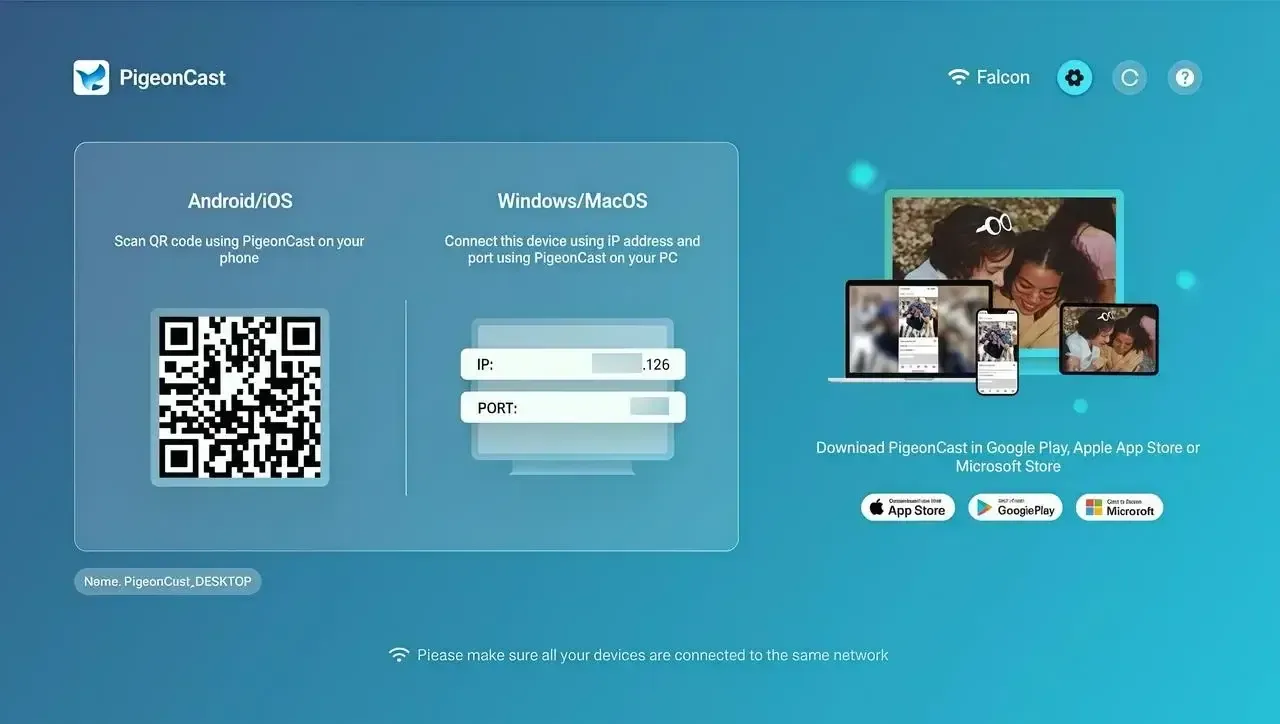
Step 3. Keeping the sender and receiver on the same local network allows them to find and connect to each other more reliably.
Step 4. Select the receiver from the available device list or scan the QR code shown on the receiving screen.
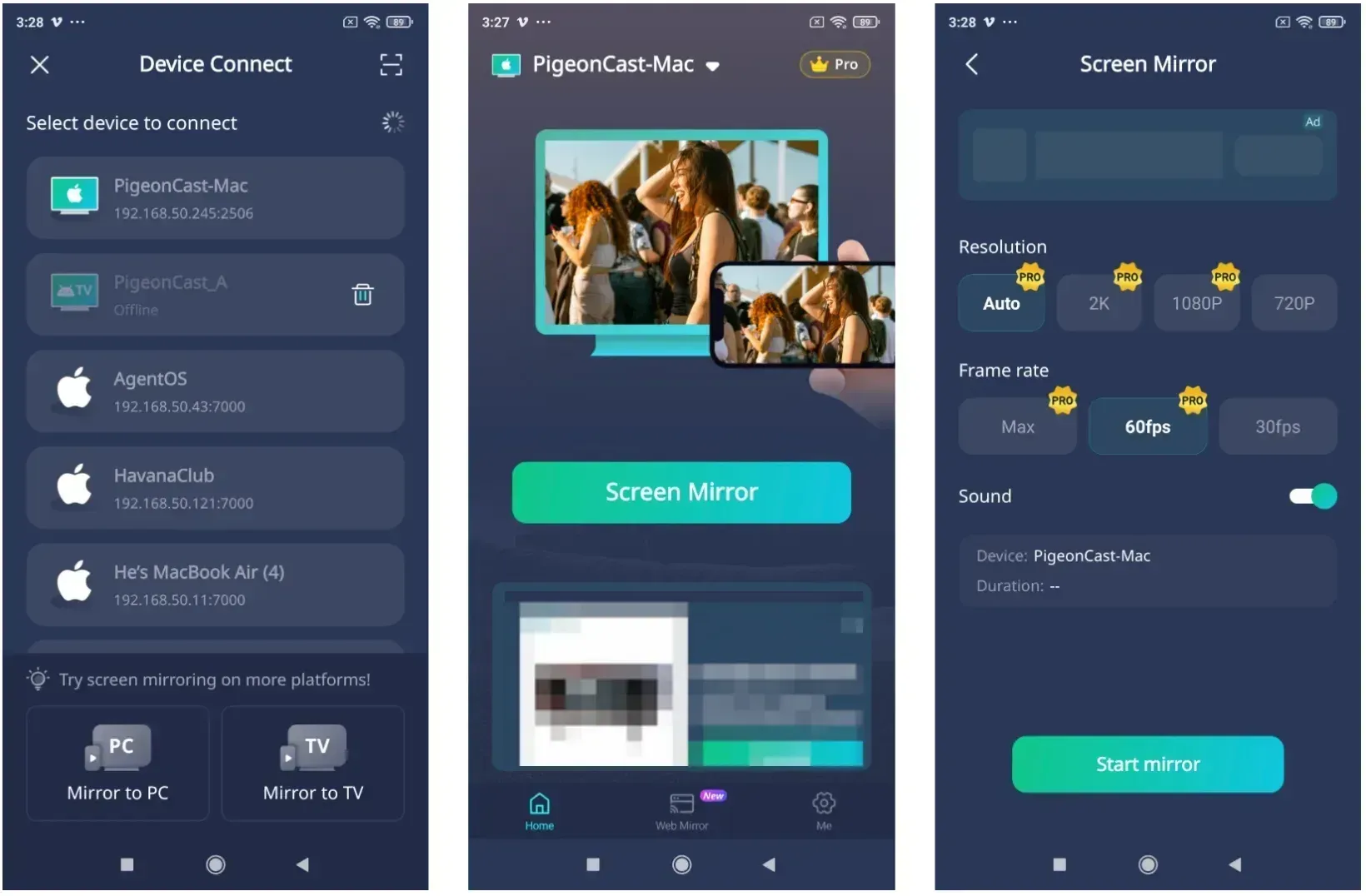
Step 5. Confirm the connection and begin mirroring the phone or computer screen to the selected receiver.
This approach is especially useful for Android-to-TV, Windows-to-TV, phone-to-computer, computer-to-computer, and mixed-device setups. For a simple iPhone-to-Apple-TV connection, native AirPlay remains the more direct option.
Conclusion
AirPlay compatibility depends on the exact sender, receiver, and type of content involved. Native AirPlay is usually the easiest option for an iPhone, iPad, or Mac connecting to Apple TV or a clearly supported smart TV, while speakers and AV receivers are mainly designed for audio.
For Android, Windows, or TVs without native AirPlay, a cross-platform mirroring method may be more practical. Check the exact device model and supported function before choosing how to connect.
AirPlay Compatible Devices FAQ
Do old devices support AirPlay?
Some older Apple devices still support parts of AirPlay, but support is less predictable once you move into older Macs used as receivers or older TVs with aging firmware. Category-level support is not the same thing as full support on every older model.
Does AirPlay require the same Wi-Fi network?
In most normal home setups, yes. AirPlay works best when the sending device and the receiving device are on the same local network. If they are separated by guest Wi-Fi or network isolation, compatibility may look broken even when both devices technically support AirPlay.
Is AirPlay 2 the same as basic AirPlay compatibility?
Not exactly. AirPlay 2 usually matters more for newer multi-room audio and modern ecosystem behavior, while many readers searching this topic mainly want to know whether a device can send or receive AirPlay at all. The version layer matters most when you are comparing newer speakers, TVs, and audio systems.
Can a device support AirPlay audio but not screen mirroring?
Yes. HomePod, AirPlay speakers, AV receivers, and many audio systems can receive sound without receiving video or a mirrored display. Check whether the device is listed for AirPlay audio, AirPlay video, or both.
Mia Clarke is a technology editor specializing in screen mirroring and casting solutions across multiple platforms. Mia provides clear, practical guides and in-depth insights to help users seamlessly connect their devices. Passionate about enhancing digital experiences, Mia is dedicated to keeping readers updated on the latest trends and tools in cross-platform screen sharing. Whether you’re looking to mirror your smartphone, laptop, or smart TV, Mia’s content delivers reliable, user-friendly advice to simplify your tech setup.