
If you have an iPhone, iPad, or Mac, AirPlay is the easiest way to send videos, photos, music, or even your entire screen to Apple TV. There's no need for cables, adapters, or additional hardware, and everything works wirelessly through your local network.
However, many users run into the same problems: Apple TV doesn't appear in the AirPlay list, screen mirroring won't start, or the connection keeps dropping unexpectedly. The setup is simple once everything is configured correctly, but finding the right settings isn't always obvious.
In this guide, you'll learn how to enable AirPlay on Apple TV, mirror your iPhone, iPad, or Mac, adjust AirPlay settings, and troubleshoot the most common connection issues. Whether you're setting up AirPlay for the first time or trying to fix a problem, you'll find the exact steps below.
How to Use AirPlay for Apple TV
AirPlay with Apple TV supports media casting from apps and full-screen mirroring from your device. Before you start, make sure your Apple TV and sending device are on the same Wi-Fi network and that Bluetooth is enabled if prompted. Below are clear, practical ways to use AirPlay from the common Apple devices.
Set Up AirPlay on Apple TV
AirPlay must be enabled on Apple TV before any device can connect, and here's how to do it:
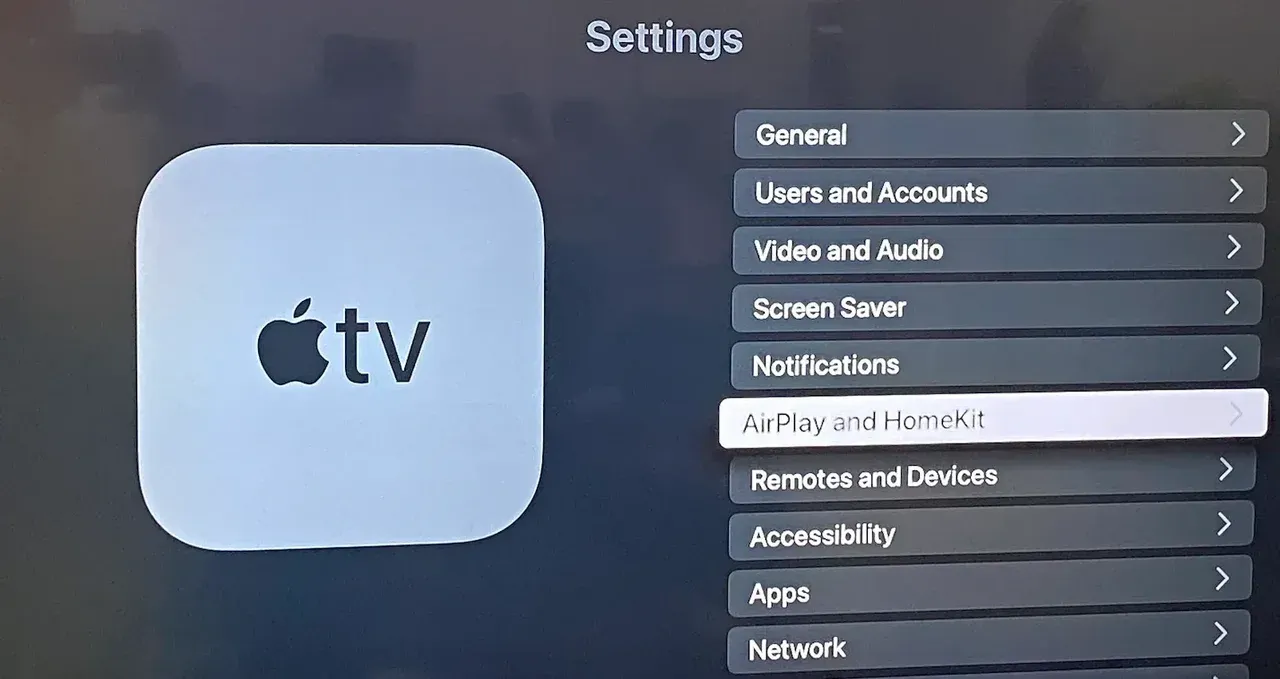
Step 1. On your Apple TV, go to Settings > AirPlay and HomeKit.
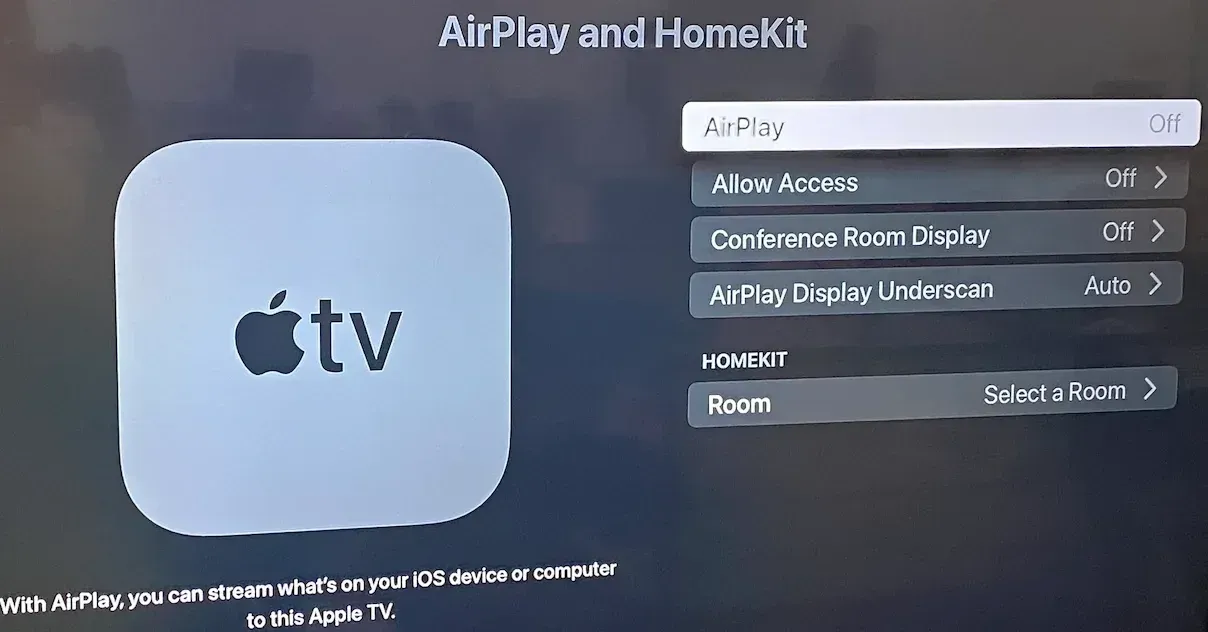
Step 2. Turn on AirPlay.
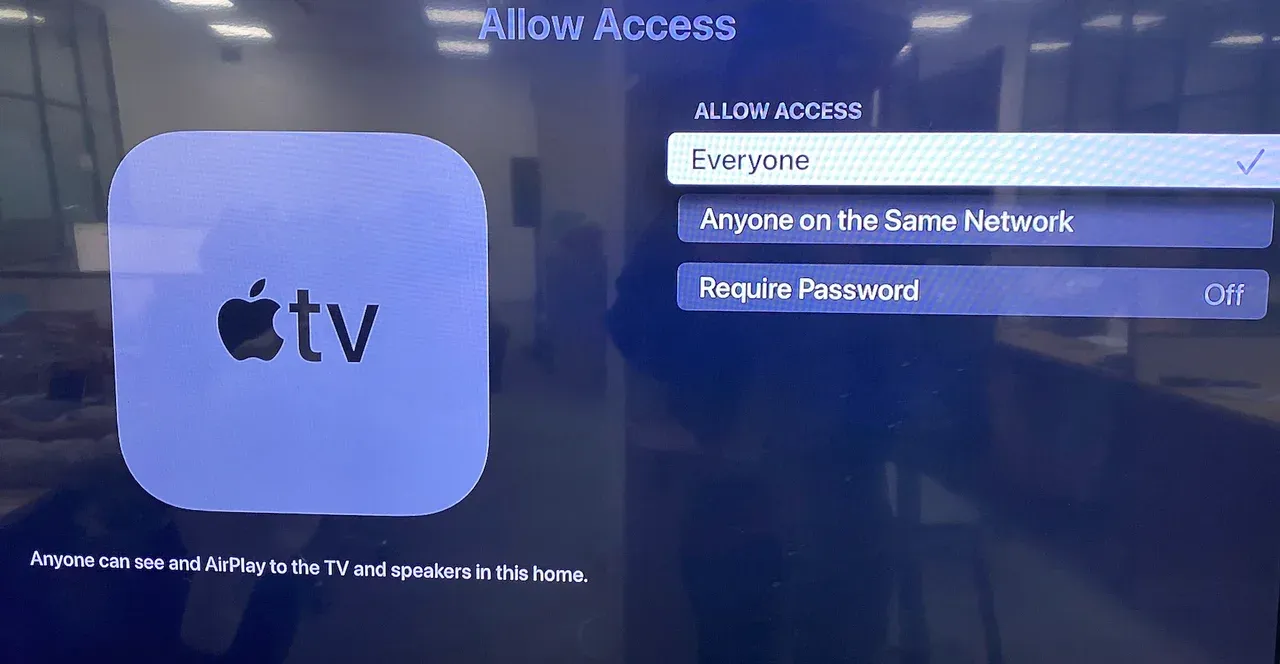
Step 3. Select Allow Access and choose Everyone, Anyone on the Same Network, or Only People Sharing This Home, which decides who can connect to your Apple TV.
Step 4. On the same Apple TV interface, enable Require Password (only people with the code can connect to your Apple TV) if needed.
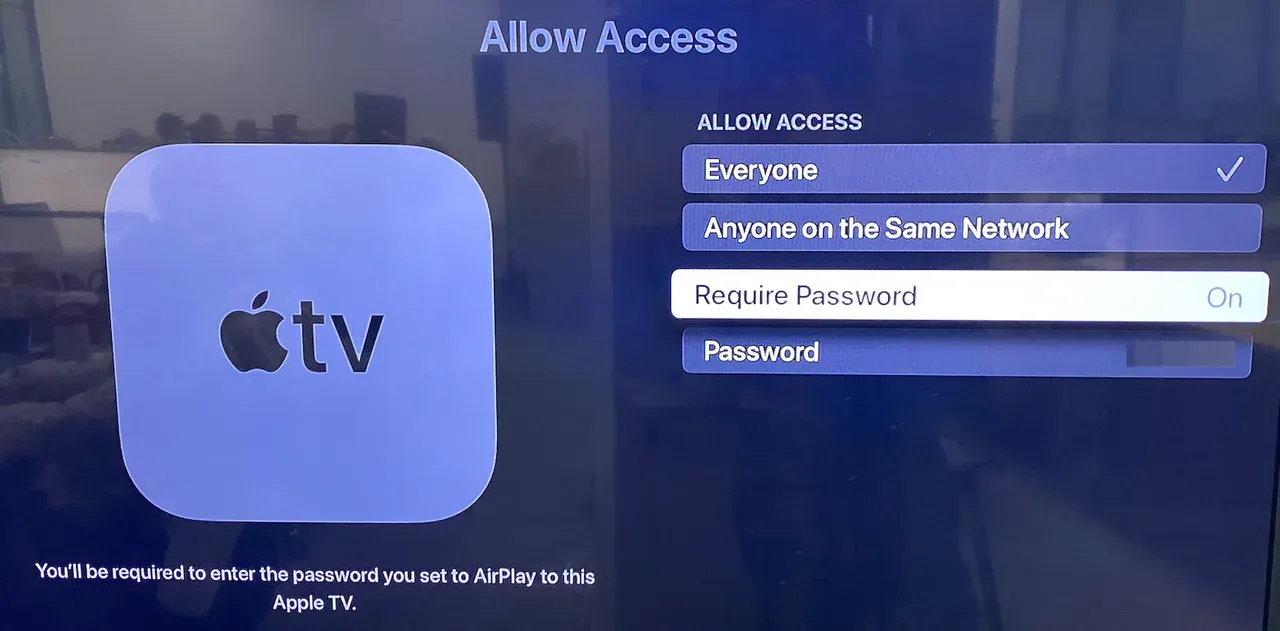
These basic checks ensure your Apple TV is discoverable and ready for AirPlay.
AirPlay from iPhone/iPad to Apple TV
You can mirror or cast app content from an iPhone or iPad to Apple TV. This is how to AirPlay on Apple TV from iPhone or iPad:
Step 1. Connect iPhone or iPad to the same Wi-Fi as Apple TV.
Step 2. Swipe down from the top right of the screen to open Control Center.
Step 3. Tap Screen Mirroring or the AirPlay icon in the media player window.

Step 4. Choose your Apple TV from the list.
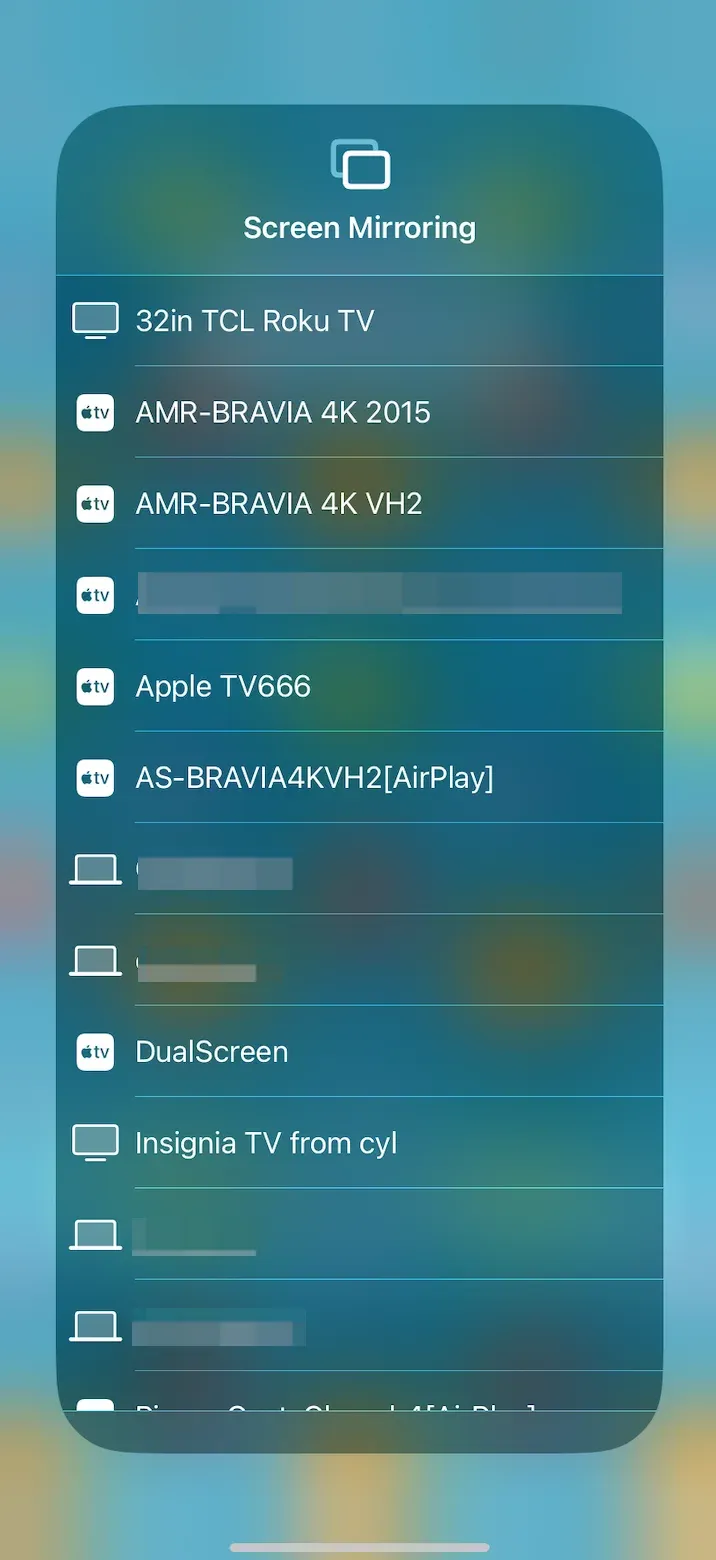
Step 5. If prompted, enter the AirPlay code shown on the TV.
AirPlay from MacBook to Apple TV
Using a MacBook with Apple TV works well for presentations, movies, and browser-based content on a larger screen. Because tvOS does not include a full desktop-style browser, AirPlay from a Mac is one of the simplest ways to open websites on Apple TV without relying on a third-party tvOS browser.
To mirror your Mac display or use the TV as an extended screen, follow these steps:
Step 1. Make sure your MacBook and Apple TV share the same Wi-Fi network.
Step 2. Click the Control Center icon in the top-right corner of the Mac menu bar.
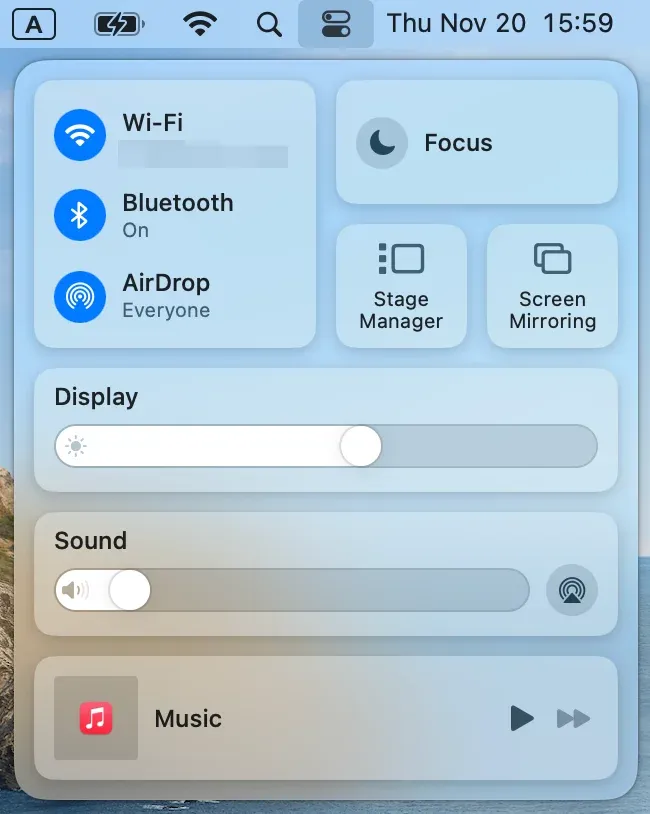
Step 3. Select Screen Mirroring and pick your Apple TV.
Tip: If you do not see the Control Center mirroring option, open Displays preferences and enable Show mirroring options in the menu bar when available.
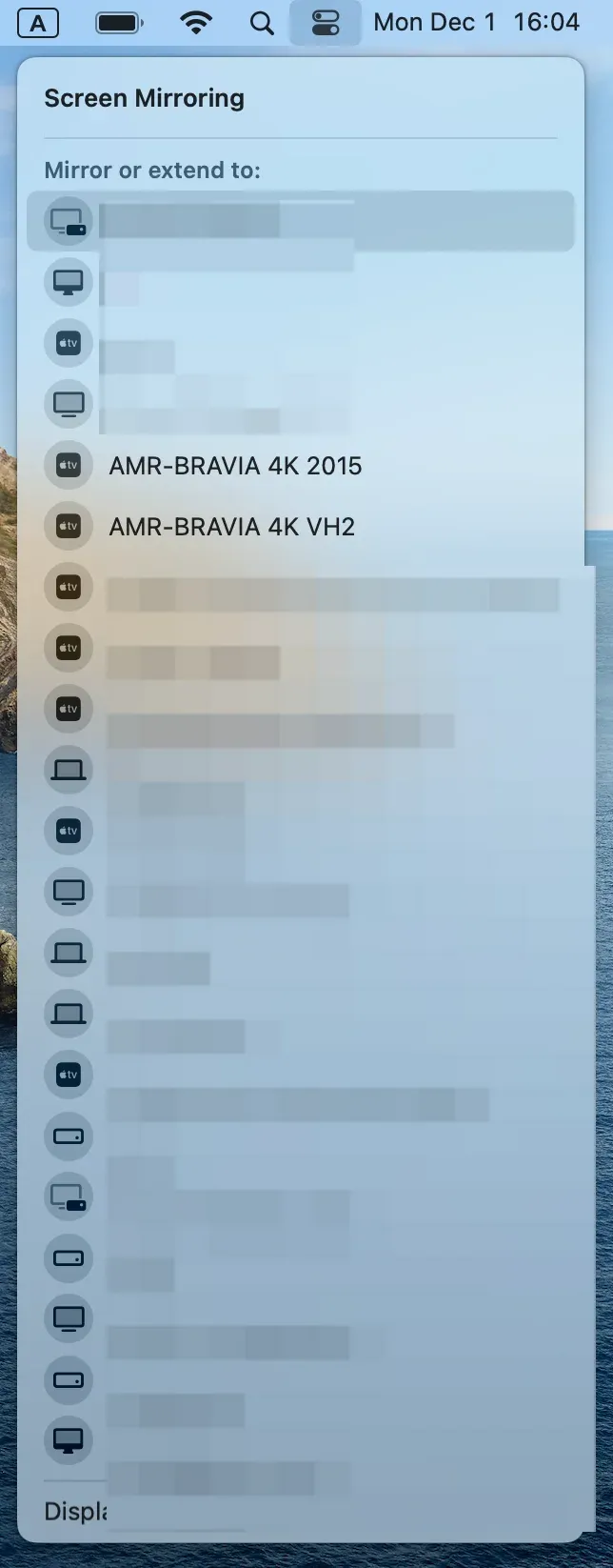
Step 4. To use the TV as a separate display, open System Settings, then Displays, and choose Use as Separate Display.
Apple TV AirPlay Not Working
When AirPlay to Apple TV stops working, symptoms like missing devices, sudden disconnections, or poor video quality can quickly disrupt your experience. So why does it happen? And how do you fix it? We've outlined the most common causes and smart troubleshooting tips below.
Why can't I AirPlay on Apple TV
Common causes include devices connected to different Wi-Fi networks, AirPlay being turned off on your Apple TV, or outdated software on either device.
In some cases, HomeKit settings, VPN configurations, or router-level restrictions may block connections. If you're on public or enterprise Wi-Fi, network isolation can prevent AirPlay discovery. Identifying the root cause is key to choosing the right fix.
How to Solve Apple TV AirPlay Issues
Most Apple TV AirPlay problems can be resolved with basic network and settings adjustments. Here's a step-by-step checklist to follow:
- Restart Apple TV and the device you are casting from.
- Ensure both devices are on the same Wi-Fi network and router band.
- Go to Apple TV Settings and make sure AirPlay is turned on.
- Update both Apple TV and your iPhone, iPad, or Mac to the latest software.
- Turn off VPN or Privacy Relay on your sending device.
- Reset network settings on your device or Apple TV if the problem persists.
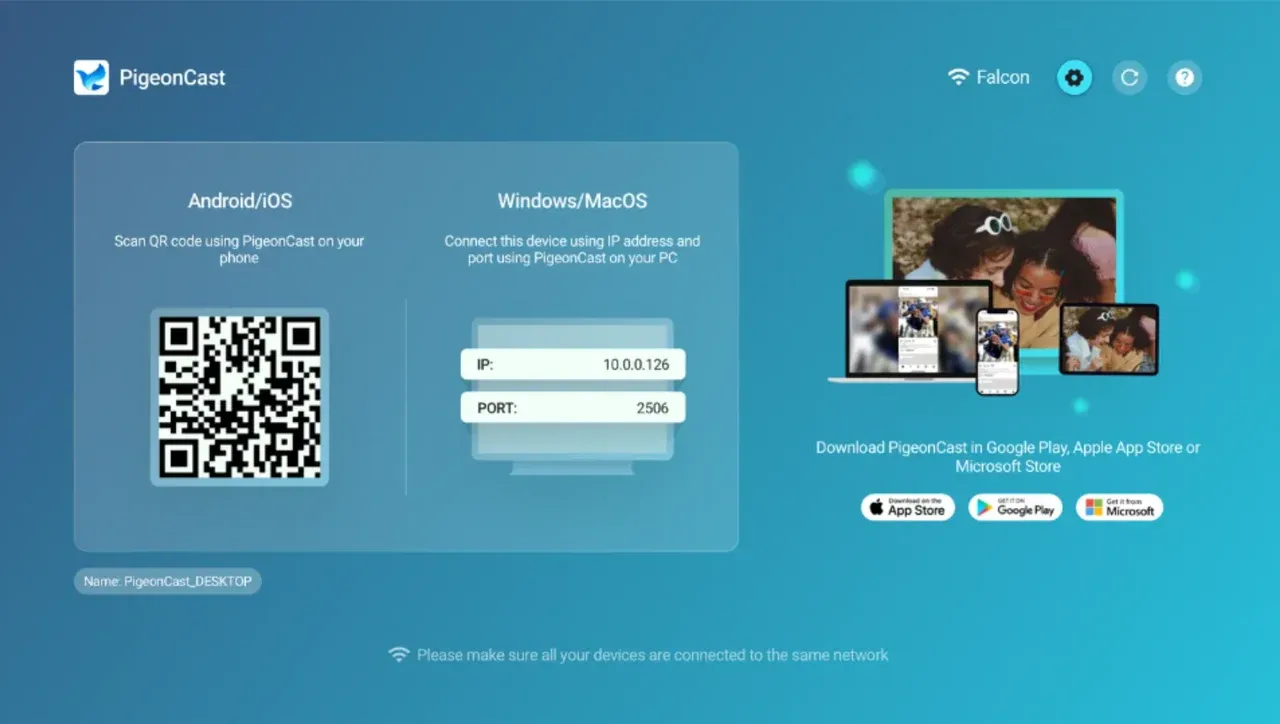
If you often connect Android or Windows devices, PigeonCast is a great option. Unlike AirPlay, it makes Apple TV a universal receiver that supports cross-platform screen mirroring on the same network. The app is free without any ads:

PigeonCast Screen Mirroring

Official Download



To Sum Up
By enabling AirPlay and following the steps outlined above, you can enjoy smooth screen mirroring from iPhone, iPad, or Mac. If Apple TV AirPlay is not working, use the troubleshooting methods to fix connection or discovery issues.
Apple TV AirPlay delivers a seamless way to mirror or cast from Apple devices, while PigeonCast extends your Apple TV's capabilities for Android and Windows devices. So, try PigeonCast to boost your device connectivity.
Apple TV AirPlay FAQs
Can I mirror my iPhone to my Apple TV?
Yes, you can use Apple AirPlay to mirror your iPhone to your TV. Ensure both devices are on the same Wi-Fi network, swipe down to Control Center, tap Screen Mirroring, and choose your Apple TV.
Why is Apple TV not showing up for AirPlay?
This could be due to network mismatches, disabled AirPlay settings, or outdated software. Check your Wi-Fi connection, ensure AirPlay is on, and restart your devices.
How do I fix Apple TV AirPlay not working?
Start by turning AirPlay off and on again, updating the Apple TV software, and restarting your devices. You can also switch to PigeonCast if the issue persists.
Can Android connect to Apple TV AirPlay?
By default, no. Apple TV AirPlay does not support Android devices, but PigeonCast can bridge that gap, allowing Android users to cast to Apple TV wirelessly.
Mia Clarke is a technology editor specializing in screen mirroring and casting solutions across multiple platforms. Mia provides clear, practical guides and in-depth insights to help users seamlessly connect their devices. Passionate about enhancing digital experiences, Mia is dedicated to keeping readers updated on the latest trends and tools in cross-platform screen sharing. Whether you’re looking to mirror your smartphone, laptop, or smart TV, Mia’s content delivers reliable, user-friendly advice to simplify your tech setup.