
With Apple TV+ gaining popularity and AirPlay becoming increasingly useful for iPhone and iPad users, many shoppers are searching for a TV with Apple TV built-in. These smart TVs promise seamless Apple integration from native apps to wireless screen sharing.
But there's the big question: Do you really need to buy a new smart TV with Apple TV built in just to use AirPlay? In this article, we'll break down the question and help you find an economical method for better watching.
What's a TV with Apple TV Built In?
A TV with built-in Apple TV usually refers to a smart TV that ships with Apple TV features built-in, including the Apple TV app (pre-installed or available as a download) and AirPlay 2.
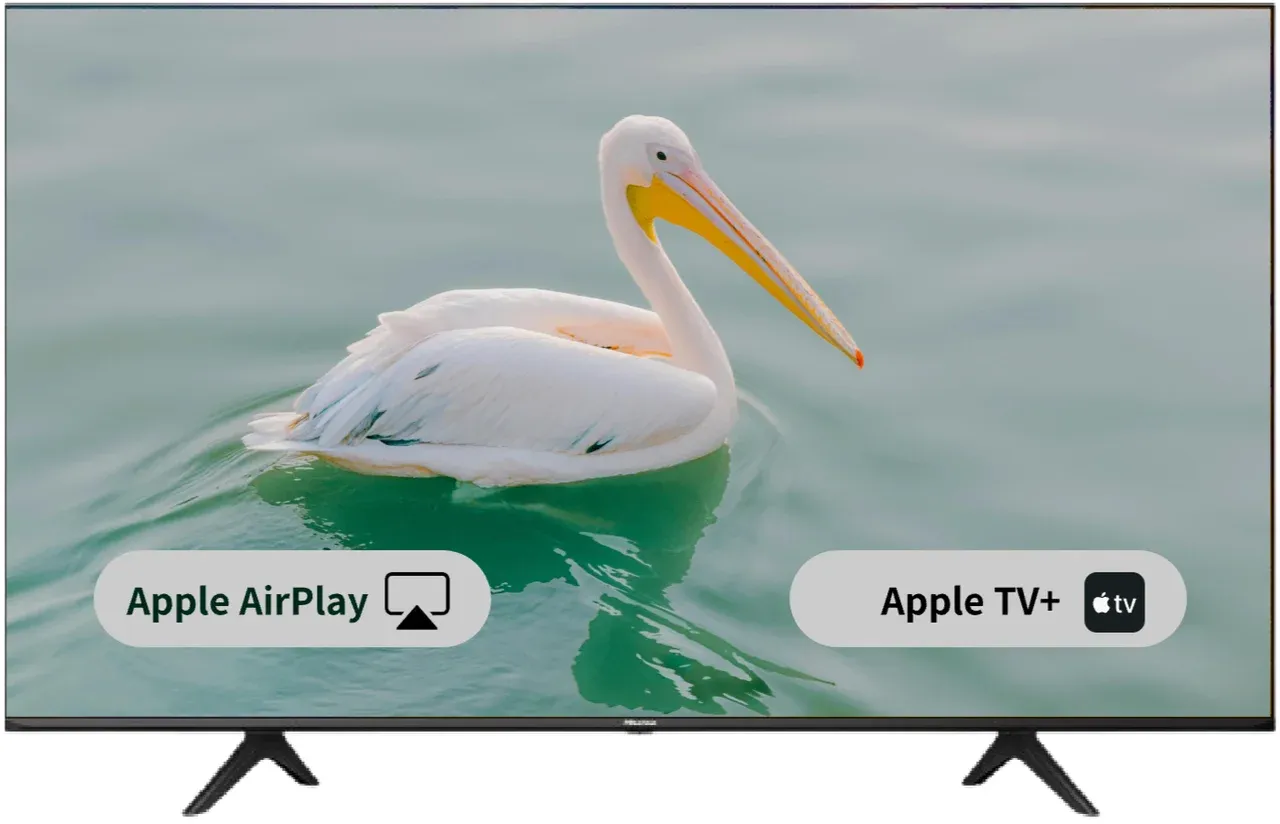
The Apple TV app gives you direct access to Apple's exclusive streaming service, where you can watch original series, movies, and documentaries. Popular titles include Ted Lasso, Severance, For All Mankind, and The Morning Show.
As for the second feature of TVs with Apple TV built in, AirPlay 2 is a wireless technology that allows you to wirelessly mirror or cast content from your Apple devices, such as mirroring a Mac to TV. These TVs are part of a growing category of AirPlay-compatible TVs, including select models from:
- LG Smart TVs (webOS 4.5+)
- Smaung Smart TVs (2018+)
- Sony Bravia Android TVs
- Vizio SmartCast TVs
- TCL with Roku OS
- ...
Why Want a Smart TV with Apple TV Built-In?
Apple's ecosystem is known for its seamless user experience. So when shoppers search for a smart TV with Apple TV built-in, they're often looking for:
-
Native access to Apple TV+: No need to buy an external Apple TV device.
-
AirPlay support out of the box: Easily share photos, videos, and screens from iPhones, iPads, or Macs to TVs.
-
Simplified setup: Fewer remotes, cables, and compatibility issues.
By the way, if you're wondering "does Apple make TVs?" — the answer is no. Apple doesn't manufacture televisions. Instead, they partner with brands like Samsung, LG, and Sony to integrate the Apple TV app and AirPlay into their smart TVs.
Is It Worth Buying a TV with Built-In Apple TV?
Buying a TV with built-in Apple TV isn't always the best choice. Before you run out and spend hundreds or thousands on a new TV, consider these drawbacks:
-
Limited model availability: not every TV in the brand's lineup includes AirPlay or the Apple TV app. You'll need to double-check each model.
-
Software limitations: even if your TV supports AirPlay, firmware updates are infrequent, and compatibility may degrade over time.
-
Higher costs: TVs with Apple TV built-in often come at a premium. If you already have a perfectly good TV or monitor, replacing it just for AirPlay support isn't cost-effective.
-
Inconsistent user experience: some users report laggy mirroring, delayed connections, or feature restrictions depending on the TV brand and year.
Why Not Try a Screen Mirroring App for AirPlay Without Apple TV?
Instead of buying a new TV, use a screen mirroring app, like the PigeonCast Android TV Screen Mirroring app, that turns your existing TV into an AirPlay receiver. This means you can mirror your iPhone, iPad, or MacBook to any TV even if it doesn't have Apple TV built in.
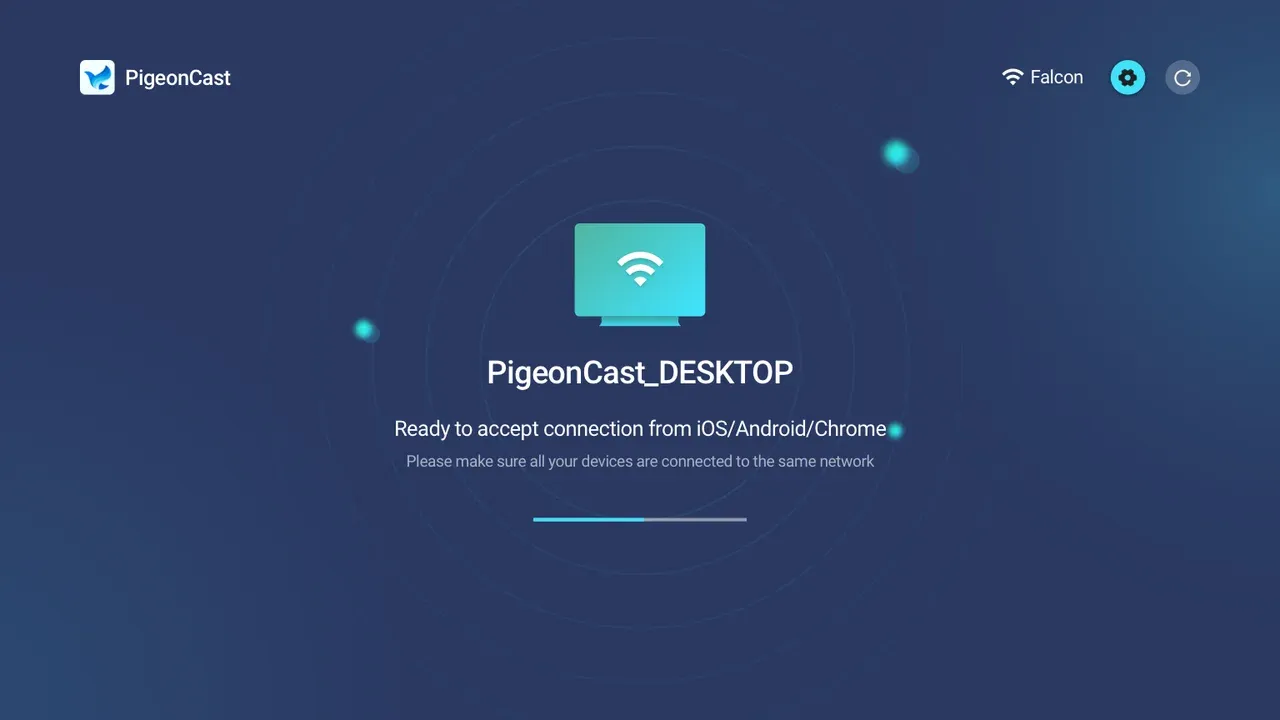
With PigeonCast's app, you can:
- Mirror your entire iPhone, iPad, or Mac screen
- Stream videos, apps, photos, and more
- Works over Wi-Fi, no cables or dongles required
- How to AirPlay on TV without Apple TV? The 3rd-party app makes it simple:
Step 1. Download and install the app on your smart TV.

PigeonCast Screen Mirroring

Official Download


Step 2. Connect your devices, such as an iPhone and TV, to the same Wi-Fi network.
Step 3. Launch the third-party app on your TV. Your TV is now discoverable by any Apple device.
Step 4. On your Apple device, enable AirPlay. If you're using an iPhone, swipe down from the top of the screen, and tap the Screen Mirroring option.
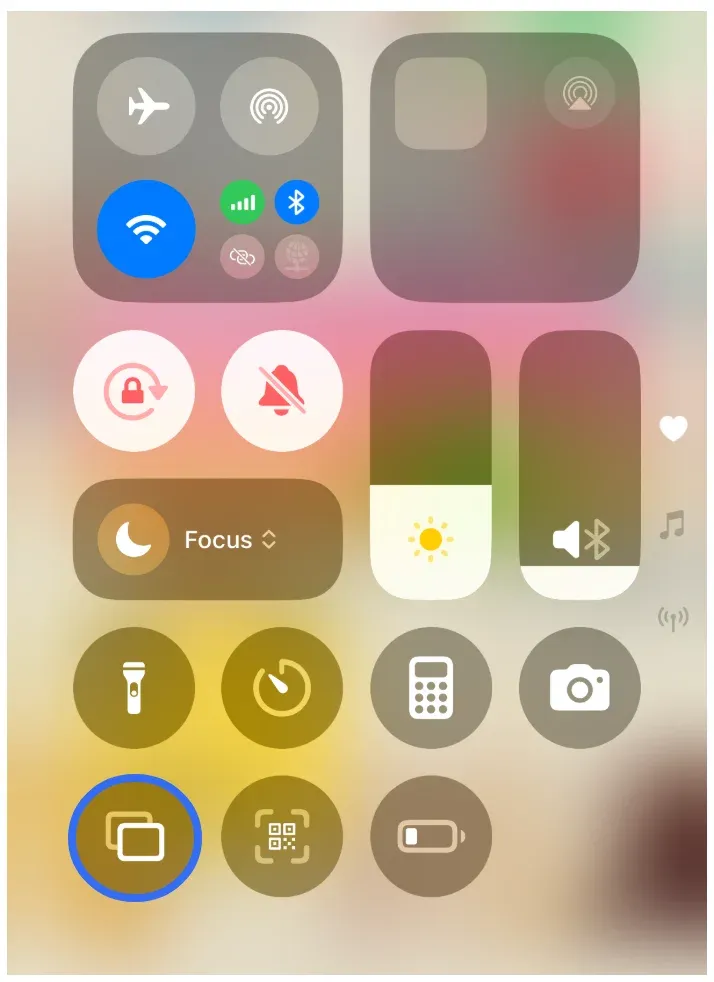
Step 5. Select your TV from the list of available devices. Look for your TV by name: it may include identifiers like "PigeonCast" or the brand/model of your TV. Tap it to initiate the connection.
Step 6. Wait for the connection to be established. You can feast on any content from your Apple device on your TV screen, including popular titles on Apple TV+.

The Android TV Screen Mirroring app makes it easy to mirror an iPhone to an incompatible TV using AirPlay without Apple TV. It enables 100% wireless mirroring, but for situations where Wi‑Fi is unstable, having an HDMI adapter as backup remains a smart idea.
Recommend TVs with Built-In Apple TV (If You Still Prefer Buying)
If you still want to purchase a smart TV with Apple TV built-in, here are some top 2025 picks:
| TV | Model | Image | Screen Size(s) | Highlights | Price (USD) |
|---|---|---|---|---|---|
| LG C4 Series OLED | OLED C4 | 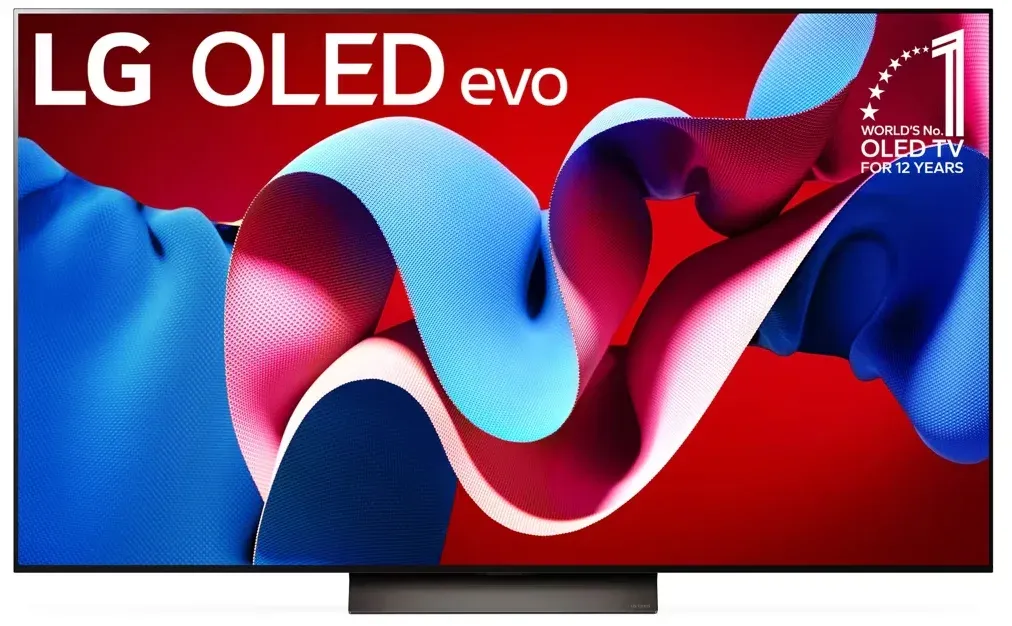 | 55"–83" | AirPlay 2, native Apple TV app, 144 Hz gaming, top-tier OLED picture | ~$1,200–1,400 (55") |
| Samsung S95D OLED | S95D | 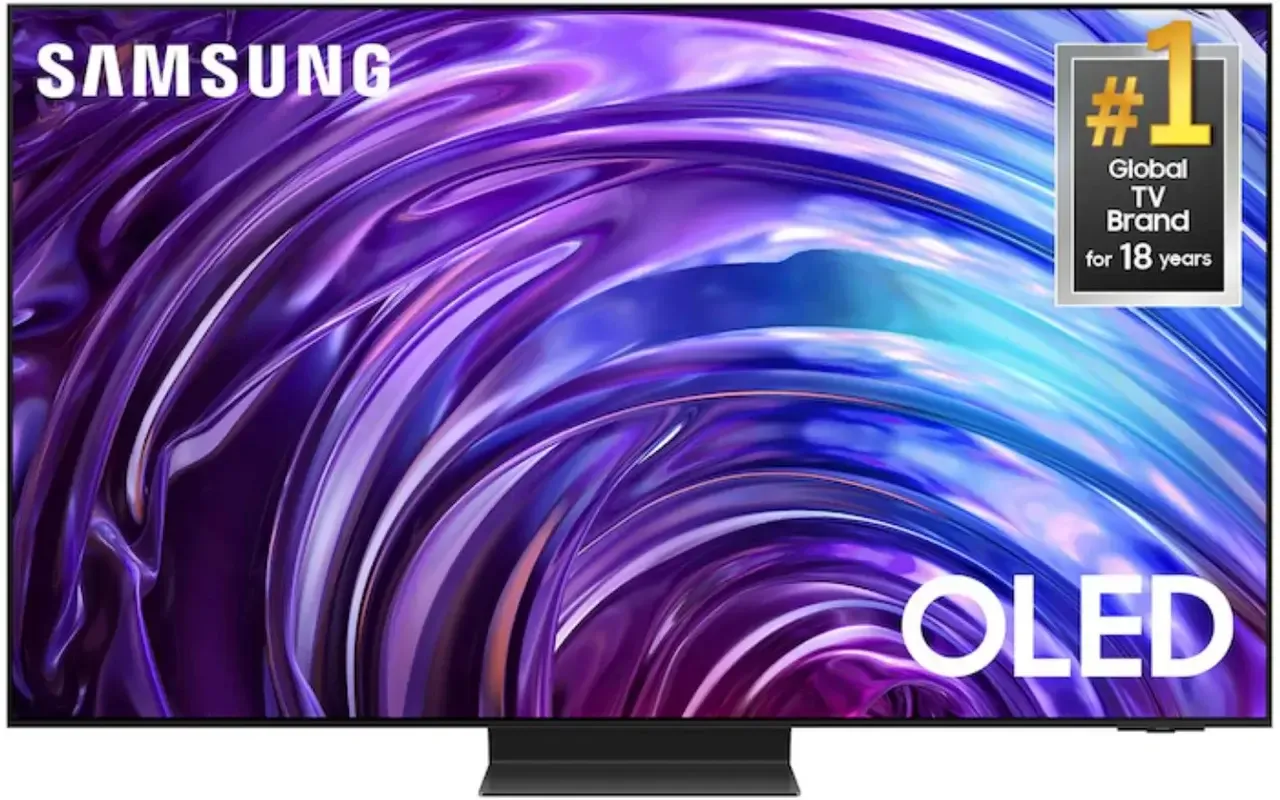 | 55"–77" | AirPlay 2, Apple TV app, ultra-bright matte OLED | ~$1,600–2,200 |
| Sony A80L OLED | Bravia XR A80L | 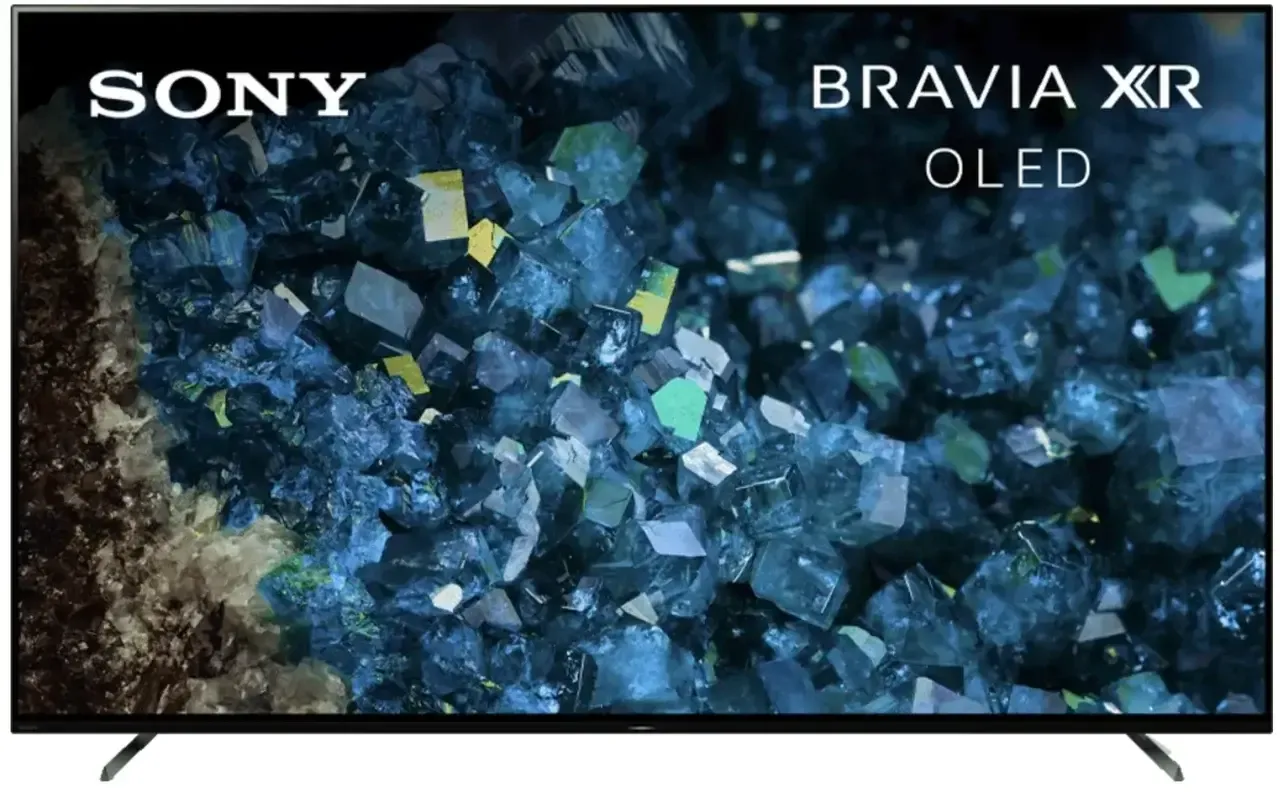 | 55"–83" | AirPlay 2, Apple TV app, 120 Hz, Acoustic Surface Audio+ | ~$1,100–1,700 |
| Vizio M‑Series Quantum X | MQX | 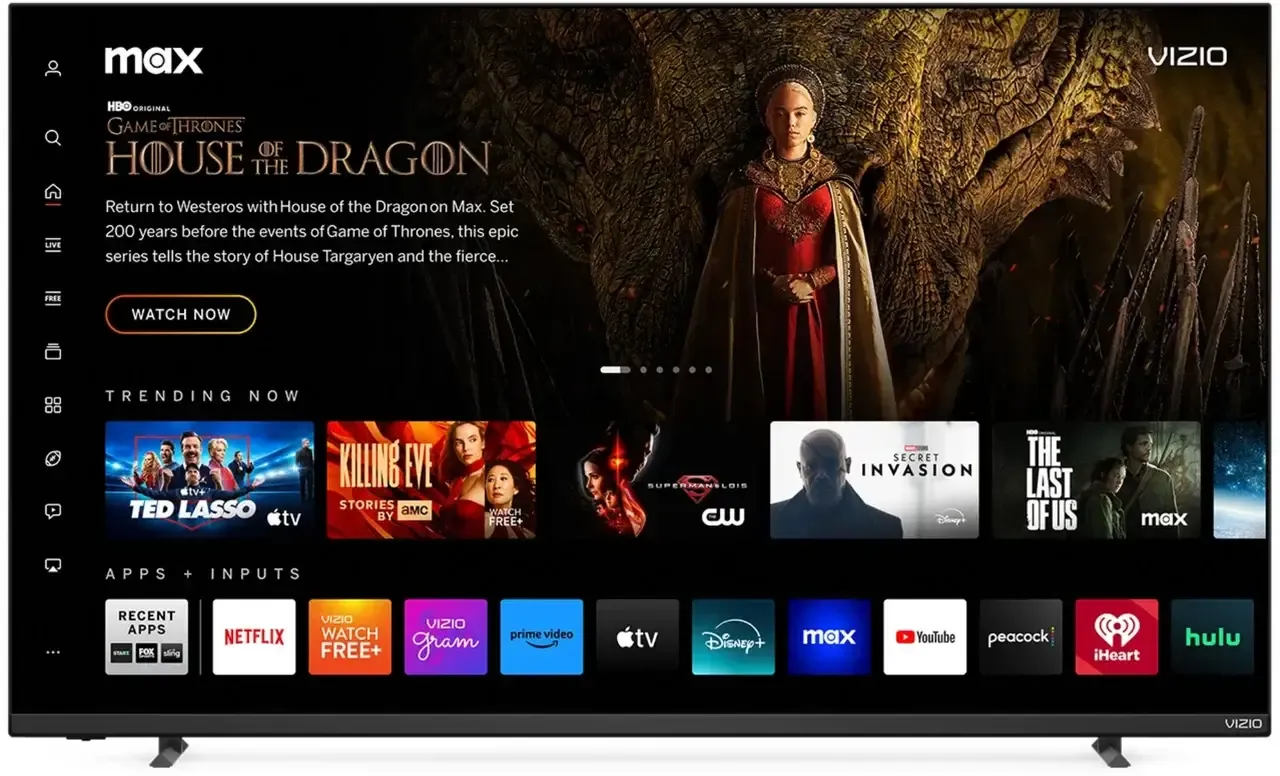 | 50"–75" | AirPlay 2, Google Cast, Apple TV app, Mini‑LED, Dolby Vision, HDMI 2.1 | ~$630 (50") |
| TCL QM8 Series | QM8 (Google TV) | 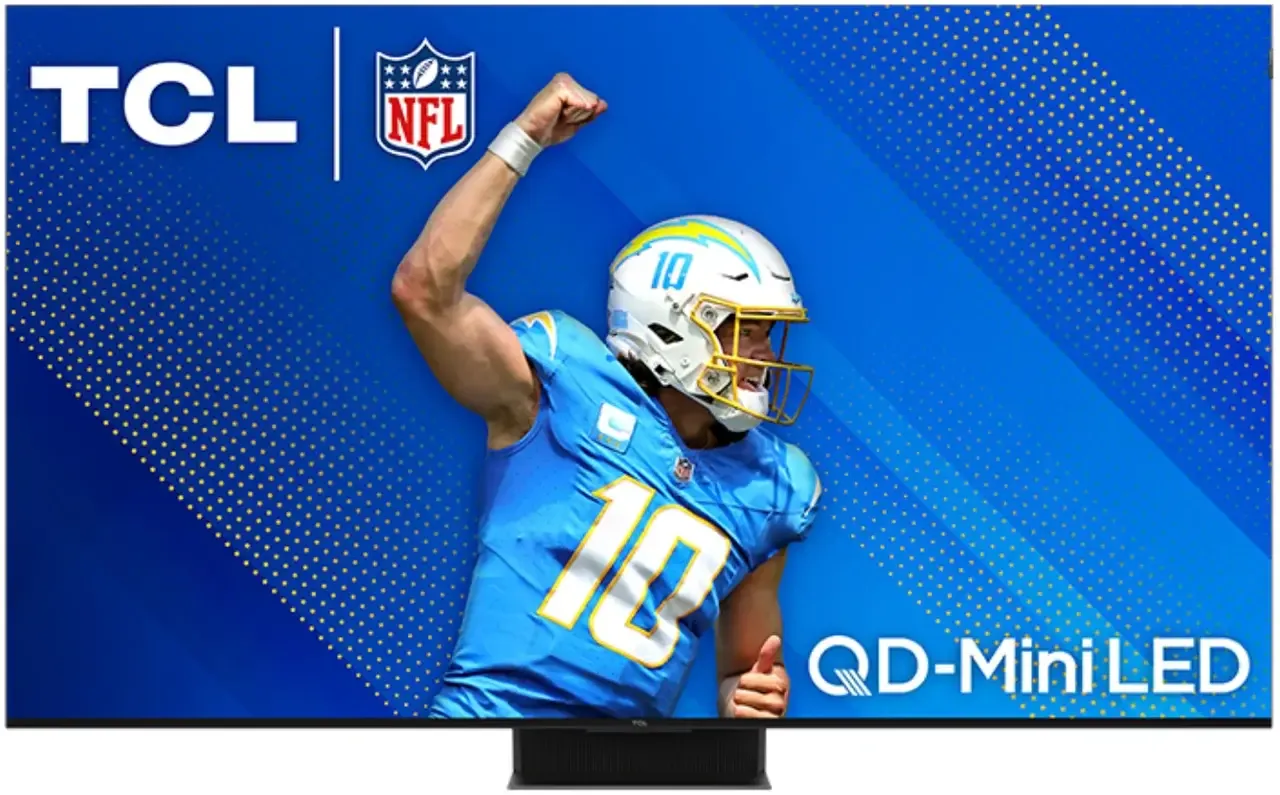 | 65"–98" | AirPlay 2, Apple TV app, Mini‑LED, budget-friendly | ~$900–1,200 (65") |
If you are determined to buy an AirPlay‑compatible TV, the above models are currently excellent choices in terms of cost performance and functionality. But if you just need the AirPlay function, you might as well try our free app first.
Final Thoughts
In 2025, it's tempting to upgrade to a TV that supports AirPlay or comes with Apple TV built in. But if your goal is to mirror your iPhone, iPad, or MacBook, or stream Apple content, there's a smarter option. By using a screen mirroring app like PigeonCast's Screen Mirroring App for Android TV, you get full AirPlay functionality, no new hardware required, instant setup and portability.
If you already have a great TV, why spend hundreds or even thousands on a new one? Try PigeonCast's Screen Mirroring App for Android TV first. It's free, convenient, and effective.
TV with Apple TV Built In FAQs
Q: Which TVs have the Apple TV app built in?
Many modern smart TVs from leading brands come with the Apple TV app pre-installed or available for download. These include:
- Samsung Smart TVs (2018 and newer)
- LG Smart TVs (webOS 4.5 and newer)
- Sony Bravia TVs (Android TV and Google TV models)
- Vizio SmartCast TVs
- TCL Roku and Google TVs
- Some Panasonic and Philips models (region dependent)
Q: Why do people buy Apple TV if they have a smart TV?
While smart TVs support the Apple TV app and AirPlay, people still buy the Apple TV device (Apple TV 4K) for:
- Faster performance and smoother interface
- Access to the full tvOS experience and App Store
- Frequent software updates
- Advanced features like Apple Arcade, Fitness+, multi-user profiles, and better integration with HomeKit and Siri
Q: Do Sony TVs have Apple TV built-in?
Yes, many Sony Bravia TVs (especially those running Android TV or Google TV from 2019 onward) come with the Apple TV app built in or available to download from the Google Play Store.
Q: Can I get Apple TV on Samsung TV?
Yes. Samsung Smart TVs made in 2018 or later typically support the Apple TV app and AirPlay 2. You can find and download the app from the Samsung Smart Hub if it's not pre-installed.
Q: Is Apple TV available on Hisense TV?
It depends on the model and operating system. Some Hisense TVs running Google TV or Roku OS support the Apple TV app. However, not all Hisense models include it by default, so check the app store on your TV or the official Apple support page.
Q: Do all Sony TVs have AirPlay?
No, not all Sony TVs support AirPlay. Only select Sony Bravia models (primarily those from 2019 and newer with Android TV or Google TV) offer AirPlay 2 support. Always check the specifications of your specific model.
Mia Clarke is a technology editor specializing in screen mirroring and casting solutions across multiple platforms. Mia provides clear, practical guides and in-depth insights to help users seamlessly connect their devices. Passionate about enhancing digital experiences, Mia is dedicated to keeping readers updated on the latest trends and tools in cross-platform screen sharing. Whether you’re looking to mirror your smartphone, laptop, or smart TV, Mia’s content delivers reliable, user-friendly advice to simplify your tech setup.