
If you can watch Netflix, play games, and check your email on your phone, why shouldn't you be able to search Google or read the news directly on your Apple TV? Many new Apple TV users are curious whether there's a native Apple TV web browser. This guide explains what's possible, what's not, and the best workarounds for doing more on your Apple TV.
Does Apple TV Have A Browser: No
No. Apple TV does not come with a built-in web browser, nor does it support Safari, Chrome, or Firefox natively. When you navigate through the tvOS interface, you will not find a browser icon alongside apps like Apple TV+, Netflix, or Disney+. This is not an oversight but a deliberate design choice by Apple.
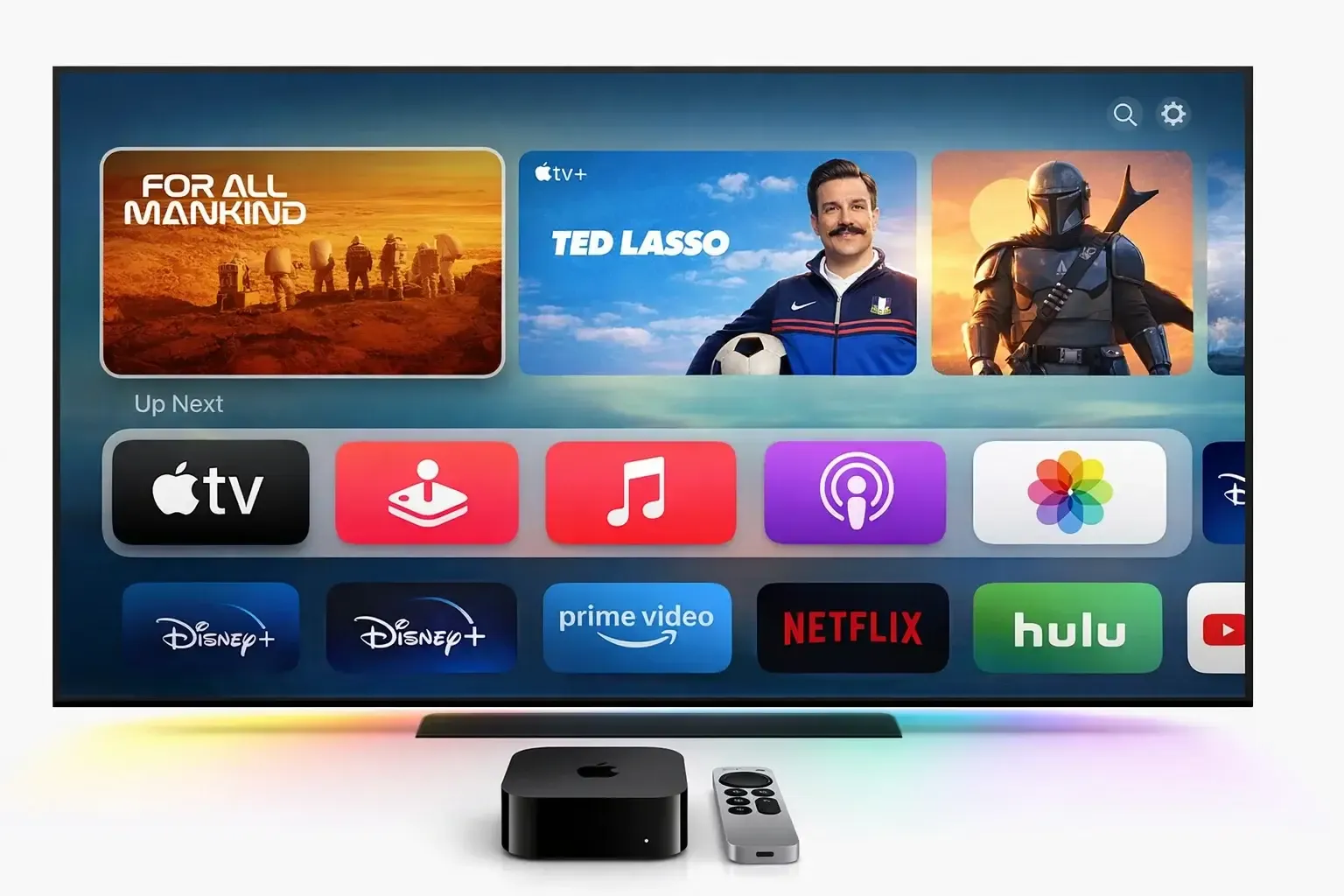
Analysts suggest that Apple believes apps deliver a better experience than websites on a TV. Navigating complex web pages with a remote can be awkward, and the primary goal of Apple TV is to deliver high-quality video and audio via dedicated streaming apps. By prioritizing apps, Apple ensures a smooth, consistent experience, avoiding the potential chaos of a web browser on your TV screen.
How to Watch a Browser on Apple TV
While the Apple TV lacks a native web browser like Safari, you aren't completely locked out of the internet. Whether you want to stream niche content or browse the web on a big screen, there are three effective ways to get a web browser for Apple TV 4K or HD.
Way 1. Screen Mirror Web Browser for Apple TV
Screen mirroring to Apple TV is the most flexible solution. Instead of installing a limited app, you simply project your iPhone, iPad, or Mac screen onto the TV. This lets you use full-featured versions of Safari, Chrome, or Firefox with ease.
Step 1. Ensure your mobile device (phone, tablet, or laptop) and Apple TV are connected to the same WiFi network.
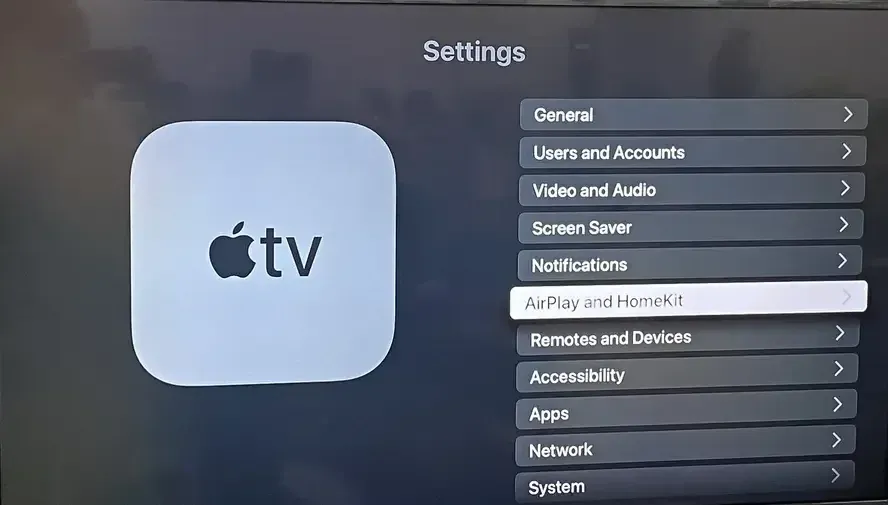
Step 2. On your Apple TV, navigate Settings > AirPlay and HomeKit, and turn AirPlay on.
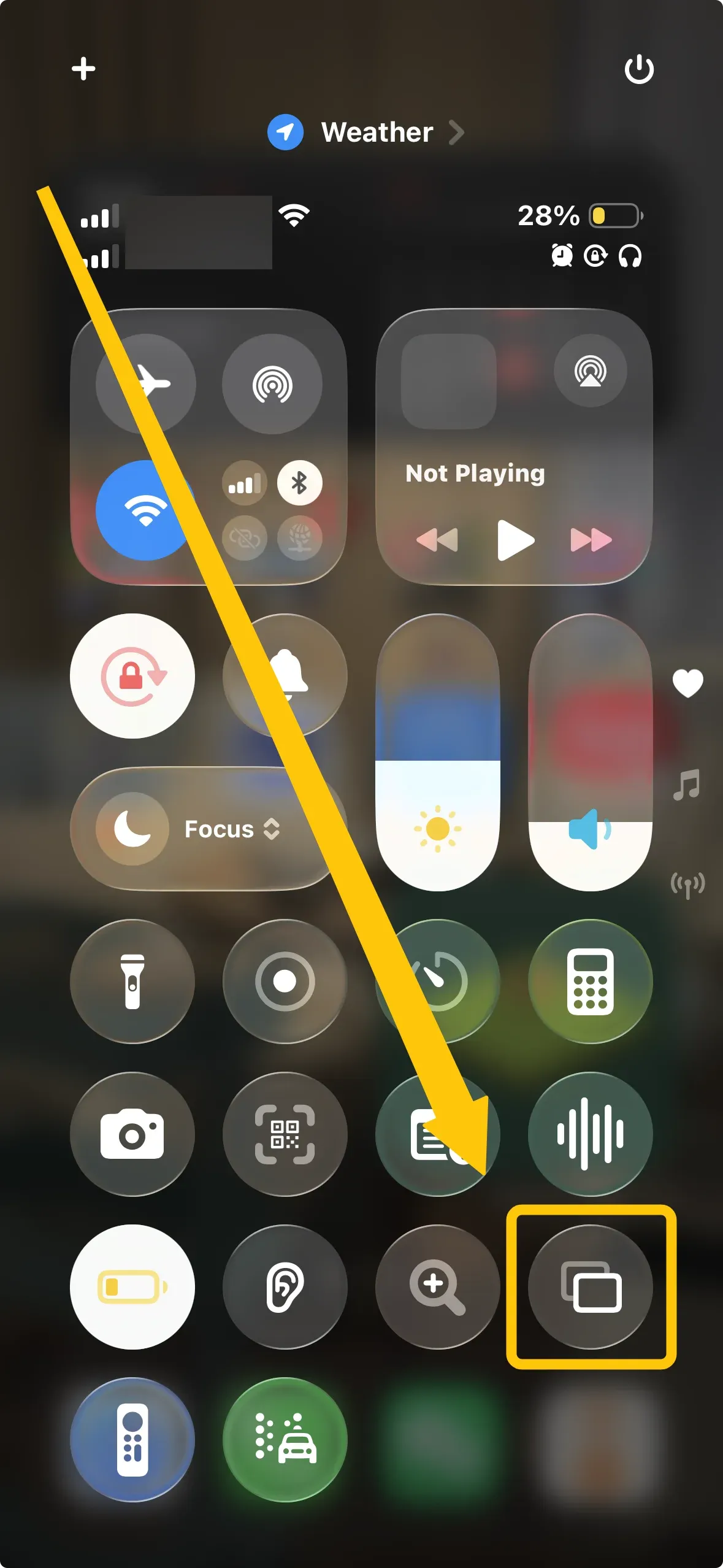
Step 3. On your mobile device, tap Screen Mirroring from the Control Center.
Step 4. Choose your Apple TV from the available list, and enter the prompted code if available to finish the connection.
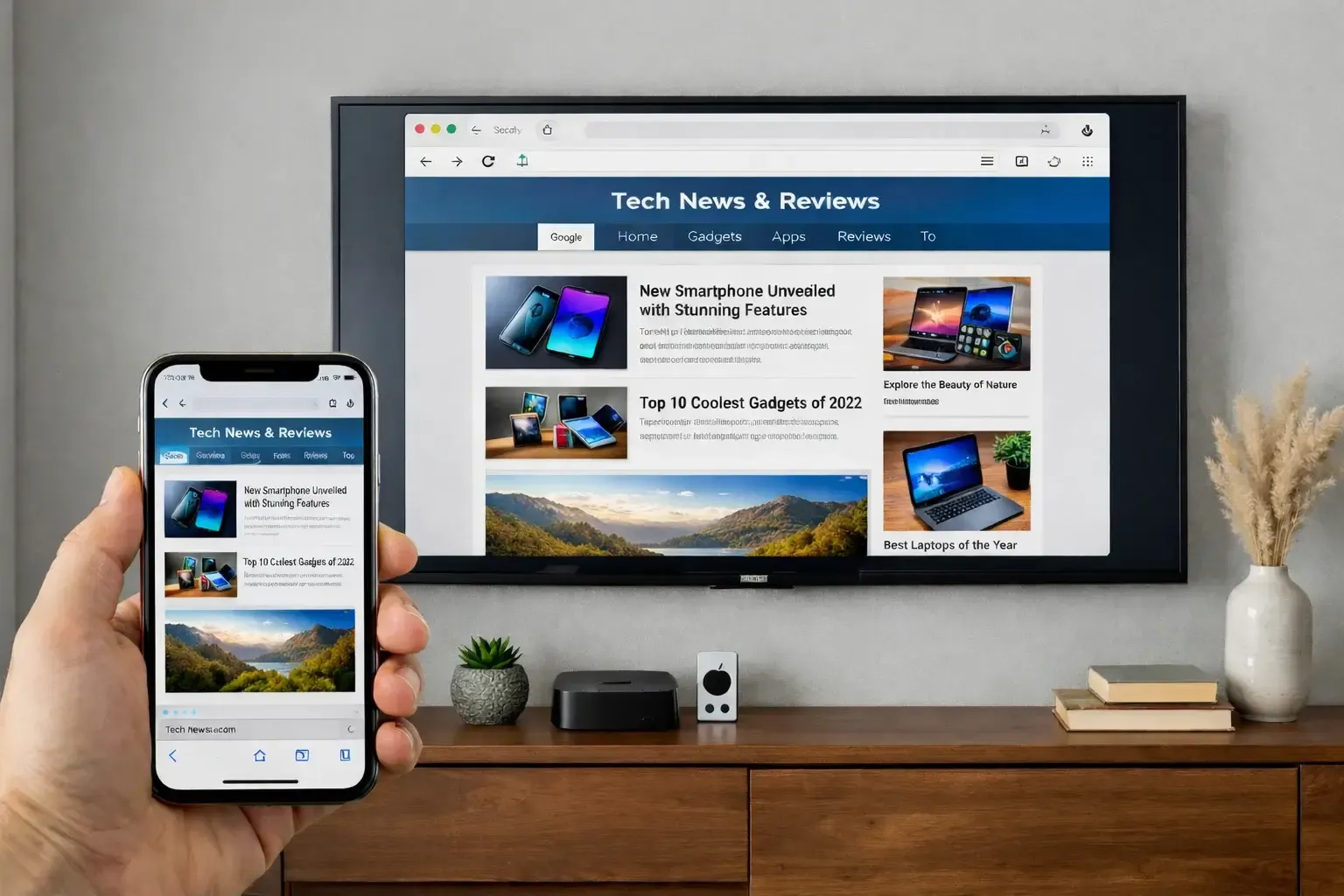
Step 5. Open your preferred web browser on your mobile device and start browsing the Apple TV browser.
Way 2. Use PigeonCast for Universal Casting
How to get a browser on Apple TV? If you face compatibility issues or want a more robust cross-platform solution, PigeonCast is a powerful third-party alternative. It supports AirPlay, DLNA, and Google Cast, offering seamless 4K streaming with minimal lag.
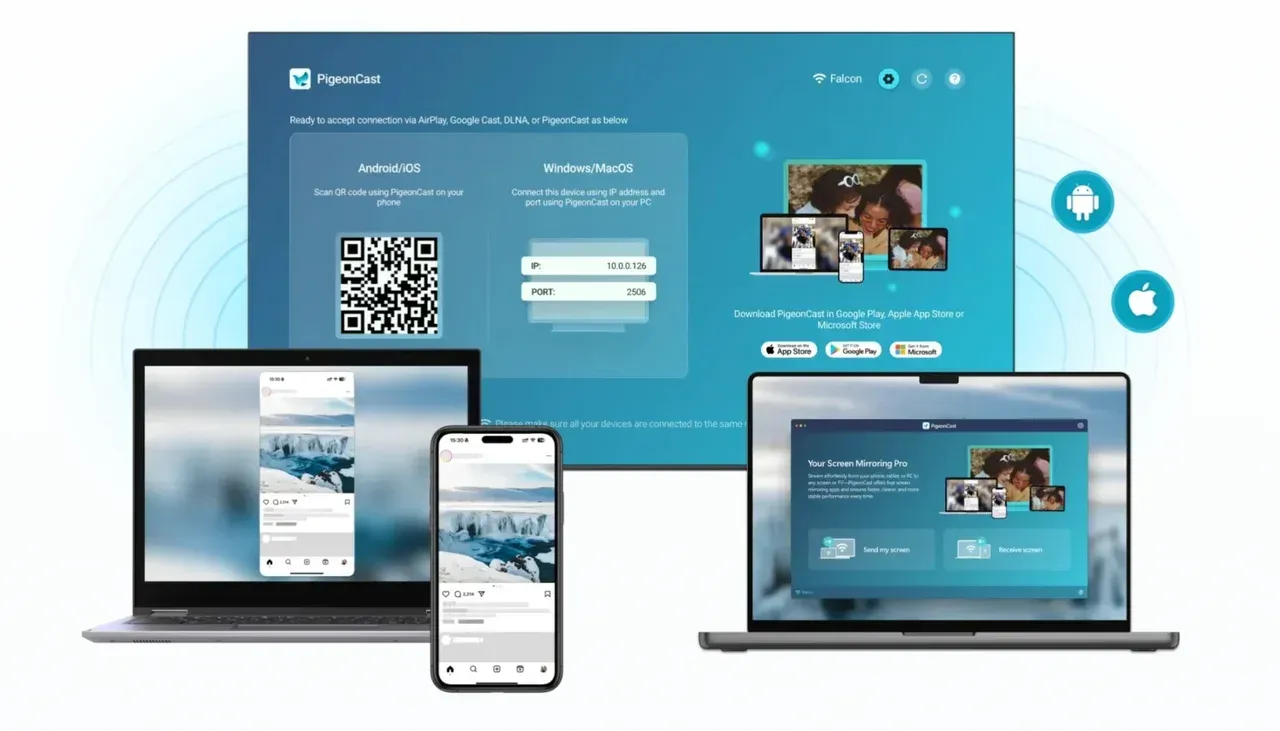
Step 1. Ensure your mobile devices and Apple TV are under the same wireless network.


Overall Rating:



Step 2. Install PigeonCast on your mobile device and Apple TV from the App Store, then launch it.
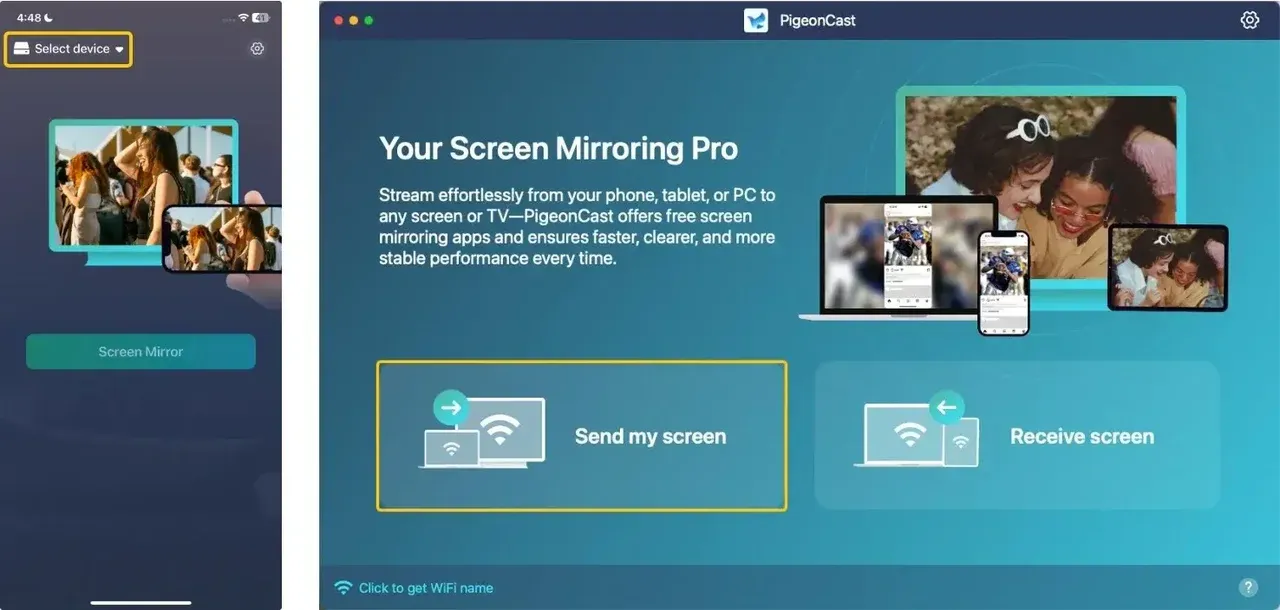
Step 3. Tap Select device or Send my screen to choose your Apple TV from the available list.
Step 4. Enter the onscreen PIN code to confirm the pairing requisition. Or you can scan the onscreen QR code shown on the television screen to build a connection.
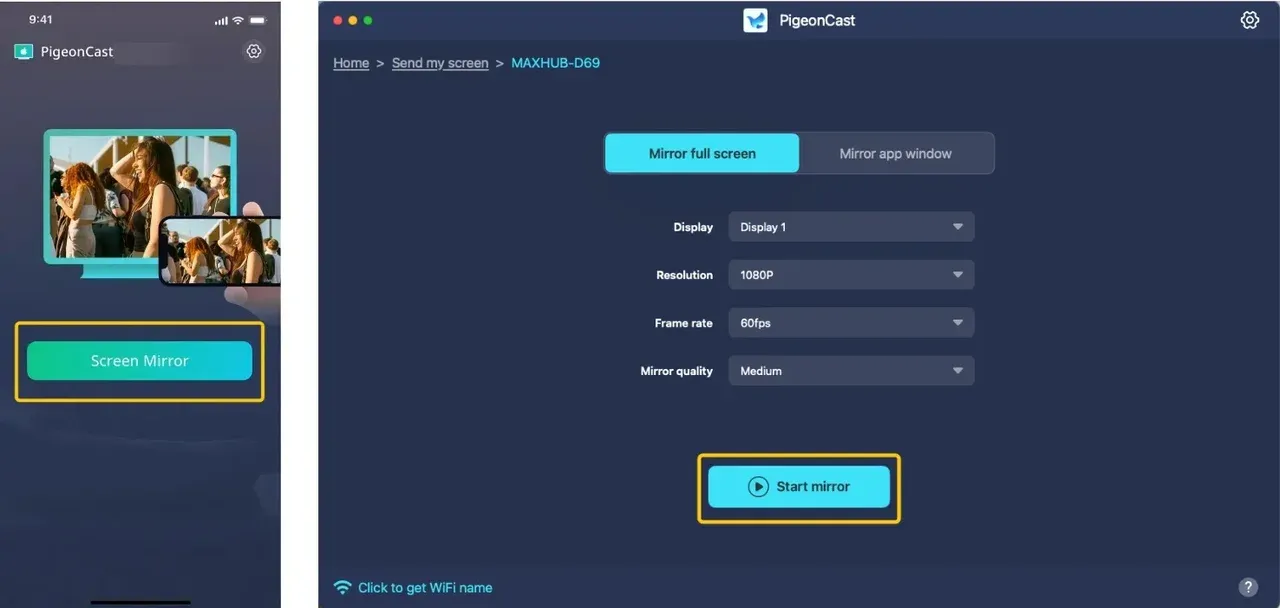
Step 5. Once you finish the connection, tap Screen Mirror or Start mirror to begin the mirroring activities.
Way 3. Install Third-Party Browser Apps
How to get a web browser on Apple TV? While Apple doesn't officially provide a tvOS browser, a few developers have created specialized apps that offer a "native-like" browsing experience. Note that these apps often use your phone as a trackpad to navigate the TV screen.
If your main goal is to browse websites on your phone and cast online videos to Apple TV, apps like iWebTV take a slightly different approach by combining a mobile browser with web video casting.
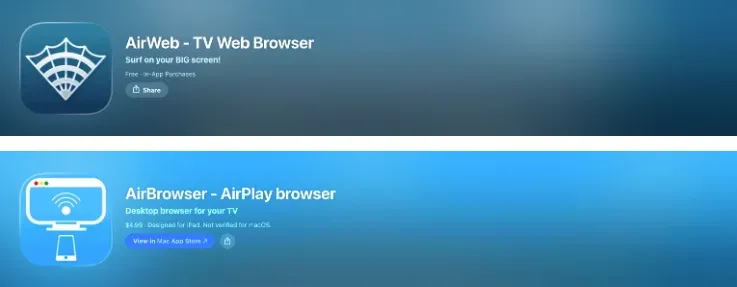
| App Name | Price | Key Focus | Apple TV Support | Recent Updates | Best For |
|---|---|---|---|---|---|
| AirWeb | $1.99 (one-time) | General browsing | 2nd–4th gen | 2016 | Simple websites |
| AirBrowser | $4.99 (one-time) | Desktop-like browsing | 2nd–4th gen | 2019 | More precise control |
Step 1. Open the App Store on Apple TV.
Step 2. Search for terms like "browser" or "internet", or you can apply the mentioned software above.
Step 3. Download and install it, then launch and follow the onscreen instructions to use the browser online.
To Sum Up
Is there a web browser for Apple TV? While Apple TV doesn't include a native web browser by design, you can easily bridge this gap using AirPlay mirroring, third-party tools like PigeonCast, or dedicated tvOS browser apps. For the smoothest and most feature-rich experience, mirroring your iPhone or Mac remains the gold standard, allowing you to enjoy the full power of a desktop browser on your big screen without any extra cost.
Apple TV Web Browser FAQ
What's the best web browser for Apple TV?
There is no official Safari or full-featured browser on Apple TV. The best solution is to use Safari or Chrome on your iPhone, iPad, or Mac and mirror it to Apple TV via AirPlay.
Is there a free web browser for Apple TV?
Some third-party apps may offer free browser-like functionality in the App Store. However, most have limited features. Screen mirroring from a free browser on your Apple device is typically the better free option.
Can I install a browser on my TV?
Yes, you can install a browser on some smart TVs, but it depends on the brand and operating system. Many smart TVs, such as those running Android TV or Roku, allow you to install third-party browsers from their respective app stores. Popular options include Google Chrome or Firefox on Android TV, and Web Browser or Opera TV on some Roku devices.
How to install a browser on Apple TV 4K?
Apple TV 4K does not support native web browsers like Safari or Chrome, as Apple focuses on streaming apps for a more seamless and controlled experience. However, there are workarounds to browse the web on your Apple TV:
-
Use a third-party browser app.
-
Screen mirroring from your mobile device or computer.
Why no browser on Apple TV?
Apple TV doesn't include a browser for several reasons:
-
Optimized user experience
-
Focus on entertainment
-
Performance considerations
-
Security and control
-
TV Interface design
Why is the Apple TV web browser not working?
If a web browser isn't working on your Apple TV, it could be due to several reasons:
-
No native browser
-
App or software limitations
-
Network or connectivity issues
-
AirPlay/Screen mirroring issues
-
tvOS updates
-
Remote control limitations
Clara Rossi is an experienced technology editor and a seasoned expert in screen mirroring and casting technologies. With a keen eye for detail and a deep understanding of how to seamlessly connect devices, Clara excels at optimizing user experiences for effortless sharing and streaming. Whether you're seeking quick fixes or advanced tips, her expertise and responsiveness ensure that every query is met with a well-informed and efficient solution.