
Screen mirroring your devices to Apple TV opens up a world of possibilities for sharing content on the big screen. Whether you're using an iPhone, Android device, Windows PC, or even a Chromecast, this comprehensive guide will show you exactly how to do Apple TV screen mirroring.
How to Do Apple TV Screen Mirroring
Before we explore specific device connections, let's address the universal requirements for Apple TV screen mirroring. Apple TV operates within Apple's AirPlay ecosystem, which means your success with screen mirroring largely depends on device compatibility and network setup. Whether you're using an Apple device or trying to connect from other platforms, understanding these fundamentals will ensure a smooth mirroring experience.
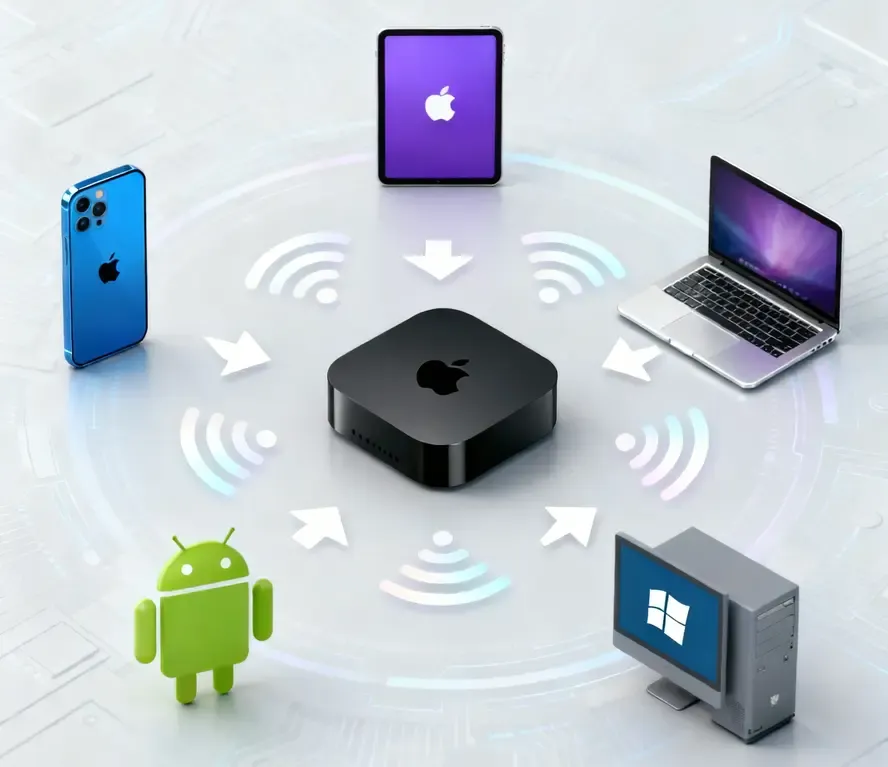
- Ensure your sending device supports the AirPlay protocol.
- Connect both the Apple TV and the sending device to the same Wi-Fi network.
- Verify Apple TV has AirPlay enabled in settings.
- Check that all devices are running updated software versions.
Screen Mirroring iPhone to Apple TV
Mirroring an iPhone or iPad to Apple TV is straightforward with AirPlay, and the same method works from a Mac. In addition to photos, videos, presentations, and apps, full-screen mirroring allows you to view web content on Apple TV through Safari, Chrome, or another browser running on the sending device.
Because these devices are part of the Apple ecosystem, no additional mirroring app is normally required. Just make sure the sending device and Apple TV are connected to the same network and running current software.
Step 1. Connect both your iPhone and Apple TV to the same Wi-Fi network
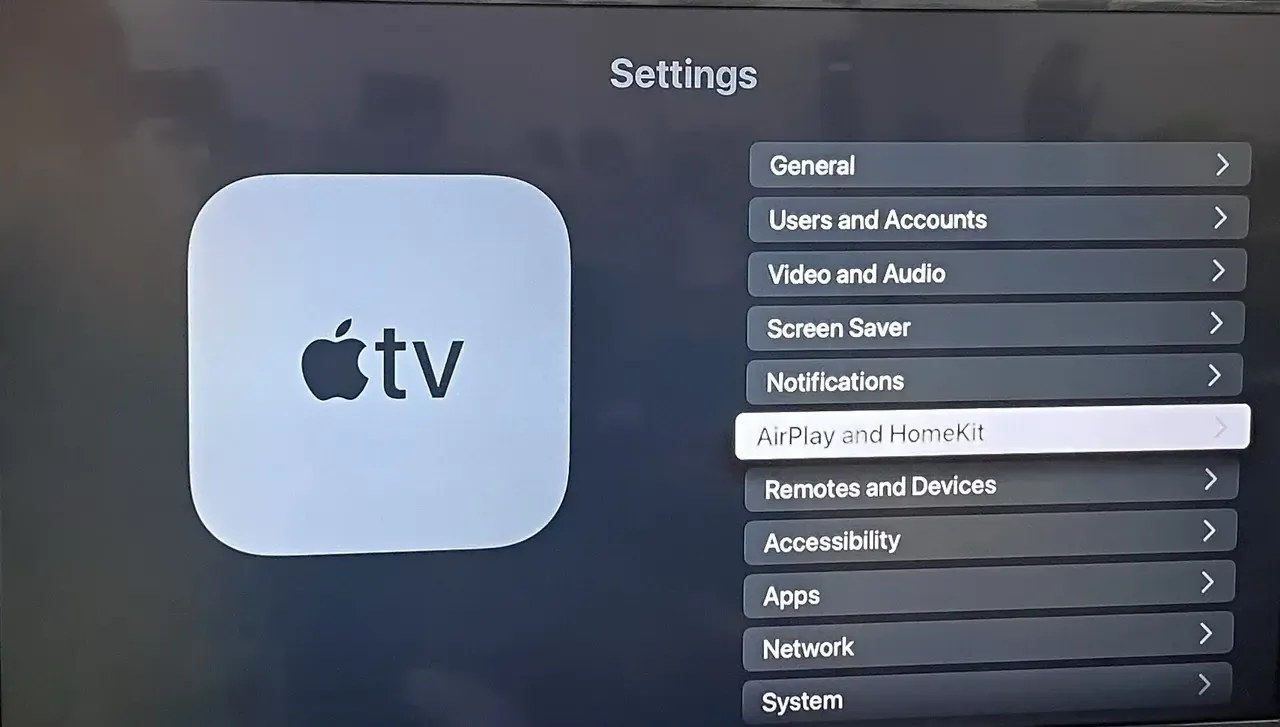
Step 2. On your Apple TV, go to Settings > AirPlay and HomeKit, and make sure AirPlay is turned ON.
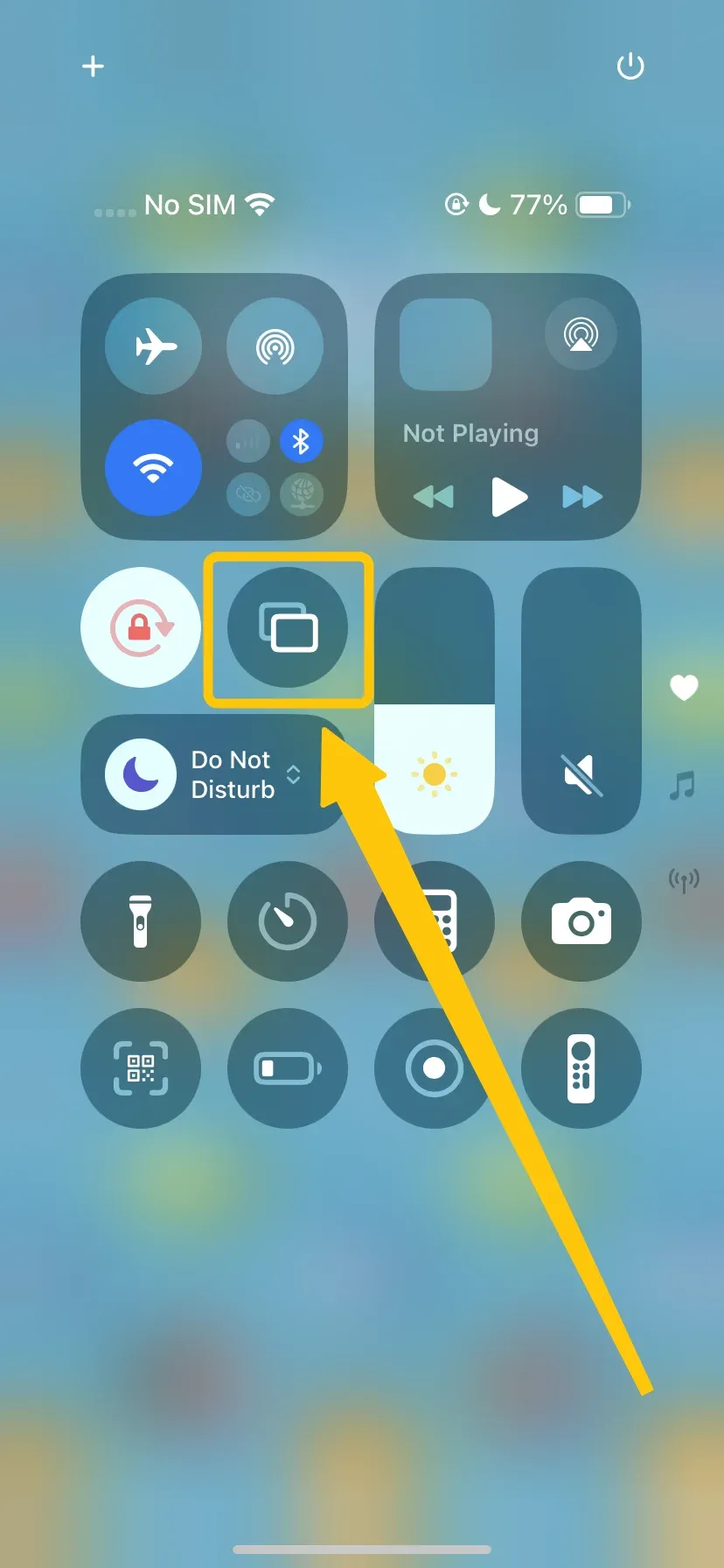
Step 3. On your iPhone, tap the Screen Mirroring button in the Control Center.
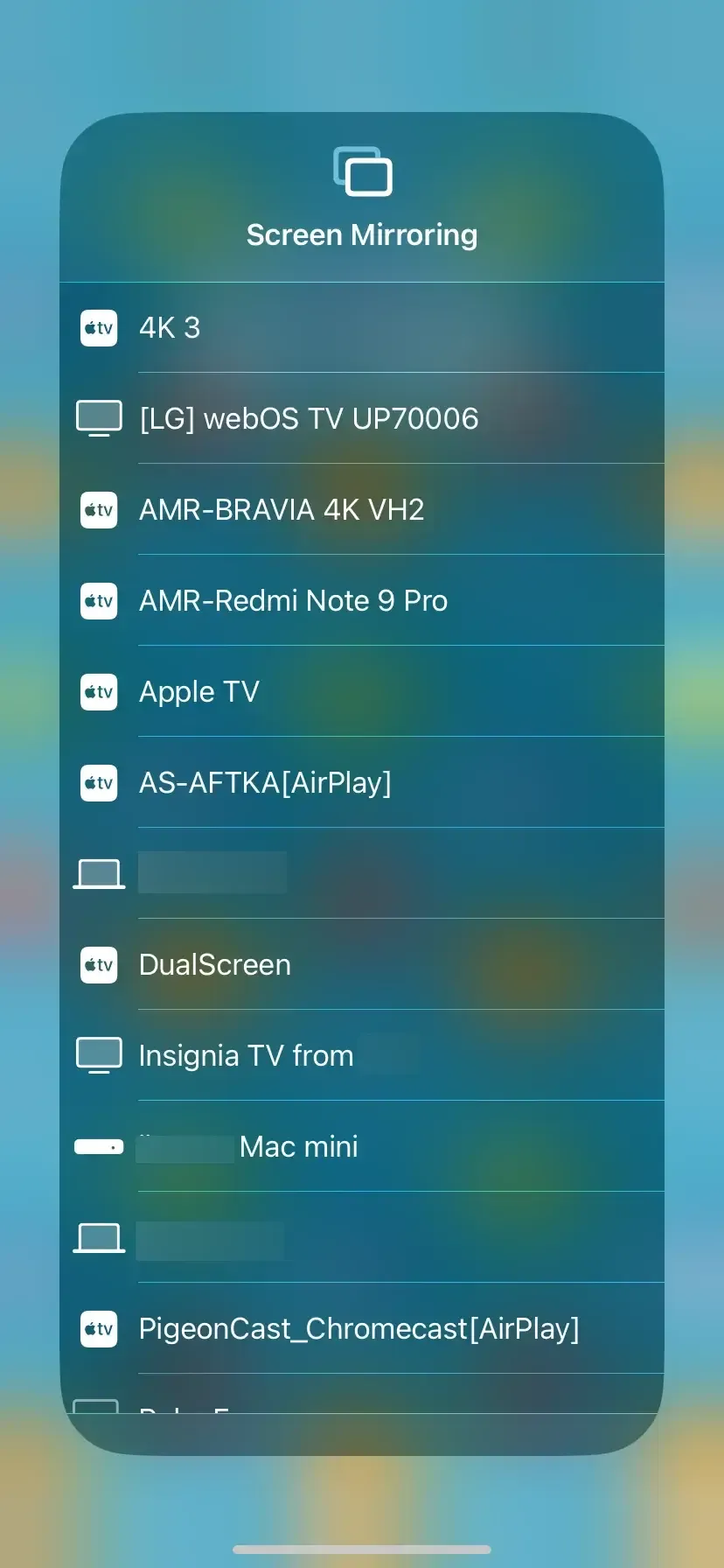
Step 4. Select your Apple TV from the available list to connect. If prompted, enter the AirPlay code that appears on your TV screen.
Step 5. Once connected, your iPhone screen will be mirrored on your Apple TV. You can now enjoy screen mirroring Apple TV.
Screen Mirroring Android to Apple TV
While Android doesn't support AirPlay natively, you can still mirror your screen to Apple TV using third-party apps. These apps bridge the gap between the Android and Apple ecosystems, allowing you to share content from your Android phone to your Apple TV. One such app is PigeonCast, which supports multiple casting protocols like AirPlay, DLNA, and Google Cast. Here are the steps for Apple TV screen mirroring Android:


PigeonCast Screen Mirroring

Official Download



Step 1. Install PigeonCast on your Android device and Apple TV and launch it.
Step 2. Ensure both your Android and Apple TV are under the same WiFi network.
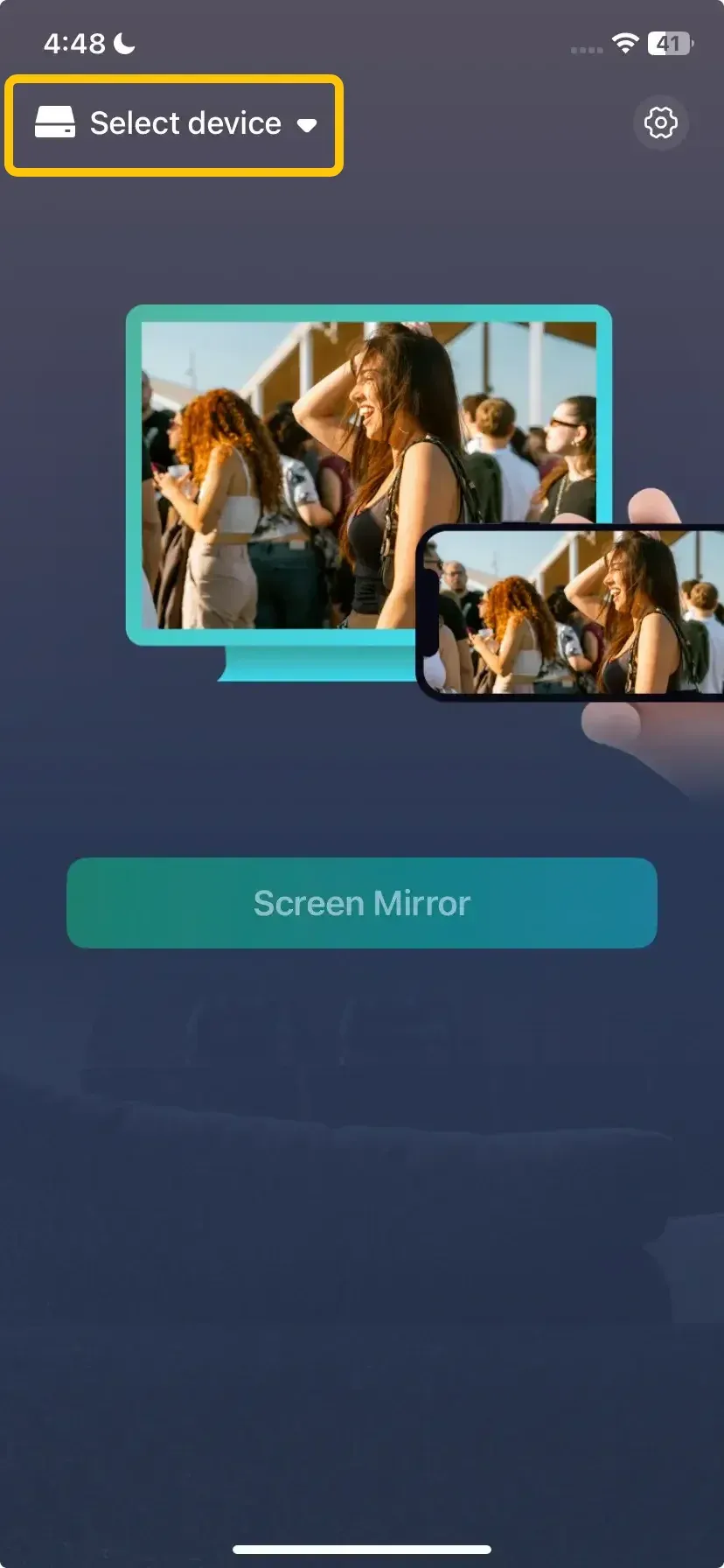
Step 3. On your Android device, tap Select device from the available list to choose your Apple TV.
Step 4. If prompted, enter the onscreen PIN code to finish the pairing process.
Step 5. When the connection succeeds, you can tap Start Mirroring to begin Apple TV AirPlay from your Android device.
Screen Mirroring PC to Apple TV
While MacBooks work seamlessly with Apple TV due to AirPlay compatibility, Windows PCs don't natively support AirPlay. To mirror your Windows screen to an Apple TV, you can still use PigeonCast. This app allows your Windows PC to act as an AirPlay sender, making it possible to stream content from your PC to your Apple TV. Let's walk through how to do screen mirroring Windows to Apple TV with PigeonCast:
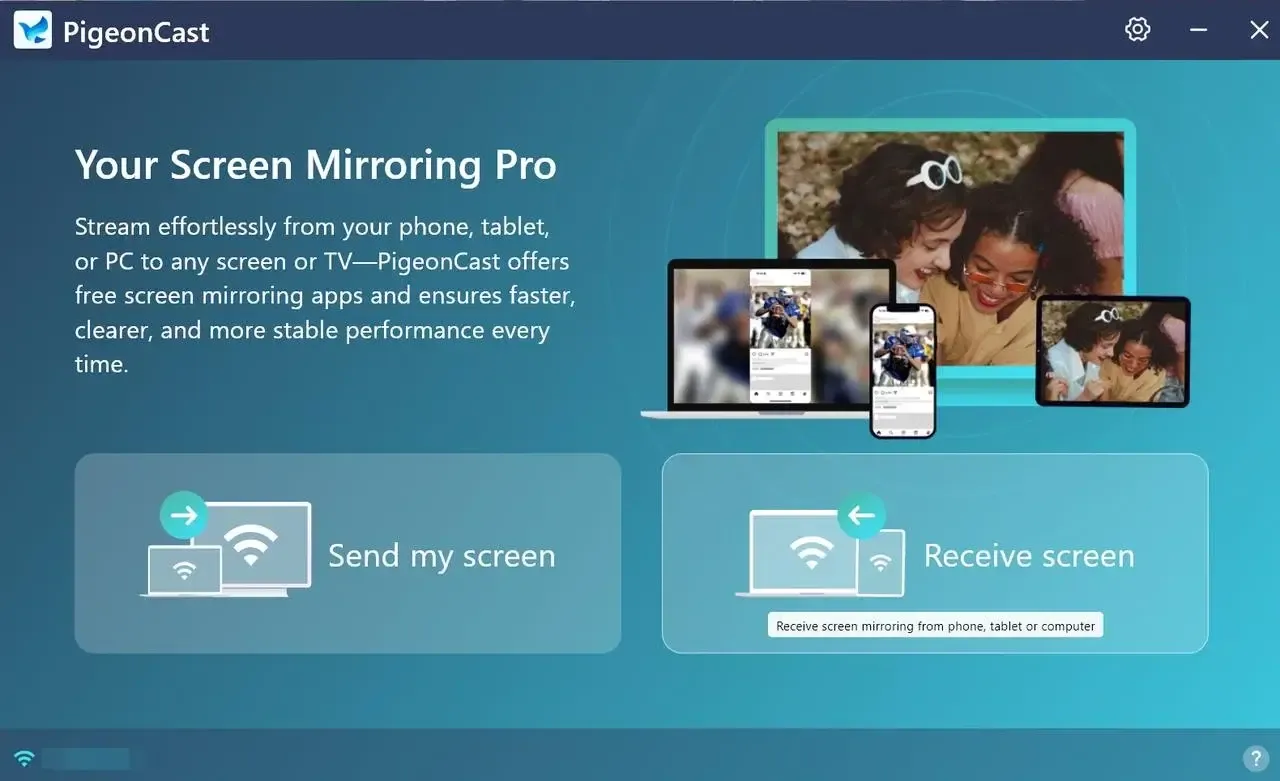
Step 1. Ensure your PC and Apple TV are covered by the same WiFi network.
PigeonCast Screen Mirroring
Official Download

Step 2. Install PigeonCast on your Windows PC and Apple TV.
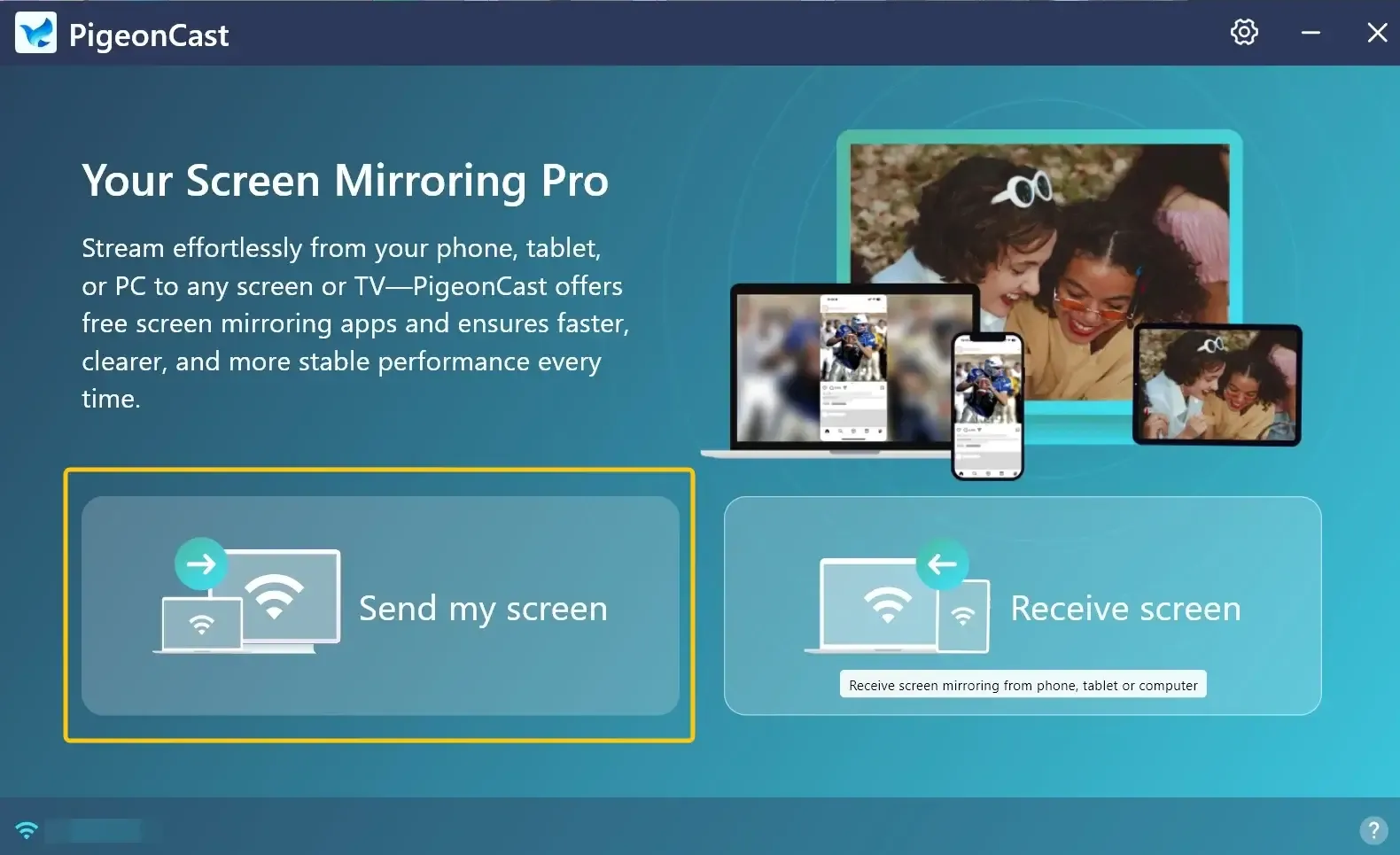
Step 3. Launch the app, on your Windows PC, and tap Send my screen to choose your Apple TV from the device list.
Step 4. Enter the onscreen PIN code to confirm your mirroring performance.
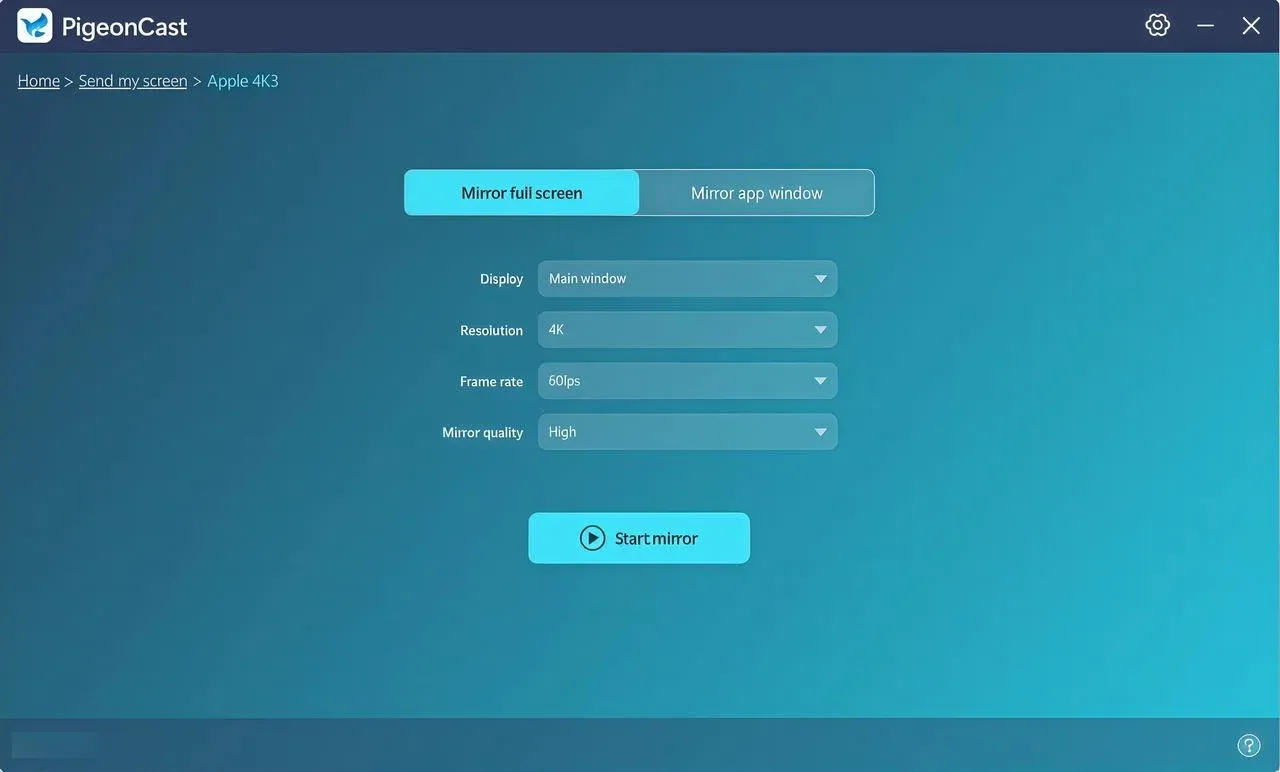
Step 5. If pairing successfully, you can select Mirror full screen or Mirror app window and then click Start Mirror to start screen mirroring with Apple TV.
Final Words
Today's post focuses on Apple TV for screen mirroring. While AirPlay is the most common method for Apple devices, you can also use PigeonCast to try screen mirroring on Apple TV from Android or Windows PC. Plus, if you prefer a wired connection or have Chromecast connected to your Apple TV, those are viable options too. However, we recommend PigeonCast as the best solution. It's free, ad-free, supports multiple devices, and works across AirPlay, DLNA, and Google Cast protocols, making it a flexible choice for screen mirroring.
Apple TV Screen Mirroring FAQ
Do you need WiFi for Apple TV screen mirroring?
Yes, you generally need Wi-Fi for Apple TV screen mirroring. Both your Apple device (iPhone, iPad, or Mac) and the Apple TV must be connected to the same Wi-Fi network for AirPlay to work and enable screen mirroring. However, if you're using Peer-to-Peer AirPlay, you can mirror content without Wi-Fi, as this method uses Bluetooth and Wi-Fi Direct for a connection.
Apple TV screen mirroring not working?
If Apple TV screen mirroring isn't working, there are a few common issues that could be causing the problem. Here's a checklist of things to troubleshoot:
- Ensure Both Devices Are on the Same Wi-Fi Network
- Enable AirPlay on Apple TV
- Check for Software Updates
- Restart Both Devices
- Check AirPlay Settings on iPhone/Mac
- Turn Off Bluetooth and Wi-Fi on Other Devices
- Check Apple TV's Input
- Reset Network Settings (on iPhone/iPad)
- AirPlay Device Compatibility
Why is Apple TV not showing up on screen mirroring?
Here are the reasons why Apple TV may not show up for screen mirroring:
- Different Wi-Fi Networks
- AirPlay Not Enabled
- Outdated Software
- AirPlay Restrictions
- Network Interference
- Bluetooth or Wi-Fi Issues
- VPN or Firewall
- Apple TV HDMI/Input Issues
How to solve Apple TV screen mirroring keeps disconnecting?
If your Apple TV screen mirroring keeps disconnecting, here are the most common reasons and fixes:
- Restart Devices
- Check Wi-Fi Connection
- Disable Bluetooth and Other Devices
- Update Software
- Check AirPlay Settings
- Reduce Network Traffic
- Reset Network Settings (iPhone/iPad)
- Reboot Router
Why is Apple TV screen mirroring black screen?
If you're seeing a black screen when trying to use screen mirroring on Apple TV, there are several possible reasons behind it. Here are the most common causes:
- Display or HDMI Issues
- AirPlay or Screen Mirroring Not Properly Enabled
- Outdated Software
- Connection Issues or Interference
- Content Protection (HDCP)
- Restart Devices
- AirPlay Device Compatibility
- Resolution Mismatch
Why is Apple TV screen mirroring no sound?
Here are the simple reasons why Apple TV screen mirroring might have no sound:
- Muted Apple TV or TV
- Incorrect Audio Output
- Device Volume Off
- AirPlay Settings Issue
- Wi-Fi Issues
- App-Specific Issue
- Outdated Software
- Audio Format Compatibility
Clara Rossi is an experienced technology editor and a seasoned expert in screen mirroring and casting technologies. With a keen eye for detail and a deep understanding of how to seamlessly connect devices, Clara excels at optimizing user experiences for effortless sharing and streaming. Whether you're seeking quick fixes or advanced tips, her expertise and responsiveness ensure that every query is met with a well-informed and efficient solution.