

The struggle to move a video from a mobile browser to a large screen is a modern tech paradox. Despite living in an era of "smart" everything, the bridge between a niche streaming site on your phone and your living room TV is often broken. This is the specific gap the iWebTV app aim to plug. Unlike standard mirroring, which simply duplicates your screen (notifications and all), iWebTV acts as a digital scout, identifying the raw video file within a webpage and sending just that data to your television.
Quick Answer: Is iWebTV Worth It in 2026?
Yes, iWebTV is a solid choice if your goal is to cast web videos from your phone to a TV instead of mirroring your entire screen. Unlike traditional screen mirroring apps, it detects the video stream inside a webpage and sends it directly to compatible devices such as Roku, Fire TV, Chromecast, and Apple TV. This approach usually delivers smoother playback, lower battery usage, and lets you continue using your phone while the video plays.
That said, iWebTV is not designed for every type of content. It cannot bypass DRM protection on streaming services like Netflix, Disney+, or Hulu, and the free version displays a watermark during playback. If you mainly watch videos from websites rather than subscription streaming apps, iWebTV is worth considering. If you prefer a simpler casting experience or need broader device compatibility, screen mirroring apps like PigeonCast may be a better fit.
What Is iWebTV and Why Do People Use It?
Most users first try basic screen mirroring (like AirPlay or Miracast) to get web videos onto their TV. The results are usually disappointing. Mirroring forces your phone to stay awake, drains the battery rapidly, and broadcasts every embarrassing text notification for the whole room to see. Furthermore, the aspect ratio often looks "off", and the frame rate can stutter because your phone is doing the heavy lifting of encoding the video in real-time.
How iWebTV Solves the Web-to-TV Gap
iWebTV for iPhone and its Android counterpart take a fundamentally different approach. Instead of "pushing" your screen pixels to the TV, it "pulls" the video source. It acts as a browser that identifies the direct video URL hidden within a webpage's code. Once found, it sends that specific link to your TV. Your TV then streams the video directly from the internet, freeing up your phone to be used for other tasks—or even turned off entirely.
How iWebTV Actually Works
Think of iWebTV as a digital bloodhound. When you navigate to a site using the iWebTV app for Android or iOS, its internal engine "sniffs" the network traffic of that page. It ignores the banners, the sidebars, and the trackers, focusing solely on media files (.mp4, .m3u8, .mkv, etc.). When a video is detected, the app intercepts the stream and hands the digital "baton" to your Roku, Fire TV, or Chromecast.
Is iWebTV Pro Worth Paying For?
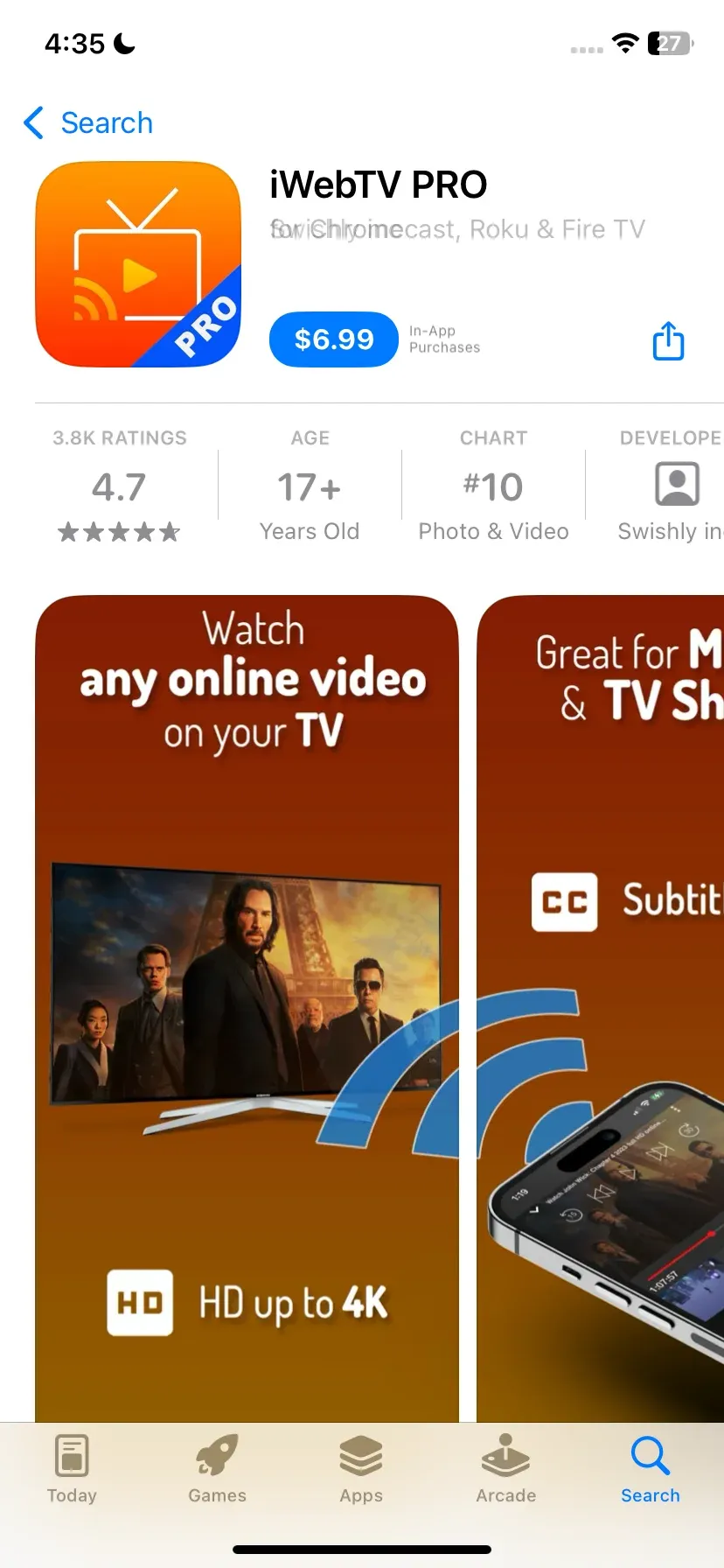
The jump to iWebTV Pro removes the most significant pain point: the on-screen watermark. In the free version, a small overlay persists on your TV, which can be distracting during dark scenes. Pro also unlocks:
- Custom Homepages: Save your most-visited streaming sites.
- Bookmark Folders: Better organization for frequent fliers.
- Priority Support: Useful if you encounter a site that the sniffer can't crack.
If you only cast web videos to TV once or twice a month for a quick news clip or a short YouTube-style video, the free version is perfectly adequate. The watermark isn't a dealbreaker for short-form content.
Real-World iWebTV App Performance and User Experience
The app’s design is utilitarian. It doesn't try to be a content discovery platform; it’s a tool. The browser feels snappy, and the address bar is right where you expect it. For those using the iWebTV app for iPhone, the integration feels seamless, mimicking the Safari aesthetic while adding a dedicated "Cast" control center at the bottom.
Wondering how to use iWebTV app without the headache? The process is a simple three-step dance:
- Browse: Use the app's internal browser to find a video.
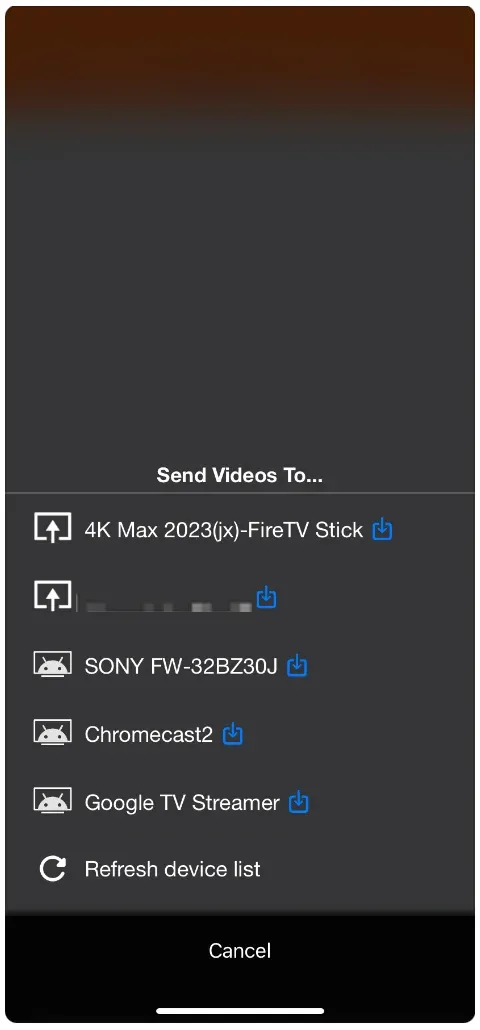
- Detect: Hit play on the video. A yellow "Cast" badge will typically pulse at the bottom of the screen once the app catches the link.
- Select: Tap the badge, choose your resolution (if multiple options are available), and watch your TV take over.
In our testing, iWebTV proved remarkably resilient. If your phone loses Wi-Fi for a moment, the TV usually keeps playing because it has its own direct connection to the video source. The "Session Recovery" feature is a lifesaver; if you accidentally close the app, re-opening it often prompts you to resume control of the current TV stream without starting over.
Where iWebTV Still Falls Short
No piece of software is a universal skeleton key, and iWebTV is no exception. While it excels at bridging the gap between the open web and your television, its effectiveness is ultimately capped by legal encryption standards, the age of your physical hardware, and the sheer chaos of modern web advertising. Understanding these "walls" is essential to setting realistic expectations before you commit to the app.
DRM and Streaming Service Restrictions
A common misconception is that iWebTV can cast anything. It cannot cast Netflix, Hulu, or Disney+. These platforms use Digital Rights Management (DRM) to encrypt their video chunks. iWebTV’s sniffer cannot "read" these encrypted files, so you must use the official apps for these services.
Hardware Compatibility Issues
The app is a middleman. If you are trying to cast a 4K HEVC video to a 2017-era Roku that doesn't support that codec, it will fail. The app cannot "fix" your TV's hardware limitations.
False Video Detection and Ad Clutter
Sometimes, the app’s "sniffer" gets too excited. It might detect a 15-second video advertisement as the "main" video. Users have to be discerning and look at the file size or duration listed in the detection queue to ensure they are casting the actual movie and not a commercial.
Best iWebTV Alternatives in 2026
If the technical hurdles of video sniffing or the lack of specific codec support in iWebTV leave you stranded, don't worry—the casting market is diverse. Whether you are looking for a more streamlined, "one-tap" experience or a powerhouse tool that can override even the most stubborn website restrictions, there are several standout options that pick up right where iWebTV leaves off.
iWebTV vs. PigeonCast: Which One Is Better?
If iWebTV feels too much like a "technical tool", PigeonCast is the premier iWebTV alternative. It simplifies the detection logic, making it much harder to "miss" a video link. It’s perfect for users who want a "it just works" experience without choosing between different resolution links or managing browser settings.
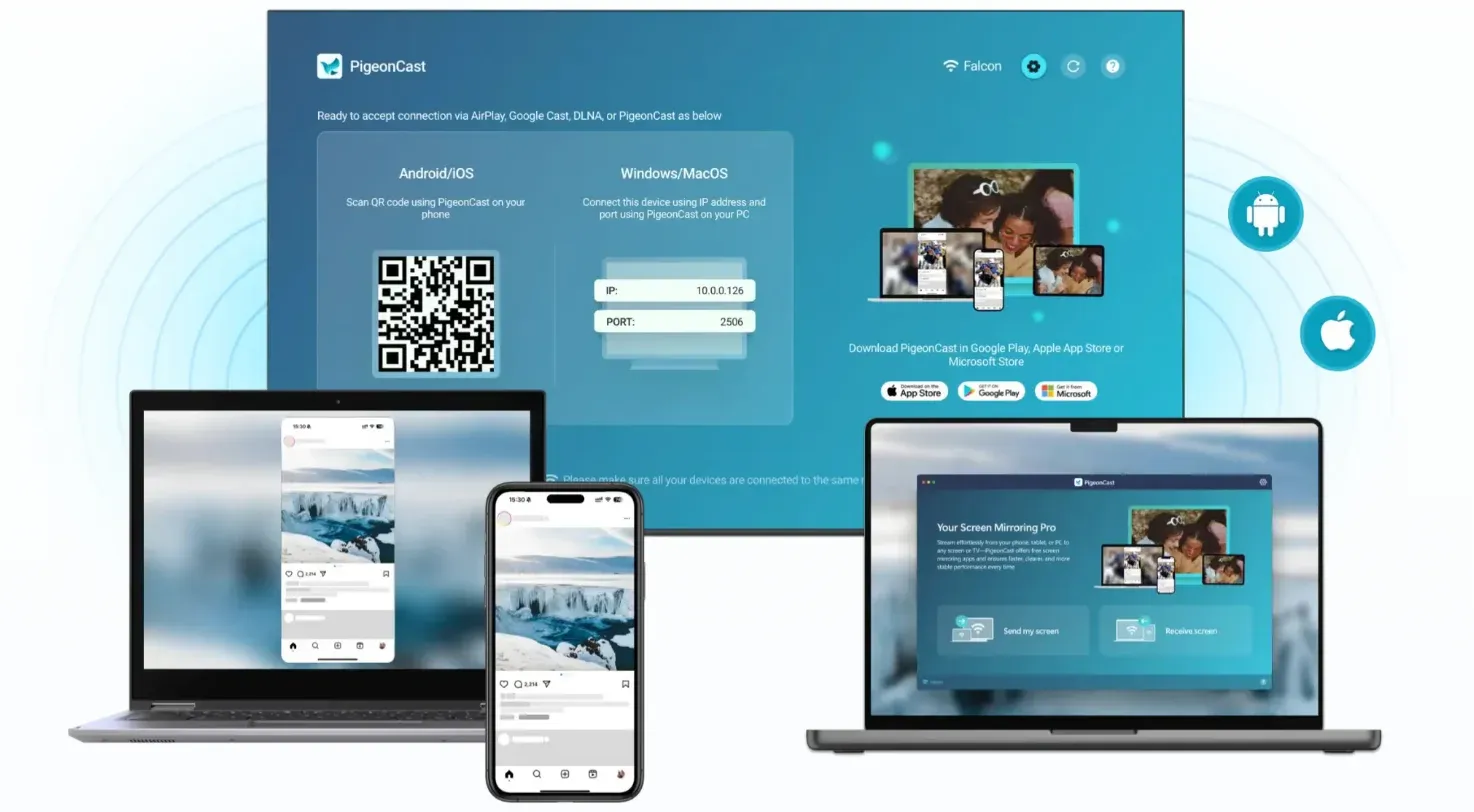
Whether you want to cast web videos or local media, PigeonCast streamlines the process:
Step 1. Launch PigeonCast on your Android phone and ensure the device connect to the same WiFi network as the target TV.


Overall Rating:


Step 2. Tap the Browser option on the PigeonCast app and choose which websites to cast from, like Twitch, TikTok, ESPN, etc, or enter the video URL.
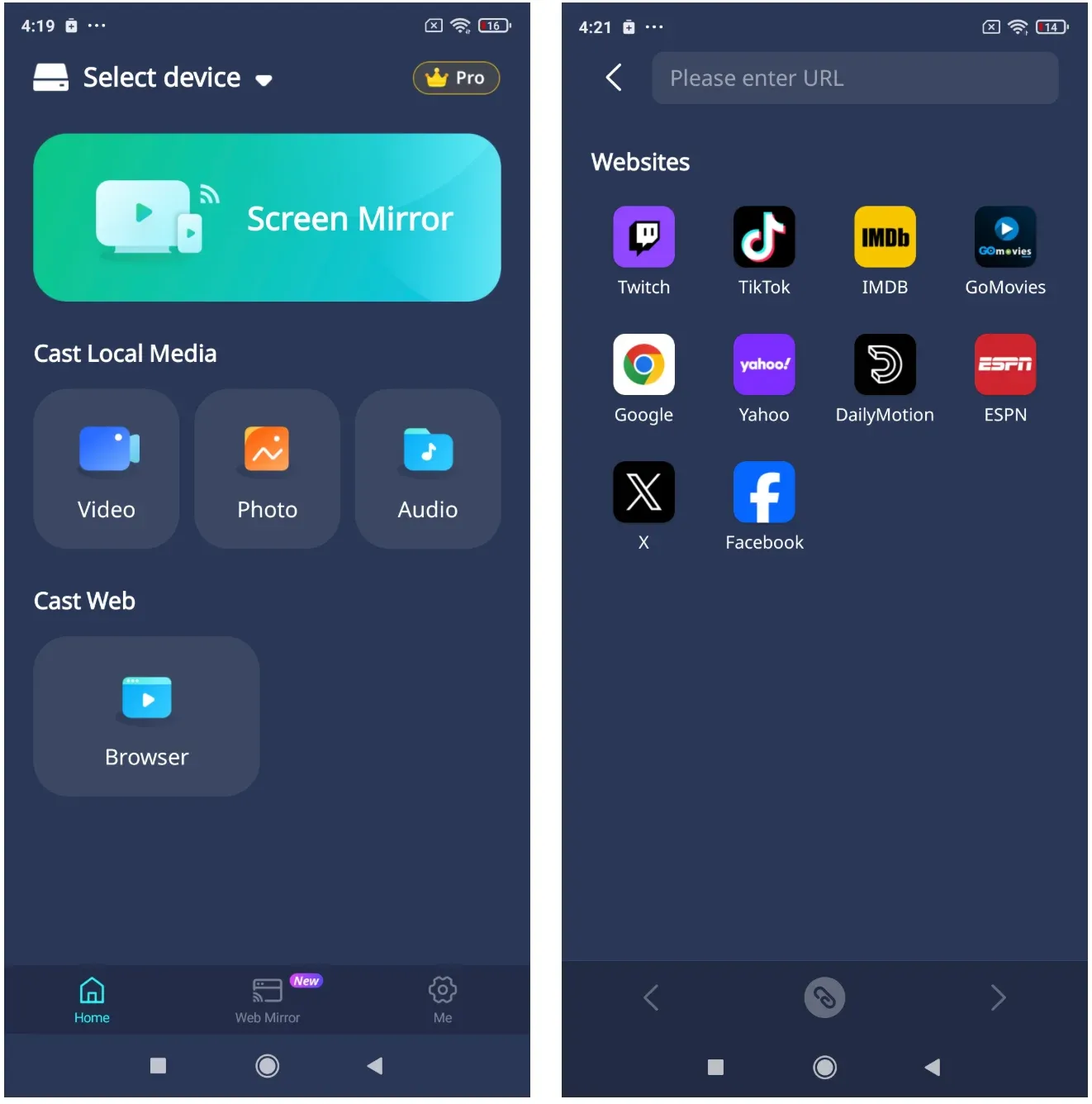
Step 3. Tap the video and click the Connect button below.
Step 4. While casting, control the playback with the PigeonCast app, such as rewinding.
iWebTV vs. Web Video Caster: Best for Power Users
When we look at iWebTV vs Web Video Caster, the winner depends on your "browser hygiene“. iWebTV feels cleaner and more stable on high-end devices, but Web Video Caster offers aggressive ad-blocking that is essential for navigating "messy" sites that launch endless pop-ups.
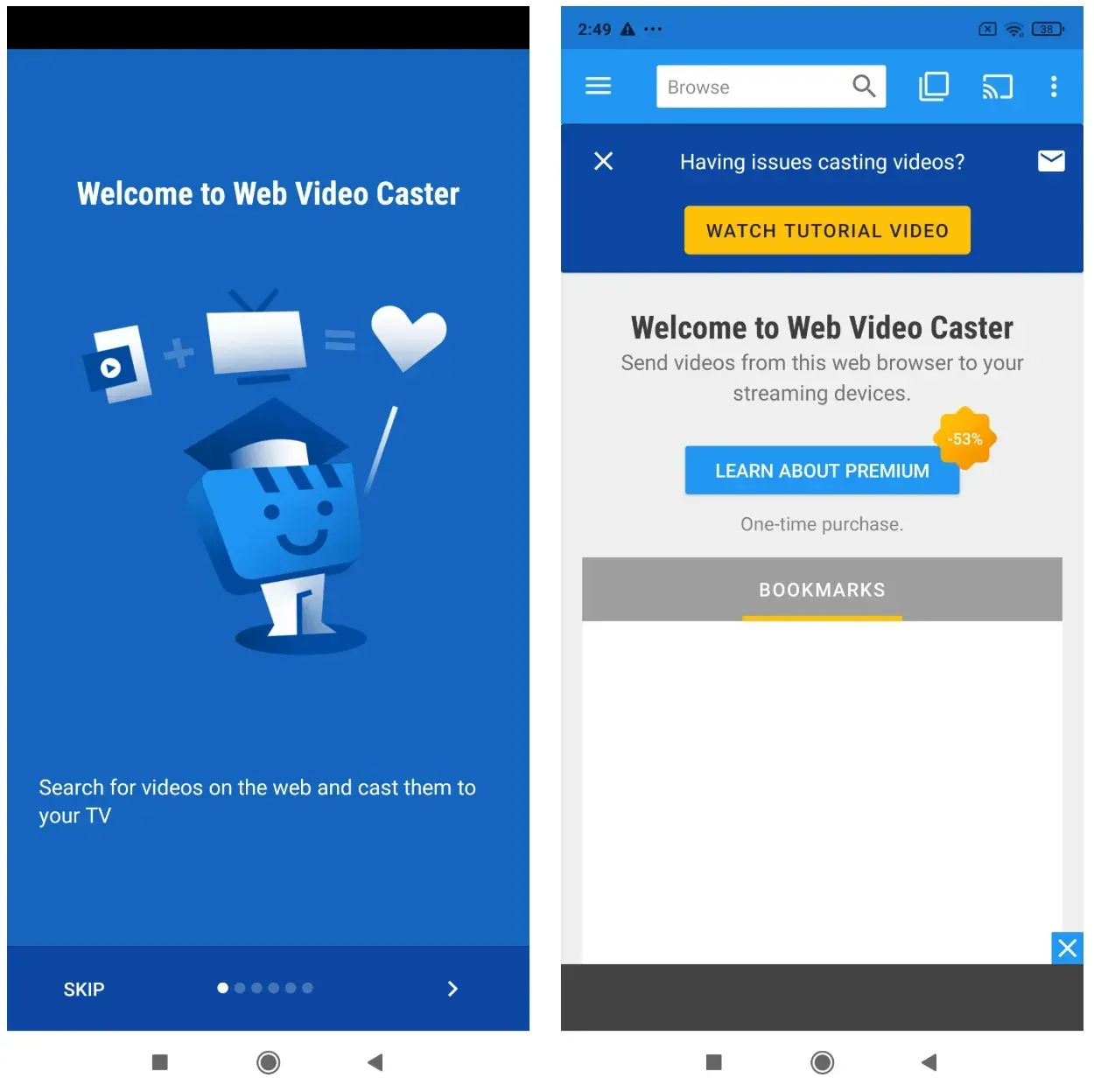
This choice also extends to your hardware setup. While iWebTV provides a more refined, "native-feeling" handshake for Roku and Apple TV users, Web Video Caster excels in broader protocol support, making it the better pick for older Smart TVs (via DLNA) or gaming consoles.
| Feature | iWebTV | Web Video Caster |
|---|---|---|
| Best For | Roku, Apple TV, Chromecast | DLNA, Samsung/LG TVs, Xbox |
| UI Style | Minimalist / Modern | Feature-rich / Traditional |
| Reliability | High for standard web formats | High for obscure file types |
Beyond hardware, Web Video Caster takes the lead for international cinema fans. It allows you to search for and "inject" subtitles from OpenSubtitles directly into the stream, whereas iWebTV is more dependent on the website's native caption files. It is effectively the "Swiss Army Knife" to iWebTV’s "Scalpel"—providing the technical depth needed when a simple "click and cast" isn't enough.
Final Verdict: Who Should Use iWebTV in 2026?
If your living room is anchored by a Roku or an Apple TV, iWebTV offers the most stable handshaking protocol available. It feels like an extension of those ecosystems rather than a third-party intrusion.
Don't download this if your goal is to bypass a subscription app's limitations. It is designed for the "Open Web," not for protected "Walled Garden" content.
iWebTV remains a powerhouse because it respects the user's intelligence while simplifying a complex technical task. It is the bridge between the chaotic freedom of the internet and the cinematic comfort of your living room. For anyone who consumes media outside of the "Big Five" streaming apps, it is an essential utility for the 2026 digital home.
iWebTV App Review App
How to install iWebTV?
You can download the iWebTV app for iPhone directly from the Apple App Store, or find the iWebTV app for Android on the Google Play Store. Simply search for "iWebTV," tap install, and ensure your phone is connected to the same Wi-Fi network as your TV or streaming stick to begin the pairing process.
Is iWebTV worth it?
For frequent streamers, iWebTV Pro is widely considered worth the small one-time investment. It removes the persistent on-screen watermark and unlocks features like custom homepages. If you only cast occasionally, the free version is robust enough to handle basic tasks without a subscription.
How safe is iWebTV?
iWebTV is generally safe as it acts as a pass-through for video links. It does not store your login credentials for websites. However, because it is a web browser, the "safety" depends on the websites you visit. It is always recommended to use the app's internal ad-blocker settings to avoid malicious pop-ups from unverified streaming sites.
Is iWeb a good platform?
While "iWeb" was a famous legacy website builder by Apple (discontinued years ago), the iWebTV app is a completely different entity focused solely on media casting. As a casting platform, it is highly rated (averaging 4.6+ stars) for its stability and its "sniffer" technology that finds video links other browsers miss.
Is there a free alternative to iWebTV?
Yes, Web Video Caster and PigeonCast both offer powerful free versions. While they may include in-app ads or limit certain aesthetic features, they provide a reliable, no-cost way to cast web videos to TV from almost any mobile browser.
Mia Clarke is a technology editor specializing in screen mirroring and casting solutions across multiple platforms. Mia provides clear, practical guides and in-depth insights to help users seamlessly connect their devices. Passionate about enhancing digital experiences, Mia is dedicated to keeping readers updated on the latest trends and tools in cross-platform screen sharing. Whether you’re looking to mirror your smartphone, laptop, or smart TV, Mia’s content delivers reliable, user-friendly advice to simplify your tech setup.