
If you search for smartmirror link, you'll likely expect a simple web-based screen mirroring tool. Something you open, get a code, and start casting instantly. That expectation comes from how many modern tools work today.
But when you actually open smartmirror.link, the experience can feel unclear. There's no obvious session ID, no "start mirroring" button, and no clear instructions on what to do next.
This confusion is not a flaw in the tool itself. It comes from a mismatch between user expectations and what Smartmirror Link is actually designed to do.
What Smartmirror Link Actually Is
Smartmirror.link is not a standalone screen mirroring app. It is the web access point for SMART Mirror, a screen sharing and collaboration system built into SMART Board interactive displays.
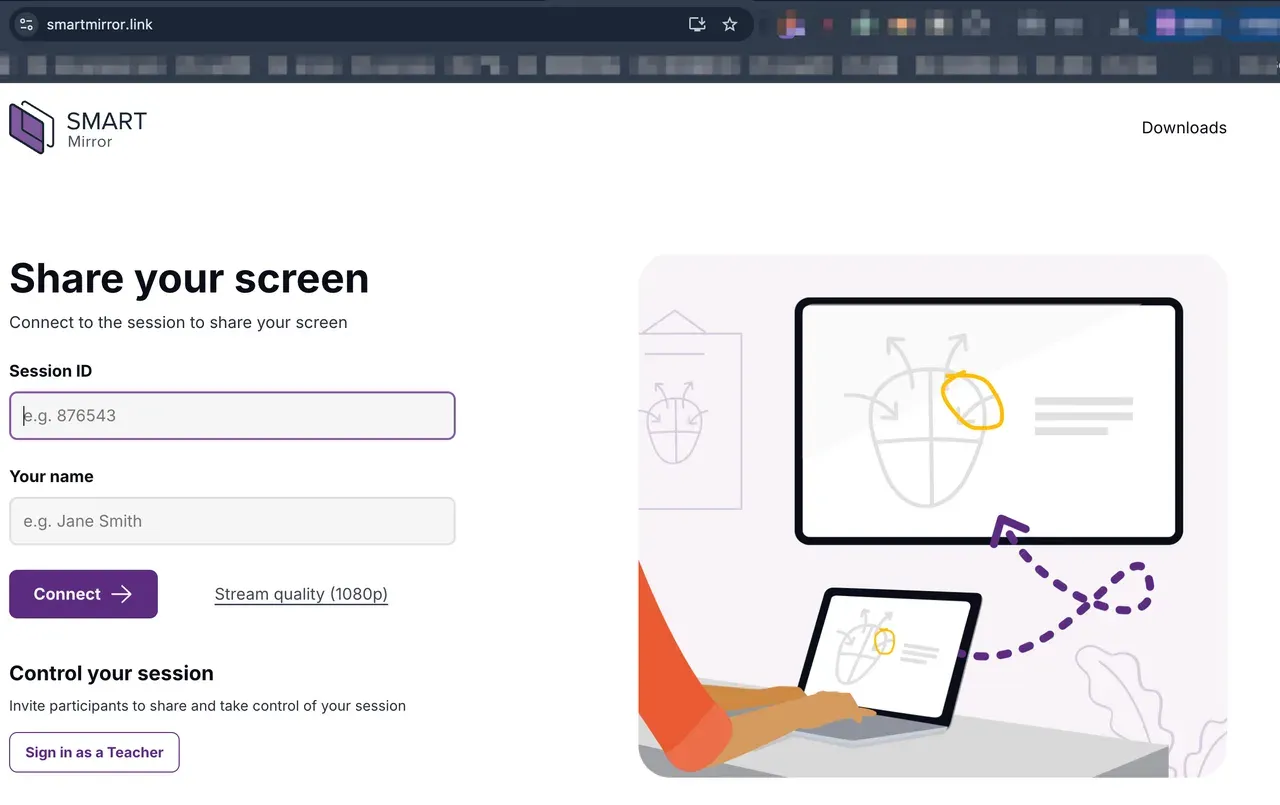
SMART Mirror allows you to:
-
Mirror screens from phones, tablets, and computers
-
Share files, links, and media
-
Collaborate on a shared whiteboard
-
Display multiple devices at once
-
Control who can present through host or teacher mode
In this setup, smartmirror.link acts as a browser-based entry point, allowing you to join a session without installing a dedicated smartmirror.link app, which is known as Smart Mirror app.
How Smartmirror Link Works with SMART Board
The key to understanding smartmirror link is realizing that it does not create sessions on its own. It connects to sessions that already exist on a SMART Board.
Here is how the system works:
-
A SMART Board display starts a SMART Mirror session.
-
The display shows a room name and a session ID.
-
Users open smartmirror.link in a browser.
-
Enter the session ID and name.
-
Once connected, they can share their screen or content.
Smartmirror.link does not start the session. It joins one. That is why many users do not see a connection code when they open the website directly.
How to Use Smartmirror Link Step by Step
To use smartmirror.link successfully, you need access to a SMART Board or a device running SMART Mirror.
The typical workflow looks like this:
Step 1. On the SMART Board, open Screen Share or SMART Mirror.
Step 2. Note the session ID displayed on the screen.
Step 3. On your device, open a browser and go to smartmirror.link.
Step 4. Enter the session ID and your name.
Step 5. Click Share my screen to begin mirroring.
You can also upload files, links, or media through the shared items feature once connected.
Smartmirror Link Compatibility and Network Requirements
Compatibility is broad, but the behavior depends heavily on network settings.
SMART Mirror supports:
-
Browsers such as Chrome and Edge
-
Mobile devices and desktops
-
Native casting protocols like AirPlay, Google Cast, and Miracast
However, network rules vary:
-
If "local connection" is enabled, devices must be on the same network
-
If disabled, you can connect from different networks via the web app
-
A 6-digit session ID usually allows cross-network connection
-
A 10-digit session ID typically restricts to local network only
Even when settings allow flexibility, some native protocols still require the same network.
Best Use Cases for Smartmirror Link in Real Environments
Smartmirror link works best in structured environments where a SMART Board is already part of the setup.
Typical use cases include:
-
Classrooms where teachers display student work
-
Training sessions with multiple presenters
-
Meeting rooms for collaborative presentations
-
Group work where several devices share content simultaneously
In these scenarios, the system is already running, and users simply join through the browser.
Key Advantages of Smartmirror Link for Screen Sharing
When used in the right context, smartmirror link offers several meaningful advantages.
-
Easy Browser-Based Access: Users can join sessions without installing software, which lowers the barrier to entry. This is especially useful for guests or first-time participants.
-
Built for Collaboration, Not Just Mirroring: Unlike basic tools, SMART Mirror supports file and link sharing, whiteboard collaboration, and multi-device grid display. This makes it more than a simple smart mirror solution.
-
Host Control and Security: Features like host mode or teacher mode allow control over who can present. This is important in classrooms and professional environments.
-
Multi-Device Sharing: Depending on the setup, multiple users can share screens simultaneously in a grid layout, supporting collaborative workflows.
Limitations of Smartmirror Link You Should Know
Despite its strengths, there are clear limitations that affect everyday usability.
-
Strong Dependence on SMART Board Hardware: Without a SMART Board or compatible system running SMART Mirror, the web interface alone cannot function fully.
-
Entry Point Is Not Intuitive: Opening smartmirror.link does not immediately show a session or guide users clearly. This leads to confusion for first-time users.
-
Network and Configuration Complexity: Features and connectivity depend on device settings, network configuration, and software version. This makes behavior less predictable compared to simpler tools.
-
Feature Availability Varies: Not all features are available on every device or version. Some advanced options may conflict with each other or require specific configurations.
Smartmirror Link vs Simpler Web Mirroring Tools
It is easy to assume that smartmirror link works like other browser-based mirroring tools, but the difference is significant.
Some tools generate a session directly in the browser and allow immediate screen sharing. For example, products like the TVee app follow a more self-contained approach where the web page itself acts as the receiver.
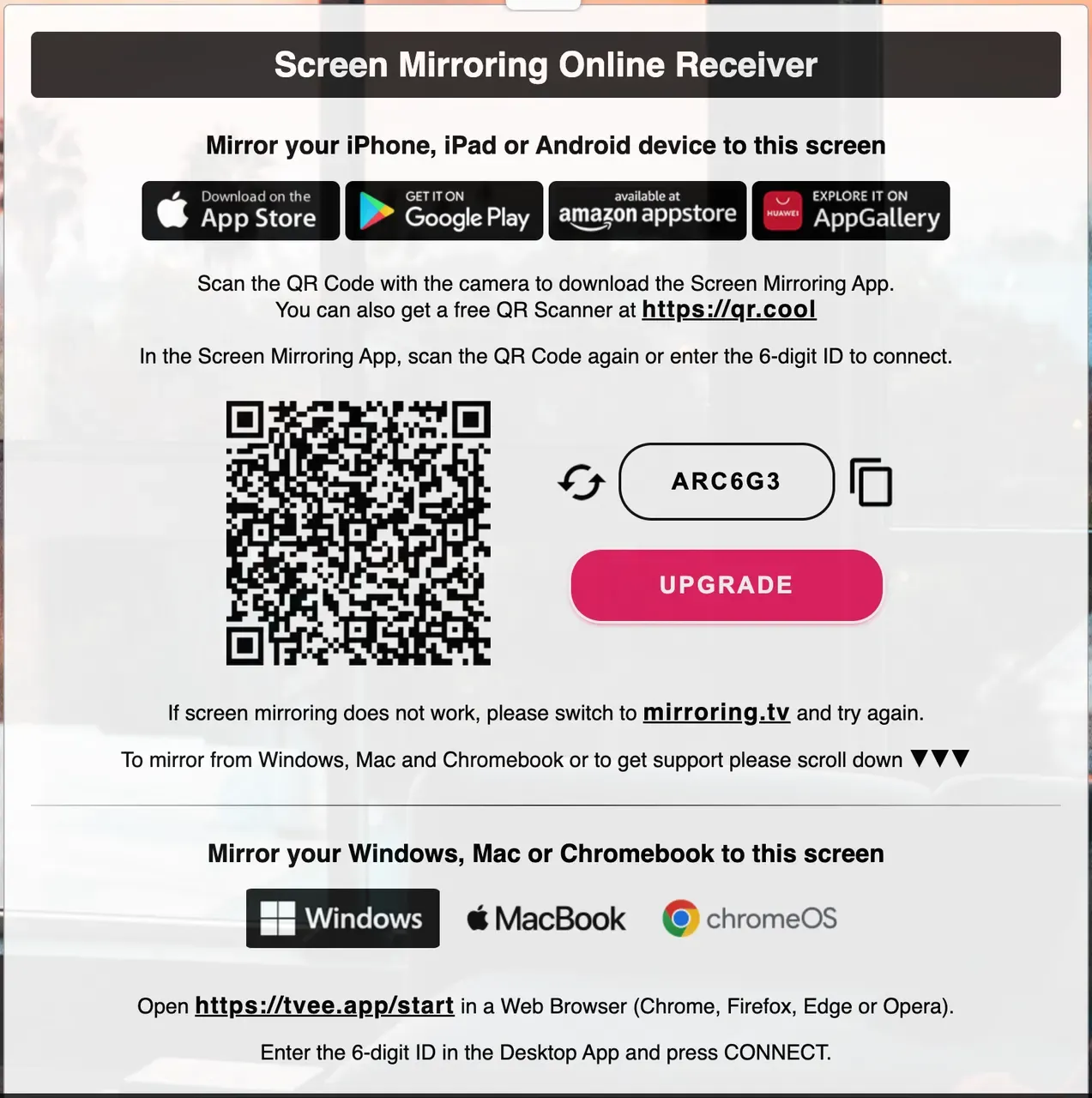
In contrast, smartmirror.link depends on an external device to host the session. This makes it more powerful in collaborative environments but less flexible for individual use.
When a Tool Like PigeonCast Makes More Sense
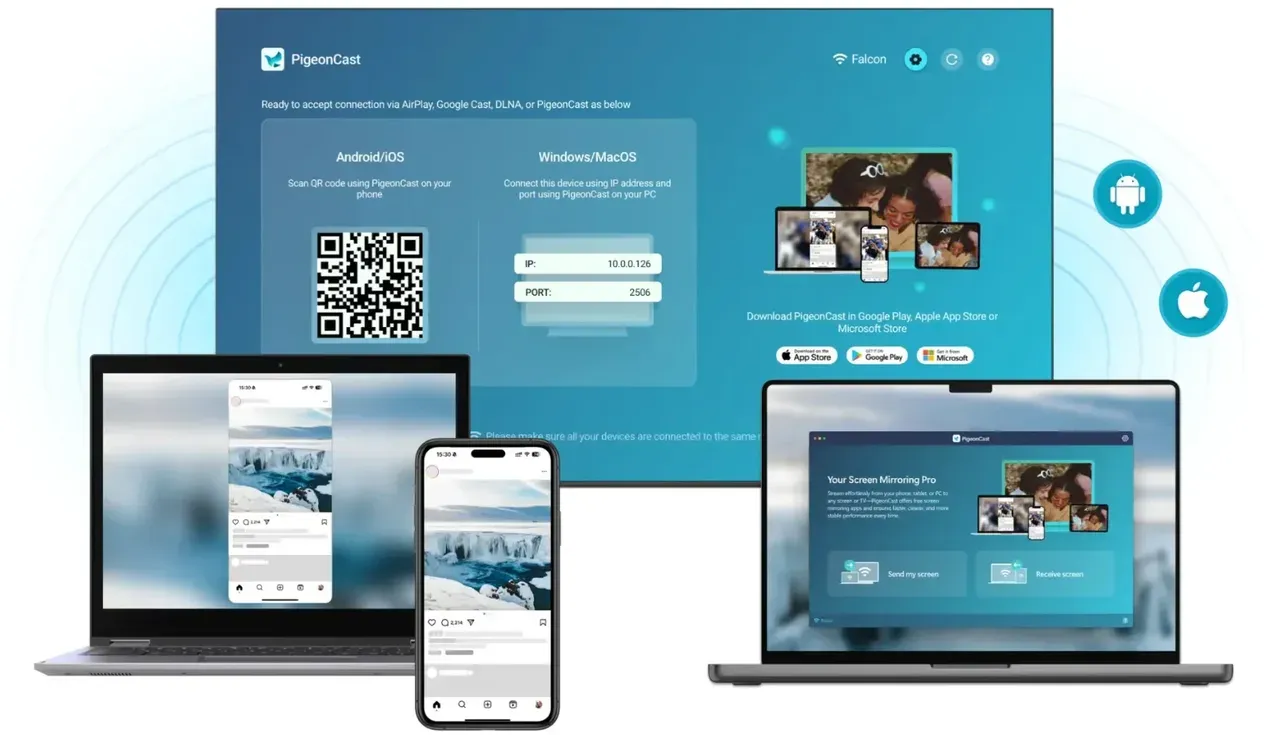
If you do not have access to a SMART Board and simply want to mirror your screen easily, a different type of tool may be more suitable. This is where solutions like PigeonCast come in.


Overall Rating:



Instead of relying on an external display system, PigeonCast works as a more independent screen mirroring solution. You can start sessions directly, without needing a preconfigured receiver.
This approach is often better for:
-
Personal use
-
Education use
-
Work use
It is not about replacing smartmirror link, but about choosing a tool that matches your setup.
Step 1. Download and install PigeonCast on your phone, computer, and TV.
Step 2. Ensure your devices are on the same Wi-Fi network.
Step 3. Launch PigeonCast on your two devices and start screen mirroring.
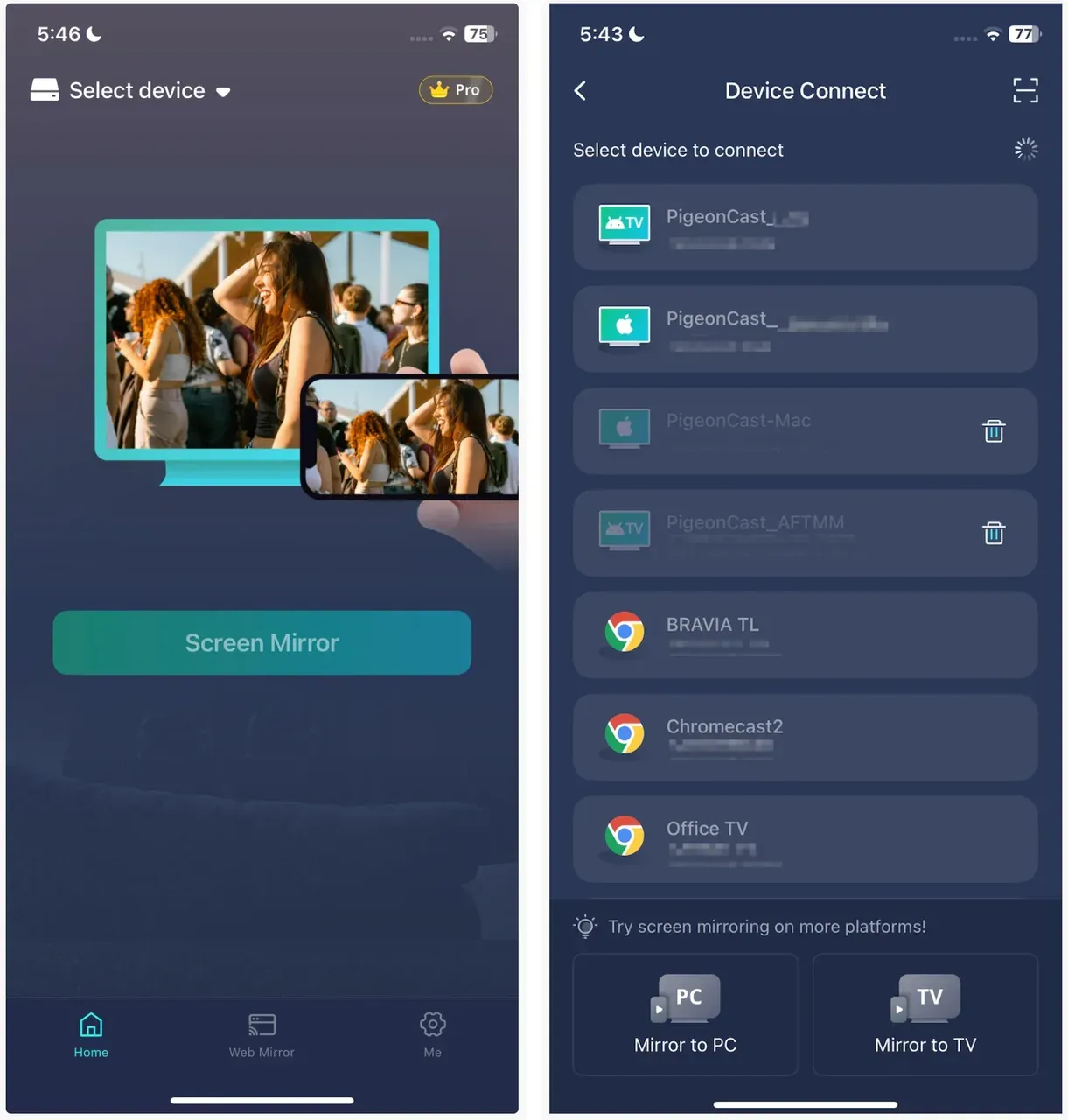
For example, to connect phone to TV:
-
Tap Select device on your phone.
-
Choose your TV from the device list or scan the QR code with your camera.
-
Once connected, tap Screen Mirror.
Final Verdict
Smartmirror link is a capable and well-designed tool within the SMART Board ecosystem. It works especially well in classrooms, training sessions, and collaborative environments where the hardware is already in place.
However, it is not a universal screen mirroring solution.
If you approach it expecting a standalone web app that instantly starts mirroring, it will feel confusing. If you use it as intended, as a browser entry point into SMART Mirror, it makes much more sense.
The key is understanding your own use case.
If you are working within a SMART Board environment, smartmirror.link is a practical and efficient option. If you are looking for a more flexible, independent solution, exploring alternatives may give you a better experience.
Smartmirror Link FAQ
How to use smart mirror link?
To use smart mirror link, you first need access to a SMART Board or a device running SMART Mirror.
-
Open SMART Mirror or Screen Share on the SMART Board
-
Find the session ID displayed on the screen
-
On your phone or laptop, open a browser and go to smartmirror.link
-
Enter the session ID and your name
-
Click Share my screen to start mirroring
Do I need to install the smartmirror.link app?
In most cases, you do not need to install a smartmirror.link app if you are using the web version.
The platform is designed so that users can join sessions directly through a browser. However, depending on the setup, some environments may also support native apps or built-in casting methods.
If you are looking for a more independent solution that works without relying on a pre-existing receiver, you may want to consider tools that function as standalone apps rather than browser entry points.
Is smart mirror.com the same as smartmirror link?
Not exactly. Terms like smart mirror.com, smartmirror link, and smartmirror/link are often used interchangeably, but they do not always refer to the same service.
-
smartmirror.link is specifically tied to SMART Mirror and SMART Board systems
-
Other similar domains may represent different tools or unrelated services
It's important to make sure you are accessing the correct platform, especially when connecting to a session.
Why can't I see a session ID on smartmirror.link?
This is one of the most common points of confusion. smartmirror.link does not generate a session ID on its own. The session ID is created on the receiving device, such as a SMART Board. If you open the website and do not see a code, it usually means there is no active session available to join.
What is the best alternative to smartmirror link?
The best alternative depends on your use case. If you are working in a classroom or meeting room with a SMART Board, smartmirror link is designed for that environment and works well within it.
However, if you are looking for a more flexible solution that works independently without requiring a specific display system, tools like PigeonCast can provide a more straightforward experience for everyday screen mirroring.
Is there a completely free screen mirroring app?
Yes, PigeonCast is free to use on a computer and TV without ads, time restrictions, or watermarks.
Can I mirror my phone to my TV for free?
Yes, in many cases you can mirror your phone to a TV for free, depending on your setup. Common options include:
-
Built-in features like AirPlay, Google Cast, or Miracast
-
Web-based tools such as smartmirror link when connected to a compatible system
-
App-based tools such as PigeonCast that connect phone to TV without compatibility issues
Mia Clarke is a technology editor specializing in screen mirroring and casting solutions across multiple platforms. Mia provides clear, practical guides and in-depth insights to help users seamlessly connect their devices. Passionate about enhancing digital experiences, Mia is dedicated to keeping readers updated on the latest trends and tools in cross-platform screen sharing. Whether you’re looking to mirror your smartphone, laptop, or smart TV, Mia’s content delivers reliable, user-friendly advice to simplify your tech setup.