
Your phone is always by your side, but that doesn't mean your TV should sit idle. Did you know you can easily connect your phone to your TV? From watching movies and browsing photos to playing games or giving presentations, extending your phone's screen to your TV is simpler than you think. Let's dive in and see how to connect phone to TV wirelessly.
How to Connect iPhone to TV
iPhone, iPad, and MacBook are all part of the Apple family, and they use AirPlay for screen mirroring. While we'll focus on connecting an iPhone to your TV, you'll find the steps are very similar to other Apple devices. Ready to get started? Let's make it happen!
Step 1. Ensure your TV is AirPlay compatible, and ensure your iPhone and TV are connected to the same wireless network.
Bonus: If your TV is incompatible, you can set up PigeonCast on Android TV, or BoostVision's AirMirror. After connecting to the same WiFi network, this app turns your Android TV to a AirPlay receiver that can simply connect to any Apple device.

PigeonCast Screen Mirroring

Official Download


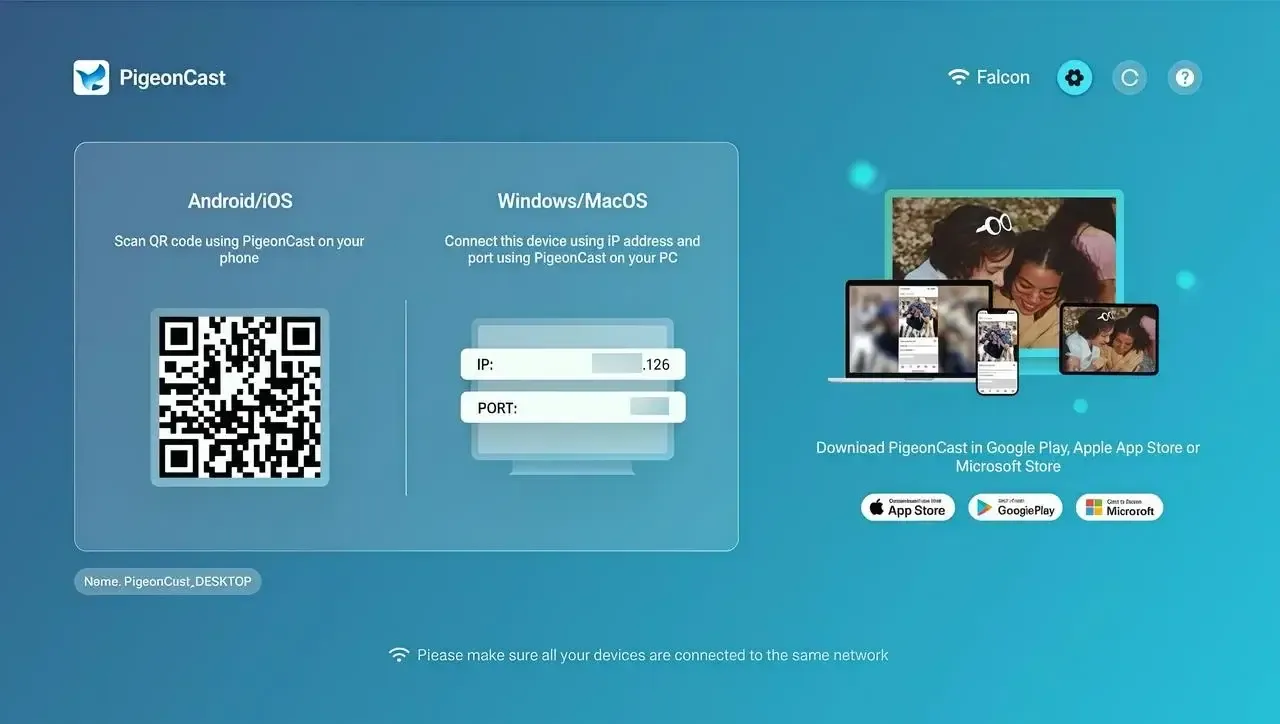
Step 2. Open Control Center > Screen Mirroring, choose your Apple TV or AirPlay-compatible smart television from the device list.
Step 3. If prompted, enter the onscreen PIN code to finish the pairing process.
Step 4. Once you succeed, you can see the content showing on your iPhone display on the TV screen.
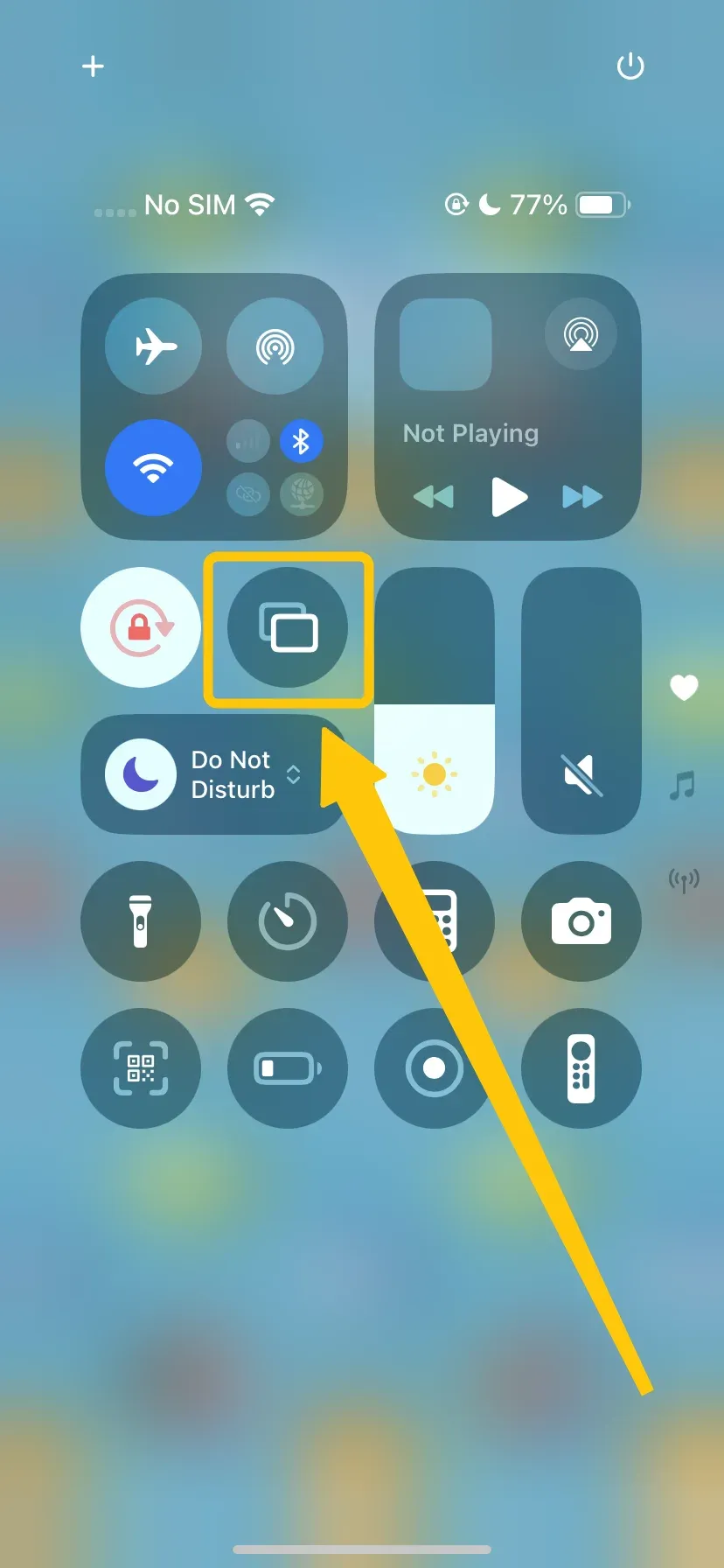
Step 5. To stop mirroring, open Control Center > Screen Mirroring > Stop Mirroring.
How to Connect Android Phone to TV
How to connect Android phone to smart TV? Most Android devices support Miracast, Google Cast, or DLNA, letting you stream or cast movies, photos, games, and more directly to your TV with just a few taps. Whether you want to mirror your screen or play content from apps, your Android phone can turn your TV into a bigger, more enjoyable display.
Step 1. Ensure your Android and TV are covered by the same WiFi network.
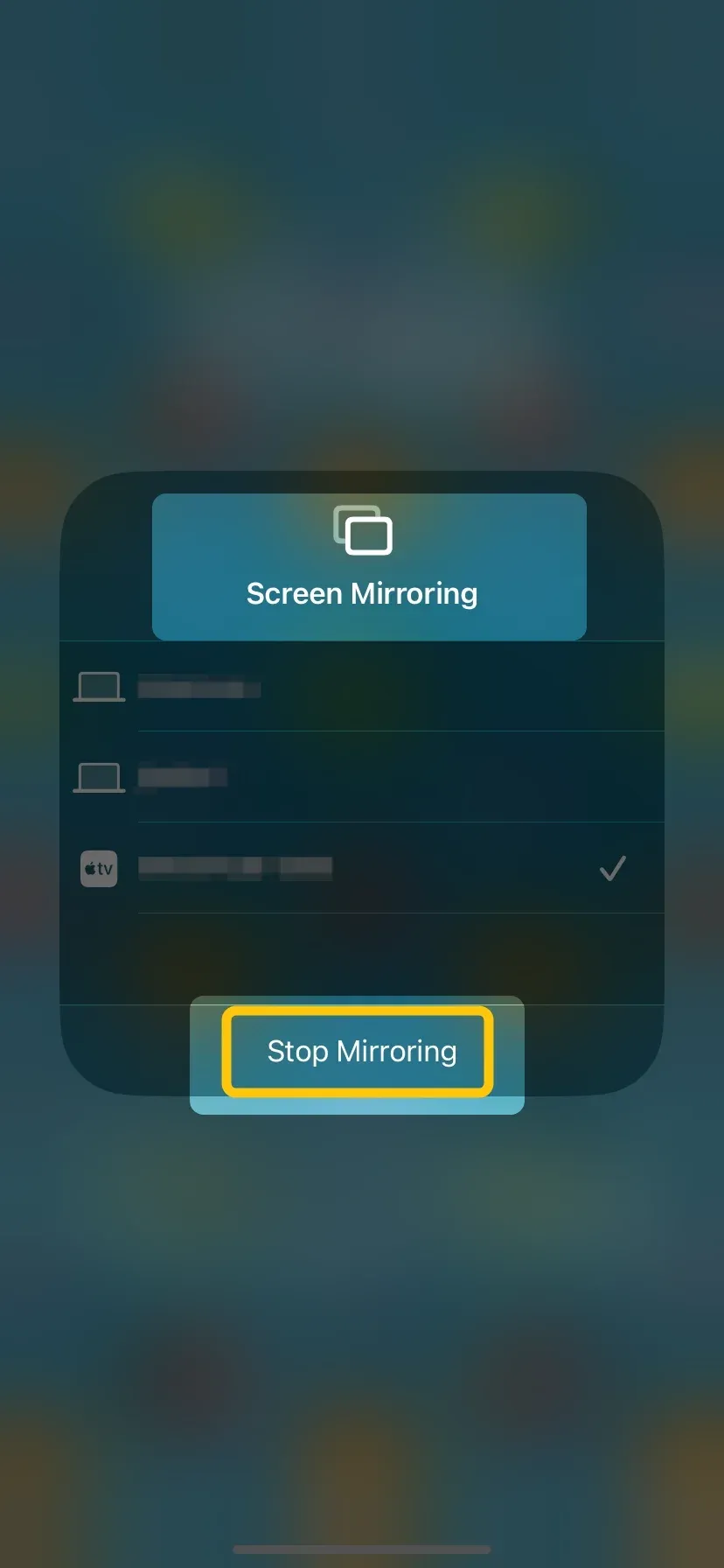
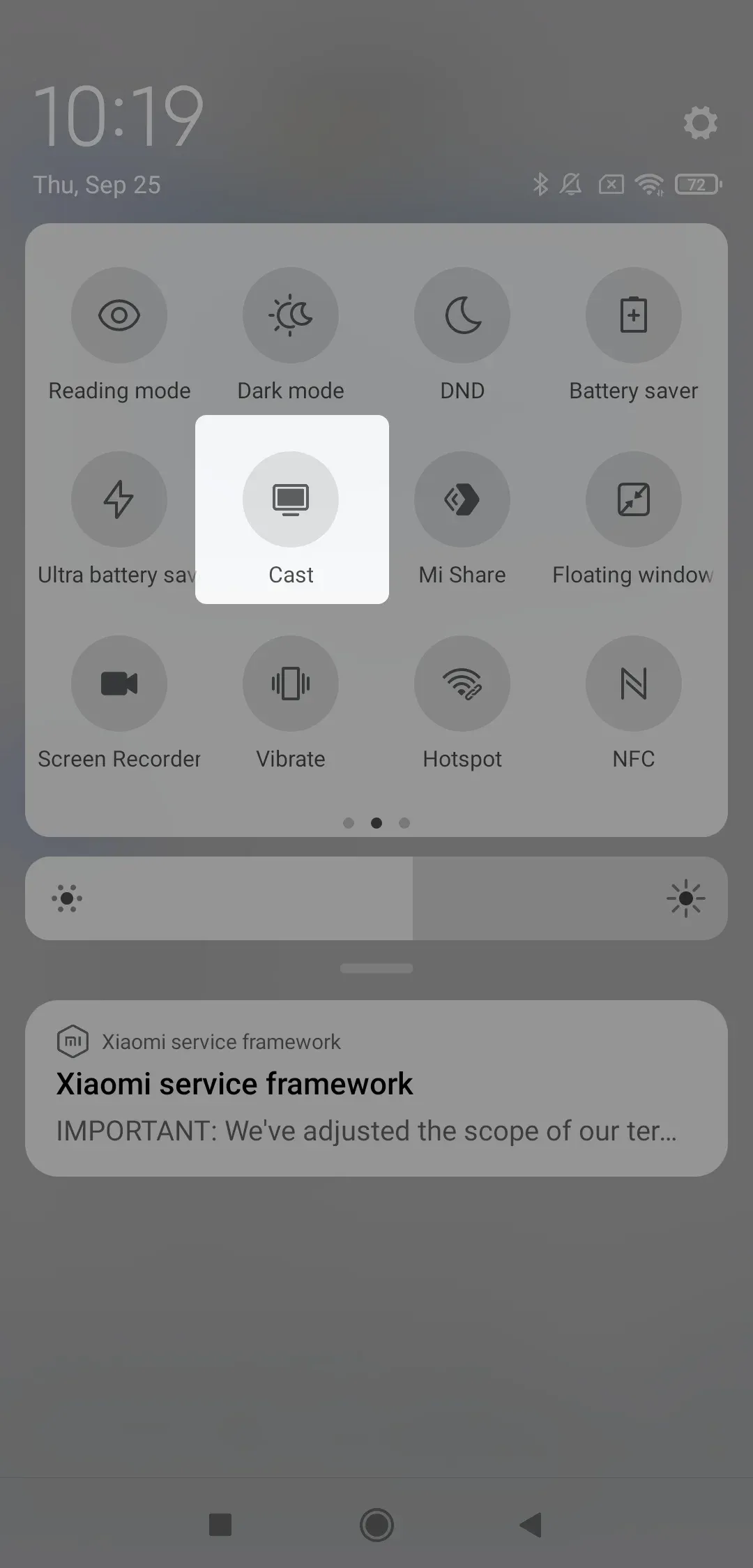
Step 2. Tap the Cast, Screen Mirror (or similar button depending on your device brand) to choose your TV from the device list to connect.
Step 3. Enter the PIN code, and your video will now play on the television screen.
Tip: When there's something difficult, you can use PigeonCast on Android to get help. Simply install it on your Android, ensure the same wireless network connection, and then you can connect the Android to Apple TV or Mac.
PigeonCast Screen Mirroring
Official Download
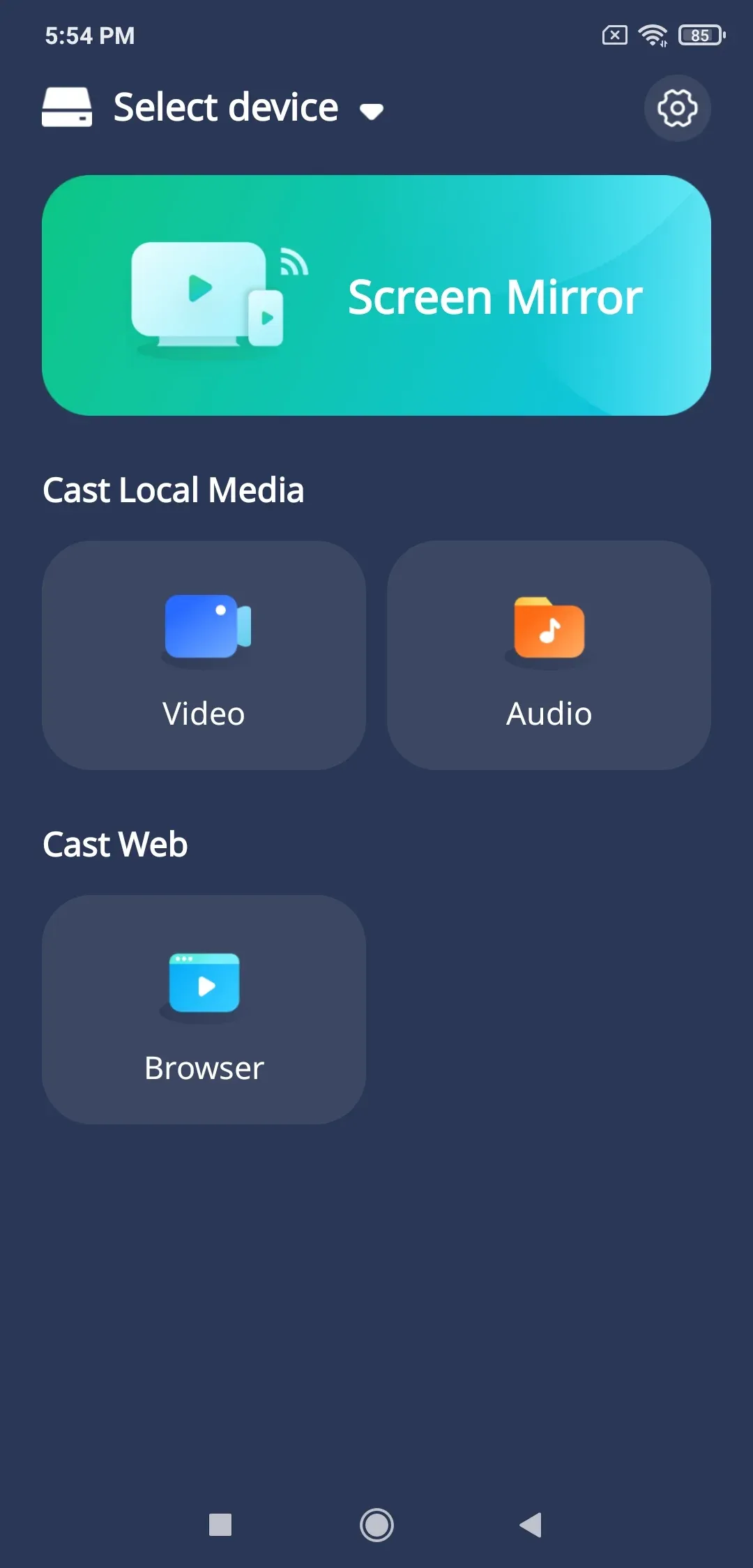
How to Connect Your Phone to Your TV via a Streaming Device
If your TV doesn't have built-in mirroring, a streaming device can be a game-changer. Devices like Chromecast, Roku, or Amazon Fire TV make it simple to connect your phone to your TV and enjoy movies, shows, photos, and even games on the big screen. Let's take a closer look at how do you connect your phone to the TV with these devices and make your viewing experience seamless.
How to Connect Phone to Chromecast
How to connect my phone to my TV? Among all streaming devices, Chromecast is one of the most popular and user-friendly options. It works seamlessly with both Android and iPhone, letting you cast videos, apps, and even your entire screen in just a few steps. If you have a Chromecast plugged into your TV, you're only moments away from enjoying your phone's content on the big screen.
Step 1. Ensure your phone and Chromecast are under the same WiFi network.
Step 2. On Android, tap the Screen Cast/Smart View/Screen Mirror (the name may vary by brand). On the iPhone, install Google Home and tap Cast my screen button.
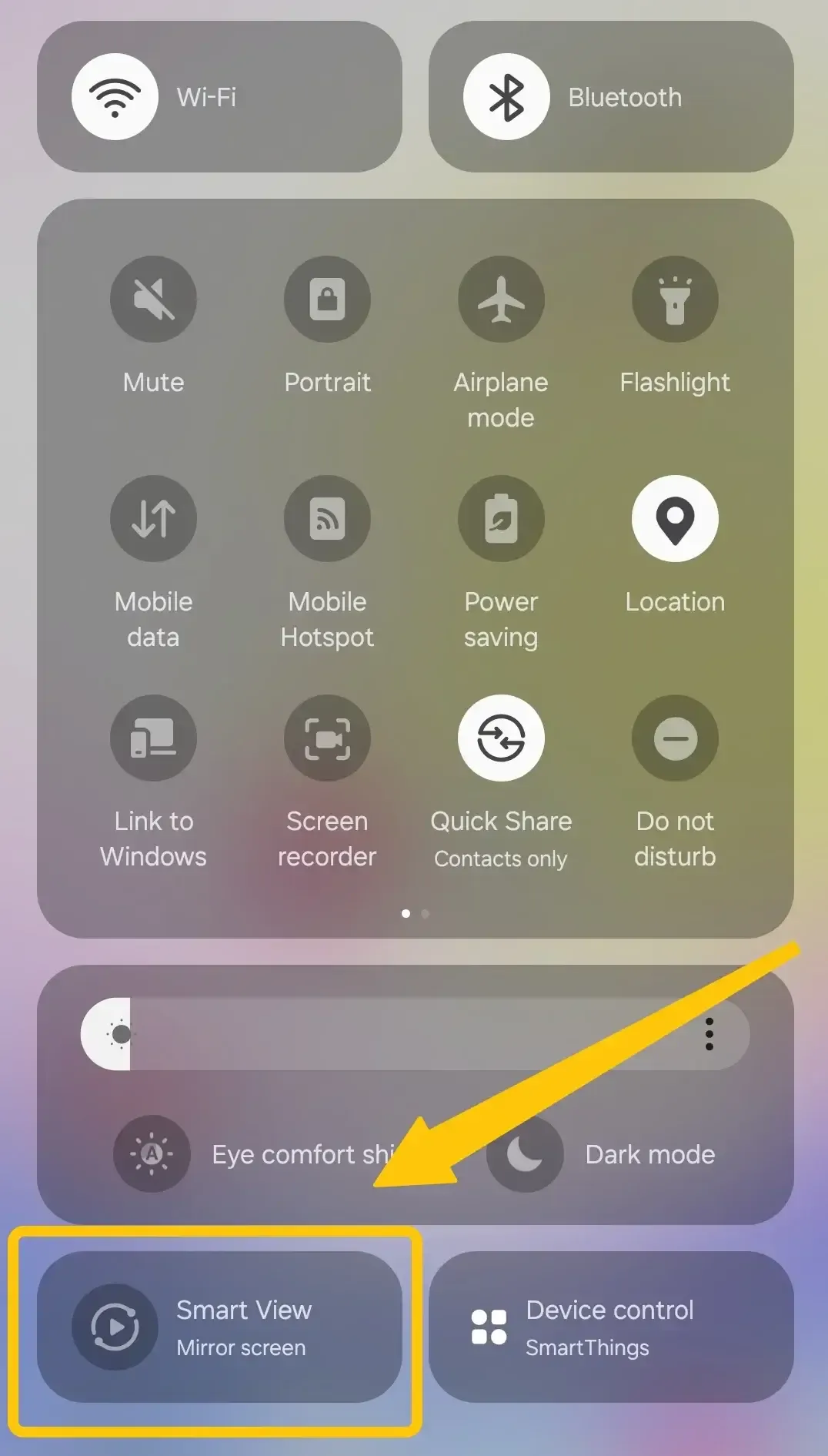
Step 3. Choose Chromecast from the device list to connect.
Step 4. If prompted, enter the onscreen code to finish the pairing process.
How to Connect Phone to Roku
How to connect phone to TV without cable? Roku is another great way to bring your phone's content to the big screen. With built-in features for casting and screen mirroring, Roku makes it easy to stream videos, show photos, or even share presentations straight from your phone. If you already own a Roku streaming Stick or a Roku Express, connecting your phone takes just a few quick steps.
Step 1. Make sure your Roku and phone are connected to the same Wi-Fi network.
Step 2. Just follow the steps on your iPhone or Android to complete the connection; it only takes a few taps:
- Look for Screen Cast/Smart View/Screen Mirror (the name may vary by brand) on Android.
- On Roku, go to Settings > System > Screen Mirroring and turn it on.
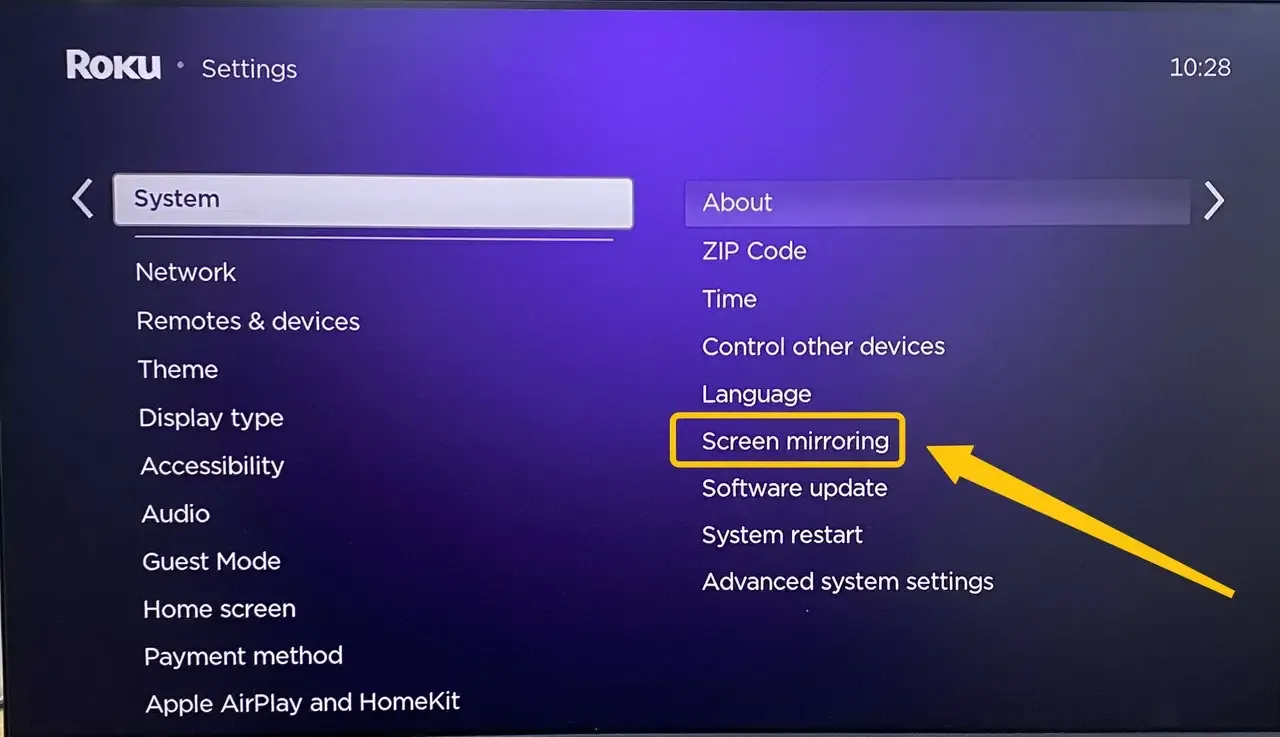
- Select your Roku TV from the list of available devices, approve the connection on your TV if prompted.
- Your phone screen will now appear on Roku TV.
- On iPhone phone
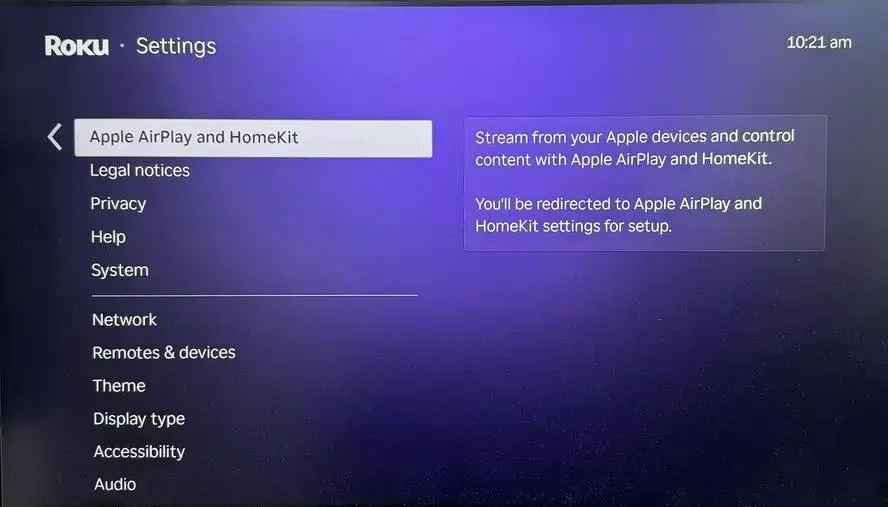
- On Roku, access Settings > Apple AirPlay and HomeKit > turn AirPlay on.
- Tap Screen Mirror from the Control Center to choose your Roku from the device list.
- If prompted, enter the onscreen PIN code to finish the connection.
- Once connect successfully, you can see the iPhone screen on your Roku.
How to Connect Phone to Amazon FireStick
How do I connect my phone to my TV? FireStick supports screen mirroring directly from Android devices, making it easy to share videos, apps, photos, or even your entire phone screen on the big screen. Let's walk through the steps to connect your Android phone to Amazon FireStick. If you have an iPhone, please try the PigeonCast to transform your Fire as an AirPlay receiver.
Step 1. Make sure your Android phone is on the same Wi-Fi network as your Fire TV.
Step 2. On Fire TV, hold the Home button on the remote to navigate to Settings > Display & Sounds > Enable Display Mirroring.
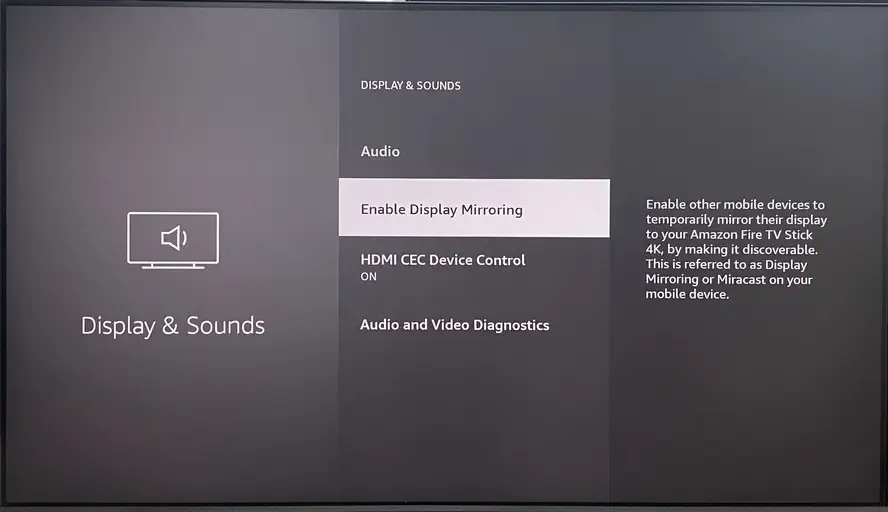
Step 3. On your Android phone, Screen Cast/Smart View/Screen Mirror/Cast (the name may vary by brand).
Step 4. Select your Fire TV device from the list and confirm if your Fire TV prompts you.
Conclusion
How can I connect my phone to the TV? It is easier than ever, whether you're using an iPhone, Android, or a streaming device like Chromecast, Roku, or FireStick. With just a few quick steps, you can turn your TV into a bigger, better display for movies, games, photos, or even work presentations. So grab your phone, follow the guide, and start enjoying your favorite content on the big screen today.
How to Connect Phone to TV FAQ
Q: How do I pair my phone to my TV?
- Make sure your phone and TV are on the same Wi-Fi network (for wireless) or use an HDMI/USB-C cable (for wired).
- On your phone, look for Cast/Screen Mirroring (Android) or Control Center > Screen Mirroring (iPhone).
- Select your TV from the list.
Q: What apps help connect a phone to a TV?
- PigeonCast: Free app to mirror your phone screen wirelessly to most TVs, streaming devices, and laptops.
- Google Home: Cast Android phones to Chromecast or Google TV devices.
- BoostVision's AirMirror: Turn your Android TV, Google TV, or Fire TV into an AirPlay receiver without buying extra hardware.
- AirScreen: Supports AirPlay, Google Cast, Miracast for cross-platform mirroring.
- ApowerMirror: Mirror screens and control your phone from a PC or TV.
- LetsView: Free app for wireless screen mirroring on Android, iPhone, and PC.
Q: Do I need Wi-Fi to connect my phone to a TV?
You don't always need Wi-Fi to connect your phone to a TV. If you're using wireless options like AirPlay, Chromecast, Roku, or smart TV casting, then Wi-Fi is required. However, if you connect your phone with a cable, such as HDMI or USB-C to HDMI, you can mirror your screen without any Wi-Fi.
Q: Why is my phone not connecting to my TV?
- Your phone and TV are not on the same Wi-Fi network.
- The TV or phone does not support the chosen mirroring or casting method.
- Outdated phone software, TV firmware, or apps.
- Mirroring or casting settings are turned off on the phone or TV.
- Weak Wi-Fi signal or network interference.
- Hardware issues with the phone, TV, or connecting cables.
Q: Can I connect my phone to a smart TV wirelessly?
Yes, you can connect your phone to a smart TV wirelessly. Most smart TVs support features like AirPlay (for iPhone) or Miracast/Chromecast (for Android), which let you stream or mirror content over Wi-Fi. Just make sure both your phone and TV are connected to the same network, then use the screen mirroring or casting option on your phone to connect.
Clara Rossi is an experienced technology editor and a seasoned expert in screen mirroring and casting technologies. With a keen eye for detail and a deep understanding of how to seamlessly connect devices, Clara excels at optimizing user experiences for effortless sharing and streaming. Whether you're seeking quick fixes or advanced tips, her expertise and responsiveness ensure that every query is met with a well-informed and efficient solution.