
Casting content from your phone, tablet, or computer to your Fire TV Stick allows you to enjoy your media on a bigger screen. Whether you want to stream videos, show presentations, or share photos, cast to FireStick is an easy and convenient way to bring your content to the TV. Today's guide will show you how to cast to FireStick from Android, iPhone, Mac, and Windows.
Can I Cast to a FireStick
Yes, you can! The FireStick is a streaming device developed by Amazon that plugs into the HDMI port of your TV, transforming it into a smart TV. It allows you to stream content from popular services like Netflix, Amazon Prime Video, Hulu, YouTube, and more. It also supports apps, games, and screen mirroring, providing a full multimedia experience on your TV.
FireStick supports screen mirroring through Miracast, which works with Android phones and Windows PCs. For iPhones, iPads, or Macs, you need a third-party app like AirPlay Cast for Fire TV to use AirPlay, since it's not built in. Some newer Fire TV models from brands like Toshiba, Insignia, and Hisense include AirPlay support, so you can mirror Apple devices without extra apps. If your setup involves a Fire TV Smart TV, Fire TV Cube, or a broader Fire OS device instead of only a Fire TV Stick, the steps to cast phone to Fire TV may depend on the model and supported wireless protocol.
How to Cast to FireStick
Now that you know the different ways you can cast phone to FireStick, let's dive into the specific steps for each device. Whether you're using an Android phone, iPhone, Macbook, or Windows PC, there are simple methods to stream your favorite content or mirror your screen to the big TV. Here's a breakdown of how to easily cast from each device.
How to Cast to FireStick from Android
Casting from your Android device to your FireStick is quick and easy, thanks to Miracast technology, which is supported by both Android devices and FireStick. Follow these simple steps to cast Android to FireStick:
Step 1. Ensure your FireStick is plugged into your TV and powered on.
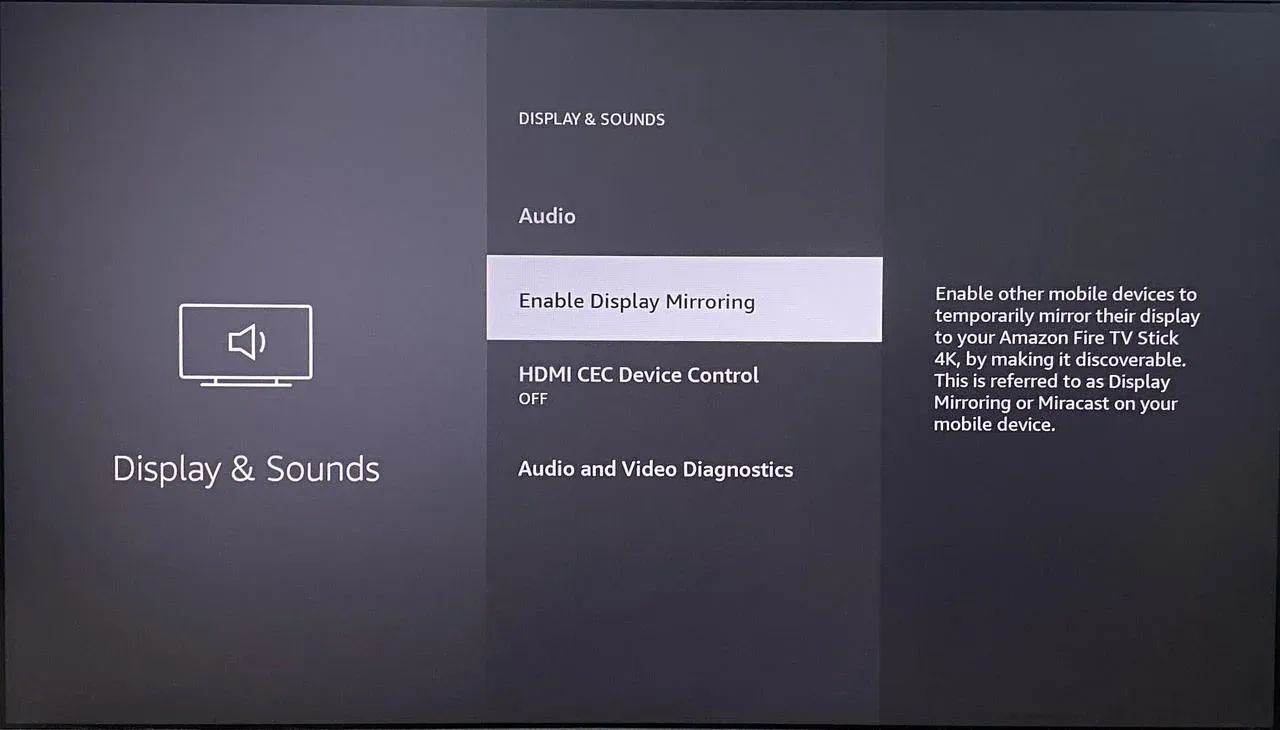
Step 2. From your TV, navigate to the Home screen on FireStick. Go to Settings > Display & Sounds > Enable Display Mirroring to allow Android cast to FireStick.
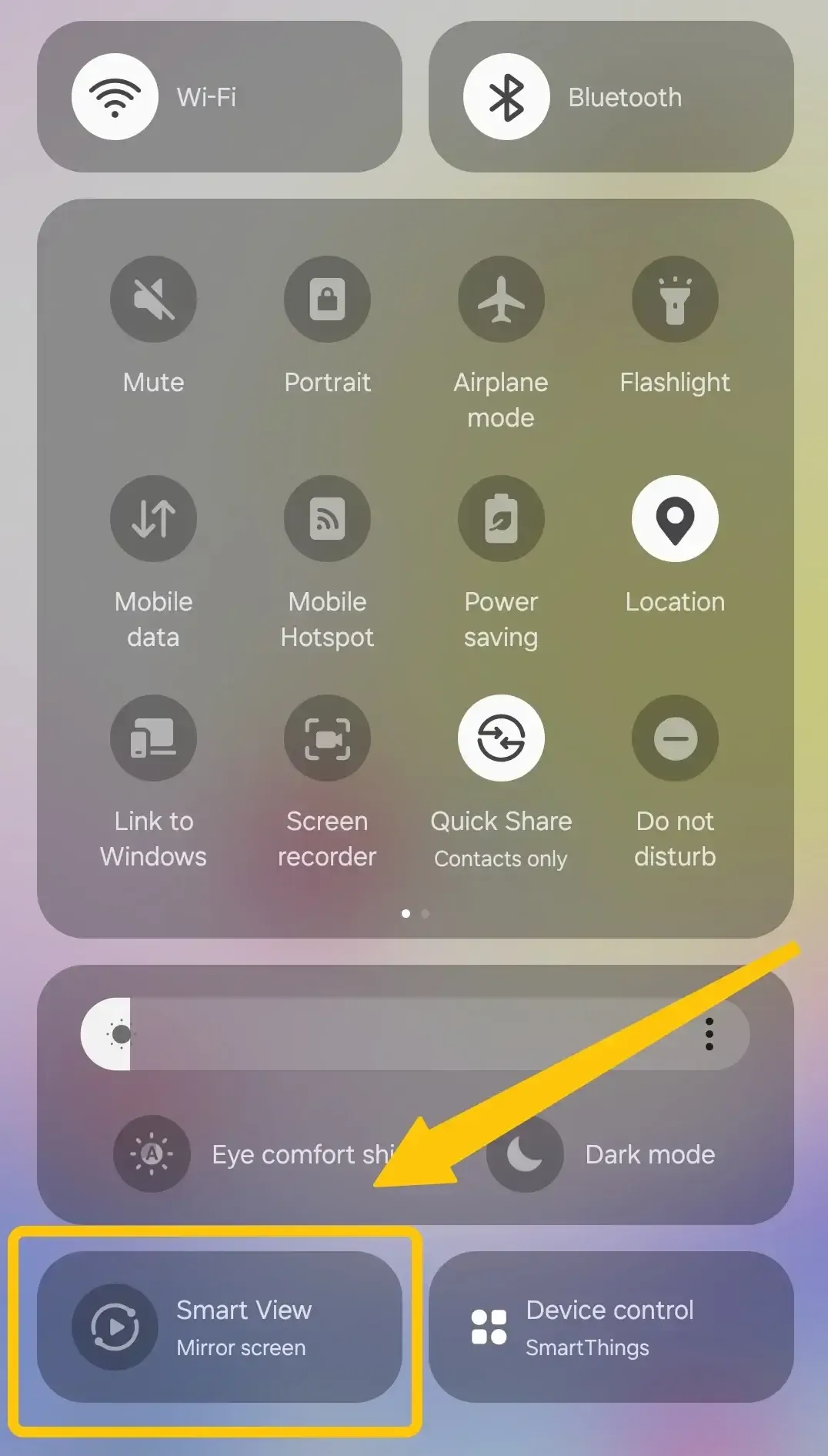
Step 3. On your Android phone or tablet, go to Settings > Display > Cast (this may vary slightly depending on your Android version). Alternatively, swipe down the Quick Settings menu and look for Cast or Screen Mirroring option.
Step 4. Tap the Cast or Mirror choice to select your FireStick from the device list.
Step 5. If prompted, enter the onscreen codes to complete the connection. After a few seconds, your Android screen will be mirrored on your TV via FireStick.
How to Cast to FireStick from iPhone
If your device is compatible, you can easily cast your iPhone or iPad to newer Fire TV with AIrPlay-compatible models. If not, you can also use PigeonCast's iOS screen mirroring app to cast iPhone to FireStick.
You can go to Settings > My Fire TV > About > Fire OS Version. If it shows Fire OS 7 or later, your FireStick or Fire TV model is AirPlay-compatible. Alternatively, move to Settings > Display & Sounds > AirPlay. If you see this option, your device supports AirPlay. Now, let's check how to cast iPhone to FireStick:
- Option 1. Fire TV Supports AirPlay
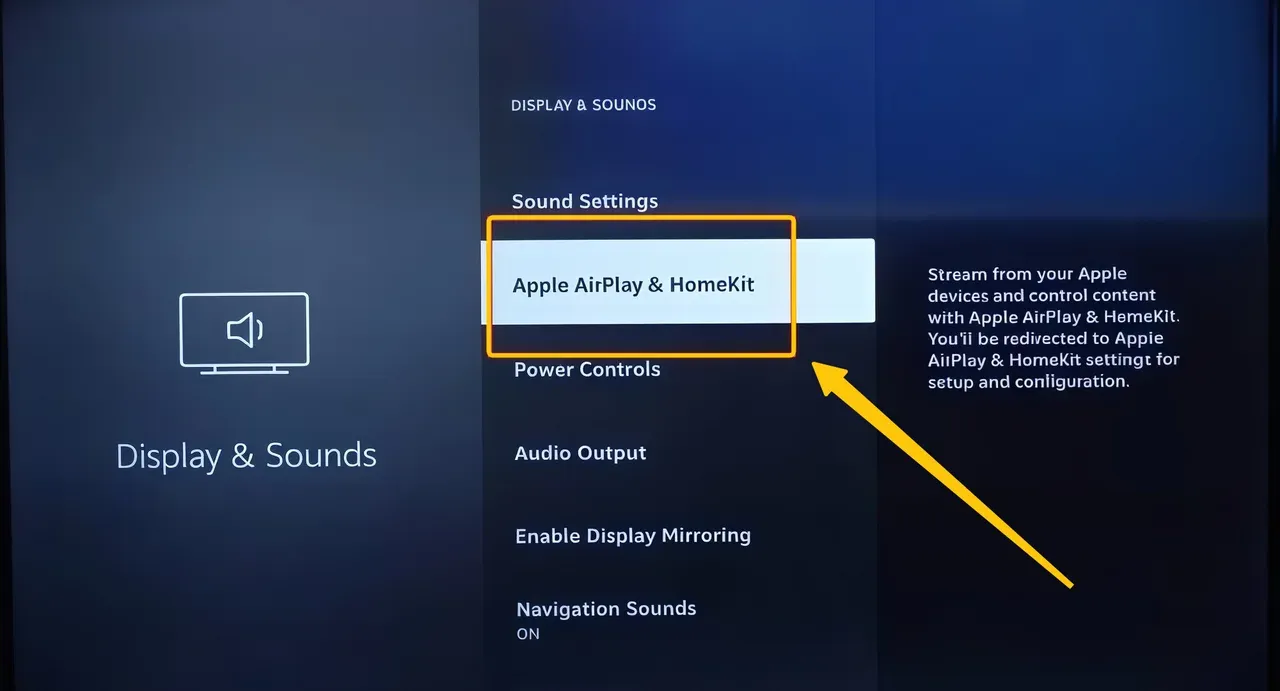
Step 1. Go to Settings > Display & Sounds > AirPlay & HomeKit to turn AirPlay to On.
Step 2. Make sure your iPhone and FireStick are connected to the same Wi-Fi network.
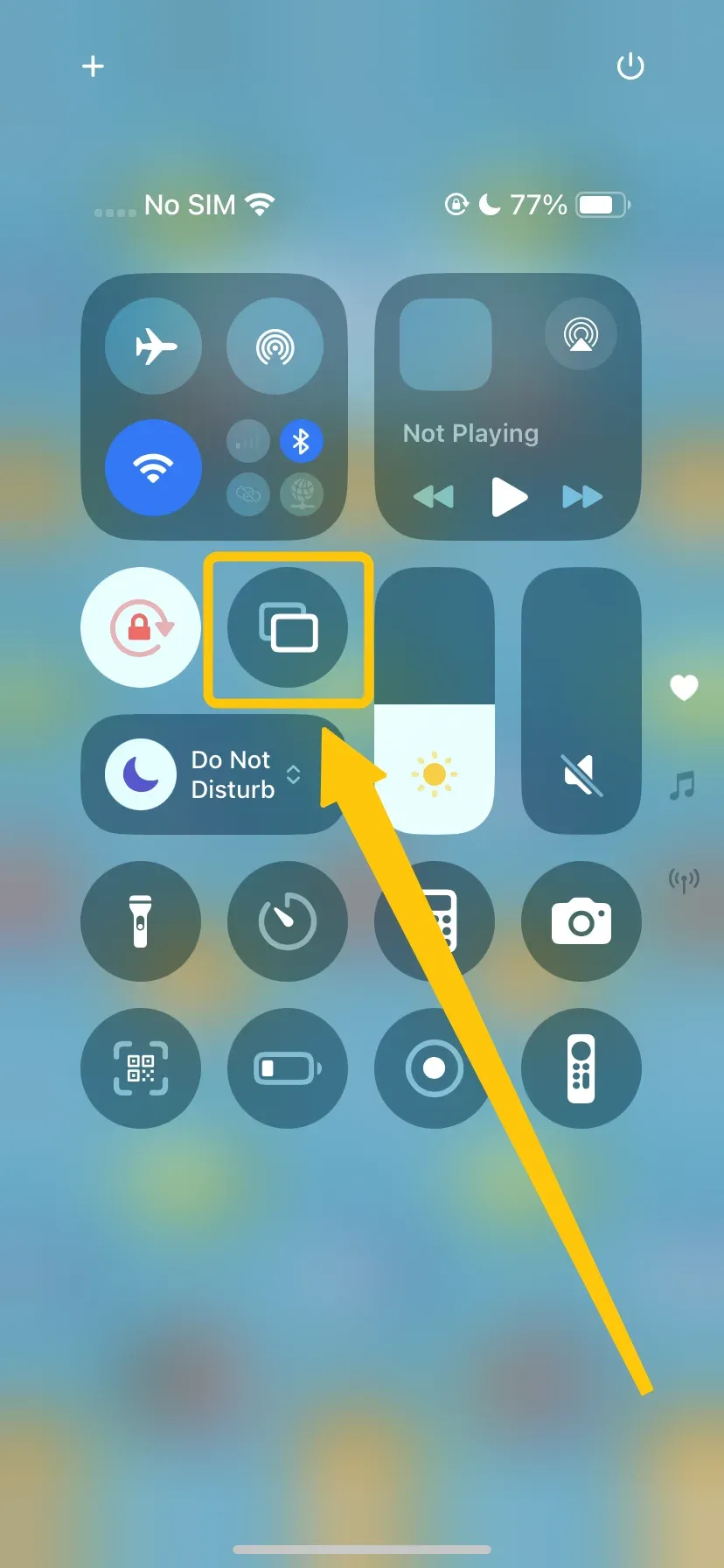
Step 3. Tap Screen Mirroring from the Control Center on your iPhone by swiping down from the top-right corner.
Step 4. Select your FireStick from the list of available devices (it may appear as Fire TV or the name of your device). Then your iPhone screen will now be mirrored on your TV through the FireStick.
- Option 2. FireStick Does Not Support AirPlay

PigeonCast Screen Mirroring

Official Download


Step 1. Install Pigeoncast on Fire TV or on your FireStick.
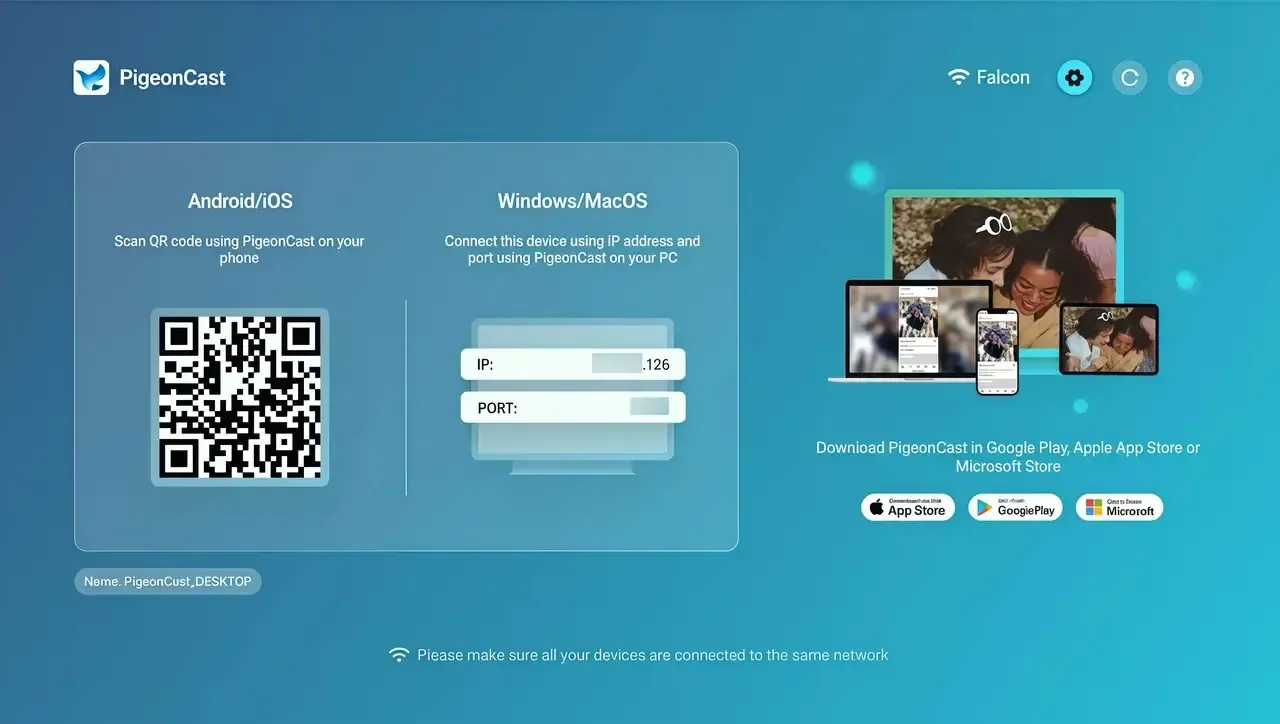
Step 2. Open the screen mirroring app on your FireStick and follow the on-screen instructions to set it up.
Step 3. Make sure your iPhone is on the same Wi-Fi network as the FireStick.
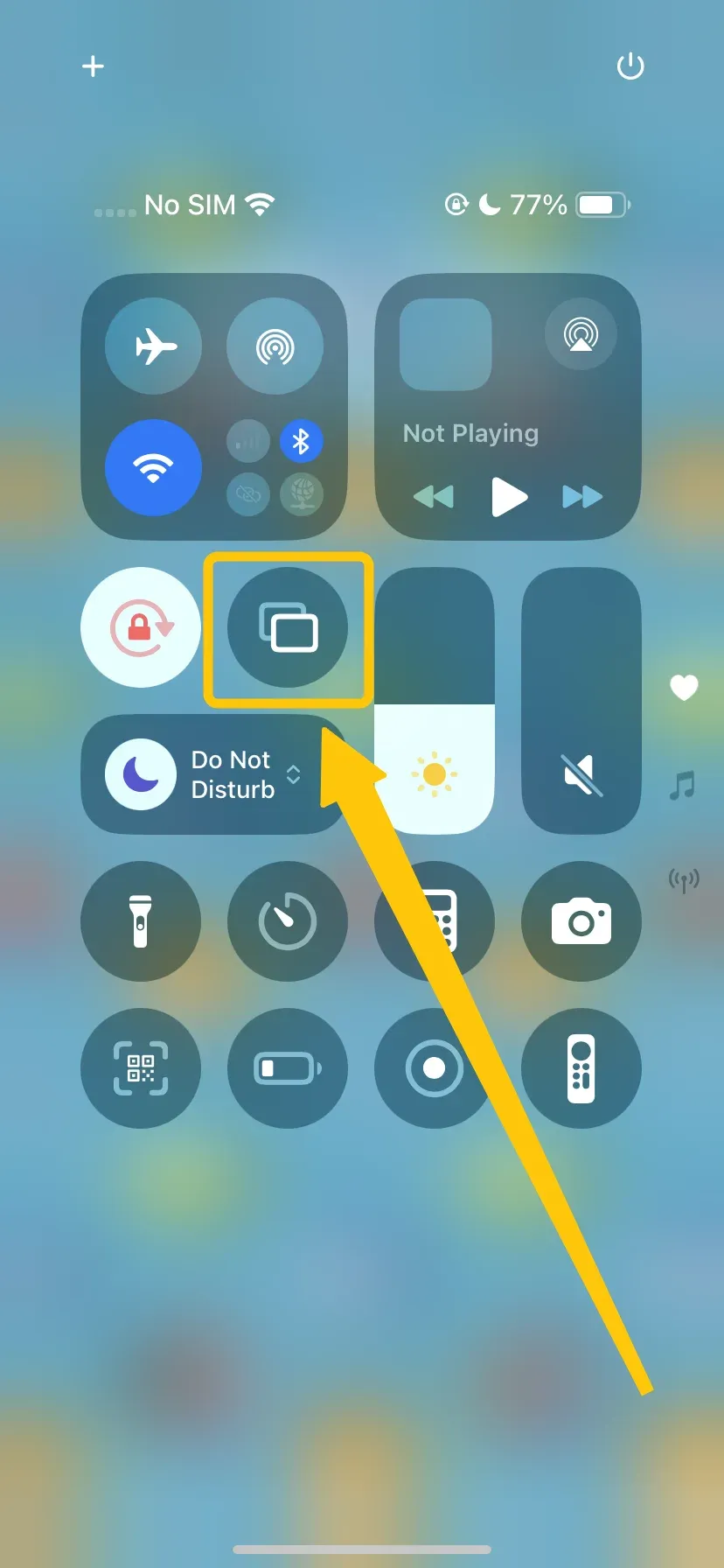
Step 4. Open the Control Center on your iPhone and tap Screen Mirroring, select PigeonCast (or the name of your FireStick) from the available devices.
Step 5. Enter the onscreen code to finish the pairing process, and then your iPhone screen will now be mirrored on your TV through the FireStick.
How to Cast to FireStick from PC
Casting from Windows to FireStick can be done through Miracast, which is supported natively by Windows 8.1 and later versions. The method is also straightforward to conduct:
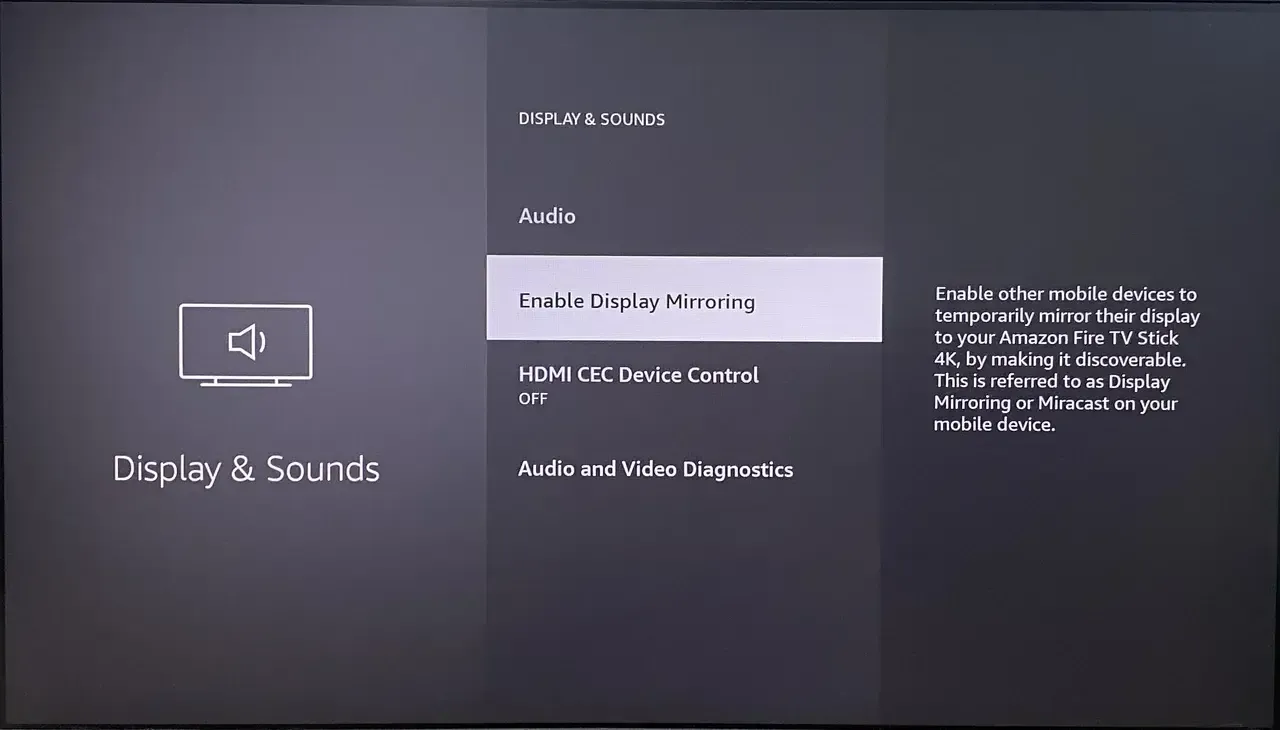
Step 1. Enable Miracast on FireStick from Settings > Display & Sounds > Enable Display Mirroring.
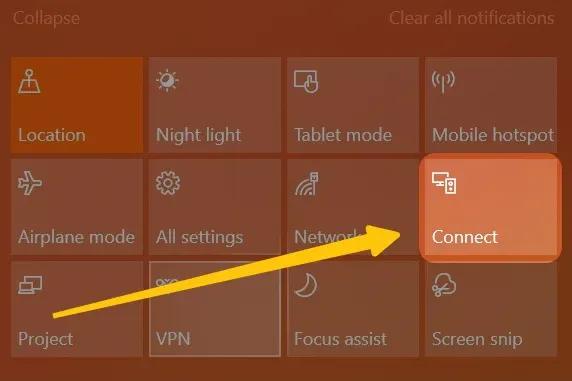
Step 2. On your Windows PC, click the Action Center icon (bottom-right corner of the screen) and click on the Connect button.
Step 3. Choose your FireStick from the list of available devices. After selecting FireStick, your PC's screen will be mirrored to your TV.
How to Cast MacBook to FireStick
If you're a Mac user, you can use AirPlay to mirror your Mac's screen to the FireStick, just like with an iPhone. However, macOS doesn't natively support streaming to FireStick via AirPlay on older devices, so you may need third-party software for that.
- Option 1. FireStick Supports AirPlay
Step 1. Make sure both your MacBook and FireStick are connected to the same Wi-Fi network.
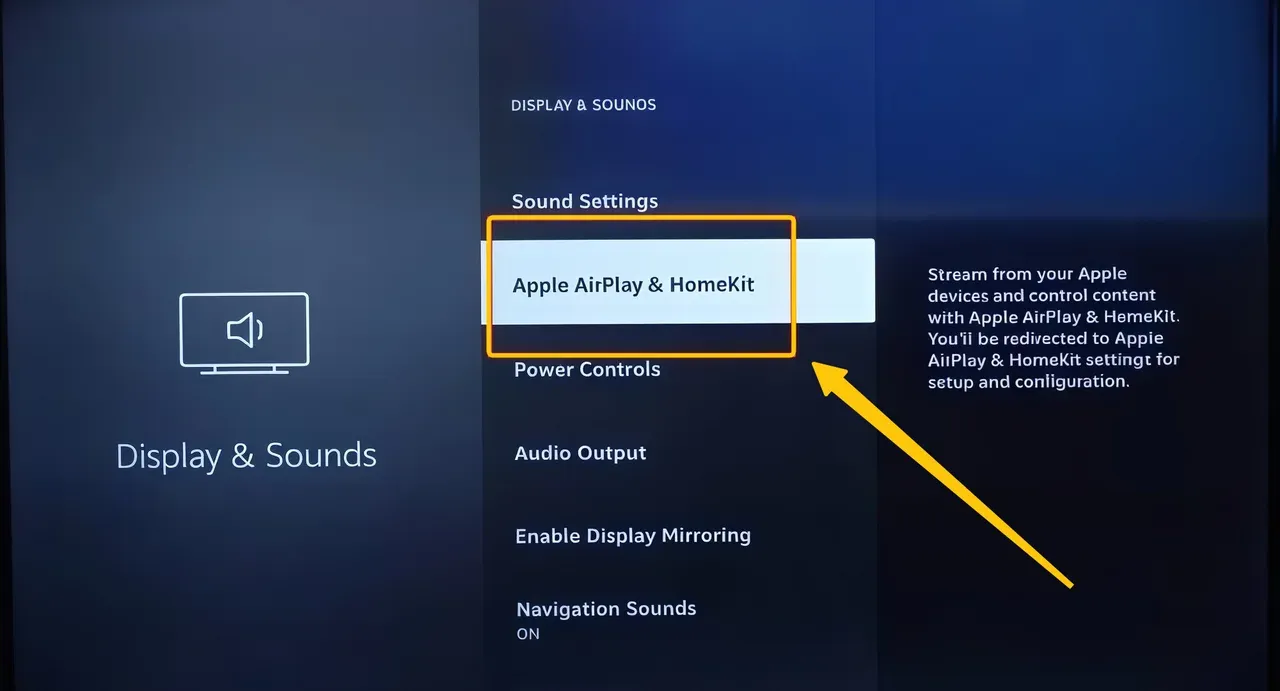
Step 2. Move to Settings on your FireStick, navigate to Display & Sounds > AirPlay & HomeKit > On.
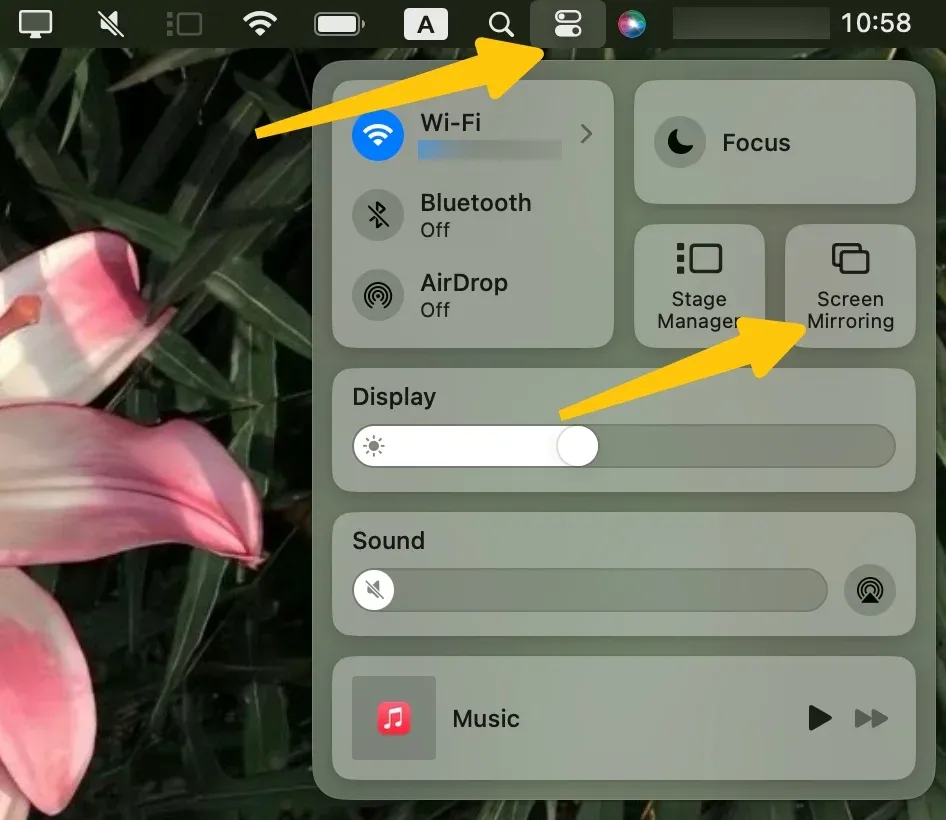
Step 3. On your MacBook, click Screen Mirroring in the menu bar.
Step 4. Select your FireStick from the available device list, and then your MacBook screen will now be mirrored on your TV via FireStick.
- Option 2. FireStick Does Not Support AirPlay
PigeonCast Screen Mirroring
Official Download
Step 1. Install Pigeoncast on Fire TV or your FireStick.
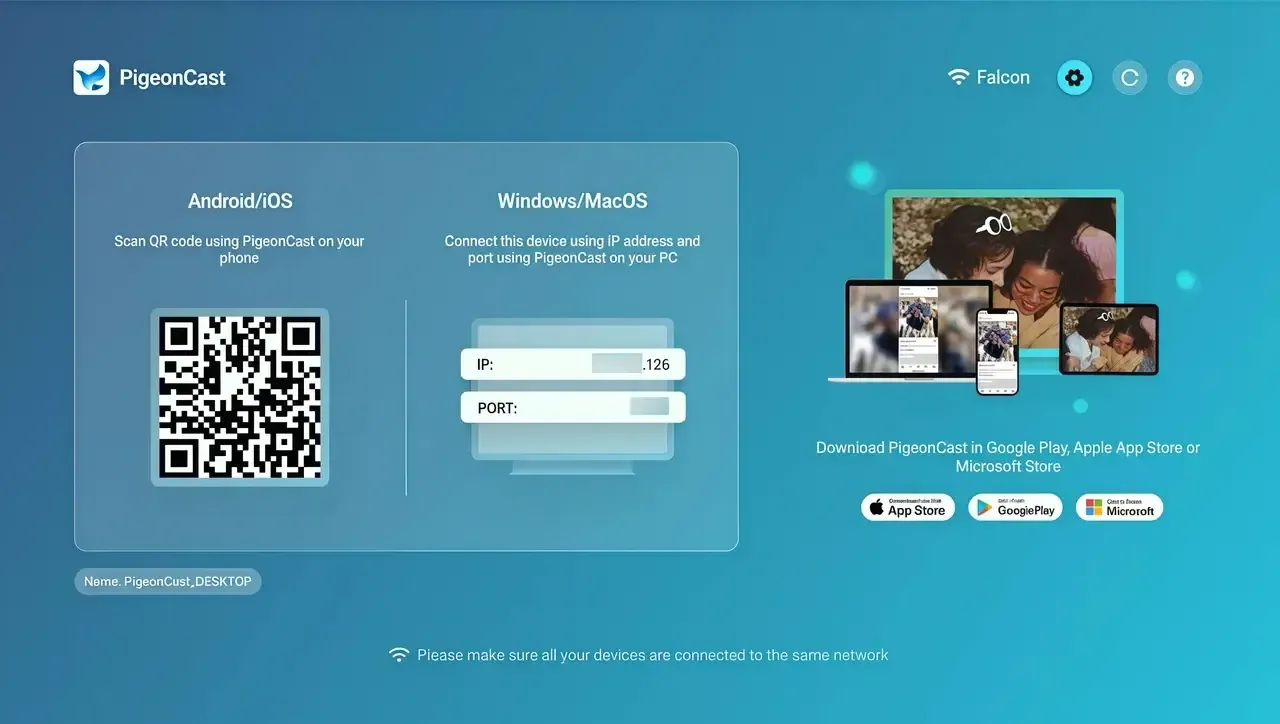
Step 2. Open the screen mirroring app on your FireStick to set it up.
Step 3. Make sure your MacBook is on the same Wi-Fi network as the FireStick.
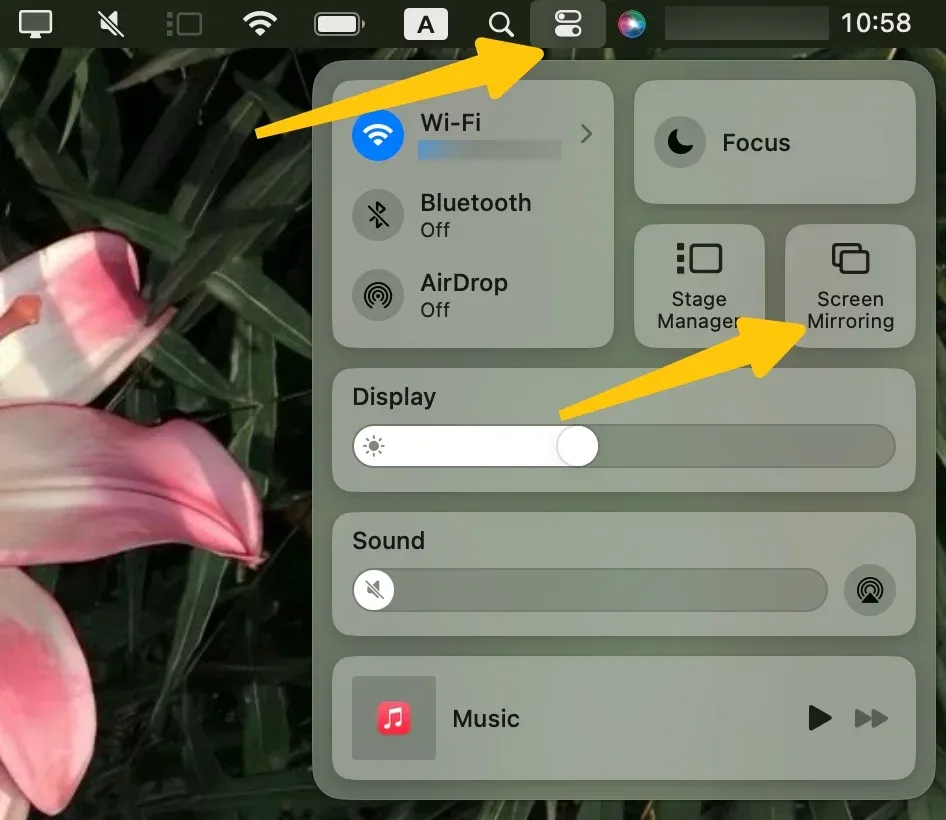
Step 4. Tap Screen Mirroring from your Macbook's menu bar, select PigeonCast (or the name of your FireStick) from the available devices.
Step 5. Enter the onscreen code to finish the pairing process, and your Mac screen will display on your TV through the FireStick.
Closing Words
Can you cast to FireStick? How to cast to a FireStick from Android, iPhone, PC, and MacBook? By following the steps outlined above, you can enjoy seamless casting and screen mirroring on your TV with FireStick. Plus, the best suggestion is the Android screen mirroring app from PigeonCast that can meet most of your FireStick casting or mirroring needs.
Cast to FireStick FAQ
Can I cast to a FireStick?
Not exactly. Fire TV is Amazon's broader smart TV and streaming platform, while FireStick is a specific HDMI streaming device in the Fire TV family. A Fire TV Smart TV, Fire TV Cube, and Fire TV Stick can all run Fire OS, but their casting support may differ by model, year, and firmware version.
Why does my phone not find my FireStick?
Common reasons include:
- Your phone and FireStick are not connected to the same Wi-Fi network.
- Your phone is on Guest Wi-Fi or a network band isolated from the FireStick.
- A VPN, proxy, or firewall is blocking local device discovery.
- Display Mirroring is not enabled on FireStick for Android or Windows casting.
- The AirPlay receiver app is not open on FireStick when casting from iPhone, iPad, or Mac.
- The FireStick or phone has a temporary network glitch and needs a restart.
How to cast to FireStick from Google Pixel?
Google Pixel usually cannot connect to FireStick through FireStick's built-in Display Mirroring, because Pixel uses Google Cast while FireStick's native mirroring relies on Miracast. To cast from a Pixel, use a FireStick receiver app that supports Pixel screen mirroring, then keep both devices on the same Wi-Fi network and follow the app's pairing instructions.
Does FireStick support Chromecast?
FireStick does not work as a Chromecast receiver by default. The Cast button in many apps is designed for Chromecast, Google TV, or TVs with Google Cast built in, so FireStick may not appear in that list. To cast Google Cast-style content to FireStick, you usually need an app on FireStick that can act as a compatible receiver.
Can I cast to FireStick without Wi-Fi?
In most cases, no. FireStick casting and screen mirroring usually require your phone, tablet, or computer and FireStick to be on the same Wi-Fi network so they can find each other and maintain the connection. If you do not have home Wi-Fi, a mobile hotspot may work, but both devices still need to join that same hotspot network.
Why is there no Cast button for FireStick in my app?
Many apps only show the Cast button when they detect a Chromecast, Google TV, or another supported receiver on the same network. FireStick is not a Chromecast receiver by default, so the button may not appear or may not list your FireStick. If the app supports Fire TV directly, use its in-app device selection; otherwise, use screen mirroring or a receiver app on FireStick.
Clara Rossi is an experienced technology editor and a seasoned expert in screen mirroring and casting technologies. With a keen eye for detail and a deep understanding of how to seamlessly connect devices, Clara excels at optimizing user experiences for effortless sharing and streaming. Whether you're seeking quick fixes or advanced tips, her expertise and responsiveness ensure that every query is met with a well-informed and efficient solution.