
Chromecast and Amazon Firestick are two of the most popular streaming devices, each offering unique features to enhance your entertainment experience. But can you cast content from Chromecast to FireStick? In this post, we'll answer this question and dive into the differences between these two devices, how you can cast to FireStick in 2025. Let's explore all the details about Chromecast to Fire TV.
Can You Chromecast to a FireStick
No, you cannot use Chromecast to cast directly to a Fire TV Stick. Chromecast and FireStick are two distinct streaming technologies that do not natively work together. Chromecast is designed to integrate with Google's ecosystem, while the Fire TV Stick runs on Amazon's Fire TV interface, which makes them incompatible for direct casting.
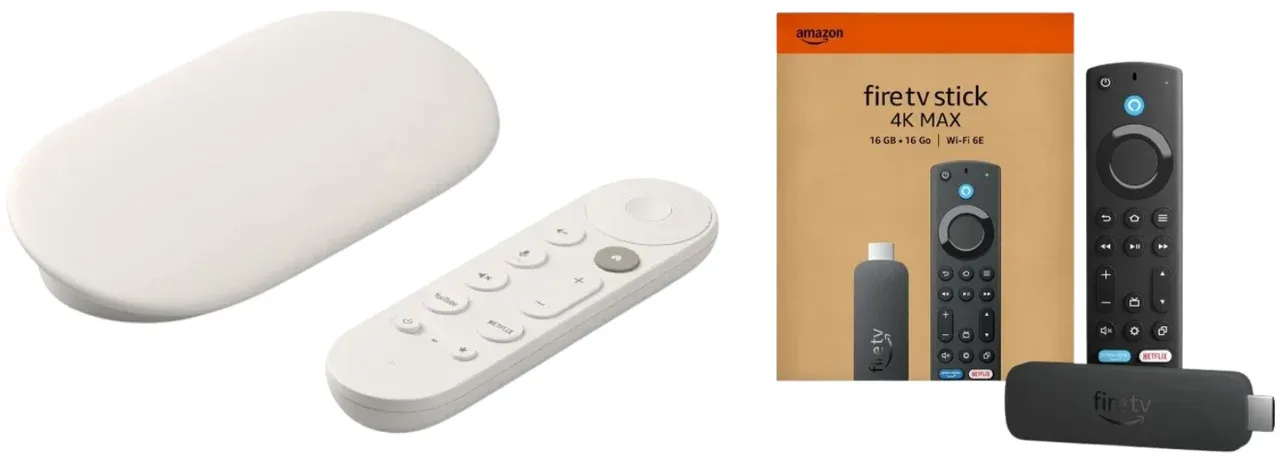
How to Chromecast to FireStick
Can't use Fire TV Chromecast in the traditional way doesn't mean you're out of options. There is still an alternative to cast content from your phone or computer to your FireStick. In this section, we'll explore an all-in-one workaround and how you can still enjoy streaming to your Fire TV Stick.
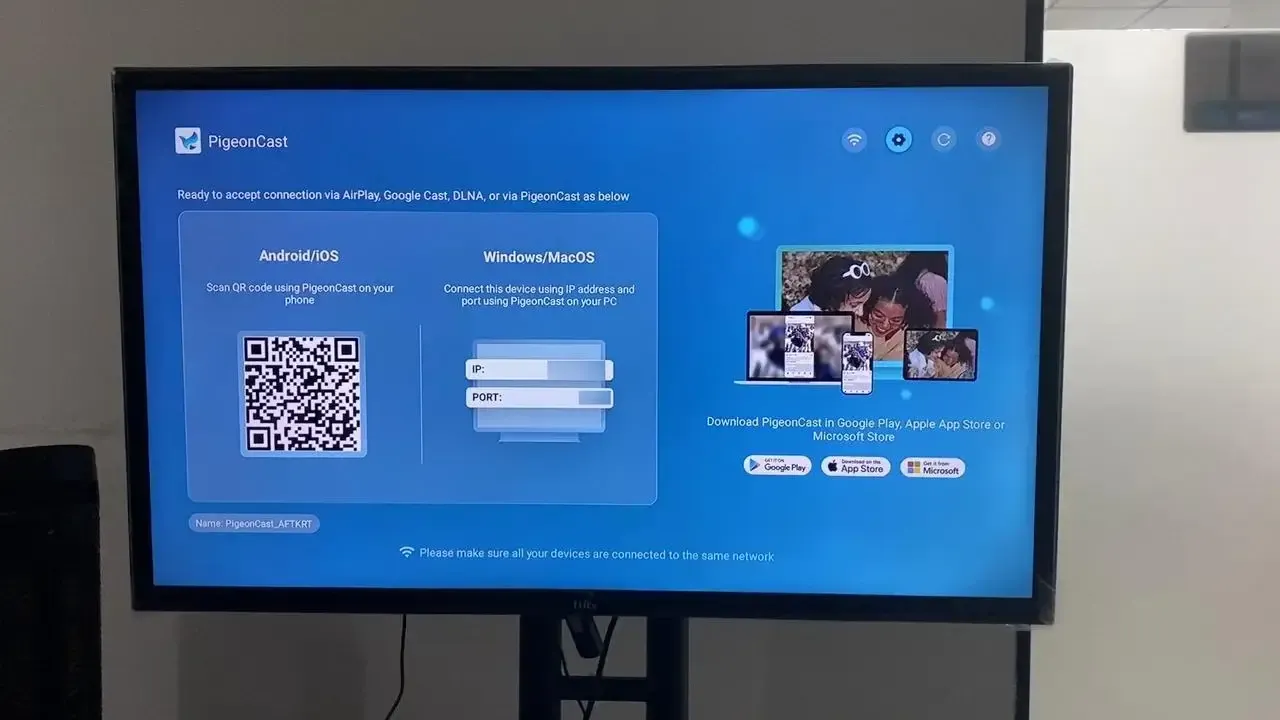
PigeonCast is a free, ad-free app that provides a seamless casting experience across multiple platforms, including Android, iOS, Windows, and Mac. It offers a simple and reliable way to bypass traditional casting limitations like AirPlay and directly stream content from your device to FireStick.
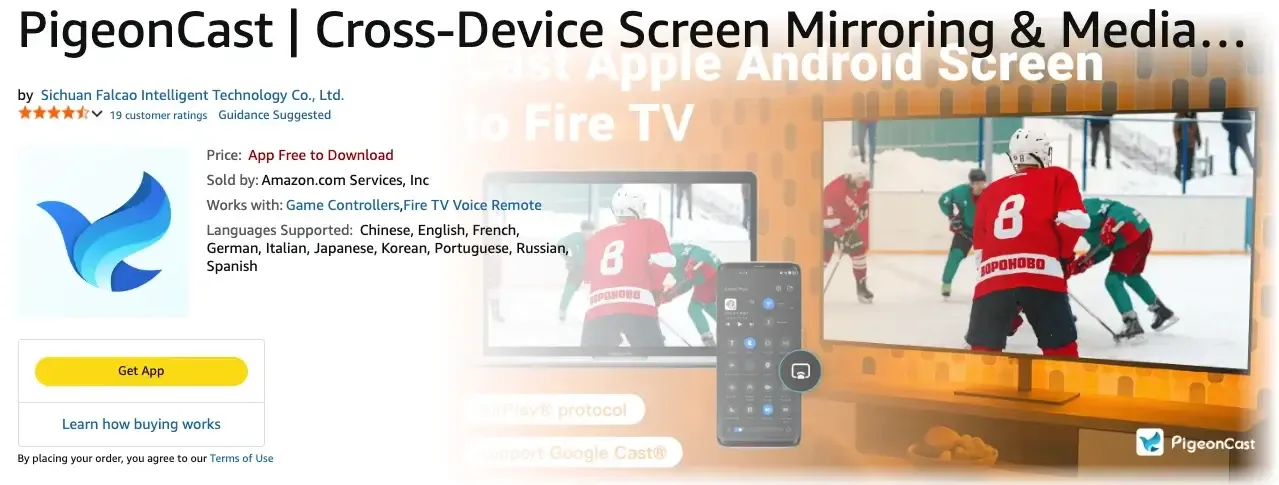
Step 1. Install PigeonCast on your FireStick and mobile or laptop device.


Overall Rating:



Step 2. Ensure your FireStick and mobile device are connected to the same wireless network.
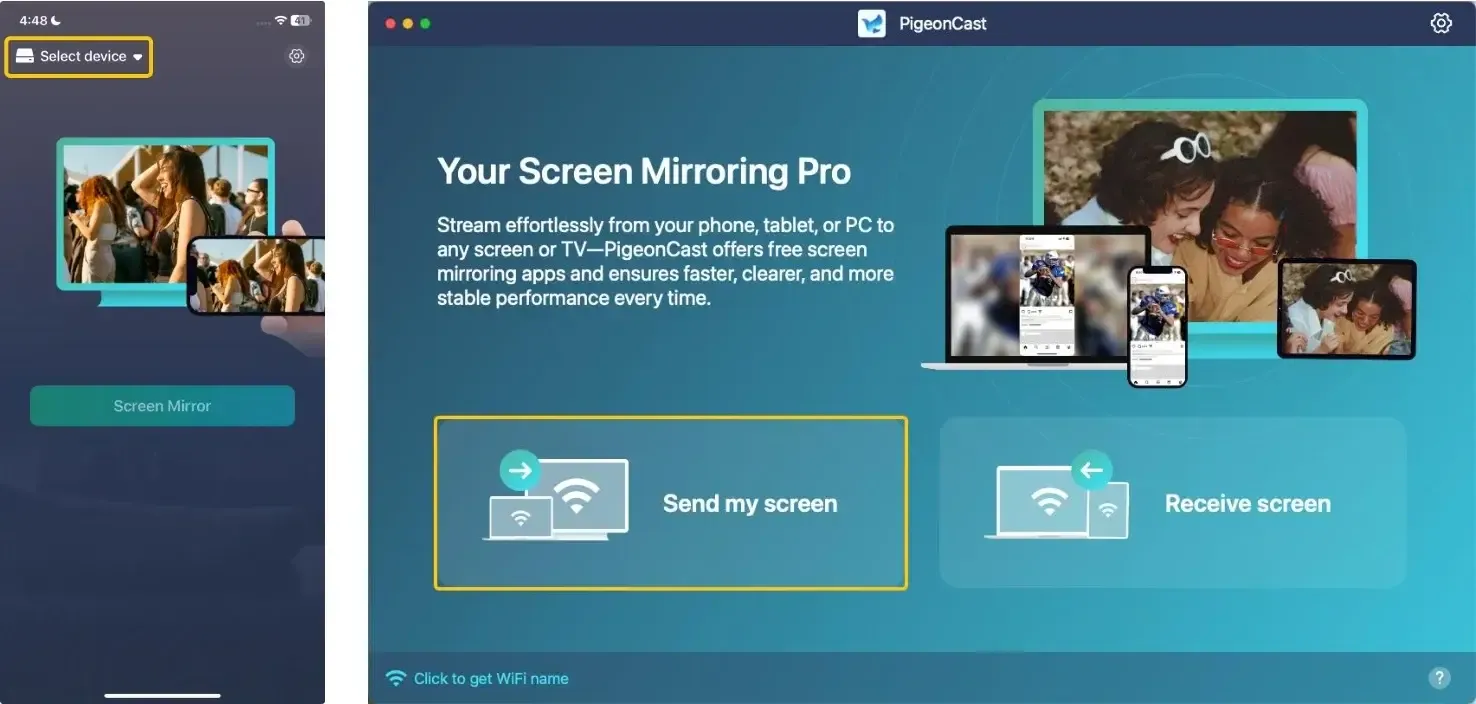
Step 3. Launch the app, tap Select device or Send my screen, and choose your FireStick from the available list. Alternatively, you can scan the QR code shown on the TV screen to build the connection.
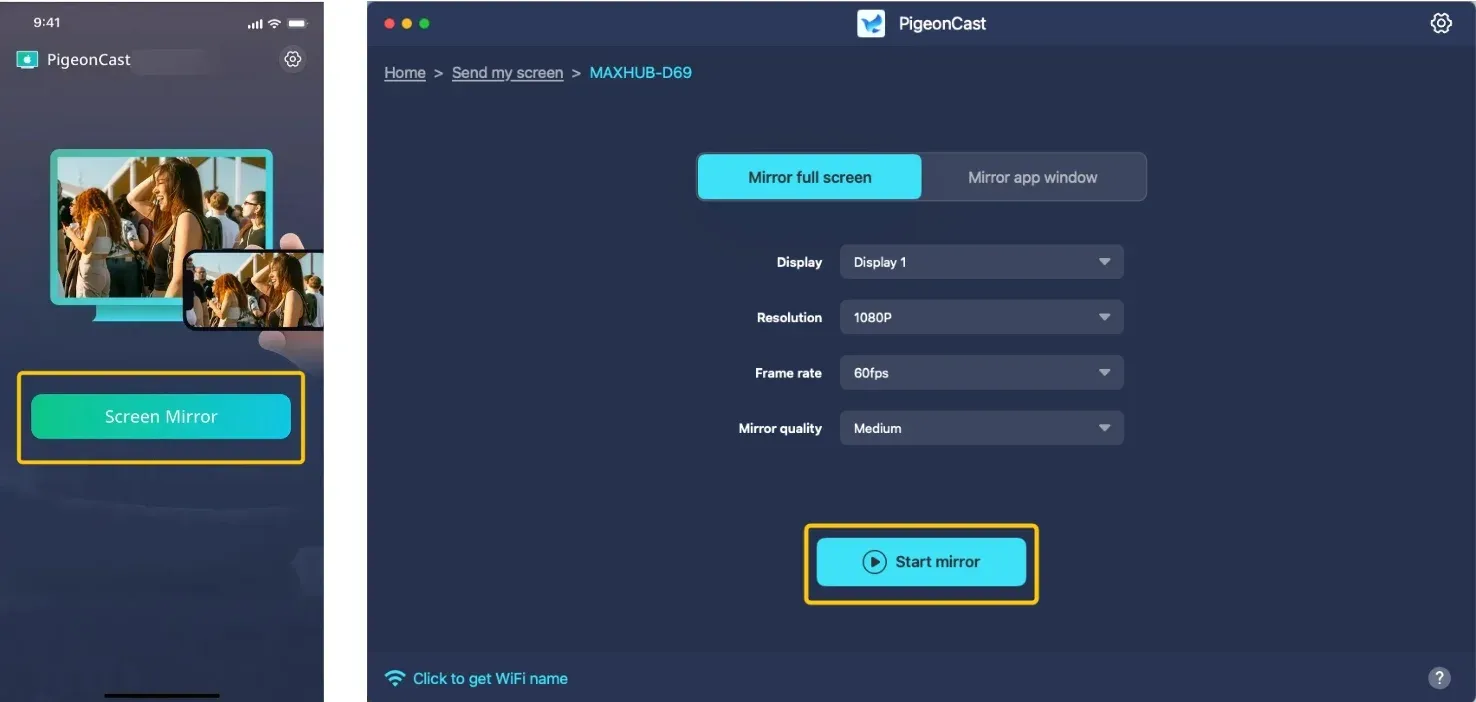
Step 4. Enter the onscreen PIN code to finish the connection. Once you succeed, you can then tap Screen Mirror to begin the mirroring activities.
Final Verdict
Can I Chromecast to FireStick? While you can't Chromecast FireStick, you can still stream content using apps like PigeonCast. This app lets you easily cast from your phone or computer to FireStick, providing a simple workaround for smooth streaming. Just follow a few easy steps, and you can enjoy your content on the big screen without any hassle.
Chromecast to FireStick FAQ
Can you Chromecast to FireStick?
No, you cannot directly use Chromecast with FireStick, as they are two separate streaming technologies. Chromecast relies on Google's ecosystem, while FireStick is powered by Amazon's Fire TV interface. However, there are alternative methods to cast content to FireStick, such as using third-party apps like PigeonCast or Miracast.
Why can't I cast to my Fire TV anymore?
If you can't cast to your Fire TV, here are some possible reasons:
- Your Fire TV and casting device might be connected to different Wi-Fi networks.
- Either your Fire TV or casting device may be running outdated software, affecting compatibility.
- Bluetooth or Wi-Fi might be turned off on your casting device or Fire TV, preventing the connection.
- Not all devices or apps support casting to Fire TV, depending on the casting method you're using.
- The screen mirroring or casting feature might be turned off on your Fire TV.
- Too many devices connected to your Wi-Fi network could cause interference and affect the connection.
- Some apps may not support casting to Fire TV or could require additional permissions.
How to use Chromecast on FireStick?
Unfortunately, you cannot directly use Chromecast on FireStick because they operate on different technologies: Chromecast uses Google Cast, while FireStick runs on Amazon's Fire TV OS. However, you can still cast content to your FireStick using third-party apps like PigeonCast, which allow you to stream from your phone, tablet, or computer to FireStick without needing Chromecast.
Clara Rossi is an experienced technology editor and a seasoned expert in screen mirroring and casting technologies. With a keen eye for detail and a deep understanding of how to seamlessly connect devices, Clara excels at optimizing user experiences for effortless sharing and streaming. Whether you're seeking quick fixes or advanced tips, her expertise and responsiveness ensure that every query is met with a well-informed and efficient solution.