
Want to stream your iPhone, iPad, or Mac screen directly to your Fire TV? AirPlay makes it possible, but not every Fire TV device supports it natively. While AirPlay to Fire TV isn't as seamless as on Apple TV, there are reliable ways to make it work. In this guide, you'll know how to AirPlay to Fire TV, and what to do if your device isn't compatible.
Can You AirPlay to Firestick
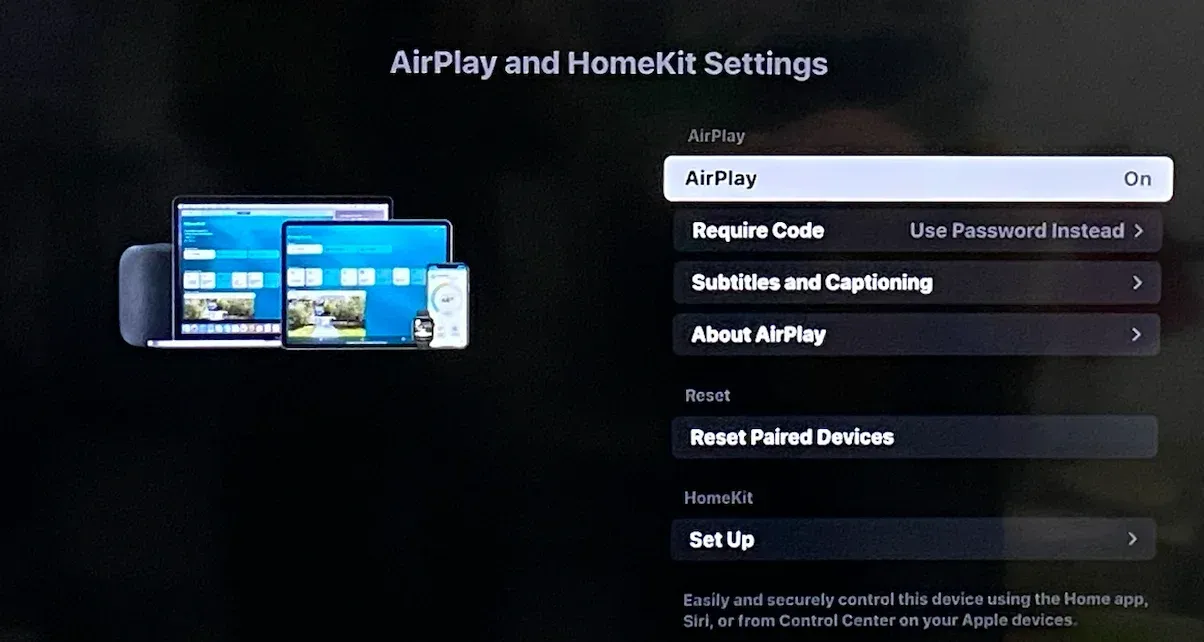
Some Fire TV Smart TVs, such as the Amazon Fire TV Omni Series and 4-Series (2021 or later), come with built-in AirPlay support (check AirPlay-compatible TVs). You'll find an AirPlay & HomeKit setting right in the TV's menu, allowing you to connect your Apple device directly.
However, when it comes to AirPlay Firestick, most Fire TV Sticks (including Fire TV Stick Lite, Fire TV Stick 4K, and 4K Max) do not include native AirPlay functionality. That doesn't mean you can't AirPlay to Firestick; it just means you'll need to use an AirPlay app for Firestick that enables the same capability.
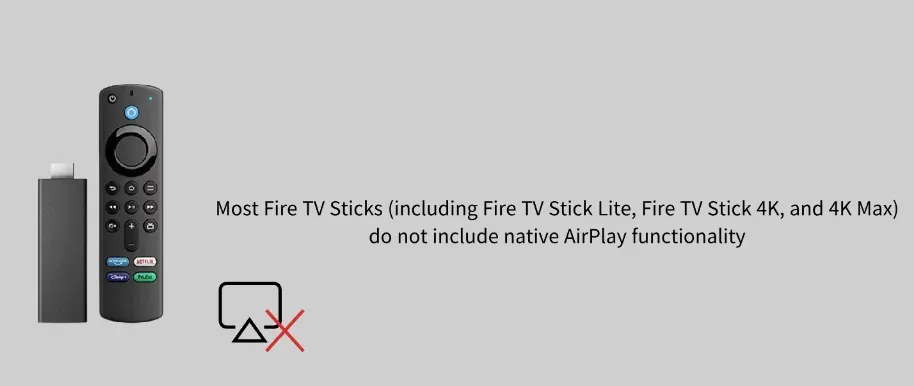
In short, your ability to AirPlay to a Fire OS device depends on its hardware specifications.
How to Enable AirPlay on Fire TV
If your Fire TV supports AirPlay natively, you can enable it in just a few steps:
Step 1. Go to Settings on your Fire TV.
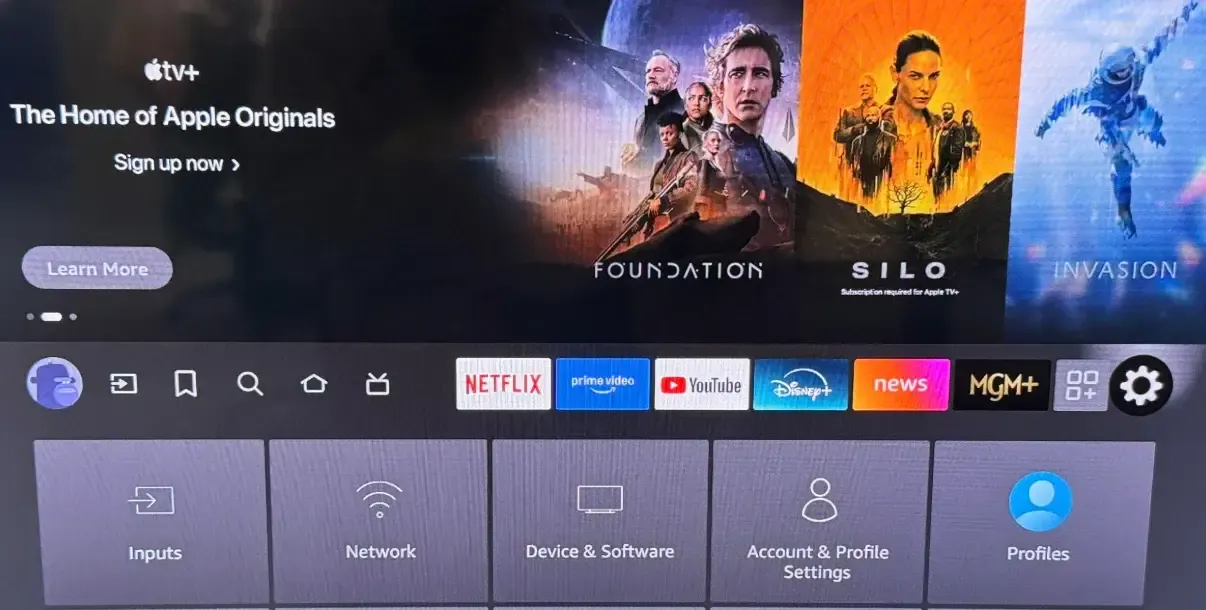
Step 2. Select Display & Sounds.
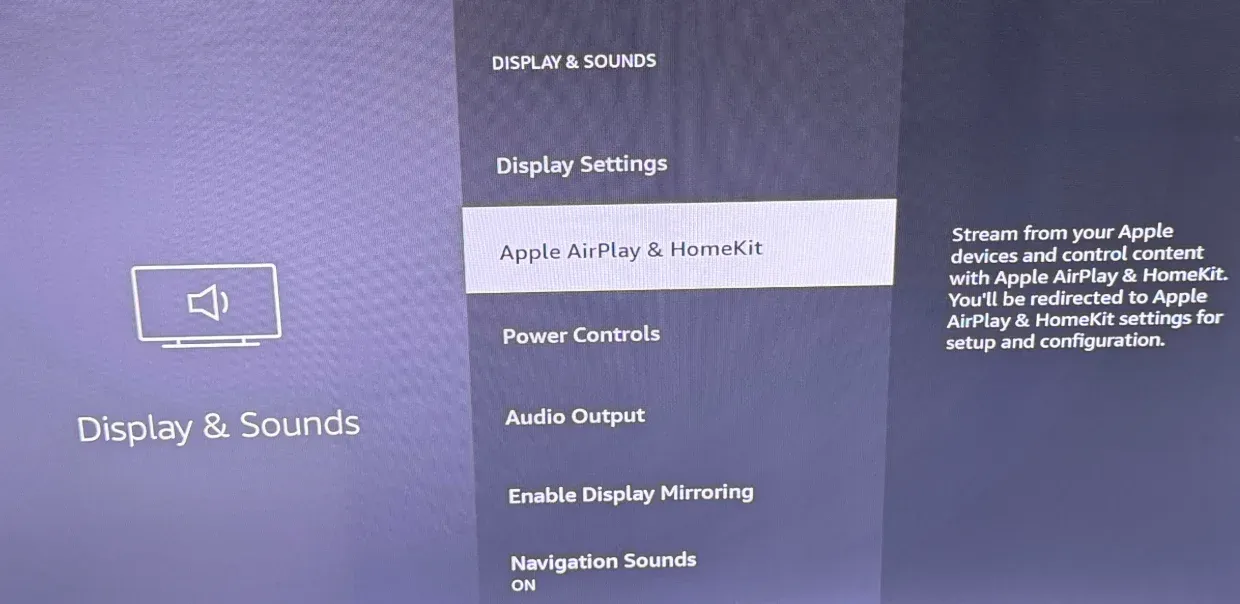
Step 3. Choose AirPlay & HomeKit.
Step 4. Toggle AirPlay On and follow the on-screen pairing prompts if needed.
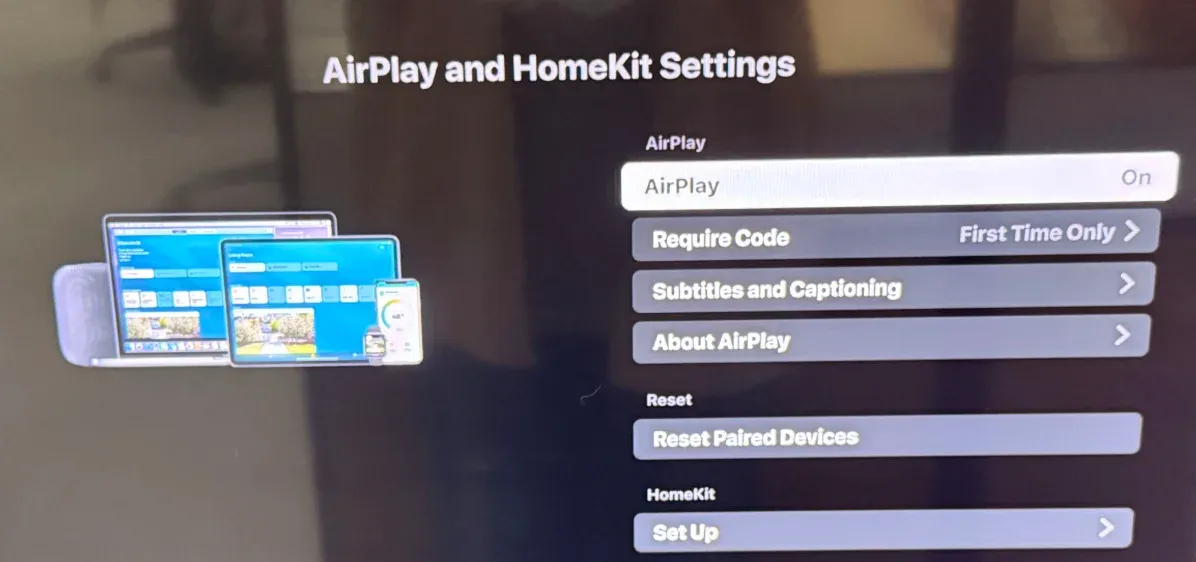
Step 5. Ensure your Fire TV and your Apple device are connected to the same Wi-Fi network.
Once enabled, your Fire TV will appear in the AirPlay menu on your iPhone, iPad, or Mac.
If your Fire TV or Firestick doesn't have an AirPlay & HomeKit option, don't worry. You can install a third-party AirPlay receiver app like PigeonCast from the Amazon Appstore. These apps allow your Fire OS device to act as an AirPlay target for Apple devices, and often support Google Cast and DLNA as well. For users who want more than just AirPlay support, our guide on how to cast phone to Fire TV covers broader casting options across different devices.
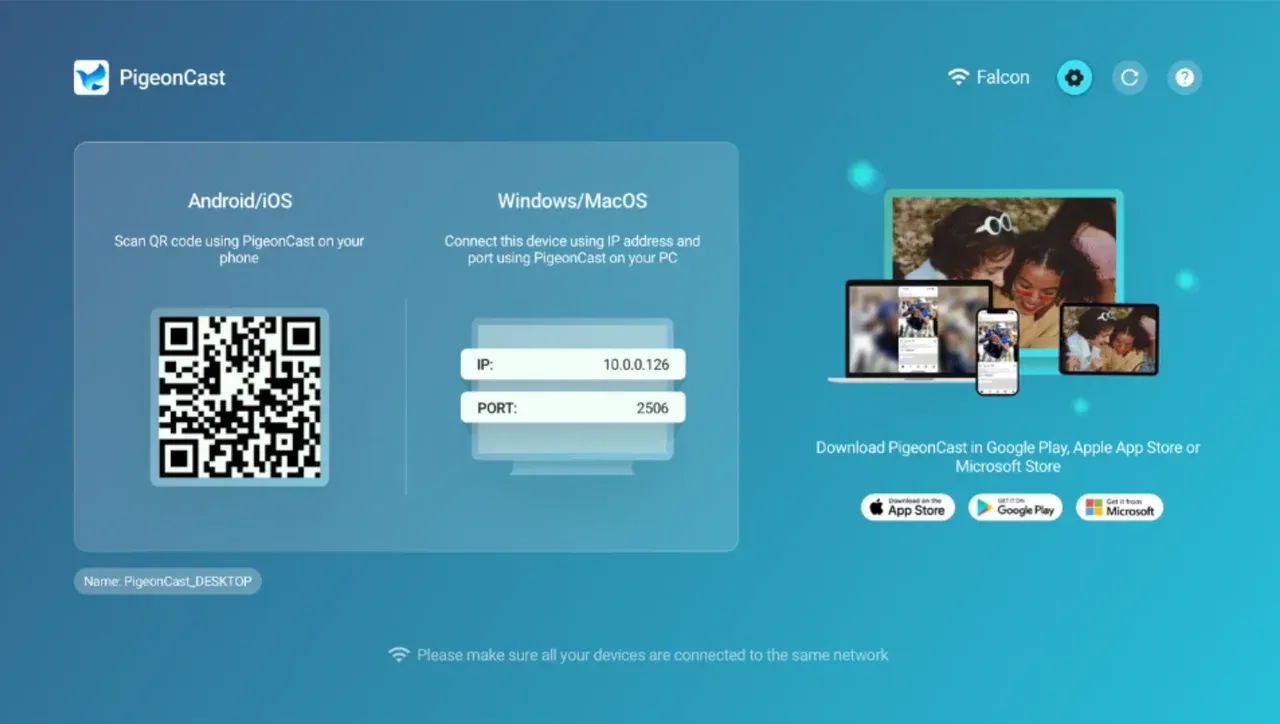
Tip: PigeonCast is another great cross-platform mirroring app that supports AirPlay, Google Cast, and DLNA. It's ideal if you want one solution that works for all devices under the same Wi-Fi network.
How to AirPlay to Fire TV Stick
If you're ready to start streaming, this section walks you through the practical steps for how to AirPlay to Fire TV or Firestick using your Apple devices. Whether you want to watch your favorite iPhone videos on a bigger screen or mirror your Mac for a presentation, the process is simple once your Fire TV is properly set up.
Before diving into device-specific guides, make sure your Fire TV and Apple device are connected to the same Wi-Fi network, and that any AirPlay receiver app (like PigeonCast) is open and ready. Once that's confirmed, follow the steps below for your device.
#1. AirPlay to Fire TV Stick from iPhone/iPad
If you're wondering how to AirPlay to Fire TV from iPhone or iPad, the good news is that the process feels familiar to using AirPlay with an Apple TV. Follow the guide on how to AirPlay to Firestick:
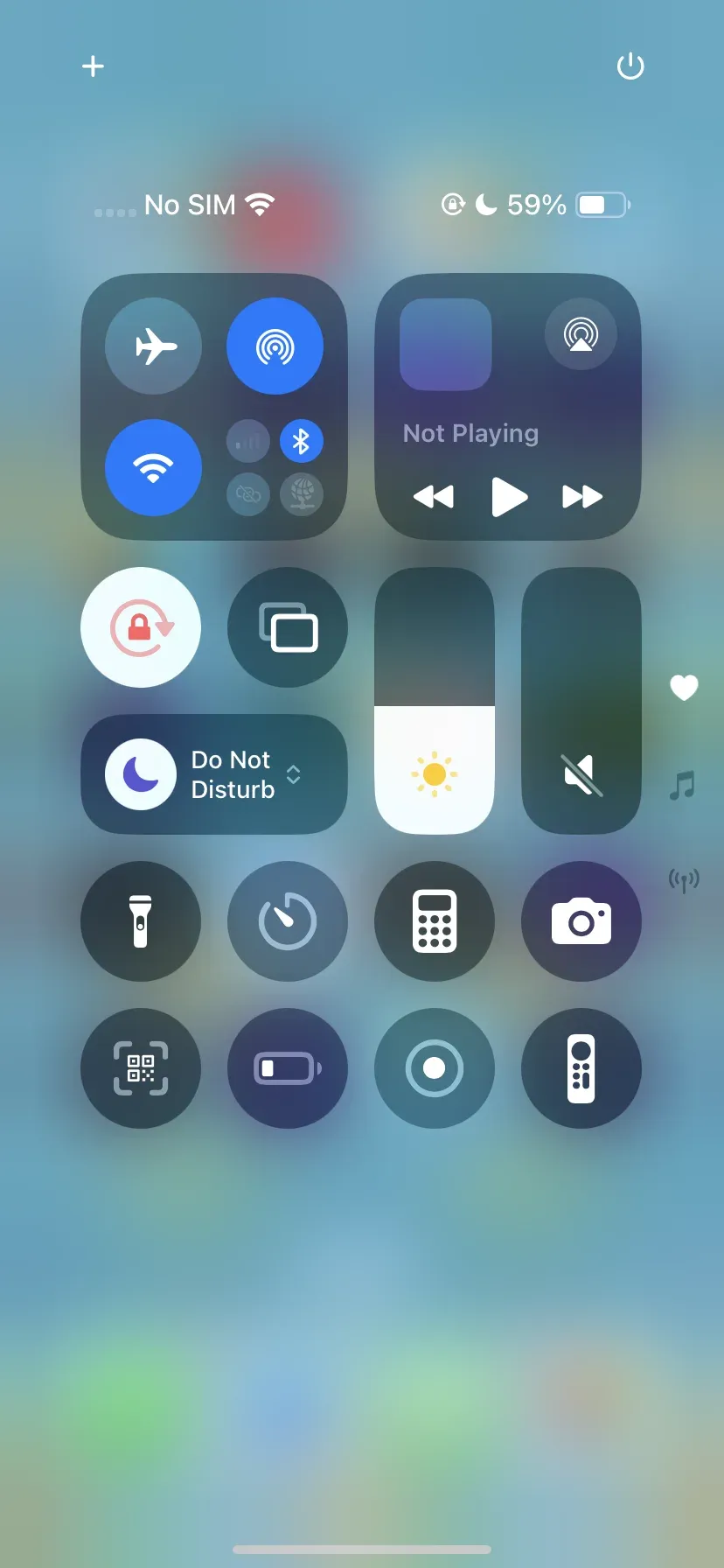
Step 1. On your iPhone or iPad, open Control Center.
Step 2. Tap Screen Mirroring (or the AirPlay icon).
 Step 3. Select your Fire TV Stick from the available list.
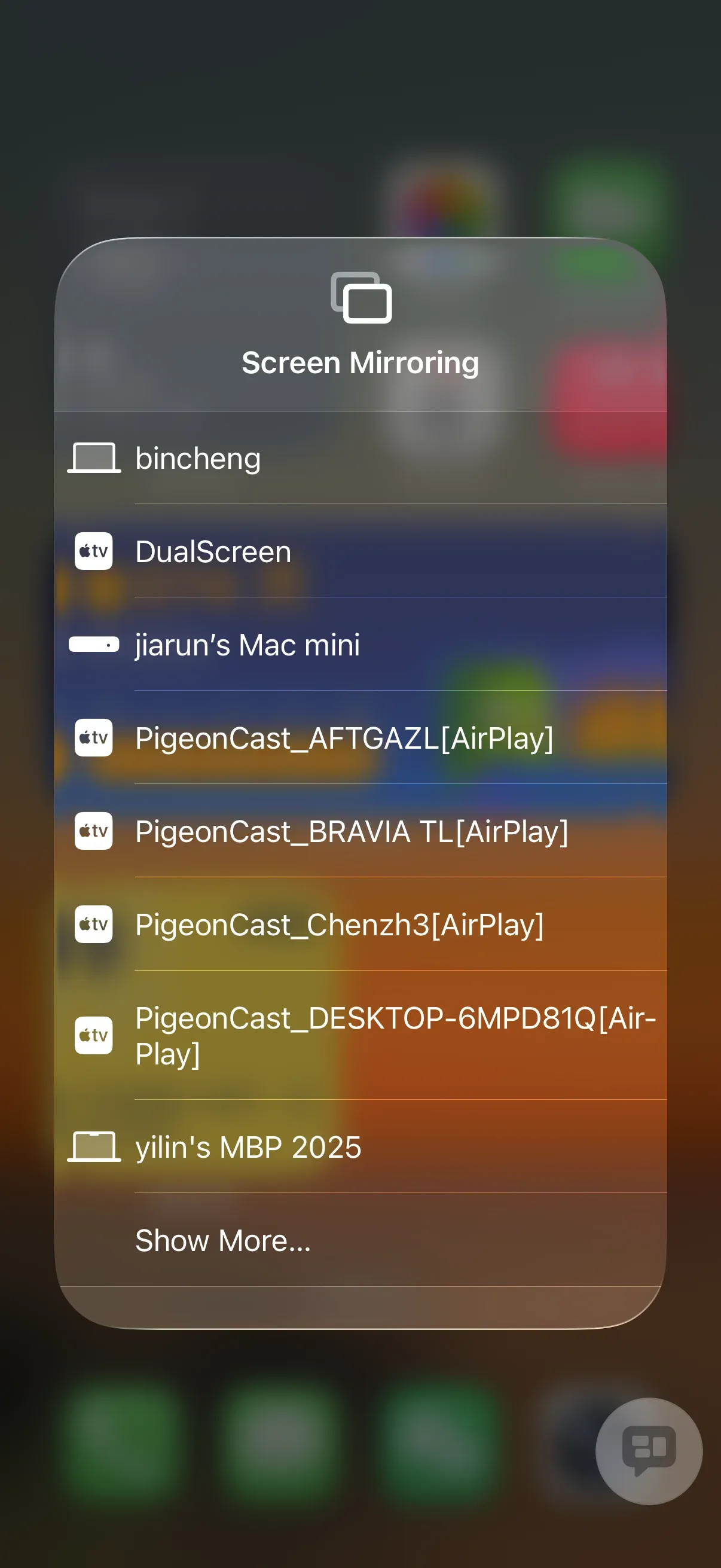
Step 4. Enter the on-screen code if prompted.
Once connected, your iPhone or iPad screen will instantly appear on your TV. You can mirror apps, stream music, play games, or view photos — all in real time and without cables.
If the connection fails, double-check that both devices share the same Wi-Fi network and that your Firestick's receiver app is running in the foreground.
#2. AirPlay to Fire TV Stick from MacBook
For those working from a laptop or streaming from a bigger screen, here's how to AirPlay on Fire TV from MacBook. The experience is nearly identical: your Mac recognizes the Firestick as an AirPlay receiver once configured correctly.
Here's how to stream Mac to Firestick or Fire TV:
Step 1. On your Mac, click the Control Center icon in the menu bar.
Step 2. Select Screen Mirroring.
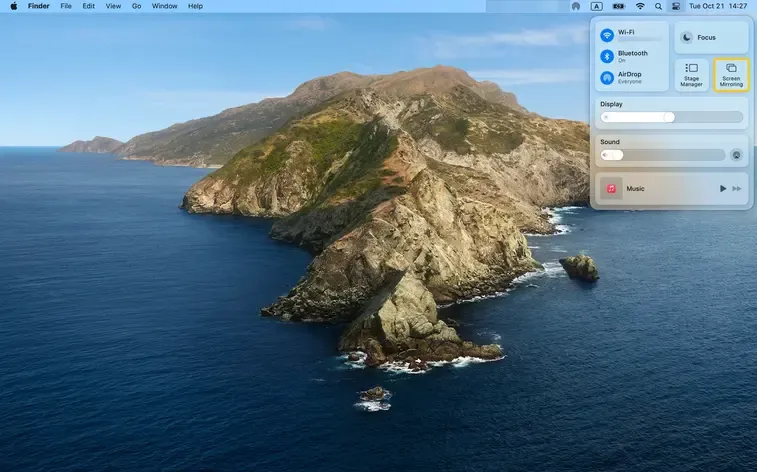
Step 3. Choose your Fire TV device from the list.
Step 4. Enter the pairing code shown on the TV if required.
Within seconds, your Mac desktop will appear on your Fire TV. This setup works perfectly for streaming YouTube, displaying slides, or playing Apple Music directly on the big screen. That's how to AirPlay Mac to TV, simple, smooth, and wireless.
Tip: If your Mac doesn't detect the Firestick, check that "AirPlay Receiver" is active in the app settings and that no VPN or firewall is blocking the connection.
Wrapping Up
Even though Fire TV devices don't offer native AirPlay support across the board, it's still easy to use AirPlay to Fire TV or Firestick with the help of third-party apps. If you have one of the newer Fire TV Smart TVs with built-in AirPlay, enabling it is just a few clicks away. Otherwise, apps like PigeonCast make it effortless to mirror iPhone, iPad, or MacBook to your Fire TV wirelessly in high definition.
How to AirPlay to Fire TV FAQs
Q: Does Firestick have AirPlay?
Only some Fire TV Smart TVs do. Fire TV Stick devices don't have native AirPlay, but can use apps like PigeonCast to add AirPlay support.
Q: How to mirror iPad to Firestick?
Install an AirPlay receiver app like PigeonCast on your Firestick, open it, then use "Screen Mirroring" from your iPad's Control Center.
Q: What is the best screen mirroring app for Firestick?
PigeonCast and AirScreen are the best options. They support multiple streaming protocols, including AirPlay and Google Cast.
Q: Why won't my Firestick AirPlay?
Ensure both devices are on the same Wi-Fi, AirPlay is enabled in the receiver app, and your Firestick's software is updated.
Q: How to connect phone to Fire TV?
Use an AirPlay-compatible app or the built-in AirPlay setting if your TV supports it. Open Control Center → Screen Mirroring → choose your Fire TV.
Q: how to AirPlay on Insignia Fire tv?
If your Insignia Fire TV includes AirPlay & HomeKit in settings, enable it directly. Otherwise, download a receiver app like PigeonCast.
Mia Clarke is a technology editor specializing in screen mirroring and casting solutions across multiple platforms. Mia provides clear, practical guides and in-depth insights to help users seamlessly connect their devices. Passionate about enhancing digital experiences, Mia is dedicated to keeping readers updated on the latest trends and tools in cross-platform screen sharing. Whether you’re looking to mirror your smartphone, laptop, or smart TV, Mia’s content delivers reliable, user-friendly advice to simplify your tech setup.